
 Netflix Basic
全国范围内安装
签购
| UniFi Maxis Astro Njoi |
常问问题
在这里找到您要的答案。
我们提供一站式服务为您申请Astro和Broadband。不必开车,排队和在销售柜台等候。 我们可以帮助您处理您的申请。
我们不收取额外费用。 无需提供信用卡信息。 费用与您在销售柜台申请的费用相同。
首先,您可以在线申请,我们将在工作时间内立即与您联系。 通过WhatsApp/电子邮件/传真发送您的身份证-IC(马来西亚公民)/ 护照(外国人)的复印件给我们。 收到所有资料后,我们将立即处理您的申请。
一旦收到您的完整资料,我们将在工作时间内立即处理您的申请。一旦您的申请获得批准,服务提供商的承包商将与您联系以进行安装预约。
ASTRO 和宽频收费同时在一张账单,享受更大的节省和无忧的账单支付。 在24个月的合约期内,您可以每月以折扣价享受 Astro 和宽频。
Astro 提供多种电视配套,包括娱乐、体育、电影和儿童配套。您可以选择符合您观看需求的配套,并在适用情况下添加额外的串流应用服务。
可以,您可以只订阅 Astro 电视配套而无需绑定宽频。不过,将 Astro 电视与光纤宽频绑定可享有更好的每月优惠,并且只需支付一张综合账单,更加方便。
对于小型家庭以及轻度上网和串流使用者,100Mbps 通常已足够。较大家庭、游戏玩家或重度串流用户则可选择 500Mbps 或 1Gbps 配套,以获得更流畅的多设备使用体验。
大多数 Astro 电视和光纤宽频配套都附带 24 个月合约期。如在合约期满前取消服务,可能会产生提前终止费用。
可以,您可在符合资格及覆盖范围的情况下随时升级电视配套或宽频速度。根据升级情况,可能需要重新计算合约期限。
您的每月账单将由 Astro 直接发出。您可通过电子邮件接收账单,或通过 Astro 账户在线查看。绑定配套用户将收到电视与宽频服务的综合账单。
付款方式包括网上银行、自动扣款、信用卡或 Astro 提供的其他认可付款渠道。我们的团队将在申请过程中为您提供协助。
如果您遇到任何服务中断问题,可联系 Astro 客户服务寻求技术协助。大多数情况下可远程解决,如有需要将安排技术人员上门处理。
可以,迁移服务需视新地址是否在服务覆盖范围内而定。根据您的配套,可能会产生迁移费用及合约调整。
不需要,提交申请时无需提供信用卡资料。服务获批后,付款安排将由 Astro 直接处理。
部分 Astro 电视配套可根据当前促销及服务情况添加串流服务等附加项目。可能需支付额外月费。
是的,光纤安装时通常会提供 WiFi 路由器。路由器型号可能会根据所选宽频速度配套而有所不同。
可以,我们会在处理您的申请前确认您地址的服务覆盖范围,以确保该地区可安装宽频服务。
马来西亚公民需提供 MyKad 复印件。外籍人士则需在提交宽频申请时提供护照复印件。
申请获批后,服务提供商通常会在 2 至 7 个工作日内联系您安排宽频安装预约。
大多数 Astro 宽频配套附带 24 个月合约期,从安装日期开始计算。如您搬迁,可能需要在新地址重新签订 24 个月合约。
可以,您可在新地址具备服务覆盖的情况下迁移宽频服务。合约期限可能会从新安装日期起重新计算 24 个月。
可以,您可申请在家中调整宽频设备位置。若属于非标准安装,可能会产生额外费用,并需在评估后直接支付给安装人员。
可以,您可转用 Astro 宽频。为避免服务中断,建议在终止现有宽频合约前先开通新的宽频服务。
标准安装在促销期间可能免费,但非标准安装(如设备迁移或复杂布线)可能会产生额外费用,并需直接支付给安装人员。
You will be contacted by Astro via SMS/call at the end of your 24 months speed upgrade period. Customers who choose to remain the upgraded speed after 24 months will be charged as per the monthly subscription fee of the upgraded speed plan from the next month onwards and customers who choose to downgrade to their initial subscribed speed plan will not be charged any additional fees.
Situation 1:
Customer is subscribed to the 50Mbps Astro Fibre plan and is entitled to receive a free 100Mbps speed upgrade for 24 months. If the customer chooses to downgrade back to 50Mbps at the end of the 24-month period, no additional charges will apply.
Situation 2:
Customer is subscribed to the 100Mbps Astro Fibre plan and is entitled to receive a free 500Mbps speed upgrade for 24 months at RM129/month. If the customer chooses to remain with the upgraded speed of 500Mbps at the end of the 24-month period, they will be charged RM189/month* from the 25th month onwards.
*This price might differ depending on the offer or promotion
My Astro app and web is currently available in English and Bahasa Malaysia only.
About the WeTV app
1. What is WeTV?
WeTV is a global video on demand and over-the-top streaming service, providing the best premium entertainment including Chinese, Indonesian, Korean, Thai, Japanese and Malaysian series and movies to fans of Asian entertainment.
2. Can I stream WeTV for free on my Ultra/Ulti Box?
All Ultra/Ulti Box customers may watch selected WeTV titles for free on their Astro Box.
Simply follow these steps:
Step 1: Go to your Ultra/Ulti Box Home Page and select “WeTV†under the Apps rail
Step 2: Click play on any non-VIP titles/episodes and start streaming!
Note: No login is required to stream free content on WeTV.
3. How can Astro customers enjoy WeTV?
Astro customers can subscribe to WeTV VIP via Astro as an add-to-bill service for only RM10.50/month (RRP RM11.90) to enjoy the app on their big screen TV via the Ultra/Ulti Box, wetv.vip or on the go with the WeTV mobile app which is available on Android and iOS devices.
For more details on the WeTV VIP Membership, please refer to Q12 - Q17.
4. How do I subscribe to WeTV VIP via Astro?
All new and existing Astro TV customers can subscribe to WeTV VIP for only RM10.50/month by following the steps below:
Step 1: Go to www.astro.com.my/WeTV and select “Get WeTV nowâ€
Step 2: Log in with your Astro ID
Step 3: Key in your mobile number and proceed to add WeTV to your bill
Step 4: Once you have validated your mobile number via the OTP code, you will be able to enjoy VIP-exclusive shows on WeTV!
5. How do I access WeTV VIP on my Ultra/Ulti Box?
After completing the subscription process in Q4, follow the simple steps below to access WeTV VIP on your Ultra/Ulti Box:
Step 1: Go to your Ultra/Ulti Box Home Page and select "WeTV" under the Apps rail
Step 2: Click "Log in" and scan the QR code on your TV with your mobile device to download/launch the WeTV app
Step 3: On your mobile device, create a new account or log in using your registered mobile number and click "Login Authorization" to pair your device to your TV
Step 4: Once pairing is complete, please press the back button on your remote to start enjoying VIP-exclusive shows!
Important note: Please ensure that the mobile number used to log in to the app is the same one used to purchase your WeTV VIP subscription. Email login is not applicable for Astro Billing WeTV VIP customers.
*We highly encourage our customers to only use their device’s built-in camera to scan the QR code if available. Alternatively, only use QR code scanner apps that are from a trusted 3rd party provider. By using an untrusted QR code scanner app, you assume all responsibility for any damages or losses that may occur.
6. I already have a WeTV subscription, what will happen if I use the same mobile number to subscribe to WeTV VIP via Astro?
If you already have a WeTV subscription, you are allowed to subscribe to WeTV VIP with the same mobile number via Astro; however, your existing account will continue to run until you manually cancel it. With two active subscriptions with the same mobile number, your subscriptions will be added on top of your existing account and you will be charged twice on two separate accounts.
7. Can I access the WeTV app outside of Malaysia?
Yes, you will still be able to access the WeTV app and stream your favourite content outside of Malaysia. However, kindly be informed that this will be subject to content availability in the specific regions.
8. Can I download content on the WeTV app for offline viewing?
Yes, you can download WeTV's content on your device for offline viewing if you have subscribed to WeTV VIP. This feature is not available if you are not a VIP member. However, kindly note that some content is subjected to copyright which disables the download function on those selected videos.
9. What is the storage requirement for content downloading?
The storage requirement is dependent on the type of videos users are downloading as the space needed varies between titles.
10. How many devices can I use to stream WeTV at the same time?
You can access your WeTV VIP account on up to 2 devices at a time, including your Ultra/Ulti Box. To ensure a smoother streaming experience, please sign out from any unused devices.
11. Are there any subtitles available for the content on WeTV?
Yes, subtitles are available in various languages including English, Malay, Chinese (Simplified & Traditional) etc.
To enable this feature, click on the subtitles selection option at the bottom right corner of the video player, then click on the language you desire.
WeTV VIP Subscription
12. What is a WeTV VIP subscription?
WeTV offers a wide range of hot and exclusive content in advance for WeTV VIP members, which includes WeTV Originals, series, dramas and many more. With a VIP subscription, you can also enjoy all these exciting content with the ability to skip advertisements to stream without interference and watch your favourite shows on two devices at the same time!
VIP membership privileges:
1. Premium Content on WeTV only
2. Enjoy VIP content on two devices at the same time
3. Watch the content in advance before anyone else!
13. Can I rent movies or series on WeTV via Astro?
Yes, you will be able to rent titles on the WeTV mobile app. Subsequently, you will be able to stream your rented title on the Ultra/Ulti Box, wetv.vip, and the mobile app.
14. How much does a WeTV VIP subscription via Astro cost?
Astro customers can enjoy a special offer of RM10.50/month (RRP RM11.90/month) when they subscribe to WeTV VIP via Astro.
Note to CCC: Employee/Ex Employee/Courtesy Board Members will also enjoy the same pricing at RM10.50/month.
15. When can I start enjoying my WeTV VIP subscription?
You will be able to enjoy all the content on WeTV via your Ultra/Ulti Box, wetv.vip and the WeTV mobile app immediately upon successful purchase from the Astro website. Please ensure that the mobile number used to log in to the app is the same one used to purchase your WeTV VIP subscription.
16. How do I cancel my WeTV VIP subscription?
You can cancel your WeTV VIP subscription via WeTV’s official website or mobile app.
Kindly note that we will not be able to offer a refund if you do decide to leave the WeTV app before your subscription period ends.
17. Will there be any penalty fees if I cancel my WeTV VIP subscription?
No, your subscription will be terminated at the end of your Astro billing date. Until then, you will still be able to access your WeTV VIP account.
App Issues
18. Who may I contact if I encounter any problems with the WeTV app?
If you require any assistance with the app, you may:
1. Visit the WeTV official Facebook Page for more information: WeTV Malaysia - Home | Facebook; or
2. Drop the WeTV team a message via Facebook chat here
If you encounter any issues with your Astro billing and entitlement, you may contact our Customer Service by:
1. Submitting a feedback form here: www.astro.com.my/contactus/form; or
2. Reaching to us via WhatsApp by typing "Hi"at 03-9543 3838
19. Will my personal information be protected?
Yes, Astro is bounded by the PDPA. All information received will be used in accordance with our Privacy Notice
Astro introduces Liga Malaysia for all Astro customers to watch the Malaysian Football League’s Liga Malaysia competitions LIVE, comprising Perlawanan Sumbangsih (Piala Sultan Haji Ahmad Shah), Liga Super, Piala FA and Piala Malaysia live in HD on Astro Arena (CH801), Arena Bola channels (CH803 and CH804) and stream on Astro GO until further notice.
Astro Fibre subscription also comes with a 24-month contract commitment and will NOT be auto renewed at the end of contact period.

1. Please connect your computer or laptop to your Astro Fibre router using LAN cable. Your LAN cable must be connected from the yellow port of Astro Fibre router (Any available port).
2.Once connected, open any web browser such as Google Chrome, Internet Explorer, Mozilla Firefox and etc.
3. On the address bar, type http://192.168.100.254 and below page will appear.

Login using your username and password if you have changed the router login setting. Otherwise, your default router login is as per below.
Username: user
Password: user
4. Once you have successfully logged in, the router's web-based setup page will appear.

5. At the top of the page, click Wi-Fi to configure the WiFi parameters.

6. You may change the Wi-Fi Name and the Wi-Fi Password as per your preferences, then click "Apply".

7. Your Wi-Fi Name and password has been changed. Kindly ensure to reconnect your WiFi according your new WiFi name and password.
1. Ensure power cable is connected tightly.
2. Try to use another power socket / power source to eliminate faulty power sockets/power sources which could cause the issue.

3. If the issue persists, submit your feedback form for further assistance.
You will be notified 30 days before the expiry on the renewal of subscription and can opt out from auto renewal at least (2) days before the auto-renewal date.
If you want to opt out of your auto-renewal for Disney+ Hotstar, please contact our Customer Contact Centre at 03 9543 3838 and speak to one of our customer service executives to change your package according to what suits you best at least two (2) days before the next auto-renewal date. Alternatively, please WhatsApp us at 03 9543 3838 and type "DH Help
You can add on Astro Fibre, our own internet service to your existing TV Pack for even more value and savings. Please click here to learn more about Astro Fibre.
Please follow the steps below to retrieve your Astro ID:
Note: Only Astro customers whose Astro ID is linked to their subscription can retrieve their Astro ID this way. Otherwise, you would need to create a new account.
You may access it by pressing "200' on your Astro remote control whilst watching TV.
The payment will take some time to reflect in My Astro app and web account. If you experience any further issues or it is still not reflecting in My Astro, please reach out to us via WhatsApp at 03-9543 3838 for more details.
Your bill will be waived upon request.
STEP 1
Press "HOME" button on your remote control.

STEP 2
Navigate to Settings and press "OK".

STEP 3
Navigate to Display and press "OK".

STEP 4
Navigate to TV Settings and press "OK".

STEP 5
Navigate to Conversion for 4:3 Input Video, select your preferred selection and press “OK”.

STEP 6
Select Yes, continue and press "OK" to confirm on the changes.
Otherwise, select No, go back to cancel.

Astro customers can make payments via Auto-debit, WhatsApp,Astro Quick Pay and other authorised payment channels withoutsurcharge for the easiest and fastest way to pay their Astro bills.
Bill payments at selected petrolstations, convenience stores, retail/mobile shops, kiosks, and e-Wallets, may incur a surcharge of up to RM0.50 per transaction by the appointed collection agencies of RMS (Razer), ATX, MobilityOne and e-Pay.
The surcharge is imposed by third-party payment collection partners for services rendered.
You can refer to all our payment options below. Those marked with ‘*’ will be subject to a surcharge by appointed collection agencies.
A. HASSLE-FREE METHODS
Auto-Debit:
Click here for step-by-stepinstructions on how to activate auto-debit payment via My Astro Portal.
WhatsApp:
- Save Astro’s WhatsApp number 03-9543 3838 into your contacts and send “Hi”to us via WhatsApp.
- Follow the instructions in the menu to proceed with your payments.
JomPAY:
Look for the JomPAY logo on your latest bill, log into your preferred online banking platform, and submit your payment details.
• Biller Code: 9639 (unique to Astro only)
• Ref-1: <10-digit Astro account number> (E.g. 08XXXXXXXX)
B. ASTRO SELF-SERVICE METHODS
Astro Quick Pay:
- Visit pay.astro.com.my.
- Just enter your 10-digit Astro Account Number and proceed with theinstructions that follow.
My Astro Portal:
- Login to My Astro Portal to conveniently make your payment online.
- Select ‘PAY BILL’ and proceed with the instructions that follow.
- You can also use this portal to check your billing and payment history.
Channel 200:
- Tune into CH200.
- Select 'My Account'.
- Click on 'Make Payment' and follow the instructions displayed on the screen.
- SMS the code shown on your TV to 33777.
- Wait for the SMS reply with an attached link to proceed with your payment.
My Astro App:
- Download My Astro app (available for FREE on both Google Play & Apple App Store).
- Register/Login/Link account and provide a valid email address and mobile number.
- Select 'My Account' on the menu bar to view your outstanding balance and click on 'Let’s Pay' to make your bill payments.
- You will receive a push notification in your message inbox verifying that your payment has been made, upon successful payment.
C.BANKS
Maybank:
- ATM
- Online banking
Visit maybank2u.com.my for more information.
Public Bank:
- ATM
- Cash Deposit Machine & Cheque Deposit
- Online banking
Visit pbebank.com for moreinformation.
Bank Simpanan Nasional:
- ATM
- Cash Deposit Machine
- Online banking
- SMS banking
- BSN Ejen Bank Berdaftar (EBB)
- Over-the-counter payments
Visit mybsn.com.my for more information.
Agrobank:
- ATM
- Online banking
- Over-the-counter payments
Visit agrobank.com.my for more information.
D. e-WALLETS
ATX*
Boost, GoPayz, KelantanPay, Zcity (GEM REWARD), SabahPay, Tapay, GoPay,MerchantTradeMoney, ToneGroup, Elinking, Mpay, Mcash, and other various smaller wallets.
e-Pay*
Touch n Go (TnG), Grab Pay, Shopee, BigPay, True Money
E. OTHER METHODS
Associated Retailers:
RMS (Razer/ MOL)*
7-Eleven, 99 Speedmart, Caring Pharmacy
ATX*
RedONE Shop, Mobile Money, Runcit Hero (telecommunication shops), Parcel Hub (courier shops), Kiosk, DHL
Mobility One*
Kedai D’mart, Happy Mart, Pasaraya Sakan, PusatKomuniti Desa (PKD), Aeon Big and various sundry shops
e-Pay*
Petrol stations (Petronas, Shell, BHP, Caltex, Petron), KK Mart, Mydin, MyNews, SenHeng, Hai-O, Giant, TF ValueMart, Billion, Big Pharmacy
1) Download the Astro app from the app store available on your Smart TV.
2) Follow the steps below depending on your Smart TV brand.


For payments made using credit cards, refunds will be reversed back to the respective card. Whilst payment made by cash and online banking will be made to the account holders bank account.
You may submit your request via Feedback Form with below information details based on your payment method.
Please choose below option in the Feedback Form:
Category: I would like to request for refund
Sub Category: Request for Refund
1) Refund via Bank transfer:
Bank Name:
Bank Account Number:
*Note: Please confirm your bank account details and ensure it's correct
2) Refund via Foreign bank:
Bank Name:
Bank Account Number:
Bank Swift Code:
IBAN Code:
Currency: Eg: Dollar/Yen etc
*Note: Please confirm your bank account details and ensure it's correct
3) Credit Card:
Credit Card Number:
ONLY last 4 digit credit card updated with Astro account
*Note: Please confirm your credit card details and ensure it's correct
Want to return or recycle your satellite TV devices? It's simple and free!
Here's what you can do with your unused satellite TV devices:
If you have an Ultra or Ulti Box, you may:
1. Return your device to us via Arranged Pick-up:
Step 1: Please call Astro's Contact Centre at 03-9543 3838 to schedule an arranged pick-up by one of our Astro agents.
Step 2: Just sit back and relax! Our courier partner, Citylink will come to your doorstep, dismantle the satellite dish for you and retrieve the devices.
2. Return your device to us via Dropoff:
Step 1: Please gather your device(s) and click here to find a Customer Service Centre (CSC) or Astro Authorised Retailer (AAR) near you.
Step 2: Don't worry, it's free! Simply walk in during opening hours and hand over the device(s) to one of our Astro agents.
Note: An installer's visit is required to dismantle your satellite dish. However, if you have a Box or other satellite TV devices at home that do not require dismantling, you may walk into any of our authorised dealers and hand them over to the agent.
If your Satellite TV device is NOT an Ultra or Ulti Box, you may:
1) Recycle your device:
For all Ultra or Ulti Boxes, please return them to Astro via drop-off at a CSC or AAR near you or schedule a pick-up appointment via 03-9543 3838.
For other older Boxes or Satellite TV devices, you are required to discard them only at registered collection centres for proper handling and management of e-waste in an environmentally sound manner. Click here to find a registered collection centre near you.
Note: Upon termination of your Astro service, all Ultra and Ulti Box customers are required to return their devices to Astro. Failure to do so within 14 days of termination may incur a fee of RM100 (not inclusive of Govt. Tax). For customers on all other boxes, please discard your box only at registered collection centres to ensure we all play our part in protecting the environment.
Frequently Asked Questions
Arranged Pick-Ups
1) I missed the pickup appointment; what do I do now?
Our agent will make two attempts to retrieve the device(s) and dismantle your satellite dish within a period of 14 days, failing which the penalty of RM100 (not inclusive of Govt. tax) would be imposed.
2) Can I reschedule my pickup date?
Yes! Please call Astro's Contact Centre at 03-9543 3838 to reschedule your pickup date.
3) My old devices do not require dismantling; do I have to pack them before handing them over to the delivery agent?
Please pack your device(s) in their original box/packaging if possible. If this option is not available to you, just hand the device(s) over to the delivery agent without any packaging. You will not be charged any fees if the original packaging has been damaged/lost.
4) Do I have to print anything or fill in any forms before handing my device(s) over to the Astro agent?
No, you do not have to prepare any documents before handing your device(s) over to the Astro agent. All you have to do is get your device(s)ready before the Astro agent arrives to ensure a smooth handover process.
5) I have an old/unused satellite dish at my home and I am not an Astro customer; can I still schedule an installer visit to dismantle and return it?
Yes! Not to worry, you can still schedule an installer visit to dismantle the satellite dish from your home.
Drop-offs
1) Do I have to pack my device(s) before handing it over to the Astro agent?
Please pack your device(s) in their original box/packaging if possible. If this option is not available to you, just hand the device(s) over to the Astro agent without any packaging. You will not be charged any fees if the original packaging has been damaged/lost.
2) There are no Customer Service Centre (CSCs) or Astro Authorised Retailers (AARs) near me; what do I do now?
Please opt for courier pick-up if there are no CSCs or AARs near you. Call 03-9543 3838 now to schedule a pick-up appointment by one of our courier partners if you are holding an Ultra or Ulti Box For non-Ultra or Ulti boxes, you may recycle your box at a registered collection center. Click here to find a registered collection center near you.
3) Do I have to print anything or fill in any forms before handing my device(s) over to the Astro agent?
No, you do not have to prepare any documents before handing your device(s) over to the Astro agent. All you have to do is hand the device(s)over to the agent and you're done! You will also receive an acknowledgment slip after successful handover.
4) I found my Box and Smart card, however, the cable(s) that came with it is lost; will there be any penalty fees?
No, please return your old Plug & Play Boxes and Smartcard. There will be no penalty fees if the cable is damaged or lost.
Recycle via Registered Collection Centres
For all recycling-related questions, please click here.
Still Need a Hand?
Not to worry, we are only a phone call or a message away! Call or WhatsApp our Customer Contact Centre at 03-9543 3838 and an Astro agent will be available to assist you immediately.
Mesh WiFi technology greatly improves the WiFi network coverage within your home and virtually eliminates all WiFi “dead spots”. However, like all technologies there are limitations that you should be aware of.
The pairing of Mesh unit to the WiFi router is automatically handled between the WiFi router and the Mesh unit after it calculates its current position in relation to the WiFi router and surrounding Mesh unit (if available) already connected to the WiFi router.
If you are self-installing the mesh at your house, it is advisable for you to always pair the Mesh unit(s) with the WiFi router only regardless of how many Mesh unit available at your house.
Please note that if you have a Mesh connected to another Mesh, the expected performance of the WiFi speed will not perform as optimally as when compared to a Mesh connected directly to the WiFi router. Adding more points (also referred as Number of hops) in between your device to the WiFi router which will cause a reduction in bandwidth and add latency.
Please follow the steps below:
Step 1: Fill in Transfer of Equipment Ownership Form (Part A & Part B)
Step 2: Provide an Undertaking Letter if current account holder deceased or un-contactable. (Note: Copy of death certificate is required if account holder deceased).
Step 3: Provide a copy of new applicant NRIC for Malaysian or copy of passport for non-Malaysian or copy of IMM13 Pass with at least 6 months validity for Refugee. (Note: ASTRO name should be displayed on the top left corner on both sides of the identity card copy).
Step 4: A full payment to be made on any outstanding balance for all related accounts (if any).
Step 5: Submit all documents via feedback form .
Step 6: Customer will expect a call from our validation team (Note: Turnaround time for transfer of equipment ownership is 3-5 working days upon receiving all complete documentation).
Note:
1. There might be a loss of transmission during the processing of transfer equipment ownership, split or merge of equipment.
2. Recorded program will be removed for PVR user.
3. A full payment to be made on any outstanding balance for all related accounts.
4. New account holder agreed to continue the remaining contract from previous owner account (if any).
5. Auto debit will be voided upon acknowledgment of transfer equipment ownership (if any).
Additional requirement for New Owner
Capping of applicant age is 21
Malaysians aged < 26 years old and Non-Malaysian - requires copy of utility bill (Phone, Internet, Water or Electricity)
You may register for auto-debit via: -
1.My Astro website.

2.MyAstro App.

3.Any of our AstroExperience Store.
The Download function offers an alternative to streaming so that you can watch TV shows and movies offline anywhere.
You can start downloading a movie/TV show by clicking on the "Download” button. Kindly note that you can only download one title at the time. Other titles will be in queue and will start downloading automatically as soon as the first download is complete.

Once you have downloaded a title, the progress icon will show “Complete” and you may find your downloaded content by checking “My Library” > “Downloads”.

*To save on data usage, we recommend downloading via Wi-Fi.
Downloaded content retention periods vary according to the type of content.
- Each movie – minimum 2 Days
- Each TV series episode - minimum 7 Days
The number of days left for you to view your content in offline mode is shown for each piece of downloaded content for your reference. Expired content will be automatically deleted from the app, freeing up your device storage.
Upon completion of the termination process, customer will receive one last closing bill stating the total amount due to Astro according to their billing option.
For customers who had opted to switch their billing option to e-bill or SMS bill, they will receive their final bill accordingly.
For customers who opted for paper bill, they will receive the final bill via paper bill. (The Paper Bill Charge will be applied).
If you are subscribed to Netflix via a bundle, Netflix comes by default as part of your entitlement.
If you are subscribed to Netflix as an a-la carte, the cancellation of Netflix can only be done via Netflix's Website, etc). This change will reflect in your next bill. From mid-December 2021 you may also cancel Netflix add-on through Astro Call Center.
For more information about the Astro Fibre App, you may click here for a detailed user guide.
All Astro customers and non-customers who have an Astro ID will no longer be able to log in to our digital platforms using their usernames. Users will experience this change if they currently do not use an email address or mobile number to login, for example: johndoe2023.
Please provide your primary mobile number via My Astro Portal, or send it to one of our platforms found here.
Note:
- Any changes of contact details to be requested by account holder only.
- Only account holder's contact to be updated as primary mobile number in the system.
Intermittent internet connection using LAN cable
Looks like there is something wrong with your service connection.
Please run a Ping Test, Traceroute Test and attach the picture or screenshot of both test results in the Feedback Form below, in order for us to provide further assistances.
Please ensure to attach the required screenshot(s) in ONE file (i.e. Microsoft Word document, PDF, Image file) before submitting the form.
Intermittent internet connection using Wi-Fi
1. Router Positioning
Most people underestimate the importance of picking a good spot for a Wi-Fi router. Even a small shift in positioning could end up being the difference between day and night.
i) High vs. Low
Put the router as high up as possible to extend the broadcasting range of the radio waves. This also helps clear the router of possible interferences.
ii) Concrete & Metals
Make sure your router isn't blocked by any other objects, especially devices that are electronic. Also, avoid placing your router in your basement as this area is usually enclosed by a lot of concrete, which can be almost impossible for Wi-Fi signals to penetrate.
iii) Distance to Router
The further away from your router you get, the weaker the Wi-Fi signal. Therefore, the best option is to place your router as close to your devices as possible, but this is only practical if you have one main area where you tend to use your devices.
Otherwise, you should place your router near the center of your home. After all, Wi-Fi broadcasts in 360 degrees, so it doesn't make sense to put it at one end of the house.
2. Wireless Interference & Noise
You've probably never noticed but there are wireless signals all around you wherever you go and they're passing through you all the time. From where? Electronic devices, Wi-Fi routers, satellites, cell towers, and more.
Although Wi-Fi is supposed to be on a different frequency than most of these devices, the amount of radio noise can still cause interference. Some common causes of interference include:
i) Microwaves
ii) Bluetooth Devices
iii) Cordless Phone
3. Surrounding Wi-Fi signals
A truth of the modern world is that every household has their own Wi-Fi network, which can cause issues with channel overlap. This can be somewhat problematic in a townhouse, but is especially problematic in housing complexes and apartments where there can be many routers within close proximity.
Which is why it's important that you pick a good channel in your router settings. Modern routers can choose channels for you automatically, but sometimes it's better to investigate and find the best channel yourself.
4. Usage
More likely, however, is that the people on your network such as friends, roommates, or family members are participating in bandwidth-heavy activities like gaming and streaming Ultrabox/ Netflix.
Fortunately, if this is the case, you can prioritize your own network traffic by enabling Quality of Service in your router settings.
If the problem persists, please run a Ping Test, Traceroute Test and attach the picture or screenshot of both test results in the Feedback Form below, in order for us to provide further assistances.
Please make sure to attach the required screenshot(s) in ONE file (i.e. Microsoft Word document, PDF, Image file) before submitting the form.
Quick Info
A Ping Test shows how long it takes for packets to reach host.
A Traceroute Test traces the route of packets to destination host from our server.
Please ensure that your mobile number is up to date in our database to ensure that payment reminders are sent to the right person.
You can do so via:
1. Astro Self-Service Portal
2. Call our Customer Call Centre (CCC)
**Only account holder can update the mobile number
Please ensure that you have subscribed to the mentioned channel.
If you're subscribed to this channel, follow below steps.
STEP 1
You need to refresh the signal on your box.
Refer to Refresh signal of your box guide.
STEP 2
If issue persist after 30 minutes, proceed to submit report via WhatsApp or Feedback Form.
Astro continuously reviews its product propositions to ensure we can provide the best customer experience for all our subscribers. We have discontinued the 50% multiroom in order to allow our Astro subscribers with a subscription fee of RM100 or more to only pay a standard RM49.99 (with box setup) to enjoy the Multiroom experience on an Ultra or Ulti Box.
We apologise for any inconvenience.
Starting 23 August 2022, Astro customers will progressively be able to access Disney+ Hotstar via the Ulti Box, in addition to the Ultra Box, mobile app and website.
Connect your Ultra Box/Ulti Box today and get the full value for your subscription. We believe we can provide you the best entertainment experience in Malaysia, and it all starts with connecting your box to the internet.
Want to enjoy these features for free?
- Continue watching Astro even when it’s raining.
- Binge-watch and catch-up to 110,000 videos on-demand from Malaysia, Hollywood, Korea, China, Bollywood and more anytime.
- Create multiple profiles in your house to enjoy a personalized Astro experience, with shows recommended to you based on your interest. There is a Kids-friendly version for your little ones as well.
- Rewind, pause and fast-forward shows and matches so that you will never miss another moment.
STEP 1
On your remote, press the HOME button and the home menu will be displayed on top of your screen.

STEP 2
Navigate to Settings.

STEP 3
Scroll to Network Settings and press "OK". Select New Wi-Fi Connection and press "OK".


STEP 4
Select your Wi-Fi network and press "OK". Please enter the password to connect to your network.


STEP 5
You have successfully connected when this screen appears.

BYOND / PVR / Ultra Box
To dismantle ONLY - FOC
To reinstall ONLY – RM65
To dismantle and reinstall - RM65
Broadband / IPTV
Relocation within 6 months of contract start will be charged a RM500.00 relocation fee, and the contract will be renewed to a new 24-month contract.
Relocation after 6 months of contract start will have their contract renewed to a new 24-month contract.
Note For IPTV Customers:
1. Upon relocation request, all exiting IPTV customers will be converted to our Astro & Broadband service. Customers can choose to have standard Astro service with satellite dish, or unicast Plug & Play without satellite dish.
2. If customers choose to have satellite dish, an additional RM150.00 will be charged for satellite installation. If customers choose to have unicast Plug & Play service, no satellite dish is required, hence no extra charge will be incurred.
*Please note that additional charges may apply if the reinstallation process requires extra cables/fixings.
Unfortunately, only Astro Fibre customers who subscribe from 24 November 2023 to 31 May 2024 are eligible for this free speed upgrade. However, you may still get the speed boost by calling in to our Customer Contact Centre at 03-9543 3838 and re-contracting with us. Kindly note that your account will restart with a new 24-month contract.
STEP 1
On your remote, press the Home button and the Home Page will be displayed on your screen.
STEP 2
Navigate to Profile.
STEP 3
The Profile Selection Screen will be displayed.
STEP 4
Navigate to Edit Profile.
STEP 5
Choose a profile to edit.
STEP 6
Navigate to Delete Profile.
STEP 7
Click Confirm to delete your profile.
STEP 8
The deleted profile will be removed from the Profile Selection Screen.
Please ensure to put your box on standby mode to refresh the signal.
a. Using IVR
1. Dial 03-95433838 and select you preferred language.
2. Select Account Related.
3. Select Technical Assistance.
4. Select Refresh Smartcard.
b. Using MyAstro web
STEP 1
Go to https://myastro.astro.com.my/ in your web browser.
STEP 2
Key-in your Email / Mobile number and password. Then, press LOG IN.
STEP 3
Click on TV pack.
STEP 4
Choose Main Room for the Primary Box; else choose Multiroom (If any).
STEP 5
Click on "Refresh" to refresh signal on your box.
For Main Box
For Multiroom
STEP 6
After tap the Refresh, below notification will be displayed as below.
For Main Box
For Multiroom
c. Using MyAstro App
STEP 1
Open myAstro App and click "Login".
STEP 2
Key-in your Email / Mobile number and password. Then, press "LOG IN".
STEP 3
Go to "Account".
STEP 4
Scroll down to "TV pack" and click on it.
STEP 5
Choose Main Room for the Main Box; else choose Multiroom (If any).
STEP 6
Tap on "Refresh" to refresh signal on your box.
For Main Box
For Multiroom
STEP 7
After tap the Refresh, below notification will be displayed as below.
For Main Room
For Multiroom
Astro offers 3 different after-sales service that is made available to the customers:
(1) Express (RM75)
(2) Same Day (RM70)
(3) Regular (RM65)
***Price is inclusive of 6% Service Tax.

Starting 1 April 2024, Astro’s Chinese content offering on our Primary & Family Pack is now bigger than ever with the addition of up to 10 channels featuring the latest Chinese primetime dramas, variety and current affairs programmes as well as great selection of movies and musical shows. These are the channels available in the Primary & Family Pack at no additional cost:
- Celestial Movies (CH309)
- TVB Jade (CH310)
- Astro AOD (CH311)
- TVB Entertainment News (CH317)
- TVB Xing He (CH319)
- TVBS Asia (CH320)
- NHK World (CH398)
Kindly click here to discover all the exciting programmes that are available in these channels.


You may proceed with the following troubleshooting steps and it shouldn’t take you much longer than 15 minutes.
1. Please standby computer/laptop to access to the internet and connection must be via LAN cable (connect the LAN cable to the blue port in Cisco Router and direct to computer/laptop).
2. You may open any web browser such as Google Chrome, Internet Explorer, Mozilla Firefox and etc.
3. On the address bar, please go to http://192.168.1.1 and below page will appear.

4. Type the Username and Password as below. Then click "OK". (These are the defaults, if you have done previous configuration on your router the password may be different).
Username: admin
Password: admin (or time123)

5. Click "OK" when a Warning prompt that says,” Using this advanced utility to change your router settings could disable your network” appears. Below display will appears.

6. On the setup page, click the Wireless tab then click on the Basic Wireless Settings sub-tab.

7. On the Configuration View section, click the Manual radio button. Choosing the Manual setup will allow you to adjust your wireless channel according to your preference.

8. Click Wireless Security to view the security settings of your wireless network. Take note of the Security Mode and the Passphrase.

For the example below, the Security Mode used is WPA2/WPA Mixed Mode.
The Wireless name is called Network Name (SSID) and the Passphrase is your wireless password.

9. Now that you have the Wireless name and Password, you are ready to connect your wireless computers and devices to the network.
10. You may change the Network Name (SSID) and the Passphrase to follow your preferences and please ensure save the changes made. Please reconnect to the new wireless name with the new password once completed.
STEP 1
On your remote, press the HOME button and the home menu will be displayed on top of your screen.
STEP 2
Navigate to Settings.
STEP 3
Navigate to HDMI Audio and press "OK".

STEP 4
Navigate to your preferred selection and press “OK”.

It will take around 10 to 15 minutes before you are able to view your purchase.
Yes, the subscription will be reflected on all your set-top box provided they are registered under our Multiroom service.
No, there is no penalty or switching fee if you decide to cancel your Multiroom (Smart TV) subscription.
For customers with the Ultra or Ulti Box, please ensure to provide your latest contact details to our Astro agent during the call to terminate your account, this includes your mobile number and house address. If you still need further help, please contact us at 03-9543 3838.

You may proceed with the following troubleshooting steps and it shouldn’t take you much longer than 15 minutes.
1. Please standby a computer/laptop to access to the internet and connection must be via LAN cable (connect the LAN cable to the Black port at D-Link Router and direct to the computer/laptop).
2. You may open any web browser such as Google Chrome, Internet Explorer, Mozilla Firefox and etc.
3. On the address bar, please go to tplinkwifi.net and to access to below login page. Type the Username and Password, then click "Login".

The default login of the router is available on the sticker at the back of the router. If you have done a configuration on your router previously, the password may be different)
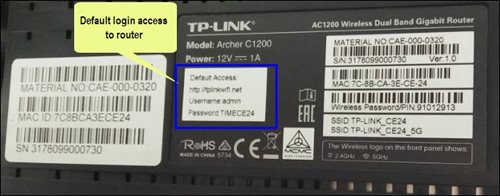
For example, below is the login details of the above router:
Username: admin
Password: TIMECE24
4. Once you have successfully login, the router's web-based setup page will appear. Please follow below steps for the configuration.

5. From the top menu, choose Basic and then click Wireless tab on the left menu to access to below screen.

6. Since this is a dual band router, you will have 2 Wireless Network Names (SSID) i.e. 2.4GHz and 5GHz. You may connect to any of the SSID, preferably with a stronger signal available.
7. You may change the Wireless Network Name (SSID) and the Password to follow your preferences, then click "Save" for the changes to take place.
Please reconnect to the new wireless name with the new password once completed.
Want to return your Ultra or Ulti Plug & Play Box? It's simple and free!
Here's what you can do with your unused Ultra/Ulti Plug & Play Box:
1. Return your device to us via Arranged Pick-up:
Step 1: Please call Astro's Contact Centre at 03-9543 3838 to schedule an arranged pick-up by one of our courier partners.
Step 2: Just sit back and relax! A courier agent will come to your doorstep to retrieve the devices.
To subscribe, WhatsApp "Smart TV' or call 03-9543 3838.
Astro customers on the previous packages (e.g. Family Pack, Starter Pack, Value Pack, Super Pack Lite, Super Pack or Super Pack Plus) will first have to sign up to our new packages on astro.com.my before they are able to sign up for Multiroom (Smart TV).
You can subscribe to Multiroom (Smart TV) here or via any of our sales channels.
Auto-debit payment will be debited from your account 5-7 working days after your billing cycle date.
If your auto-debit payment is unsuccessful, you will receive an SMS alert.
Your current additional RM20 rebate will be removed. However, you will still get to enjoy the standard bundle rebate accordingly.