
Astro 提供的免费卫星电视服务。终身收看娱乐,新闻,学习和资讯节目等。
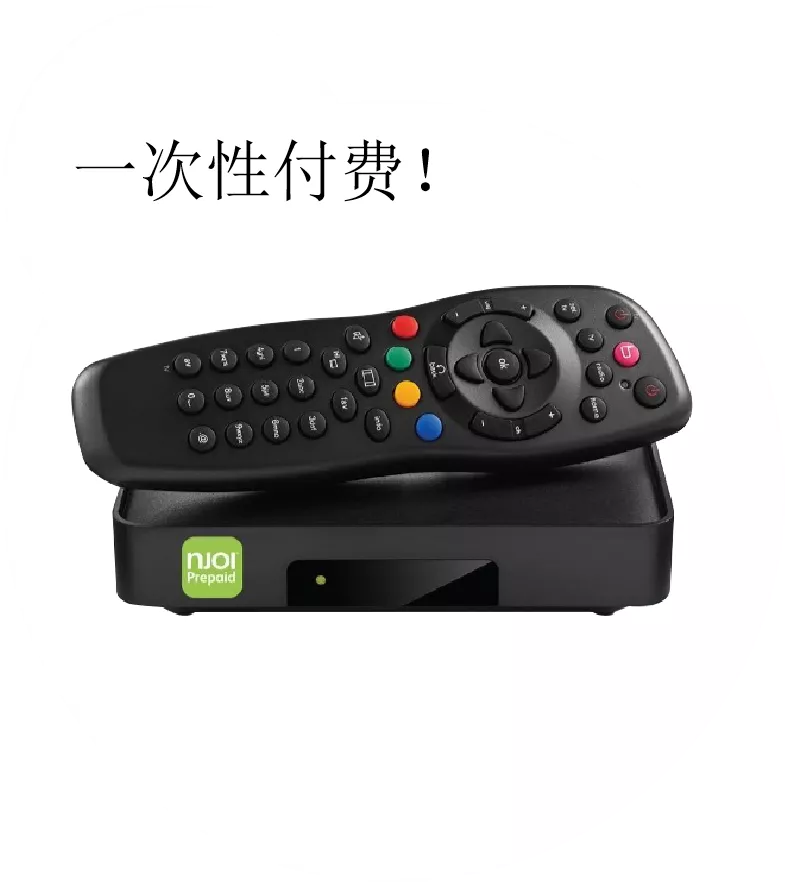
图片仅供参考。
免费观看15多个电视频道和10+个广播频道。
* 需遵守Astro条款和条件。

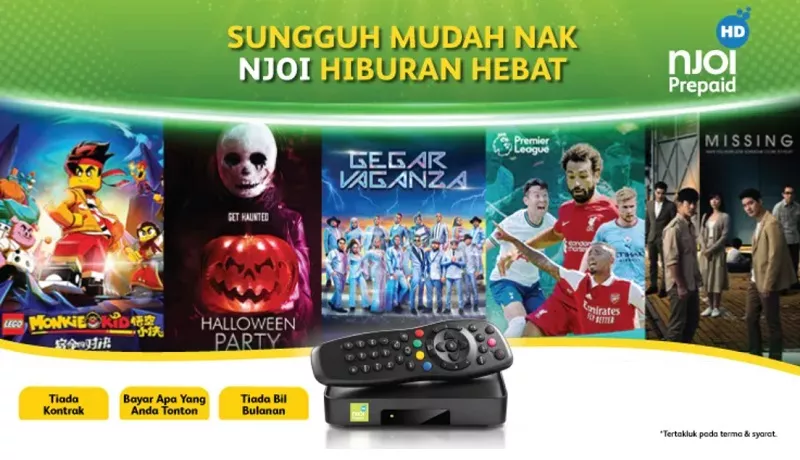
步骤一 |
步骤二 |
步骤三 |
选择配套然后提交您的申请。 |
等待安装。 |
享受您的新 Astro / 宽频! |
Astro 提供的免费卫星电视服务。终身收看娱乐,新闻,学习和资讯节目等。
图片仅供参考。
新的解码器,不包含卫星天线和电缆。您必须已安装 Astro/Njoi 卫星天线和电缆并正常运作。
包括安装。
新的解码器配有卫星天线和电缆。
包括安装。
签购
| Njoi Astro UniFi Maxis |
在这里找到您要的答案。
我们提供一站式服务为您申请Astro和Broadband。不必开车,排队和在销售柜台等候。 我们可以帮助您处理您的申请。
我们不收取额外费用。 无需提供信用卡信息。 费用与您在销售柜台申请的费用相同。
首先,您可以在线申请,我们将在工作时间内立即与您联系。 通过WhatsApp/电子邮件/传真发送您的身份证-IC(马来西亚公民)/ 护照(外国人)的复印件给我们。 收到所有资料后,我们将立即处理您的申请。
一旦收到您的完整资料,我们将在工作时间内立即处理您的申请。一旦您的申请获得批准,服务提供商的承包商将与您联系以进行安装预约。
ASTRO 和宽频收费同时在一张账单,享受更大的节省和无忧的账单支付。 在24个月的合约期内,您可以每月以折扣价享受 Astro 和宽频。
Astro 提供多种电视配套,包括娱乐、体育、电影和儿童配套。您可以选择符合您观看需求的配套,并在适用情况下添加额外的串流应用服务。
可以,您可以只订阅 Astro 电视配套而无需绑定宽频。不过,将 Astro 电视与光纤宽频绑定可享有更好的每月优惠,并且只需支付一张综合账单,更加方便。
对于小型家庭以及轻度上网和串流使用者,100Mbps 通常已足够。较大家庭、游戏玩家或重度串流用户则可选择 500Mbps 或 1Gbps 配套,以获得更流畅的多设备使用体验。
大多数 Astro 电视和光纤宽频配套都附带 24 个月合约期。如在合约期满前取消服务,可能会产生提前终止费用。
可以,您可在符合资格及覆盖范围的情况下随时升级电视配套或宽频速度。根据升级情况,可能需要重新计算合约期限。
您的每月账单将由 Astro 直接发出。您可通过电子邮件接收账单,或通过 Astro 账户在线查看。绑定配套用户将收到电视与宽频服务的综合账单。
付款方式包括网上银行、自动扣款、信用卡或 Astro 提供的其他认可付款渠道。我们的团队将在申请过程中为您提供协助。
如果您遇到任何服务中断问题,可联系 Astro 客户服务寻求技术协助。大多数情况下可远程解决,如有需要将安排技术人员上门处理。
可以,迁移服务需视新地址是否在服务覆盖范围内而定。根据您的配套,可能会产生迁移费用及合约调整。
不需要,提交申请时无需提供信用卡资料。服务获批后,付款安排将由 Astro 直接处理。
部分 Astro 电视配套可根据当前促销及服务情况添加串流服务等附加项目。可能需支付额外月费。
是的,光纤安装时通常会提供 WiFi 路由器。路由器型号可能会根据所选宽频速度配套而有所不同。
可以,我们会在处理您的申请前确认您地址的服务覆盖范围,以确保该地区可安装宽频服务。
马来西亚公民需提供 MyKad 复印件。外籍人士则需在提交宽频申请时提供护照复印件。
申请获批后,服务提供商通常会在 2 至 7 个工作日内联系您安排宽频安装预约。
大多数 Astro 宽频配套附带 24 个月合约期,从安装日期开始计算。如您搬迁,可能需要在新地址重新签订 24 个月合约。
可以,您可在新地址具备服务覆盖的情况下迁移宽频服务。合约期限可能会从新安装日期起重新计算 24 个月。
可以,您可申请在家中调整宽频设备位置。若属于非标准安装,可能会产生额外费用,并需在评估后直接支付给安装人员。
可以,您可转用 Astro 宽频。为避免服务中断,建议在终止现有宽频合约前先开通新的宽频服务。
标准安装在促销期间可能免费,但非标准安装(如设备迁移或复杂布线)可能会产生额外费用,并需直接支付给安装人员。
You will regain access to your channels on Astro immediately once the equipment has been installed at your new house, provided your account is active. Customers can still enjoy viewing via Astro Go.
If Netflix is included as part of your Astro pack, you will find it in My Astro app
where you will be able to manage all the streaming apps you are entitled to.
Netflix will also be included in your Astro bill under “Monthly Charges”
If you have added Netflix to your bill (Netflix Add-on), the Netflix subscription charge will appear in your Astro bill under “One-time charges” as Netflix App Subscription or Netflix Premium and will be charged monthly. You should refer to Netflix account Management for any changes to your Netflix subscription or should you wish to change to other billing methods.
The Download function offers an alternative to streaming so that you can watch TV shows and movies offline anywhere.
You can start downloading a movie/TV show by clicking on the "Download” button. Kindly note that you can only download one title at the time. Other titles will be in queue and will start downloading automatically as soon as the first download is complete.

Once you have downloaded a title, the progress icon will show “Complete” and you may find your downloaded content by checking “My Library” > “Downloads”.

*To save on data usage, we recommend downloading via Wi-Fi.
Downloaded content retention periods vary according to the type of content.
The number of days left for you to view your content in offline mode is shown for each piece of downloaded content for your reference. Expired content will be automatically deleted from the app, freeing up your device storage.
Yes, you may cancel your Astro Fibre order before service activation, however, kindly note that there is a cancellation charge of RM212 (inclusive of SST) for any service cancellation done 48 hrs before scheduled appointment.
For TV packs only, 24-months contract commitment period. However, if in addition to the TV packs, if you would like to also sign-up for Broadband, the contract commitment will be 24 months as well. If you're an existing customer, your existing remaining contract duration (if any) will not be carried over to the new contract except for existing Disney+ Hotstar (3 Months Pack) and Multiroom subscription contract durations which will be carried over upon the migration to new packs.
Note: If you are subscribing to a bundle pack which includes Netflix or Disney+ Hotstar for the first time, you are required to maintain the respective app as part of your bundle selection for a minimum of 12 months, otherwise a cancellation fee will apply.
The notification you receive will depend on the payment method you choose:
(i) My Astro Portal: e-receipt will indicate payment confirmation.
(ii) IVR: Payment status will be notified over the IVR and an SMS notification will be sent for successful transactions.
(iii) SMS: Payment status will be notified via SMS.
(iv) Call: Payment status will be notified via SMS.
(v) Customer Service Centre: Physical receipt will indicate payment confirmation.
Yes, you can sign up for auto-debit after your account has been activated via My Astro.
Alternatively, you may also call our Customer Contact Centre at 03-9543 3838 for assistance or to enquire about any current Auto Debit promotions.
The service tax rate for Astro Pay TV will be increased from 6% to 8%. The service tax for Astro Fibre, which falls under the category of telecommunication service, will remain at 6%.

3. Click the Network Utility icon to open the Network Utility window.
4. For Ping Test, select the Ping tab and then type the address you'd like to ping in the text box. Click Ping and wait for the ping results.

5. For Traceroute Test, select the Traceroute tab and then type the address you like to traceroute in the text box. Click Trace and wait for the traceroute results.

1. Click the Search icon (magnifying glass) in the bottom left-hand corner and type "cmd" into the search bar.

2. Select the Command Prompt app - it will be at the top of the list of search results as the best match.

3. A black box with a flashing cursor will open; this is the Command Prompt.
For Ping Test, type "ping" and then hit the Space bar on your keyboard. Type in the address you like to ping and then hit the Enter key on your keyboard. Wait for the ping results.

For Traceroute Test, type "tracert" and then hit the Space bar on your keyboard. Type in the address you like to trace and then hit the Enter key on your keyboard. Wait for the tracert results.

1. Open the Start menu by clicking the Windows icon at the bottom left-hand corner of the screen.
2. Type "cmd" in the search bar at the bottom of the menu.
3. Click cmd found in the search results for Programs.

4. A black box with a flashing cursor will open; this is the Command Prompt.
For Ping Test, type "ping" and then hit the Space bar on your keyboard. Type in the address you like to ping and then hit the Enter key on your keyboard. Wait for the ping results.

For Traceroute Test, type "tracert" and then hit the Space bar on your keyboard. Type in the address you like to trace and then hit the Enter key on your keyboard. Wait for the traceroute results.

1. Move the mouse to the right-hand corner of the screen to make the vertical menu bar (charm bar) appear. Click Search.
2. Type "cmd" in the search bar and hit the Enter key on your keyboard.

3. Click cmd that found in the search results for Programs.
4. A black box with a flashing cursor will open; this is the Command Prompt.
For Ping Test, type "ping" and then hit the Space bar on your keyboard. Type in the address you like to ping and then hit the Enter key on your keyboard. Wait for the ping results.

For Traceroute Test, type "tracert" and then hit the Space bar on your keyboard. Type in the address you'd like to trace and then hit the Enter key on your keyboard. Wait for the traceroute results.

1. Click the Start button in the bottom left-hand corner of the screen.
2. Click the Run option in the right-hand column.

3. Type "cmd" in the text box and then hit the Enter key on your keyboard.

4. A black box with a flashing cursor will open; this is the Command Prompt.
For Ping Test, type "ping" and then hit the Space bar on your keyboard. Type in the address you'd like to ping and then hit the Enter key on your keyboard. Wait for the ping results.

For Traceroute Test, type "tracert" and then hit the Space bar on your keyboard. Type in the address you'd like to trace and then hit the Enter key on your keyboard. Wait for the tracert results.
Intermittent internet connection using LAN cable
Looks like there is something wrong with your service connection.
Please run a Ping Test, Traceroute Test and attach the picture or screenshot of both test results in the Feedback Form below, in order for us to provide further assistances.
Please ensure to attach the required screenshot(s) in ONE file (i.e. Microsoft Word document, PDF, Image file) before submitting the form.
Intermittent internet connection using Wi-Fi
Router Positioning
Most people underestimate the importance of picking a good spot for a Wi-Fi router. Even a small shift in positioning could end up being the difference between day and night.
i) High vs. Low
Put the router as high up as possible to extend the broadcasting range of the radio waves. This also helps clear the router of possible interferences.
ii) Concrete & Metals
Make sure your router isn't blocked by any other objects, especially devices that are electronic. Also, avoid placing your router in your basement as this area is usually enclosed by a lot of concrete, which can be almost impossible for Wi-Fi signals to penetrate.
iii) Distance to Router
The further away from your router you get, the weaker the Wi-Fi signal. Therefore, the best option is to place your router as close to your devices as possible, but this is only practical if you have one main area where you tend to use your devices.
Otherwise, you should place your router near the center of your home. After all, Wi-Fi broadcasts in 360 degrees, so it doesn't make sense to put it at one end of the house.
Wireless Interference & Noise
You've probably never noticed but there are wireless signals all around you wherever you go and they're passing through you all the time. From where? Electronic devices, Wi-Fi routers, satellites, cell towers, and more.
Although Wi-Fi is supposed to be on a different frequency than most of these devices, the amount of radio noise can still cause interference. Some common causes of interference include:
i) Microwaves
ii) Bluetooth Devices
iii) Cordless Phone
Usage
More likely, however, is that the people on your network such as friends, roommates, or family members are participating in bandwidth-heavy activities like gaming and streaming Ultrabox/Netflix.
Fortunately, if this is the case, you can prioritize your own network traffic by enabling Quality of Service in your router settings.
If the problem persists, please run a Ping Test, Traceroute Test and attach the picture or screenshot of both test results in the Feedback Form below, in order for us to provide further assistances.
Please make sure to attach the required screenshot(s) in ONE file (i.e. Microsoft Word document, PDF, Image file) before submitting the form.
Quick Info
A Ping Test shows how long it takes for packets to reach host.
A Traceroute Test traces the route of packets to destination host from our server.
Yes, you will. Customers who purchased Astro First / Astro Best / Pay-per-View event in February 2024 with a viewing period in March 2024 will be charged an 8% Service Tax in their next bill.
"Payment Due Date" refers to the payment deadline for your Astro bills each month.
No, there will be no additional charges to access Liga Malaysia.
STEP 1
While watching linear channel, press “OK” to launch player banner.

STEP 2
Press “OK” again to Pause. You will see an Icon on the left of TV screen.

STEP 3
Press “OK” again to resume the program.

STEP 4
Navigate to Back To Live TV and press "OK" to go back to the live view.

The fee is a one-time activation fee that will be charged when you subscribe to the Plug & Play Box.
Please ensure that you have subscribed to PVR recording service.
If you're subscribed to PVR recording service, follow below steps.
Let's check your hard disk connectivity.
STEP 1
On your remote, press the “HOME” button and the home menu will be displayed at the bottom of your screen.

STEP 2
Navigate to SETTINGS and press “OK”.

STEP 3
Navigate to STB DIAGNOSTICS and press “OK”.

STEP 4
From the General tab, take a look at the HDD Status.

If status is "Connected", press red button to reboot you decoder.
Wait until the box is on, then try to record any program.
If issue persist, please submit the issue on our Feedback Form and attach a picture of your General tab of the STB Diagnostics for assistance.
If status is "Disconnected", please submit your Feedback Form and attach a picture of your General tab of the STB Diagnostics for assistance.
Unfortunately, you will no longer be able to access Disney+ Hotstar via Astro if you cancel your Astro subscription with Disney+ Hotstar entitlement.
Non-standard Broadband installation covers the scenario where additional cables and drilling is required to complete your Astro & Broadband installation or by installing the cable in the walls/ceilings. There are additional fees applied for the additional requirements as follows:

You will only be able to watch Astro GO and/or Multiroom Smart TV on up to 2 devices at the same time as opposed to 4 devices with Astro GO+.
Your cloud recording storage will also decrease from 1500 hours down to 200 hours. Your stored recordings/downloaded shows that exceed 200 hours will also be removed.
No, Astro First movies/series are available as Per-per-view basis. Pricing is indicated on each of the programme posters. All prices are subjected to 6% service tax.
Astro GO+ is a service add-on that:
Yes, you may terminate the service, however an early cancellation fee will be applied for termination/cancellation within 24 months. Please refer to the Astro Fibre's cancellation details.
You are entitled for free mesh WiFi devices when you sign up for Astro & Broadband with Maxis fibre 500Mbps or 800Mbps speed only.
Mesh WiFi is not available with Astro & Broadband with Allo. However, you may purchase the Mesh WiFi devices separately to pair along with you Allo broadband.
No, the Ulti Box does not support 4K UHD content. If you would like to watch Astro's 4K UHD content, please sign up for an Ultra box at Astro Ultra Box and Ulti Box | Astro.
The Personal Video Recorder (PVR) is Astro's High Definition (HD)decoder which comes with a recording function and can be connected to Wi-Fi to access videos on demand. The PVR comes with the following features:
HIGH DEFINITION (HD):High Definition offers greater detail than Standard Definition including vibrant colour and multi-dimensional audio.
CONTROL LIVE TV: Record, Pause, Play & Rewind your favourite TV programmes at any moment. The PVR comes with storage capacity of 500GB (200 hours of HD recording)
ON DEMAND: Experience the new way of watching Astro. Gain access to a library of up to 50,000 On Demand titles that you can pick and watch instantly.


The default login of the router as below. If you have done a configuration on your router previously, the password may be different.
Username: user
Password: Router S/N (Available on the sticker at the back of the router)
4. Once you have successfully login, the router's web-based setup page will appear. Please follow below steps for the configuration.

5. From the left menu, choose Wireless 2.4GHz and then click Basic Settings tab on the left menu to access to below screen.

6. You may change the Wireless Network Name (SSID) and the SSID Password to follow your preferences, then click "Save" for the changes to take place.
Please reconnect to the new wireless name with the new password once completed.
7. Since this is a dual band router, you will have 2 Wireless Network Names (SSID) i.e. 2.4GHz and 5GHz. You may connect to any of the SSID, preferably with a stronger signal available.
You may change the Wireless Network Name (SSID) and the SSID Password to follow your preferences for 5GHz by choosing Wireless 5GHz then click Basic Settings.
Click "Save" for the changes to take place and reconnect to the new wireless name with the new password once completed.

This error indicates that you have reached the maximum number of simultaneous video streams across devices for one (1) account. To stop seeing this error, please stop streaming on one of your other devices.
• If you have recently purchased your Astro pack or made any changes to your pack on or after 9th November you can stream on two (2) concurrent screens
• If you have not made any changes you can stream on four (4) concurrent screens.
If you are still having issues, proceed to submit report via WhatsApp or Feedback Form.
Your existing contracts and corresponding rewards including but not limited to discounts/rebates will be removed with no penalty applied and replaced with the new contracts associated with the new packs. Exception applies to Disney+ Hotstar (3-Month Pack) and Multiroom campaigns in which remaining contract durations will be brought over if the subscription is continued or penalty will be applied upon discontinuation of said subscriptions.
You can subscribe to new packs via
You may register for auto-debit via: -
1.My Astro website.

2.MyAstro App.

3.Any of our AstroExperience Store.
If you have a random Astro power cable, remote control or old box lying around at home, you are required to discard them only at registered collection centres for proper handling and management of e-waste in an environmentally sound manner. Click here to find a registered collection centre near you.
For all recycling-related questions, please click here.
Auto-debit payment will be debited from your account 5-7 working days after your billing cycle date.
If your auto-debit payment is unsuccessful, you will receive an SMS alert.

1. Please standby computer/laptop to access to the internet and connection must be via LAN (cable) [Connect the LAN (cable) to the yellow port in Maxis Router and direct to computer/laptop].
2. You may open any web browser such as Google Chrome, Internet Explorer, Mozilla Firefox and etc.
3. On the address bar, please go to http://192.168.1.254 and below page will appear.

If below box appear, please enter required details as below:

USERNAME: Administrator
PASSWORD: (ACCESS KEY AT THE RGW STICKER)
(These are the defaults, if you have done previous configuration on your router the password may be different)
4. Once enter into the page ‘’TECHNICOLOR TG784N V3’’, you may follow below step for the wireless information.
i. Click "Configure”

ii. Once clicked configure button, below screen will appear.

A. This is your current password. Please delete and enter the new password.
B. Once completed the selection; click the "Apply" button. Router will auto reboot and connection re-establish after few minutes.
Please re-connect your wireless using the new password.
STEP 1
Press "HOME" button on your remote control.

STEP 2
Navigate to Preferences and press "OK".

STEP 3
Navigate to Auto Standby and press "OK".

STEP 4
Navigate to your preferred selection and press “OK”.

STEP 5
Select Yes, continue and then press "OK" to confirm on the changes.
Otherwise, select No, go back to cancel.

1. Ensure power cable is connected tightly.
2. Try to use another power socket / power source to eliminate faulty power sockets/power sources which could cause the issue.

3. If the issue persists, submit your feedback form for further assistance.
No, you need to have an Astro ID to enjoy the features.

You may proceed with below troubleshooting and it shouldn't take you any longer than 15 minutes.

4. Type the Username and Password as below. Then click Login. (These are the defaults, if you have done previous configuration on your router the password may be different)
Username: admin
Password: admin (or time123)

5. The router's web-based setup page should now appear. Please follow below steps for the configuration.


Of course! Please ensure your account is active when requesting for a move.
There are 2 methods of setting maturity ratings restriction on Netflix:
Method 1 – Create a Kids Profile in Netflix App on Ultra/Ulti Box
Method 2 – Manually set Viewing Restrictions for each profile
For more information kindly visit:
1. What is Netflix?
Netflix is a streaming entertainment service that offers a wide variety of award-winning TV programmes, films, anime, documentaries and more - on thousands of internet-connected devices. There's always something new to discover, and more TV shows and movies are added every month. The more you watch, the better Netflix gets at recommending TV shows and movies you’ll love.
Astro customers with an internet-connected Ultra Box or Ulti Box canaccess the Netflix app and watch Netflix content via their Astro Box. For more information about Netflix, visit the Netflix website https://about.netflix.com/en
2. Which new pack comes with Netflix?
Any packages with Entertainment Plus, Movies Plus & Sports Plus will include Netflix. The default Netflix offering is Netflix Standard (2 screens and HD viewing) as part of your Entertainment Plus, Movies Plus and Sports Plus subscription. You can upgrade up to Netflix Premium (4 screens and 4K UHD viewing) at a price of RM 10 (inclusive of govt. tax).
Note: For the above subscriptions, you may use the email address used for your existing subscription with Netflix to activate and the future billing for Netflix will be transferred to your Astro bundle charges. For users that are billed for Netflix through Apple before joining the Astro bundle, remember to cancel your Apple billing arrangement after activating the Astro bundle else you may be double charged for your Netflix account.
If you do not have a bundle which includes Netflix, you may also add anew Netflix subscription to your Astro Bill for billing convenience.
3. How do I know if my new pack includes Netflix?
If Netflix is included as part of your Astro pack, you will find it in My Astro app called “Apps” where you will be able to manage all the streaming apps you are entitled to.
Netflix will also be included in your Astro bill under “MonthlyCharges”
If you have added Netflix to your bill (Netflix Add-on), the Netflix subscription charge will appear in your Astro bill under “One-time charges” as Netflix App Subscription or Netflix Premium and will be charged monthly. You should refer to Netflix account Management for any changes to your Netflix subscription or should you wish to change to other billing methods.
4. I signed up for the EntertainmentPlus / Movies Plus / Sports Plus pack that includes Netflix. How do I activate my Netflix account?
You should have received an email or SMS with your activation details, please click on the link provided to be redirected to the Netflix website to activate your account.
Alternatively, you can also activate Netflix on your Ultra/Ulti Box. Please surf to CH 741 on your Ultra/Ulti Box (or click the Netflix button on your Astro remote) and follow the instructions on the screen.
5. Will I be able to access Netflix on my Ultra/Ulti Box?
You will be able to access Netflix on your Ultra and Ulti Box. However, kindly note that if you have an Ulti Box with a Netflix Premium subscription, you will not be able to watch content in 4K UHD and Netflix Spatial Audio.
6. How do I change my Netflix plan or account information?
You can make changes to your Netflix plans that are included in your Bundle through My Astro app.
You can change your non Astro-bundled a-la carte Netflix plan at any time by signing into Netflix.com and visiting the Account page, then selecting Change Plan to view and select available plans.
7. How many devices can I access Netflix at once?
Customers with a Netflix Premium account are allowed to watch on up to 4 supported devices in 4K UHD and Netflix Spatial Audio. In addition, Netflix Premium subscribers are also allowed to download shows to watch offline on 6 devices at a time.
Netflix Standard account customers are allowed to watch shows in Full HD and download them to watch offline on up to 2 supported devices at a time.
On the other hand,Netflix Basic account customers are allowed to watch shows in HD and download shows for offline viewing on only 1 supported device at a time.
8. You can add a new Netflix account to your bill through CH 741 or clicking the Netflix button on the remote control. Please enter the email address you would like to use for Netflix subscription and ensure the Billing partner is Astro.
If you would like to transfer your existing Netflix Account to be charged under Astro bill, please follow the steps below:
- Cancel your existing subscription with Netflix
- Once the remaining duration of your existing subscription has ended, you may proceed to subscribe for Netflix via Astro bill
- To subscribe, go to CH 741 and enter the email address used for your previous subscription with Netflix
- Once successfully completed, all existing settings and watching history on your Netflix account will be brought over
9. I have added a Netflix account to my Astro bill. Do I need to perform any activation?
By adding a Netflix account to your Astro bill, your Netflix account is already activated. No additional steps for activation are required.
10. When I create a new Netflix account to link to my Astro Bill, will I lose all my current watching history in Netflix?
You may retain your watch history and settings of your existing Netflix account by using the same email of your Netflix account during the linking of your Netflix account with Astro.
11. I forgot my Netflix username or password. How do I find my username or reset my password?
If you have forgotten your username or password, you may follow the steps below:
Step 1. Go to netflix.com
Step 2:Click on Sign In
Step 3:Click on “Need Help” to reset password
12. I forgot which Netflix account is associated with my Astro Account. How do I find that out?
You can recover your Netflix login here or at astro.com.my/Netflix
Step 1:Head to astro.com.my/Netflix
Step 2: At the FAQ section look for “How to recover my Netflix login email and password”
Step 3: Login with Astro ID
Step 4:Proceed to Netflix.com for account recovery
13. What will happen to my Netflix account if I cancel my Astro service or change my Astro package?
If your existing Netflix account is linked with your Astro subscription, your Netflix account will resume on the previous method of payment. If you linked a new Netflix account with your Astro subscription, cancelling Astro service will also cancel your Netflix account.
14. What happens to my Netflix account if I move to a new address?
There will be no changes to your Netflix account when you move to a new address.
15. How do I cancel Netflix?
If you are subscribed to Netflix via a bundle, Netflix comes by default as part of your entitlement.
If you are subscribed to Netflix as an a-la carte, the cancellation of Netflix can only be done via Netflix’s Website, etc. This change will reflect in your next bill.
From mid-December 2021 you may also cancel Netflix add-on through Astro Call Center.
16. I would like to change the Netflix account linked to my Astro pack. What should I do?
Please visit http://help.netflix.com to call or start a live chat with Netflix’s customer support agents. You will be assisted to unlink your Netflix account from your Astro subscription. After the process, you may link another Netflix account to your Astro subscription.
17. Will Netflix be automatically added to my Astro subscription?
Astro subscribers will have the freedom to subscribe to Netflix via Astro, or they may also choose to continue subscribing via Netflix directly on their own.
18. Will Astro censor Netflix content?
Absolutely not. Astro wants to give our members the convenience of having all their favourite series, exciting originals, vernacular signatures, live sports and local blockbuster movies all in one place.
19. I have signed up for two (2) or more main Astro subscriptions bundled with Netflix. Will I be entitled for multiple Netflix subscriptions?
Yes. You are entitled to separate Netflix accounts for each main Astro subscription e.g. If you have subscribed to Entertainment Plus, Platinum Pack, etc separately. Therefore, if you have more than one main Astro subscription with Netflix, you may choose to create multiple email addresses to activate each respective Netflix subscription. Please follow the steps provided to you via email/SMS in order to activate your Netflix subscriptions on the website.
20. Why should I subscribe to a Netflix on Astro vs direct subscription via the Netflix app?
- With numerous OTT entrants, consumers are suffering from subscription fatigue. In fact, they are looking for a one stop shop platform where OTT services are integrated in one place.
- Astro offers flexibility and convenience with new packs where customers can get the convenience of accessing a variety of content via Ultra Box as the single remote-control solution.
- In addition, there will be cost savings for Astro customers to purchase both Netflix and Astro together. Even better deals are available if customers also subscribe to broadband for a better-connected experience.
Please ensure that you have subscribed to the mentioned channel.
If you're subscribed to this channel, follow below steps.
STEP 1
You need to refresh the signal on your box.
Refer to Refresh signal of your box guide.
STEP 2
If issue persist after 30 minutes, proceed to submit report via WhatsApp or Feedback Form.
Some of our payment partners require payees to scan the barcode on the statement to make payment. Always bring your Astro bill statement when making payment over the counter.
Astro is no longer updating the software in non-Ultra/Ulti Boxes as they have reached their end-of-life cycle. Therefore, non-Ultra/Ulti Boxes will maintain their current classification systems. Nonetheless, you may refer to content.astro.com.my for all the updated age ratings. Please refer to the table below to see the difference in classification systems between our platforms:

STEP 1
On your remote, press the HOME button.

STEP 2
Navigate to SETTINGS icon and press "OK".

STEP 3
Navigate to Manage Satellite Frequency and press “OK”.

STEP 4
Choose Test Satellite Frequency and press “OK”.

STEP 5
Choose "Confirm" to continue Test Satellite Frequency and press “OK”.

STEP 6
Satellite Frequency Test progress screen will be displayed.

STEP 7
The test result will be displayed once completed.

Please check if you are streaming on a supported device. Astro GO is only applicable within the supported platforms; mobile devices (phones and tablets) and web browsers.
If you are still having issues, proceed to submit report via WhatsApp or Feedback Form.
STEP 1
On your remote, press the HOME button and the home menu will be displayed on top of your screen.

STEP 2
Navigate to SETTINGS and press "OK".

STEP 3
Navigate to STB Diagnostics and press "OK".

STEP 4
Navigate to Network Diagnostics and press "OK" .

STEP 5
Please ensure the Tunes service multicast status is Multicast Up.
If the status is Multicast is Not Available, please reboot the decoder and router before verifying this status.
If issue persists, please submit the issue on our Feedback Form with error details and attach a picture of your Network Diagnostics.
STEP 1
On your remote, press the ... button and the Channel Guide page will be displayed on your screen.

STEP 2
Select the channel you would like to unlock and press "OK".

STEP 3
Select "Unlock Channel" and press "OK".

STEP 4
Enter the PIN to unblock the channel.

STEP 5
You are successfully unlocked the channel when this screen appears.

Once you have received the eKYC link via SMS/email/astro.com.my, you can proceed to follow the instructions on the screen. You can check out the step-by-step image below for more info.
For MyKad/MyPR/MyTentera :

For Passport :

Do ensure that you are logging in with the correct Astro ID and password. If you are still unable to remember your password, please proceed to use the “forgot password” function to reset your password.
If the issue persists, you may submit an enquiry through our feedback form here. Choose feedback type as “Technical issues” and the issue as “I have an enquiry/issue with Apps.” Then, select the app you’re having trouble logging into, and submit the form. We will get in touch with you within 48 hours.
Kindly note that you will need to link yourAstro ID with an active Astro subscription to use Astro GO, My Astro, and other partner apps that is included in your subscription. You may refer to the steps here on how to do this.
Once your Plug & Play Box has been activated, a courier service will reach out to you within TWO (2) weeks for a time for them to pick up the old Astro box and SIM card/Smartcard.