
Astro 提供的免费卫星电视服务。终身收看娱乐,新闻,学习和资讯节目等。
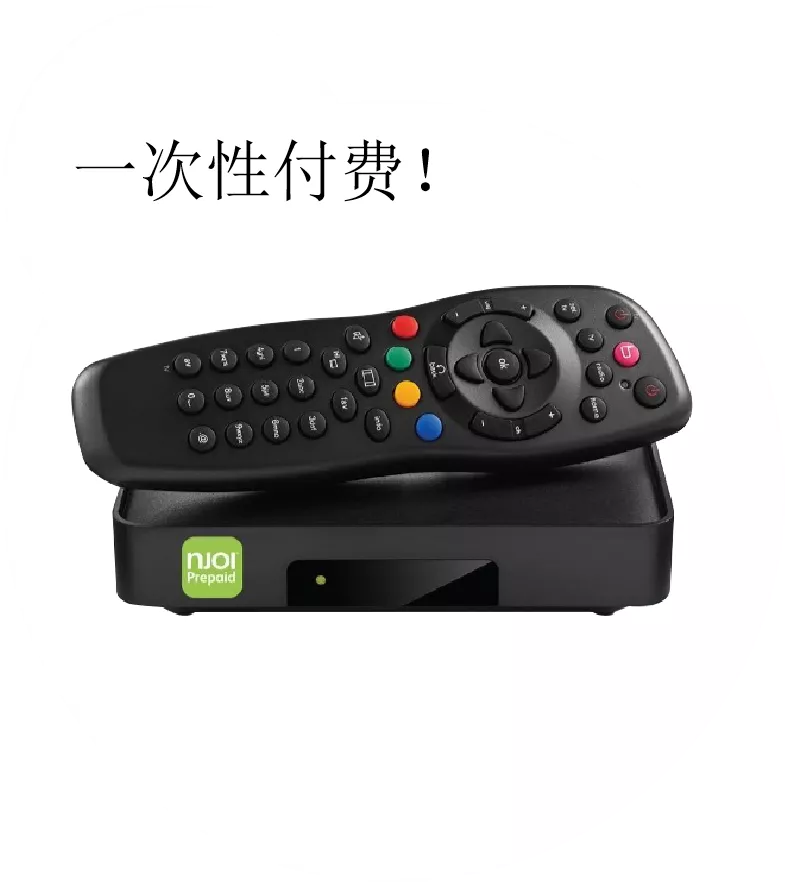
图片仅供参考。
免费观看15多个电视频道和10+个广播频道。
* 需遵守Astro条款和条件。

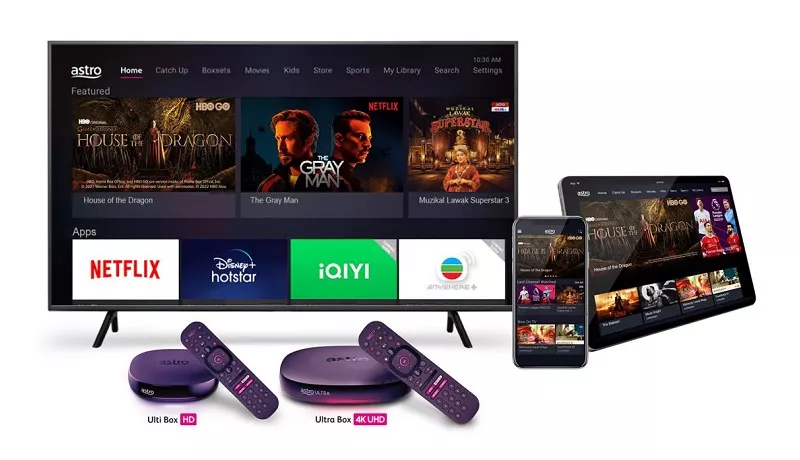
步骤一 |
步骤二 |
步骤三 |
选择配套然后提交您的申请。 |
等待安装。 |
享受您的新 Astro / 宽频! |
探索我们的电视配套,其中包含各种娱乐频道。

为家庭中的每个人制作必看的本地和国际内容。
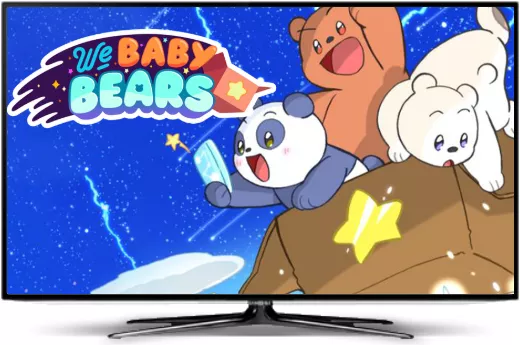
最好的本地和国际卡通片和教育娱乐片。

汇集全球电影和剧集,充满动作、剧情和震撼刺激。

在您探索世界秘密的同时,您还可以了解最新的突发新闻和时事。
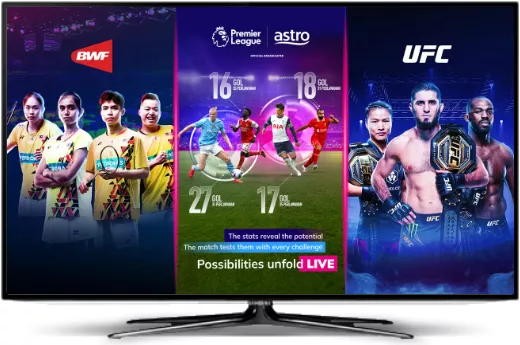
见证每场主要联赛和现场体育赛事以及家庭娱乐活动。
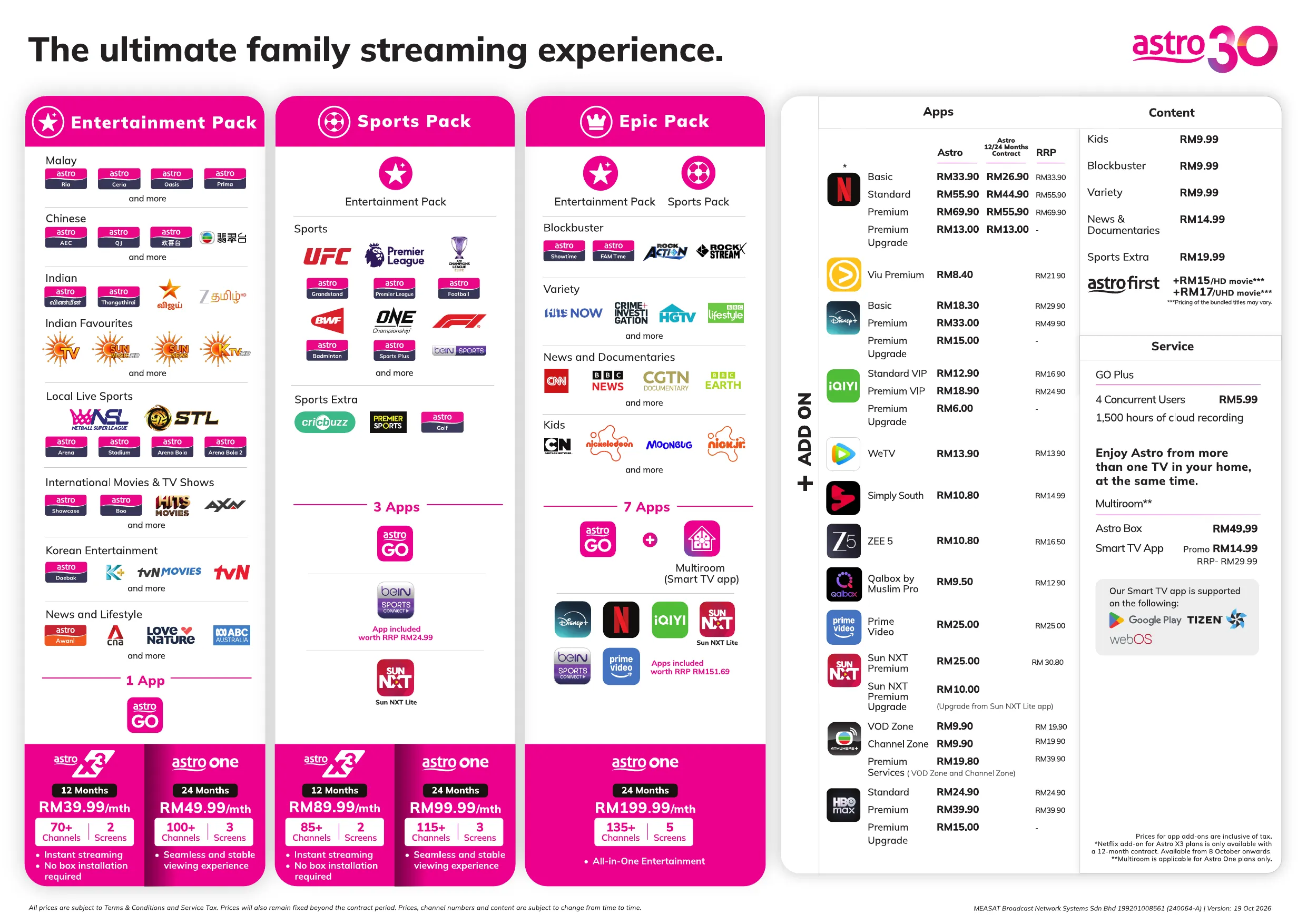
集电影、体育和各种流媒体应用于一体的终极娱乐体验。
适合家居办公及串流。以 100Mbps 的速度连接并享受不间断的流媒体、游戏和浏览。

免费 数据机
免费 WiFi-6 路由器
无限数据
| 包括什么? |
Entertainment Pack RM49.99 |
100Mbps Astro Fibre RM99.00 |
| 包括什么? |
Entertainment Pack + Kids RM59.98 |
100Mbps Astro Fibre RM99.00 |
| 包括什么? |
Entertainment Pack + Blockbuster RM59.98 |
100Mbps Astro Fibre RM99.00 |
| 包括什么? |
Entertainment Pack + News & Documentaries RM64.98 |
100Mbps Astro Fibre RM99.00 |
| 包括什么? |
Sports Pack RM99.99 |
100Mbps Astro Fibre RM99.00 |
| 包括什么? |
Epic Pack RM199.99 |
100Mbps Astro Fibre RM99.00 |
适合有4K串流及游戏需求的小型家庭。以 500Mbps 的速度连接并享受快速稳定的互联网,满足您的所有需求。

免费 数据机
免费 WiFi-6 路由器
无限数据
| 包括什么? |
Entertainment Pack RM49.99 |
500Mbps Astro Fibre RM149.00 |
| 包括什么? |
Entertainment Pack + Kids RM59.98 |
500Mbps Astro Fibre RM149.00 |
| 包括什么? |
Entertainment Pack + Blockbuster RM59.98 |
500Mbps Astro Fibre RM149.00 |
| 包括什么? |
Entertainment Pack + News & Documentaries RM64.98 |
500Mbps Astro Fibre RM149.00 |
| 包括什么? |
Sports Pack RM99.99 |
500Mbps Astro Fibre RM149.00 |
| 包括什么? |
Epic Pack RM199.99 |
500Mbps Astro Fibre RM149.00 |
完美符合中型家庭的工作及游戏需求。以 1Gbps 的速度连接,让您体验到超快的互联网速度。
免费 数据机
免费 WiFi-7 路由器
无限数据
| 包括什么? |
Entertainment Pack RM49.99 |
1Gbps Astro Fibre RM229.00 |
| 包括什么? |
Entertainment Pack + Kids RM59.98 |
1Gbps Astro Fibre RM229.00 |
| 包括什么? |
Entertainment Pack + Blockbuster RM59.98 |
1Gbps Astro Fibre RM229.00 |
| 包括什么? |
Entertainment Pack + News & Documentaries RM64.98 |
1Gbps Astro Fibre RM229.00 |
| 包括什么? |
Sports Pack RM99.99 |
1Gbps Astro Fibre RM229.00 |
| 包括什么? |
Epic Pack RM199.99 |
1Gbps Astro Fibre RM229.00 |
为满足所有人的一切需求而设的终极高速互联网。以 2Gbps 的速度连接,享受闪电般的网络速度。
免费 数据机
免费 WiFi-7 路由器
无限数据
| 包括什么? |
Entertainment Pack RM49.99 |
2Gbps Astro Fibre RM319.00 |
| 包括什么? |
Entertainment Pack + Kids RM59.98 |
2Gbps Astro Fibre RM319.00 |
| 包括什么? |
Entertainment Pack + Blockbuster RM59.98 |
2Gbps Astro Fibre RM319.00 |
| 包括什么? |
Entertainment Pack + News & Documentaries RM64.98 |
2Gbps Astro Fibre RM319.00 |
| 包括什么? |
Sports Pack RM99.99 |
2Gbps Astro Fibre RM319.00 |
| 包括什么? |
Epic Pack RM199.99 |
2Gbps Astro Fibre RM319.00 |
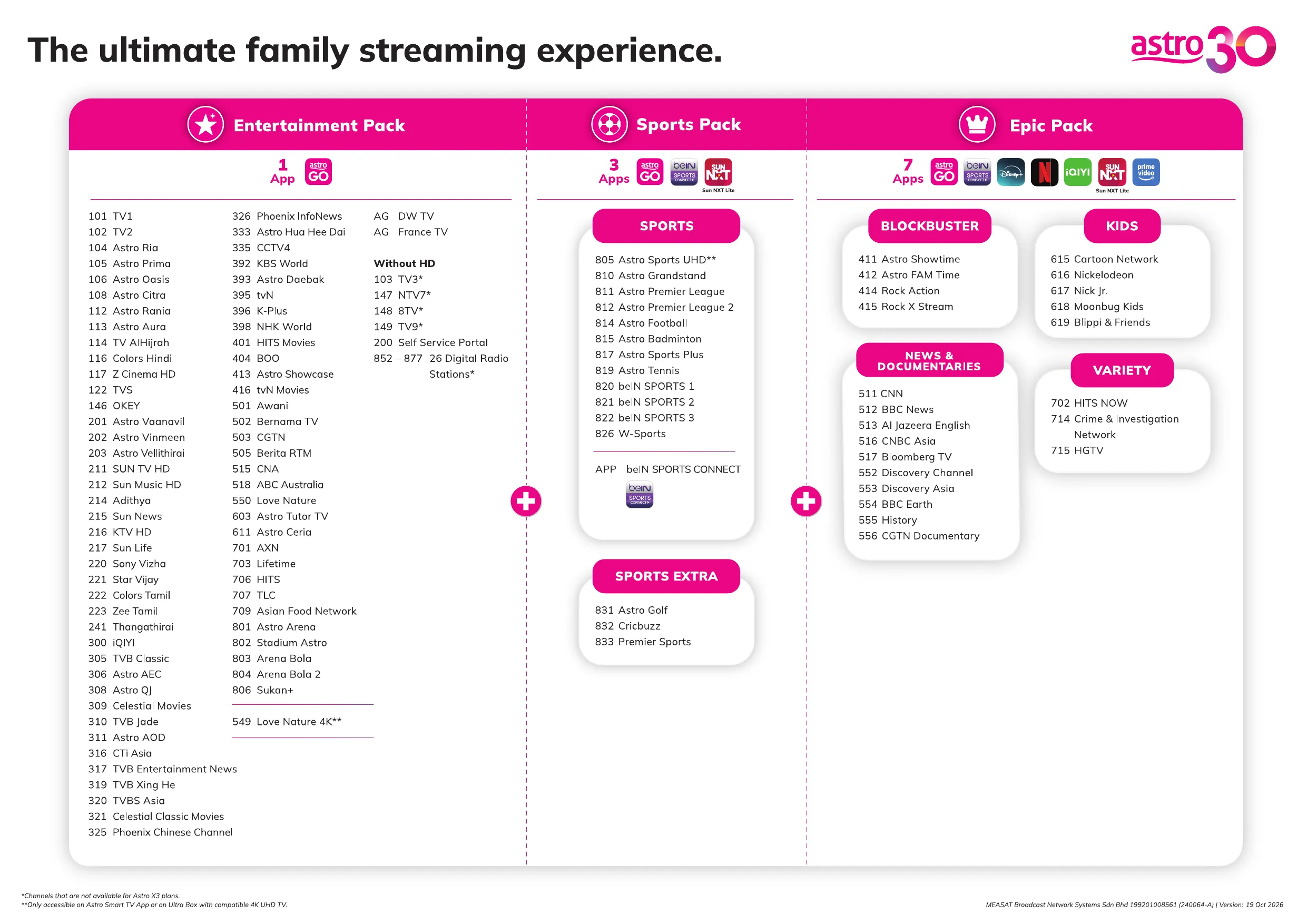
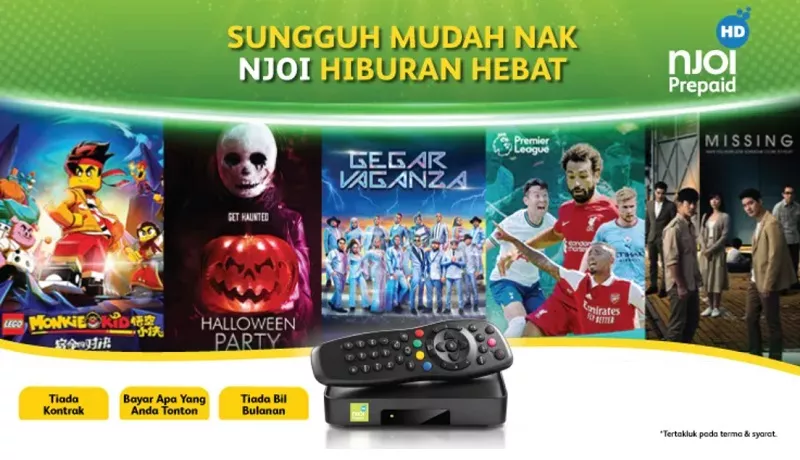
Astro 提供的免费卫星电视服务。终身收看娱乐,新闻,学习和资讯节目等。
图片仅供参考。
新的解码器,不包含卫星天线和电缆。您必须已安装 Astro/Njoi 卫星天线和电缆并正常运作。
包括安装。
新的解码器配有卫星天线和电缆。
包括安装。


无限数据,unifi TV和具有unifi光纤宽带的高性能无线路由器。
可靠的宽频配套可实现更高层次的业务增长。
支持最多 5 台设备上的 2-3 个用户。
支持最多 10 台设备上的 6 个用户。
支持多台设备上最多10个重度用户。
支持多台设备上最多 10 名高级用户。
为多台设备上最多 10 位高级用户提供终极支持。
适合家居办公及串流。
100Mbps/50Mbps
免费 Standard Router (RG5)
100Mbps/50Mbps
免费 Standard Router (RG5)
 Netflix Basic
适合全高清串流及浏览。
300Mbps/50Mbps
免费 WiFi-6 Combo Box
300Mbps/50Mbps
免费 WiFi-6 Combo Box
Netflix Basic
适合有4K串流及游戏需求的小型家庭。
500Mbps/100Mbps
免费 WiFi-6 Combo Box
500Mbps/100Mbps
免费 WiFi-6 Combo Box
Netflix Standard
完美符合中型家庭的工作及游戏需求。
1Gbps/500Mbps
免费 WiFi-6 Combo Box
1Gbps/500Mbps
免费 WiFi-6 Combo Box
Netflix Standard
为满足所有人的一切需求而设的终极高速互联网。
2Gbps/1Gbps
免费 WiFi-6 Combo Box
2Gbps/1Gbps
免费 WiFi-6 Combo Box
Netflix Standard
可靠的宽频配套可实现更高层次的业务增长。
支持最多 5 台设备上的 2-3 个用户。
支持最多 5 台设备上的 2-3 个用户。
固定 IP。
支持最多 10 台设备上的 6 个用户。
支持最多 10 台设备上的 6 个用户。
固定 IP。
支持多台设备上最多10个重度用户。
支持多台设备上最多10个重度用户。
固定 IP。
支持多台设备上最多 10 名高级用户。
支持多台设备上最多 10 名高级用户。
固定 IP。
适合家居办公及串流。
免费 WiFi-6 Router
免费 WiFi-6 Router
无限语音通话
适合全高清串流及浏览。
免费 WiFi-6 Router
免费 WiFi-6 Router
无限语音通话
适合有4K串流及游戏需求的小型家庭。
免费 WiFi-6 Router
免费 WiFi-6 Router
无限语音通话
完美符合中型家庭的工作及游戏需求。
免费 WiFi-6 Router
免费 WiFi-6 Router
无限语音通话
为满足所有人的一切需求而设的终极高速互联网。
免费 WiFi-6 Router
免费 WiFi-6 Router
无限语音通话
签购
| Astro Njoi UniFi Maxis |
在这里找到您要的答案。
我们提供一站式服务为您申请Astro和Broadband。不必开车,排队和在销售柜台等候。 我们可以帮助您处理您的申请。
我们不收取额外费用。 无需提供信用卡信息。 费用与您在销售柜台申请的费用相同。
首先,您可以在线申请,我们将在工作时间内立即与您联系。 通过WhatsApp/电子邮件/传真发送您的身份证-IC(马来西亚公民)/ 护照(外国人)的复印件给我们。 收到所有资料后,我们将立即处理您的申请。
一旦收到您的完整资料,我们将在工作时间内立即处理您的申请。一旦您的申请获得批准,服务提供商的承包商将与您联系以进行安装预约。
ASTRO 和宽频收费同时在一张账单,享受更大的节省和无忧的账单支付。 在24个月的合约期内,您可以每月以折扣价享受 Astro 和宽频。
Astro 提供多种电视配套,包括娱乐、体育、电影和儿童配套。您可以选择符合您观看需求的配套,并在适用情况下添加额外的串流应用服务。
可以,您可以只订阅 Astro 电视配套而无需绑定宽频。不过,将 Astro 电视与光纤宽频绑定可享有更好的每月优惠,并且只需支付一张综合账单,更加方便。
对于小型家庭以及轻度上网和串流使用者,100Mbps 通常已足够。较大家庭、游戏玩家或重度串流用户则可选择 500Mbps 或 1Gbps 配套,以获得更流畅的多设备使用体验。
大多数 Astro 电视和光纤宽频配套都附带 24 个月合约期。如在合约期满前取消服务,可能会产生提前终止费用。
可以,您可在符合资格及覆盖范围的情况下随时升级电视配套或宽频速度。根据升级情况,可能需要重新计算合约期限。
您的每月账单将由 Astro 直接发出。您可通过电子邮件接收账单,或通过 Astro 账户在线查看。绑定配套用户将收到电视与宽频服务的综合账单。
付款方式包括网上银行、自动扣款、信用卡或 Astro 提供的其他认可付款渠道。我们的团队将在申请过程中为您提供协助。
如果您遇到任何服务中断问题,可联系 Astro 客户服务寻求技术协助。大多数情况下可远程解决,如有需要将安排技术人员上门处理。
可以,迁移服务需视新地址是否在服务覆盖范围内而定。根据您的配套,可能会产生迁移费用及合约调整。
不需要,提交申请时无需提供信用卡资料。服务获批后,付款安排将由 Astro 直接处理。
部分 Astro 电视配套可根据当前促销及服务情况添加串流服务等附加项目。可能需支付额外月费。
是的,光纤安装时通常会提供 WiFi 路由器。路由器型号可能会根据所选宽频速度配套而有所不同。
可以,我们会在处理您的申请前确认您地址的服务覆盖范围,以确保该地区可安装宽频服务。
马来西亚公民需提供 MyKad 复印件。外籍人士则需在提交宽频申请时提供护照复印件。
申请获批后,服务提供商通常会在 2 至 7 个工作日内联系您安排宽频安装预约。
大多数 Astro 宽频配套附带 24 个月合约期,从安装日期开始计算。如您搬迁,可能需要在新地址重新签订 24 个月合约。
可以,您可在新地址具备服务覆盖的情况下迁移宽频服务。合约期限可能会从新安装日期起重新计算 24 个月。
可以,您可申请在家中调整宽频设备位置。若属于非标准安装,可能会产生额外费用,并需在评估后直接支付给安装人员。
可以,您可转用 Astro 宽频。为避免服务中断,建议在终止现有宽频合约前先开通新的宽频服务。
标准安装在促销期间可能免费,但非标准安装(如设备迁移或复杂布线)可能会产生额外费用,并需直接支付给安装人员。
You can be assured that your data are safe with us. Astro implemented sufficient security measures to protect customer data and fully comply to Personal Data Protection Act
We would need you to run few tests in order for us to understand your issue and to assist you in fixing the problem.
You may proceed with the troubleshooting steps below which should not require any longer than 15 minutes.
1. Please run each of the tests according to your your Laptop/ PC Software.
2. Compile the pictures/ screenshots of your test results in one file (i.e Microsof Word document, PDF file) and attach them in the Support Ticket below in order for us to assist you further:
3. Once you've gathered all the results, kindly send them all through the Feedback Form below,
Quick Info
A Speedtest is a service that provides free analysis of Internet access parameters, such as connection data rate.
A Ping Test shows how long it takes for packets to reach host.
A Traceroute Test traces the route of packets to destination host from our server.
For self-installation, in your first bill upon activation of your Plug& Play Box, the activation fee will be included as a separate line item in your bill alongside the subscription fee.
If you choose to install the Plug & Play Box via installer, you can pay the installation fee and activation fee directly to the installer upon installation. This will be reflected in your next bill itemised as setup fee.
1. Ultra Box magenta light / Ulti Box purple light - Your box is turned "On".
Press the Home button to launch Video On Demand and stream anytime or press channel number on your remote.

2. Ultra Box / Ulti Box orange light - Your box is on "Standby" mode.
Your box is ready to be turned "On" or leave it in this mode to receive new software updates.

3. Ultra Box / Ulti Box blinking orange light - Your box is booting up.
Please wait a few minutes for the box to start.
4. Ultra Box / Ulti box blinking blue light - Your box is downloading a software update.
Please wait a few minutes for the download to complete.


You may proceed with the following troubleshooting steps and it shouldn’t take you much longer than 15 minutes.
1. Please standby a computer/laptop to access to the internet and connection must be via LAN cable (connect the LAN cable to the Black port at D-Link Router and direct to the computer/laptop).
2. You may open any web browser such as Google Chrome, Internet Explorer, Mozilla Firefox and etc.
3. On the address bar, please go to tplinkwifi.net and to access to below login page. Type the Username and Password, then click "Login".

The default login of the router is available on the sticker at the back of the router. If you have done a configuration on your router previously, the password may be different)
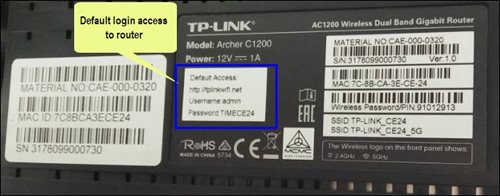
For example, below is the login details of the above router:
Username: admin
Password: TIMECE24
4. Once you have successfully login, the router's web-based setup page will appear. Please follow below steps for the configuration.

5. From the top menu, choose Basic and then click Wireless tab on the left menu to access to below screen.

6. Since this is a dual band router, you will have 2 Wireless Network Names (SSID) i.e. 2.4GHz and 5GHz. You may connect to any of the SSID, preferably with a stronger signal available.
7. You may change the Wireless Network Name (SSID) and the Password to follow your preferences, then click "Save" for the changes to take place.
Please reconnect to the new wireless name with the new password once completed.
You may manage all your Astro subscriptions via My Astro app. Download here or on your App Store or Google Play Store.
You can proceed with below BTS if the weather is good. Otherwise, you may try again later.
STEP 1
On your remote, press the HOME button and the home menu will be displayed on top of your screen.

STEP 2
Navigate to SETTINGS.

STEP 3
Navigate to Satellite Settings and press “OK”.

STEP 4
Navigate to Diagnostics and press “OK”.

STEP 5
Refer to the signal strength on your screen.
If it is 65 or higher, please take the screenshot and submit your feedback form.
If it is below 65, please go to Step 6.

STEP 6
Switch off the power for your box and make sure that the adapter’s power light is off.

STEP 7
Unscrew the satellite cable from the box and pull it out.

STEP 8
Plug the satellite cable back into the box and screw it back securely.

STEP 9
Switch on the power for your box and make sure that the adapter’s power light is on. Please wait for 5 minutes.

STEP 10
Turn on your box. You should no longer be experiencing this issue.
If issue persist, please submit the issue on our Feedback Form with error details and attach a picture of your General tab of the STB Diagnostics for assistance.
Centralized Dish
If issue persist under a centralized satellite dish, please refer to your respective Building Management before contacting our agents.
Yes, customers will be charged 8% Service Tax on switching fee for any services rendered on or after 1st March 2024.
For My Astro App Users
Go to the "Account' tab and scroll to "Personal Info' section. Click "Name & contact info' to view and update your personal contact information.

For Ultra and/or Ulti Users


Your purchase will be reflected on your next monthly Astro bill. For example, if you rented a movie for RM 15.00 for 2 days and your next bill statement is in 2 weeks. RM 15.00 will be reflected in your Astro subscription bill in two weeks' time.
You may register for auto-debit via: -
1.My Astro website.

2.MyAstro App.

3.Any of our AstroExperience Store.
Regular (DTH) customers can watch Astro without an Internet connection. If you have selected Plug & Play setup option, a minimum speed of 10Mbps/device is required to enjoy a good HD viewing experience on Ultra/Ulti¯Box and 30Mbps/device for 4K UHD viewing on Ultra Box. However, if you have selected the Regular (DTH) option, the internet speeds above are recommended to enjoy a good viewing experience for On Demand and Astro Cloud services.
Slow browsing using LAN cable
Looks like there is something wrong with your service connection.
Please run the Speed Test and attach the picture or screenshot of the speed test in the Feedback Form below, in order for us to provide further assistances.
Click here for Speed Test guideline.
Quick Info
A Speedtest is a service that provides free analysis of Internet access parameters, such as connection data rate.
Slow browsing using Wi-Fi
1. Router Positioning
Most people underestimate the importance of picking a good spot for a Wi-Fi router. Even a small shift in positioning could end up being the difference between day and night.
i) High vs. Low
Put the router as high up as possible to extend the broadcasting range of the radio waves. This also helps clear the router of possible interferences.
ii) Concrete & Metals
Make sure your router isn't blocked by any other objects, especially devices that are electronic. Also, avoid placing your router in your basement as this area is usually enclosed by a lot of concrete, which can be almost impossible for Wi-Fi signals to penetrate.
iii) Distance to Router
The further away from your router you get, the weaker the Wi-Fi signal. Therefore, the best option is to place your router as close to your devices as possible, but this is only practical if you have one main area where you tend to use your devices.
Otherwise, you should place your router near the center of your home. After all, Wi-Fi broadcasts in 360 degrees, so it doesn't make sense to put it at one end of the house.
2. Wireless Interference & Noise
You've probably never noticed but there are wireless signals all around you wherever you go and they're passing through you all the time. From where? Electronic devices, Wi-Fi routers, satellites, cell towers, and more.
Although Wi-Fi is supposed to be on a different frequency than most of these devices, the amount of radio noise can still cause interference. Some common causes of interference include:
i) Microwaves
ii) Bluetooth Devices
iii) Cordless Phone
3. Surrounding Wi-Fi signals
A truth of the modern world is that every household has their own Wi-Fi network, which can cause issues with channel overlap. This can be somewhat problematic in a townhouse, but is especially problematic in housing complexes and apartments where there can be many routers within close proximity.
Which is why it's important that you pick a good channel in your router settings. Modern routers can choose channels for you automatically, but sometimes it's better to investigate and find the best channel yourself.
4. Usage
More likely, however, is that the people on your network such as friends, roommates, or family members are participating in bandwidth-heavy activities like gaming and streaming Ultrabox/ Netflix.
Fortunately, if this is the case, you can prioritize your own network traffic by enabling Quality of Service in your router settings.
If the problem persists, please run a Ping Test, Traceroute Test and attach the picture or screenshot of both test results in the Feedback Form, in order for us to provide further assistances.
Please make sure to attach the required screenshot(s) in ONE file (i.e. Microsoft Word document, PDF, Image file) before submitting the form.
Quick Info
A Speedtest is a service that provides free analysis of Internet access parameters, such as connection data rate.
A Ping Test shows how long it takes for packets to reach host.
A Traceroute Test traces the route of packets to destination host from our server.
For customers that would like to subscribe to Multiroom with a box installation,
(i) customers on the old packages (example Family Pack, Starter Pack, Value Pack, Super Pack or Super Pack Plus) will have to subscribe to our new packages first by sending "Switch" to 03-9543 3838 via WhatsApp;
(ii) customers on the new Astro packages can subscribe by visiting product.astro.com.my/multiroom or WhatsApp "Hi" to 03-9543 3838.
Currently, My Astro app and web supports TV pack upgrade. You can go to "Account' and scroll to "Subscription' section and select "TV pack'. You may reach out to us via WhatsApp at 03-9543 3838 for more details.
For Ultra and/or Ulti box users, launch the My Astro app on your Home screen and you will land on the My Astro account dashboard. Press ">' remote button to go to your Subscription card and "OK' button to proceed with the TV pack upgrade.
Please provide your primary mobile number via My Astro Portal, or send it to one of our platforms found here.
Note:
STEP 1
Press "HOME" button on your remote control.

STEP 2
Navigate to My TV and press "OK".

STEP 3
Navigate to Bookings and press "OK".

STEP 4
Your list of your booking programs will be displayed.

STEP 1
Please wait while your Astro box initializes.
STEP 2
Select your preferred language.
STEP 3
Navigate to Next and press "OK".
STEP 4
Select Auto as the Video Resolution.
STEP 5
Navigate to Next and press "OK".
STEP 6
Navigate to Confirm and press "OK" to confirm your selection if you are able to read the texts on screen properly.
Otherwise, navigate to Cancel to revert to the previous settings.
STEP 7
Select Satellite as the box operating mode.
STEP 8
Navigate to Next and press "OK".
STEP 9
Select your preferred connection.
For connection via Wi-Fi, proceed to STEP 10.
For connection via LAN Cable, proceed to STEP 16 once you are connected.
STEP 10
Please wait while your Astro box searches for available Wi-Fi networks.
STEP 11
Navigate to your preferred Wi-Fi network and press "OK".
STEP 12
Please enter the password to connect to the Wi-Fi network.
STEP 13
Navigate to Done to continue.
STEP 14
Please wait while your Astro box connects to the internet.
STEP 15
Navigate to Yes to allow your Astro box to connect to this network automatically.
Otherwise, navigate to No.
Proceed to STEP 17 for the next step.
STEP 16
Navigate to Next and press "OK".
STEP 17
Navigate to Universal.
STEP 18
Navigate to Next and press "OK".
STEP 19
Select 01 M3B VL - 10732 as the Entry Point.
STEP 20
Navigate to Next and press "OK".
STEP 21
Please wait until the signal reading is updated.
Navigate to Finish and press "OK" to complete the settings.
1. Tune to channel 200 - select on "MyAccount"

2. Select "View Channel Listing" and press "OK".
Call our contact centre 03-9543 3838 or visit us at astro.com.my.
Starting 21 June 2022, all new digital sign-ups for TV packs on astro.com.my will now include access to the Astro GO app within an hour upon checkout of your first month subscription fees (excluding tax). Install the app on your smartphones, tablets or computers and you can start streaming even before your Astro box arrives!
Please call our Customer Contact Centre or WhatsApp "DH Help" at 03 9543 3838 to cancel your Disney+ Hotstar 3-months add-on pass with Astro.
You can subscribe to new packs via
Please visit http://help.netflix.com to call or start a live chat with Netflix's customer support agents. You will be assisted to unlink your Netflix account from your Astro subscription. After the process, you may link another Netflix account to your Astro subscription.

Disabling band steering means that there will be two frequency bands available for the users - 2.4GHz and 5GHz.
Note: Band Steering is called Dual-band Combination in the router web interface.

Login using your username and password if you have changed the router login setting. Otherwise, your default router login is as per below.
Username: user
Password: user
4. Once you have successfully logged in, the router's web-based setup page will appear.

5. At the top of the page, click Wi-Fi to configure the WiFi parameters.

6. Click on Dual-band Combination button to disable the Band Steering.

7. Set the Wi-Fi name and Wi-Fi Password for both 2.4GHz and 5GHz bands based on your preference. Then click "Apply" for the changes to take place.

8. Kindly ensure to reconnect your WiFi according your new WiFi name and password.
My Astro is an easy-to-use, free mobile phone app and responsive web portal that helps Astro customers to manage their Astro accounts. My Astro allows customers to manage their accounts, pay bills, and get any support they need. In addition, customers can find and purchase the latest shows to be viewed on their Astro Box or on Astro GO. Customers can also receive news about Astro's latest products and content offerings.
Starting 16 February 2024, you may be asked to perform Astro ID verification when you log in to their Astro account on digital platforms such as www.astro.com.my, Astro GO, My Astro etc. This 2-step process encompasses verifying your email address or phone number and re-entering of your existing password.
No, if you already have an Ulti box you will not be required to swap the box to enjoy the new packs. However, if you would like to access 4K UHD content, you may upgrade to Ultra Box. Installation and activation fees will be chargeable depending on your package selection.
For Astro Fibre, you may choose from a selection of Broadband speeds from 100Mbps to 800Mbps for as low as RM129/month and receive a free WiFi 6 router & Astro Fibre App. On top of this, you will also get to enjoy a complimentary speed upgrade for 24 months. A new 24-month contract will begin upon successful installation and full details of this offer are as follows:
| Astro Fibre Standalone Price per month | ||
| 100Mbps | 500Mbps | 800Mbps |
| RM129 (speed upgrade to 500Mbps for 24 months) | RM189 (speed upgrade to 800Mbps for 24 months) | RM249 |
Your existing offers with us will not be affected and will continue until the agreed upon date.
No, there will be no additional charges to access Liga Malaysia.
Unfortunately, you cannot link your direct Disney+ Hotstar subscription to your Astro account. Please ensure that the mobile number used for your direct subscription to Disney+ Hotstar is different from the mobile number used to activate Disney+ Hotstar entitlement via your Astro subscription. If you do not have an alternative mobile number to nominate, kindly contact Disney+ Hotstar's customer service directly at disneyplus.my@hotstar.com for details on how to cancel your direct subscription.
By changing from a higher contract duration e.g., 24-months commitment period to lower contract duration e.g., 12-months, a proration of the cancellation fee will be applicable whereby you will be charged per contract's month balance against the maximum cancellation fee agreed upon during sign up for the offer.
A proration of the cancellation fee will be applicable whereby you will be charged per contract's month balance against the maximum cancellation fee agreed upon during sign up for the offer.
You will start a new contract with 12-months commitment and receive the corresponding discount for that duration.
Check out how a cancellation fee is calculated with examples via this link:
Please see the table below for the offers available for residential customers.

Notes:
· Installation fee includes Government tax.
· Monthly subscription fee does not include Government tax.
· The Ulti Box offers in the table above include a contract Period of 24 months with a pro-rated early termination fee of RM600 (excluding Government tax).
· The installation fees listed in the table above applies for a standard installation of the Ulti Box in your home. Additional charges may apply for non-standard installation.
· * Existing customers with monthly pack >RM100 are recommended to select Ultra Box @ FREE Installation fee with 24 months contract.
· ** New customers with monthly pack >RM100 are recommended to select Ultra box @ RM99 installation fee with 24 months contract.
· You may visit https://product.astro.com.my/box to find out more details about Astro Ultra Box.
· Ulti Box installation is free for Astro & Broadband customers for Starter Pack and above. A separate list of TNC’s will be applicable for this offer.
You will require HD-PVR service in order to subscribe for a PVR. This service is included in all Starter Pack, Value Pack, Super Pack Lite, Super Pack and Super Pack Plus subscriptions.
STEP 1
Switch off the power for your box and make sure that the adapter's power light is off.

STEP 2
Locate the SIM card at the left side and gently pull it out.

STEP 3
Wipe the SIM card's gold chip clean using a dry soft cloth.

STEP 4
Make sure the gold chip is facing down and reinsert it all the way in.

STEP 5
Switch on the power for your box and make sure that the adapter's power light is on.
Please wait for 5 minutes.

STEP 6
Turn on your Ultra Box. You should no longer be experiencing this problem.

If issue persist, please submit the issue on our Feedback Form with the error details and provide sim card number for assistance.
The Download function offers an alternative to streaming so that you can watch TV shows and movies offline anywhere.
You can start downloading a movie/TV show by clicking on the "Download” button. Kindly note that you can only download one title at the time. Other titles will be in queue and will start downloading automatically as soon as the first download is complete.

Once you have downloaded a title, the progress icon will show “Complete” and you may find your downloaded content by checking “My Library” > “Downloads”.

*To save on data usage, we recommend downloading via Wi-Fi.
Downloaded content retention periods vary according to the type of content.
The number of days left for you to view your content in offline mode is shown for each piece of downloaded content for your reference. Expired content will be automatically deleted from the app, freeing up your device storage.
Refund process required 5 working days by Astro and additional 3 - 7 working days required subject to the respective processing banks.
For customers with the Ultra or Ulti Box, you will be charged a fee of RM100 (not inclusive of Govt. tax) upon confirmation of lost Astro Box and Smart Card/SIM Card.
For lost Smart Card/SIM card only, you may be charged RM50 to obtain a replacement.
For all new Astro Fibre customers with the RG21 router, the Astro Fibre App will be installed on your mobile device for you during installation. Alternatively,you may refer to the user guide here for self-installation.
STEP 1
Press "HOME" button on your remote control.

STEP 2
Navigate to Update Satellite Frequency and press “OK”.

STEP 3
Choose Reprogramming and press “OK”.

STEP 4
Select Yes, continue and press "OK" to proceed with the update.
Otherwise, select No, go back to cancel.

STEP 5
Satellite Frequency Update progress screen will be displayed.

STEP 6
The test result will be displayed once completed.
Press "OK" to go back to channel.

We are sorry you are thinking of leaving us.
If you wish to cancel your Astro subscription, kindly do take note of the information below if your account is still within contract period,
No, Pay-Per-View is no longer available in CH200.
The Kids Friendly Profile is an enhancement to the Kids User Profile feature with the following major improvements:
These enhancements are available across the Astro GO app, Ultra/Ulti Box, and Multiroom Box/Smart TV app.
Click here to find out more on this new feature and how to use it!
Please first ensure Disney+ Hotstar access is included and has been activated as part of your Astro subscription. Once you have completed your activation process, you can enjoy Disney+ Hotstar on the Ultra box with these simple steps:
Step 1: Separate Your Wi-Fi Network Name
First, you need to set up your Wi-Fi to Dual-band in order to be less susceptible to interference, and allows you to choose between the 2.4GHz or 5GHz bands when connecting a device. A Wi-Fi frequency of 5GHz is best when you are near your router, and 2.4GHz is best for when you are far from your router.
Below are details for a standard login based on a standard router issued by ISP (Telekom Malaysia, Maxis, and Time dot Com)

Step 2: Factory reset your Ultra Box by following the steps below.
a. Press the Home button on your remote

b. Go to your settings page

c. Scroll down and select Reset/Restore

d. Select restore factory settings and proceed

e. Enter your PIN to access restore factory settings (default pin: 0000)

f. Choose restore and wait until the box reboots automatically. This may take around 2 minutes and you will see the Astro logo again when it's done.

Please refer to these FAQs for more information, or click here to learn more and sign up for the Ultra Box. Alternatively, you may call 03-7481 8000 to get in touch with an Astro representative.

| Step 1: Visit https://id.astro.com.my/ and click on “Forgot Astro ID?” | Step 2: Enter your Account/Smartcard Number. If you do not know where to find it, click on “Where to find your Account/ Smartcard Number” |
STEP 1

Try to change channels on your Astro remote.
INDICATOR: LED blinking 3 times / NO LED blink
SOLUTION: Replace new battery
Proceed to Step 2.
INDICATOR: LED blinking 1 time
Confirm it's not your Astro remote faulty, let's proceed to Step 3.
STEP 2
If issue remain after the battery replacement, this might be due to a faulty Astro remote.
Try changing the channel manually directly from the box front panel (If any).
If it's working, you might need to replace your Astro remote.
You may walk-in to our nearest Customer Service Center for the replacement.

STEP 3
You need to refresh the box setting by initiate manually from box front panel.
Refer to Refresh Box setting Guide steps here.