Astro 提供的免费卫星电视服务。终身收看娱乐,新闻,学习和资讯节目等。
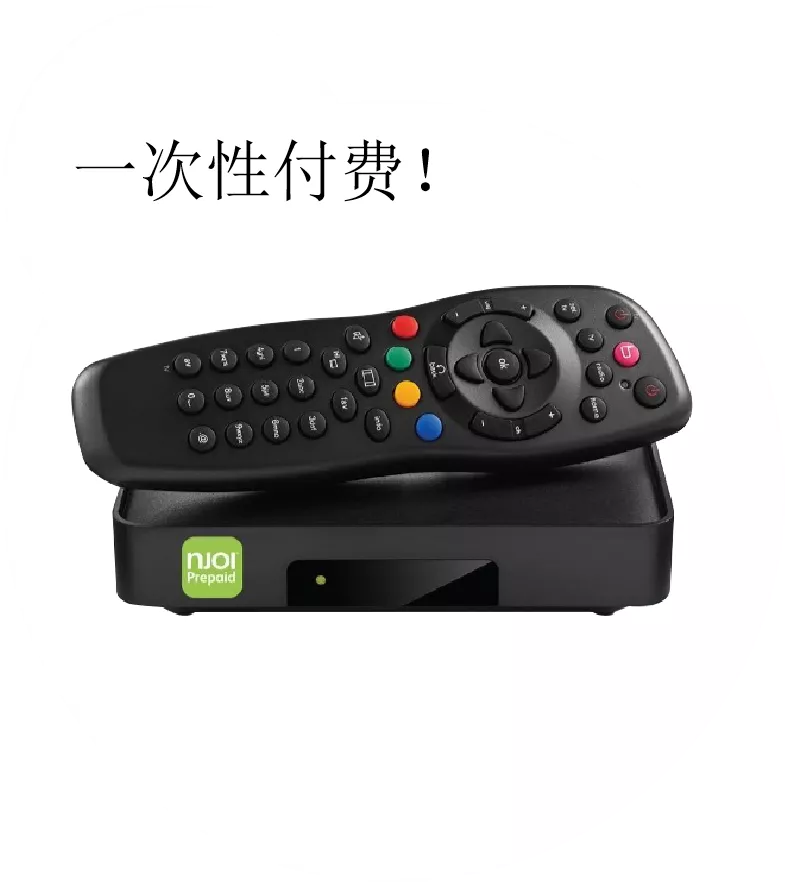
图片仅供参考。
免费观看15多个电视频道和10+个广播频道。
* 需遵守Astro条款和条件。

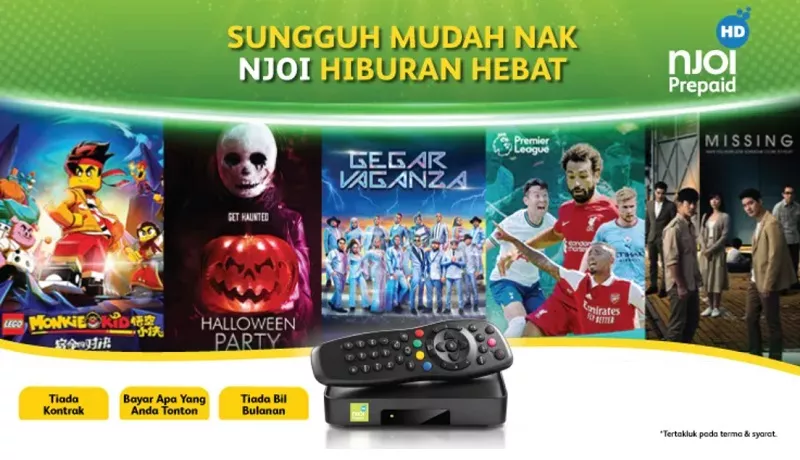
步骤一 |
步骤二 |
步骤三 |
选择配套然后提交您的申请。 |
等待安装。 |
享受您的新 Astro / 宽频! |
Astro 提供的免费卫星电视服务。终身收看娱乐,新闻,学习和资讯节目等。
图片仅供参考。
新的解码器,不包含卫星天线和电缆。您必须已安装 Astro/Njoi 卫星天线和电缆并正常运作。
包括安装。
新的解码器配有卫星天线和电缆。
包括安装。
签购
| Njoi Astro UniFi Maxis |
在这里找到您要的答案。
我们提供一站式服务为您申请Astro和Broadband。不必开车,排队和在销售柜台等候。 我们可以帮助您处理您的申请。
我们不收取额外费用。 无需提供信用卡信息。 费用与您在销售柜台申请的费用相同。
首先,您可以在线申请,我们将在工作时间内立即与您联系。 通过WhatsApp/电子邮件/传真发送您的身份证-IC(马来西亚公民)/ 护照(外国人)的复印件给我们。 收到所有资料后,我们将立即处理您的申请。
一旦收到您的完整资料,我们将在工作时间内立即处理您的申请。一旦您的申请获得批准,服务提供商的承包商将与您联系以进行安装预约。
ASTRO 和宽频收费同时在一张账单,享受更大的节省和无忧的账单支付。 在24个月的合约期内,您可以每月以折扣价享受 Astro 和宽频。
Astro 提供多种电视配套,包括娱乐、体育、电影和儿童配套。您可以选择符合您观看需求的配套,并在适用情况下添加额外的串流应用服务。
可以,您可以只订阅 Astro 电视配套而无需绑定宽频。不过,将 Astro 电视与光纤宽频绑定可享有更好的每月优惠,并且只需支付一张综合账单,更加方便。
对于小型家庭以及轻度上网和串流使用者,100Mbps 通常已足够。较大家庭、游戏玩家或重度串流用户则可选择 500Mbps 或 1Gbps 配套,以获得更流畅的多设备使用体验。
大多数 Astro 电视和光纤宽频配套都附带 24 个月合约期。如在合约期满前取消服务,可能会产生提前终止费用。
可以,您可在符合资格及覆盖范围的情况下随时升级电视配套或宽频速度。根据升级情况,可能需要重新计算合约期限。
您的每月账单将由 Astro 直接发出。您可通过电子邮件接收账单,或通过 Astro 账户在线查看。绑定配套用户将收到电视与宽频服务的综合账单。
付款方式包括网上银行、自动扣款、信用卡或 Astro 提供的其他认可付款渠道。我们的团队将在申请过程中为您提供协助。
如果您遇到任何服务中断问题,可联系 Astro 客户服务寻求技术协助。大多数情况下可远程解决,如有需要将安排技术人员上门处理。
可以,迁移服务需视新地址是否在服务覆盖范围内而定。根据您的配套,可能会产生迁移费用及合约调整。
不需要,提交申请时无需提供信用卡资料。服务获批后,付款安排将由 Astro 直接处理。
部分 Astro 电视配套可根据当前促销及服务情况添加串流服务等附加项目。可能需支付额外月费。
是的,光纤安装时通常会提供 WiFi 路由器。路由器型号可能会根据所选宽频速度配套而有所不同。
可以,我们会在处理您的申请前确认您地址的服务覆盖范围,以确保该地区可安装宽频服务。
马来西亚公民需提供 MyKad 复印件。外籍人士则需在提交宽频申请时提供护照复印件。
申请获批后,服务提供商通常会在 2 至 7 个工作日内联系您安排宽频安装预约。
大多数 Astro 宽频配套附带 24 个月合约期,从安装日期开始计算。如您搬迁,可能需要在新地址重新签订 24 个月合约。
可以,您可在新地址具备服务覆盖的情况下迁移宽频服务。合约期限可能会从新安装日期起重新计算 24 个月。
可以,您可申请在家中调整宽频设备位置。若属于非标准安装,可能会产生额外费用,并需在评估后直接支付给安装人员。
可以,您可转用 Astro 宽频。为避免服务中断,建议在终止现有宽频合约前先开通新的宽频服务。
标准安装在促销期间可能免费,但非标准安装(如设备迁移或复杂布线)可能会产生额外费用,并需直接支付给安装人员。
The storage requirement is dependent on the type of videos users are downloading as the space needed varies between titles.
If you see this message, it means the maximum number of devices currently streaming on your Astro account has been exceeded.
Please perform the following checks and troubleshooting steps:
1. Stop Streaming on Other Devices
2. Wait a Few Minutes
3. Try Again
4. Check Your Device Usage
If you are unable to remove a device or continue to see the error message, proceed to submit report via WhatsApp or Feedback Form and provide:
This will help our support team investigate and assist you further.
Note: Please be aware that only one Smart TV device is allowed per account at any point in time.
- The Mesh unit can only be used indoors. It can be mounted onto a wall or be placed horizontally on a desktop. Do not install it in other mode, such as on the ceiling.
- Keep a clearance of at least 10 cm around the device to ensure proper ventilation.
- Keep the device away from electrical appliances that generate strong magnetic or electric fields, such as microwave ovens.
You may reach out to Astro's customer service at 03-95433838 if you think there's an error regarding your redemption or rewards.
If you experience constant loading or buffering while watching content on the Astro Smart TV app, please follow the steps below:
1. Update Your Smart TV Software
2. Restart Your Devices
3. Clear the Astro App Cache
4. Reinstall the Astro App
5. Still Experiencing Buffering Issues?
If you are still having issues, proceed to submit report via WhatsApp or Feedback Form and provide:
This will help our support team investigate and assist you further.
We wish to advise you to make your payment before the following month's bill is generated in order to avoid interruption in your viewing experience. Please note that to reconnect your subscription, there will be a charge of up to RM20 (excl. gov tax) upon reconnection, except for Commercial & Hotel customers.
Find out more about the reconnection fee here.
On the beIN SPORTS CONNECT mobile app:
Step 1: Open the "beIN SPORTS CONNECT" app and go to your Profile
Step 2: Select "Sign in with Astro" and log in with your Astro ID
Step 3: Go to "Settings" and select the TV Login option
Step 4: A QR code scanner will appear.
Customers can enjoy major European football leagues, over 3,000 hours of live tennis and other global sporting events LIVE and on-demand on the app. You may check out the complete list of competitions available on the app here: beIN SPORTS CONNECT | Live Leagues and Competitions | LaLiga, Serie A, Ligue
No, you will not be able to manage your account with the Astro Fibre App. However, you may download the “MyAstro” app on your mobile device now to manage your Astro account in a fast and easy way.
The TVBAnywhere+ app offers over 40,000 hours of Chinese entertainment, including the latest drama series, variety shows, evergreen classics, and unlimited TVB originals that can be enjoyed anytime, anywhere. It also features exclusive dramas, known as TVBAnywhere+ Originals, such as
Ghost Cleansing Ltd
and
OPM
, which are available exclusively on the app. In addition, the app includes selected movie titles for on-demand viewing, providing more flexibility compared to the TVB channels on Astro.
Astro GO is free for all Astro customers to enjoy their favourite shows and channels on their smartphones, tablets, and computers – anytime, anywhere in Malaysia. Astro customers with an active Pay-TV subscription can link their accounts to watch corresponding On Demand and TV channels available on Astro GO as part of their subscription.
Don't have an Astro account? Fret not, you may still preview and browse content available on Astro GO via Web, Mobile Phone or your tablet using Astro GO Guest Mode.
There are two ways for you to switch your preferred bill delivery method:
A. Customers can manage their account via the My Astro Portal by following these easy steps:
B. Customers can also manage their account via Astro’s mobile application, the My Astro app by following these easy steps:
Upon submitting your application, you will receive the eKYC link via SMS/email/astro.com.my to complete the eKYC verification within 3 days.
No, you do not have to prepare any documents before handing your equipment over to the courier agent/installer! All you must do is get your equipment ready before the courier agent/installer arrives to ensure a smooth handover process.
Auto-debit payment will be debited from your account 5-7 working days after your billing cycle date.
If your auto-debit payment is unsuccessful, you will receive an SMS alert.
There will be no changes to your Netflix account when you move to a new address.
If you have a box that is not an Ultibox or Ultrabox, please recycle your box at a registered collection centre that will properly manage the boxes in an environmentally friendly way. Click here to find a registered collection centre near you.
For your old Ultibox or Ultrabox, once your Plug & Play Box has been activated, a courier service will reach out to you within TWO (2) weeks for a time for them to pick up the old Astro box and SIM card/Smartcard.
- Old Astro Box
- Old Astro Smartcard/SIM Card (leave this in your Astro Box)
Any termination within contract period will be subjected to an Early Termination Fee (ETF).
Astro customers can subscribe to Simply South at only RM10.00 per month (excluding tax).
Please perform the following checks and troubleshooting steps:
1. Check if your TV supports the Astro app.
The Astro app is generally available on selected:
Kindly check that your Smart TV supports the Astro Smart TV app (kindly refer here).
If your TV uses a different operating system (e.g., older proprietary OS), the Astro app may not be available.
2. Update your TV software.
Go to: Settings → Support → Software Update
Install any available updates, then restart the TV and try again.
3. Search the correct app store
Search for "Astro" or "Astro GO" (depending on your region and service availability).
4. If your TV's region is set incorrectly, certain apps may not appear.
Look under: Settings → General → Location/Region
Ensure it matches your actual country.
If you are still having issues, proceed to submit report via WhatsApp or Feedback Form and provide:
This will help our support team investigate and assist you further.
Please ensure that you are using the correct ID for eKYC submission.
For Malaysians :
1. Please ensure you are using MyKad or MyTentera.
2. Capture the front and back of your ID.
3. Ensure that there is no glare when capturing the photo.
4. Ensure that are capturing it in a bright room to have the highest picture quality.
5. Please do not cover your ID when capturing it, as it may impact the OCR Optical Character Recognition accuracy.
For Malaysian Permanent Resident and Other Nationality :
1. Please use Passport only.
2. Please capture your whole passport, which has your personal information on it and your signature.
3. Ensure that there is no glare when capturing the photo.
4. Please do not cover your ID with your when capturing it, as it may impact the OCR Optical Character Recognition accuracy.
Currently, e‑Invoicing is not mandatory for all customers. However, it is mandatory for customers who subscribe to Astro Fibre or Broadband services, as this follows the Inland Revenue Board of Malaysia’s (IRBM) national e‑Invoicing requirement.
For other Astro services, e‑Invoicing is optional, but customers are encouraged to opt in as it supports quicker processing, smoother transactions and a more seamless billing and tax compliance experience over time.
You are attempting to play a content that is not part of your subscription. If you are not able to play a content that you are subscribed to, proceed to submit report via WhatsApp or
Feedback Form
.
"Payment Due Date" refers to the payment deadline for your Astro bills each month.
The 2 months of access will expire exactly two months after your account is activated. For example:
No. You will need to use a Malaysian mobile number registered with a local mobile network operator to register and activate your Disney+ subscription through Astro.
If you're getting the following error on your PVR box when trying to access On Demand (VOD) feature:
- Network interruption, please try again later. If problem persists, please WhatsApp HELP to 03- 9543 3838.
(Code: V6A / V63 / V65)
- Unable to load the On Demand Catalogue due to failure in resolving server's DNS address. Please check your internet connection and try again later. (V6B)
This error message appears because you're trying to access a service that has been discontinued.
Please be informed that Video on Demand (VOD) services has been discontinued on Astro PVR boxes starting 31 December 2025, 12:01 AM. This is part of our ongoing efforts to enhance customer's viewing experience as PVR boxes are no longer able to support the advanced features and viewing quality available on our newer boxes due to technology limitations.
To continue enjoying Video on Demand (VOD) content on Astro set-top-boxes, you must upgrade your PVR box to an Ultra or Ulti Box. This upgrade is available at no additional cost for PVR box users, and it gives you access to the latest features and an improved viewing experience. Alternatively, if you don't want to upgrade your PVR box, you can continue to access On Demand content anytime via Astro GO, which is available at no additional cost to all Astro customers.
All other regular PVR features including the recording feature will remain available.
To find out more on this upgrade offer, contact Astro customer service at 03-95433838.
The iQIYI App is an on-demand video streaming service provided by iQIYI that was first launched in June 2019 in more than 191 countries providing the best Asian dramas to viewers across the world. iQIYI allows subscribers to watch all their favourite Asian entertainment including dramas, variety shows, movies and anime, with subtitles in multiple languages and equipped with Dolby Atmos for the most immersive experience at their fingertips.
The Astro X3 packs are available to both new and existing Astro customers, making it easier for customers to enjoy a fully digital viewing experience. For existing Astro customers, subscribing to an Astro X3 pack under a 12-month contract will be treated as a new subscription, and a separate account will be created.
To manage this subscription, customers will need to register a new Astro ID using a new email address. This ensures a smooth and seamless self-service experience, with each subscription managed independently.
Not to worry, our representative will be contacting you within 24 hours.
For more information on the product including offers and setup, visitproduct.astro.com.my/multiroom.
You can cancel your WeTV VIP subscription via WeTV’s official website or mobile app.
Kindly note that we will not be able to offer a refund if you do decide to leave the WeTV app before your subscription period ends.
For customers who wish to have their physical tax invoices reprinted, there will be a flat fee of RM10.00 levied as part of the process which has been implemented since year 2015.
STEP 1
Try to change channels on your Astro remote. Check the LED light.
If the LED is blinking 3 times or if it is not blinking, replace the batteries and proceed to STEP 2.
Otherwise, if the LED is blinking 1 time, your remote is working fine, let's proceed to STEP 3.
STEP 2
Check if you can change channels using your Astro remote control. You should no longer be experiencing this problem if is a battery issue.
If issue remain after batteries replacement, proceed to STEP 3.
STEP 3
You need to refresh the box setting manually from the box front panel.
Refer to Refresh Box setting (Clear NVRAM) - Ultra / Ulti Box.
If issue persist, please submit the issue on our Feedback Form.
Yes, you can request e-invoicing for your last month's bill if you obtain approval before the last date of the allowable period for the month: 5 days after the end date of the invoice period.
Scenario A (Only for Aug ’24):
Bill Date: 07 Aug 2024
Bill Start/End Period: 07 Aug – 06 Sept 2024
Timeframe requesting e-invoice: 07 Aug – 11 Sept 2024 (within 5 days after the end bill period)
Request Outcome: You will get the e-invoice for last month’s bill dated 07 Aug 2024.
Scenario B (For Sept ’24 onwards):
Bill Date: 01 Sept 2024
Bill Start/End Period: 01 Sept – 30 Sept 2024
Timeframe requesting e-invoice: 01 Sept – 5 Oct 2024 (within 5 days after the end bill period)
Request Outcome: You will be getting the e-invoice for last month’s bill dated 01 Sept 2024
Scenario C (For Sept ’24 onwards):
Bill Date: 01 Sept 2024
Bill Start/End Period: 01 Sept – 30 Sept 2024
Timeframe requesting e-invoice: 6 Oct 2024 onwards (more than 5 days after the end bill period)
Request Outcome: You will be getting the e-invoice for the next bill cycle.
No, there will be no changes to your existing Astro subscription, package, pricing, or services. You can continue enjoying your current Astro experience as usual. The launch of Astro X3 does not affect your existing subscription unless you choose to make changes to your plan.
If you don't know your HBO Max password, you can reset it. You need to have access to your account email to reset your password:
Now, sign in with your account email and your new password.If you don't get a HBO Max Password Reset email, go to Can't reset password.
SecureGo is an authentication process that allows you to approve your My Astro transactions safely and easily using one-tap verification. This feature is available on the My Astro app.
Once SecureGo is activated, it will be your default transaction approval method on the My Astro app.
Your Astro X3 pack will be activated immediately after you complete your sign-up. Once your sign-up is complete, you can start streaming its content immediately via the Astro app on your Smart TV or through Astro GO on supported devices
a) If you sign up via Astro’s Official Website:
You will be required to create an Astro ID and password during sign-up. Once your subscription is successfully activated, you will receive a "Welcome to Astro" email confirming your activation and can start streaming right away.
To find out more, please visit: Here
i. If you sign up via Astro Sales Agents:
ii. You will receive a “Welcome to Astro” email prompting you to create your Astro ID password and confirming your successful activation. Once your password is set, you can start streaming.
b)Important Notes:
i. When creating your Astro ID, you will be required to use an Astro ID that is not linked to an active Astro account. If the Astro ID (i.e. email address) you enter is already linked to an active Astro account, you will be prompted to use a different Astro ID
ii. However, if the Astro ID you enter is linked to an inactive Astro account, you will have the option to reuse that Astro ID.