

全国范围内安装
签购
| Astro Njoi UniFi Maxis |
常问问题
在这里找到您要的答案。
我们提供一站式服务为您申请Astro和Broadband。不必开车,排队和在销售柜台等候。 我们可以帮助您处理您的申请。
我们不收取额外费用。 无需提供信用卡信息。 费用与您在销售柜台申请的费用相同。
首先,您可以在线申请,我们将在工作时间内立即与您联系。 通过WhatsApp/电子邮件/传真发送您的身份证-IC(马来西亚公民)/ 护照(外国人)的复印件给我们。 收到所有资料后,我们将立即处理您的申请。
一旦收到您的完整资料,我们将在工作时间内立即处理您的申请。一旦您的申请获得批准,服务提供商的承包商将与您联系以进行安装预约。
ASTRO 和宽频收费同时在一张账单,享受更大的节省和无忧的账单支付。 在24个月的合约期内,您可以每月以折扣价享受 Astro 和宽频。
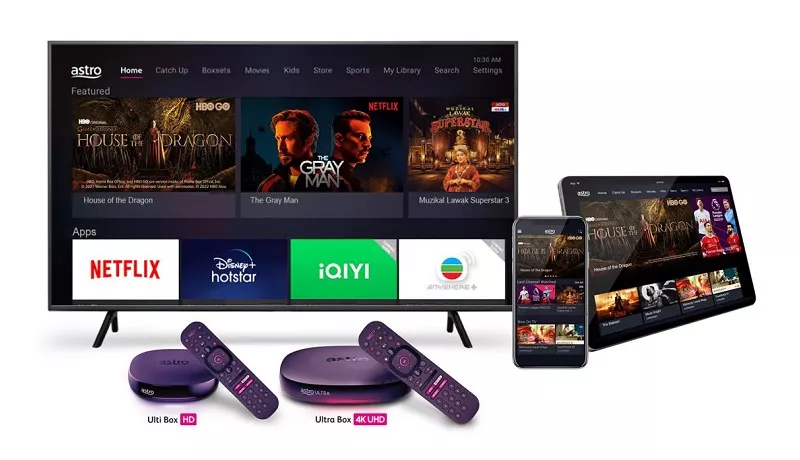
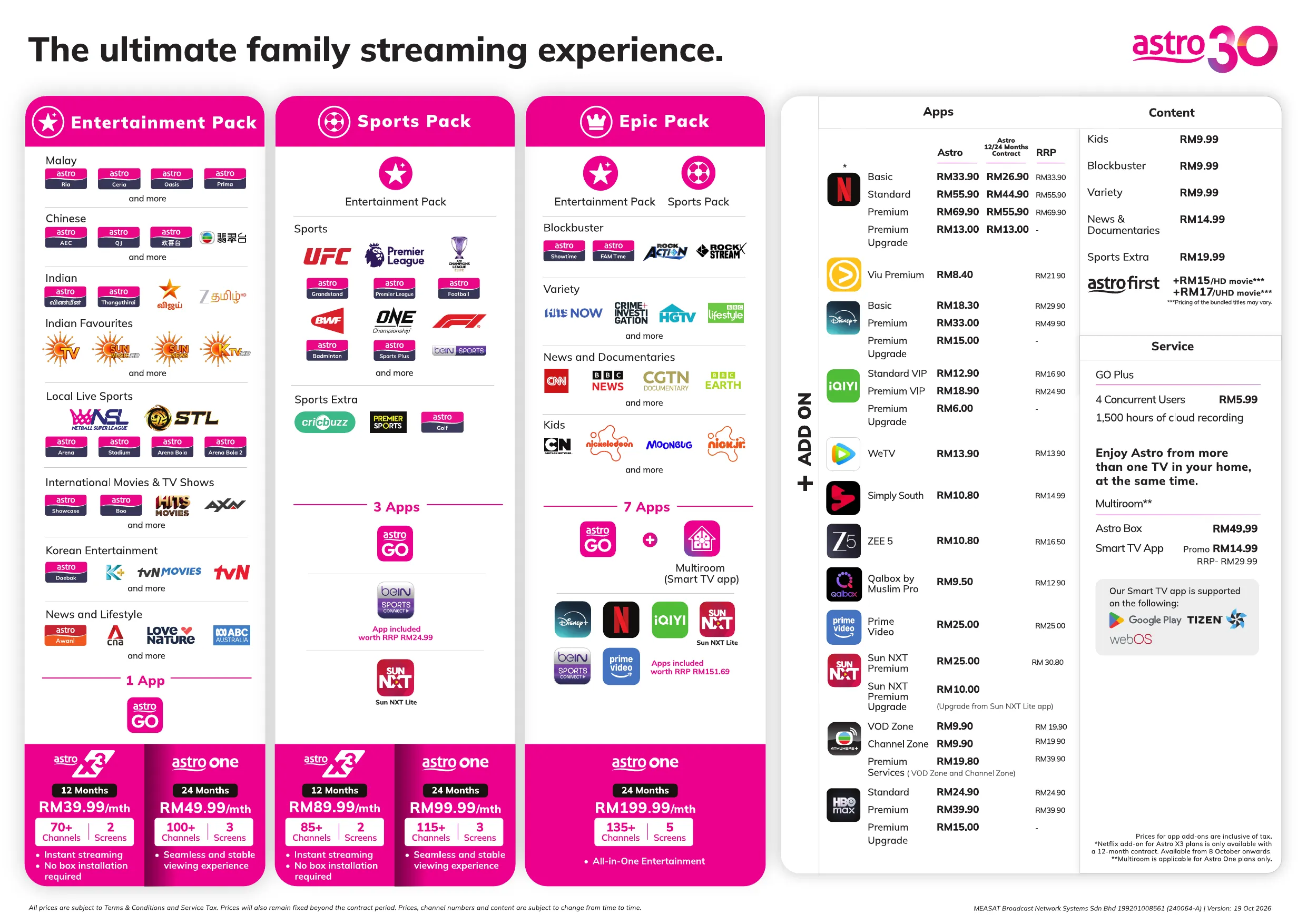
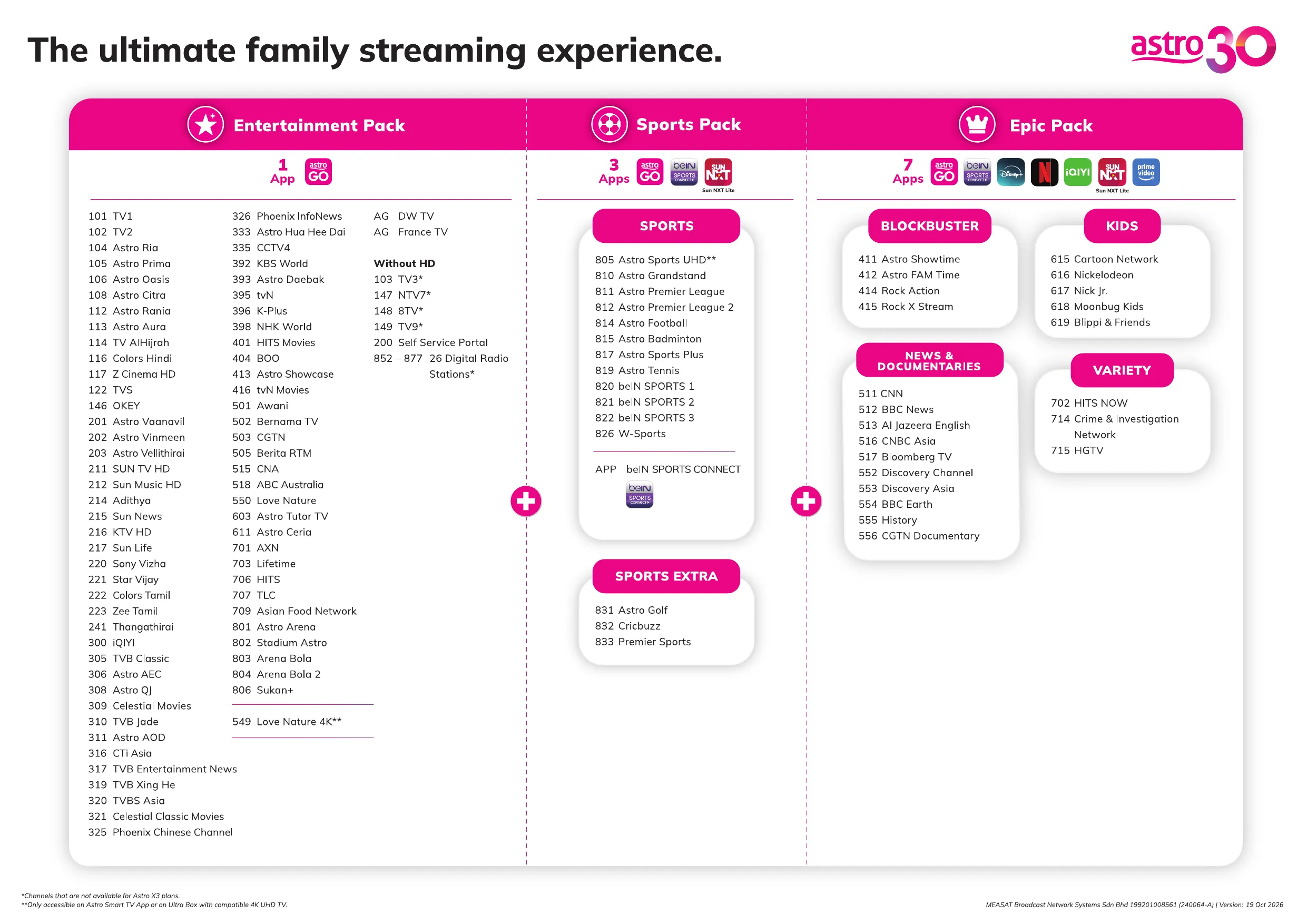
Astro 提供多种电视配套,包括娱乐、体育、电影和儿童配套。您可以选择符合您观看需求的配套,并在适用情况下添加额外的串流应用服务。
可以,您可以只订阅 Astro 电视配套而无需绑定宽频。不过,将 Astro 电视与光纤宽频绑定可享有更好的每月优惠,并且只需支付一张综合账单,更加方便。
对于小型家庭以及轻度上网和串流使用者,100Mbps 通常已足够。较大家庭、游戏玩家或重度串流用户则可选择 500Mbps 或 1Gbps 配套,以获得更流畅的多设备使用体验。
大多数 Astro 电视和光纤宽频配套都附带 24 个月合约期。如在合约期满前取消服务,可能会产生提前终止费用。
可以,您可在符合资格及覆盖范围的情况下随时升级电视配套或宽频速度。根据升级情况,可能需要重新计算合约期限。
您的每月账单将由 Astro 直接发出。您可通过电子邮件接收账单,或通过 Astro 账户在线查看。绑定配套用户将收到电视与宽频服务的综合账单。
付款方式包括网上银行、自动扣款、信用卡或 Astro 提供的其他认可付款渠道。我们的团队将在申请过程中为您提供协助。
如果您遇到任何服务中断问题,可联系 Astro 客户服务寻求技术协助。大多数情况下可远程解决,如有需要将安排技术人员上门处理。
可以,迁移服务需视新地址是否在服务覆盖范围内而定。根据您的配套,可能会产生迁移费用及合约调整。
不需要,提交申请时无需提供信用卡资料。服务获批后,付款安排将由 Astro 直接处理。
部分 Astro 电视配套可根据当前促销及服务情况添加串流服务等附加项目。可能需支付额外月费。
是的,光纤安装时通常会提供 WiFi 路由器。路由器型号可能会根据所选宽频速度配套而有所不同。
可以,我们会在处理您的申请前确认您地址的服务覆盖范围,以确保该地区可安装宽频服务。
马来西亚公民需提供 MyKad 复印件。外籍人士则需在提交宽频申请时提供护照复印件。
申请获批后,服务提供商通常会在 2 至 7 个工作日内联系您安排宽频安装预约。
大多数 Astro 宽频配套附带 24 个月合约期,从安装日期开始计算。如您搬迁,可能需要在新地址重新签订 24 个月合约。
可以,您可在新地址具备服务覆盖的情况下迁移宽频服务。合约期限可能会从新安装日期起重新计算 24 个月。
可以,您可申请在家中调整宽频设备位置。若属于非标准安装,可能会产生额外费用,并需在评估后直接支付给安装人员。
可以,您可转用 Astro 宽频。为避免服务中断,建议在终止现有宽频合约前先开通新的宽频服务。
标准安装在促销期间可能免费,但非标准安装(如设备迁移或复杂布线)可能会产生额外费用,并需直接支付给安装人员。
No, the Astro Fibre App is available for Astro Fibre customers with the RG21 and RG31 (launching soon) router.
You may switch to E-mail Billing or Paper bills to be notified of your bill and make payment. Kindly note that if you select to have Paper Bills, you will be charged a RM10 fee per bill.
Please perform the following checks and troubleshooting steps:
1. Check if your TV supports the Astro app.
The Astro app is generally available on selected:
- Android TV / Google TV
- Samsung Smart TV (selected models)
- LG Smart TV (selected models)
Kindly check that your Smart TV supports the Astro Smart TV app (kindly refer here).
If your TV uses a different operating system (e.g., older proprietary OS), the Astro app may not be available.
2. Update your TV software.
Go to: Settings → Support → Software Update
Install any available updates, then restart the TV and try again.
3. Search the correct app store
- Samsung: Apps
- LG: LG Content Store
- Android/Google TV: Google Play Store
Search for "Astro" or "Astro GO" (depending on your region and service availability).
4. If your TV's region is set incorrectly, certain apps may not appear.
Look under: Settings → General → Location/Region
Ensure it matches your actual country.
If you are still having issues, proceed to submit report via WhatsApp or Feedback Form and provide:
- Astro ID use
- Smart TV model
- OS version
- Error reported on device
This will help our support team investigate and assist you further.
Please contact us through one of our platforms found here or Self-serve by logging in to Astro Self-Service Portal within 3-7 days before moving out and we will sort everything out for you!
Astro sends regular payment reminders to customers via SMS until their current charges have been paid. However, we encourage customers to pay their bill as soon as possible to avoid disconnection of Astro service. Please reach out to us here if you require more information about payment reminders or to change your contact details.
Starting from 24 January 2025, Astro One Pack customers can add on Netflix ala-carte (comes with 24 months contract) plan to their subscription. This plan allows customers to choose from three Netflix subscription plans Basic, Standard, and Premium with a 24-month contract. This plan is offered at a discounted rate compared to the regular monthly Netflix add on, providing a cost-effective way to enjoy Netflix content.
For first‑time access, logging in or signing up for Netflix before the service is fully activated may result in double charging if Netflix is activated separately using your credit card.
If you’re having trouble watching Netflix, please check the following:
- Ensure your Ultra / Ulti Box is connected to the internet
- Restart your Ultra / Ulti Box and try accessing Netflix again
Note: If the issue persists, please contact us for further assistance.
You may also access Netflix directly via the Netflix app on your TV, if available.
Please ensure that you are logging in with the correct Astro ID and password. If you cannot remember your password, use the “Forgot Password” option to reset.
If the issue persists, you can submit an enquiry through our feedback form here. Please refer to the steps below:
Step 1: Select Feedback Type: Technical issues
Step 2: Select Issue: I have an enquiry/issue with Apps
Then choose the app you’re having trouble logging into and submit the form.
We will get in touch with you within 48 hours.
Important: To use Astro GO, My Astro, and other partner apps included in your subscription, your Astro ID must be linked to an active Astro subscription. You can refer to the steps here to learn how to link your Astro ID.
Astro X3 offers a curated selection of entertainment and sports content designed to provide a great streaming experience. The availability of certain channels and programmes is subject to content rights and licensing agreements. We are continuously exploring opportunities to expand and align our content offering, with the aim of bringing more channels and content to Astro X3 in the future.
As for radio channels, Astro X3 is designed primarily for digital-first streaming households, focusing on video entertainment content. As such, radio channels are not included within the Astro X3 experience. Customers can continue to enjoy their favourite radio stations through dedicated radio streaming apps, which can be downloaded directly from their device's app store.
You may retain your watch history and settings of your existing Netflix account by using the same email of your Netflix account during the linking of your Netflix account with Astro.
From 1st July 2023 onwards, Astro will ONLY accept cheques deposited at Public Bank Berhad.
To simplify your monthly payments, here are some recommended alternatives you can look into.
- Auto-Debit
- Online Banking
- JomPAY
- Astro Quick Pay
To find out more on how you can make your payments via these channels, kindly visit here.
Should you choose to continue with cheque payment, do ensure that you follow these steps below.
Step 1: Fill in the cheque
Step 2: Ensure that your 10-digit Astro account number is accurately written at the back of the cheque
Step 3: Go to your nearest Public Bank
Step 4: Locate the Cheque Deposit Machine
Step 5: Select “Bill Payment” on the screen
Step 6: Select “Astro”
Step 7: Drop your cheque in
Step 8: Collect your receipt
You can enjoy Prime Video benefits on Prime Video website and/or mobile app for 2 months once you have activated your Prime Video access anytime between 24 April 2025 – 23 June 2025.
The Netflix subscription through Astro is subject to a minimum commitment period of 24 months (“Netflix Minimum Subscription Period”). If you choose to discontinue or terminate the subscription before the commitment period ends, a cancellation fee (“Netflix Early Termination Fee”) will apply. Additionally, downgrading your plan will involve a Switching Fee.
Yes, you will need to activate SecureGo again.
If you don't know your HBO Max password, you can reset it. You need to have access to your account email to reset your password:
- Do one of the following:
- On the HBO Max sign-in screen, choose Forgot Password?
- Go to hbomax.com/forgot-password.
- Enter your HBO Max (or HBO Max) account email and choose Submit. Forgot your account email?
- Check your inbox for a HBO Max Password Reset email. This email should arrive within a few minutes.
- Open the most recent Password Reset email and choose Reset Your Password.
- Enter a new password and choose Save.
Now, sign in with your account email and your new password.If you don't get a HBO Max Password Reset email, go to Can't reset password.
Prime Video is available as an add-on to all Astro customers at RM25 per month (tax included). However, Prime Video is available to the following Astro customers at no additional cost:
- Customers on the Ultra/Ulti Box with either the Astro One Epic Pack or Movies Pack as part of their subscription bundle.
- Customers not on the Ultra/Ulti Box but subscribed to either the Astro One Epic Pack or the Movies Pack as part of their subscription bundle, starting 24 June 2025.
Yes, watching on the Astro Smart TV app will utilise one (1) of your Astro Go concurrency.
To access the app, please ensure the following:
You are an existing Astro Fibre customer, and you have a valid Astro ID and password to log in.
If you still cannot access the app:
Make sure you have the latest app version from the App Store/Google Play Store. If it is not the latest versioan, please update the app and try again.
Some of our payment partners require payees to scan the barcode on the statement to make payment. Always bring your Astro bill statement when making payment over the counter.
You have the liberty to manage device connection on your own.
Visit https://product.astro.com.my/box or check out our user guide for a quick and easy way to get started!
To redeem rewards as an Astro customer, you can do it through the My Astro app. Here's how:
1. Download the My Astro app
2. Login using your Astro ID
3. Go to Rewards
4. Browse through the rewards and click redeem. Follow the instructions on the screen on how to redeem the reward
🎁 Want to claim rewards exclusive for Astro customers?
📱 Download the My Astro app to:
- Claim free movie or concert tickets
- Meet your favourite celebrity
- Join giveaway contests
You may cancel your ZEE5 Premium subscription here. Kindly note that we will not be able to offer a refund if you do decide to leave the ZEE5 app before your subscription period ends.
When Band Steering is disabled, you will see two separate WiFi SSID based on its frequency bands. Example:
i. SSID: SSID2G, Password: 1234567
ii. SSID: SSID5G, Password: 4567890
*WiFi SSID (Service Set Identifier) is the name of your wireless network, also known as Network ID. It is viewable to anyone with a wireless device within reachable distance of your network.
Band Steering is a functionality that our WiFi router (Huawei K562E) has that intelligently connects devices to its WiFi to the best frequency bands available based on usage, speed and coverage by using only one same SSID for both 2.4GHz and 5GHz band.
When using our One Time Payment (OTP) method, you may register more than one credit card per account. However, a single card account can only be used for a maximum of three accounts for OTP transactions.
When using our auto-debit facility, you can only register one card with Astro. Any subsequent card registrations will override the current one.
For Platinum Pack and Multiroom Smart TV customers, Astro GO+ is included in your subscription at no extra charge. For customers on other packages, you will be able to add-on Astro GO+ to your subscription for RM 5.99/month.
No, your subscription will be terminated at the end of your Astro billing date. Until then, you will still be able to access your WeTV VIP account.
If you're still having trouble activating your Prime Video subscription, please reach out to Astro Customer Service for help:
- Sending a WhatsApp message with "Hi" to 03-9543 3838 for assistance.
- www.astro.com.my/contactus/form
- The Mesh unit can only be used indoors. It can be mounted onto a wall or be placed horizontally on a desktop. Do not install it in other mode, such as on the ceiling.
- Keep a clearance of at least 10 cm around the device to ensure proper ventilation.
- Keep the device away from electrical appliances that generate strong magnetic or electric fields, such as microwave ovens.
The number of concurrent streams depends on your Disney+ subscription plan:
a. Disney+ Standard: Up to 2 concurrent streams
b. Disney+ Premium: Up to 4 concurrent streams
Yes, anyone can create an Astro ID. However, only the Astro account owner can link it to their Astro ID. If you are not the account owner, you will need their permission to complete the linking process.
Follow the steps below to access the TVBAnywhere+ app on your Ultra/Ulti box:
- Step 1: On the Home menu, go to the app rail and select TVBAnywhere+. A screen with Pair TVBAnywhere+ TV App and a QR code will appear.
- Step 2: Scan the QR code with your mobile device. This action will open the TVBAnywhere+ login page on your phone.
- Step 3: Click on the Astro logo from the partner picker list and login with your Astro ID.
- Step 4: The TVBAnywhere+ app will now launch. Select the ‘Me’ icon to open your profile.
- Step 5: Choose Pair with TV App on the profile page.
- Step 6: A pairing code will appear on your TV. Enter this code on your mobile device and click OK. The TV screen will refresh, and the TVBAnywhere+ homepage will appear.
If you're trying to visit a website and it won't load, but others do, there could be a variety of causes. If the site itself is down, there's not much you can do but wait.
If you can load the site on other computers or devices (make sure you try different means of connecting to the internet), there may be an issue with your computer or network.
There are some quick fixes that will solve most problems, but you may have to get your hands a little dirty.
1. Try loading the site on a different device.
Try loading the website on your phone or on another computer. If the website loads on the other device, the problem lies with your computer.
If the website doesn't load on another device, the problem is either with the network or the website itself.
2. Restart your computer.
Oftentimes, a simple reboot will fix the problem you're having. Reboot your computer and test the website again.
3. Try loading the site in a different browser.
There may be some settings configured incorrectly on your browser. Try a different web browser to see if you can load the website.
4. Temporarily disable your antivirus program.
Your antivirus software may be interfering with your ability to load certain websites.
Try disabling the software and then loading the site again. Make sure you enable it again once you have identified the problem.
5. Reset your modem and router.
Traffic to or from a certain website may be getting tripped up by your modem or router. Resetting these devices may allow you to access the website again.
6. Check your computer's date and time settings.
If your date or time is set incorrectly, you may not be able to connect to secure (https://) websites.
Check your computer or mobile device's clock to make sure that it is set to the correct time and date.
In the event the problem persists, please provide below details for further escalation:
i. List of websites effected.
ii. Run the Speed Test via LAN (cable) and Wi-Fi connection - Please click here for Speed Test guideline.
iii. Run the Traceroute Test - Please click here for Traceroute Test guideline.
iv. Run the Ping Test - Please click here for Ping Test guideline.
Once you've gathered all the results, kindly send them all through the Feedback Form below.
Quick Info
A Speedtest is a service that provides free analysis of Internet access parameters, such as connection data rate.
A Ping Test shows how long it takes for packets to reach host.
A Traceroute Test traces the route of packets to destination host from our server.
Viu is an on-demand video streaming service with over 4,500 hours of movies, TV shows and
music. With Viu, you can stream premium Asian content from Korea, Japan, Thailand, Hong
Kong, China and Taiwan – with English, Malay & Chinese subtitles (for selected titles) and more,
all on your big screen TV via the Ultra/Ulti Box or on-the-go right at your fingertips with the Viu
mobile app
There will be no penalty imposed upon the removal of Astro GO+ from your subscription.
Yes. The highest video quality available on the TVBAnywhere+ app is 1080p.
There will be no changes to your billing cycle.
To cancel your Multiroom (Smart TV) subscription, please call us at 03-9543 3838.