A free satellite TV service from Astro. Watch lifetime entertainment, news, learning & information and more.

Pictures for illustration only.
Enjoy free access to 15+ TV channels & 10+ radio channels.
* Subject to Astro terms & conditions.


Step-1 |
Step-2 |
Step-3 |
Choose a plan & sign-up online. |
Sit back & wait for installation. |
Enjoy your new Astro / Broadband! |
Explore our TV Pack which includes a variety of entertainment channels.

The must-watch local and international content made for everyone in the family.

The best local & international cartoons & educational entertainment.

Global movies and series packed with action, drama and big thrills.

Latest breaking news & current affairs whilst you discover secrets of the world.

Witness every major league & live sports events, plus family entertainment.

The ultimate all-in-one entertainment with movies, sports & a variety of streaming apps.
Good for working from home and streaming. Get connected at 100Mbps and enjoy uninterrupted streaming, gaming, and browsing.

FREE Modem
FREE WiFi-6 Router
Unlimited data
| What is included? |
Entertainment Pack RM49.99 |
100Mbps Astro Fibre RM99.00 |
| What is included? |
Entertainment Pack + Kids RM59.98 |
100Mbps Astro Fibre RM99.00 |
| What is included? |
Entertainment Pack + Blockbuster RM59.98 |
100Mbps Astro Fibre RM99.00 |
| What is included? |
Entertainment Pack + News & Documentaries RM64.98 |
100Mbps Astro Fibre RM99.00 |
| What is included? |
Sports Pack RM99.99 |
100Mbps Astro Fibre RM99.00 |
| What is included? |
Epic Pack RM199.99 |
100Mbps Astro Fibre RM99.00 |
Ideal for small families for 4K streaming & gaming. Get connected at 500Mbps and enjoy fast and stable internet for all your needs.

FREE Modem
FREE WiFi-6 Router
Unlimited data
| What is included? |
Entertainment Pack RM49.99 |
500Mbps Astro Fibre RM149.00 |
| What is included? |
Entertainment Pack + Kids RM59.98 |
500Mbps Astro Fibre RM149.00 |
| What is included? |
Entertainment Pack + Blockbuster RM59.98 |
500Mbps Astro Fibre RM149.00 |
| What is included? |
Entertainment Pack + News & Documentaries RM64.98 |
500Mbps Astro Fibre RM149.00 |
| What is included? |
Sports Pack RM99.99 |
500Mbps Astro Fibre RM149.00 |
| What is included? |
Epic Pack RM199.99 |
500Mbps Astro Fibre RM149.00 |
Perfect for medium-sized families for work and play. Get connected at 1Gbps and experience ultra-fast internet speeds.

FREE Modem
FREE WiFi-7 Router
Unlimited data
| What is included? |
Entertainment Pack RM49.99 |
1Gbps Astro Fibre RM229.00 |
| What is included? |
Entertainment Pack + Kids RM59.98 |
1Gbps Astro Fibre RM229.00 |
| What is included? |
Entertainment Pack + Blockbuster RM59.98 |
1Gbps Astro Fibre RM229.00 |
| What is included? |
Entertainment Pack + News & Documentaries RM64.98 |
1Gbps Astro Fibre RM229.00 |
| What is included? |
Sports Pack RM99.99 |
1Gbps Astro Fibre RM229.00 |
| What is included? |
Epic Pack RM199.99 |
1Gbps Astro Fibre RM229.00 |
Ultimate high-speed internet for everyone and everything. Get connected at 2Gbps and enjoy lightning-fast internet speeds.

FREE Modem
FREE WiFi-7 Router
Unlimited data
| What is included? |
Entertainment Pack RM49.99 |
2Gbps Astro Fibre RM319.00 |
| What is included? |
Entertainment Pack + Kids RM59.98 |
2Gbps Astro Fibre RM319.00 |
| What is included? |
Entertainment Pack + Blockbuster RM59.98 |
2Gbps Astro Fibre RM319.00 |
| What is included? |
Entertainment Pack + News & Documentaries RM64.98 |
2Gbps Astro Fibre RM319.00 |
| What is included? |
Sports Pack RM99.99 |
2Gbps Astro Fibre RM319.00 |
| What is included? |
Epic Pack RM199.99 |
2Gbps Astro Fibre RM319.00 |



A free satellite TV service from Astro. Watch lifetime entertainment, news, learning & information and more.
Pictures for illustration only.
New decoder only without satellite dish & cabling. You must have Astro/Njoi satellite dish and cable installed and working properly.
Including installation.
New decoder complete with satellite dish & cabling.
Including installation.


Unlimited quota, unifi TV and high performance Wireless Router with unifi fibre broadband.
Reliable broadband plans that enable next-level business growth.
Supports up to 2-3 users on 5 devices.
Supports up to 6 users on 10 devices.
Supports up to 10 heavy users on multiple devices.
Supports up to 10 power users on multiple devices.
Ultimate support for up to 10 power users on multiple devices.
Good for Working From Home and streaming.
100Mbps/50Mbps
Free Standard Router (RG5)
100Mbps/50Mbps
Free Standard Router (RG5)
 Netflix Basic
Suitable for full HD streaming & browsing.
300Mbps/50Mbps
Free WiFi-6 Combo Box
300Mbps/50Mbps
Free WiFi-6 Combo Box
Netflix Basic
Ideal for small families for 4K streaming & gaming.
500Mbps/100Mbps
Free WiFi-6 Combo Box
500Mbps/100Mbps
Free WiFi-6 Combo Box
Netflix Standard
Perfect for medium-sized families for work and play.
1Gbps/500Mbps
Free WiFi-6 Combo Box
1Gbps/500Mbps
Free WiFi-6 Combo Box
Netflix Standard
Ultimate high-speed internet for everyone and everything.
2Gbps/1Gbps
Free WiFi-6 Combo Box
2Gbps/1Gbps
Free WiFi-6 Combo Box
Netflix Standard
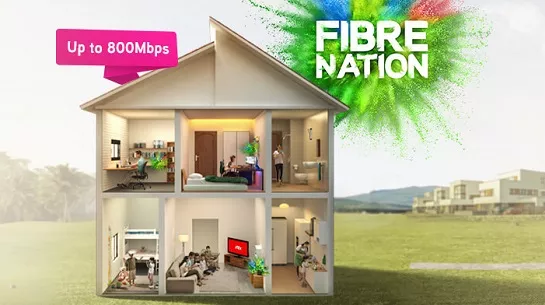
Reliable broadband plans that enable next-level business growth.
Supports up to 2-3 users on 5 devices.
Supports up to 2-3 users on 5 devices.
Fixed IP.
Supports up to 6 users on 10 devices.
Supports up to 6 users on 10 devices.
Fixed IP.
Supports up to 10 heavy users on multiple devices.
Supports up to 10 heavy users on multiple devices.
Fixed IP.
Supports up to 10 power users on multiple devices.
Supports up to 10 power users on multiple devices.
Fixed IP.
Good for Working From Home and streaming.
Free WiFi-6 Router
Free WiFi-6 Router
Unlimited voice call
Suitable for full HD streaming & browsing.
Free WiFi-6 Router
Free WiFi-6 Router
Unlimited voice call
Ideal for small families for 4K streaming & gaming.
Free WiFi-6 Router
Free WiFi-6 Router
Unlimited voice call
Perfect for medium-sized families for work and play.
Free WiFi-6 Router
Free WiFi-6 Router
Unlimited voice call
Ultimate high-speed internet for everyone and everything.
Free WiFi-6 Router
Free WiFi-6 Router
Unlimited voice call
Applying for
| Astro Njoi UniFi Maxis |
Find your answers here.
We provide one stop service to apply Astro and Broadband for you.
You can avoid driving and queuing at the sales counter. We are the dealer that can help you to handle your application from the beginning to the end.
We do not charge you when you apply from us. There is no credit card information required to apply here. Charges are the same as you apply from the sales counter.
First, you can apply online, we will get back to you immediately during business hour. WhatsApp/Email/Fax us your Photocopy of IC (for malaysian) / Passport (for foreigners). When we receive all the information, we will proceed with your application immediately.
Once we receive your application with complete information, we will process your application immediately during business hour. The contractor from the service provider will then contact you for installation appointment once your application is approved.
Enjoy greater savings and hassle-free bill payment in one single bill for both Astro and Broadband. You get to enjoy Astro and Broadband at discounted price every month over the contract period of 24 months.
Astro offers multiple TV packs including Entertainment, Sports, Movies and Kids options. You can choose a pack that matches your viewing preferences and add optional streaming apps where available.
Yes, you may subscribe to Astro TV packs without bundling broadband. However, bundling Astro TV with Fibre Broadband may provide better monthly savings and convenience with a single bill.
For small households with light streaming and browsing, 100Mbps is usually sufficient. Larger families, gamers or heavy streamers may benefit from 500Mbps or 1Gbps plans for smoother performance across multiple devices.
Most Astro TV and Fibre broadband plans come with a 24-month contract. Early termination charges may apply if cancellation is made before the contract ends.
Yes, you may upgrade your TV pack or broadband speed at any time, subject to eligibility and coverage. A new contract period may apply depending on the upgrade.
Your monthly bill will be issued directly by Astro. You may receive it via email or access it through your Astro account. Bundled customers will receive a single combined bill for TV and broadband services.
Payment methods may include online banking, auto debit, credit card or other approved payment channels provided by Astro. Our team can guide you during the registration process.
If you experience any service interruption, you may contact Astro customer support for technical assistance. In many cases, issues can be resolved remotely or a technician will be arranged if necessary.
Yes, relocation is subject to service availability at your new address. Relocation charges and contract adjustments may apply depending on your plan.
No, you do not need a credit card to submit your application. Payment setup will be arranged directly with Astro after your service is approved.
Selected Astro TV packs allow optional add-ons such as streaming services depending on current promotions and availability. Additional monthly charges may apply.
Yes, a WiFi router is typically provided during fibre installation. The router model may vary depending on the selected broadband speed plan.
Yes, we will check the service coverage at your address before proceeding with your application to ensure broadband is available at your location.
For Malaysians, please provide a copy of your MyKad. For foreigners, provide a copy of your passport when submitting your broadband application.
After your application is approved, the service provider typically contacts you within 2 to 7 working days to arrange the broadband installation appointment.
Most Astro Broadband plans come with a 24-month contract starting from your installation date. If you relocate, a new 24-month contract may apply at your new address.
Yes, you can relocate your broadband service, subject to service availability at the new address. Your contract may reset for another 24 months from the new installation date.
Yes, you may request to relocate broadband devices within your home. Non-standard installation charges may apply and are payable to the installer directly after assessment.
Yes, you can switch to Astro Broadband. To avoid service interruption, it is recommended to activate the new service before terminating your current broadband contract.
Standard installations may be free during promotions, but non-standard installations (e.g., device relocation or complex wiring) may incur extra charges payable directly to the installer.
STEP 1
Switch off the power for your box and make sure that the adapter's power light is off.

STEP 2
Locate the SIM card at the left side and gently pull it out.

STEP 3
Wipe the SIM card's gold chip clean using a dry soft cloth.

STEP 4
Make sure the gold chip is facing down and reinsert it all the way in.

STEP 5
Switch on the power for your box and make sure that the adapter's power light is on.
Please wait for 5 minutes.

STEP 6
Turn on your Ultra Box. You should no longer be experiencing this problem.

If issue persist, please submit the issue on our Feedback Form with the error details and provide sim card number for assistance.
1. What is WeTV?
WeTV is a global video on demand and over-the-top streaming service, providing the best premium entertainment including Chinese, Indonesian, Korean, Thai, Japanese and Malaysian series and movies to fans of Asian entertainment.
2. Can I stream WeTV for free on my Ultra/Ulti Box?
All Ultra/Ulti Box customers may watch selected WeTV titles for free on their Astro Box.
Simply follow these steps:
Step 1: Go to your Ultra/Ulti Box Home Page and select “WeTV†under the Apps rail
Step 2: Click play on any non-VIP titles/episodes and start streaming!
Note: No login is required to stream free content on WeTV.
3. How can Astro customers enjoy WeTV?
Astro customers can subscribe to WeTV VIP via Astro as an add-to-bill service for only RM10.50/month (RRP RM11.90) to enjoy the app on their big screen TV via the Ultra/Ulti Box, wetv.vip or on the go with the WeTV mobile app which is available on Android and iOS devices.
For more details on the WeTV VIP Membership, please refer to Q12 - Q17.
4. How do I subscribe to WeTV VIP via Astro?
All new and existing Astro TV customers can subscribe to WeTV VIP for only RM10.50/month by following the steps below:
Step 1: Go to www.astro.com.my/WeTV and select “Get WeTV nowâ€
Step 2: Log in with your Astro ID
Step 3: Key in your mobile number and proceed to add WeTV to your bill
Step 4: Once you have validated your mobile number via the OTP code, you will be able to enjoy VIP-exclusive shows on WeTV!
5. How do I access WeTV VIP on my Ultra/Ulti Box?
After completing the subscription process in Q4, follow the simple steps below to access WeTV VIP on your Ultra/Ulti Box:
Step 1: Go to your Ultra/Ulti Box Home Page and select "WeTV" under the Apps rail
Step 2: Click "Log in" and scan the QR code on your TV with your mobile device to download/launch the WeTV app
Step 3: On your mobile device, create a new account or log in using your registered mobile number and click "Login Authorization" to pair your device to your TV
Step 4: Once pairing is complete, please press the back button on your remote to start enjoying VIP-exclusive shows!
Important note: Please ensure that the mobile number used to log in to the app is the same one used to purchase your WeTV VIP subscription. Email login is not applicable for Astro Billing WeTV VIP customers.
*We highly encourage our customers to only use their device’s built-in camera to scan the QR code if available. Alternatively, only use QR code scanner apps that are from a trusted 3rd party provider. By using an untrusted QR code scanner app, you assume all responsibility for any damages or losses that may occur.
6. I already have a WeTV subscription, what will happen if I use the same mobile number to subscribe to WeTV VIP via Astro?
If you already have a WeTV subscription, you are allowed to subscribe to WeTV VIP with the same mobile number via Astro; however, your existing account will continue to run until you manually cancel it. With two active subscriptions with the same mobile number, your subscriptions will be added on top of your existing account and you will be charged twice on two separate accounts.
7. Can I access the WeTV app outside of Malaysia?
Yes, you will still be able to access the WeTV app and stream your favourite content outside of Malaysia. However, kindly be informed that this will be subject to content availability in the specific regions.
8. Can I download content on the WeTV app for offline viewing?
Yes, you can download WeTV's content on your device for offline viewing if you have subscribed to WeTV VIP. This feature is not available if you are not a VIP member. However, kindly note that some content is subjected to copyright which disables the download function on those selected videos.
9. What is the storage requirement for content downloading?
The storage requirement is dependent on the type of videos users are downloading as the space needed varies between titles.
10. How many devices can I use to stream WeTV at the same time?
You can access your WeTV VIP account on up to 2 devices at a time, including your Ultra/Ulti Box. To ensure a smoother streaming experience, please sign out from any unused devices.
11. Are there any subtitles available for the content on WeTV?
Yes, subtitles are available in various languages including English, Malay, Chinese (Simplified & Traditional) etc.
To enable this feature, click on the subtitles selection option at the bottom right corner of the video player, then click on the language you desire.
12. What is a WeTV VIP subscription?
WeTV offers a wide range of hot and exclusive content in advance for WeTV VIP members, which includes WeTV Originals, series, dramas and many more. With a VIP subscription, you can also enjoy all these exciting content with the ability to skip advertisements to stream without interference and watch your favourite shows on two devices at the same time!
VIP membership privileges:
1. Premium Content on WeTV only
2. Enjoy VIP content on two devices at the same time
3. Watch the content in advance before anyone else!
13. Can I rent movies or series on WeTV via Astro?
Yes, you will be able to rent titles on the WeTV mobile app. Subsequently, you will be able to stream your rented title on the Ultra/Ulti Box, wetv.vip, and the mobile app.
14. How much does a WeTV VIP subscription via Astro cost?
Astro customers can enjoy a special offer of RM10.50/month (RRP RM11.90/month) when they subscribe to WeTV VIP via Astro.
Note to CCC: Employee/Ex Employee/Courtesy Board Members will also enjoy the same pricing at RM10.50/month.
15. When can I start enjoying my WeTV VIP subscription?
You will be able to enjoy all the content on WeTV via your Ultra/Ulti Box, wetv.vip and the WeTV mobile app immediately upon successful purchase from the Astro website. Please ensure that the mobile number used to log in to the app is the same one used to purchase your WeTV VIP subscription.
16. How do I cancel my WeTV VIP subscription?
You can cancel your WeTV VIP subscription via WeTV’s official website or mobile app.
Kindly note that we will not be able to offer a refund if you do decide to leave the WeTV app before your subscription period ends.
17. Will there be any penalty fees if I cancel my WeTV VIP subscription?
No, your subscription will be terminated at the end of your Astro billing date. Until then, you will still be able to access your WeTV VIP account.
18. Who may I contact if I encounter any problems with the WeTV app?
If you require any assistance with the app, you may:
1. Visit the WeTV official Facebook Page for more information: WeTV Malaysia - Home | Facebook; or
2. Drop the WeTV team a message via Facebook chat here
If you encounter any issues with your Astro billing and entitlement, you may contact our Customer Service by:
1. Submitting a feedback form here: www.astro.com.my/contactus/form; or
2. Reaching to us via WhatsApp by typing "Hi"at 03-9543 3838
19. Will my personal information be protected?
Yes, Astro is bounded by the PDPA. All information received will be used in accordance with our Privacy Notice
STEP 1
On your remote, press the “HOME” button and the home menu will be displayed at the bottom of your screen.
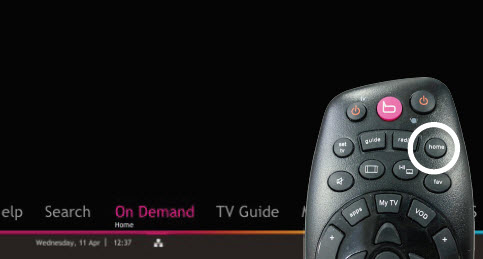
STEP 2
Navigate to SETTINGS and press “OK”.

STEP 3
Navigate to STB DIAGNOSTICS and press “OK”.

STEP 4
Refer to the signal strength % shown on the top left of your screen.

Astro TV customers
No, you will not be required to take on a new contract after moving. If you still have an existing contract, the contract will continue.
Broadband / IPTV customers
Yes, your contract will be renewed to a new 24-month contract.
No, the Service Tax is a tax payable entirely to the Government. Astro acts as a collection agent for the Government.
Astro is an official distributor of Disney+ Hotstar, the dedicated streaming home for global, and Malaysian hits. Astro customers can now subscribe to Disney+ Hotstar through the new, bigger and more diverse Packs, i.e.: Movies, Premium 1, Premium 3 or Platinum Pack. The streaming service brings together blockbuster movies from Hollywood to Hallyu and award-winning content from Disney, Marvel, Star Wars, Pixar, National Geographic, FX, 20th Centuary Studios and more including exclusive premieres from leading Malaysian studios. Take your family entertainment to the next level with Disney+ Originals like I am Groot, Prey, Baymax, Obi-Wan Kenobi, She-Hulk, IN THE SOOP: Friendcation and more - with the convenience of one monthly bill for all your entertainment needs.
Movies Pack, Premium 1, Premium 3 and Platinum customers as well as customers on the Starter Plus Pack, Value Plus Pack, and Disney+ Hotstar (3-months Pass) can enjoy Disney+ Hotstar on Astro.
Customers can subscribe to Disney+ Hotstar via astro.com.my/Disney, as well as via authorised retailers and dealers.
It will begin on 1st March 2024 and onwards.
Astro Rewards is open to all *Active Astro PayTV customers and their immediate family members
* "Active Astro customer" refers to subscriber of the Astro Service and whose account is current and active with no outstanding payments due and owing to Astro and who has not breached the Astro subscription agreement nor given any instructions to terminate and /or suspend his/her subscription to the Astro Service as at the date of winner notification. Winners must remain active Astro customers until the date of collection of prizes.
For self-installation, in your first bill upon activation of your Plug& Play Box, the activation fee will be included as a separate line item in your bill alongside the subscription fee.
If you choose to install the Plug & Play Box via installer, you can pay the installation fee and activation fee directly to the installer upon installation. This will be reflected in your next bill itemised as setup fee.
Astro customers can make payments via Auto-debit, WhatsApp,Astro Quick Pay and other authorised payment channels withoutsurcharge for the easiest and fastest way to pay their Astro bills.
Bill payments at selected petrolstations, convenience stores, retail/mobile shops, kiosks, and e-Wallets, may incur a surcharge of up to RM0.50 per transaction by the appointed collection agencies of RMS (Razer), ATX, MobilityOne and e-Pay.
The surcharge is imposed by third-party payment collection partners for services rendered.
You can refer to all our payment options below. Those marked with ‘*’ will be subject to a surcharge by appointed collection agencies.
A. HASSLE-FREE METHODS
Auto-Debit:
Click here for step-by-stepinstructions on how to activate auto-debit payment via My Astro Portal.
WhatsApp:
JomPAY:
Look for the JomPAY logo on your latest bill, log into your preferred online banking platform, and submit your payment details.
• Biller Code: 9639 (unique to Astro only)
• Ref-1: <10-digit Astro account number> (E.g. 08XXXXXXXX)
B. ASTRO SELF-SERVICE METHODS
Astro Quick Pay:
My Astro Portal:
Channel 200:
My Astro App:
C.BANKS
Maybank:
Visit maybank2u.com.my for more information.
Public Bank:
Visit pbebank.com for moreinformation.
Bank Simpanan Nasional:
Visit mybsn.com.my for more information.
Agrobank:
Visit agrobank.com.my for more information.
D. e-WALLETS
ATX*
Boost, GoPayz, KelantanPay, Zcity (GEM REWARD), SabahPay, Tapay, GoPay,MerchantTradeMoney, ToneGroup, Elinking, Mpay, Mcash, and other various smaller wallets.
e-Pay*
Touch n Go (TnG), Grab Pay, Shopee, BigPay, True Money
E. OTHER METHODS
Associated Retailers:
RMS (Razer/ MOL)*
7-Eleven, 99 Speedmart, Caring Pharmacy
ATX*
RedONE Shop, Mobile Money, Runcit Hero (telecommunication shops), Parcel Hub (courier shops), Kiosk, DHL
Mobility One*
Kedai D’mart, Happy Mart, Pasaraya Sakan, PusatKomuniti Desa (PKD), Aeon Big and various sundry shops
e-Pay*
Petrol stations (Petronas, Shell, BHP, Caltex, Petron), KK Mart, Mydin, MyNews, SenHeng, Hai-O, Giant, TF ValueMart, Billion, Big Pharmacy
The Download/Upload for each of the speed is as follow:
50Mbps/20Mbps
100Mbps/50Mbps
500Mbps/100Mbps
800Mbps/200Mbps
*Actual download/upload speeds is dependent on external factors, including but not limited to the distance between your devices and the WiFi router, network capacity and the number of connected users, the quality of your internal wiring, any obstructions of WiFi signals, the signal strength of wireless connection from your devices and if you are using a wireless connection.
Starting 27 September 2023, Astro customers may purchase Qalbox by Muslim Pro as an add-on for an exclusive price of only RM9.50/month inc. of SST (RRP: RM12.90/month). After successfully adding Qalbox to your subscription, all Ultra and Ulti Box customers can access the app on their Astro Box, the Muslim Pro mobile app, www.qalbox.com, as well as enjoy premium Muslim Pro features on the app. Please visit https://product.astro.com.my/apps/qalboxmuslimpro for more information.
1. What is Qalbox by Muslim Pro?
Qalbox by Muslim Pro is a Muslim-friendly entertainment streaming service that is accessible via the Muslim Pro app. It hosts an extensive library of content that celebrates Muslim identities and cultures worldwide and aims to create a global platform for Muslim creatives and filmmakers.
2. What is the difference between Muslim Pro and Qalbox?
Muslim Pro is the go-to Muslim lifestyle app, recognised by millions of Muslims globally ashaving the most accurate prayer time and athan/azan application for salah (prayer). Muslim Pro has a full suite of features that help Muslims practise their religion and deen more purposefully with features such as a Qibla finder, reading and listening to the Quran, a digital tasbih and more.Meanwhile, Qalbox is a streaming service by Muslim Pro to enjoy Muslim-friendly movies, TV series, animations and more. After purchasing Qalbox as an add-on, Astro customers can stream the app on their Ultra/Ulti Box, www.qalbox.com or via the Muslim Pro mobile app.
3. Why should I subscribe to Qalbox by Muslim Pro with Astro?
For an Astro-exclusive price of only RM9.50/month inc. SST (RRP: RM12.90/month), you can look forward to a wide range of content genres, including acquired and original scripted programmes, movies, documentaries, children's animations, as well as Quranic recitations and supplications (du'a). From classic movies on history, origins and civilizations of Muslims to titles that showcase modern Muslim life across the globe - viewers can immerse themselves in the experiences of other Muslims' varied journeys, struggles, and triumphs.
Additionally, you can also enjoy Premium Muslim Pro features on the mobile app which allow users to access all in-app features without any advertisements, download audio recitations of the Quran to listen offline, and add the Muslim Pro widget to their smartphone Home Page to view all prayer times, amongst many other features.
4. Where can I access Qalbox by Muslim Pro?
If you are subscribed to Qalbox by Muslim Pro, you can access your favourite Islamic content on your big screen TV via the Ultra/Ulti Box, www.qalbox.com or the Muslim Pro app.
5. What happened to my Qalbox by Muslim Pro Premium free trial?
Your free trial of Qalbox by Muslim Pro Premium subscription with Astro has ended on 26 September 2023. We hope you have enjoyed it! You may continue streaming the app by adding it to your bill for an exclusive price of only RM9.50/month inc. of SST (RRP: RM12.90/month).
6. How do I subscribe to Qalbox by Muslim Pro Premium as an Astro customer?
Astro customers may purchase Qalbox as an add-on via their Ultra or Ulti Box, My Astro app, www.astro.com.my, or by contacting our Customer Contact Centre at 03-9543 3838 (call/WhatsApp). Please follow the detailed steps below if you require guidance on how to purchase:
a) Ultra or Ulti Box
Step 1: Open œQalbox by Muslim Pro under the apps rail at your Home Page. Click on any show posters to proceed with the purchase.

Step 2: Provide your Astro verified mobile number and enter the OTP to proceed
*if you have activated your Qalbox Premium free trial, please ensure the same mobile number is used

Step 3: Scan the QR on screen to log in/create a new Qalbox account and pair it with your TV
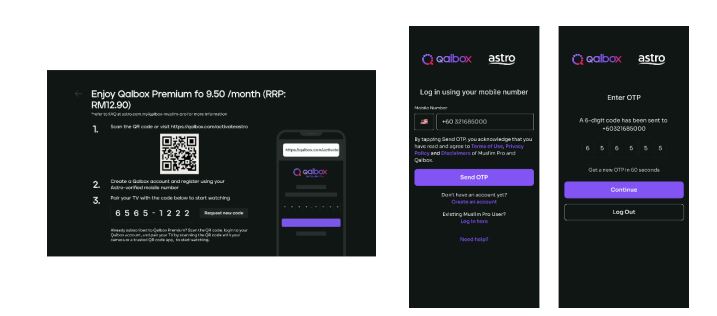
b) My Astro app
Step 1: Open the My Astro app and select œAstro Store in the bottom menu. Then, select œApps > œQalbox by Muslim Pro > œGet it Now
Step 2: Log in with your Astro ID. Then, enter your Astro verified mobile number and perform the OTP verification to purchase

Step 3: Log in to the Qalbox mobile app using the same phone number as Step 2

Step 4: Once complete, launch Qalbox on your Ultra or Ulti Box and pair your account to your TV

c) Astro Website (www.astro.com.my)
Step 1: Visit www.astro.com.my and select œProduct & Services. Then, go to œApps > œQalbox by Muslim Pro > œGet it Now
Step 2: Log in with your Astro ID. Then, enter your Astro verified mobile number and perform the OTP verification to purchase
Step 3: Log in to the Qalbox mobile app using the same phone number as Step 2
Step 4: Once complete, launch Qalbox on your Ultra or Ulti Box and pair your account to your TV

7. I already have a Qalbox account from the free trial; how do I purchase the add-on with the same account?
Simply pick up where you left off by following the steps in Q6 and purchase the Qalbox by Muslim Pro add-on. Please ensure that the mobile number used to purchase the add-on is the same mobile number used when registering for the free trial.
8. I have my own Qalbox account outside of Astro; can I stream it on my Ultra/Ulti Box?
Yes, you can! Just follow these simple steps to stream your Qalbox account on your Ultra/Ulti Box:
Step 1: Open œQalbox by Muslim Pro under the Apps rail at your Box home page.
Step 2: Select œGo to Qalbox by Muslim Pro app then scan the QR code on screen to log in to your existing account.

Step 4: Finally, enter the pairing code displayed on your TV screen to pair your account to your Ultra/Ulti Box.
9. How do I enjoy Qalbox by Muslim Pro on the website and mobile app?
a) Qalbox Website: After subscribing through any of the methods under Q6, you will automatically be able to enjoy the app at www.qalbox.com.
b) Muslim Pro mobile app:
Step 1: Download the Muslim Pro app from the Apple App Store or Google Play Store
Step 2: Click œLog In at the bottom right corner. Then, select œContinue with Email/Phone
Step 3: Switch to the œPhone tab and enter your name and mobile number
Step 4: After clicking Continue, enter the OTP code sent to your device for verification purposes
Step 5: Enter your email address and create a password
Step 6: Now, enjoy Muslim-friendly shows on the app! Simply use the same email or phone number provided to log in in the future
10. How many devices can I use to stream Qalbox by Muslim Pro at the same time?
You can access your Qalbox by Muslim Pro account on up to five (5) devices at a time. To ensure a smoother streaming experience, please sign out from any unused devices.
11. Can I download content on Qalbox by Muslim Pro for offline viewing?
At the moment, offline downloading of content is not available.
12. Are there any subtitles or dubbing available for the content on Qalbox by Muslim Pro?
Presently, Qalbox offers subtitles in English, Bahasa Malaysia, Bahasa Indonesia, and French for selected content. Their commitment is to expand subtitle availability to encompass an even broader array of languages for all content. At this time, dubbing services are also available for selected content and they are actively exploring options to enhance accessibility and cater to the preferences of viewers.
13. Can I access Qalbox by Muslim Pro outside of Malaysia?
Yes, simply download the Muslim Pro app and log in using your registered mobile number for Qalbox. You may be required to provide your email address and password for additional security. Once done, you may access Qalbox immediately.
14. What is a Qalbox by Muslim Pro Premium subscription?
With the Qalbox by Muslim Pro Premium subscription, users can enjoy all the Muslim-friendly content on Qalbox and stream them on up to 5 devices at the same time. Additionally, users will also be able to enjoy Muslim Pro premium features on the mobile app which includes accessing all in-app features without any advertisements, download audio recitations of the Quran to listen offline, and add the Muslim Pro widget to their smartphone Home Page to view all prayer times, amongst many other features.
15. I don't have an Ultra/Ulti Box; can I still subscribe to Qalbox by Muslim Pro with Astro?
If you are not an Ultra or Ulti Box customer, you may still subscribe to Qalbox by Muslim Pro and enjoy:
a) Qalbox on the mobile app and website
b) Muslim Pro features via Muslim Pro app
16. Who may I contact if I encounter any problems with Qalbox by Muslim Pro?
Please reach out to the Qalbox team by emailing them at support@muslimpro.com if you have any enquiries or require assistance with the app.If you would like to contact Astro, you may reach out to our Customer Service Centre by:
1. Submitting a feedback form here: www.astro.com.my/contactus/form; or
2. Reaching to us via WhatsApp by typing œHi at 03-9543 3838 for assistance
17. Will my personal information be protected?
Yes, Astro is bounded by the PDPA. All information received will be used in accordance with our Privacy Notice
Astro & Broadband offers Astro content with Astro Fibre, Maxis Fibre Broadband and Allo City Broadband for customers to enjoy the best entertainment through Astro while staying connected with high-speed internet.
With the current Astro & Broadband plans, customers will enjoy substantial savings by choosing their desired broadband speed from 30Mbps - 800Mbps to accompany their Astro packages.
STEP 1
Press "HOME" button on your remote control.

STEP 2
Navigate to Settings and press "OK".

STEP 3
Navigate to STB Diagnostics and press "OK".

STEP 4
From General Tab, take a look at the Current Entry Point Name for the LNB type of your input source.

You may contact Astro's Contact Centre (03 - 9543 1543) to process the cancellation.
The Mesh WiFi device(s) needs to be returned upon service termination via an arranged pick-up by our installers.
STEP 1
On your remote, press the HOME button and the home menu will be displayed on top of your screen.

STEP 2
Navigate to SETTINGS.

STEP 3
Navigate to Audio Delay and press "OK".

STEP 4
Navigate to your preferred selection and press “OK”.

WiFi router and fibre modem will be replaced upon checking and verification by Astro's Contact Centre /installer. It will be replaced without additional charge regardless contract tenure.
Please follow the steps below to retrieve your Astro ID:
Note: Only Astro customers whose Astro ID is linked to their subscription can retrieve their Astro ID this way. Otherwise, you would need to create a new account.
Starting 9 November 2021, you will need to subscribe to the new packages to add on Multiroom to your subscription. Your new package will require a minimum primary subscription fee of RM100.
This is to ensure our customers receive the best possible attention and service via our new packages. We thank you for your understanding.
STEP 1
Switch off the power of your box and make sure that the adapter’s power light is off.
STEP 2
Unplug the HDMI cable from your TV and plug it back in securely to other available HDMI port.
STEP 3
Switch on the power for your box and make sure that the adapter’s power light is on.
Please wait for 5 minutes.
STEP 4
Turn on your box. Do select the correct TV input.
You should no longer be experiencing this problem.

Astro does not provide installment plan facilities. You are advised to pay your charges before the due date, as per your monthly bill statement.
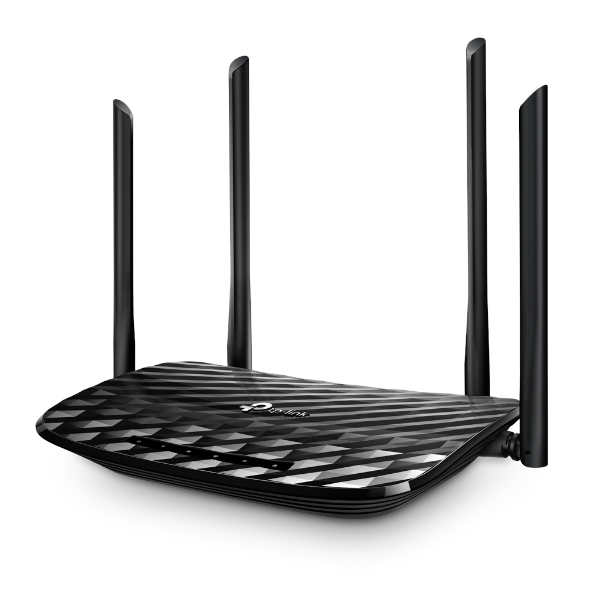

The default login of the router is available on the sticker at the back of the router. If you have done a configuration on your router previously, the password may be different
4. Once you have successfully login, the router's web-based setup page will appear. Please follow below steps for the configuration.

5. From the top menu, choose Basic and then click Wireless tab on the left menu to access to below screen.

6. Since this is a dual band router, you will have 2 Wireless Network Names (SSID) i.e. 2.4GHz and 5GHz. You may connect to any of the SSID, preferably with a stronger signal available.
7. You may change the Wireless Network Name (SSID) and the Password to follow your preferences, then click "Save" for the changes to take place.
Please reconnect to the new wireless name with the new password once completed.
The new packs will be available for existing and new Astro customers starting 9 November 2021.
-The Mesh unit can only be used indoors. It can be mounted onto a wall or be placed horizontally on a desktop. Do not install it in other mode, such as on the ceiling.
-Keep a clearance of at least 10 cm around the device to ensure proper ventilation.
-Keep the device away from electrical appliances that generate strong magnetic or electric fields, such as microwave ovens.
No, you are still able to access HBO Go on your current Movies pack.
Users can easily access all their streaming Apps such as Netflix, Disney+ Hotstar, Viu etc by clicking the “APPS” button on their remote control. After clicking this button, they will be brought to the Apps rail under the home page.
Yes, there are five digital bill platforms available for all customers to check their Astro bills:
A. MyAstro Web
1. Visit www.astro.com.my
2. Goto “My Account”, then select “Manage Account”
3. Login to My Astro Web using your Astro ID
4. Select “Account” to view your bills
B. My Astro app
If you do not have it installed, you may download it here (Google Play Store) or here (IOS App Store)
C. WhatsApp
Just WhatsApp “Hi” to 03-9543 3838 and then follow the instructions to view your bill, account status, pay and download bill.
Note: You are required to provide your MyKad/PassportNo. to view your bill, account status and pay your bills. To download your bills, you will be required to provide your Account/Smartcard No.
D. Astro Quick Pay
1. Visit https://pay.astro.com.my
2. Enter your 10-digit Astro Account Number and follow the instructions to view your bill, account status, pay bills or add a billing reminder on your Google calendar.
E. IVR
1. Call +603-95433838
2. Press 1 for Account Related Queries
3. Input your 10-digit Astro Account no. or 12-digit MyKad no.
4. Press 2 for Payment and Billing
5. Press 1 to receive an SMS with your bill balance and a link to pay online
F. Channel 200
Ensure your Ultra or Ulti Box is connected to the internet. Tune in to CH200 and follow the instructions displayed on your TV screen to view your bill amount.
G. Auto-Debit
Alternatively, please register for Auto-Debit by following the steps here for hassle-free payments.
No, the Mesh WiFi add-on with Astro Fibre is available as subscription service and will not be tied to any device contract.
"Payment Due Date" refers to the payment deadline for your Astro bills each month.
SST of 6% and 8% will be applied accordingly to your bundle services:
There is no contract for this subscription.
If you would like to upgrade your pack to include Disney+ Hotstar Premium, please contact Astro Customer Contact Centre at 03 9543 3838. Alternatively, please WhatsApp Astro at 03 9543 3838 and type DH Help for further assistance.
 Skyworth RG21

Login using your username and password if you have changed the router login setting. Otherwise, your default router login is as per below.
Username: user
Password: user
4. Once you have successfully logged in, the router's web-based setup page will appear.

5. At the top of the page, click WLAN to configure the WiFi parameters.

6. To change the channel on 2.4G, click the drop-down arrow for Channel, then select your desired channel.

7. Then, click "Save & Apply" for the changes to take place.

8. You may make the same changes for 5G by click the drop-down arrow for Channel, then select your desired channel.

9. Then, click "Save & Apply" for the changes to take place.


| Step 1: Visit https://id.astro.com.my/ and click on “Forgot Password?” | Step 2: Enter your username, email or mobile number. A verification code will be sent to you. Please enter it into the field and click “Verify” to reset your password. |
If you have a random Astro power cable, remote control or old box lying around at home, you are required to discard them only at registered collection centres for proper handling and management of e-waste in an environmentally sound manner. Click here to find a registered collection centre near you.
For all recycling-related questions, please click here.
There are two ways for you to switch your preferred bill delivery method:
A. Customers can manage their account via the My Astro Portal by following these easy steps:
B. Customers can also manage their account via Astro’s mobile application, the My Astro app by following these easy steps:
1. Tune to channel 200 on your Astro box and wait for a few seconds. By default, the selector will be on Packs. Press up/down to select your preferable pack, and press "OK"

2. Select the option for Monthly Subscription

3. Send the WhatsApp code as per displayed on the TV screen

Kindly ensure that your mobile number is the same as the registered phone number of the Astro account holder as the OTP will only be sent to the registered number. For further assistance, please call or WhatsApp us at 03-9543 3838. Alternatively, you may submit a request via our online Feedback Form here: astro.com.my/contactus/form.aspx.
For customers who wish to have their physical tax invoices reprinted, there will be a flat fee of RM10.00 levied as part of the process which has been implemented since year 2015.
Yes, existing non-Primary Pack customers who add on 50Mbps to their subscription will get to enjoy high speed broadband for only RM60/month and a free speed upgrade to 100Mbps for 24 months. Please note that a new 24-month contract will start upon successful installation.
By default, all Astro Fibre customers will receive a Private IPv4 or IPv6 address. However, customers who would like to subscribe to a fixed IP service can do so by contacting our Customer Service Centre at 03-9543 3838 for Astro Fibre’s Fixed IP service for only RM5/month.
There will be no installation fee for both Astro Box and Ultra Box. The Multiroom (second decoder) must be installed at the same registered address as your primary subscription.
No. Starting 1 April 2024, for new customers and current customers looking to switch their Asian Favourites, our Asian Favourites options will be:
Yes, all Astro customers with a Disney+ Hotstar subscription can access the app on the Ultra/Ulti Box. To access the app, please refer here.
Further details on pricing, billing and availability will be confirmed in coming months. Look out for more details and register your interest via https://astro.com.my/Netflix
You may register for auto-debit via: -
1.My Astro website.

2.MyAstro App.

3.Any of our AstroExperience Store.
1. Unifi netis brand
The following shows an Interface based on Unifi router


Note: Connection to Wi-Fi may be temporarily loss while the changes is updated.
You will receive SMS notifications upon successful sign-up with a delivery tracking number for the Plug & Play Box and the Astro SIM card.
When Band Steering is disabled, you will see two separate WiFi SSID based on its frequency bands. Example:
i.SSID: SSID2G, Password: 1234567
ii.SSID: SSID5G, Password: 4567890
*WiFi SSID (Service Set Identifier) is the name of your wireless network, also known as Network ID. It is viewable to anyone with a wireless device within reachable distance of your network.
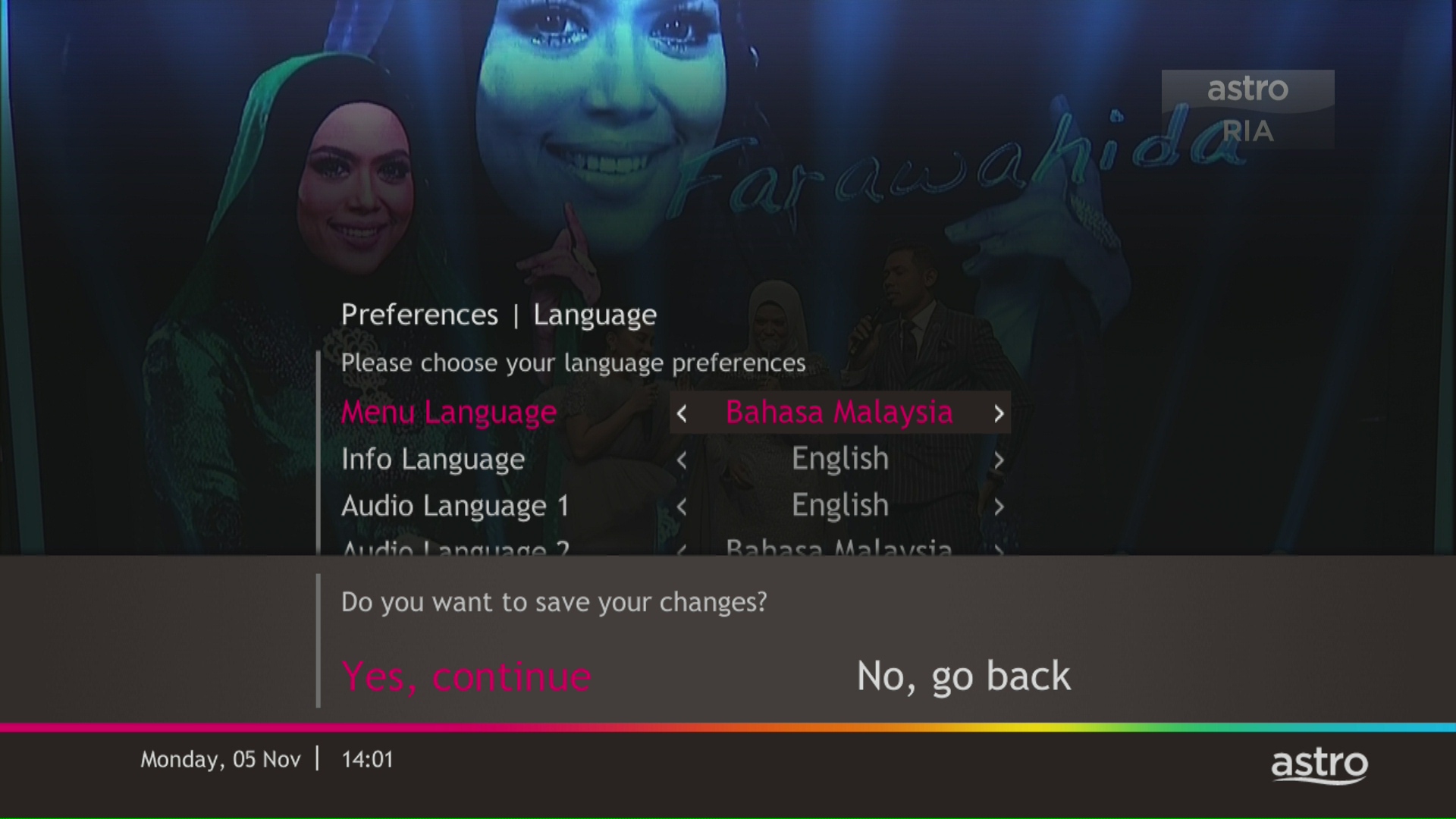
STEP 1
Press "HOME" button on your remote control.

STEP 2
Navigate to Preferences and press "OK".

STEP 3
Navigate to Language and press "OK".

STEP 4
Choose your language preferences and press "OK".
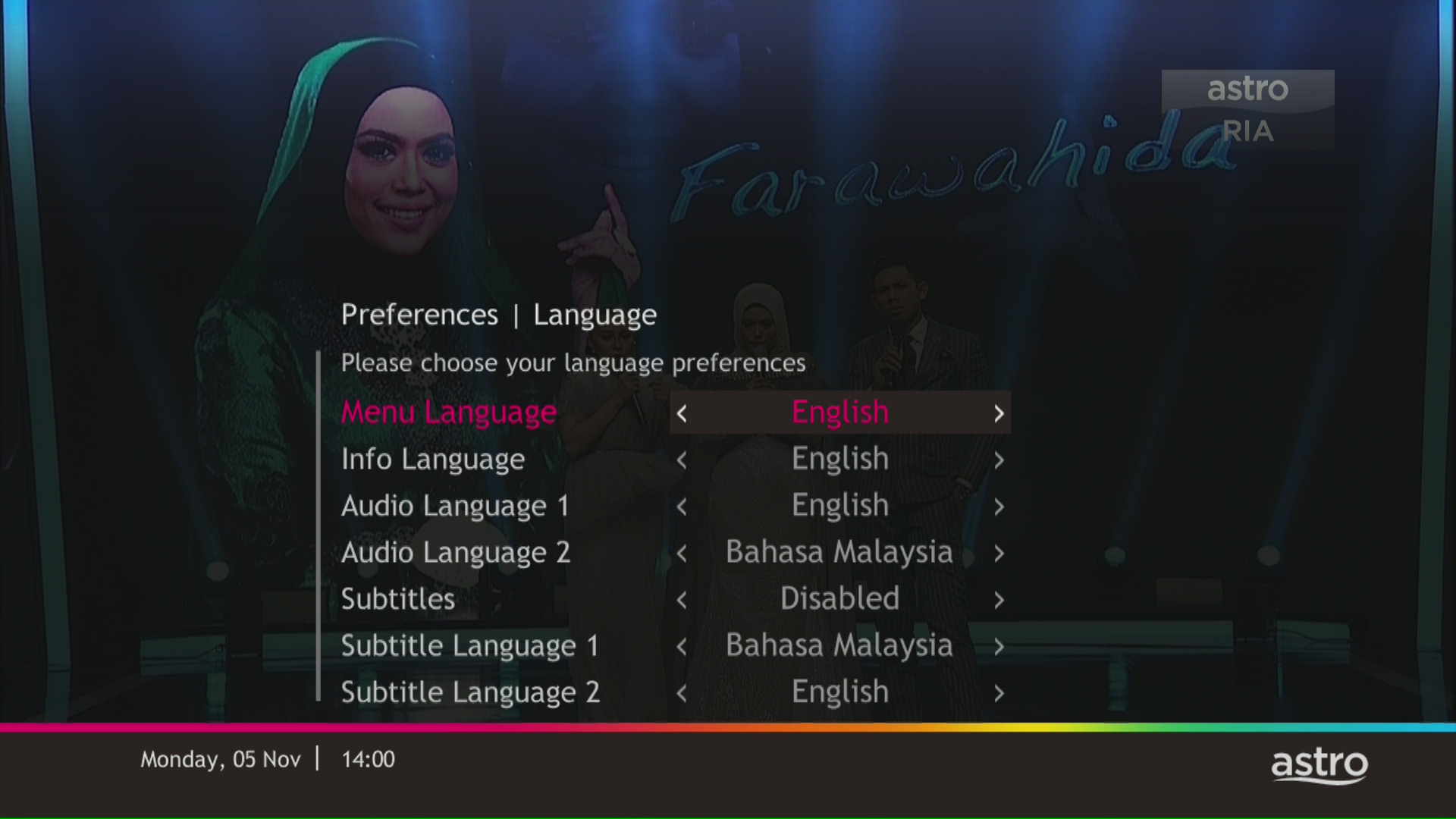
STEP 5
Select Yes, continue and press "OK" to confirm on the changes.
Otherwise, select No, go back to cancel.