


 Netflix Basic
Nationwide Installation
Applying for
| UniFi Maxis Astro Njoi |
Frequently Asked Questions
Find your answers here.
We provide one stop service to apply Astro and Broadband for you.
You can avoid driving and queuing at the sales counter. We are the dealer that can help you to handle your application from the beginning to the end.
We do not charge you when you apply from us. There is no credit card information required to apply here. Charges are the same as you apply from the sales counter.
First, you can apply online, we will get back to you immediately during business hour. WhatsApp/Email/Fax us your Photocopy of IC (for malaysian) / Passport (for foreigners). When we receive all the information, we will proceed with your application immediately.
Once we receive your application with complete information, we will process your application immediately during business hour. The contractor from the service provider will then contact you for installation appointment once your application is approved.
Enjoy greater savings and hassle-free bill payment in one single bill for both Astro and Broadband. You get to enjoy Astro and Broadband at discounted price every month over the contract period of 24 months.
Astro offers multiple TV packs including Entertainment, Sports, Movies and Kids options. You can choose a pack that matches your viewing preferences and add optional streaming apps where available.
Yes, you may subscribe to Astro TV packs without bundling broadband. However, bundling Astro TV with Fibre Broadband may provide better monthly savings and convenience with a single bill.
For small households with light streaming and browsing, 100Mbps is usually sufficient. Larger families, gamers or heavy streamers may benefit from 500Mbps or 1Gbps plans for smoother performance across multiple devices.
Most Astro TV and Fibre broadband plans come with a 24-month contract. Early termination charges may apply if cancellation is made before the contract ends.
Yes, you may upgrade your TV pack or broadband speed at any time, subject to eligibility and coverage. A new contract period may apply depending on the upgrade.
Your monthly bill will be issued directly by Astro. You may receive it via email or access it through your Astro account. Bundled customers will receive a single combined bill for TV and broadband services.
Payment methods may include online banking, auto debit, credit card or other approved payment channels provided by Astro. Our team can guide you during the registration process.
If you experience any service interruption, you may contact Astro customer support for technical assistance. In many cases, issues can be resolved remotely or a technician will be arranged if necessary.
Yes, relocation is subject to service availability at your new address. Relocation charges and contract adjustments may apply depending on your plan.
No, you do not need a credit card to submit your application. Payment setup will be arranged directly with Astro after your service is approved.
Selected Astro TV packs allow optional add-ons such as streaming services depending on current promotions and availability. Additional monthly charges may apply.
Yes, a WiFi router is typically provided during fibre installation. The router model may vary depending on the selected broadband speed plan.
Yes, we will check the service coverage at your address before proceeding with your application to ensure broadband is available at your location.
For Malaysians, please provide a copy of your MyKad. For foreigners, provide a copy of your passport when submitting your broadband application.
After your application is approved, the service provider typically contacts you within 2 to 7 working days to arrange the broadband installation appointment.
Most Astro Broadband plans come with a 24-month contract starting from your installation date. If you relocate, a new 24-month contract may apply at your new address.
Yes, you can relocate your broadband service, subject to service availability at the new address. Your contract may reset for another 24 months from the new installation date.
Yes, you may request to relocate broadband devices within your home. Non-standard installation charges may apply and are payable to the installer directly after assessment.
Yes, you can switch to Astro Broadband. To avoid service interruption, it is recommended to activate the new service before terminating your current broadband contract.
Standard installations may be free during promotions, but non-standard installations (e.g., device relocation or complex wiring) may incur extra charges payable directly to the installer.
Of course! Please ensure your account is active when requesting for a move.
Want to return or recycle your satellite TV devices? It's simple and free!
Here's what you can do with your unused satellite TV devices:
If you have an Ultra or Ulti Box, you may:
1. Return your device to us via Arranged Pick-up:
Step 1: Please call Astro's Contact Centre at 03-9543 3838 to schedule an arranged pick-up by one of our Astro agents.
Step 2: Just sit back and relax! Our courier partner, Citylink will come to your doorstep, dismantle the satellite dish for you and retrieve the devices.
2. Return your device to us via Dropoff:
Step 1: Please gather your device(s) and click here to find a Customer Service Centre (CSC) or Astro Authorised Retailer (AAR) near you.
Step 2: Don't worry, it's free! Simply walk in during opening hours and hand over the device(s) to one of our Astro agents.
Note: An installer's visit is required to dismantle your satellite dish. However, if you have a Box or other satellite TV devices at home that do not require dismantling, you may walk into any of our authorised dealers and hand them over to the agent.
If your Satellite TV device is NOT an Ultra or Ulti Box, you may:
1) Recycle your device:
For all Ultra or Ulti Boxes, please return them to Astro via drop-off at a CSC or AAR near you or schedule a pick-up appointment via 03-9543 3838.
For other older Boxes or Satellite TV devices, you are required to discard them only at registered collection centres for proper handling and management of e-waste in an environmentally sound manner. Click here to find a registered collection centre near you.
Note: Upon termination of your Astro service, all Ultra and Ulti Box customers are required to return their devices to Astro. Failure to do so within 14 days of termination may incur a fee of RM100 (not inclusive of Govt. Tax). For customers on all other boxes, please discard your box only at registered collection centres to ensure we all play our part in protecting the environment.
Frequently Asked Questions
Arranged Pick-Ups
1) I missed the pickup appointment; what do I do now?
Our agent will make two attempts to retrieve the device(s) and dismantle your satellite dish within a period of 14 days, failing which the penalty of RM100 (not inclusive of Govt. tax) would be imposed.
2) Can I reschedule my pickup date?
Yes! Please call Astro's Contact Centre at 03-9543 3838 to reschedule your pickup date.
3) My old devices do not require dismantling; do I have to pack them before handing them over to the delivery agent?
Please pack your device(s) in their original box/packaging if possible. If this option is not available to you, just hand the device(s) over to the delivery agent without any packaging. You will not be charged any fees if the original packaging has been damaged/lost.
4) Do I have to print anything or fill in any forms before handing my device(s) over to the Astro agent?
No, you do not have to prepare any documents before handing your device(s) over to the Astro agent. All you have to do is get your device(s)ready before the Astro agent arrives to ensure a smooth handover process.
5) I have an old/unused satellite dish at my home and I am not an Astro customer; can I still schedule an installer visit to dismantle and return it?
Yes! Not to worry, you can still schedule an installer visit to dismantle the satellite dish from your home.
Drop-offs
1) Do I have to pack my device(s) before handing it over to the Astro agent?
Please pack your device(s) in their original box/packaging if possible. If this option is not available to you, just hand the device(s) over to the Astro agent without any packaging. You will not be charged any fees if the original packaging has been damaged/lost.
2) There are no Customer Service Centre (CSCs) or Astro Authorised Retailers (AARs) near me; what do I do now?
Please opt for courier pick-up if there are no CSCs or AARs near you. Call 03-9543 3838 now to schedule a pick-up appointment by one of our courier partners if you are holding an Ultra or Ulti Box For non-Ultra or Ulti boxes, you may recycle your box at a registered collection center. Click here to find a registered collection center near you.
3) Do I have to print anything or fill in any forms before handing my device(s) over to the Astro agent?
No, you do not have to prepare any documents before handing your device(s) over to the Astro agent. All you have to do is hand the device(s)over to the agent and you're done! You will also receive an acknowledgment slip after successful handover.
4) I found my Box and Smart card, however, the cable(s) that came with it is lost; will there be any penalty fees?
No, please return your old Plug & Play Boxes and Smartcard. There will be no penalty fees if the cable is damaged or lost.
Recycle via Registered Collection Centres
For all recycling-related questions, please click here.
Still Need a Hand?
Not to worry, we are only a phone call or a message away! Call or WhatsApp our Customer Contact Centre at 03-9543 3838 and an Astro agent will be available to assist you immediately.
Please be informed that your service will be suspended if there is no payment after 31 days from your bill cycle date. After 62 days of non-payment, your service will be terminated, and an early cancellation fee will be applied if you are still within the 24-month contract.
Information of the PPV CH200 cessation has been announced on CH200 from 1 - 7 October prior to the PPV cessation. Once again, we regret any inconvenience caused.
The new packs come with 200 hours of Cloud recording by default. If your current recordings exceed 200 hours, the system will delete the exceeded hours once your package has been changed, starting with the oldest recordings first.
If you would like to retain the previous recordings which exceed 200 hours, you may opt for a selection of 400 or 1500 Cloud Recording hours at a chargeable rate of RM12 or RM15 per month (excl. govt tax) respectively. Or else, you may subscribe to the Platinum pack which comes with complimentary access to 1500 hours of Cloud Recording.
If Netflix is included as part of your Astro pack, you will find it in My Astro app
where you will be able to manage all the streaming apps you are entitled to.
Netflix will also be included in your Astro bill under “Monthly Charges”
If you have added Netflix to your bill (Netflix Add-on), the Netflix subscription charge will appear in your Astro bill under “One-time charges” as Netflix App Subscription or Netflix Premium and will be charged monthly. You should refer to Netflix account Management for any changes to your Netflix subscription or should you wish to change to other billing methods.
Step 1:
Type ASTRO<space>BARCODE<space>10 digit account number
Example: ASTRO BARCODE 0866603852
Step 2:
Send SMS to 66688
*Standard telco charges and Terms and Conditions apply
You will be charged 8% Service Tax on Astro Pay TV services rendered on or after 1st March 2024, whereas your Astro Fibre including Mesh will remain at 6% Service Tax.
From Channels 480 (Astro First):
- Go to channel 480
- Search for the Movie title or Series and press “OK” button from Astro remote control;
- Choose how to purchase via WhatsApp or SMS.
- Enter the Pin Code
Purchase via Whatsapp
- Go to channel 480
- Whatsapp the “movie code” to 03-9543 3838
- Enter your “smart card number” (this is available on the top right corner of your tv screen)
- Type “1” to confirm
- The reply will direct you to the entitlement channel accordingly
Purchase via SMS
- Go to channel 480
- SMS the “movie code” to 32999
- The SMS confirmation reply will direct you to the entitlement channel accordingly
*SMS service is available for Maxis, Celcom, Digi and U Mobile only.
From Beyond PVR On Demand interface:
- Press the “Home” button on the Astro remote control
- Select “On Demand” and press the “OK” button from the Astro remote control
- Scroll to “Store” and search for the Movies/series
- Select “Buy” and enter Pin Code.
From Ultra/Ulti On Demand interface:
- Press the “Home” button on the Astro remote control
- Scroll to the Store tab
- Scroll to “Astro First: New Releases” or “Astro First: Blockbusters” and search for the Movies
- Select “Rent” and enter Pin Code
From Astro Go app (purchases only applicable for Android devices):
- Download the Astro Go app from the Google Play store.
- Create an ID and link your account / proceed to log in if you have linked your account
- Scroll to “Store” and search for “Astro First: New Releases” or “Astro First: Blockbusters”
- Select “Rent” and enter Pin Code
*The default pin code is 0000 if you have not pre-set it.
Discover thousands of movies and series you'll love, and we are continuously expanding. If you would like to enjoy more movies on top of your current subscription, press the Home button and select On Demand. Use the arrow keys to scroll to Store. Pick and choose to rent any movie for up to 48hours.
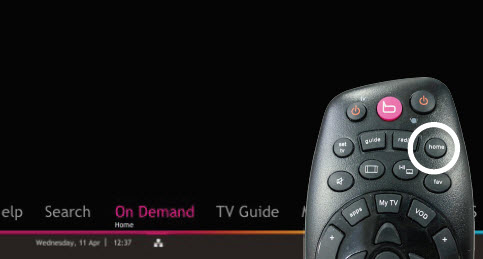
STEP 1
Press "HOME" button on your remote control.
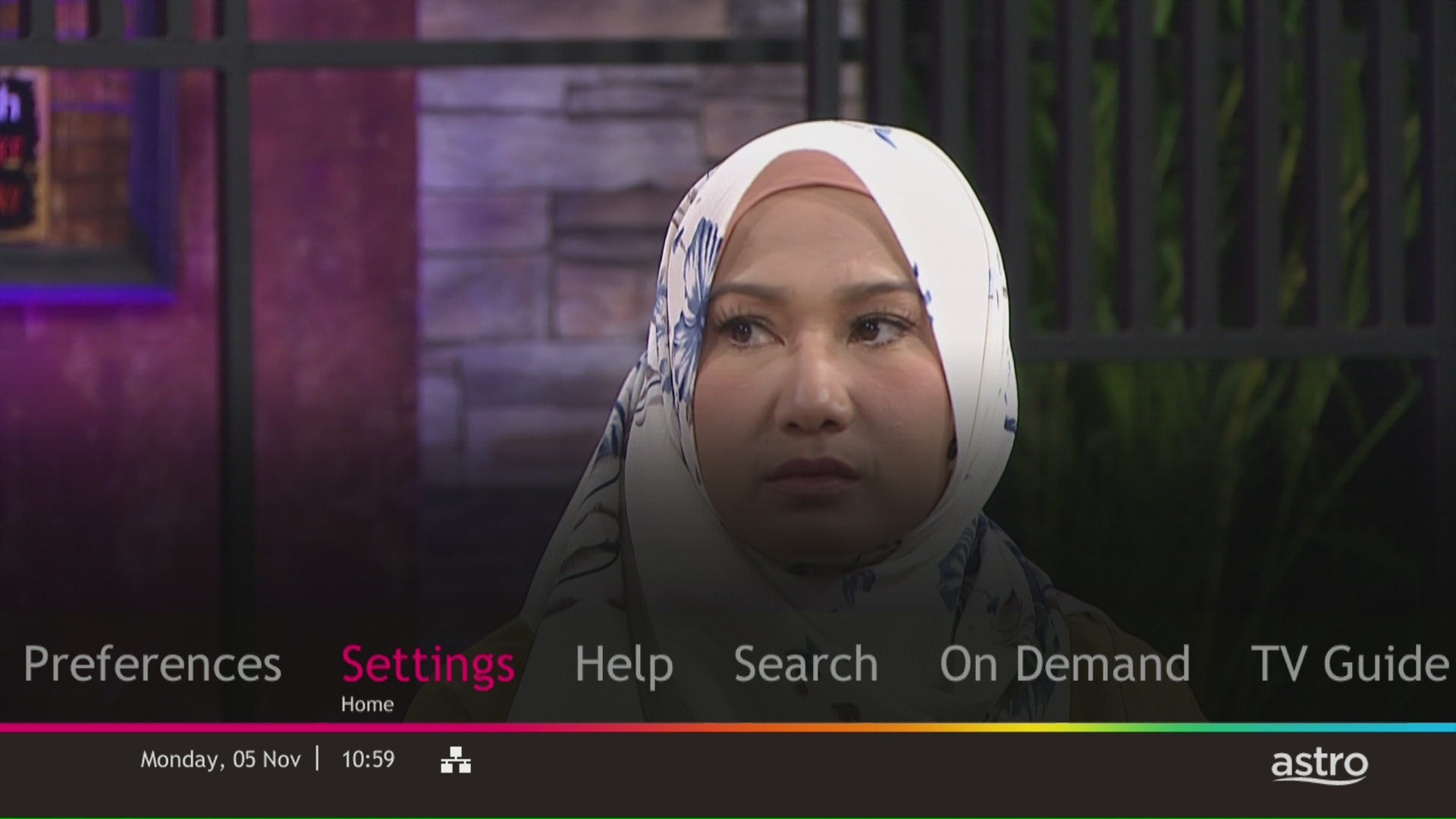
STEP 2
Navigate to Settings and press "OK".
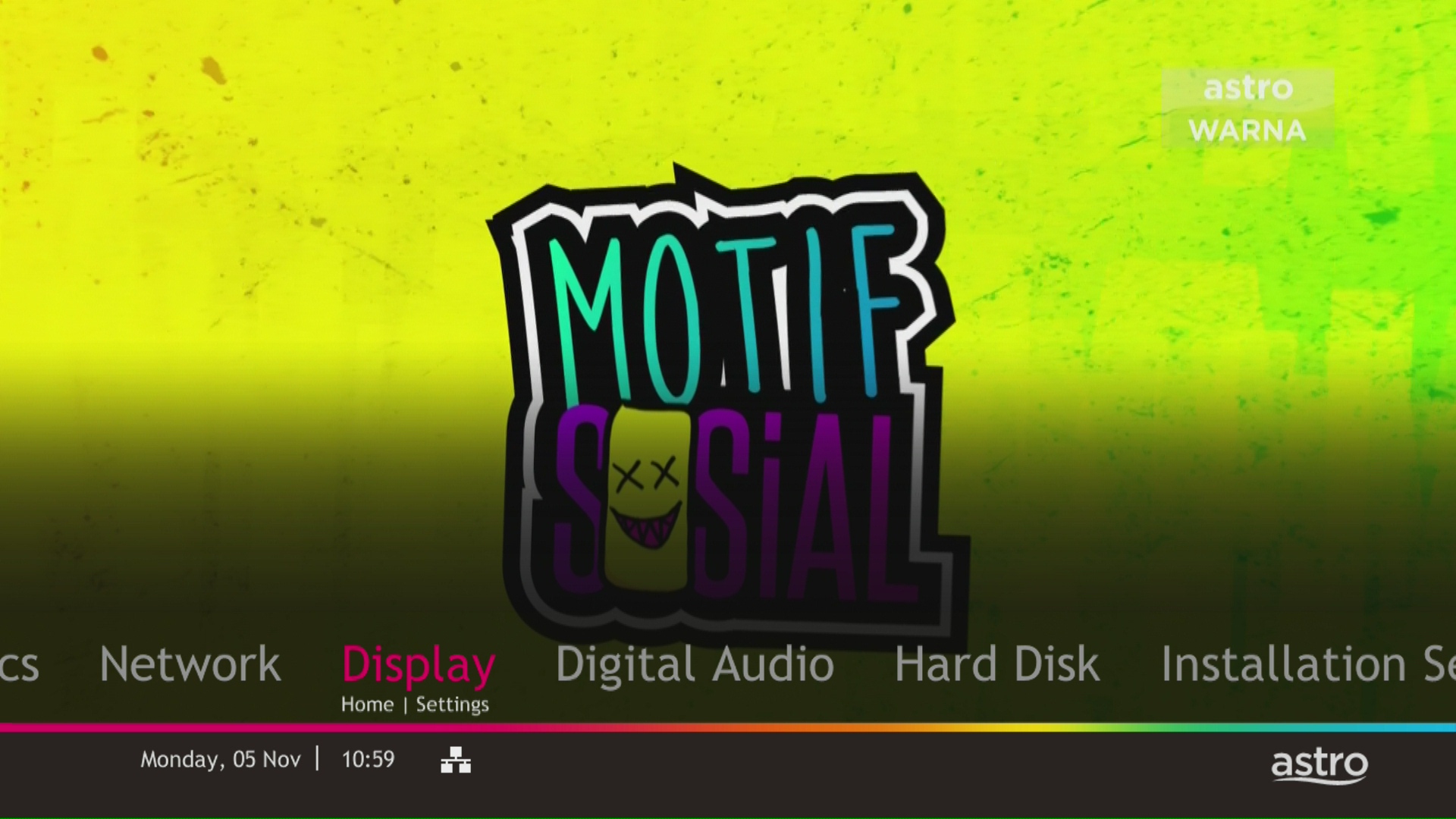
STEP 3
Navigate to Display and press "OK".
STEP 4
Navigate to TV Settings and press "OK".

STEP 5
Navigate to Conversion for 4:3 Input Video, select your preferred selection and press “OK”.

STEP 6
Select Yes, continue and press "OK" to confirm on the changes.
Otherwise, select No, go back to cancel.

No, there are no penalty fees for the Mesh WiFi devices should you wish to terminate Astro Fibre within/after 24 months.
No, you are still able to access HBO Go on your current Movies pack.
Astro customers can make payments via Auto-debit, WhatsApp,Astro Quick Pay and other authorised payment channels withoutsurcharge for the easiest and fastest way to pay their Astro bills.
Bill payments at selected petrolstations, convenience stores, retail/mobile shops, kiosks, and e-Wallets, may incur a surcharge of up to RM0.50 per transaction by the appointed collection agencies of RMS (Razer), ATX, MobilityOne and e-Pay.
The surcharge is imposed by third-party payment collection partners for services rendered.
You can refer to all our payment options below. Those marked with ‘*’ will be subject to a surcharge by appointed collection agencies.
A. HASSLE-FREE METHODS
Auto-Debit:
Click here for step-by-stepinstructions on how to activate auto-debit payment via My Astro Portal.
WhatsApp:
- Save Astro’s WhatsApp number 03-9543 3838 into your contacts and send “Hi”to us via WhatsApp.
- Follow the instructions in the menu to proceed with your payments.
JomPAY:
Look for the JomPAY logo on your latest bill, log into your preferred online banking platform, and submit your payment details.
• Biller Code: 9639 (unique to Astro only)
• Ref-1: <10-digit Astro account number> (E.g. 08XXXXXXXX)
B. ASTRO SELF-SERVICE METHODS
Astro Quick Pay:
- Visit pay.astro.com.my.
- Just enter your 10-digit Astro Account Number and proceed with theinstructions that follow.
My Astro Portal:
- Login to My Astro Portal to conveniently make your payment online.
- Select ‘PAY BILL’ and proceed with the instructions that follow.
- You can also use this portal to check your billing and payment history.
Channel 200:
- Tune into CH200.
- Select 'My Account'.
- Click on 'Make Payment' and follow the instructions displayed on the screen.
- SMS the code shown on your TV to 33777.
- Wait for the SMS reply with an attached link to proceed with your payment.
My Astro App:
- Download My Astro app (available for FREE on both Google Play & Apple App Store).
- Register/Login/Link account and provide a valid email address and mobile number.
- Select 'My Account' on the menu bar to view your outstanding balance and click on 'Let’s Pay' to make your bill payments.
- You will receive a push notification in your message inbox verifying that your payment has been made, upon successful payment.
C.BANKS
Maybank:
- ATM
- Online banking
Visit maybank2u.com.my for more information.
Public Bank:
- ATM
- Cash Deposit Machine & Cheque Deposit
- Online banking
Visit pbebank.com for moreinformation.
Bank Simpanan Nasional:
- ATM
- Cash Deposit Machine
- Online banking
- SMS banking
- BSN Ejen Bank Berdaftar (EBB)
- Over-the-counter payments
Visit mybsn.com.my for more information.
Agrobank:
- ATM
- Online banking
- Over-the-counter payments
Visit agrobank.com.my for more information.
D. e-WALLETS
ATX*
Boost, GoPayz, KelantanPay, Zcity (GEM REWARD), SabahPay, Tapay, GoPay,MerchantTradeMoney, ToneGroup, Elinking, Mpay, Mcash, and other various smaller wallets.
e-Pay*
Touch n Go (TnG), Grab Pay, Shopee, BigPay, True Money
E. OTHER METHODS
Associated Retailers:
RMS (Razer/ MOL)*
7-Eleven, 99 Speedmart, Caring Pharmacy
ATX*
RedONE Shop, Mobile Money, Runcit Hero (telecommunication shops), Parcel Hub (courier shops), Kiosk, DHL
Mobility One*
Kedai D’mart, Happy Mart, Pasaraya Sakan, PusatKomuniti Desa (PKD), Aeon Big and various sundry shops
e-Pay*
Petrol stations (Petronas, Shell, BHP, Caltex, Petron), KK Mart, Mydin, MyNews, SenHeng, Hai-O, Giant, TF ValueMart, Billion, Big Pharmacy
· Bill
· Log into your Astro Self-Service (location)
No. If you are a non-Astro subscriber, you will still be able to create an Astro ID, but access and use of Astro's digital services will be limited. If you are an Astro subscriber, please link your Astro ID to your Astro account number to enjoy exclusive access to all of Astro's digital services.
Yes, you may terminate the service, however an early cancellation fee will be applied for termination/cancellation within 24 months. Please refer to the Astro Fibre's cancellation details.
Yes, you have the option to transfer the credit balance to another active Astro account. It will be considered as payment to that account and is subject to Astro's terms & conditions.
Astro GO is a free streaming companion app for all Astro customers to enjoy their favourite shows and channels on their smartphones, tablets, and computers - anytime, anywhere in Malaysia. Astro customers with an active Pay-TV subscription can link their accounts to watch corresponding on demand and TV channels available on Astro GO as part of their subscription.
Starting 9 November 2021, you will need to subscribe to the new packages to add on Multiroom to your subscription. Your new package will require a minimum primary subscription fee of RM100.
This is to ensure our customers receive the best possible attention and service via our new packages. We thank you for your understanding.
No, you can remain in your current pack, however starting 9 November 2021, you would need to subscribe to the new packages to make any changes to your subscription. We strongly encourage customers to switch to the new packs to enjoy the best content experience from Astro.
Astro & Broadband offers Astro content with Astro Fibre, Maxis Fibre Broadband and Allo City Broadband for customers to enjoy the best entertainment through Astro while staying connected with high-speed internet.
With the current Astro & Broadband plans, customers will enjoy substantial savings by choosing their desired broadband speed from 30Mbps - 800Mbps to accompany their Astro packages.
Any Astro GO compatible device (mobile/tablet/PC) and Multiroom Smart TV* compatible TVs will benefit from Astro GO+.
You can subscribe to new packs via
- Online - astro.com.my
- WhatsApp GET ASTRO (for new customers) or SWITCH (for existing customers) to 03-9543 3838
- Astro Customer Service Centres.
To continue enjoying your PVR decoder and service, you must maintain a minimum monthly subscription fee of RM60 (not inclusive of the recording fee and Govt. Tax).
STEP 1
Identify your remote control:

a) Remote control with Astro logo at the bottom of the remote, proceed to STEP 2.
b) Remote control with Astro logo at the top of the remote, proceed to STEP 4
STEP 2 (Astro Logo at the bottom of the Remote)
On your remote, press the “set tv” button and set tv instructions will be displayed on top of your screen:

STEP 3
Follow the steps appear on the TV screen to sync your Astro remote and complete the setup.

STEP 4 (Astro Logo atthe top of the Remote)
Press and hold “tv input” key on bottom left of the remote for 3 seconds until the LED blinks twice.

STEP 5
Enter the 2-digit TV Code of your TV Brand and the LED will blink twice:

STEP 6
Try out the TV controls (TV Standby or adjust Volume) to check if they are working correctly.

STEP 7
Press ok and wait for the LED to blink twice to save the settings.
The entire eKYC verification process may be completed within 5 minutes.
Your bill will be waived upon request.
Your Disney+ Hotstar will be paused and will only resume once your Astro service is reinstated.
Yes, Astro is bounded by the PDPA act. All information received will be used in accordance with our Privacy Notice.
Please visit http://help.netflix.com to call or start a live chat with Netflix's customer support agents. You will be assisted to unlink your Netflix account from your Astro subscription. After the process, you may link another Netflix account to your Astro subscription.
You will not be able to switch between channels, use the app as a remote control, view favorite channels and programmes, use programme showtime reminder, and remote record feature.
Of course not! It is a value added service introduced for your convenience. You will only be billed for any package take ups or service upgrades, which will be reflected in your next Astro invoice.
Astro does not provide installment plan facilities. You are advised to pay your charges before the due date, as per your monthly bill statement.
STEP 1
Switch OFF the power of your Ultra / Ulti box and make sure that the adapter's power light is off.

STEP 2
Switch ON the power of your Ultra / Ulti box and make sure that the adapter's power light is on.

STEP 3
Put the box on standby mode.

STEP 4
Press and hold the Home button on the box.

STEP 5
Wait until "boot" appear on the front panel and released.

STEP 6
When “boot” appears, press “Standby”, “Left “, “Up” continuously until Auto Update appear on box screen and Software Update progress on TV.


STEP 1
Switch OFF the power of your box and make sure that the adapter's power light is off.
STEP 2
Switch ON the power of your box and make sure that the adapter's power light is on.
STEP 3
Press Standby, Ch+, Standby keys on the box simultaneously when the "boot" message appears on the box front panel.
The Software Update progress screen will appears.
The update will take 10 - 15 minutes to complete. Please be patience.


STEP 1
Switch OFF the power of your box and make sure that the adapter's power light is off.
STEP 2
Switch ON the power of your box and make sure that the adapter's power light is on.
STEP 3
Press the standby button repeatedly after switch on the power.

STEP 4
Press "OK".

STEP 5
The Software Update progress screen will appears.
The update will take 10 - 15 minutes to complete.
Please be patience.

Yes, you may upgrade to the Ultra Box if you are currently on the Entertainment or Movie Pack. If you are on the 500Mbps or 800Mbps plan, the upgrade will be free. However, a one-time fee of RM100 (excluding Govt. Tax) will apply if you are on the 50Mbps or 100Mbps plan. Please call or WhatsApp our Customer Contact Centre at 03-9543 3838 if you would like to make this upgrade. Please refer to the table below for the complete guide for Ultra Box upgrade:

For self-installation, in your first bill upon activation of your Plug& Play Box, the activation fee will be included as a separate line item in your bill alongside the subscription fee.
If you choose to install the Plug & Play Box via installer, you can pay the installation fee and activation fee directly to the installer upon installation. This will be reflected in your next bill itemised as setup fee.
Depending on your service, it is mandatory to return some devices as per our T&Cs, whilst other devices should be disposed of and recycled at collection centres registered under the Department of Environment. To find out what you should do with your devices after service termination, please click here.
If you are facing technical issues, please contact us at wecare@astro.com.my or call/WhatsApp us at 03-9543 3838.
You may report the incident on WhatsApp at 03-9543 3838 by typing PNP and our access our user guide or request for further help from our dedicated agents. Please have your Airway Bill tracking numbers ready for validation. If a replacement box/Astro SIM card is deemed necessary, a new Box and a new Astro SIM card will be couriered to your service address.
You will be notified 30 days before the expiry on the renewal of subscription and can opt out from auto renewal at least (2) days before the auto-renewal date.
If you want to opt out of your auto-renewal for Disney+ Hotstar, please contact our Customer Contact Centre at 03 9543 3838 and speak to one of our customer service executives to change your package according to what suits you best at least two (2) days before the next auto-renewal date. Alternatively, please WhatsApp us at 03 9543 3838 and type "DH Help
Unfortunately, your Disney+ Hotstar access with Astro will be terminated as well.
No, there is no penalty or switching fee if you decide to cancel your Multiroom (Smart TV) subscription.
Yes, existing non-Primary Pack customers who add on 50Mbps to their subscription will get to enjoy high speed broadband for only RM60/month and a free speed upgrade to 100Mbps for 24 months. Please note that a new 24-month contract will start upon successful installation.
STEP 1
On your remote, press the HOME button and the home menu will be displayed on top of your screen.

STEP 2
Navigate to SETTINGS.

STEP 3
Navigate to Audio Delay and press "OK".

STEP 4
Navigate to your preferred selection and press “OK”.

Please contact us through one of our platforms found here or Self-serve by logging in to Astro Self-Service Portal within 3-7 days before moving out and we will sort everything out for you!
Mesh WiFi technology greatly improves the WiFi network coverage within your home and virtually eliminates all WiFi “dead spots”. However, like all technologies there are limitations that you should be aware of.
The pairing of Mesh unit to the WiFi router is automatically handled between the WiFi router and the Mesh unit after it calculates its current position in relation to the WiFi router and surrounding Mesh unit (if available) already connected to the WiFi router.
If you are self-installing the mesh at your house, it is advisable for you to always pair the Mesh unit(s) with the WiFi router only regardless of how many Mesh unit available at your house.
Please note that if you have a Mesh connected to another Mesh, the expected performance of the WiFi speed will not perform as optimally as when compared to a Mesh connected directly to the WiFi router. Adding more points (also referred as Number of hops) in between your device to the WiFi router which will cause a reduction in bandwidth and add latency.
Please provide your primary mobile number via My Astro Portal, or send it to one of our platforms found here.
Note:
- Any changes of contact details to be requested by account holder only.
- Only account holder's contact to be updated as primary mobile number in the system.
Step 1:
Type ASTRO<space>BAL<space>10-Digit Astro Account No.
Example: ASTRO BAL 08XXXXXXXX
*Standard telco charges and Terms and Conditions apply
Step 2:
Send SMS to 66688
If you choose to downgrade your packs or terminate Astro services before the end of your contract term, you will have to pay a cancellation fee. This cancellation fee is calculated based on your subscribed package, contract period and box type. If you cancel your service(s)/change your packages upon completion of your contract term, you won't have to pay any cancellation fee.
