


 Netflix Basic
Nationwide Installation
Applying for
| UniFi Maxis Astro Njoi |
Frequently Asked Questions
Find your answers here.
We provide one stop service to apply Astro and Broadband for you.
You can avoid driving and queuing at the sales counter. We are the dealer that can help you to handle your application from the beginning to the end.
We do not charge you when you apply from us. There is no credit card information required to apply here. Charges are the same as you apply from the sales counter.
First, you can apply online, we will get back to you immediately during business hour. WhatsApp/Email/Fax us your Photocopy of IC (for malaysian) / Passport (for foreigners). When we receive all the information, we will proceed with your application immediately.
Once we receive your application with complete information, we will process your application immediately during business hour. The contractor from the service provider will then contact you for installation appointment once your application is approved.
Enjoy greater savings and hassle-free bill payment in one single bill for both Astro and Broadband. You get to enjoy Astro and Broadband at discounted price every month over the contract period of 24 months.
Astro offers multiple TV packs including Entertainment, Sports, Movies and Kids options. You can choose a pack that matches your viewing preferences and add optional streaming apps where available.
Yes, you may subscribe to Astro TV packs without bundling broadband. However, bundling Astro TV with Fibre Broadband may provide better monthly savings and convenience with a single bill.
For small households with light streaming and browsing, 100Mbps is usually sufficient. Larger families, gamers or heavy streamers may benefit from 500Mbps or 1Gbps plans for smoother performance across multiple devices.
Most Astro TV and Fibre broadband plans come with a 24-month contract. Early termination charges may apply if cancellation is made before the contract ends.
Yes, you may upgrade your TV pack or broadband speed at any time, subject to eligibility and coverage. A new contract period may apply depending on the upgrade.
Your monthly bill will be issued directly by Astro. You may receive it via email or access it through your Astro account. Bundled customers will receive a single combined bill for TV and broadband services.
Payment methods may include online banking, auto debit, credit card or other approved payment channels provided by Astro. Our team can guide you during the registration process.
If you experience any service interruption, you may contact Astro customer support for technical assistance. In many cases, issues can be resolved remotely or a technician will be arranged if necessary.
Yes, relocation is subject to service availability at your new address. Relocation charges and contract adjustments may apply depending on your plan.
No, you do not need a credit card to submit your application. Payment setup will be arranged directly with Astro after your service is approved.
Selected Astro TV packs allow optional add-ons such as streaming services depending on current promotions and availability. Additional monthly charges may apply.
Yes, a WiFi router is typically provided during fibre installation. The router model may vary depending on the selected broadband speed plan.
Yes, we will check the service coverage at your address before proceeding with your application to ensure broadband is available at your location.
For Malaysians, please provide a copy of your MyKad. For foreigners, provide a copy of your passport when submitting your broadband application.
After your application is approved, the service provider typically contacts you within 2 to 7 working days to arrange the broadband installation appointment.
Most Astro Broadband plans come with a 24-month contract starting from your installation date. If you relocate, a new 24-month contract may apply at your new address.
Yes, you can relocate your broadband service, subject to service availability at the new address. Your contract may reset for another 24 months from the new installation date.
Yes, you may request to relocate broadband devices within your home. Non-standard installation charges may apply and are payable to the installer directly after assessment.
Yes, you can switch to Astro Broadband. To avoid service interruption, it is recommended to activate the new service before terminating your current broadband contract.
Standard installations may be free during promotions, but non-standard installations (e.g., device relocation or complex wiring) may incur extra charges payable directly to the installer.
Discover thousands of movies and series you'll love, and we are continuously expanding. If you would like to enjoy more movies on top of your current subscription, press the Home button and select On Demand. Use the arrow keys to scroll to Store. Pick and choose to rent any movie for up to 48hours.
Firstly, you would have to retrieve your email address/mobile number. Please follow the steps in Q7 in order to do so. Then, follow the steps in Q5 and Q6 to check or update your contact details. Please use your updated email address or mobile number as your Astro ID to log in moving forward.
Note: Only Astro customers whose Astro ID is linked to their subscription can retrieve their Astro ID this way. Otherwise, you would need to create a new Astro ID.
Service Tax is charged based on the date the service is rendered. For services rendered on or after 1st March 2024, the Service Tax rate would be at 8% whilst for services enjoyed before 1st March 2024, the Service Tax rate would be 6%.
Please contact your issuing bank to enable card-not-present (CNP) transactions. This security measure helps us to protect your card information from being misused in fraudulent transactions.
For Ultra/Ulti Plug & Play Box installation, it is recommended that you attempt to self-install by following the installation guide here, but there is an option to request for an installer to install the box at your premise. However, there will be a separate fee for this service request.
This Service Tax is imposed on customers of Pay TV broadcasting services by the Government. As such the Service Tax will be passed on to the customers.
Yes, a penalty fee of RM200/Mesh WiFi unit will be imposed if the customer fails to return the device(s). The courier company will make two attempts to retrieve the Mesh WiFi unit(s) within a period of 30 days, failing which the penalty would be imposed.
Astro is no longer updating the software in non-Ultra/Ulti Boxes as they have reached their end-of-life cycle. Therefore, non-Ultra/Ulti Boxes will maintain their current classification systems. Nonetheless, you may refer to content.astro.com.my for all the updated age ratings. Please refer to the table below to see the difference in classification systems between our platforms:

If the bill has been paid, there will not be any additional service tax charge. However, if the bill has been issued by Astro but has not been paid, then the 8% Service Tax will be reflected in the next bill with adjustments on the new tax rate for services rendered from 1st March onwards.
Example:
Bills issued on 15th February will be charged the 6% SST. Customers will see proration for 8% from 1st – 14th March in the next bill issued on 15th March 2024. If you have fully paid your February bill before 1st March, the Service Tax will remains at 6%. You will be able to see the adjustment reflected in your next bill.
STEP 1
Switch OFF the power of your Ultra / Ulti box and make sure that the adapter's power light is off.

STEP 2
Switch ON the power of your Ultra / Ulti box and make sure that the adapter's power light is on.

STEP 3
Put the box on standby mode.

STEP 4
Press and hold the Home button on the box.

STEP 5
Wait until "boot" appear on the front panel and released.

STEP 6
When “boot” appears, press “Standby”, “Left “, “Up” continuously until Auto Update appear on box screen and Software Update progress on TV.


STEP 1
Switch OFF the power of your box and make sure that the adapter's power light is off.
STEP 2
Switch ON the power of your box and make sure that the adapter's power light is on.
STEP 3
Press Standby, Ch+, Standby keys on the box simultaneously when the "boot" message appears on the box front panel.
The Software Update progress screen will appears.
The update will take 10 - 15 minutes to complete. Please be patience.


STEP 1
Switch OFF the power of your box and make sure that the adapter's power light is off.
STEP 2
Switch ON the power of your box and make sure that the adapter's power light is on.
STEP 3
Press the standby button repeatedly after switch on the power.

STEP 4
Press "OK".

STEP 5
The Software Update progress screen will appears.
The update will take 10 - 15 minutes to complete.
Please be patience.

You can be assured that your data are safe with us. Astro implemented sufficient security measures to protect customer data and fully comply to Personal Data Protection Act
Please note that your request to opt out has been processed, and payment for Disney+ Hotstar is not required. Your bill adjustment will be reflected in your next bill.
Activate your Disney+ Hotstar access with your Astro subscription, using the steps below:
- Step 1 - Create- and verify your Astro ID at astro.com.my/astroID. If you already have an existing Astro ID, go to Step 2.
- Step 2 - Goto astro.com.my/Disney. Login with your Astro ID, activate with your mobile number and verify with a one time passcode (OTP) sent to your mobile number.
- Step 3 - Download the Disney+ Hotstar app or login via web, and sign in with the mobile number provided in Step 2. Start streaming!
STEP 1
Press "HOME" button on your remote control.

STEP 2
Navigate to Settings and press "OK".

STEP 3
Navigate to Digital Audio and press "OK".

STEP 4
Choose your preferred selection and press “OK”.

STEP 5
Select Yes, continue and press "OK" to confirm on the changes.
Otherwise, select No, go back to cancel.

STEP 1
Check on the adapter's power light.
If the adapter's power light is ON, please refer to Blank Screen troubleshooting steps here.
Otherwise, if the adapter's power light is OFF, switch off the power for your box.

STEP 2
Ensure power cable is connected tightly.
Plug in power cable to different power socket and switch on the plug.
You should no longer be experiencing this problem.
If issue remains, proceed to STEP 3.

STEP 3
Try a different power socket to connect the equipment.
Turn on the power socket and check the adapter's power light.
If there is no light on your power adaptor's, please submit the issue on our Feedback Form with error details and provide your sim card number for assistance.
Please indicate in the form if any lightning strike/thunderstorm/power trip occurred.

Unfortunately, your Disney+ Hotstar access with Astro will be terminated as well.
You will be able to view your new package(s) within 24 hours of subscribing. Please note that if you are an Astro customer subscribing to HD channels, you will have to connect an HDMI cable to your TV before you will be able to enjoy the channels.
- For WiFi connection:
- For Internet speeds up to 300Mbps, the user needs to have minimum WiFi 802.11n (5GHz) capabilities
- For Internet speeds up to 500Mbps, the user needs to have minimum WiFi 802.11ac (5GHz) capabilities
- For Internet speeds up to 800Mbps, the user needs to have minimum WiFi 802.11ax (5GHz) capabilities
- For Wired connection:
- The users need to use Cat5e Network cable or better and have their device equipped with 1Gbit Network Interface Card (NIC)
- A summary of the minimum specifications for devices as tabulated below:

- Number of WiFi antennas in the client device
- Distance and WiFi signal strength between client device and RGW/Mesh AP
- Overall WiFi signal congestion/pollution in area
- Total number of devices connected to the RGW/Mesh AP
Remarks: As a note, even meeting those minimum requirements, it is not a guarantee that devices connected over WiFi will be able to take advantage of the maximum subscribed speeds due to one or more of the following:
- Distance from the RGW/Mesh AP
- Client's Wi-Fi hardware specifications/capabilities
- Overall Wi-Fi signal quality in the area
Mesh WiFi technology greatly improves the WiFi network coverage within your home and virtually eliminates all WiFi “dead spots”. However, like all technologies there are limitations that you should be aware of.
The pairing of Mesh unit to the WiFi router is automatically handled between the WiFi router and the Mesh unit after it calculates its current position in relation to the WiFi router and surrounding Mesh unit (if available) already connected to the WiFi router.
If you are self-installing the mesh at your house, it is advisable for you to always pair the Mesh unit(s) with the WiFi router only regardless of how many Mesh unit available at your house.
Please note that if you have a Mesh connected to another Mesh, the expected performance of the WiFi speed will not perform as optimally as when compared to a Mesh connected directly to the WiFi router. Adding more points (also referred as Number of hops) in between your device to the WiFi router which will cause a reduction in bandwidth and add latency.
STEP 1
Press "HOME" button on your remote control.
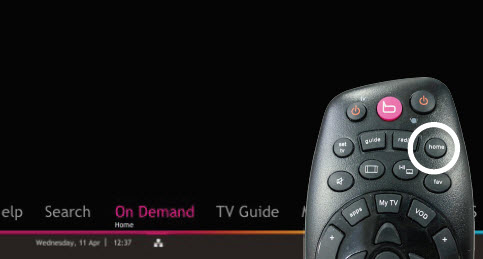
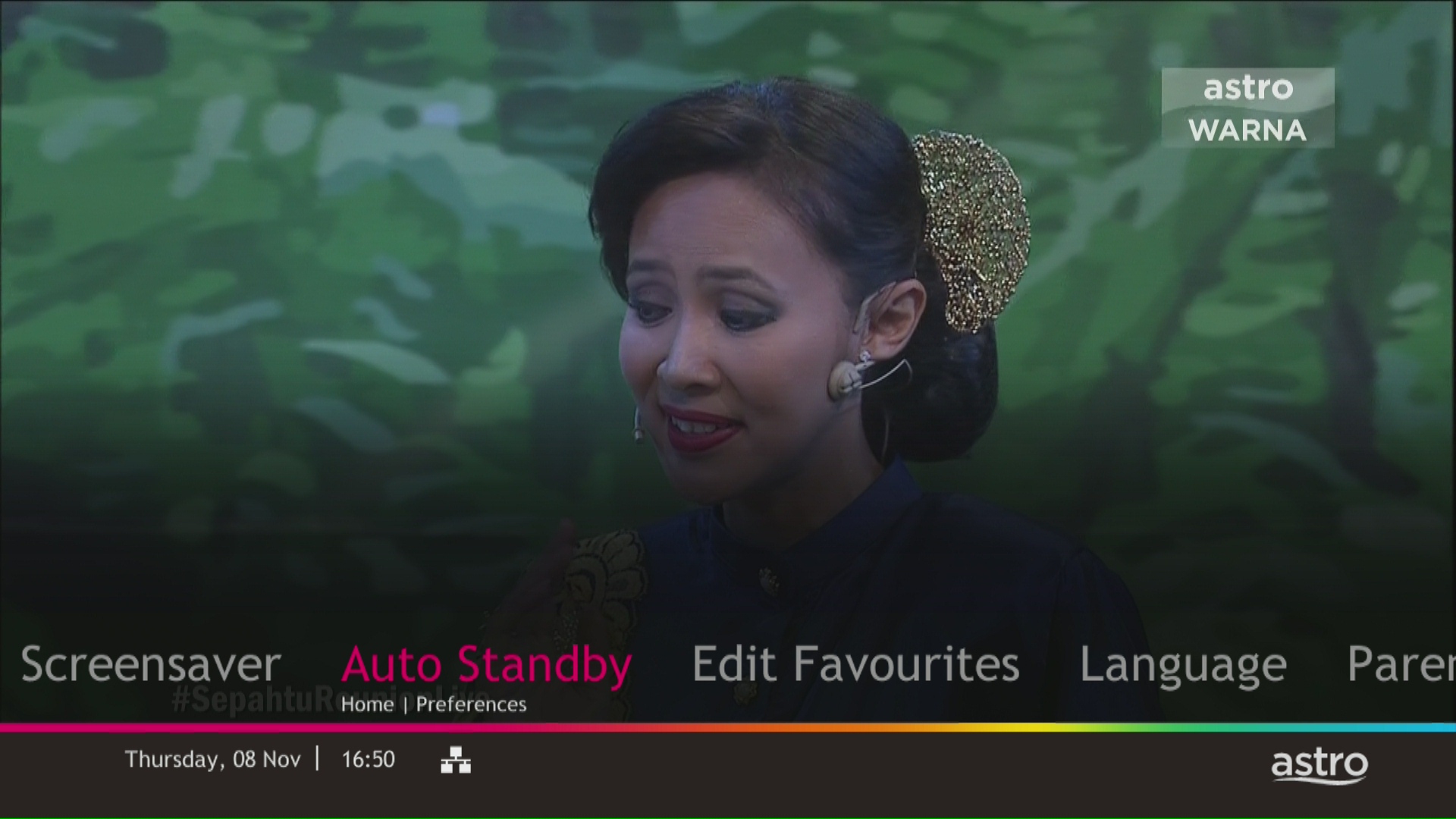
STEP 2
Navigate to Preferences and press "OK".

STEP 3
Navigate to Auto Standby and press "OK".
STEP 4
Navigate to your preferred selection and press “OK”.
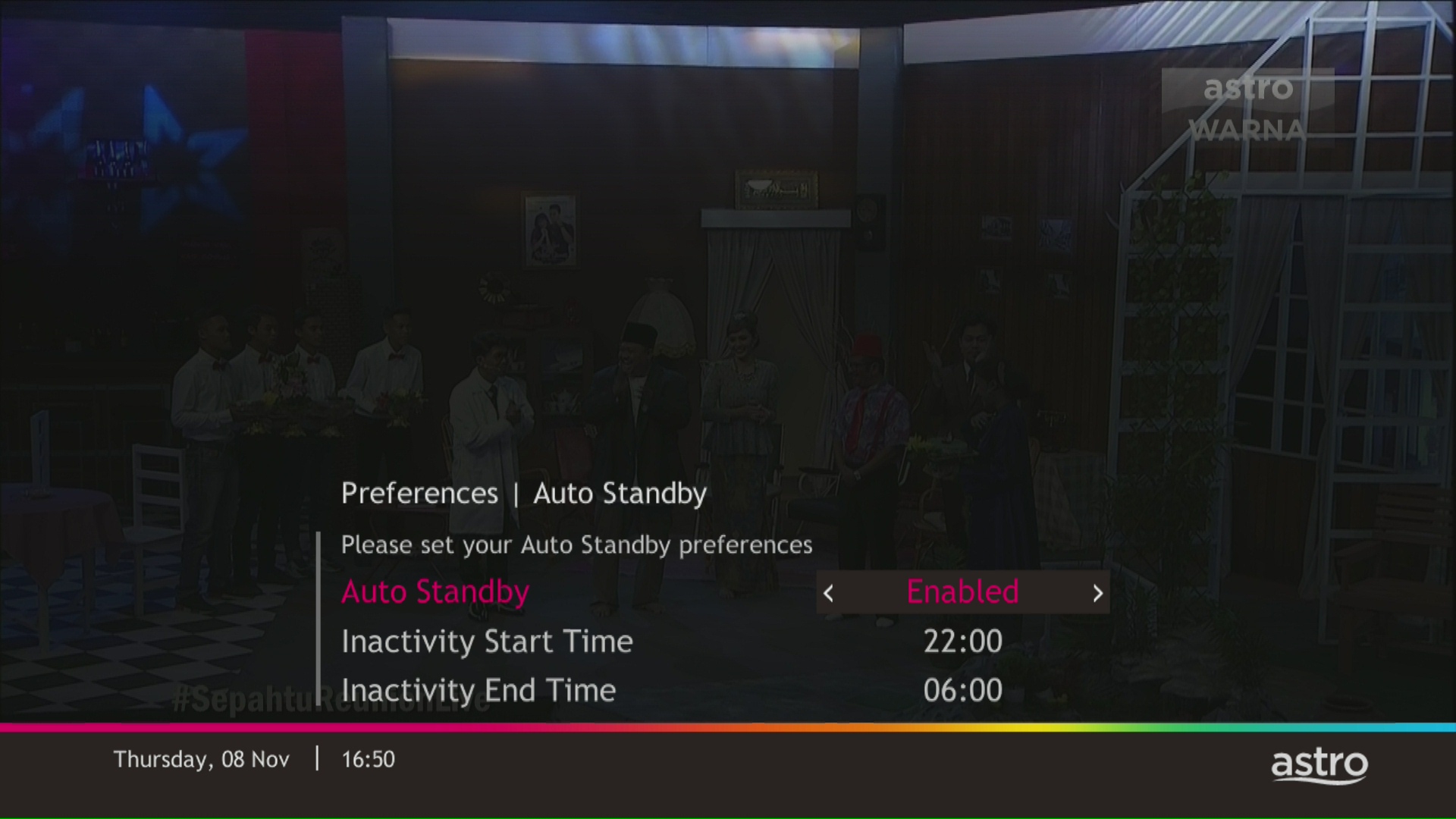
STEP 5
Select Yes, continue and then press "OK" to confirm on the changes.
Otherwise, select No, go back to cancel.

Please contact your issuing bank for further information. Astro does not directly handle standing instructions. Please utilise our auto-debit facility if you would like hassle-free payments.
Tune to channel 200 - select on "My Account".Your Total amount due will be stated under the "Bill Summary" section.

**Please note that this feature requires your box to be connected to your home Wi-Fi. Alternatively you can perform the SMS steps displayed on the screen to check your bill amount.
If you are subscribed to Netflix via a bundle, Netflix comes by default as part of your entitlement.
If you are subscribed to Netflix as an a-la carte, the cancellation of Netflix can only be done via Netflix's Website, etc). This change will reflect in your next bill. From mid-December 2021 you may also cancel Netflix add-on through Astro Call Center.
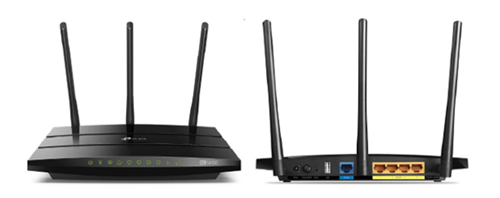
You may proceed with the following troubleshooting steps and it shouldn’t take you much longer than 15 minutes.
1. Please standby a computer/laptop to access to the internet and connection must be via LAN cable (connect the LAN cable to the Black port at D-Link Router and direct to the computer/laptop).
2. You may open any web browser such as Google Chrome, Internet Explorer, Mozilla Firefox and etc.
3. On the address bar, please go to tplinkwifi.net and to access to below login page. Type the Username and Password, then click "Login".

The default login of the router is available on the sticker at the back of the router. If you have done a configuration on your router previously, the password may be different)
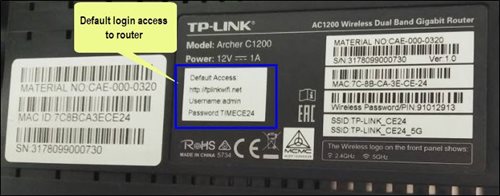
For example, below is the login details of the above router:
Username: admin
Password: TIMECE24
4. Once you have successfully login, the router's web-based setup page will appear. Please follow below steps for the configuration.
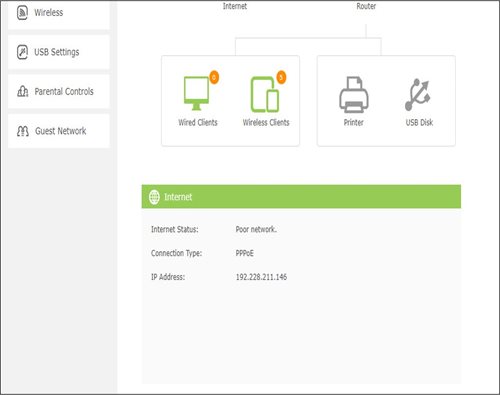
5. From the top menu, choose Basic and then click Wireless tab on the left menu to access to below screen.

6. Since this is a dual band router, you will have 2 Wireless Network Names (SSID) i.e. 2.4GHz and 5GHz. You may connect to any of the SSID, preferably with a stronger signal available.
7. You may change the Wireless Network Name (SSID) and the Password to follow your preferences, then click "Save" for the changes to take place.
Please reconnect to the new wireless name with the new password once completed.
Yes, existing Astro customers can subscribe to all Astro & Broadband offerings. 24 months contract will be renewed upon signing up for broadband.
Yes, an existing IPTV customer is eligible to switch to Astro Fibre. However, your IPTV services will be switched to a Plug & Play service, and your existing Astro PVR / B.yond Box will be upgraded to the Ultra/Ulti box. There is no additional charge for the Astro Ultra/Ulti upgrade. Please note that you will be re-contracted for 24 months upon installation.
Customers subscribing to the following Astro packs will get to automatically enjoy Disney+ Hotstar as part of their newer, bigger and better packs
- Movies Pack
- Movies Plus Pack
- Premium 1
- Premium 3
- Platinum Pack
Customers with any of the above subscriptions with an Ultra or Ulti Box will also be able to enjoy Disney+ Hotstar on their big screen TV via their Astro Box, in addition to disneyplushotstar.my and the mobile app. Please click here on how to access Disney+ Hotstar on the Ultra/Ulti Box.
Astro customers who are not on the above Packs may upgrade to the Movies, Movies Plus, Premium 1, Premium 3 or Platinum Pack to receive access to Disney+ Hotstar at no additional cost. Alternatively, customers may visit www.astro.com.my/disney to subscribe to Disney+ Hotstar Premium through a 3-month plan via Astro at RM54.90 (NP: RM79.90 quarterly, Astro customer may see up to 30% savings in their Disney+ Hotstar Premium subscription)
For more information, please visit www.astro.com.my/disney. If you need further help, please WhatsApp “DH Help” to Astro or call them at 03-9543 3838 for assistance.
STEP 1
On your remote, press the HOME button and the home menu will be displayed on top of your screen.

STEP 2
Navigate to Settings.

STEP 3
Navigate to Menu Language and press "OK".

STEP 4
Navigate to your preferred language selection and press “OK”.

Astro ID and / or account deletion is permanent. Upon deletion, it will be unlinked from your TV subscription account and you will be logged out from all the associated Astro apps and / or services connected including the partner apps that you have logged in using the same Astro ID. If you have any queries regarding Astro ID or would like to request for Astro ID account deletion, click on submit your request here, fill in the required details and our Astro representative will get back to you within 3 business days for security verification purposes.
Yes, you can go to "Account' and scroll to "Subscription' and select TV pack. You may reach out to us via WhatsApp at 03-9543 3838 for more details.
Please contact Astro Customer Call Center via 03-95433838
You will be contacted by an Astro representative within two working days to advise you on the next course of action.
STEP 1
On your remote, press the “HOME” button and the home menu will be displayed at the bottom of your screen.
STEP 2
Navigate to SETTINGS and press “OK”.
STEP 3
Navigate to STB DIAGNOSTICS and press “OK”.

STEP 4
Refer to the signal strength % shown on the top left of your screen.

Yes, until 31 August 2022, customers can subscribe to the Movies Pack for only *RM59.99/month or the Platinum Pack for only *RM99.99/month for 6 months as well as the Premium 1 or Premium 3 Pack for only *RM99.99/month for 6 months until 30 October 2022 and be entitled to access Disney+ Hotstar as part of their Astro subscription. To find out more about our latest promotions, please visit promotions.astro.com.my.
We would recommend the following browsers for a smooth verification process:
• Google Chrome
• Microsoft Edge
• Mozilla Firefox
• Safari
You may reach out to Astro's customer service at 03-95433838 if you think there's an error regarding your redemption or rewards.
Step 1:
Type ASTRO<space>BAL<space>10-Digit Astro Account No.
Example: ASTRO BAL 08XXXXXXXX
*Standard telco charges and Terms and Conditions apply
Step 2:
Send SMS to 66688
Once you have received the eKYC link, you need to complete the verification within 3 days.
Yes, you may cancel your Astro Fibre order before service activation, however, kindly note that there is a cancellation charge of RM212 (inclusive of SST) for any service cancellation done 48 hrs before scheduled appointment.
STEP 1
On your remote, press the “HOME” button and the home menu will be displayed at the bottom of your screen.
STEP 2
Navigate to SETTINGS and press “OK”.
STEP 3
Navigate to STB DIAGNOSTICS and press “OK”.
STEP 4
Select the “Network” tab in the STB Diagnostics page.
Please ensure the Tunes service multicast status is Multicast Up.
If the status is Multicast is Not Available, please reboot your box and router before verifying this status.

If issue persists, please submit the issue in our Feedback Form and attach a picture of your Network tab of the STB Diagnostics for assistance.
You can request for a password reset by clicking on "Forgot My Password' at the login page.
Any packages with Entertainment Plus, Movies Plus & Sports Plus will include Netflix. The default Netflix offering is Netflix Standard (2 screens and HD viewing) as part of your Entertainment Plus, Movies Plus and Sports Plus subscription. You can upgrade up to Netflix Premium (4 screens and 4K UHD viewing) at a price of RM 10 (inclusive of govt. tax).
Note: For the above subscriptions, you may use the email address used for your existing subscription with Netflix to activate and the future billing for Netflix will be transferred to your Astro bundle charges. For users that are billed for Netflix through Apple before joining the Astro bundle, remember to cancel your Apple billing arrangement after activating the Astro bundle else you may be double charged for your Netflix account.
If you do not have a bundle which includes Netflix, you may also add a new Netflix subscription to your Astro Bill for billing convenience.
-The Mesh unit can only be used indoors. It can be mounted onto a wall or be placed horizontally on a desktop. Do not install it in other mode, such as on the ceiling.
-Keep a clearance of at least 10 cm around the device to ensure proper ventilation.
-Keep the device away from electrical appliances that generate strong magnetic or electric fields, such as microwave ovens.
Most Astro customers are eligible to use the app, web, Ultra and Ulti boxes. You will only need to login with your Astro ID. Do note that your Astro ID must be linked to your Astro account to use the service. Click "Create now!' on the login page and you will be guided to create an Astro ID if you do not have one.
This exercise currently only affects person-to-person SMS with URL links. However, the blocking of SMS sent by businesses via short codes such as 6XXXX, 3XXXX, 2XXXX and 1XXXX will be implemented at a later phase. In response to this government initiative, Astro customers will no longer receive SMS bills effective 1 August 2023. This change will be carried out in phases.
Please switch your preferred Bill Delivery Method using our self-service portals via My Astro Web or My Astro app. Please click here to download the app on your mobile device or login to My Astro Web.
Please follow the steps below to retrieve your Astro ID:
Note: Only Astro customers whose Astro ID is linked to their subscription can retrieve their Astro ID this way. Otherwise, you would need to create a new account.
STEP 1
On your remote, press the HOME button and the home menu will be displayed on top of your screen.
STEP 2
Navigate to Settings.
STEP 3
Navigate to Standby Mode and press "OK".

STEP 4
Navigate to your preferred selection and press "OK".

STEP 5
Navigate to Save and press "OK" to confirm your selection.

No. Starting 1 April 2024, for new customers and current customers looking to switch their Asian Favourites, our Asian Favourites options will be:
- Viu Premium
- Indonesian Favourites
- Indian Favourites
TVB content will continue to be available via TVB Jade (CH310) and Astro AOD (CH311) as well as On Demand. If you would like to subscribe to the TVBAnywhere+ app, you may still do so by purchasing it directly from TVB.
For multi-frequency customers, RM10.00 is charged per physical bill generated.
Unfortunately, this means that you are using a TV model that does not support 4K UHD resolution (Sony BRAVIA 4K GB, Sony BRAVIA 4K UR or Sony BRAVIA VH). Not to worry, we are working with the Sony team to ensure you will be able to enjoy these 4K UHD channels soon. We will keep you posted once these channels are available to you!
