

 Netflix Basic
Nationwide Installation
Applying for
| UniFi Maxis Astro Njoi |
Frequently Asked Questions
Find your answers here.
We provide one stop service to apply Astro and Broadband for you.
You can avoid driving and queuing at the sales counter. We are the dealer that can help you to handle your application from the beginning to the end.
We do not charge you when you apply from us. There is no credit card information required to apply here. Charges are the same as you apply from the sales counter.
First, you can apply online, we will get back to you immediately during business hour. WhatsApp/Email/Fax us your Photocopy of IC (for malaysian) / Passport (for foreigners). When we receive all the information, we will proceed with your application immediately.
Once we receive your application with complete information, we will process your application immediately during business hour. The contractor from the service provider will then contact you for installation appointment once your application is approved.
Enjoy greater savings and hassle-free bill payment in one single bill for both Astro and Broadband. You get to enjoy Astro and Broadband at discounted price every month over the contract period of 24 months.
Astro offers multiple TV packs including Entertainment, Sports, Movies and Kids options. You can choose a pack that matches your viewing preferences and add optional streaming apps where available.
Yes, you may subscribe to Astro TV packs without bundling broadband. However, bundling Astro TV with Fibre Broadband may provide better monthly savings and convenience with a single bill.
For small households with light streaming and browsing, 100Mbps is usually sufficient. Larger families, gamers or heavy streamers may benefit from 500Mbps or 1Gbps plans for smoother performance across multiple devices.
Most Astro TV and Fibre broadband plans come with a 24-month contract. Early termination charges may apply if cancellation is made before the contract ends.
Yes, you may upgrade your TV pack or broadband speed at any time, subject to eligibility and coverage. A new contract period may apply depending on the upgrade.
Your monthly bill will be issued directly by Astro. You may receive it via email or access it through your Astro account. Bundled customers will receive a single combined bill for TV and broadband services.
Payment methods may include online banking, auto debit, credit card or other approved payment channels provided by Astro. Our team can guide you during the registration process.
If you experience any service interruption, you may contact Astro customer support for technical assistance. In many cases, issues can be resolved remotely or a technician will be arranged if necessary.
Yes, relocation is subject to service availability at your new address. Relocation charges and contract adjustments may apply depending on your plan.
No, you do not need a credit card to submit your application. Payment setup will be arranged directly with Astro after your service is approved.
Selected Astro TV packs allow optional add-ons such as streaming services depending on current promotions and availability. Additional monthly charges may apply.
Yes, a WiFi router is typically provided during fibre installation. The router model may vary depending on the selected broadband speed plan.
Yes, we will check the service coverage at your address before proceeding with your application to ensure broadband is available at your location.
For Malaysians, please provide a copy of your MyKad. For foreigners, provide a copy of your passport when submitting your broadband application.
After your application is approved, the service provider typically contacts you within 2 to 7 working days to arrange the broadband installation appointment.
Most Astro Broadband plans come with a 24-month contract starting from your installation date. If you relocate, a new 24-month contract may apply at your new address.
Yes, you can relocate your broadband service, subject to service availability at the new address. Your contract may reset for another 24 months from the new installation date.
Yes, you may request to relocate broadband devices within your home. Non-standard installation charges may apply and are payable to the installer directly after assessment.
Yes, you can switch to Astro Broadband. To avoid service interruption, it is recommended to activate the new service before terminating your current broadband contract.
Standard installations may be free during promotions, but non-standard installations (e.g., device relocation or complex wiring) may incur extra charges payable directly to the installer.
The recommended home internet speed for a smooth viewing is 10Mbps.
No, customers are only allowed to choose ONE billing option (either Paper Bill or E-bill or SMS bill). However, customers who opted for Paper Bill will still be able to check their bills through Astro Self-Service Portal, IVR, Channel 200 and WhatsApp.
Astro Fibre subscription also comes with a 24-month contract commitment and will NOT be auto renewed at the end of contact period.
Please check your internet speed and connection status via internet connection test. If your internet is working fine and the issue persists, proceed to submit report via WhatsApp or Feedback Form.
Please fill up the forms below for processing your request:
Transfer of Equiment Ownership Form
The service tax rate for Astro Pay TV will be increased from 6% to 8%. The service tax for Astro Fibre, which falls under the category of telecommunication service, will remain at 6%.
STEP 1
On your remote, press the ... button and the Channel Guide page will be displayed on your screen.

STEP 2
Select the channel you would like to remove as favourite and press "OK".

STEP 3
Select "Remove from Favourite" and press "OK".

STEP 4
You are successfully removed the channel from favourite list when this screen appears.

You may still be using an older version of the Astro GO. To resolve this issue, please go to your respective app store and update your Astro GO app.
If you are still having issues, proceed to submit report via WhatsApp or Feedback Form.
No. Starting 1 April 2024, for new customers and current customers looking to switch their Asian Favourites, our Asian Favourites options will be:
- Viu Premium
- Indonesian Favourites
- Indian Favourites
TVB content will continue to be available via TVB Jade (CH310) and Astro AOD (CH311) as well as On Demand. If you would like to subscribe to the TVBAnywhere+ app, you may still do so by purchasing it directly from TVB.
1. Tune to Astro channel 200 - select "Add-Ons"

2. Select the option for Monthly Subscription
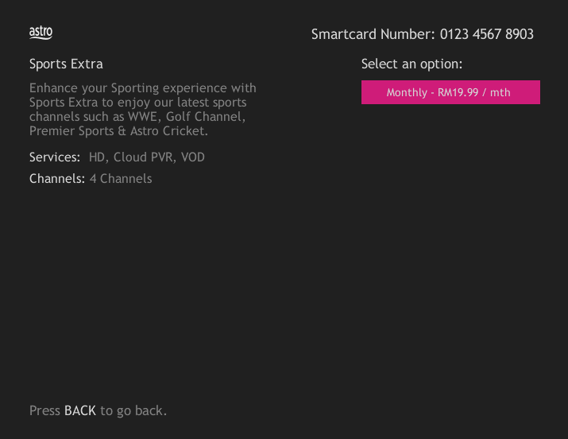
3. Send the WhatsApp code as per displayed on the TV screen

You may contact Astro's Contact Centre (03 - 9543 1543) to process the cancellation.
The Mesh WiFi device(s) needs to be returned upon service termination via an arranged pick-up by our installers.
Astro continuously reviews its content proposition to offer the best choices and a variety of compelling content for our customers for the best viewing experience. As such, we will cease the sale of PPV passes on CH200 from 8 October onwards.
Customers can continue to enjoy their favourite content by subscribing to the relevant packs and stay tuned for more exciting offers to be announced soon.
-The Mesh unit can only be used indoors. It can be mounted onto a wall or be placed horizontally on a desktop. Do not install it in other mode, such as on the ceiling.
-Keep a clearance of at least 10 cm around the device to ensure proper ventilation.
-Keep the device away from electrical appliances that generate strong magnetic or electric fields, such as microwave ovens.
You should have received an email or SMS with your activation details, please click on the link provided to be redirected to the Netflix website to activate your account.
Alternatively, you can also activate Netflix on your Ultra/Ulti Box. Please surf to CH 741 on your Ultra/Ulti Box (or click the Netflix button on your Astro remote) and follow the instructions on the screen.
New and existing Astro customers will enjoy rebates up to RM39/month for 24 months when they subscribe to selected Astro Fibre TV bundles and a FREE speed upgrade for all customers who subscribe within the promotion period.
No additional fees will be charged upon your relocation. However, you are required to notify Astro of your move. Please refer to Astro's General T&Cs for more information.
Wider WiFi coverage:
-All areas across the house will enjoy optimal coverage with multiple Mesh WiFi units located in areas with sub-optimal coverage to form a larger WiFi network.
Stable connection;
-Consistent coverage of optimal WiFi signal will ensure a stable connection as the Mesh unit will automatically connect your devices to the strongest WiFi signal around your house.
If you would like more information or to provide feedback, kindly log in to our support page via support.astro.com.my. For more questions regarding Astro Pack, you may reach out to us via call at 03-7481 1000 (Monday to Friday, 9AM – 6PM exclude public holidays).
No, you are not allowed to change your due date or maintain your old due date. Your current due date is as per Astro Policy. Therefore, to ensure that you continue to enjoy uninterrupted services, we advise you to observe this change in due date from Day 30 to Day 25 and proceed with the necessary payment.
Once you have received the eKYC link, you need to complete the verification within 3 days.
Yes, if a device is faulty due to the customer's negligence, they will be subjected to a penalty fee for each device:
- WiFi router: RM200
- Fibre modem: RM500
- Mesh WiFi: RM200/unit
Astro GO is a companion app that is complimentary for all Astro subscribers and allows up to 2 users to stream at the same time. 200 hours of cloud recording* come complimentary with your Pay TV subscription.
Astro GO+ is an add-on service that enables up to 4 users to stream Astro GO and/or Multiroom Smart TV** at the same time. The amount of cloud recording storage will also be increased to 1500 hours.

*Cloud recording hours are shared across your Astro Box, Astro GO and Multiroom Smart TV
** Provided that you have a Multiroom Smart TV subscription
Please be sure to take your decoder, satellite dish, smartcard, remote control and all other fixtures after dismantling is done by the technician.
If you are facing technical issues, please contact us at wecare@astro.com.my or call/WhatsApp us at 03-9543 3838.
(i) Head over to My Astro Portal and go to 'Bill & Payment'. Click on 'Payment History'
(ii) Contact us via one of these platforms. Please ensure you include your Astro Account Number.
You can add a new Netflix account to your bill through CH 741 or clicking the Netflix button on the remote control. Please enter the email address you would like to use for Netflix subscription and ensure the Billing partner is Astro.
If you would like to transfer your existing Netflix Account to be charged under Astro bill, please follow the steps below:
- Cancel your existing subscription with Netflix
- Once the remaining duration of your existing subscription has ended, you may proceed to subscribe for Netflix via Astro bill
- To subscribe, go to CH 741 and enter the email address used for your previous subscription with Netflix
- Once successfully completed, all existing settings and watching history on your Netflix account will be brought over
You do not need to request for a reconnection as our system will detect your payment and process it immediately, provided you paid via a real-time payment channel.
Click here for a full list of our payment channels.
STEP 1
On your remote, press the HOME button and the home menu will be displayed on top of your screen.

STEP 2
Navigate to Settings.

STEP 3
Navigate to Remote Control Settings and press "OK".

STEP 4
Follow the steps appear on the screen to sync your Astro remote.

Not to worry, you will only need to verify your Astro ID once. After that, you may log in to your account as usual.
STEP 1
On your remote, press the Home button and the Home Page will be displayed on your screen.
STEP 2
Navigate to Profile.
STEP 3
The Profile Selection Screen will be displayed. 
STEP 4
Navigate to Edit Profile.
STEP 5
Choose a profile to edit.
STEP 6
Choose a new Profile Picture and press “OK”.
Should there be any changes in plans we will keep our customers informed on any new development.
No, there are no penalty fees for the Mesh WiFi devices should you wish to terminate Astro Fibre within/after 24 months.
Each Astro customer can subscribe to a maximum of one (1) Multiroom (Smart TV) subscription. If you need additional Multiroom access, you may subscribe to Multiroom (Astro Box). All subscription has to be used within the same location as per the main subscription.
Purchase function on Astro GO is only available for Android devices, Huawei devices and on the Astro GO website. For Apple device users, please head to astrogo.astro.com.my to make your purchase.
Purchase instruction:
Head to the Store section

Click on RENT

Enter Your PIN (Default PIN 0000)

Confirm to Purchase

Purchased Success. Enjoy!

You purchased content title will be available under "Rental" in My Library. All purchases on Astro GO will be added to your monthly bill and accessible on both Astro GO and your Astro decoder. Cancellation of purchase is not possible upon confirmation.
*Purchase of content is only available on Android & Huawei devices and on the Astro GO website*
STEP 1
On your remote, press the HOME button and the home menu will be displayed on top of your screen.

STEP 2
Navigate to Settings.

STEP 3
Navigate to Satellite Settings and press “OK”.

STEP 4
Navigate to LNB Setup and press “OK”.

STEP 5
Tuner Settings screen will be displayed accordingly.

STEP 6
Select LNB Type connected to your box.


STEP 7
Navigate to Next and press "OK" to confirm your selection.

STEP 8
Select this as the Entry Point and press "OK" to confirm your selection.

STEP 9
Navigate to Next and press "OK" to confirm your selection.

STEP 10
Signal reading results for Tuner 1 screen will be displayed accordingly.
Press right to navigate to Tuner 2.

STEP 11
Signal reading results screen for Tuner 2 will be displayed.
Then navigate to Finish and press "OK" to complete the setup.

There are two ways for you to switch your preferred bill delivery method:
A. Customers can manage their account via the My Astro Portal by following these easy steps:
- Visit www.astro.com.my
- Select “My Account”, then select “Manage Account”
- Log in to My Astro Web using your Astro ID
- Select “Account”
- Under “Billing”, click on “Bill Delivery Method”
- Choose your preferred bill delivery method, then click “Proceed”
B. Customers can also manage their account via Astro’s mobile application, the My Astro app by following these easy steps:
- Open the “My Astro” app on your smartphone. If you do not have it installed, you may download it here (Google Play Store) or here (IOS App Store)
- Log in with your Astro ID
- Select “Account” in the navigation bar
- Select “Bill Delivery Method”
- Choose your preferred bill delivery method, then click "Proceed
No, you are still able to access HBO Go on your current Movies pack.
The PVR comes with a 12 months warranty from the date of activation.
STEP 1
On your remote, press the Home button and the home menu will be displayed on your screen.
STEP 2
Navigate to Profile.
STEP 3
The Profile Selection Screen will be displayed.
STEP 4
Navigate to Add Profile.
STEP 5
Choose your Profile.
STEP 6
Input the Profile Name and navigate to DONE.
STEP 7
Choose the Age Group of the new profile and press "OK".
STEP 8
Your new profile will be shown in the Profile Selection Screen.
At this point in time, the Disney+ Hotstar app on the Ultra or Ulti Box does not support Dolby audio. We are working to enable this in a future update.
The matches will be available on the channels Astro Arena Bola (CH803) and Astro Arena Bola 2 (CH804), On Demand and Astro GO.
STEP 1
On your remote, press the HOME button and the home menu will be displayed on top of your screen.
STEP 2
Navigate to Settings.
STEP 3
Navigate to Parental Control and press "OK".

STEP 4
Please enter your PIN (Default PIN is 0000).

STEP 5
Navigate to your preferred category to block and press "OK".

If you are subscribed to Netflix via a bundle, Netflix comes by default as part of your entitlement.
If you are subscribed to Netflix as an a-la carte, the cancellation of Netflix can only be done via Netflix's Website, etc). This change will reflect in your next bill. From mid-December 2021 you may also cancel Netflix add-on through Astro Call Center.
If you add on the Mesh WiFi during your initial order of Astro Fibre, there is no additional installation fee. If you order the Mesh WiFi as an add-on at a later time, you will have to pay RM49 per installer visit. However, if you choose to have the Mesh WiFi delivered via courier in order to self-install your Mesh WiFi, there will be no installation or delivery fee charged.
There is no contract for this subscription.
No, Astro First movies/series are available as Per-per-view basis. Pricing is indicated on each of the programme posters. All prices are subjected to 6% service tax.
STEP 1
On your Astro remote, press the HOME button and the home menu will be displayed on top of your screen.
STEP 2
Navigate to Settings.
STEP 3
Navigate to STB Diagnostics and press "OK".
STEP 4
Select General Diagnostics and press "OK".
STEP 5
General Diagnostics results will be displayed on the screen.
Scroll until observed the SW Download Status.
STEP 1
On your remote, press the HOME button and the home menu will be displayed on top of your screen.

STEP 2
Navigate to Settings.

STEP 3
Navigate to TV Settings and press “OK”.

STEP 4
Navigate to your preferred selection and press “OK”.

STEP 5
Navigate to Save and press "OK" to confirm your selection.

STEP 1
Try to change channels on your Astro remote. Check the LED light.
If the LED is blinking 3 times or if it is not blinking, replace the batteries and proceed to STEP 2.
Otherwise, if the LED is blinking 1 time, your remote is working fine, let's proceed to STEP 3.
STEP 2
Check if you can change channels using your Astro remote control. You should no longer be experiencing this problem if is a battery issue.
If issue remain after batteries replacement, proceed to STEP 3.
STEP 3
You need to refresh the box setting manually from the box front panel.
Refer to Refresh Box setting (Clear NVRAM) - Ultra / Ulti Box.
If issue persist, please submit the issue on our Feedback Form.
No, the eKYC verification process must be done by the individual themselves, using their MyKad and selfie in real-time.
