

 Netflix Basic
Nationwide Installation
Applying for
| UniFi Maxis Astro Njoi |
Frequently Asked Questions
Find your answers here.
We provide one stop service to apply Astro and Broadband for you.
You can avoid driving and queuing at the sales counter. We are the dealer that can help you to handle your application from the beginning to the end.
We do not charge you when you apply from us. There is no credit card information required to apply here. Charges are the same as you apply from the sales counter.
First, you can apply online, we will get back to you immediately during business hour. WhatsApp/Email/Fax us your Photocopy of IC (for malaysian) / Passport (for foreigners). When we receive all the information, we will proceed with your application immediately.
Once we receive your application with complete information, we will process your application immediately during business hour. The contractor from the service provider will then contact you for installation appointment once your application is approved.
Enjoy greater savings and hassle-free bill payment in one single bill for both Astro and Broadband. You get to enjoy Astro and Broadband at discounted price every month over the contract period of 24 months.
Astro offers multiple TV packs including Entertainment, Sports, Movies and Kids options. You can choose a pack that matches your viewing preferences and add optional streaming apps where available.
Yes, you may subscribe to Astro TV packs without bundling broadband. However, bundling Astro TV with Fibre Broadband may provide better monthly savings and convenience with a single bill.
For small households with light streaming and browsing, 100Mbps is usually sufficient. Larger families, gamers or heavy streamers may benefit from 500Mbps or 1Gbps plans for smoother performance across multiple devices.
Most Astro TV and Fibre broadband plans come with a 24-month contract. Early termination charges may apply if cancellation is made before the contract ends.
Yes, you may upgrade your TV pack or broadband speed at any time, subject to eligibility and coverage. A new contract period may apply depending on the upgrade.
Your monthly bill will be issued directly by Astro. You may receive it via email or access it through your Astro account. Bundled customers will receive a single combined bill for TV and broadband services.
Payment methods may include online banking, auto debit, credit card or other approved payment channels provided by Astro. Our team can guide you during the registration process.
If you experience any service interruption, you may contact Astro customer support for technical assistance. In many cases, issues can be resolved remotely or a technician will be arranged if necessary.
Yes, relocation is subject to service availability at your new address. Relocation charges and contract adjustments may apply depending on your plan.
No, you do not need a credit card to submit your application. Payment setup will be arranged directly with Astro after your service is approved.
Selected Astro TV packs allow optional add-ons such as streaming services depending on current promotions and availability. Additional monthly charges may apply.
Yes, a WiFi router is typically provided during fibre installation. The router model may vary depending on the selected broadband speed plan.
Yes, we will check the service coverage at your address before proceeding with your application to ensure broadband is available at your location.
For Malaysians, please provide a copy of your MyKad. For foreigners, provide a copy of your passport when submitting your broadband application.
After your application is approved, the service provider typically contacts you within 2 to 7 working days to arrange the broadband installation appointment.
Most Astro Broadband plans come with a 24-month contract starting from your installation date. If you relocate, a new 24-month contract may apply at your new address.
Yes, you can relocate your broadband service, subject to service availability at the new address. Your contract may reset for another 24 months from the new installation date.
Yes, you may request to relocate broadband devices within your home. Non-standard installation charges may apply and are payable to the installer directly after assessment.
Yes, you can switch to Astro Broadband. To avoid service interruption, it is recommended to activate the new service before terminating your current broadband contract.
Standard installations may be free during promotions, but non-standard installations (e.g., device relocation or complex wiring) may incur extra charges payable directly to the installer.

| Step 1: Visit https://id.astro.com.my/ and click on “Forgot Astro ID?” | Step 2: Enter your Account/Smartcard Number. If you do not know where to find it, click on “Where to find your Account/ Smartcard Number” |
Note: Only Astro customers whose Astro ID is linked to their subscription can retrieve their Astro ID this way. Otherwise, you would need to create a new account.
The Ultra/Ulti Plug & Play Box comes with a one-year box hardware warranty.
For self-installation, there is a warranty seal at the bottom of the Ultra/Ulti Plug & Play Box, which must not be removed or tampered with as this would void the one-year Ultra/Ulti box hardware warranty.
Band Steering is a functionality that our WiFi router (Huawei K562E) has that intelligently connects devices to its WiFi to the best frequency bands available based on usage, speed and coverage by using only one same SSID for both 2.4GHz and 5GHz band.
Refund fee is subject to your processing bank. However, Astro did not impose refund processing fee.
Astro sends regular payment reminders to customers via SMS until their current charges have been paid. However, we encourage customers to pay their bill as soon as possible to avoid disconnection of Astro service. Please reach out to us here if you require more information about payment reminders or to change your contact details.
In general, these two bands can be differentiated with these parameters: Coverage, Channel Interference and Speed.
2.4GHz gives better coverage but lower speeds, while 5GHz provides faster internet but covers a smaller area.

Please follow the steps in Q5, then continue with the steps below:
| Step 1: Click the “Email” or “Mobile Number” field to edit. Then, enter your updated detail(s). | Step 2: Complete the verification by entering the code sent to your new email address or mobile number. | Step 3: Congratulations! You have successfully updated your contact detail! |
Photograph or scan your payment receipt, and send it to one of our contact platforms found here.
Please ensure that you have subscribed to the mentioned channel.
If you're subscribed to this channel, follow below steps.
STEP 1
You need to refresh the signal on your box.
Refer to Refresh signal of your box guide.
STEP 2
If issue persist after 30 minutes, proceed to submit report via WhatsApp or Feedback Form.
Kindly note that affected customers will be adequately informed 30 days prior to the implementation via SMS which are sent out in phases (Starting 1 July), with scheduled announcements across WhatsApp, My Astro app, and Astro website.
STEP 1
Press "HOME" button on your remote control.

STEP 2
Navigate to Settings and press "OK".

STEP 3
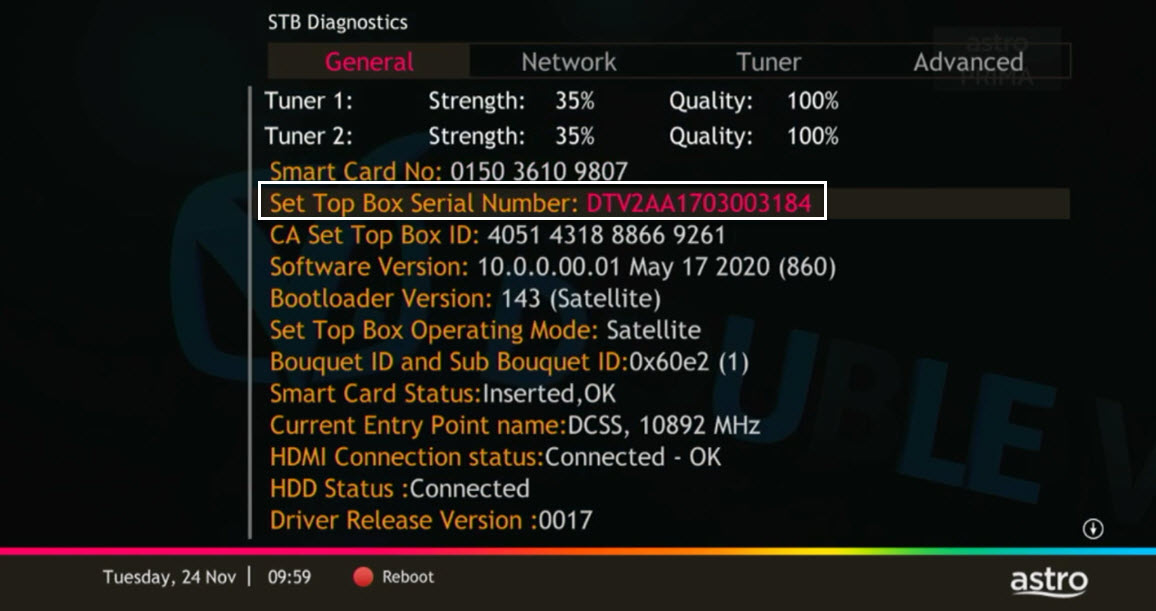
Navigate to STB Diagnostics and press "OK".

STEP 4
From General Tab, look at the Smart Card No for the smartcard number.

STEP 5
Take look at the Set Top Box Serial Number for the box serial number.
Zee5 is the only app that has a change in price upon the SST increase. Prices of Netflix, Disney+ Hotstar, Viu, iQIYI, WeTV and Qalbox will not be affected.
Information of the PPV CH200 cessation has been announced on CH200 from 1 - 7 October prior to the PPV cessation. Once again, we regret any inconvenience caused.
For Astro Fibre subscription, should you choose to discontinue/terminate the Astro Fibre service before the expiry of the contract (24 months), you will be subjected to an early cancellation fee of RM100 x Remaining months of the contract period for your Broadband services.
All Astro Fibre devices provisioned (Fibre modem, WiFi router and Mesh) will need to be returned upon termination. Our team will schedule the collection of equipment after your Broadband services have been terminated.
If equipment is damaged, lost or cannot be retrieved, penalty fees will be applied (excluding Service Tax) accordingly.
- RM500 for Fibre modem (Broadband Termination Unit)
- RM200 for WiFi router (Residential Gateway)
- RM200/unit for Mesh WiFi
You may reach out to Astro's customer service at 03-95433838 if you think there's an error regarding your redemption or rewards.
Your Astro GO email will be delivered to you within an hour upon checkout. Please click the link provided to set up your password and download the Astro GO app on your device by clicking here (Google Play Store) or here (iOS App Store). If you want to stream it directly via your computer or laptop, Astro GO is also available at astrogo.astro.com.my. Log in with your Astro ID and start streaming!
Starting 12 December 2023, Multiroom Smart TV app customers can enjoy two 4K Ultra HD (4K UHD) channels, namely CH549 Love Nature and CH805 Astro SuperSport. “Love Nature” is available to all customers regardless of their subscribed TV Pack. It celebrates the complexity of life on earth, presenting nature stories in stunning detail and colours.
Additionally, “Astro SuperSport” is only available to customers on the Sports, Sports Plus, Premium 1, Premium 2, Premium 4, Platinum Lite and Platinum Packs. This channel showcases a variety of sporting events, selected to appeal to the Malaysian viewing audience.
Service Tax will not be imposed on any CSR projects accounts. Any tax payable will be borne by Astro.
STEP 1
On your remote, press the HOME button.

STEP 2
Navigate to Update Satellite Frequency and press “OK”.

STEP 3
Choose Test Satellite Frequency and press “OK”.

STEP 4
Select Yes, continue and press "OK" to start the test.
Otherwise, select No, go back to cancel.

STEP 5
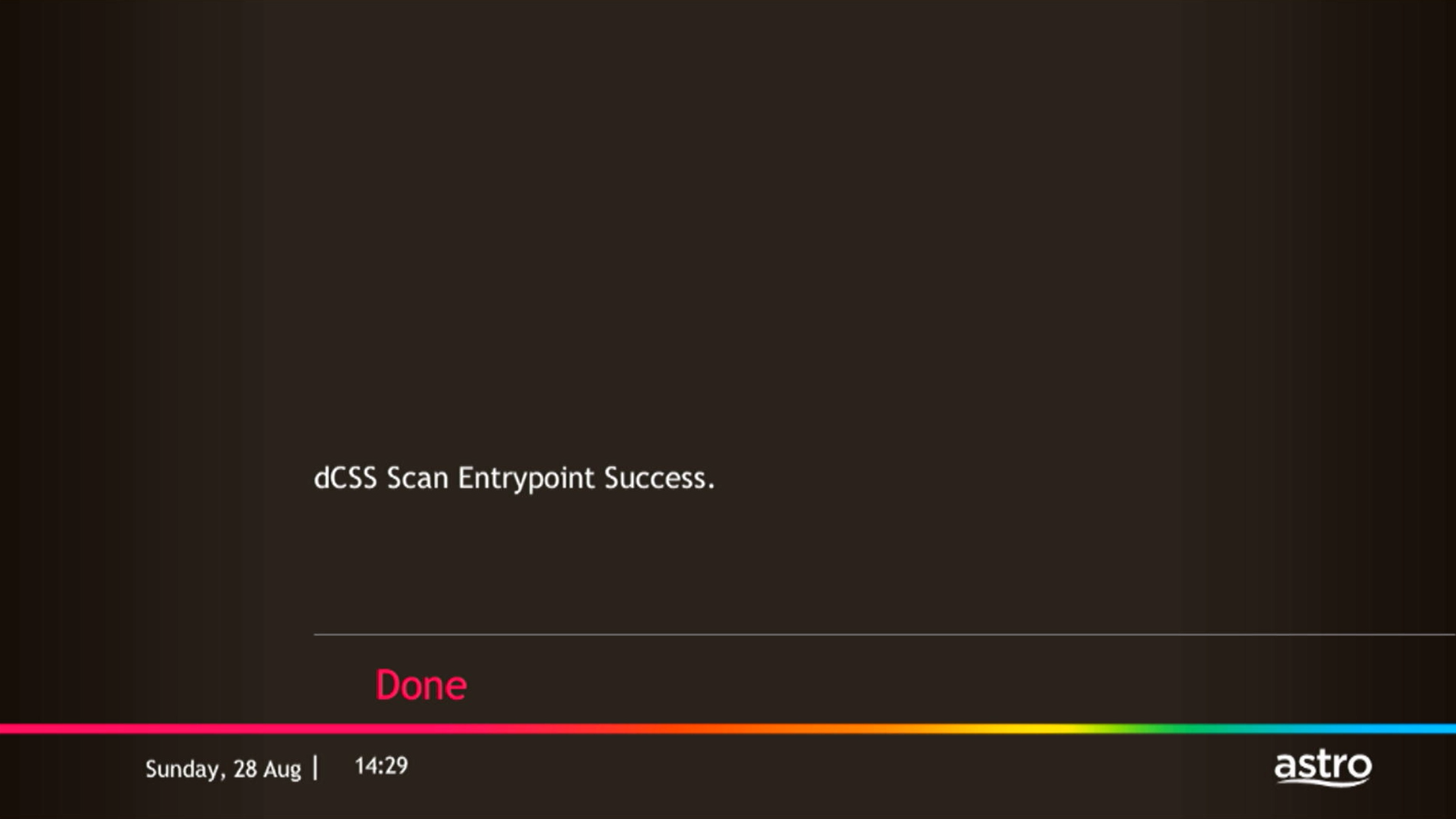
Satellite Frequency Test progress screen will be displayed.

STEP 6
The test result will be displayed once completed.
Press "OK" to go back to channel.
Astro Quick Pay is a convenient method to check your Bill Summary, Account Status and pay Astro bills at your convenience with immediate payment posting, right from home. Visit Astro Quick Pay to pay your bill now.
Users can easily access all their streaming Apps such as Netflix, Disney+ Hotstar, Viu etc by clicking the “APPS” button on their remote control. After clicking this button, they will be brought to the Apps rail under the home page.
To access these streaming apps, you would need to upgrade to the Ultra or Ulti Box by visiting product.astro.com.my/box. Alternatively, you may also reachus via WhatsApp by typing "Hi
Please refer to these FAQs and Terms and Conditions for more information.
For more support and options for your subscription, please WhatsApp us at 03 9543 3838 and type DH Help. Alternatively, you may visit astro.com.my/Disney for more information.
Please upgrade the Ultra/Ulti Box software to enjoy Netflix on your Ultra/Ulti Box. To do this, please click on the Netflix app icon on the homepage or go to CH741 to prompt the software upgrade. Kindly click Install when the software upgrade prompt appears. This will take approximately 20 minutes and you would be able to launch Netflix on the Ultra/Ulti Box after that.
Liga Malaysia is available for all customers with a HD enabled box including Zapper, DMT5, Ulti Box and Ultra Box.
Please refer to the Welcome Card inside the Plug & Play Box package and scan the QR code. You may choose to watch either the self-installation video or the Augmented Reality (AR) Installation Video to activate your Plug & Play Box. You can also download the Installation Guide from the Astro Get Started Page.
Please install and activate your Plug & Play Box within 7 days of receiving your Plug & Play Box and Astro SIM card. If you are unable to activate your Plug & Play Box within 7 days, the Plug & Play Box will be automatically activated by Astro on the 8th day.
The billing and warranty of the Plug & Play Box shall begin on the same date of which the Plug & Play Box is activated.
In the event that you have ordered more than one (1) Plug & Play Box, please refer to the Astro SIM card letter (included with the Astro SIM card delivery) to match the right Astro SIM card to the respective Plug & Play Box. Each Astro SIM card has been paired with a specific Plug & Play Box, thus the correct matching of box and SIM card is required for it to work properly.
Please contact your issuing bank for further information. Astro does not directly handle standing instructions. Please utilise our auto-debit facility if you would like hassle-free payments.
We would need you to run few tests in order for us to understand your issue and to assist you in fixing the problem.
You may proceed with the troubleshooting steps below which should not require any longer than 15 minutes.
1. Please run each of the tests according to your your Laptop/ PC Software.
2. Compile the pictures/ screenshots of your test results in one file (i.e Microsof Word document, PDF file) and attach them in the Support Ticket below in order for us to assist you further:
- List of websites effected.
- Run the Speed Test via LAN (cable) and Wi-Fi connection - Please click here for Speed Test guideline.
- Run the Traceroute Test - Please click here for Traceroute Test guideline.
- Run the Ping Test - Please click here for Ping Test guideline.
3. Once you've gathered all the results, kindly send them all through the Feedback Form below,
Quick Info
A Speedtest is a service that provides free analysis of Internet access parameters, such as connection data rate.
A Ping Test shows how long it takes for packets to reach host.
A Traceroute Test traces the route of packets to destination host from our server.
Advance payment can be made via credit/debit card or online banking.
The payment will take some time to reflect in My Astro app and web account. If you experience any further issues or it is still not reflecting in My Astro, please reach out to us via WhatsApp at 03-9543 3838 for more details.
No, the Astro Fibre App is available for Astro Fibre customers with the RG21 router only.
You require at least two devices to form a Mesh WiFi network which are Astro Fibre WiFi router and a Mesh WiFi unit.
The Mesh unit will link to the WiFi router to form the Mesh WiFi network. You may connect up to 5 Mesh WiFi units for optimal WiFi coverage in your home.
Step 1: Separate Your Wi-Fi Network Name
First, you need to set up your Wi-Fi to Dual-band in order to be less susceptible to interference, and allows you to choose between the 2.4GHz or 5GHz bands when connecting a device. A Wi-Fi frequency of 5GHz is best when you are near your router, and 2.4GHz is best for when you are far from your router.
- Check the bottom of your router for a website or IP address, username, and password.
Below are details for a standard login based on a standard router issued by ISP (Telekom Malaysia, Maxis, and Time dot Com)

- Login to your account
- Identify your Wi-fi Settings (This could be in advanced settings)
- Identify both the 2.4GHz and 5GHz options.
- Split the signals by renaming the 2.4GHz and 5GHz signals respectively, and make sure both are enabled.
- For detailed instructions based on router model, on how to separate your Wi-Fi, click here and choose the option according to your ISP and router brand.
Step 2: Factory reset your Ultra Box by following the steps below.
a. Press the Home button on your remote

b. Go to your settings page

c. Scroll down and select Reset/Restore

d. Select restore factory settings and proceed

e. Enter your PIN to access restore factory settings (default pin: 0000)

f. Choose restore and wait until the box reboots automatically. This may take around 2 minutes and you will see the Astro logo again when it's done.

Upon successful subscription, you will be able to view your chosen HD channels within 3 hours by keying in the channel numbers into your remote control. Please note that subscription through Channel 200 will take effect within 24 hours.
Please ensure that you are using the correct ID for eKYC submission.
For Malaysians :
1. Please ensure you are using MyKad or MyTentera.
2. Capture the front and back of your ID.
3. Ensure that there is no glare when capturing the photo.
4. Ensure that are capturing it in a bright room to have the highest picture quality.
5. Please do not cover your ID when capturing it, as it may impact the OCR Optical Character Recognition accuracy.
For Malaysian Permanent Resident and Other Nationality :
1. Please use Passport only.
2. Please capture your whole passport, which has your personal information on it and your signature.
3. Ensure that there is no glare when capturing the photo.
4. Please do not cover your ID with your when capturing it, as it may impact the OCR Optical Character Recognition accuracy.
Astro wants to give our members the convenience of having all their favourite series, exciting originals, vernacular signatures, live sports and local blockbuster movies in one place. Astro customers will be able to enjoy greater convenience by having Netflix bundled with their Astro subscription, consolidating the subscriptions, and providing easy access for payment in a single bill, at the best value.
The minimum recommended internet speed is 10 Mbps for HD videos and 30 Mbps for 4K UHD videos.
You will be able to watch almost immediately while the content streams through your Astro Box. Buffer time for the video to load will depend on the speed of your broadband.
Your average internet usage is shown as below:

STEP 1
Check the internet connectivity by run the Test Connection.
Refer Run Test Connection.
STEP 2
Verify the Test Connection results.
a. All connected successfully - Proceed to STEP 3
b. All connection failed - Proceed to STEP 4
c. Router connection successfully, others failed - Proceed to STEP 7
STEP 3
Please ensure your box with the latest software update from "General Diagnostics".
Refer to Check Software Version Status.
If your box status is other than "Your box has the latest update (a)", please proceed to update the software.
Refer Software Update guide.
STEP 4
Check the connection to the box either using Ethernet (LAN cable) or Wi-Fi.
a. If using Ethernet (LAN cable) - Connect to Live Agent for help.
b. If using Wi-Fi - Proceed to STEP 5
STEP 5
Check location of the decoder and router.
a. If nearby (within 1.5m) - Try connect to box from router using LAN cable.
b. If far (more than 1.5m) / No LAN cable - Proceed STEP 6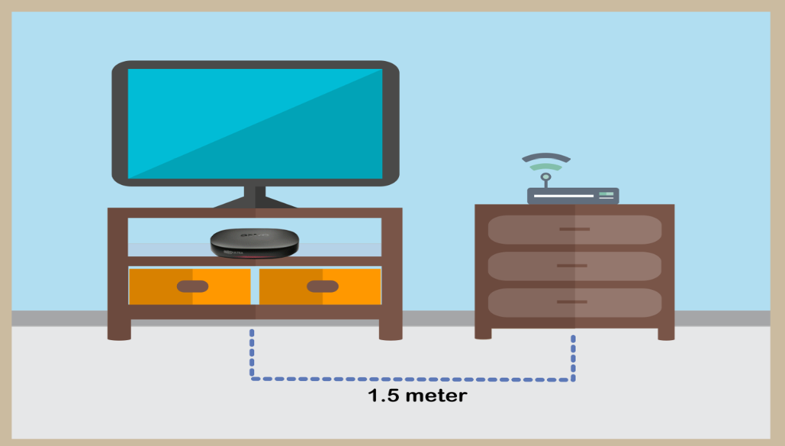
STEP 6
Reboot router, modem and decoder.
If issue persist, please try again after 30mins to 1 hour. Connect to live agent if persist after 30 mins to 1 hour.
STEP 7
Suspect there is an issue with your internet connection.
Please check with your internet service provider or if under Astro Fibre / Astro Broadband, connect to Live Agent for help.
1. Unifi netis brand
The following shows an Interface based on Unifi router

- Launch Web Browser and enter the default's gateway's IP address (192.168.1.1) in the address bar.

- Enter Username and Password.
- Username = tmadmin
- Password = Adm@xxxx (xxxx refers to last four digits of MAC address)

- Choose WLAN -> wlan0 (2.4GHz) Basic Setting. Note down on SSID.

- Choose WLAN -> wlan1 (5GHz). Compare SSID with previous SSID.

- If SSID for wlan0 (2.4GHz) and wlan1 (5GHz) are the same. Change wlan1 (5GHz) SSID by adding number 5(i.e. ifuni_5G) to differentiate from 2.4 GHz. Click Apply Changes.
Note: Connection to Wi-Fi may be temporarily loss while the changes is updated.
Starting 12 December 2023, users have to use their registered email address, mobile number or a social account (Facebook, Google or Apple) to log into any of Astro's digital platforms, including My Astro, Astro GO and Astro's official website. Usernames as an Astro ID is no longer available. This change was made to ensure details linked to your Astro account are always updated and to improve the overall user experience on our platforms.
The recommended home internet speed for a smooth viewing is 10Mbps.
Customers subscribing to the following Astro packs will get to automatically enjoy Disney+ Hotstar as part of their newer, bigger and better packs
- Movies Pack
- Movies Plus Pack
- Premium 1
- Premium 3
- Platinum Pack
Customers with any of the above subscriptions with an Ultra or Ulti Box will also be able to enjoy Disney+ Hotstar on their big screen TV via their Astro Box, in addition to disneyplushotstar.my and the mobile app. Please click here on how to access Disney+ Hotstar on the Ultra/Ulti Box.
Astro customers who are not on the above Packs may upgrade to the Movies, Movies Plus, Premium 1, Premium 3 or Platinum Pack to receive access to Disney+ Hotstar at no additional cost. Alternatively, customers may visit www.astro.com.my/disney to subscribe to Disney+ Hotstar Premium through a 3-month plan via Astro at RM54.90 (NP: RM79.90 quarterly, Astro customer may see up to 30% savings in their Disney+ Hotstar Premium subscription)
For more information, please visit www.astro.com.my/disney. If you need further help, please WhatsApp “DH Help” to Astro or call them at 03-9543 3838 for assistance.
SST of 6% and 8% will be applied accordingly to your bundle services:
- 8% SST to Astro TV Pack
- 6% SST to Astro Fibre
You will need to have an Astro subscription before you can subscribe to Disney+ Hotstar as an add-on service via Astro or enjoy any Astro bundle promotions. Please click here to subscribe to our Movies, Premium 1, Premium 3 or Platinum Pack to enjoy all your favourite Global and Malaysian hits for even better value and savings!
If you have NOT made any changes to your Astro pack on or after 9th November 2021, you can enjoy up to four (4) concurrent streams on Astro GO anywhere, anytime. However, if you have Astro GO+ as part of your subscription, you will be upgraded to four (4) concurrent streams.
Yes, starting 9 November 2021, these new packs will be Astro's default offering.
STEP 1
Switch off the power for your box and make sure that the adapter's power light is off.

STEP 2A
Unplug the HDMI cable from your box and plug it back in securely. Do select the correct TV input.

STEP 2B
If you are connecting using RCA cable, please unplug the RCA cable from your box and plug it back in securely.

STEP 3
Switch on the power for your box and make sure that the adapter's power light is on.
Please wait for 5 minutes.

STEP 4
Turn on your box. You should no longer be experiencing this problem. If issue remain, replace to another HDMI cable.

If no improvement seen, please submit the issue in our Feedback Form and attach a picture of your smart card number for assistance.
Yes, existing Astro customers can subscribe to all Astro & Broadband offerings. 24 months contract will be renewed upon signing up for broadband.
No, anyone can make payments on your behalf as long as the credit card is used by the owner themselves.
You may use the same feedback form and choose below options.
Category: I would like to request for refund
Sub Category: Request for Refund
