

 Netflix Basic
Nationwide Installation
Applying for
| UniFi Maxis Astro Njoi |
Frequently Asked Questions
Find your answers here.
We provide one stop service to apply Astro and Broadband for you.
You can avoid driving and queuing at the sales counter. We are the dealer that can help you to handle your application from the beginning to the end.
We do not charge you when you apply from us. There is no credit card information required to apply here. Charges are the same as you apply from the sales counter.
First, you can apply online, we will get back to you immediately during business hour. WhatsApp/Email/Fax us your Photocopy of IC (for malaysian) / Passport (for foreigners). When we receive all the information, we will proceed with your application immediately.
Once we receive your application with complete information, we will process your application immediately during business hour. The contractor from the service provider will then contact you for installation appointment once your application is approved.
Enjoy greater savings and hassle-free bill payment in one single bill for both Astro and Broadband. You get to enjoy Astro and Broadband at discounted price every month over the contract period of 24 months.
Astro offers multiple TV packs including Entertainment, Sports, Movies and Kids options. You can choose a pack that matches your viewing preferences and add optional streaming apps where available.
Yes, you may subscribe to Astro TV packs without bundling broadband. However, bundling Astro TV with Fibre Broadband may provide better monthly savings and convenience with a single bill.
For small households with light streaming and browsing, 100Mbps is usually sufficient. Larger families, gamers or heavy streamers may benefit from 500Mbps or 1Gbps plans for smoother performance across multiple devices.
Most Astro TV and Fibre broadband plans come with a 24-month contract. Early termination charges may apply if cancellation is made before the contract ends.
Yes, you may upgrade your TV pack or broadband speed at any time, subject to eligibility and coverage. A new contract period may apply depending on the upgrade.
Your monthly bill will be issued directly by Astro. You may receive it via email or access it through your Astro account. Bundled customers will receive a single combined bill for TV and broadband services.
Payment methods may include online banking, auto debit, credit card or other approved payment channels provided by Astro. Our team can guide you during the registration process.
If you experience any service interruption, you may contact Astro customer support for technical assistance. In many cases, issues can be resolved remotely or a technician will be arranged if necessary.
Yes, relocation is subject to service availability at your new address. Relocation charges and contract adjustments may apply depending on your plan.
No, you do not need a credit card to submit your application. Payment setup will be arranged directly with Astro after your service is approved.
Selected Astro TV packs allow optional add-ons such as streaming services depending on current promotions and availability. Additional monthly charges may apply.
Yes, a WiFi router is typically provided during fibre installation. The router model may vary depending on the selected broadband speed plan.
Yes, we will check the service coverage at your address before proceeding with your application to ensure broadband is available at your location.
For Malaysians, please provide a copy of your MyKad. For foreigners, provide a copy of your passport when submitting your broadband application.
After your application is approved, the service provider typically contacts you within 2 to 7 working days to arrange the broadband installation appointment.
Most Astro Broadband plans come with a 24-month contract starting from your installation date. If you relocate, a new 24-month contract may apply at your new address.
Yes, you can relocate your broadband service, subject to service availability at the new address. Your contract may reset for another 24 months from the new installation date.
Yes, you may request to relocate broadband devices within your home. Non-standard installation charges may apply and are payable to the installer directly after assessment.
Yes, you can switch to Astro Broadband. To avoid service interruption, it is recommended to activate the new service before terminating your current broadband contract.
Standard installations may be free during promotions, but non-standard installations (e.g., device relocation or complex wiring) may incur extra charges payable directly to the installer.
No, the PVR service fee is included in all Starter Pack, Value Pack, Super Pack Lite, Super Pack and Super Pack Plus subscriptions only.
Astro TV customers
No, you will not be required to take on a new contract after moving. If you still have an existing contract, the contract will continue.
Broadband / IPTV customers
Yes, your contract will be renewed to a new 24-month contract.
Astro Multiroom service mirrors all content from your primary subscription, except selected Special Interest and pay-per-view channels such as Astro First/Best movies.
For customers with Multiroom box, the Plug & Play setup with Astro Broadband will not have access to NHK World. The Plug & Play setup without Astro Broadband will not have access to NHK World.
The charge for your Disney+ Hotstar subscription is reflected in your Astro subscription, and not on the Disney+ Hotstar app/website. For details on your subscription, please call our Customer Contact Centre or WhatsApp us "DH Help
STEP 1
Check your current software version on your box.
If the software version updated (Refer to Table 1), proceed to STEP 2.

If software version different from Table 1, click here for Software Update guide.
Once software is updated, tune to the impacted channel.
If issue persist, proceed to STEP 2.
STEP 2
Run Test Satellite Frequency.
Click here for the guide.
If Test Pass, proceed to submit report here.
Guide to submit report:
At Feedback Type select "I have missing channel".
Fill up all the required information and submit.
Please indicate if you agreed to recontract for 12 months (technical visit is FOC) or paid visitation (RM65).
You will receive appointment details via SMS within 48 hours.

If Test Fail, proceed to STEP 3.

STEP 3
Proceed to Update Satellite Frequency.
Click here for the guide.
Once completed, tune to the impacted channel.
If issue persist, proceed to submit report here.
Guide to submit report:
At Feedback Type select "I have missing channel".
Fill up all the required information and submit.
Please indicate if you agreed to recontract for 12 months (technical visit is FOC) or paid visitation (RM65).
You will receive appointment details via SMS within 48 hours.
Currently, My Astro app and web supports TV pack upgrade. You can go to "Account' and scroll to "Subscription' section and select "TV pack'. You may reach out to us via WhatsApp at 03-9543 3838 for more details.
For Ultra and/or Ulti box users, launch the My Astro app on your Home screen and you will land on the My Astro account dashboard. Press ">' remote button to go to your Subscription card and "OK' button to proceed with the TV pack upgrade.
From 8 October 2021 onwards, Astro will be ceasing the daily passes (e.g. 3, 5, 7 & 30 days passes). Please subscribe to the relevant packs to continue enjoying your favourite content. Stay tuned for more exciting offers. Thank you.
Not to worry, our representative will be contacting you within 24 hours.
For Residential Astro Pay TV customers: You may change your contract from e.g., 12-month to 24-month without incurring a switching fee or cancellation fee. However, if you change your contract from e.g., 24-month to 12-month, will be charged a cancellation fee accordingly if still within minimum term (contract) period. No switching fee applicable.
STEP 1
On your remote, press the HOME button and the home menu will be displayed on top of your screen.

STEP 2
Navigate to Settings.

STEP 3
Navigate to Satellite Settings and press "OK".

STEP 4
Select Diagnostics and press "OK".

STEP 5
Signal reading on Tuner 1 will be displayed. Navigate to right arrow for next step.

STEP 6
Signal reading on Tuner 2 will be displayed. Navigate to "Done" and press "OK" to complete the diagnostics.

STEP 1
On your remote, press the Home button and the Home Page will be displayed on your screen.
STEP 2
Navigate to Profile.
STEP 3
The Profile Selection Screen will be displayed. 
STEP 4
Navigate to Edit Profile.
STEP 5
Choose a profile to edit.
STEP 6
Choose a new Profile Picture and press “OK”.
Yes, please WhatsApp "DH Help
You can add a new Netflix account to your bill through CH 741 or clicking the Netflix button on the remote control. Please enter the email address you would like to use for Netflix subscription and ensure the Billing partner is Astro.
If you would like to transfer your existing Netflix Account to be charged under Astro bill, please follow the steps below:
- Cancel your existing subscription with Netflix
- Once the remaining duration of your existing subscription has ended, you may proceed to subscribe for Netflix via Astro bill
- To subscribe, go to CH 741 and enter the email address used for your previous subscription with Netflix
- Once successfully completed, all existing settings and watching history on your Netflix account will be brought over
Please close and re-launc hthe Astro Fibre app, and you will be able to log in.
Starting 1 April 2024, Astro’s Chinese content offering on our Primary & Family Pack is now bigger than ever with the addition of up to 10 channels featuring the latest Chinese primetime dramas, variety and current affairs programmes as well as great selection of movies and musical shows. These are the channels available in the Primary & Family Pack at no additional cost:
- Celestial Movies (CH309)
- TVB Jade (CH310)
- Astro AOD (CH311)
- TVB Entertainment News (CH317)
- TVB Xing He (CH319)
- TVBS Asia (CH320)
- NHK World (CH398)
Kindly click here to discover all the exciting programmes that are available in these channels.
STEP 1
On your Astro remote, press the HOME button and the home menu will be displayed on top of your screen.
STEP 2
Navigate to Settings.
STEP 3
Navigate to STB Diagnostics and press "OK".
STEP 4
Select General Diagnostics and press "OK".
STEP 5
General Diagnostics results will be displayed on the screen.
Scroll until observed the SW Download Status.
Yes, existing non-Primary Pack customers who add on 50Mbps to their subscription will get to enjoy high speed broadband for only RM60/month and a free speed upgrade to 100Mbps for 24 months. Please note that a new 24-month contract will start upon successful installation.
Step 1: Separate Your Wi-Fi Network Name
First, you need to set up your Wi-Fi to Dual-band in order to be less susceptible to interference, and allows you to choose between the 2.4GHz or 5GHz bands when connecting a device. A Wi-Fi frequency of 5GHz is best when you are near your router, and 2.4GHz is best for when you are far from your router.
- Check the bottom of your router for a website or IP address, username, and password.
Below are details for a standard login based on a standard router issued by ISP (Telekom Malaysia, Maxis, and Time dot Com)

- Login to your account
- Identify your Wi-fi Settings (This could be in advanced settings)
- Identify both the 2.4GHz and 5GHz options.
- Split the signals by renaming the 2.4GHz and 5GHz signals respectively, and make sure both are enabled.
- For detailed instructions based on router model, on how to separate your Wi-Fi, click here and choose the option according to your ISP and router brand.
Step 2: Factory reset your Ultra Box by following the steps below.
a. Press the Home button on your remote

b. Go to your settings page

c. Scroll down and select Reset/Restore

d. Select restore factory settings and proceed

e. Enter your PIN to access restore factory settings (default pin: 0000)

f. Choose restore and wait until the box reboots automatically. This may take around 2 minutes and you will see the Astro logo again when it's done.

For Platinum Pack and Multiroom Smart TV customers, Astro GO+ will be automatically added to your subscription.
Photograph or scan your payment receipt, and send it to one of our contact platforms found here.
By default, all Astro Fibre customers will receive a Private IPv4 or IPv6 address. However, customers who would like to subscribe to a fixed IP service can do so by contacting our Customer Service Centre at 03-9543 3838 for Astro Fibre’s Fixed IP service for only RM5/month.
You would have to create a new Astro ID with your email address or mobile number and link your Astro subscription. Please follow the steps in the link here
After order submission, the Plug & Play Box and Astro SIM card will be couriered separately to your service address. The delivery dates with the tracking numbers will be communicated via SMS.
The Plug & Play Box and Astro SIM card should arrive within 3-working days after your order submission. You may self-install your box by following the guide here.
Please ensure that you have subscribed to PVR recording service.
If you're subscribed to PVR recording service, follow below steps.
Let's check your hard disk connectivity.
STEP 1
On your remote, press the “HOME” button and the home menu will be displayed at the bottom of your screen.

STEP 2
Navigate to SETTINGS and press “OK”.

STEP 3
Navigate to STB DIAGNOSTICS and press “OK”.

STEP 4
From the General tab, take a look at the HDD Status.

If status is "Connected", press red button to reboot you decoder.
Wait until the box is on, then try to record any program.
If issue persist, please submit the issue on our Feedback Form and attach a picture of your General tab of the STB Diagnostics for assistance.
If status is "Disconnected", please submit your Feedback Form and attach a picture of your General tab of the STB Diagnostics for assistance.
Please note that only one Disney+ Hotstar access is bundled to each Movies Pack subscription which allows two concurrent streams on Disney+ Hotstar.
4K UHD offers 4 times the resolution of HDTV (4K UHD has 3840x2160 resolution with 8 million pixels compared to HD which has 1920x1080 with 2 million pixels), sharper detail, smoother lines and a richer colour palette, as well as a vibrant colour TV experience.
Customers on Ultra Box with Sports Pack can tune in to the Astro SuperSport UHD Channel (CH 805 and CH 806) for an exciting selection of Sports content such as the Premier League and the Spanish Primera Liga.
Customers on Ultra Box with Movies Pack and News & Documentaries add-on can stream some of the latest movies and documentaries respectively in UHD by pressing the “Home” button on your remote and exploring your choices at no additional cost.
In addition, customers can rent additional movies on top of their subscription and stream the latest and hottest 4K UHD Blockbuster movies, drama series and local movies, blockbuster movies in Ultra HD via Astro First Channel 480, and Astro Best Channel 481 and VOD titles in “Store”.
Please note that a standard rent rate applies for all these titles, to learn more about the pricing, head over to the FAQ section at www.astro.com.my/ultra
For customers that would like to subscribe to Multiroom with a box installation,
(i) customers on the old packages (example Family Pack, Starter Pack, Value Pack, Super Pack or Super Pack Plus) will have to subscribe to our new packages first by sending "Switch" to 03-9543 3838 via WhatsApp;
(ii) customers on the new Astro packages can subscribe by visiting product.astro.com.my/multiroom or WhatsApp "Hi" to 03-9543 3838.
You will be able to access Netflix on your Ultra and Ulti Box. However, kindly note that if you have an Ulti Box with a Netflix Premium subscription, you will not be able to watch content in 4K UHD and Netflix Spatial Audio.
- Bundle Packs with Chinese Favourites: If you are currently on the Chinese Favourites selection, your selection will switch to Viu Premium at no additional cost progressively from 1 April 2024. Not to worry, you may still manually switch to other Asian Favourite selections if you wish via the My Astro app.
- Chinese Favourites Add-ons: There will not be any changes to your current subscription pricing. Furthermore, your subscription will now include additional channels on a free preview basis.
- Old Packs: There will not be any changes to your current subscription pricing. However, as we have recently made adjustments to the channel lineup in our packs, please call us at 03-7481 1000 (Monday to Friday, 9AM – 6PM exclude public holidays) to find out how you get more value from your subscription.
Starting 1 April, access to TVBAnywhere+ is no longer available to Astro customers. However, you can continue to enjoy TVB content via On Demand and TVB Jade (CH310) and Astro AOD (CH311). If you would like to subscribe to the TVBAnywhere+ app, you may still do so by purchasing it directly from TVB.
Disney+ Hotstar is available on Chromecast (Gen 2 onwards, firmware 1.43 & above) and with the latest version of the Disney+ Hotstar app on iPhone, iPad and Android mobile.
Follow these instructions to cast your film/series:
- Make sure your mobile device and your Chromecast are on the same WiFi network
- Log into your Disney+ Hotstar app
- Select a film/series that you want to cast
- Press "Play'
- Once the film/series has started, tap on the casting icon
- Select the screen you wish to cast to
- The film/series should then be cast onto your screen
Should you choose to discontinue/terminate the Astro Fibre Bundle service before the expiry of the contract (24 months), you will be subjected to an early cancelation fee of RM100 x Remaining months of the contract period for your Broadband services and early cancellation fee of New Packs accordingly RM600 (prorated) for Ulti Box or RM1000 (prorated) for Ultra Box.
Any bundle package promotion will be removed, and you will no longer get to enjoy similar promotions upon reconnection.
All Astro Fibre devices provisioned (Fibre modem, WiFi router and Mesh) will need to be returned upon termination. Our team will schedule the collection of equipment after your Broadband services have been terminated.
If equipment is damaged, lost or cannot be retrieved, penalty fees will be applied (excluding Service Tax) accordingly.
- RM500 for Fibre modem (Broadband Termination Unit)
- RM200 for WiFi router (Residential Gateway)
- RM200/unit for Mesh WiFi
You may click here to Login and proceed to secure your Astro ID by linking it to your Astro account. If you do not have an Astro ID, please follow the steps in below to create one. You may also choose to log in or create Astro ID with your social accounts (eg. Facebook, Google and Apple).


The warranty period will be 24 months.
Redemption should be done by the account holder. However, if the account holder is unavailable, immediate family members can make the redemption provided that the account holder has given them the permission to redeem using his account credentials.
1. Ensure power cable is connected tightly.
2. Try to use another power socket / power source to eliminate faulty power sockets/power sources which could cause the issue.

3. If the issue persists, submit your feedback form for further assistance.
If your account is suspended or disconnected, you will retain the existing subscription when you reconnect. However, if you plan to make any changes after the reconnection, you can only select from the new packs.
Deposit of RM500 (Maxis) and RM300 (Allo) is payable by new subscribers (non-Malaysian). The fee will be reimbursed when service is terminated.
No deposit required for all existing Astro customers and new subscribers (Malaysian).
In your first Astro bill, the first month's bill will be deducted accordingly excluding tax. You will still need to pay the full tax amount for your first month as per your first month's bill.
Note: Advance payment is only applicable to Astro TV pack purchases. If you subscribe to an Astro Fibre + TV bundle, only one month of your TV subscription fee (excluding tax) is required to be paid upon sign-up. The full tax amount and the first-month subscription fee for Astro Fibre will be paid on your first month's bill.
STEP 1
Choose your language preferences for both Menu Language and Info Language. Then, press "OK".

STEP 2
Select you box operating mode and press "OK".

STEP 3
Select the resolution supports by your TV and press "OK".
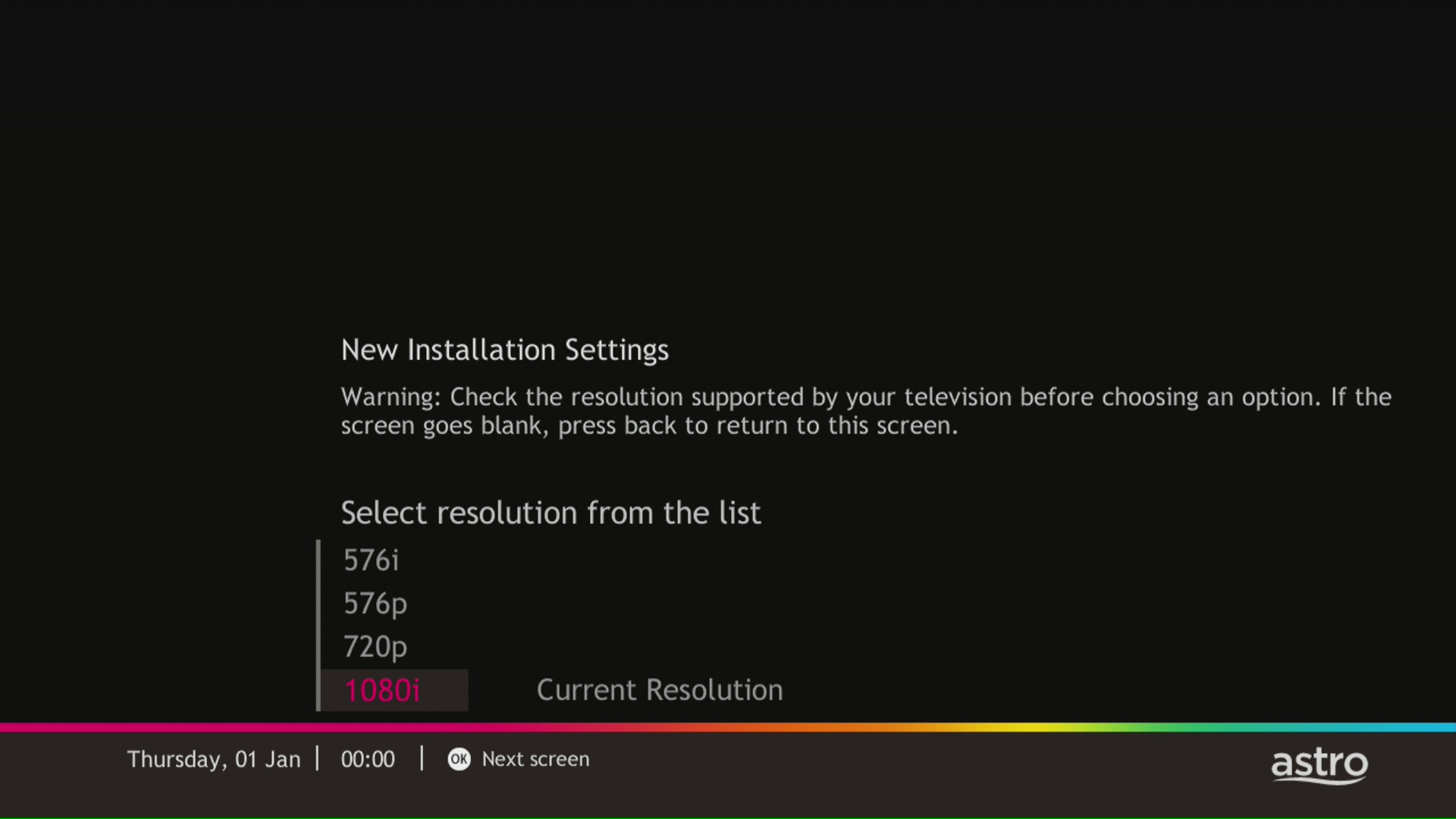
STEP 4
Press "OK" to proceed to the next screen.
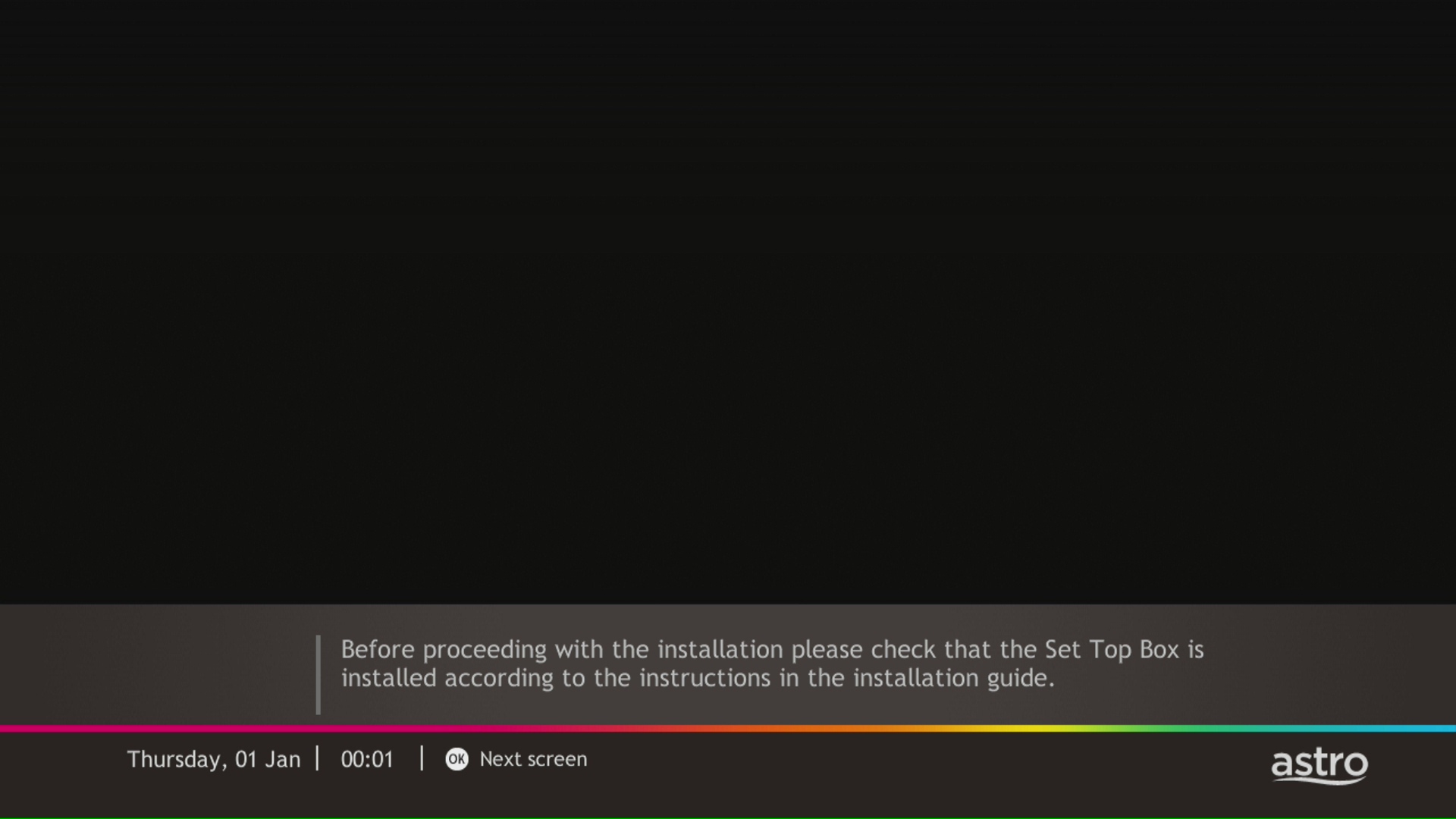
STEP 5
Please select the LNB type and press "OK".

STEP 6
Select this as the Entry Point and press "OK" to confirm your selection.

STEP 7
Signal reading results for Tuner 1 and Tuner 2 screen will be displayed. Then, press "OK" to proceed to next screen.

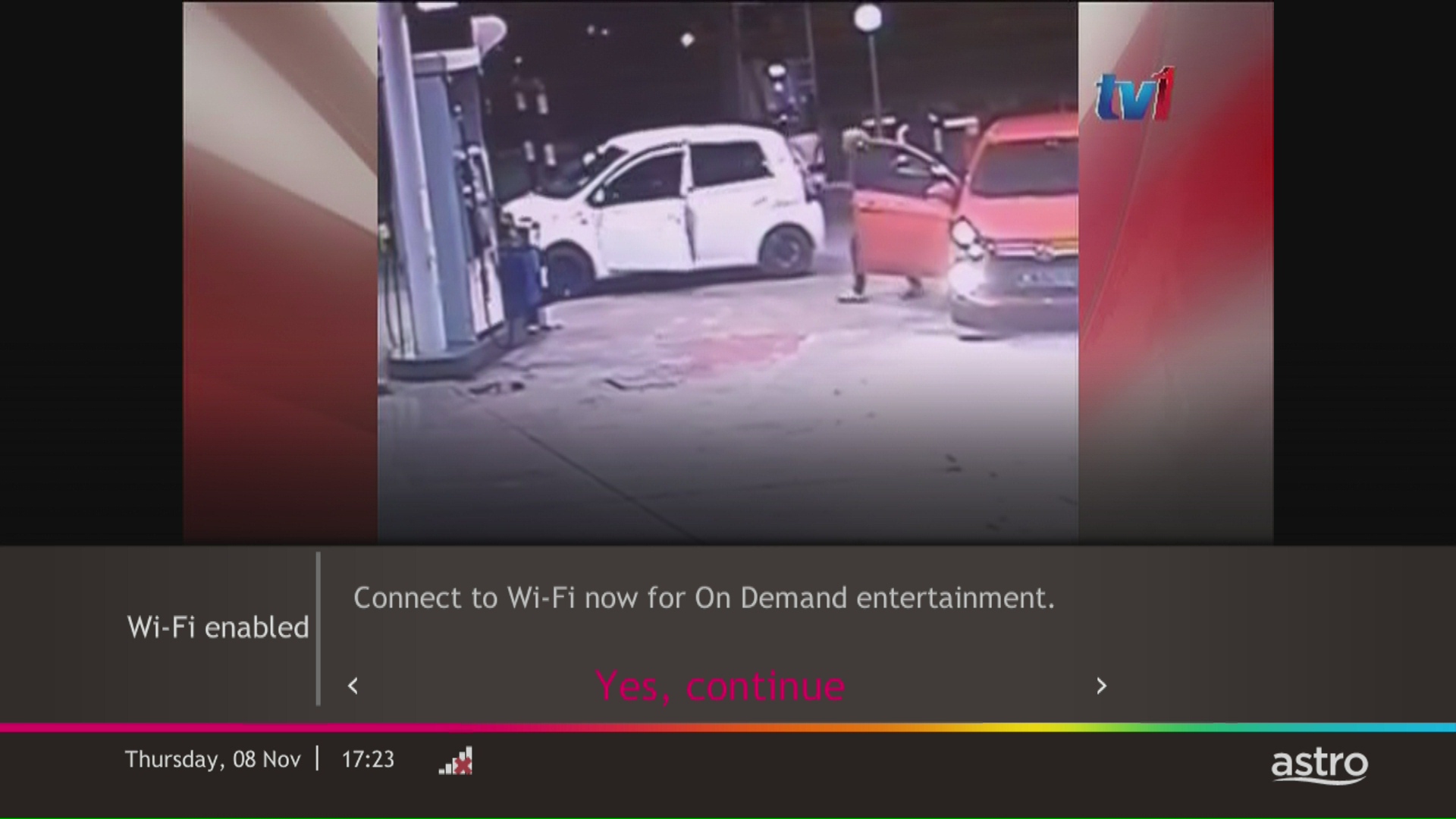
STEP 8
Select Yes, continue and press "OK" to connect to Wi-Fi network.
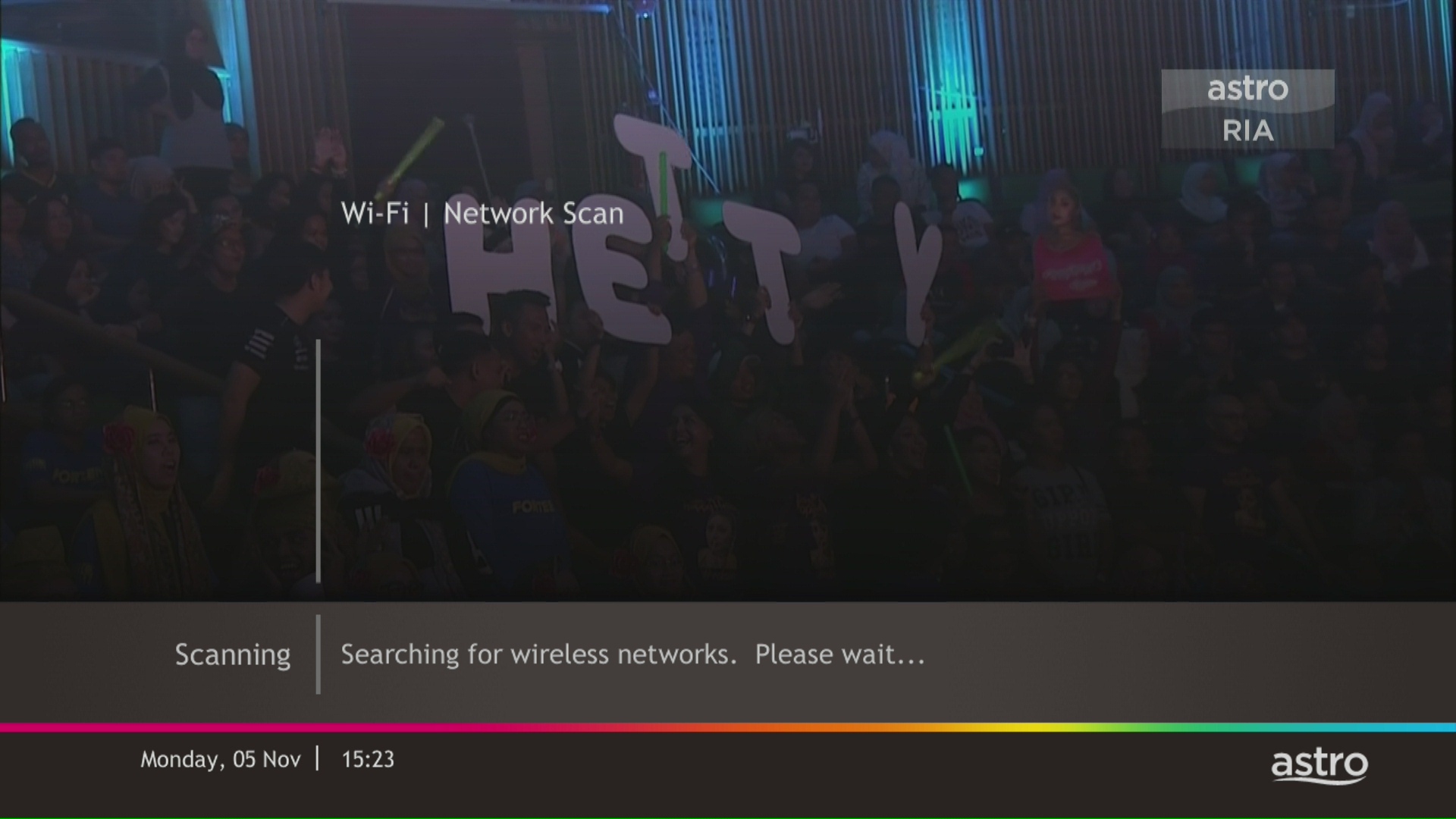
STEP 9
Please wait while the box scanning for the available Wi-Fi network.
STEP 10
Select your Wi-Fi network and navigate to "Connect".
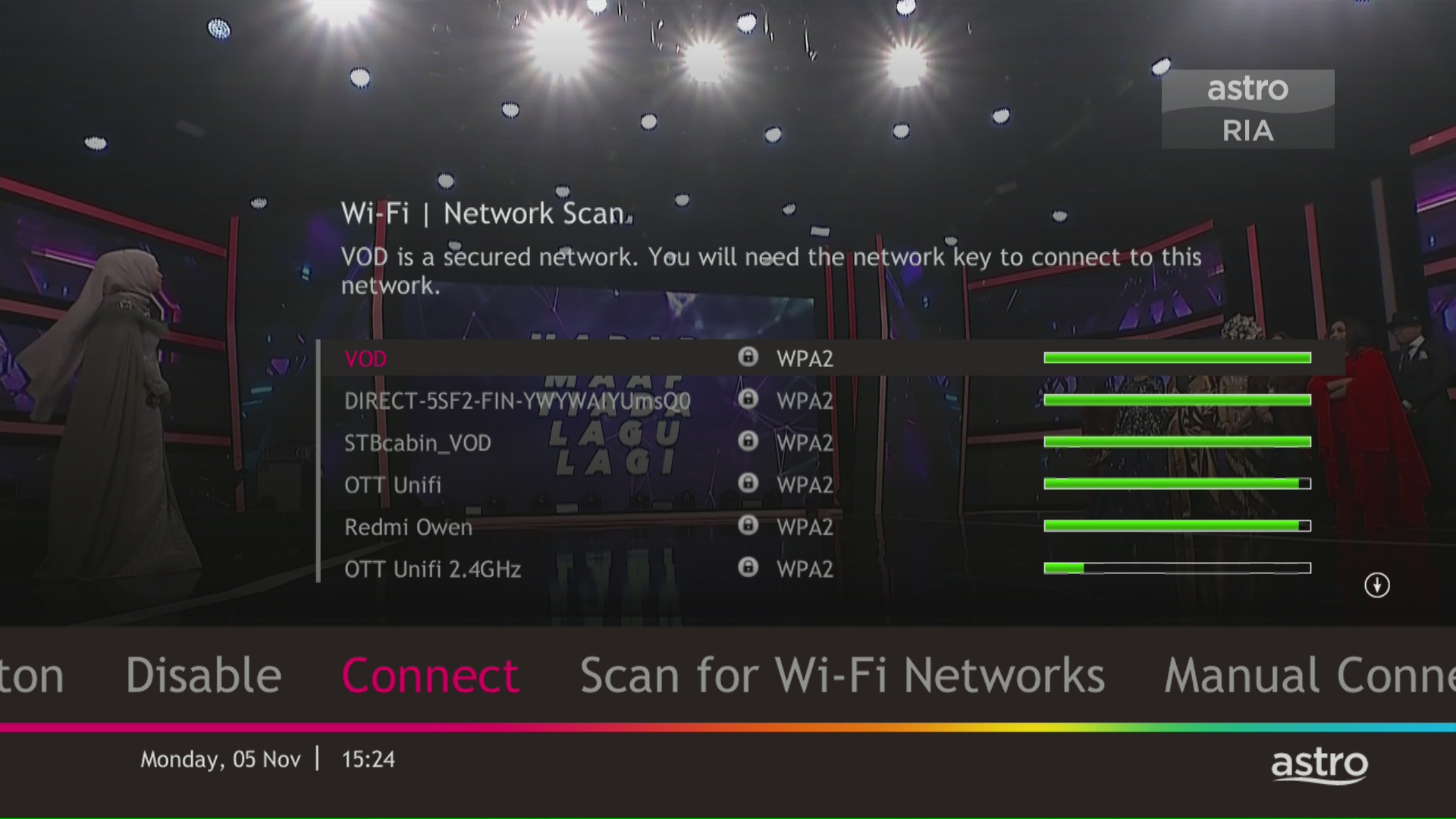
STEP 11
Please enter the password to connect to your network and press "OK".

STEP 12
You are successfully connected when this screen appears.

The balance will be credited into your account, which will be reflected when you receive your next bill. The balance credit will be used to offset your bill balance.
1. Ensure power cable is connected tightly.
2. Try to use another power socket / power source to eliminate faulty power sockets/ power sources which could cause the issue.

3. If the issue persists, submit your feedback form for further assistance.
If you are interested to upgrade your box, you can do so via Astro's retailers or online as follows:
I. Visit https://hub.astro.com.my/#5
II. Select `Box Upgrade` and log in with your Astro ID
III. Select the box you would like to upgrade
No, if you already have an Ulti box you will not be required to swap the box to enjoy the new packs. However, if you would like to access 4K UHD content, you may upgrade to Ultra Box. Installation and activation fees will be chargeable depending on your package selection.
You can add a reminder to pay your bill, on your Google Calendar with one click. Enjoy uninterrupted services, by remembering to pay your bill on time.
We encourage you to upgrade your Astro experience by switching to our new packs to enjoy more choices, value and flexibility. Starting 9 November 2021, you would need to be subscribed to the new packages to make any changes to your subscription.
STEP 1
On your remote, press the HOME button and the home menu will be displayed on top of your screen.

STEP 2
Navigate to Settings.

STEP 3
Navigate to Network Settings and press "OK".

STEP 4
Navigate to Network Diagnostics and press "OK".

STEP 5
Network Diagnostics screen will be displayed accordingly.

For Ultra/Ulti Plug & Play Box installation, it is recommended that you attempt to self-install by following the installation guide here, but there is an option to request for an installer to install the box at your premise. However, there will be a separate fee for this service request.
Upon successful subscription, you will be able to view your chosen HD channels within 3 hours by keying in the channel numbers into your remote control. Please note that subscription through Channel 200 will take effect within 24 hours.
If you sign up Astro & Broadband with standard Ultra & Ulti box (DBB), all channels are available.
However, there are channels that will not be available with Ultra/Ulti Plug & Play Box which are NHK World (398).
