

 Netflix Basic
Nationwide Installation
Applying for
| UniFi Maxis Astro Njoi |
Frequently Asked Questions
Find your answers here.
We provide one stop service to apply Astro and Broadband for you.
You can avoid driving and queuing at the sales counter. We are the dealer that can help you to handle your application from the beginning to the end.
We do not charge you when you apply from us. There is no credit card information required to apply here. Charges are the same as you apply from the sales counter.
First, you can apply online, we will get back to you immediately during business hour. WhatsApp/Email/Fax us your Photocopy of IC (for malaysian) / Passport (for foreigners). When we receive all the information, we will proceed with your application immediately.
Once we receive your application with complete information, we will process your application immediately during business hour. The contractor from the service provider will then contact you for installation appointment once your application is approved.
Enjoy greater savings and hassle-free bill payment in one single bill for both Astro and Broadband. You get to enjoy Astro and Broadband at discounted price every month over the contract period of 24 months.
Astro offers multiple TV packs including Entertainment, Sports, Movies and Kids options. You can choose a pack that matches your viewing preferences and add optional streaming apps where available.
Yes, you may subscribe to Astro TV packs without bundling broadband. However, bundling Astro TV with Fibre Broadband may provide better monthly savings and convenience with a single bill.
For small households with light streaming and browsing, 100Mbps is usually sufficient. Larger families, gamers or heavy streamers may benefit from 500Mbps or 1Gbps plans for smoother performance across multiple devices.
Most Astro TV and Fibre broadband plans come with a 24-month contract. Early termination charges may apply if cancellation is made before the contract ends.
Yes, you may upgrade your TV pack or broadband speed at any time, subject to eligibility and coverage. A new contract period may apply depending on the upgrade.
Your monthly bill will be issued directly by Astro. You may receive it via email or access it through your Astro account. Bundled customers will receive a single combined bill for TV and broadband services.
Payment methods may include online banking, auto debit, credit card or other approved payment channels provided by Astro. Our team can guide you during the registration process.
If you experience any service interruption, you may contact Astro customer support for technical assistance. In many cases, issues can be resolved remotely or a technician will be arranged if necessary.
Yes, relocation is subject to service availability at your new address. Relocation charges and contract adjustments may apply depending on your plan.
No, you do not need a credit card to submit your application. Payment setup will be arranged directly with Astro after your service is approved.
Selected Astro TV packs allow optional add-ons such as streaming services depending on current promotions and availability. Additional monthly charges may apply.
Yes, a WiFi router is typically provided during fibre installation. The router model may vary depending on the selected broadband speed plan.
Yes, we will check the service coverage at your address before proceeding with your application to ensure broadband is available at your location.
For Malaysians, please provide a copy of your MyKad. For foreigners, provide a copy of your passport when submitting your broadband application.
After your application is approved, the service provider typically contacts you within 2 to 7 working days to arrange the broadband installation appointment.
Most Astro Broadband plans come with a 24-month contract starting from your installation date. If you relocate, a new 24-month contract may apply at your new address.
Yes, you can relocate your broadband service, subject to service availability at the new address. Your contract may reset for another 24 months from the new installation date.
Yes, you may request to relocate broadband devices within your home. Non-standard installation charges may apply and are payable to the installer directly after assessment.
Yes, you can switch to Astro Broadband. To avoid service interruption, it is recommended to activate the new service before terminating your current broadband contract.
Standard installations may be free during promotions, but non-standard installations (e.g., device relocation or complex wiring) may incur extra charges payable directly to the installer.
1. Ensure power cable is connected tightly.
2. Try to use another power socket / power source to eliminate faulty power sockets/power sources which could cause the issue.

3. If the issue persists, submit your feedback form for further assistance.
Starting 9 November 2021, you will need to subscribe to the new packages to add on Multiroom to your subscription. Your new package will require a minimum primary subscription fee of RM100.
This is to ensure our customers receive the best possible attention and service via our new packages. We thank you for your understanding.
Please ensure that you have subscribed to the mentioned channel.
If you're subscribed to this channel, follow below steps.
STEP 1
You need to refresh the signal on your box.
Refer to Refresh signal of your box guide.
STEP 2
If issue persist after 30 minutes, proceed to submit report via WhatsApp or Feedback Form.
The new packs come with 200 hours of Cloud recording by default. If your current recordings exceed 200 hours, the system will delete the exceeded hours once your package has been changed, starting with the oldest recordings first.
If you would like to retain the previous recordings which exceed 200 hours, you may opt for a selection of 400 or 1500 Cloud Recording hours at a chargeable rate of RM12 or RM15 per month (excl. govt tax) respectively. Or else, you may subscribe to the Platinum pack which comes with complimentary access to 1500 hours of Cloud Recording.

You may proceed with the following troubleshooting steps and it shouldn't take you much longer than 15 min
1. Please standby a computer/laptop to access to the internet and connection must be via LAN cable (connect the LAN cable to the Yellow port at Tplink Router and direct to the computer/laptop).
2. You may open any web browser such as Google Chrome, Internet Explorer, Mozilla Firefox and etc.
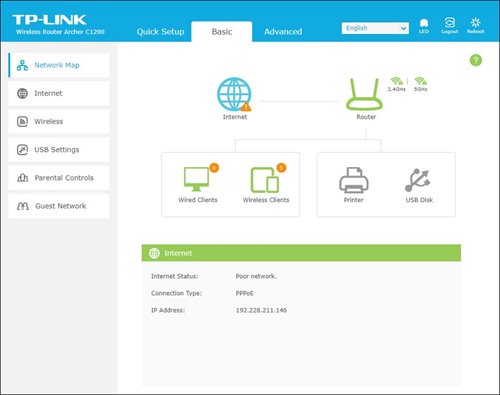
3. On the address bar, please go to tplinkwifi.net and to access to below login page. Type the Username and Password, then click "Login".

The default login of the router is available on the sticker at the back of the router. If you have done a configuration on your router previously, the password may be different.

For example, below is the login details of the above router:
Username: admin
Password: TIMECE24
4. Once you have successfully login, the router's web-based setup page will appear. Please follow below steps for the configuration.
5. From the top menu, choose Advanced and click the Wireless tab on the left menu. Then, select Wireless Settings from the sub menu. Below screen will appear for 2.4GHz selection.

i. Please ensure to tick Enable Wireless Radio function.
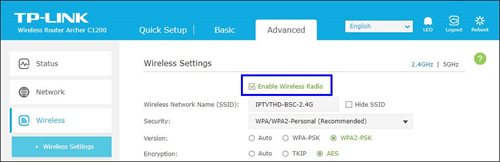
ii. To change the channel, click the drop-down arrow for Channel, then select your desired channel.
Choose between 1 to 13 (Suggested channels : 1,6,11). Then, click "Save" for the changes to take place.

iii. Click Save for the changes to take place. The router will auto reboot and connection will re-establish after few minutes.

iv. Next, select 5GHz to make changes on the wireless channel for 5GHz.
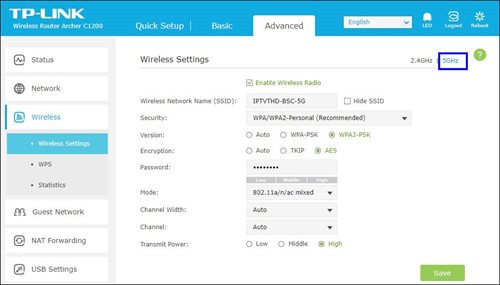
v. Click the drop-down arrow for Channel, then select your desired channel from the selection.

vi. Click Save for the changes to take place. The router will auto reboot and connection will re-establish after few minutes.

Starting 1 April, access to TVBAnywhere+ is no longer available to Astro customers. However, you can continue to enjoy TVB content via On Demand and TVB Jade (CH310) and Astro AOD (CH311). If you would like to subscribe to the TVBAnywhere+ app, you may still do so by purchasing it directly from TVB.
No, you are still able to access HBO Go on your current Movies pack.
Your existing offers with us will not be affected and will continue until the agreed upon date.
While this technology has its benefits, different devices at home have different reaction and response to changes in signal strength and quality, and it's almost impossible to predict if they will make good band choices due to the interaction between the devices and the Wifi router. Some smart home devices also recommend that band steering is not used due to various reasons such as needing a constant consistent connection, ability to only connect to a particular band, registration of the respective MAC address, etc..
Example:
As single SSID is used, the device may remain on a weak 5GHz network instead of switching over to stronger 2.4GHz network.

- Please connect your computer or laptop to your Astro Fibre router using WiFi or LAN cable. Your LAN cable must be connected from the yellow port of Astro Fibre router (Any available port).
- Once connected, open any web browser such as Google Chrome, Internet Explorer, Mozilla Firefox and etc.
- On the address bar, type http://192.168.100.254 and below page will appear.

Login using your username and password if you have changed the router login setting. Otherwise, your default router login is as per below.
Username: user
Password: user
4. Once you have successfully logged in, the router's web-based setup page will appear.

5. At the top of the page, click WLAN to configure the WiFi parameters.

6. To change the channel on 2.4G, click the drop-down arrow for Channel, then select your desired channel.

7. Then, click "Save & Apply" for the changes to take place.

8. You may make the same changes for 5G by click the drop-down arrow for Channel, then select your desired channel.

9. Then, click "Save & Apply" for the changes to take place.

No, the eKYC verification process must be done by the individual themselves, using their MyKad and selfie in real-time.
Starting 1 April 2024, Astro’s Chinese content offering on our Primary & Family Pack is now bigger than ever with the addition of up to 10 channels featuring the latest Chinese primetime dramas, variety and current affairs programmes as well as great selection of movies and musical shows. These are the channels available in the Primary & Family Pack at no additional cost:
- Celestial Movies (CH309)
- TVB Jade (CH310)
- Astro AOD (CH311)
- TVB Entertainment News (CH317)
- TVB Xing He (CH319)
- TVBS Asia (CH320)
- NHK World (CH398)
Kindly click here to discover all the exciting programmes that are available in these channels.
You can now choose to log in using your email address, mobile number or a social account (Facebook, Google or Apple).
Video On Demand (VOD) is a new way of enjoying your Astro, for free* as part of your subscription. Here's what you can do by watching your show via VOD:
1. Pick and choose your show anytime of the day without needing to wait for your show to air.
2. Catch-up on episodes you've missed or binge-watch all episodes instantly.
3. Pause, rewind, or fast-forward to your favourite parts of the show.
4. Watch full uncut episodes.
5. No weather or other disruptions during your viewing time.
6. Browse our library of recommended shows for you based on your viewing history. Everything you see is free as part of your subscription.
7. To rent additional blockbuster movies on a pay-per-view basis, visit the "Store' section in our VOD library.
Here’s how to access On Demand:
1. Connect your Astro PVR/Ultra Box to Wi-Fi or download the Astro GO app from here.

2. Press Home on your remote and scroll to On Demand or login with your Astro ID via your Astro GO app.
3. Start streaming on your TV or Astro GO app anytime, anywhere.
* On Demand is FREE for customers with a Wi-Fi connected PVR/Ultra Box and Astro GO app. Entitlement is based on your subscription.
Note: You can also rent additional movies on a pay-per-view basis, all found in the Store.
The Download function offers an alternative to streaming so that you can watch TV shows and movies offline anywhere.
You can start downloading a movie/TV show by clicking on the "Download” button. Kindly note that you can only download one title at the time. Other titles will be in queue and will start downloading automatically as soon as the first download is complete.

Once you have downloaded a title, the progress icon will show “Complete” and you may find your downloaded content by checking “My Library” > “Downloads”.

*To save on data usage, we recommend downloading via Wi-Fi.
Downloaded content retention periods vary according to the type of content.
- Each movie – minimum 2 Days
- Each TV series episode - minimum 7 Days
The number of days left for you to view your content in offline mode is shown for each piece of downloaded content for your reference. Expired content will be automatically deleted from the app, freeing up your device storage.
STEP 1
Switch OFF the power of your Ultra / Ulti box and make sure that the adapter's power light is off.

STEP 2
Switch ON the power of your Ultra / Ulti box and make sure that the adapter's power light is on.

STEP 3
On your remote control, press the standby button repeatedly until the Startup Options appear on TV.

STEP 4
Press "1".

STEP 5
Press "1".

STEP 6
The Software Update progress screen will appears.
The update will take 10 - 15 minutes to complete.
Please be patience.

You will be able to check your balance, switch to e-billing, request for payment barcode and request for reconnect at standard telco rate.
Yes, starting 9 November 2021, these new packs will be Astro's default offering.
Astro introduces the new Ulti Box with a redesigned new interface, Cloud recording feature, enhanced search capabilities and more. Just connect the all new Ulti Box to the Internet and take control of your entertainment and stream up to 110,000 videos on demand, anytime.
The features of the new Ulti Box include:
· New Home Screen - Everything you see is yours
· Discover Video on Demand (VOD) - Discover 110,000 videos, stream anytime, anywhere
· Search - Search for your favorite show or video faster and easier
· Play from Start - Missed the start of the show? Just restart.
· Stop Here, Continue There -Stop on one screen and continue on another device
· Multi-Screen - Stream seamlessly across any device
· Cloud Recording - Record all the programmers you want at the same time
. **Continuous viewing - Enable to continue watching your favorite shows during raining.
We recommend an Internet speed of 10Mbps and above for optimal access to cloud recording, streaming on demand videos and search functions.
Note: ** Except 4K UHD, Astro First and all radio channels
A deposit of RM500 is payable for new subscribers (non-Malaysians). The fee will be refunded when service is terminated.
No deposit is required for all existing Astro customers and new subscribers (Malaysians).
You will be notified 30 days before the expiry on the renewal of subscription and can opt-out from auto renewal at least (2) days before the auto-renewal date.
If you want to opt-out of your auto-renewal for Disney+ Hotstar, please contact our Customer Contact Centre at 03 9543 3838 and speak to one of our customer service executives to change your package according to what suits you best at least two (2) days before the next auto-renewal date. Alternatively, please WhatsApp us at 03 9543 3838 and type DH Help for further assistance.
Kindly ensure that your mobile number is the same as the registered phone number of the Astro account holder as the OTP will only be sent to the registered number. For further assistance, please call or WhatsApp us at 03-9543 3838. Alternatively, you may submit a request via our online Feedback Form here: astro.com.my/contactus/form.aspx.
What is the "iQIYI Video - Dramas & Movies" App?
The iQIYI App is an on-demand video streaming service provided by iQIYI that was first launched in June 2019 in more than 191 countries providing the best Asian dramas to viewers across the world. iQIYI allows subscribers to watch all their favourite Asian entertainment including dramas, variety shows, movies and anime, with subtitles in multiple languages and equipped with Dolby Atmos for the most immersive experience at their fingertips.
Where can I access the iQIYI App?
Starting 20 December 2022, Astro customers will be able to enjoy the iQIYI app as an add-to-bill service for an exclusive price via Astro and enjoy the app on their Ultra/Ulti Box, mobile app and website.
How do I access the iQIYI App on the Ultra/Ulti Box?
After completing the subscription process, you will be able to access the iQIYI App on the Ultra/Ulti Box by following the steps below:
On your Ultra/Ulti Box
Step 1: At the Home menu, go to the App Rail and select "iQIYI"
Step 2: Click "OK" on your Astro remote
Step 3: While on the iQIYI App Home Page, navigate to "VIP account" located at the top left pane and click "Login". A page with a QR Code will be presented on your TV screen
Step 4: Scan the QR code using your mobile device and you will be directed to the iQIYI mobile app
Step 5: Follow the steps under "On Mobile App" below to pair your iQIYI account with your Ultra/Ulti Box
On the iQIYI Mobile App
Step 1: Download the iQIYI App on your mobile device
Step 2: At the login page, select "Continue with Astro"
Step 3: Log in with your Astro ID
Step 4: Click on the "Me" icon located at the bottom of the screen, and you will be presented with your iQIYI profile page
Step 5: Click on the in-app QR code scanner located at the top right corner of the screen
Step 6: Scan the QR Code displayed on your TV screen with the in-app QR code scanner. Refer to Step 3 under "On your Ultra/Ulti Box" above
Step 7: The screen on your TV will reload automatically and the iQIYI App home screen will be displayed. Now, you can enjoy the iQIYI App on your Ultra/Ulti Box!
Can I access the "iQIYI Video - Dramas & Movies' App outside of Malaysia?
Yes, the iQIYI app is accessible globally. However, the content of the app might differ depending on the country which will be tailored based on local content rights and market preferences.
Can I download the content on the iQIYI App for offline viewing?
Yes, you can download selected content on the iQIYI app for offline viewing at a later time. To find the titles you have downloaded, you may go to Profile > My Downloads.
What is the storage requirement for content downloading?
The storage requirement is dependent on the type of videos users are downloading as the space needed varies between titles.
Are there any subtitles or dubbing available for the content on the iQIYI app?
The iQIYI app offers subtitles in multiple languages for all their content excluding some variety shows. However, no dubbing option is available yet. You will be able to select or switch off your subtitles when you play your video in full screen.
Can I change the interface language of the iQIYI app?
Yes, you may change the interface language of the app. To access the language settings, please click "Profile" > "Settings" > "Language" and select your preferred language.
If you have any further questions regarding the app, please go to "Profile" > "Help and Feedback". Thank you for your support.
iQIYI VIP Subscriptions
What is a VIP subscription?
As a VIP (Standard VIP or Premium VIP), you will be entitled to enjoy the benefits of the VIP subscription, including:
Access to exclusive content only on iQIYI
Early access to selected content episodes
Where available, access to high definition (up to 1080P viewing quality) and surroundsound (Dolby Audio) versions of the Content
The ability to skip advertisements
Up to 2 concurrent viewing
Additionally, as a Premium VIP, besides the benefits mentioned above, you will also be entitled to the following benefits:
Advance previewing of selected content episodes labelled as "locked"
Where available, access to high definition (up to 4K viewing quality)
Up to 4 concurrent viewing of VIP content, compared to only 2 concurrent viewing enjoyed by Standard VIP members
If you have more questions about these VIP privileges, please let us know by following these steps: "Profiles" > "Feedback". More privileges are in development for VIPs. Please stay tuned and join IQIYI as a VIP to enjoy these benefits.
How can I become an iQIYI VIP?
You may join iQIYI as a VIP by following these simple steps:
Step 1: Head over to www.astro.com.my/iqiyi
Step 2: Select your desired package (Standard VIP or Premium VIP)
Step 3: Click "Get it now"
Step 4: Log in using your Astro ID
Step 5: Click "Get it now" again
Step 6: Please read the prompted message, then click "Proceed"
Step 7: You will see a confirmation message upon successful purchase
How much does it cost to join iQIYI as a VIP?
All new and existing Astro Pay-TV customers are entitled to Astro special price when they signup for iQIYI as a VIP member via Astro at www.astro.com.my/iqiyi.

How do I make payment for my iQIYI VIP subscription?
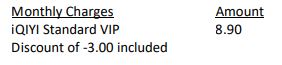
The monthly subscription fee for your iQIYI VIP subscription will be reflected in your Astro bill accordingly. For example, your Astro billing cycle is on the 20th of every month and you just signed up for the iQIYI Standard VIP subscription via Astro on 15October. Your iQIYI monthly charge will be reflected on your upcoming bill on 20th of October, and on the subsequent months' bills, as follows:
When can I start enjoying my VIP subscription?
You will be able to enjoy all the content on the iQIYI app immediately upon successful purchasefrom the Astro website. You may enjoy your VIP privileges from the iQIYI app on your Ultra Box, Ulti Box, mobile devices (Android & iOS), Apple TV, Android TV, as well as on Web (www.iq.com).Please ensure that the account used to log in to the app is the same one used to purchase your iQIYI VIP subscription.
I am an existing iQIYI VIP; will I get to enjoy Astro special price?
If you are an existing iQIYI VIP, you may cancel your existing VIP subscription with iQIYI and signup again via astro.com.my/iqiyi to enjoy the special price by adding your subscription to your Astro bill.
Where can I view my iQIYI entitlement expiry date/next payment details?
You can view your iQIYI entitlement & payment details in the app by follow these steps:
Step 1: Go to the Home Page
Step 2: Click on "VIP subscription"
Step 3: Click on "Manage VIP subscription" (Gear icon)
After following these steps, you will be able to view your entitlement expiry date, next payment date & payment method.
How do I cancel my iQIYI VIP subscription?
You may cancel your iQIYI subscription in the app by following these steps:
Step 1: Go to Home Page
Step 2: Click on "VIP subscription"
Step 3: Click on "Manage VIP subscription" (Gear icon)
Step 4: Click on "Cancel VIP subscription"
Will there be any penalty fees if I cancel my iQIYI VIP subscription?
There will be no penalty fee if you choose to cancel your iQIYI VIP subscription. Your cancellation will take effect upon your current entitlement expiry date. Kindly note that if you cancel your subscription within 24 hours before your entitlement expiry date as reflected in the iQIYI app (not according to Astro billing cycle), your subscription may be auto renewed.
App Issues
Who may I contact if I encounter any problems with the iQIYI app?
There are 4 ways for you to contact us for assistance:
- Submit an in-app feedback form via the iQIYI app by following these simple steps:
- Step 1: Click on your Profile
- Step 2: Click on "Help & Feedback"
- Step 3: Click on "Feedback" at the bottom of the page
- Step 4: Fill in your email address. Please ensure it is accurate as you will be contacted via this email address.
- Step 5: Briefly explain the problem/trouble/feedback
- Step 6: Click "Submit"
- Please contact the iQIYI customer service team via contactus@qiyi.com. You will receive a response within 3-5 working days.
- Kindly include your iQIYI UID information when you submit your feedback via email by following these simple steps:
- Step 1: Open the iQIYI app
- Step 2: Tap on the "Me" button at the bottom right
- Step 3: Tap on your username at the top left
- Step 4: Scroll down to the "Personal Data" page and copy your "UID" number
- If you are an Astro customer, you may also contact our Customer Service by:
- Submitting a feedback form here: https://support.astro.com.my/feedback-form;
- Reaching to us via WhatsApp by typing "Hi" at 03-95433838 for assistance.
Can I choose to opt-in/opt-out of receiving any marketing materials via email from iQIYI?
Yes, please open any marketing emails you have received from iQIYI and click on the unsubscribe link embedded in the email.
Astro Login
How do I register for an Astro ID?
Download the iQIYI app > Select "Profile" > Click on "Log in with Astro ID" > Click on "Do not have an Astro ID? Click here".
Can I update my email address/mobile number for my Astro ID?
Yes, please visit Astro's Self Service Portal via myastro.astro.com.my to update your email address or mobile number.
I have forgotten my password; what should I do now?
Step 1: Click "Log in" and click "Forgot my password"
Step 2: Enter your email address and click "Submit"
Step 3: An email will be sent to your registered email address with further instructions on how to reset your password
How do I unlock a locked user account?
You may contact Astro's Customer Service by:
- Submitting a feedback form here: https://support.astro.com.my/feedback-form
- Reaching out to us via WhatsApp by typing "Hi" at 03-95433838 for assistance.
Will my personal information be protected?
Yes, Astro is bounded by the PDPA act. All information received will be used in accordance with our Privacy Notice
If your account is suspended or disconnected, you will retain the existing subscription when you reconnect. However, if you plan to make any changes after the reconnection, you can only select from the new packs.
Although anyone can create an Astro ID, only the Astro account owner is allowed to link their account to the Astro ID. Otherwise, you will need permission from the account's owner in order to complete the linking.
Yes, you can. If you are an existing Astro customer with the Disney+ Hotstar add-on option, your Disney+ Hotstar add-on option will be converted without any early termination charge upon your successful re-contract to eligible bundle packages.
We would need you to run few tests in order for us to understand your issue and to assist you in fixing the problem.
You may proceed with the troubleshooting steps below which should not require any longer than 15 minutes.
- Please run each of the tests according to your your Laptop/PC Software.
- Compile the pictures / screenshots of your test results in one file (i.e Microsof Word document, PDF file) and attach them in the Support Ticket below in order for us to assist you further:
- List of websites effected.
- Run the Speed Test via LAN (cable) and Wi-Fi connection - Please click here for Speed Test guideline.
- Run the Traceroute Test - Please click here for Traceroute Test guideline.
- Run the Ping Test - Please click here for Ping Test guideline.
- Once you've gathered all the results, kindly send them all through the Feedback Form below.
Quick Info
A Speedtest is a service that provides free analysis of Internet access parameters, such as connection data rate.
A Ping Test shows how long it takes for packets to reach host.
A Traceroute Test traces the route of packets to destination host from our server.
In general, these two bands can be differentiated with these parameters: Coverage, Channel Interference and Speed.
2.4GHz gives better coverage but lower speeds, while 5GHz provides faster internet but covers a smaller area.

Yes, if a device is faulty due to the customer's negligence, they will be subjected to a penalty fee for each device:
- WiFi router: RM200
- Fibre modem: RM500
- Mesh WiFi: RM200/unit
If you're trying to visit a website and it won't load, but others do, there could be a variety of causes. If the site itself is down, there's not much you can do but wait.
If you can load the site on other computers or devices (make sure you try different means of connecting to the internet), there may be an issue with your computer or network.
There are some quick fixes that will solve most problems, but you may have to get your hands a little dirty.
- Try loading the site on a different device.
- Try loading the website on your phone or on another computer. If the website loads on the other device, the problem lies with your computer.
- If the website doesn't load on another device, the problem is either with the network
- Restart your computer.
- Oftentimes, a simple reboot will fix the problem you're having. Reboot your computer and test the website again.
- Try loading the site in a different browser.
- There may be some settings configured incorrectly on your browser. Try a different web browser to see if you can load the website.
- Temporarily disable your antivirus program.
- Your antivirus software may be interfering with your ability to load certain websites.
- Try disabling the software and then loading the site again. Make sure you enable it again once you have identified the problem.
- Reset your modem and router.
- Traffic to or from a certain website may be getting tripped up by your modem or router. Resetting these devices may allow you to access the website again.
- Check your computer's date and time settings.
- If your date or time is set incorrectly, you may not be able to connect to secure (https://) websites.
- Check your computer or mobile device's clock to make sure that it is set to the correct time and date.
In the event the problem persists, please provide below details for further escalation:
i. List of websites effected.
ii. Run the Speed Test via LAN (cable) and Wi-Fi connection - Please click here for Speed Test guideline.
iii. Run the Traceroute Test - Please click here for Traceroute Test guideline.
iv. Run the Ping Test - Please click here for Ping Test guideline.
Once you've gathered all the results, kindly send them all through the Feedback Form below.
Quick Info
A Speedtest is a service that provides free analysis of Internet access parameters, such as connection data rate.
A Ping Test shows how long it takes for packets to reach host.
A Traceroute Test traces the route of packets to destination host from our server.
Disney+ Hotstar is available to Astro customers on the Disney+ Hotstar app on Android and iOS devices and website (DisneyPlusHotstar.my) which is accessible on tablets and connected TVs. Unfortunately, Disney+ Hotstar is not available on Astro GO. However, customers can enjoy it on the big screen via the Ultra or Ulti Box.
Rebates/refunds are not provided. Early termination of the 3-months pass add on is subject to an early termination fee prorated to RM54.90 for the remaining months.
Yes. Astro customers will soon be able to enjoy seamless access to Netflix on their connected Ultra and Ulti Boxes. Look out for more details then! Register your interest via https://astro.com.my/Netflix
Your cloud recording space will revert to 200 hours by default. If your current recordings exceed 200 hours, the system will delete the exceeded hours once you have stopped the Astro GO+ subscription starting with the oldest recordings first.
Slow browsing using LAN cable
Looks like there is something wrong with your service connection.
Please run the Speed Test and attach the picture or screenshot of the speed test in the Feedback Form below, in order for us to provide further assistances.
Click here for Speed Test guideline.
Quick Info
A Speedtest is a service that provides free analysis of Internet access parameters, such as connection data rate.
Slow browsing using Wi-Fi
1. Router Positioning
Most people underestimate the importance of picking a good spot for a Wi-Fi router. Even a small shift in positioning could end up being the difference between day and night.
i) High vs. Low
Put the router as high up as possible to extend the broadcasting range of the radio waves. This also helps clear the router of possible interferences.
ii) Concrete & Metals
Make sure your router isn't blocked by any other objects, especially devices that are electronic. Also, avoid placing your router in your basement as this area is usually enclosed by a lot of concrete, which can be almost impossible for Wi-Fi signals to penetrate.
iii) Distance to Router
The further away from your router you get, the weaker the Wi-Fi signal. Therefore, the best option is to place your router as close to your devices as possible, but this is only practical if you have one main area where you tend to use your devices.
Otherwise, you should place your router near the center of your home. After all, Wi-Fi broadcasts in 360 degrees, so it doesn't make sense to put it at one end of the house.
2. Wireless Interference & Noise
You've probably never noticed but there are wireless signals all around you wherever you go and they're passing through you all the time. From where? Electronic devices, Wi-Fi routers, satellites, cell towers, and more.
Although Wi-Fi is supposed to be on a different frequency than most of these devices, the amount of radio noise can still cause interference. Some common causes of interference include:
i) Microwaves
ii) Bluetooth Devices
iii) Cordless Phone
3. Surrounding Wi-Fi signals
A truth of the modern world is that every household has their own Wi-Fi network, which can cause issues with channel overlap. This can be somewhat problematic in a townhouse, but is especially problematic in housing complexes and apartments where there can be many routers within close proximity.
Which is why it's important that you pick a good channel in your router settings. Modern routers can choose channels for you automatically, but sometimes it's better to investigate and find the best channel yourself.
4. Usage
More likely, however, is that the people on your network such as friends, roommates, or family members are participating in bandwidth-heavy activities like gaming and streaming Ultrabox/ Netflix.
Fortunately, if this is the case, you can prioritize your own network traffic by enabling Quality of Service in your router settings.
If the problem persists, please run a Ping Test, Traceroute Test and attach the picture or screenshot of both test results in the Feedback Form, in order for us to provide further assistances.
Please make sure to attach the required screenshot(s) in ONE file (i.e. Microsoft Word document, PDF, Image file) before submitting the form.
Quick Info
A Speedtest is a service that provides free analysis of Internet access parameters, such as connection data rate.
A Ping Test shows how long it takes for packets to reach host.
A Traceroute Test traces the route of packets to destination host from our server.
Astro invests billions of ringgits in content annually to keep Malaysians entertained and informed. Hence, we work alongside industry players, content partners and regulators in protecting intellectual property so that Astro can continue to produce and aggregate compelling content for our viewers.
We continue to educate and raise awareness among the public and businesses about the economic and social losses caused by content piracy. You can play your part in combating piracy by reporting potential copyright infringement of Astro content to the Domestic Trade and Consumer Affairs Ministry (KPDNHEP) on the following channels:
- 1-800-886-800 (hotline)
- 03-8882 6088 (Enforcement Command Centre)
- +6019-279 4317 (WhatsApp)
Having trouble with your phone line ?
You may proceed to contact below dedicated service provider directly
1 800 1818 18
STEP 1
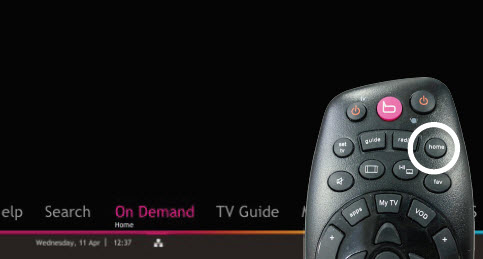
On your remote, press the “HOME” button and the home menu will be displayed at the bottom of your screen.
STEP 2
Navigate to SETTINGS and press “OK”.

STEP 3
Navigate to STB DIAGNOSTICS and press “OK”.

STEP 4
Refer to the signal strength % shown on the top left of your screen.

Visit https://product.astro.com.my/box or check out our user guide for a quick and easy way to get started!
Please see the table below for the offers available for residential customers.

Notes:
· Installation fee includes Government tax.
· Monthly subscription fee does not include Government tax.
· The Ulti Box offers in the table above include a contract Period of 24 months with a pro-rated early termination fee of RM600 (excluding Government tax).
· The installation fees listed in the table above applies for a standard installation of the Ulti Box in your home. Additional charges may apply for non-standard installation.
· * Existing customers with monthly pack >RM100 are recommended to select Ultra Box @ FREE Installation fee with 24 months contract.
· ** New customers with monthly pack >RM100 are recommended to select Ultra box @ RM99 installation fee with 24 months contract.
· You may visit https://product.astro.com.my/box to find out more details about Astro Ultra Box.
· Ulti Box installation is free for Astro & Broadband customers for Starter Pack and above. A separate list of TNC’s will be applicable for this offer.
Yes, a penalty fee of RM200/Mesh WiFi unit will be imposed if the customer fails to return the device(s). The courier company will make two attempts to retrieve the Mesh WiFi unit(s) within a period of 30 days, failing which the penalty would be imposed.
Astro Quick Pay is a convenient method to check your Bill Summary, Account Status and pay Astro bills at your convenience with immediate payment posting, right from home. Visit Astro Quick Pay to pay your bill now.
4K UHD offers 4 times the resolution of HDTV (4K UHD has 3840x2160 resolution with 8 million pixels compared to HD which has 1920x1080 with 2 million pixels), sharper detail, smoother lines and a richer colour palette, as well as a vibrant colour TV experience.
Customers on Ultra Box with Sports Pack can tune in to the Astro SuperSport UHD Channel (CH 805 and CH 806) for an exciting selection of Sports content such as the Premier League and the Spanish Primera Liga.
Customers on Ultra Box with Movies Pack and News & Documentaries add-on can stream some of the latest movies and documentaries respectively in UHD by pressing the “Home” button on your remote and exploring your choices at no additional cost.
In addition, customers can rent additional movies on top of their subscription and stream the latest and hottest 4K UHD Blockbuster movies, drama series and local movies, blockbuster movies in Ultra HD via Astro First Channel 480, and Astro Best Channel 481 and VOD titles in “Store”.
Please note that a standard rent rate applies for all these titles, to learn more about the pricing, head over to the FAQ section at www.astro.com.my/ultra
Astro customers can make payments via Auto-debit, WhatsApp,Astro Quick Pay and other authorised payment channels withoutsurcharge for the easiest and fastest way to pay their Astro bills.
Bill payments at selected petrolstations, convenience stores, retail/mobile shops, kiosks, and e-Wallets, may incur a surcharge of up to RM0.50 per transaction by the appointed collection agencies of RMS (Razer), ATX, MobilityOne and e-Pay.
The surcharge is imposed by third-party payment collection partners for services rendered.
You can refer to all our payment options below. Those marked with ‘*’ will be subject to a surcharge by appointed collection agencies.
A. HASSLE-FREE METHODS
Auto-Debit:
Click here for step-by-stepinstructions on how to activate auto-debit payment via My Astro Portal.
WhatsApp:
- Save Astro’s WhatsApp number 03-9543 3838 into your contacts and send “Hi”to us via WhatsApp.
- Follow the instructions in the menu to proceed with your payments.
JomPAY:
Look for the JomPAY logo on your latest bill, log into your preferred online banking platform, and submit your payment details.
• Biller Code: 9639 (unique to Astro only)
• Ref-1: <10-digit Astro account number> (E.g. 08XXXXXXXX)
B. ASTRO SELF-SERVICE METHODS
Astro Quick Pay:
- Visit pay.astro.com.my.
- Just enter your 10-digit Astro Account Number and proceed with theinstructions that follow.
My Astro Portal:
- Login to My Astro Portal to conveniently make your payment online.
- Select ‘PAY BILL’ and proceed with the instructions that follow.
- You can also use this portal to check your billing and payment history.
Channel 200:
- Tune into CH200.
- Select 'My Account'.
- Click on 'Make Payment' and follow the instructions displayed on the screen.
- SMS the code shown on your TV to 33777.
- Wait for the SMS reply with an attached link to proceed with your payment.
My Astro App:
- Download My Astro app (available for FREE on both Google Play & Apple App Store).
- Register/Login/Link account and provide a valid email address and mobile number.
- Select 'My Account' on the menu bar to view your outstanding balance and click on 'Let’s Pay' to make your bill payments.
- You will receive a push notification in your message inbox verifying that your payment has been made, upon successful payment.
C.BANKS
Maybank:
- ATM
- Online banking
Visit maybank2u.com.my for more information.
Public Bank:
- ATM
- Cash Deposit Machine & Cheque Deposit
- Online banking
Visit pbebank.com for moreinformation.
Bank Simpanan Nasional:
- ATM
- Cash Deposit Machine
- Online banking
- SMS banking
- BSN Ejen Bank Berdaftar (EBB)
- Over-the-counter payments
Visit mybsn.com.my for more information.
Agrobank:
- ATM
- Online banking
- Over-the-counter payments
Visit agrobank.com.my for more information.
D. e-WALLETS
ATX*
Boost, GoPayz, KelantanPay, Zcity (GEM REWARD), SabahPay, Tapay, GoPay,MerchantTradeMoney, ToneGroup, Elinking, Mpay, Mcash, and other various smaller wallets.
e-Pay*
Touch n Go (TnG), Grab Pay, Shopee, BigPay, True Money
E. OTHER METHODS
Associated Retailers:
RMS (Razer/ MOL)*
7-Eleven, 99 Speedmart, Caring Pharmacy
ATX*
RedONE Shop, Mobile Money, Runcit Hero (telecommunication shops), Parcel Hub (courier shops), Kiosk, DHL
Mobility One*
Kedai D’mart, Happy Mart, Pasaraya Sakan, PusatKomuniti Desa (PKD), Aeon Big and various sundry shops
e-Pay*
Petrol stations (Petronas, Shell, BHP, Caltex, Petron), KK Mart, Mydin, MyNews, SenHeng, Hai-O, Giant, TF ValueMart, Billion, Big Pharmacy
You may switch to E-mail Billing or Paper bills to be notified of your bill and make payment. Kindly note that if you select to have Paper Bills, you will be charged a RM10 fee per bill.
STEP 1
Switch off the power for your box and make sure that the adapter's power light is off.

STEP 2
Locate the Smartcard at the front or right side and gently pull it out make sure that the adapter's power light is off.

STEP 3
Wipe the Smartcard's gold chip clean using a dry soft cloth.

STEP 4
Make sure the gold chip is facing upwards and reinsert it all the way in.

STEP 5
Switch on the power for your box and make sure that the adapter's power light is on. Please wait for 5 minutes.

STEP 6
Turn on your box. You should no longer be experiencing this problem.
If issue persist, please submit the issue in our Feedback Form and attach a picture of your General tab of the STB Diagnostics for assistance.

If you're trying to visit a website and it won't load, but others do, there could be a variety of causes. If the site itself is down, there's not much you can do but wait.
If you can load the site on other computers or devices (make sure you try different means of connecting to the internet), there may be an issue with your computer or network.
There are some quick fixes that will solve most problems, but you may have to get your hands a little dirty.
1. Try loading the site on a different device.
Try loading the website on your phone or on another computer. If the website loads on the other device, the problem lies with your computer.
If the website doesn't load on another device, the problem is either with the network or the website itself.
2. Restart your computer.
Oftentimes, a simple reboot will fix the problem you're having. Reboot your computer and test the website again.
3. Try loading the site in a different browser.
There may be some settings configured incorrectly on your browser. Try a different web browser to see if you can load the website.
4. Temporarily disable your antivirus program.
Your antivirus software may be interfering with your ability to load certain websites.
Try disabling the software and then loading the site again. Make sure you enable it again once you have identified the problem.
5. Reset your modem and router.
Traffic to or from a certain website may be getting tripped up by your modem or router. Resetting these devices may allow you to access the website again.
6. Check your computer's date and time settings.
If your date or time is set incorrectly, you may not be able to connect to secure (https://) websites.
Check your computer or mobile device's clock to make sure that it is set to the correct time and date.
In the event the problem persists, please provide below details for further escalation:
i. List of websites effected.
ii. Run the Speed Test via LAN (cable) and Wi-Fi connection - Please click here for Speed Test guideline.
iii. Run the Traceroute Test - Please click here for Traceroute Test guideline.
iv. Run the Ping Test - Please click here for Ping Test guideline.
Once you've gathered all the results, kindly send them all through the Feedback Form below.
Quick Info
A Speedtest is a service that provides free analysis of Internet access parameters, such as connection data rate.
A Ping Test shows how long it takes for packets to reach host.
A Traceroute Test traces the route of packets to destination host from our server.
· Bill
· Log into your Astro Self-Service (location)
Please refer to the table below:

Note:
- The table above is an approximation of the cancellation fee. The final fees will be calculated at the end of your subscription/upon downgrade.
- Downgrade of Pack for Residential customers will be on basis of package ranking, whereas downgrade of pack for Astro & Broadband customer will be on basis of total monthly payment.
- Package ranking in descending order:
- Platinum Pack (highest rank)
- Premium Pack 1/2/3 (same rank across 3 options)
- Entertainment / Sports / Movies Plus Pack
- Entertainment / Sports / Movies Pack (same rank across 3 options)
- Primary Pack (lowest rank)
Please find some examples (for Residential customers) as below:
Termination
Customer signed up for Entertainment Plus Pack (24-month contract) with Ultra Box. Customer decided to terminate the subscription 8 months into the contract. As the customer still has 16 months remaining, the maximum applicable fee will be RM41.67 x 16months = RM666.67
Pack downgrade
Customer signed up for Movies Pack (24-month contract) with Ultra Box. 18 months in, customer decides to downgrade to Primary Pack (24-month contract). As the customer still has 6 months remaining, the maximum applicable fee will be RM20.83 x 6months = RM125
Dropping off Netflix or Disney+ Hotstar within first 12 months
Customer signed up for Entertainment Plus (24-month contract) with Ultra Box and 12-month commitment on Netflix App. 6 months in, customer decides to upgrade to Premium Pack 1 (24-month contract) which does not include Netflix App. As the customer still has 6 months remaining in the first 12 months of commitment for Netflix App, the maximum applicable fee will be RM41.67 x 6 months = RM250. Upon upgrading to Premium Pack 1, a new 12-month commitment for Disney+ Hotstar App begins alongside the 24-month contract on the package.
STEP 1
On your remote, press the HOME button and the menu will be displayed on top of your screen.
STEP 2
Navigate to Settings.
STEP 3
Navigate to Network Settings and press “OK”.
STEP 4
Navigate to Test Connection and press “OK”.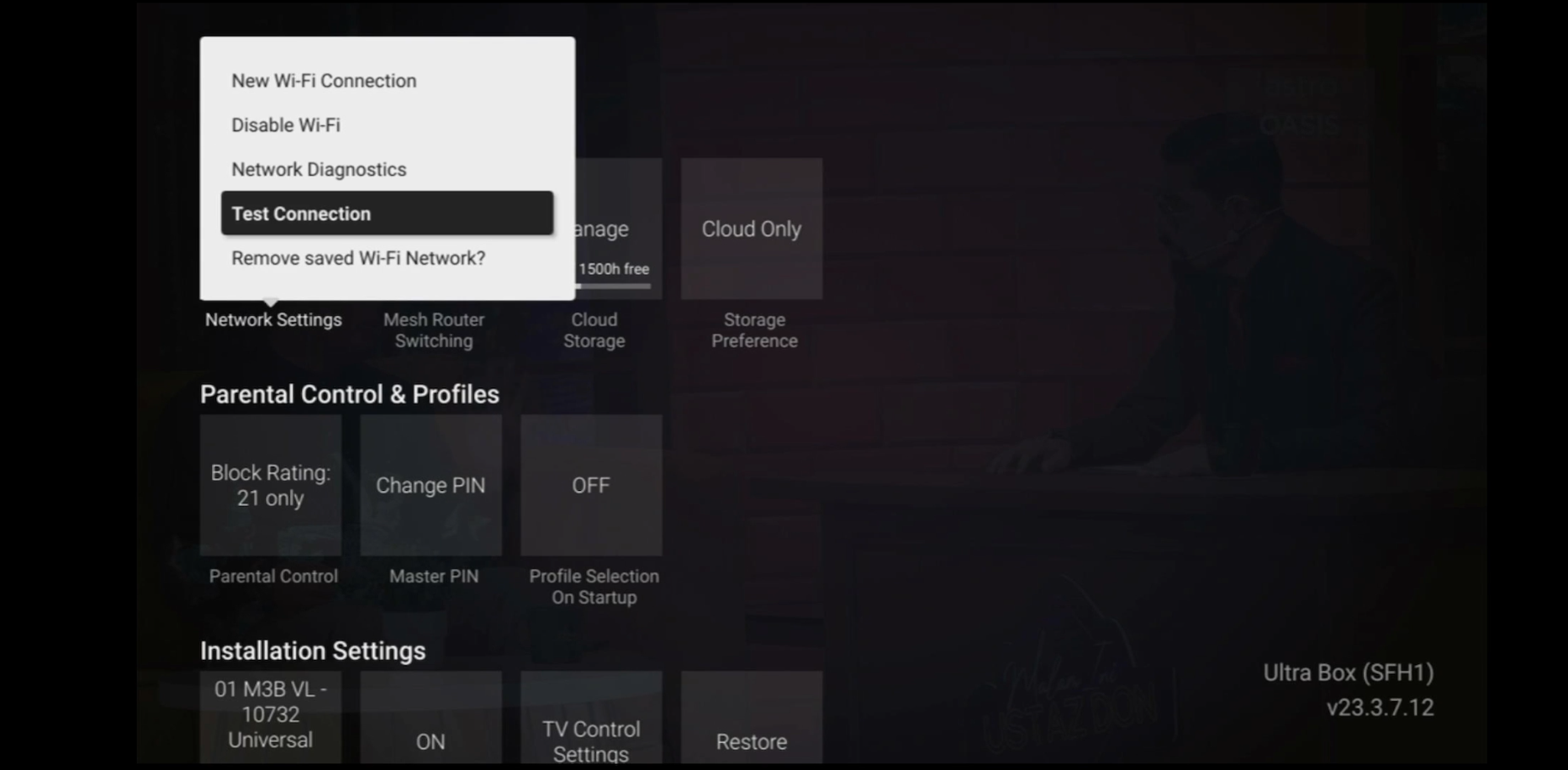
STEP 5
Test Connection results will be displayed on the screen.
