

 Netflix Basic
Nationwide Installation
Applying for
| UniFi Maxis Astro Njoi |
Frequently Asked Questions
Find your answers here.
We provide one stop service to apply Astro and Broadband for you.
You can avoid driving and queuing at the sales counter. We are the dealer that can help you to handle your application from the beginning to the end.
We do not charge you when you apply from us. There is no credit card information required to apply here. Charges are the same as you apply from the sales counter.
First, you can apply online, we will get back to you immediately during business hour. WhatsApp/Email/Fax us your Photocopy of IC (for malaysian) / Passport (for foreigners). When we receive all the information, we will proceed with your application immediately.
Once we receive your application with complete information, we will process your application immediately during business hour. The contractor from the service provider will then contact you for installation appointment once your application is approved.
Enjoy greater savings and hassle-free bill payment in one single bill for both Astro and Broadband. You get to enjoy Astro and Broadband at discounted price every month over the contract period of 24 months.
Astro offers multiple TV packs including Entertainment, Sports, Movies and Kids options. You can choose a pack that matches your viewing preferences and add optional streaming apps where available.
Yes, you may subscribe to Astro TV packs without bundling broadband. However, bundling Astro TV with Fibre Broadband may provide better monthly savings and convenience with a single bill.
For small households with light streaming and browsing, 100Mbps is usually sufficient. Larger families, gamers or heavy streamers may benefit from 500Mbps or 1Gbps plans for smoother performance across multiple devices.
Most Astro TV and Fibre broadband plans come with a 24-month contract. Early termination charges may apply if cancellation is made before the contract ends.
Yes, you may upgrade your TV pack or broadband speed at any time, subject to eligibility and coverage. A new contract period may apply depending on the upgrade.
Your monthly bill will be issued directly by Astro. You may receive it via email or access it through your Astro account. Bundled customers will receive a single combined bill for TV and broadband services.
Payment methods may include online banking, auto debit, credit card or other approved payment channels provided by Astro. Our team can guide you during the registration process.
If you experience any service interruption, you may contact Astro customer support for technical assistance. In many cases, issues can be resolved remotely or a technician will be arranged if necessary.
Yes, relocation is subject to service availability at your new address. Relocation charges and contract adjustments may apply depending on your plan.
No, you do not need a credit card to submit your application. Payment setup will be arranged directly with Astro after your service is approved.
Selected Astro TV packs allow optional add-ons such as streaming services depending on current promotions and availability. Additional monthly charges may apply.
Yes, a WiFi router is typically provided during fibre installation. The router model may vary depending on the selected broadband speed plan.
Yes, we will check the service coverage at your address before proceeding with your application to ensure broadband is available at your location.
For Malaysians, please provide a copy of your MyKad. For foreigners, provide a copy of your passport when submitting your broadband application.
After your application is approved, the service provider typically contacts you within 2 to 7 working days to arrange the broadband installation appointment.
Most Astro Broadband plans come with a 24-month contract starting from your installation date. If you relocate, a new 24-month contract may apply at your new address.
Yes, you can relocate your broadband service, subject to service availability at the new address. Your contract may reset for another 24 months from the new installation date.
Yes, you may request to relocate broadband devices within your home. Non-standard installation charges may apply and are payable to the installer directly after assessment.
Yes, you can switch to Astro Broadband. To avoid service interruption, it is recommended to activate the new service before terminating your current broadband contract.
Standard installations may be free during promotions, but non-standard installations (e.g., device relocation or complex wiring) may incur extra charges payable directly to the installer.
Only new and existing Astro Fibre customers with the latest RG21 router can use the Astro Fibre app.

You will be charged 8% Service Tax on Astro Pay TV services rendered on or after 1st March 2024, whereas your Astro Fibre including Mesh will remain at 6% Service Tax.
No, the Astro Fibre App is a free mobile application for all Astro Fibre customers with the latest RG21 router.
Currently Astro GO is only available in Malaysia. You will not be able to access it if you are overseas.
Once you have received the eKYC link, you need to complete the verification within 3 days.
I am sorry you can't. While we understand the value customers see in choosing their preferred service/pack individually, the packaging of channels/services in the new packs are necessary for us to offer content/services at an affordable price to our customers.
Your purchased PPV daily pass will still be accessible to you for the purchased duration ie. 3, 5, 7 or 30 days respectively. However, you will no longer be able to purchase PPV daily passes from 8 Oct onward.
STEP 1
Check the internet connectivity by run the Test Connection.
Refer Run Test Connection.
STEP 2
Verify the Test Connection results.
a. All connected successfully - Proceed to STEP 3
b. All connection failed - Proceed to STEP 4
c. Router connection successfully, others failed - Proceed to STEP 7
STEP 3
Please ensure your box with the latest software update from "General Diagnostics".
Refer to Check Software Version Status.
If your box status is other than "Your box has the latest update (a)", please proceed to update the software.
Refer Software Update guide.
STEP 4
Check the connection to the box either using Ethernet (LAN cable) or Wi-Fi.
a. If using Ethernet (LAN cable) - Connect to Live Agent for help.
b. If using Wi-Fi - Proceed to STEP 5
STEP 5
Check location of the decoder and router.
a. If nearby (within 1.5m) - Try connect to box from router using LAN cable.
b. If far (more than 1.5m) / No LAN cable - Proceed STEP 6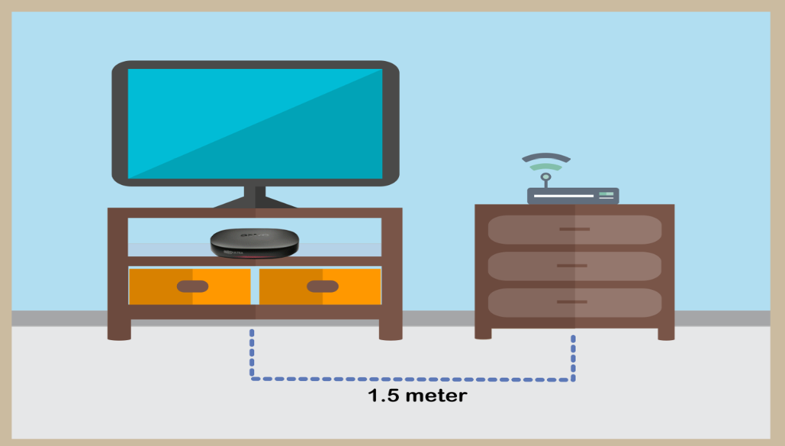
STEP 6
Reboot router, modem and decoder.
If issue persist, please try again after 30mins to 1 hour. Connect to live agent if persist after 30 mins to 1 hour.
STEP 7
Suspect there is an issue with your internet connection.
Please check with your internet service provider or if under Astro Fibre / Astro Broadband, connect to Live Agent for help.
Service Tax will not be imposed on any CSR projects accounts. Any tax payable will be borne by Astro.
Please contact your issuing bank for further information. Astro does not directly handle standing instructions. Please utilise our auto-debit facility if you would like hassle-free payments.
For customers that would like to subscribe to Multiroom with a box installation,
(i) customers on the old packages (example Family Pack, Starter Pack, Value Pack, Super Pack or Super Pack Plus) will have to subscribe to our new packages first by sending "Switch" to 03-9543 3838 via WhatsApp;
(ii) customers on the new Astro packages can subscribe by visiting product.astro.com.my/multiroom or WhatsApp "Hi" to 03-9543 3838.
STEP 1
On your remote, press the HOME button and the home menu will be displayed on top of your screen.

STEP 2
Navigate to SETTINGS.

STEP 3
Navigate to Audio Delay and press "OK".

STEP 4
Navigate to your preferred selection and press “OK”.

From 8 October 2021 onwards, Astro will be ceasing the daily passes (e.g. 3, 5, 7 & 30 days passes). Please subscribe to the relevant packs to continue enjoying your favourite content. Stay tuned for more exciting offers. Thank you.

Disabling band steering means that there will be two frequency bands available for the users - 2.4GHz and 5GHz.
Note: Band Steering is called Dual-band Combination in the router web interface.
- Please connect your computer or laptop to your Astro Fibre router using LAN cable. Your LAN cable must be connected from the yellow port of Astro Fibre router (Any available port).
- Once connected, open any web browser such as Google Chrome, Internet Explorer, Mozilla Firefox and etc.
- On the address bar, type http://192.168.100.254 and below page will appear.

Login using your username and password if you have changed the router login setting. Otherwise, your default router login is as per below.
Username: user
Password: user
4. Once you have successfully logged in, the router's web-based setup page will appear.

5. At the top of the page, click Wi-Fi to configure the WiFi parameters.

6. Click on Dual-band Combination button to disable the Band Steering.

7. Set the Wi-Fi name and Wi-Fi Password for both 2.4GHz and 5GHz bands based on your preference. Then click "Apply" for the changes to take place.

8. Kindly ensure to reconnect your WiFi according your new WiFi name and password.
Refund can only be made by the registered Astro account holders.
However, if you would like to request refunds on behalf of the account holder, you may do so by providing the supporting documents (e.g.: authorization letter, death certificate, 3rd party NRIC copy).
Yes,existing Astro & Broadband customers within contract or out of contract can subscribe to Astro Fibre offer. The 24-month contract will be renewed.
However, your contract with Maxis/Allo needs to be terminated before signing up to this offer. An early cancellation fee applies if you are still within contract.
*Subject to Terms &Conditions of your contract
Connect your PVR to Wi-Fi and enjoy access to our library of Video On Demand. Replay old seasons, catch-up latest episodes of your favourite shows, anytime you want. To connect your PVR, follow the steps below depending on your box type:
(a) Wi-Fi Enabled PVR (DMT5)

· Press the “Home” button and select “Settings” > “Network” > “Wi-Fi”
· Allow the PVR to scan Wi-Fi networks available and subsequently choose your home Wi-Fi network > Enter your Wi-Fi password if required
· Once connected, the icon below will appear on the screen.

Tip: Use the alpha-numeric keyboard on your Astro Remote to key in your password
· Press the “Home” button and select “On Demand” to start watching videos on demand!
(b) Non-Wi-Fi Enabled PVR (HD PVR)

There are two ways to connect your HD PVR decoder to your home Wi-Fi
(i) Using the Ethernet (LAN) cable
· Plug in the LAN cable from your modem into the PVR network port
· Once connected, the icon below will appear on the screen
· Press the “Home” button and select “On Demand” to start watching videos on demand!
(ii) Using an Astro Wi-Fi dongle as per shown below

Step 1 - Plugin the Wi-Fi dongle into the front USB part of your PVR decoder.
Step 2 - A prompt will appear stating "Do you wish to connect to a wireless network?", select "Yes, continue."
Step 3 - Once connected, the Wi-Fi icon will appear on the screen. Now you are ready to download and enjoy Astro's on demand entertainment.
Step 4 - Press the “Home” button and select “On Demand” to start watching videos on demand!
*The Wi-Fi dongle is only applicable for the non-Wi-Fi enabled PVR (as per the picture).
Your access to Astro GO will depend on the subscription pack that you are subscribed to. Not all shows/channels will be available on Astro GO as this depends on contractual rights with specific guidelines on the entitlement of these shows/channels. We are continuously working hard to make more content available on Astro GO.
You may navigate around the menu on the side bar on Astro GO app, or top bar on the Astro GO web version to find shows available.


Menu Guide
- Home: Check out all the recommended content or watch your subscribed TV channels via the Channel Guide at the bottom of your home screen.
- Catch Up: Missed an episode of your favourite series? Fret not, Catch Up on the latest episode of your favourite shows on Astro GO.
- Boxsets: Watch complete seasons and series from our On Demand library anytime anywhere.
- Movies: Watch recent and popular movies on your devices! You can access a large catalogue of On Demand movies, according to your subscription.
- Kids: Catch all the cartoons, animations and a variety of shows for kids of all ages.
- Sports: Watch the biggest sporting shows LIVE on your mobile device, anytime anywhere.
- Store: Other than your subscribed packages, you can also purchase and watch your favourite Pay-Per-View movies and other Astro exclusive content (not available on iOS devices).
For technical visit, the current fees will remain unchanged i.e.: 8% Service Tax absorbed by Astro. As for installation fees, current fees will remain unchanged i.e.: 6% Service Tax has already been included in installation fees, as 2% will be absorbed by Astro.
You can make changes to your Netflix plans that are included in your Bundle through My Astro app
You can change your non Astro-bundled a-la carte Netflix plan at any time by signing into Netflix.com and visiting the Account page, then selecting Change Plan to view and select available plans.
You will receive an email within 45 minutes of payment made to let you know whether your advance payment is successful or not. If your payment has failed, you may call Astro's Contact Centre at 03-9543 3838 or wait for an Astro representative to be in contact with you within 2 working days to assist you with your order.
Astro subscribers will have the freedom to subscribe to Netflix via Astro, or they may also choose to continue subscribing via Netflix directly on their own.
Please visit any of Astro’s digital platform that you would like to log into, such as Astro’s official website (www.astro.com.my). Then, create a new Astro ID using your email address or mobile number by clicking “No Astro ID? Create Now!”. After creating your new Astro ID, please use it to log into our digital platforms moving forward.
If you have an active Astro subscription, you may also link it to your Astro ID. Please click here for the guide.
Please be sure to take your decoder, satellite dish, smartcard, remote control and all other fixtures after dismantling is done by the technician.
By adding a Netflix account to your Astro bill, your Netflix account is already activated. No additional steps for activation are required.
Astro is no longer updating the software in non-Ultra/Ulti Boxes as they have reached their end-of-life cycle. Therefore, non-Ultra/Ulti Boxes will maintain their current classification systems. Nonetheless, you may refer to content.astro.com.my for all the updated age ratings. Please refer to the table below to see the difference in classification systems between our platforms:

STEP 1
Press "HOME" button on your remote control.

STEP 2
Navigate to Settings and press "OK".

STEP 3
Navigate to Digital Audio and press "OK".

STEP 4
Choose your preferred selection and press “OK”.

STEP 5
Select Yes, continue and press "OK" to confirm on the changes.
Otherwise, select No, go back to cancel.

Astro GO is a free streaming companion app for all Astro customers to enjoy their favourite shows and channels on their smartphones, tablets, and computers - anytime, anywhere in Malaysia. Astro customers with an active Pay-TV subscription can link their accounts to watch corresponding on demand and TV channels available on Astro GO as part of their subscription.
By default, all Astro Fibre customers will receive a Private IPv4 or IPv6 address. However, customers who would like to subscribe to a fixed IP service can do so by contacting our Customer Service Centre at 03-9543 3838 for Astro Fibre’s Fixed IP service for only RM5/month.
The Liga Malaysia will be available for all Astro customers starting 3 May 2024 as part of your Astro subscription at no additional cost until further notice.
Mesh WiFi network refers to a unified wireless network that is formed by utilizing inter-connected WiFi nodes (Mesh devices) placed throughout the house.
Not to worry, our representative will be contacting you within 24 hours.
No. If you are a non-Astro subscriber, you will still be able to create an Astro ID, but access and use of Astro's digital services will be limited. If you are an Astro subscriber, please link your Astro ID to your Astro account number to enjoy exclusive access to all of Astro's digital services.
We are sorry you are thinking of leaving us.
If you wish to cancel your Astro subscription, kindly do take note of the information below if your account is still within contract period,
- Termination Request must be completed by the account holder.
- You need to settle the outstanding balance and penalty (if any).
- All Termination Request require a 30-day notice period.
Astro Fibre subscription also comes with a 24-month contract commitment and will NOT be auto renewed at the end of contact period.
Liga Malaysia is available for all customers with a HD enabled box including Zapper, DMT5, Ulti Box and Ultra Box.
Your current additional RM20 rebate will be removed. However, you will still get to enjoy the standard bundle rebate accordingly.
STEP 1
While watching linear channel, press “OK” to launch player banner.

STEP 2
Press “OK” again to Pause. You will see an Icon on the left of TV screen.

STEP 3
Press “OK” again to resume the program.

STEP 4
Navigate to Back To Live TV and press "OK" to go back to the live view.

The "coming soon" label on some streamingapps on your TV and the "Apps" page of Astro's website allows our customers tostay on top of new launches as they happen! Stay tuned for these upcomingstreaming apps so you can access even more content that you love from acrossthe world.
STEP 1
Please wait while your Astro box initializes.
STEP 2
Select your preferred language.
STEP 3
Navigate to Next and press "OK".
STEP 4
Select Auto as the Video Resolution.
STEP 5
Navigate to Next and press "OK".
STEP 6
Navigate to Confirm and press "OK" to confirm your selection if you are able to read the texts on screen properly.
Otherwise, navigate to Cancel to revert to the previous settings.
STEP 7
Select Satellite as the box operating mode.
STEP 8
Navigate to Next and press "OK".
STEP 9
Select your preferred connection.
For connection via Wi-Fi, proceed to STEP 10.
For connection via LAN Cable, proceed to STEP 16 once you are connected.
STEP 10
Please wait while your Astro box searches for available Wi-Fi networks.
STEP 11
Navigate to your preferred Wi-Fi network and press "OK".
STEP 12
Please enter the password to connect to the Wi-Fi network.
STEP 13
Navigate to Done to continue.
STEP 14
Please wait while your Astro box connects to the internet.
STEP 15
Navigate to Yes to allow your Astro box to connect to this network automatically.
Otherwise, navigate to No.
Proceed to STEP 17 for the next step.
STEP 16
Navigate to Next and press "OK".
STEP 17
Navigate to Universal.
STEP 18
Navigate to Next and press "OK".
STEP 19
Select 01 M3B VL - 10732 as the Entry Point.
STEP 20
Navigate to Next and press "OK".
STEP 21
Please wait until the signal reading is updated.
Navigate to Finish and press "OK" to complete the settings.
Refund fee is subject to your processing bank. However, Astro did not impose refund processing fee.
Please refer to the table below:

Note:
- The table above is an approximation of the cancellation fee. The final fees will be calculated at the end of your subscription/upon downgrade.
- Downgrade of Pack for Residential customers will be on basis of package ranking, whereas downgrade of pack for Astro & Broadband customer will be on basis of total monthly payment.
- Package ranking in descending order:
- Platinum Pack (highest rank)
- Premium Pack 1/2/3 (same rank across 3 options)
- Entertainment / Sports / Movies Plus Pack
- Entertainment / Sports / Movies Pack (same rank across 3 options)
- Primary Pack (lowest rank)
Please find some examples (for Residential customers) as below:
Termination
Customer signed up for Entertainment Plus Pack (24-month contract) with Ultra Box. Customer decided to terminate the subscription 8 months into the contract. As the customer still has 16 months remaining, the maximum applicable fee will be RM41.67 x 16months = RM666.67
Pack downgrade
Customer signed up for Movies Pack (24-month contract) with Ultra Box. 18 months in, customer decides to downgrade to Primary Pack (24-month contract). As the customer still has 6 months remaining, the maximum applicable fee will be RM20.83 x 6months = RM125
Dropping off Netflix or Disney+ Hotstar within first 12 months
Customer signed up for Entertainment Plus (24-month contract) with Ultra Box and 12-month commitment on Netflix App. 6 months in, customer decides to upgrade to Premium Pack 1 (24-month contract) which does not include Netflix App. As the customer still has 6 months remaining in the first 12 months of commitment for Netflix App, the maximum applicable fee will be RM41.67 x 6 months = RM250. Upon upgrading to Premium Pack 1, a new 12-month commitment for Disney+ Hotstar App begins alongside the 24-month contract on the package.
The change in due date to 25 days after your billing date is to ensure that your transactions will be processed in a timely manner and subsequently ensure you will enjoy uninterrupted viewing. Please be assured that this change will not affect your monthly bill amount. Kindly check your latest monthly bill statement for more details about this revision.
You are entitled for free mesh WiFi devices when you sign up for Astro & Broadband with Maxis fibre 500Mbps or 800Mbps speed only.
Mesh WiFi is not available with Astro & Broadband with Allo. However, you may purchase the Mesh WiFi devices separately to pair along with you Allo broadband.
Multiroom (Smart TV) is a secondary subscription that allows you to enjoy your favourite Astro shows instantly in different rooms at the same time on your Smart TV. Subscribe to Multiroom (Smart TV) at RM29.99 per month (excl. any govt. tax), and simply download the Astro app on your second TV-screen and connect to your home Wi-Fi to stream.

1. Please connect your computer or laptop to your Astro Fibre router using LAN cable. Your LAN cable must be connected from the yellow port of Astro Fibre router (Any available port).
2. Once connected, open any web browser such as Google Chrome, Internet Explorer, Mozilla Firefox and etc.
3. On the address bar, type http://192.168.100.254 and below page will appear.

Login using your username and password if you have changed the router login setting. Otherwise, your default router login is as per below.
Username: user
Password: user
4. Once you have successfully logged in, the router's web-based setup page will appear.

5. At the top of the page, click More to configure the WiFi parameters.

6. From the left menu, select WLAN and choose Wi-FI Advanced Network to access the screen below.

7. To change the channel on 2.4 GHz and 5 GHz, click the drop-down arrow for Channel, then select your desired channel.

8. Then, click "Apply" for the changes to take place.

Please check if you are streaming on a supported device. Astro GO is only applicable within the supported platforms; mobile devices (phones and tablets) and web browsers.
If you are still having issues, proceed to submit report via WhatsApp or Feedback Form.
Astro is an official distributor of Disney+ Hotstar, the dedicated streaming home of global, and Malaysian Hits. Astro customers can now subscribe to Disney+ Hotstar through our Movies, Premium 1, Premium 3 or Platinum Pack and enjoy award-winning entertainment with Disney+ Hotstar alongside Astro's much-loved local content for even better value and savings. Now, customers can enjoy Disney+ Hotstar on their Ultra or Ulti Box, mobile app or web! In addition, customers who have multiple primary Astro accounts will be entitled to multiple entitlements to Disney+ Hotstar.
WiFi router and fibre modem will be replaced upon checking and verification by Astro's Contact Centre /installer. It will be replaced without additional charge regardless contract tenure.
If you choose to downgrade your packs or terminate Astro services before the end of your contract term, you will have to pay a cancellation fee. This cancellation fee is calculated based on your subscribed package, contract period and box type. If you cancel your service(s)/change your packages upon completion of your contract term, you won't have to pay any cancellation fee.
