

 Netflix Basic
Nationwide Installation
Applying for
| UniFi Maxis Astro Njoi |
Frequently Asked Questions
Find your answers here.
We provide one stop service to apply Astro and Broadband for you.
You can avoid driving and queuing at the sales counter. We are the dealer that can help you to handle your application from the beginning to the end.
We do not charge you when you apply from us. There is no credit card information required to apply here. Charges are the same as you apply from the sales counter.
First, you can apply online, we will get back to you immediately during business hour. WhatsApp/Email/Fax us your Photocopy of IC (for malaysian) / Passport (for foreigners). When we receive all the information, we will proceed with your application immediately.
Once we receive your application with complete information, we will process your application immediately during business hour. The contractor from the service provider will then contact you for installation appointment once your application is approved.
Enjoy greater savings and hassle-free bill payment in one single bill for both Astro and Broadband. You get to enjoy Astro and Broadband at discounted price every month over the contract period of 24 months.
Astro offers multiple TV packs including Entertainment, Sports, Movies and Kids options. You can choose a pack that matches your viewing preferences and add optional streaming apps where available.
Yes, you may subscribe to Astro TV packs without bundling broadband. However, bundling Astro TV with Fibre Broadband may provide better monthly savings and convenience with a single bill.
For small households with light streaming and browsing, 100Mbps is usually sufficient. Larger families, gamers or heavy streamers may benefit from 500Mbps or 1Gbps plans for smoother performance across multiple devices.
Most Astro TV and Fibre broadband plans come with a 24-month contract. Early termination charges may apply if cancellation is made before the contract ends.
Yes, you may upgrade your TV pack or broadband speed at any time, subject to eligibility and coverage. A new contract period may apply depending on the upgrade.
Your monthly bill will be issued directly by Astro. You may receive it via email or access it through your Astro account. Bundled customers will receive a single combined bill for TV and broadband services.
Payment methods may include online banking, auto debit, credit card or other approved payment channels provided by Astro. Our team can guide you during the registration process.
If you experience any service interruption, you may contact Astro customer support for technical assistance. In many cases, issues can be resolved remotely or a technician will be arranged if necessary.
Yes, relocation is subject to service availability at your new address. Relocation charges and contract adjustments may apply depending on your plan.
No, you do not need a credit card to submit your application. Payment setup will be arranged directly with Astro after your service is approved.
Selected Astro TV packs allow optional add-ons such as streaming services depending on current promotions and availability. Additional monthly charges may apply.
Yes, a WiFi router is typically provided during fibre installation. The router model may vary depending on the selected broadband speed plan.
Yes, we will check the service coverage at your address before proceeding with your application to ensure broadband is available at your location.
For Malaysians, please provide a copy of your MyKad. For foreigners, provide a copy of your passport when submitting your broadband application.
After your application is approved, the service provider typically contacts you within 2 to 7 working days to arrange the broadband installation appointment.
Most Astro Broadband plans come with a 24-month contract starting from your installation date. If you relocate, a new 24-month contract may apply at your new address.
Yes, you can relocate your broadband service, subject to service availability at the new address. Your contract may reset for another 24 months from the new installation date.
Yes, you may request to relocate broadband devices within your home. Non-standard installation charges may apply and are payable to the installer directly after assessment.
Yes, you can switch to Astro Broadband. To avoid service interruption, it is recommended to activate the new service before terminating your current broadband contract.
Standard installations may be free during promotions, but non-standard installations (e.g., device relocation or complex wiring) may incur extra charges payable directly to the installer.
You are attempting to play a content that is not part of your subscription. If you are not able to play a content that you are subscribed to, proceed to submit report via WhatsApp or Feedback Form.


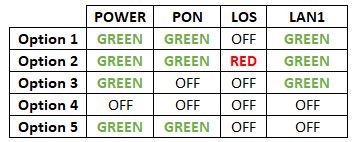

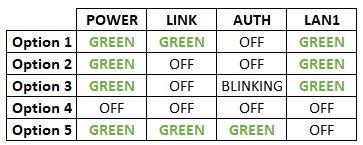
Option 1
- Please turn off all devices (Modem and Router). By restarting your modem, you can isolate the possibility of overloaded processes in the modem, which would impact its performance.
- Ensure both cables on Modem (LAN Port 1) and Router (Internet Port) are properly connected.
Modem connection

Router connection


3. Please make sure the LAN cable is connected properly from router (Port 1-4 - LAN port) to PC/ Laptop.
4. If you have change the password in Selfcare Time portal recently, please change the router configuration follows the new password made in Selfcare, but if you didn't make any changes, please go to Step 5.
5. If the issue persists, submit your feedback form and attach your modem light indicator picture/video for further assistance.
Option 2/ Option 3
- Please turn off all devices (Modem and Router). By restarting your modem, you can isolate the possibility of overloaded processes in the modem, which would impact its performance.
- Gently remove fiber optic cable and blow / wipe the tip of the fiber cable. This is to clean up the cable in order to avoid any interferences.
- Re-insert the fiber cable to the optical port behind the modem.
- Ensure both cables on Modem (LAN Port 1) and Router (Internet Port) are properly connected.
Modem Connection

Router Connection


5. Make Sure both cables on Modem (LAN Port 4/ LAN Port 3 for second decoder) and Astro Decoder (Network Port) are properly inserted.


6. Switch on modem and router and please wait for 2 minutes to stabilise the devices after reboot.
5. If the issue persists, submit your feedback form and attach your modem light indicator picture/video for further assistance.
Option 4
1. Ensure Modem/Router are connected tightly to the power socket.

2. Try to use another power socket / power source to eliminate faulty power sockets/power sources which could cause the issue.
3. If the issue persists, submit your feedback form for further assistance.
Option 5
1. Please ensure LAN cable is directly connected to modem port LAN 1.

2. Please use different LAN port if LAN 1 port is still off / not working.
3. If the issue persists, submit your feedback form for further assistance.
Step 1: Launch the app on your Smart TV.
Step 2: You will be able to see a welcome screen with a QR code and URL.

Step 3: Scan the QR code or go to astro.com.my/tvapp on your mobile and enter your unique code (e.g. FSJV-SMBS) displayed on the TV screen

Step 4: At the login page, you will need to log in with your Astro ID (registered email or mobile number) and password.
(If you do not have an Astro ID, click on "Create now"
to sign up and link to your Astro account – check the following on the steps)

Step 5: Once you have successfully logged in on your mobile, the Astro app will launch on your Smart TV screen. You can continue to browse and watch your favourite shows on the Smart TV.
(i) Head over to My Astro Portal and go to 'Bill & Payment'. Click on 'Payment History'
(ii) Contact us via one of these platforms. Please ensure you include your Astro Account Number.
Please contact your issuing bank to enable card-not-present (CNP) transactions. This security measure helps us to protect your card information from being misused in fraudulent transactions.
Tap on the "Account' tab on the navigation bar and scroll to "Billing' section. Tap on "Bill Statement' to view any bill statement up to six (6) months.


Option 1
- Please turn off all devices (Modem and Router). By restarting your modem, you can isolate the possibility of overloaded processes in the modem, which would impact its performance.
- Ensure both cables on Modem (LAN Port 1) and Router (Internet Port) are properly connected.
Modem connection

Router connection


3. Please make sure the LAN cable is connected properly from router (Port 1-4 - LAN port) to PC/Laptop.
4. If you have change the password in Selfcare Time portal recently, please change the router configuration follows the new password made in Selfcare, but if you didn't make any changes, please go to Step 5.
5. If the issue persists, submit your feedback form and attach your modem light indicator picture/video for further assistance.
Option 2 / Option 3
1. Please turn off all devices (Modem and Router). By restarting your modem, you can isolate the possibility of overloaded processes in the modem, which would impact its performance.
2. Gently remove fiber optic cable and blow / wipe the tip of the fibre cable. This is to clean up the cable in order to avoid any interferences.
3. Re-insert the fiber cable to the optical port behind the modem.
4. Ensure both cables on Modem (LAN Port 1) and Router (Internet Port) are properly connected.
Modem Connection
Router Connection
5. Make Sure both cables on Modem (LAN Port 4 /LAN Port 3 for second decoder) and Astro Decoder (Network Port) are properly inserted.

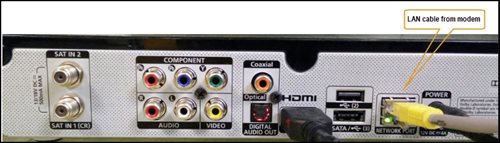
6. Switch on modem and router and please wait for 2 minutes to stabilise the devices after reboot.
5. If the issue persists, submit your feedback form and attach your modem light indicator picture/video for further assistance.
Option 4
1. Ensure Modem/Router are connected tightly to the power socket.

2. Try to use another power socket / power source to eliminate faulty power sockets/ power sources which could cause the issue.
3. If the issue persists, submit your feedback form for further assistance.
Option 5
1. Please ensure LAN cable is directly connected to modem port LAN 1.
2. Please use different LAN port if LAN 1 port is still off / not working.
3. If the issue persists, submit your feedback form for further assistance.
You may visit any of Astro's digital platform that you would like to log into. Then, create a new Astro ID using your existing email address or mobile number. After creating your new Astro ID, please use it to log into our digital platforms moving forward.
The minimum internet speed required to stream via Ultra Plug & Play Box is 30Mbps for 4K UHD viewing, and Ultra/Ulti Plug & Play is 10Mbps for HD viewing. For better streaming experience, we recommend 100Mbps and above.
If you choose to downgrade your packs or terminate Astro services before the end of your contract term, you will have to pay a cancellation fee. This cancellation fee is calculated based on your subscribed package, contract period and box type. If you cancel your service(s)/change your packages upon completion of your contract term, you won't have to pay any cancellation fee.
No, you need to have an Astro ID to enjoy the features.
The different light colours on your Astro Ultra Box or Ulti Box informs you on the phase the box is going through.
1. Ultra Box magenta light / Ulti Box purple light - Your box is turned "On".
Press the Home button to launch Video On Demand and stream anytime or press channel number on your remote.

2. Ultra Box / Ulti Box orange light - Your box is on "Standby" mode.
Your box is ready to be turned "On" or leave it in this mode to receive new software updates.

3. Ultra Box / Ulti Box blinking orange light - Your box is booting up.
Please wait a few minutes for the box to start.
4. Ultra Box / Ulti box blinking blue light - Your box is downloading a software update.
Please wait a few minutes for the download to complete.

Yes, we will schedule for the equipment collection after you have discontinued Astro & Broadband services. If equipment is damaged or lost, penalty fee of RM 530 (inclusive of Govt. Tax) will be charged.
Please check SMS received on the unsuccessful payment status and should you require further clarification contact your issuing bank for clarification or contact us via WhatsApp.
Your Astro account number is a 10-digit combination e.g.08XXXXXXXX. You may log on to My Astro Portal, select "Account" , and you may find your 10-digit account number above your address, or refer to the top right-hand corner of your bill.
STEP 1
On your remote, press the “HOME” button and the home menu will be displayed at the bottom of your screen.

STEP 2
Navigate to SETTINGS and press “OK”.

STEP 3
Navigate to STB DIAGNOSTICS and press “OK”.

STEP 4
Select the “Network” tab in the STB Diagnostics page.
Please ensure the Tunes service multicast status is Multicast Up.
If the status is Multicast is Not Available, please reboot your box and router before verifying this status.

If issue persists, please submit the issue in our Feedback Form and attach a picture of your Network tab of the STB Diagnostics for assistance.
If Astro does not receive your payment by the stated due date, your service may be disrupted as our system will automatically suspend your account. If you then wish to reconnect your subscription account, a charge of up to RM42.40 (inclusive of SST) will be imposed upon reconnection.
Find out more about the reconnection fee here.
Of course not! It is a value added service introduced for your convenience. You will only be billed for any package take ups or service upgrades, which will be reflected in your next Astro invoice.
Yes, you may cancel your Astro Fibre order before service activation, however, kindly note that there is a cancellation charge of RM212 (inclusive of SST) for any service cancellation done 48 hrs before scheduled appointment.
Starting 28 April 2022, Astro customers can access Disney+ Hotstar via Ultra Box, mobile app and website. We are working towards making Disney+ Hotstar available via the Ulti Box. Stay tuned for updates.
â€
STEP 1
Check the internet connectivity by run the Test Connection.
Refer Run Test Connection.
STEP 2
Verify the average speedtest based on the Test Connection result.
a. Above 10Mbps - Proceed to STEP 5
b. Less then 10 Mbps - Proceed to STEP 3
Notes: Minimum 10 Mbps internet speed from box requires in order to get a stable connection.
STEP 3
Check the connection to the box either using Ethernet (LAN cable) or Wi-Fi.
a. If using Ethernet (LAN cable) - Connect to Live Agent for help.
b. If using Wi-Fi - Proceed to STEP 4
STEP 4
Check location of the decoder and router.
a. If nearby (within 1.5m) - Try connect to box from router using LAN cable.
b. If far (more than 1.5m) / No LAN cable - Proceed STEP 5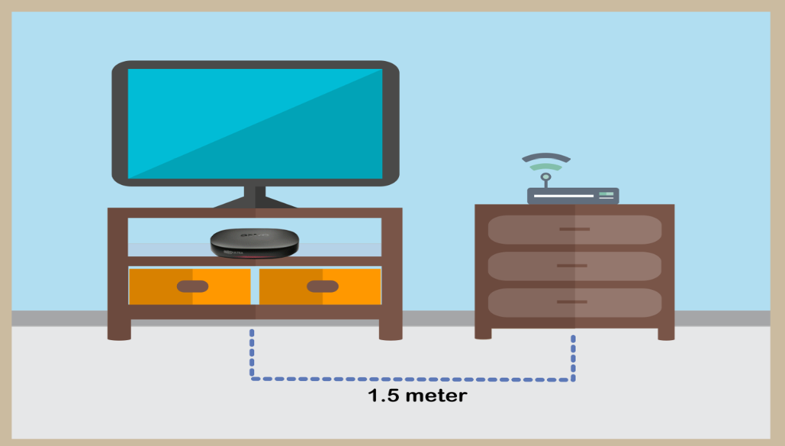
STEP 5
Reboot router, modem and decoder.
If issue persist, please try again after 30mins to 1 hour. Connect to live agent if persist after 30 mins to 1 hour.
Please close and re-launc hthe Astro Fibre app, and you will be able to log in.
Auto-debit payment will be debited from your account 5-7 working days after your billing cycle date.
If your auto-debit payment is unsuccessful, you will receive an SMS alert.
No, the Mesh WiFi add-on with Astro Fibre is available as subscription service and will not be tied to any device contract.
Please refer to the table below:

Note:
- The table above is an approximation of the cancellation fee. The final fees will be calculated at the end of your subscription/upon downgrade.
- Downgrade of Pack for Residential customers will be on basis of package ranking, whereas downgrade of pack for Astro & Broadband customer will be on basis of total monthly payment.
- Package ranking in descending order:
- Platinum Pack (highest rank)
- Premium Pack 1/2/3 (same rank across 3 options)
- Entertainment / Sports / Movies Plus Pack
- Entertainment / Sports / Movies Pack (same rank across 3 options)
- Primary Pack (lowest rank)
Please find some examples (for Residential customers) as below:
Termination
Customer signed up for Entertainment Plus Pack (24-month contract) with Ultra Box. Customer decided to terminate the subscription 8 months into the contract. As the customer still has 16 months remaining, the maximum applicable fee will be RM41.67 x 16months = RM666.67
Pack downgrade
Customer signed up for Movies Pack (24-month contract) with Ultra Box. 18 months in, customer decides to downgrade to Primary Pack (24-month contract). As the customer still has 6 months remaining, the maximum applicable fee will be RM20.83 x 6months = RM125
Dropping off Netflix or Disney+ Hotstar within first 12 months
Customer signed up for Entertainment Plus (24-month contract) with Ultra Box and 12-month commitment on Netflix App. 6 months in, customer decides to upgrade to Premium Pack 1 (24-month contract) which does not include Netflix App. As the customer still has 6 months remaining in the first 12 months of commitment for Netflix App, the maximum applicable fee will be RM41.67 x 6 months = RM250. Upon upgrading to Premium Pack 1, a new 12-month commitment for Disney+ Hotstar App begins alongside the 24-month contract on the package.
Please note that your request to opt out has been processed, and payment for Disney+ Hotstar is not required. Your bill adjustment will be reflected in your next bill.
Yes, you are entitled to a free Ultra/Ulti box with free standard installation upon signing up Astro Fibre with a new 24-month contract.
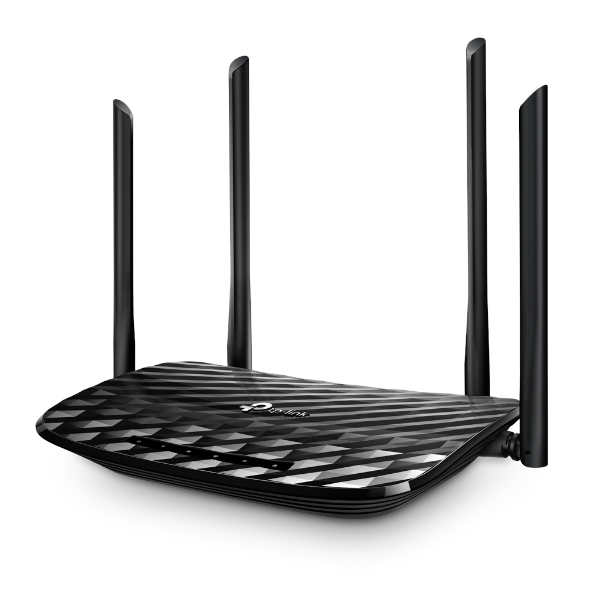
- Please standby computer/laptop to access to the internet and connection must be via (cable) [Connect the LAN (cable) to the yellow port in Maxis Router and direct to computer/laptop].
- You may open any web browser such as Google Chrome, Internet Explorer, Mozilla Firefox and etc.
- On the address bar, please go to http://192.168.0.1 or www.tplinkwifi.net and below page will appear.

The default login of the router is available on the sticker at the back of the router. If you have done a configuration on your router previously, the password may be different
4. Once you have successfully login, the router's web-based setup page will appear. Please follow below steps for the configuration.

5. From the top menu, choose Basic and then click Wireless tab on the left menu to access to below screen.

6. Since this is a dual band router, you will have 2 Wireless Network Names (SSID) i.e. 2.4GHz and 5GHz. You may connect to any of the SSID, preferably with a stronger signal available.
7. You may change the Wireless Network Name (SSID) and the Password to follow your preferences, then click "Save" for the changes to take place.
Please reconnect to the new wireless name with the new password once completed.
The charge for your Disney+ Hotstar subscription is reflected in your Astro subscription, and not on the Disney+ Hotstar app/website. For details on your subscription, please call our Customer Contact Centre or WhatsApp us "DH Help
Currently, My Astro app and web supports TV pack upgrade. You can go to "Account' and scroll to "Subscription' section and select "TV pack'. You may reach out to us via WhatsApp at 03-9543 3838 for more details.
For Ultra and/or Ulti box users, launch the My Astro app on your Home screen and you will land on the My Astro account dashboard. Press ">' remote button to go to your Subscription card and "OK' button to proceed with the TV pack upgrade.
STEP 1
On your remote, press the ... button and the Channel Guide page will be displayed on your screen.

STEP 2
Select the channel you would like to remove as favourite and press "OK".

STEP 3
Select "Remove from Favourite" and press "OK".

STEP 4
You are successfully removed the channel from favourite list when this screen appears.

Each Astro customer is entitled up to 4 smart devices to be registered including mobile, laptops, tablets and Smart TV per household.
If you have maximised the registered device, you will be able to see the list of all your current registered devices on your mobile screen. Please remove any one device to allow the current Smart TV device to be included.

Do note that only 1 Smart TV device is allowed at any point in time.
STEP 1
On your remote, press the Home button and the home menu will be displayed on top of your screen.

STEP 2
Navigate to Guide.

STEP 3
Select the channel you would like to lock and press "OK".

STEP 4
Select "Lock Channel" and press "OK".

STEP 5
You channel is successfully locked when this screen appears.

STEP 6
Your selected channel will have a lock tagging after being locked.

No. However, if you cancel your Astro Pay TV services but resubscribe at a later date, your duration (year) with us will reset to zero and restart according to your new activation date. Your Astro Rewards tier will reset to Magenta.
No, there is no penalty or switching fee if you decide to cancel your Multiroom (Smart TV) subscription.
From 1st July 2023 onwards, Astro will ONLY accept cheques deposited at Public Bank Berhad.
To simplify your monthly payments, here are some recommended alternatives you can look into.
- Auto-Debit
- Online Banking
- JomPAY
- Astro Quick Pay
To find out more on how you can make your payments via these channels, kindly visit here.
Should you choose to continue with cheque payment, do ensure that you follow these steps below.
Step 1: Fill in the cheque
Step 2: Ensure that your 10-digit Astro account number is accurately written at the back of the cheque
Step 3: Go to your nearest Public Bank
Step 4: Locate the Cheque Deposit Machine
Step 5: Select “Bill Payment” on the screen
Step 6: Select “Astro”
Step 7: Drop your cheque in
Step 8: Collect your receipt
Although anyone can create an Astro ID, only the Astro account owner is allowed to link their account to the Astro ID. Otherwise, you will need permission from the account's owner in order to complete the linking.
Please visit http://help.netflix.com to call or start a live chat with Netflix's customer support agents. You will be assisted to unlink your Netflix account from your Astro subscription. After the process, you may link another Netflix account to your Astro subscription.
If you subscribe to Astro Fibre between 1 October 2023 to 23 November 2023, you may still get the speed boost by calling in to our Customer Contact Centre at 03-9543 3838 and re-contracting with us. Kindly note that your account will restart with a new 24-month contract.
You may report the incident on WhatsApp at 03-95433838 by typing PNP and our dedicated agents will attend to your matter. Please have your Airway Bill tracking numbers ready for validation.
If a replacement box/Astro SIM card is deemed necessary, a new Plug &Play Box and a new Astro SIM card will be couriered to your service address.
No there will not be any penalty.
For the Multiroom subscription on a box setup, if your subscription is within the 24-month contractual period. Then a pro-rated penalty of RM600 will be applied for any Astro box except for Ultra Box, which the penalty will be RM1,000.
The New Astro First serves as the one-stop, ultimate home cinema offering the biggest and latest local and international blockbuster films where you can:-
- Enjoy value for money viewing for local and international movies from only RM15* per movie or RM17* for UHD movies (*excluding tax).
- Stream each rented movie for as many times as you like within 48 hours* (*unless stated otherwise) anytime, anywhere via On Demand on your Astro Box or Astro GO.
- Watch local/regional movies or international movies from Hollywood studios as recent as 2 weeks or 3 months respectively from Malaysia's cinematic release, in addition to exclusive titles only available on Astro First.
No, Astro & Broadband with Maxis/Allo comes in bundle packages only.
Standalone broadband subscription is only applicable to our Astro Fibre service.
Astro is an official distributor of Disney+ Hotstar, the dedicated streaming home of global, and Malaysian Hits. Astro customers can now subscribe to Disney+ Hotstar through our Movies, Premium 1, Premium 3 or Platinum Pack and enjoy award-winning entertainment with Disney+ Hotstar alongside Astro's much-loved local content for even better value and savings. Now, customers can enjoy Disney+ Hotstar on their Ultra or Ulti Box, mobile app or web! In addition, customers who have multiple primary Astro accounts will be entitled to multiple entitlements to Disney+ Hotstar.
There are 2 methods of setting maturity ratings restriction on Netflix:
Method 1 – Create a Kids Profile in Netflix App on Ultra/Ulti Box
- On the Netflix home menu, select “Switch Profile”
- Select Add Profile.
- Name the profile.
- Select Kids. Kids profiles have a logo 'Kids' on the profile icon so they are easy to identify.
- Select Continue. The new profile will show on the list of profiles on your account.
Method 2 – Manually set Viewing Restrictions for each profile
- Go to https://www.netflix.com/profiles/manage
- Select a Profile.
- Under Maturity Settings, select Edit.
- Enter your Netflix password.
- You may select the desired Maturity Rating settings or add a particular title restrictions for the profile.
- Select Save.
For more information kindly visit:
- https://help.netflix.com/en/node/114275
- https://help.netflix.com/en/node/114276
Astro introduces Liga Malaysia for all Astro customers to watch the Malaysian Football League’s Liga Malaysia competitions LIVE, comprising Perlawanan Sumbangsih (Piala Sultan Haji Ahmad Shah), Liga Super, Piala FA and Piala Malaysia live in HD on Astro Arena (CH801), Arena Bola channels (CH803 and CH804) and stream on Astro GO until further notice.
Yes, a penalty fee of RM200/Mesh WiFi unit will be imposed if the customer fails to return the device(s). The courier company will make two attempts to retrieve the Mesh WiFi unit(s) within a period of 30 days, failing which the penalty would be imposed.
Please ensure that your Astro subscription comes with access to Disney+ Hotstar. You may visit astro.com.my/disney to learn more about the Packs that come with Disney+ Hotstar or to check if your Disney+ Hotstar access is activated.
Upon confirmation that your subscription comes with access to Disney+ Hotstar, if you still see an error screen on your TV with your Ultra or Ulti Box when logging in to Disney+ Hotstar, please call our Customer Contact Centre at 03 9543 3838 and an Astro agent will be available to assist you immediately.
There are two ways for you to switch your preferred bill delivery method:
A. Customers can manage their account via the My Astro Portal by following these easy steps:
- Visit www.astro.com.my
- Select “My Account”, then select “Manage Account”
- Log in to My Astro Web using your Astro ID
- Select “Account”
- Under “Billing”, click on “Bill Delivery Method”
- Choose your preferred bill delivery method, then click “Proceed”
B. Customers can also manage their account via Astro’s mobile application, the My Astro app by following these easy steps:
- Open the “My Astro” app on your smartphone. If you do not have it installed, you may download it here (Google Play Store) or here (IOS App Store)
- Log in with your Astro ID
- Select “Account” in the navigation bar
- Select “Bill Delivery Method”
- Choose your preferred bill delivery method, then click "Proceed
The change in due date to 25 days after your billing date is to ensure that your transactions will be processed in a timely manner and subsequently ensure you will enjoy uninterrupted viewing. Please be assured that this change will not affect your monthly bill amount. Kindly check your latest monthly bill statement for more details about this revision.
