

 Netflix Basic
Nationwide Installation
Applying for
| UniFi Maxis Astro Njoi |
Frequently Asked Questions
Find your answers here.
We provide one stop service to apply Astro and Broadband for you.
You can avoid driving and queuing at the sales counter. We are the dealer that can help you to handle your application from the beginning to the end.
We do not charge you when you apply from us. There is no credit card information required to apply here. Charges are the same as you apply from the sales counter.
First, you can apply online, we will get back to you immediately during business hour. WhatsApp/Email/Fax us your Photocopy of IC (for malaysian) / Passport (for foreigners). When we receive all the information, we will proceed with your application immediately.
Once we receive your application with complete information, we will process your application immediately during business hour. The contractor from the service provider will then contact you for installation appointment once your application is approved.
Enjoy greater savings and hassle-free bill payment in one single bill for both Astro and Broadband. You get to enjoy Astro and Broadband at discounted price every month over the contract period of 24 months.
Astro offers multiple TV packs including Entertainment, Sports, Movies and Kids options. You can choose a pack that matches your viewing preferences and add optional streaming apps where available.
Yes, you may subscribe to Astro TV packs without bundling broadband. However, bundling Astro TV with Fibre Broadband may provide better monthly savings and convenience with a single bill.
For small households with light streaming and browsing, 100Mbps is usually sufficient. Larger families, gamers or heavy streamers may benefit from 500Mbps or 1Gbps plans for smoother performance across multiple devices.
Most Astro TV and Fibre broadband plans come with a 24-month contract. Early termination charges may apply if cancellation is made before the contract ends.
Yes, you may upgrade your TV pack or broadband speed at any time, subject to eligibility and coverage. A new contract period may apply depending on the upgrade.
Your monthly bill will be issued directly by Astro. You may receive it via email or access it through your Astro account. Bundled customers will receive a single combined bill for TV and broadband services.
Payment methods may include online banking, auto debit, credit card or other approved payment channels provided by Astro. Our team can guide you during the registration process.
If you experience any service interruption, you may contact Astro customer support for technical assistance. In many cases, issues can be resolved remotely or a technician will be arranged if necessary.
Yes, relocation is subject to service availability at your new address. Relocation charges and contract adjustments may apply depending on your plan.
No, you do not need a credit card to submit your application. Payment setup will be arranged directly with Astro after your service is approved.
Selected Astro TV packs allow optional add-ons such as streaming services depending on current promotions and availability. Additional monthly charges may apply.
Yes, a WiFi router is typically provided during fibre installation. The router model may vary depending on the selected broadband speed plan.
Yes, we will check the service coverage at your address before proceeding with your application to ensure broadband is available at your location.
For Malaysians, please provide a copy of your MyKad. For foreigners, provide a copy of your passport when submitting your broadband application.
After your application is approved, the service provider typically contacts you within 2 to 7 working days to arrange the broadband installation appointment.
Most Astro Broadband plans come with a 24-month contract starting from your installation date. If you relocate, a new 24-month contract may apply at your new address.
Yes, you can relocate your broadband service, subject to service availability at the new address. Your contract may reset for another 24 months from the new installation date.
Yes, you may request to relocate broadband devices within your home. Non-standard installation charges may apply and are payable to the installer directly after assessment.
Yes, you can switch to Astro Broadband. To avoid service interruption, it is recommended to activate the new service before terminating your current broadband contract.
Standard installations may be free during promotions, but non-standard installations (e.g., device relocation or complex wiring) may incur extra charges payable directly to the installer.
Astro Multiroom is a 2nd Astro subscription that mirrors all the channels on your primary Astro at a discounted monthly fee. You can now enjoy Astro on different TVs in different rooms.
If you add on the Mesh WiFi during your initial order of Astro Fibre, there is no additional installation fee. If you order the Mesh WiFi as an add-on at a later time, you will have to pay RM49 per installer visit. However, if you choose to have the Mesh WiFi delivered via courier in order to self-install your Mesh WiFi, there will be no installation or delivery fee charged.
Although it is possible to pair the second mesh node unit with the first mesh, customers are advised to follow similar steps in setting up the Mesh Network by pairing the mesh unit with the WiFi router instead.
From 8 October 2021 onwards, Astro will be ceasing the daily passes (e.g. 3, 5, 7 & 30 days passes). Please subscribe to the relevant packs to continue enjoying your favourite content. Stay tuned for more exciting offers. Thank you.
Your purchased PPV daily pass will still be accessible to you for the purchased duration ie. 3, 5, 7 or 30 days respectively. However, you will no longer be able to purchase PPV daily passes from 8 Oct onward.
For TV packs only, 24-months contract commitment period. However, if in addition to the TV packs, if you would like to also sign-up for Broadband, the contract commitment will be 24 months as well. If you're an existing customer, your existing remaining contract duration (if any) will not be carried over to the new contract except for existing Disney+ Hotstar (3 Months Pack) and Multiroom subscription contract durations which will be carried over upon the migration to new packs.
Note: If you are subscribing to a bundle pack which includes Netflix or Disney+ Hotstar for the first time, you are required to maintain the respective app as part of your bundle selection for a minimum of 12 months, otherwise a cancellation fee will apply.
Astro invests billions of ringgits in content annually to keep Malaysians entertained and informed. Hence, we work alongside industry players, content partners and regulators in protecting intellectual property so that Astro can continue to produce and aggregate compelling content for our viewers.
We continue to educate and raise awareness among the public and businesses about the economic and social losses caused by content piracy. You can play your part in combating piracy by reporting potential copyright infringement of Astro content to the Domestic Trade and Consumer Affairs Ministry (KPDNHEP) on the following channels:
- 1-800-886-800 (hotline)
- 03-8882 6088 (Enforcement Command Centre)
- +6019-279 4317 (WhatsApp)
Unfortunately, your Disney+ Hotstar access with Astro will be terminated as well.
STEP 1
Press "HOME" button on your remote control.

STEP 2
Navigate to Settings and press "OK".

STEP 3
Navigate to Installation Settings and press "OK".

STEP 4
Enter your PIN to access this setting. (Default PIN is 0000).

STEP 5
Navigate to Restore Factory Settings and press "OK".

STEP 6
Navigate to Yes, continue and press "OK" to confirm your selection.
Otherwise, navigate to No, go back to maintain the settings.

STEP 7
Please reboot your box.

STEP 8
New Installation Settings screen will appear.
Click here to follow New Installation Settings guide.

Yes, you may upgrade to the Ultra Box if you are currently on the Entertainment or Movie Pack. If you are on the 500Mbps or 800Mbps plan, the upgrade will be free. However, a one-time fee of RM100 (excluding Govt. Tax) will apply if you are on the 50Mbps or 100Mbps plan. Please call or WhatsApp our Customer Contact Centre at 03-9543 3838 if you would like to make this upgrade. Please refer to the table below for the complete guide for Ultra Box upgrade:

You would need your 10-digit account number and your email address.
Check out our user guide for a quick and easy way to get started!
Download our user guide in English
Download our user guide in Malay
Download our user guide in Chinese
Do you need more information? Watch our Astro Ultra How to videos here.
Astro offers 3 different after-sales service that is made available to the customers:
(1) Express (RM75)
(2) Same Day (RM70)
(3) Regular (RM65)
***Price is inclusive of 6% Service Tax.

No, Astro First movies/series are available as Per-per-view basis. Pricing is indicated on each of the programme posters. All prices are subjected to 6% service tax.
Your Astro Rewards tier is based on how long you've continuously been an Active Astro Pay TV customer:
- Magenta: 0 - 2 years
- Silver: >2 - 9 years
- Gold: >9 - 15 years
- Diamond: >15+ years
The rewards you will receive depends on which tier you're in. Rewards are cumulative: If you're in Diamond tier, you will be able to enjoy all the benefits from Magenta, Silver, and Gold tiers.
If you cancel your Astro Pay TV services but resubscribe at a later date, your duration (year) with us will reset to zero and restart according to your new activation date. Your Astro Rewards tier will reset to Magenta.
You may check your bills and outstanding via:
- Channel 200 from your Astro Box.
- Astro Self Self-Serve Portal or MyAstro App via this link.
- WhatsApp "Payment" to 03 9543 3838 and follow the steps provided.
Yes, another person may register their credit card to your account's auto-debit facility. If you are performing this action via our call centre, the respective card holder is required to be present.
STEP 1
Press "HOME" button on your remote control.

STEP 2
Navigate to Settings and press "OK".

STEP 3
Navigate to STB Diagnostics and press "OK".

STEP 4
From General Tab, take a look at the Current Entry Point Name for the LNB type of your input source.

Yes, from now till 31 May 2022, new customers who sign up for the Platinum Pack on a 24-month contract get to enjoy 60 days on Astro including complimentary access to Sports Extra for 24 months.
For further details on Platinum Pack, please click bit.ly/PlatinumPack60DaysOnUs. Alternatively, new customers on the Movies Pack can enjoy 30 days access to the pack on us.
For more details, please click bit.ly/MoviesPack30DaysOnUs.
Mac OS X
1. Click the Go tab in the top menu bar and select Utilities from the drop-down menu.
2. Type "network utility" in the search bar in the top right-hand corner of the Utilities window and then hit the "Enter" key on your keyboard.

3. Click the Network Utility icon to open the Network Utility window.
4. For Ping Test, select the Ping tab and then type the address you'd like to ping in the text box. Click Ping and wait for the ping results.

5. For Traceroute Test, select the Traceroute tab and then type the address you like to traceroute in the text box. Click Trace and wait for the traceroute results.

Windows 10
1. Click the Search icon (magnifying glass) in the bottom left-hand corner and type "cmd" into the search bar.

2. Select the Command Prompt app - it will be at the top of the list of search results as the best match.

3. A black box with a flashing cursor will open; this is the Command Prompt.
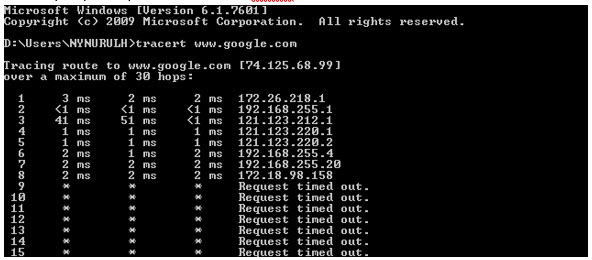
For Ping Test, type "ping" and then hit the Space bar on your keyboard. Type in the address you like to ping and then hit the Enter key on your keyboard. Wait for the ping results.

For Traceroute Test, type "tracert" and then hit the Space bar on your keyboard. Type in the address you like to trace and then hit the Enter key on your keyboard. Wait for the tracert results.

Windows 7 & Vista
1. Open the Start menu by clicking the Windows icon at the bottom left-hand corner of the screen.
2. Type "cmd" in the search bar at the bottom of the menu.
3. Click cmd found in the search results for Programs.

4. A black box with a flashing cursor will open; this is the Command Prompt.
For Ping Test, type "ping" and then hit the Space bar on your keyboard. Type in the address you like to ping and then hit the Enter key on your keyboard. Wait for the ping results.

For Traceroute Test, type "tracert" and then hit the Space bar on your keyboard. Type in the address you like to trace and then hit the Enter key on your keyboard. Wait for the traceroute results.

Windows 8
1. Move the mouse to the right-hand corner of the screen to make the vertical menu bar (charm bar) appear. Click Search.
2. Type "cmd" in the search bar and hit the Enter key on your keyboard.

3. Click cmd that found in the search results for Programs.
4. A black box with a flashing cursor will open; this is the Command Prompt.
For Ping Test, type "ping" and then hit the Space bar on your keyboard. Type in the address you like to ping and then hit the Enter key on your keyboard. Wait for the ping results.

For Traceroute Test, type "tracert" and then hit the Space bar on your keyboard. Type in the address you'd like to trace and then hit the Enter key on your keyboard. Wait for the traceroute results.
Windows XP
1. Click the Start button in the bottom left-hand corner of the screen.
2. Click the Run option in the right-hand column.

3. Type "cmd" in the text box and then hit the Enter key on your keyboard.
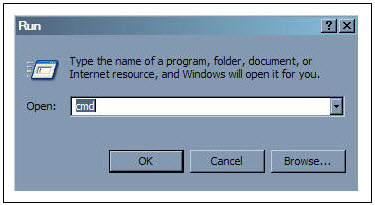
4. A black box with a flashing cursor will open; this is the Command Prompt.
For Ping Test, type "ping" and then hit the Space bar on your keyboard. Type in the address you'd like to ping and then hit the Enter key on your keyboard. Wait for the ping results.

For Traceroute Test, type "tracert" and then hit the Space bar on your keyboard. Type in the address you'd like to trace and then hit the Enter key on your keyboard. Wait for the tracert results.
We are always updating the Multiroom (Smart TV) app to ensure our customers get to enjoy the best entertainment experience. We will keep you posted if you are able to enjoy more 4K UHD channels in the future!
No, you will not be charged 8% Service Tax for paper billing option.
You can make changes to your Netflix plans that are included in your Bundle through My Astro app
You can change your non Astro-bundled a-la carte Netflix plan at any time by signing into Netflix.com and visiting the Account page, then selecting Change Plan to view and select available plans.
No, the courier charges are borne by Astro for the retrieval of the box and Smart Card/SIM Card.
There will be two attempts made to retrieve the box and you are required to be available at the agreed upon time.
Visit https://product.astro.com.my/box or check out our user guide for a quick and easy way to get started!
The new packs and access to Netflix on the Ultra Box and Ulti Box is available for Astro IPTV customers.
Please follow the steps below:
Step 1: Fill in Transfer of Equipment Ownership Form (Part A & Part B)
Step 2: Provide an Undertaking Letter if current account holder deceased or un-contactable. (Note: Copy of death certificate is required if account holder deceased).
Step 3: Provide a copy of new applicant NRIC for Malaysian or copy of passport for non-Malaysian or copy of IMM13 Pass with at least 6 months validity for Refugee. (Note: ASTRO name should be displayed on the top left corner on both sides of the identity card copy).
Step 4: A full payment to be made on any outstanding balance for all related accounts (if any).
Step 5: Submit all documents via feedback form .
Step 6: Customer will expect a call from our validation team (Note: Turnaround time for transfer of equipment ownership is 3-5 working days upon receiving all complete documentation).
Note:
1. There might be a loss of transmission during the processing of transfer equipment ownership, split or merge of equipment.
2. Recorded program will be removed for PVR user.
3. A full payment to be made on any outstanding balance for all related accounts.
4. New account holder agreed to continue the remaining contract from previous owner account (if any).
5. Auto debit will be voided upon acknowledgment of transfer equipment ownership (if any).
Additional requirement for New Owner
Capping of applicant age is 21
Malaysians aged < 26 years old and Non-Malaysian - requires copy of utility bill (Phone, Internet, Water or Electricity)
Currently, this change affects SMS bills only. Other SMSs such as (but not limited to) bill reminders, payment notifications, promotional SMSs or technical appointment reminders will still be sent to you if applicable.
Connect your PVR to Wi-Fi and enjoy access to our library of Video On Demand. Replay old seasons, catch-up latest episodes of your favourite shows, anytime you want. To connect your PVR, follow the steps below depending on your box type:
(a) Wi-Fi Enabled PVR (DMT5)

· Press the “Home” button and select “Settings” > “Network” > “Wi-Fi”
· Allow the PVR to scan Wi-Fi networks available and subsequently choose your home Wi-Fi network > Enter your Wi-Fi password if required
· Once connected, the icon below will appear on the screen.

Tip: Use the alpha-numeric keyboard on your Astro Remote to key in your password
· Press the “Home” button and select “On Demand” to start watching videos on demand!
(b) Non-Wi-Fi Enabled PVR (HD PVR)

There are two ways to connect your HD PVR decoder to your home Wi-Fi
(i) Using the Ethernet (LAN) cable
· Plug in the LAN cable from your modem into the PVR network port
· Once connected, the icon below will appear on the screen
· Press the “Home” button and select “On Demand” to start watching videos on demand!
(ii) Using an Astro Wi-Fi dongle as per shown below

Step 1 - Plugin the Wi-Fi dongle into the front USB part of your PVR decoder.
Step 2 - A prompt will appear stating "Do you wish to connect to a wireless network?", select "Yes, continue."
Step 3 - Once connected, the Wi-Fi icon will appear on the screen. Now you are ready to download and enjoy Astro's on demand entertainment.
Step 4 - Press the “Home” button and select “On Demand” to start watching videos on demand!
*The Wi-Fi dongle is only applicable for the non-Wi-Fi enabled PVR (as per the picture).
STEP 1
On your remote, press the Home button and the Home Page will be displayed on your screen.
STEP 2
Navigate to Profile.
STEP 3
The Profile Selection Screen will be displayed.
STEP 4
Navigate to Edit Profile.
STEP 5
Choose a profile to edit.
STEP 6
Navigate to Delete Profile.
STEP 7
Click Confirm to delete your profile.
STEP 8
The deleted profile will be removed from the Profile Selection Screen.
Astro Channel 200 is a self-service portal that helps you upgrade your packages and purchase add-ons instantly.
- With numerous OTT entrants, consumers are suffering from subscription fatigue. In fact, they are looking for a one stop shop platform where OTT services are integrated in one place.
- Astro offers flexibility and convenience with new packs where customers can get the convenience of accessing a variety of content via Ultra Box as the single remote-control solution.
- In addition, there will be cost savings for Astro customers to purchase both Netflix and Astro together. Even better deals available if customers also subscribe to broadband for a better-connected experience.
Astro continuously reviews its content proposition to offer the best choices and a variety of compelling content for our customers for the best viewing experience. As such, we will cease the sale of PPV passes on CH200 from 8 October onwards.
Customers can continue to enjoy their favourite content by subscribing to the relevant packs and stay tuned for more exciting offers to be announced soon.
Please be informed that your service will be suspended if there is no payment after 31 days from your bill cycle date. After 62 days of non-payment, your service will be terminated, and an early cancellation fee will be applied if you are still within the 24-month contract.
To cancel your Multiroom (Smart TV) subscription, please call us at 03-9543 3838.
No, you will not be automatically switched to the new pricing. To perform a manual switch, please contact us at 03-9543 3838.
If you are facing technical issues, please contact us at wecare@astro.com.my or call/WhatsApp us at 03-9543 3838.
Please contact Astro Customer Call Center via 03-95433838
My Astro is an easy-to-use, free mobile phone app and responsive web portal that helps Astro customers to manage their Astro accounts. My Astro allows customers to manage their accounts, pay bills, and get any support they need. In addition, customers can find and purchase the latest shows to be viewed on their Astro Box or on Astro GO. Customers can also receive news about Astro's latest products and content offerings.
Please refer to "Upon downloading the app, what do I do next?" question on this FAQ here or call us at 03-9543 3838 for any further queries.
You can recover your Netflix login here or at astro.com.my/Netflix
Step 1: Head to astro.com.my/Netflix
Step 2: At the FAQ section look for "How to recover my Netflix login email and password
STEP 1
Press "HOME" button on your remote control.
STEP 2
Navigate to Settings and press "OK".
STEP 3
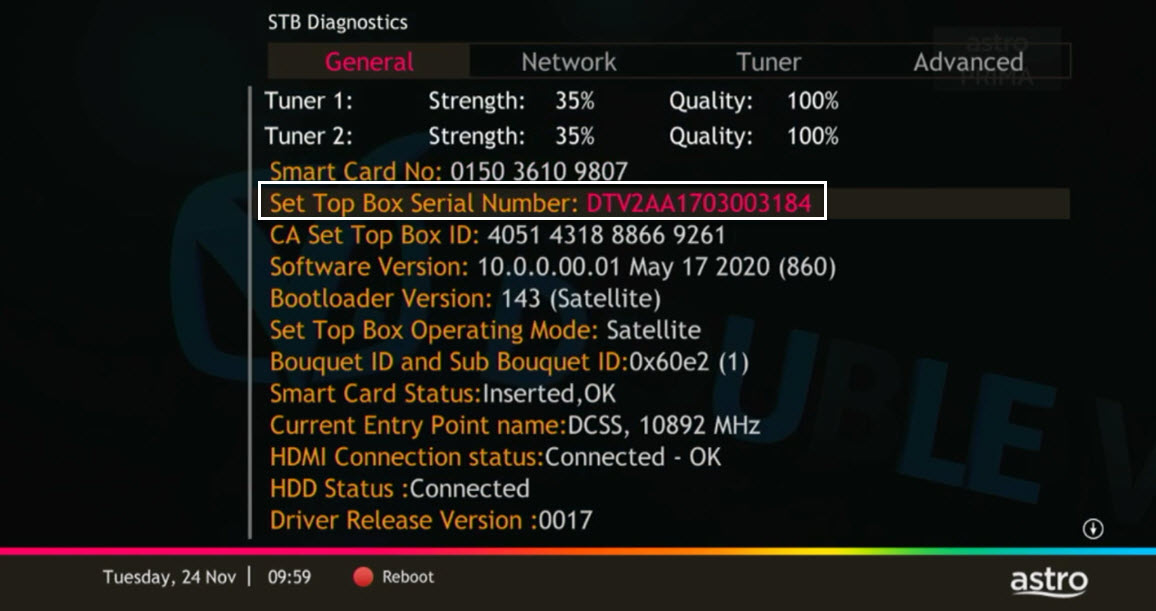
Navigate to STB Diagnostics and press "OK".
STEP 4
From General Tab, look at the Smart Card No for the smartcard number.

STEP 5
Take look at the Set Top Box Serial Number for the box serial number.
We noticed that you've recently requested for a change in your Astro account.
As this change will affect your overall monthly subscription, the expiry date for your Disney+ Hotstar (3-months Pass) subscription has been deferred to xxx (date) to consolidate the final monthly subscription pricing.
Please refer to these FAQs and Terms and Conditions for more information.
For more support and options for your subscription, please WhatsApp us at 03 9543 3838 and type DH Help. Alternatively, you may visit astro.com.my/Disney for more information.
You may report the incident on WhatsApp at 03-9543 3838 by typing PNP and our access our user guide or request for further help from our dedicated agents. Please have your Airway Bill tracking numbers ready for validation. If a replacement box/Astro SIM card is deemed necessary, a new Box and a new Astro SIM card will be couriered to your service address.
Surcharge is imposed by 3rd party payment collection partners for services rendered. Kindly note that customers may be charged a surcharge per transaction when bill payments are made via the following methods:-
Bill payments at selected petrol stations, convenience stores, retail/mobile shops, kiosk, and e-wallets may incur a surcharge of up to RM0.50 per transaction by the appointed collection agencies of RMS (formerly known as Razer/MOL), ATX, MobilityOne, and e-Pay.
· To find out more on how to make your bill payments, click here.
Step 1:
Type ASTRO<space>BARCODE<space>10 digit account number
Example: ASTRO BARCODE 0866603852
Step 2:
Send SMS to 66688
*Standard telco charges and Terms and Conditions apply
Currently, Maxis, Digi, Celcom, TuneTalk, U-Mobile, Yes, XOX and Webe.
Service Tax will not be imposed on any CSR projects accounts. Any tax payable will be borne by Astro.
Please fill up the forms below for processing your request:
Transfer of Equiment Ownership Form
