

 Netflix Basic
Nationwide Installation
Applying for
| UniFi Maxis Astro Njoi |
Frequently Asked Questions
Find your answers here.
We provide one stop service to apply Astro and Broadband for you.
You can avoid driving and queuing at the sales counter. We are the dealer that can help you to handle your application from the beginning to the end.
We do not charge you when you apply from us. There is no credit card information required to apply here. Charges are the same as you apply from the sales counter.
First, you can apply online, we will get back to you immediately during business hour. WhatsApp/Email/Fax us your Photocopy of IC (for malaysian) / Passport (for foreigners). When we receive all the information, we will proceed with your application immediately.
Once we receive your application with complete information, we will process your application immediately during business hour. The contractor from the service provider will then contact you for installation appointment once your application is approved.
Enjoy greater savings and hassle-free bill payment in one single bill for both Astro and Broadband. You get to enjoy Astro and Broadband at discounted price every month over the contract period of 24 months.
Astro offers multiple TV packs including Entertainment, Sports, Movies and Kids options. You can choose a pack that matches your viewing preferences and add optional streaming apps where available.
Yes, you may subscribe to Astro TV packs without bundling broadband. However, bundling Astro TV with Fibre Broadband may provide better monthly savings and convenience with a single bill.
For small households with light streaming and browsing, 100Mbps is usually sufficient. Larger families, gamers or heavy streamers may benefit from 500Mbps or 1Gbps plans for smoother performance across multiple devices.
Most Astro TV and Fibre broadband plans come with a 24-month contract. Early termination charges may apply if cancellation is made before the contract ends.
Yes, you may upgrade your TV pack or broadband speed at any time, subject to eligibility and coverage. A new contract period may apply depending on the upgrade.
Your monthly bill will be issued directly by Astro. You may receive it via email or access it through your Astro account. Bundled customers will receive a single combined bill for TV and broadband services.
Payment methods may include online banking, auto debit, credit card or other approved payment channels provided by Astro. Our team can guide you during the registration process.
If you experience any service interruption, you may contact Astro customer support for technical assistance. In many cases, issues can be resolved remotely or a technician will be arranged if necessary.
Yes, relocation is subject to service availability at your new address. Relocation charges and contract adjustments may apply depending on your plan.
No, you do not need a credit card to submit your application. Payment setup will be arranged directly with Astro after your service is approved.
Selected Astro TV packs allow optional add-ons such as streaming services depending on current promotions and availability. Additional monthly charges may apply.
Yes, a WiFi router is typically provided during fibre installation. The router model may vary depending on the selected broadband speed plan.
Yes, we will check the service coverage at your address before proceeding with your application to ensure broadband is available at your location.
For Malaysians, please provide a copy of your MyKad. For foreigners, provide a copy of your passport when submitting your broadband application.
After your application is approved, the service provider typically contacts you within 2 to 7 working days to arrange the broadband installation appointment.
Most Astro Broadband plans come with a 24-month contract starting from your installation date. If you relocate, a new 24-month contract may apply at your new address.
Yes, you can relocate your broadband service, subject to service availability at the new address. Your contract may reset for another 24 months from the new installation date.
Yes, you may request to relocate broadband devices within your home. Non-standard installation charges may apply and are payable to the installer directly after assessment.
Yes, you can switch to Astro Broadband. To avoid service interruption, it is recommended to activate the new service before terminating your current broadband contract.
Standard installations may be free during promotions, but non-standard installations (e.g., device relocation or complex wiring) may incur extra charges payable directly to the installer.
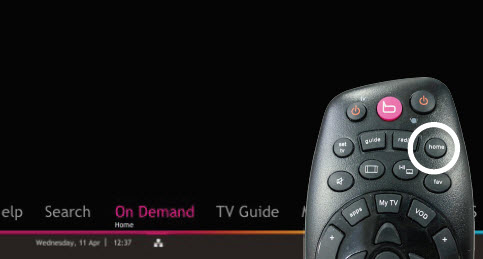
STEP 1
Press "HOME" button on your remote control.
STEP 2
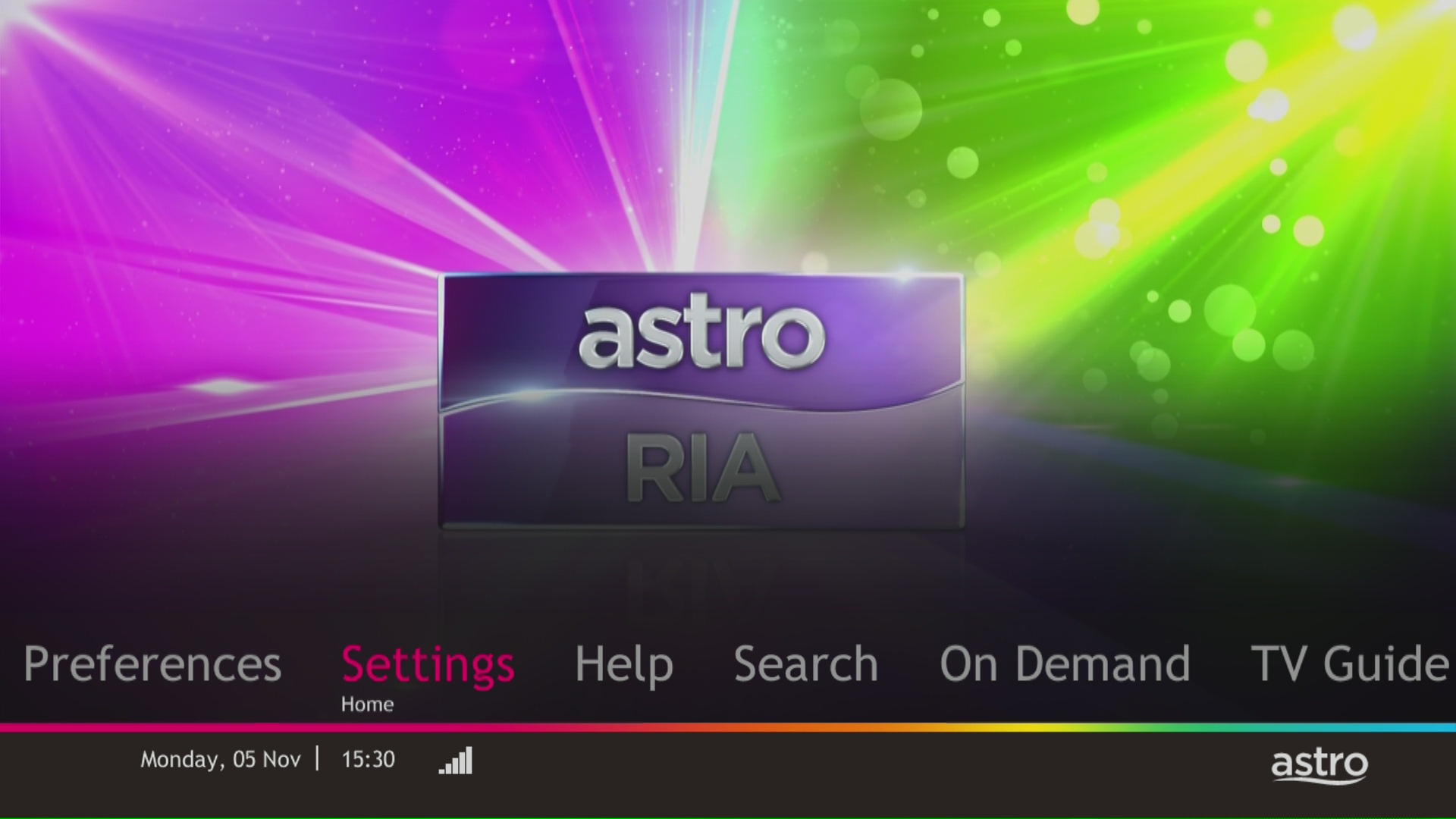
Navigate to Settings and press "OK".
STEP 3
Navigate to Display and press "OK".

STEP 4
Navigate to Resolution and press "OK".

STEP 5
Navigate to your preferred selection and press “OK”.

STEP 6
Select Yes, continue and press "OK" to confirm on the changes.
Otherwise, select No, go back to cancel.

Your bill statement will include details of your monthly subscription charges; e.g. charges for your chosen Astro packages and Broadband service. It will also show the time period of which your first bill will cover, as well as indicate how much the total charges are and when the payment due date is.
Yes, penalty fee of RM200/Mesh WiFi will be imposed if customer fails to return the device(s). The courier company would make two attempts to retrieve the Mesh WiFi unit within a period of 30 days, failing which the penalty would be imposed.
At this point in time, 4K UHD content from Disney+ Hotstar is not available on the Ultra or Ulti Box. We are working to enable this on the Ultra Box in a future update.
We noticed that you've recently requested for a change in your Astro account.
As this change will affect your overall monthly subscription, the expiry date for your Disney+ Hotstar (3-months Pass) subscription has been deferred to xxx (date) to consolidate the final monthly subscription pricing.
No, the Astro Fibre App is available for Astro Fibre customers with the RG21 router only.
The Multiroom (Smart TV) will mirror the subscription entitlement as per your primary subscription. However, NHK World, Radio, Sky News channels and 3rd party apps such as Netflix, Disney+ Hotstar are not available via the Multiroom (Smart TV).
We are always updating the Multiroom (Smart TV) app to ensure our customers get to enjoy the best entertainment experience. We will keep you posted if you are able to enjoy more 4K UHD channels in the future!
Please be informed that your service will be suspended if there is no payment after 31 days from your bill cycle date. After 62 days of non-payment, your service will be terminated, and an early cancellation fee will be applied if you are still within the 24-month contract.
You are entitled for free mesh WiFi devices when you sign up for Astro & Broadband with Maxis fibre 500Mbps or 800Mbps speed only.
Mesh WiFi is not available with Astro & Broadband with Allo. However, you may purchase the Mesh WiFi devices separately to pair along with you Allo broadband.
No, you will not be automatically switched to the new pricing. To perform a manual switch, please contact us at 03-9543 3838.
Yes, you are eligible for selected bundle packages with rebates up to RM39/month and a free speed upgrade if you subscribe within the promotion period. Kindly note that monthly rebates are only available for Pay TV + Astro Fibre bundles but the speed upgrade is available for all packages including standalone plans.
1. Ensure power cable is connected tightly.
2. Try to use another power socket / power source to eliminate faulty power sockets/power sources which could cause the issue.

3. If the issue persists, submit your feedback form for further assistance.
Currently, My Astro app and web supports TV pack upgrade. You can go to "Account' and scroll to "Subscription' section and select "TV pack'. You may reach out to us via WhatsApp at 03-9543 3838 for more details.
For Ultra and/or Ulti box users, launch the My Astro app on your Home screen and you will land on the My Astro account dashboard. Press ">' remote button to go to your Subscription card and "OK' button to proceed with the TV pack upgrade.
No, Astro Fibre is only available for a 24-month contract period upon sign-up.
For customers subscribed to our New Astro Packs (for example: Primary, Entertainment or Sports Packs), you will be charged a one-off switching fee of RM10 (excl. govt tax) if you decide to switch to another ala-carte add-on with a lower fee. For example, removing Korean add-on (RM9.99/month) and purchasing Horror add-on (RM5.99/month) will incur a RM10 (excl. govt tax) switching fee to your account.
For customers subscribed to our Old Astro Packs (for example: Super or Dynasty Packs), there will be a one-off switching fee of RM10 (excl. govt tax) if you decide to switch to another ala-carte add-on with a lower or same fee. For example, removing Korean add-on (RM9.99/month) and purchasing Horror add-on (RM5.99/month) OR Kids add-on (RM9.99/month) will incur a RM10 (excl. govt tax) switching fee to your account.
STEP 1
On your remote, press the HOME button and the home menu will be displayed on top of your screen.

STEP 2
Navigate to Guide.

STEP 3
Select the channel you would like to add to favourite list and press "OK".

STEP 4
Select "Add to Favourites" and press "OK".

STEP 5
You are successfully added the channel to favourite list when this screen appears.

STEP 6
Your selected channel will have a heart tagging after added as favourite.
Yes, customers may need to provide additional documents such as bank-in slips or payment receipts. Any incomplete document, customer will be notified by Astro after validation is made.
Although anyone can create an Astro ID, only the Astro account owner is allowed to link their account to the Astro ID. Otherwise, you will need permission from the account's owner in order to complete the linking.
Customers on the Multiroom (Smart TV) app can stream these two channels (CH549 Love Nature & CH805 Astro SuperSport) if their TV model supports 4K UHD resolution.
Kindly note that these Sony TV models do not support 4K UHD resolution:
• Sony BRAVIA 4K GB
• Sony BRAVIA 4K UR
• Sony BRAVIA VH
*CH805 Astro SuperSport is only available to customers on the Sports, Sports Plus, Premium 1, Premium 2, Premium 4, Platinum Lite and Platinum Packs.
Yes, there are five digital bill platforms available for all customers to check their Astro bills:
A. MyAstro Web
1. Visit www.astro.com.my
2. Goto “My Account”, then select “Manage Account”
3. Login to My Astro Web using your Astro ID
4. Select “Account” to view your bills
B. My Astro app
If you do not have it installed, you may download it here (Google Play Store) or here (IOS App Store)
C. WhatsApp
Just WhatsApp “Hi” to 03-9543 3838 and then follow the instructions to view your bill, account status, pay and download bill.
Note: You are required to provide your MyKad/PassportNo. to view your bill, account status and pay your bills. To download your bills, you will be required to provide your Account/Smartcard No.
D. Astro Quick Pay
1. Visit https://pay.astro.com.my
2. Enter your 10-digit Astro Account Number and follow the instructions to view your bill, account status, pay bills or add a billing reminder on your Google calendar.
E. IVR
1. Call +603-95433838
2. Press 1 for Account Related Queries
3. Input your 10-digit Astro Account no. or 12-digit MyKad no.
4. Press 2 for Payment and Billing
5. Press 1 to receive an SMS with your bill balance and a link to pay online
F. Channel 200
Ensure your Ultra or Ulti Box is connected to the internet. Tune in to CH200 and follow the instructions displayed on your TV screen to view your bill amount.
G. Auto-Debit
Alternatively, please register for Auto-Debit by following the steps here for hassle-free payments.
The Multi-user Profile feature allows customers to create individual profiles within their Astro Box and Astro GO with the following personalisations:
- Personalised Recommendations
- Continue Watching
- Watch List
- Last Viewed Channel
- Favourite & Blocked Channels
The MUP feature is a great way to allow individual users to tailor personal Astro experiences whilst using a shared device (e.g.: Astro Box) in the household, providing them with better personalised recommendations and encouraging better content discovery.
Click here to find out more on this new feature and how to use it!
If you have NOT made any changes to your Astro pack on or after 9th November 2021, you can enjoy up to four (4) concurrent streams on Astro GO anywhere, anytime. However, if you have Astro GO+ as part of your subscription, you will be upgraded to four (4) concurrent streams.
Of course not! It is a value added service introduced for your convenience. You will only be billed for any package take ups or service upgrades, which will be reflected in your next Astro invoice.
STEP 1
In the Kids Profile, press the Home button on your remote and the home menu will be displayed.
STEP 2
Navigate to Profile.
STEP 3
The Profile Selection Screen will be displayed.
STEP 4
Choose an Adult Profile.
STEP 5
Switching from a Kids to an Adult Profile will require you to enter a 4-digit PIN.
Please enter your PIN to proceed. If you have not set up your PIN, the default code is 0000.
STEP 6
After entering the PIN, you will be able to enter the Adult Profile.
You have exceeded the maximum number of registered devices allowed. To manage devices on Astro GO, go to Settings > Registered Devices to view / remove devices from the list of registered devices to your account.
If you are still having issues, proceed to submit report via WhatsApp or Feedback Form.
Your bill will be waived upon request.
Please follow the steps below:
Step 1: Fill in Transfer of Equipment Ownership Form (Part A & Part B)
Step 2: Provide an Undertaking Letter if current account holder deceased or un-contactable. (Note: Copy of death certificate is required if account holder deceased).
Step 3: Provide a copy of new applicant NRIC for Malaysian or copy of passport for non-Malaysian or copy of IMM13 Pass with at least 6 months validity for Refugee. (Note: ASTRO name should be displayed on the top left corner on both sides of the identity card copy).
Step 4: A full payment to be made on any outstanding balance for all related accounts (if any).
Step 5: Submit all documents via feedback form .
Step 6: Customer will expect a call from our validation team (Note: Turnaround time for transfer of equipment ownership is 3-5 working days upon receiving all complete documentation).
Note:
1. There might be a loss of transmission during the processing of transfer equipment ownership, split or merge of equipment.
2. Recorded program will be removed for PVR user.
3. A full payment to be made on any outstanding balance for all related accounts.
4. New account holder agreed to continue the remaining contract from previous owner account (if any).
5. Auto debit will be voided upon acknowledgment of transfer equipment ownership (if any).
Additional requirement for New Owner
Capping of applicant age is 21
Malaysians aged < 26 years old and Non-Malaysian - requires copy of utility bill (Phone, Internet, Water or Electricity)
STEP 1
Press "HOME" button on your remote control.

STEP 2
Navigate to My TV and press "OK".

STEP 3
Navigate to Bookings and press "OK".

STEP 4
Your list of your booking programs will be displayed.

For customers with the Ultra or Ulti Box, you are required to return only the Astro box along with the Smart/SIM Card. There is no requirement to return the remote control, power cables or satellite dish/outdoor unit (ODU).
For customers on other Boxes, you are required to discard them (and their accompanying devices such as the Smart/SIM Card) only at registered collection centers for proper handling and management of e-waste in an environmentally sound manner. Click here to find a registered collection center near you.
You will be charged 8% Service Tax on Astro Pay TV services rendered on or after 1st March 2024, whereas your Astro Fibre including Mesh will remain at 6% Service Tax.
We are not able to transfer your existing Disney+ Hotstar access. To enjoy our bundle rates with one of our packages, simply sign up or renew your subscription to any of our new Packs for even better value and savings. Please visit astro.com.my to find out more.
We try to make as many movies and TV shows available for download. However, for some titles, while we may have the rights to offer them via streaming, we may not be able to offer them for download.
Service will be resumed after you make payment within 45 days. The monthly subscription fee to be prorated accordingly and a reconnection fee of up to RM20 (exclusive of SST) will be applied upon service resumption.
If payment is made within 45 days from your bill cycle date, Astro & Broadband services will be resumed within 3 hours of payment received. Your following month's bill will be prorated accordingly.
Find out more about the reconnection fee here.
You are attempting to play a content that is not part of your subscription. If you are not able to play a content that you are subscribed to, proceed to submit report via WhatsApp or Feedback Form.
You will be able to check your balance, switch to e-billing, request for payment barcode and request for reconnect at standard telco rate.
STEP 1
Check the Audio settings on your box and set to Auto.
Refer guide to change Digital Audio Settings.
STEP 2
If issue persist, check if there is any 3rd party device (sound system/hdmi splitter) connected between box and TV.
STEP 3
If using 3rd party devices, bypass/remove 3rd party device and make sure HDMI cable connected directly from box to TV.
STEP 4
If issue persist, connect to Live Agent via WhatsApp for help.
STEP 1
Switch off the power for your box and make sure that the adapter's power light is off.

STEP 2
Locate the Smartcard at the front or right side and gently pull it out make sure that the adapter's power light is off.

STEP 3
Wipe the Smartcard's gold chip clean using a dry soft cloth.

STEP 4
Make sure the gold chip is facing upwards and reinsert it all the way in.

STEP 5
Switch on the power for your box and make sure that the adapter's power light is on. Please wait for 5 minutes.

STEP 6
Turn on your box. You should no longer be experiencing this problem.
If issue persist, please submit the issue in our Feedback Form and attach a picture of your General tab of the STB Diagnostics for assistance.

1. Ensure power cable is connected tightly.
2. Try to use another power socket / power source to eliminate faulty power sockets/power sources which could cause the issue.
3. If the issue persists, submit your feedback form for further assistance.
For payments made using credit cards, refunds will be reversed back to the respective card. Whilst payment made by cash and online banking will be made to the account holders bank account.
You may submit your request via Feedback Form with below information details based on your payment method.
Please choose below option in the Feedback Form:
Category: I would like to request for refund
Sub Category: Request for Refund
1) Refund via Bank transfer:
Bank Name:
Bank Account Number:
*Note: Please confirm your bank account details and ensure it's correct
2) Refund via Foreign bank:
Bank Name:
Bank Account Number:
Bank Swift Code:
IBAN Code:
Currency: Eg: Dollar/Yen etc
*Note: Please confirm your bank account details and ensure it's correct
3) Credit Card:
Credit Card Number:
ONLY last 4 digit credit card updated with Astro account
*Note: Please confirm your credit card details and ensure it's correct
Please refer to the Welcome Card inside the Plug & Play Box package and scan the QR code. You may choose to watch either the self-installation video or the Augmented Reality (AR) Installation Video to activate your Plug & Play Box. You can also download the Installation Guide from the Astro Get Started Page.
Please install and activate your Plug & Play Box within 7 days of receiving your Plug & Play Box and Astro SIM card. If you are unable to activate your Plug & Play Box within 7 days, the Plug & Play Box will be automatically activated by Astro on the 8th day.
The billing and warranty of the Plug & Play Box shall begin on the same date of which the Plug & Play Box is activated.
In the event that you have ordered more than one (1) Plug & Play Box, please refer to the Astro SIM card letter (included with the Astro SIM card delivery) to match the right Astro SIM card to the respective Plug & Play Box. Each Astro SIM card has been paired with a specific Plug & Play Box, thus the correct matching of box and SIM card is required for it to work properly.
Customers with a Netflix Premium account are allowed to watch on up to 4 supported devices in 4K UHD and Netflix Spatial Audio. In addition, Netflix Premium subscribers are also allowed to download shows to watch offline on 6 devices at a time.
STEP 1
Press "HOME" button on your remote control.
STEP 2
Navigate to Settings and press "OK".

STEP 3
Navigate to STB Diagnostics and press "OK".

STEP 4
Navigate to IP Diagnostics and press "OK".

STEP 5
IP Diagnostics information will be displayed.

Tap on the "Account' screen on the navigation bar to view your outstanding balance. Click on "Pay Now' to pay your bill. If your payment is successful, you will receive a record and your payment history will be updated.


If you would like more information or to provide feedback on Astro Rewards, kindly reach out to us at 03 9543 3838 or visit one of our Astro service centres.
Astro Rewards is your free loyalty programme - a way for us to say thank you for being with us.
We're always adding new and exciting gifts, deals, and experiences for you - all ready and waiting in the My Astro app for you, right at your fingertips. Here's the best part, the longer you're with us, the better your rewards!
STEP 1
Switch off the power for your box and make sure that the adapter's power light is off.

STEP 2
Locate the SIM card at the left side and gently pull it out.

STEP 3
Wipe the SIM card's gold chip clean using a dry soft cloth.

STEP 4
Make sure the gold chip is facing down and reinsert it all the way in.

STEP 5
Switch on the power for your box and make sure that the adapter's power light is on.
Please wait for 5 minutes.

STEP 6
Turn on your box. You should no longer be experiencing this problem.

If issue persist, please submit the issue on our Feedback Form with the error details and provide sim card number for assistance.
For TV packs only, 24-months contract commitment period. However, if in addition to the TV packs, if you would like to also sign-up for Broadband, the contract commitment will be 24 months as well. If you're an existing customer, your existing remaining contract duration (if any) will not be carried over to the new contract except for existing Disney+ Hotstar (3 Months Pack) and Multiroom subscription contract durations which will be carried over upon the migration to new packs.
Note: If you are subscribing to a bundle pack which includes Netflix or Disney+ Hotstar for the first time, you are required to maintain the respective app as part of your bundle selection for a minimum of 12 months, otherwise a cancellation fee will apply.
For Platinum Pack and Multiroom Smart TV customers, Astro GO+ is included in your subscription at no extra charge. For customers on other packages, you will be able to add-on Astro GO+ to your subscription for RM 5.99/month.
Zee5 is the only app that has a change in price upon the SST increase. Prices of Netflix, Disney+ Hotstar, Viu, iQIYI, WeTV and Qalbox will not be affected.
