


 Netflix Basic
Nationwide Installation
Applying for
| UniFi Maxis Astro Njoi |
Frequently Asked Questions
Find your answers here.
We provide one stop service to apply Astro and Broadband for you.
You can avoid driving and queuing at the sales counter. We are the dealer that can help you to handle your application from the beginning to the end.
We do not charge you when you apply from us. There is no credit card information required to apply here. Charges are the same as you apply from the sales counter.
First, you can apply online, we will get back to you immediately during business hour. WhatsApp/Email/Fax us your Photocopy of IC (for malaysian) / Passport (for foreigners). When we receive all the information, we will proceed with your application immediately.
Once we receive your application with complete information, we will process your application immediately during business hour. The contractor from the service provider will then contact you for installation appointment once your application is approved.
Enjoy greater savings and hassle-free bill payment in one single bill for both Astro and Broadband. You get to enjoy Astro and Broadband at discounted price every month over the contract period of 24 months.
Astro offers multiple TV packs including Entertainment, Sports, Movies and Kids options. You can choose a pack that matches your viewing preferences and add optional streaming apps where available.
Yes, you may subscribe to Astro TV packs without bundling broadband. However, bundling Astro TV with Fibre Broadband may provide better monthly savings and convenience with a single bill.
For small households with light streaming and browsing, 100Mbps is usually sufficient. Larger families, gamers or heavy streamers may benefit from 500Mbps or 1Gbps plans for smoother performance across multiple devices.
Most Astro TV and Fibre broadband plans come with a 24-month contract. Early termination charges may apply if cancellation is made before the contract ends.
Yes, you may upgrade your TV pack or broadband speed at any time, subject to eligibility and coverage. A new contract period may apply depending on the upgrade.
Your monthly bill will be issued directly by Astro. You may receive it via email or access it through your Astro account. Bundled customers will receive a single combined bill for TV and broadband services.
Payment methods may include online banking, auto debit, credit card or other approved payment channels provided by Astro. Our team can guide you during the registration process.
If you experience any service interruption, you may contact Astro customer support for technical assistance. In many cases, issues can be resolved remotely or a technician will be arranged if necessary.
Yes, relocation is subject to service availability at your new address. Relocation charges and contract adjustments may apply depending on your plan.
No, you do not need a credit card to submit your application. Payment setup will be arranged directly with Astro after your service is approved.
Selected Astro TV packs allow optional add-ons such as streaming services depending on current promotions and availability. Additional monthly charges may apply.
Yes, a WiFi router is typically provided during fibre installation. The router model may vary depending on the selected broadband speed plan.
Yes, we will check the service coverage at your address before proceeding with your application to ensure broadband is available at your location.
For Malaysians, please provide a copy of your MyKad. For foreigners, provide a copy of your passport when submitting your broadband application.
After your application is approved, the service provider typically contacts you within 2 to 7 working days to arrange the broadband installation appointment.
Most Astro Broadband plans come with a 24-month contract starting from your installation date. If you relocate, a new 24-month contract may apply at your new address.
Yes, you can relocate your broadband service, subject to service availability at the new address. Your contract may reset for another 24 months from the new installation date.
Yes, you may request to relocate broadband devices within your home. Non-standard installation charges may apply and are payable to the installer directly after assessment.
Yes, you can switch to Astro Broadband. To avoid service interruption, it is recommended to activate the new service before terminating your current broadband contract.
Standard installations may be free during promotions, but non-standard installations (e.g., device relocation or complex wiring) may incur extra charges payable directly to the installer.
Settlement of total outstanding balance is to be made prior to any of the request.
A security question will be asked when making payments with credit cards over the phone. All other payment channels will not require any form of verification.
The Multiroom (Smart TV) will mirror the subscription entitlement as per your primary subscription. However, NHK World, Radio, Sky News channels and 3rd party apps such as Netflix, Disney+ Hotstar are not available via the Multiroom (Smart TV).
Your Astro Rewards tier is based on how long you've continuously been an Active Astro Pay TV customer:
- Magenta: 0 - 2 years
- Silver: >2 - 9 years
- Gold: >9 - 15 years
- Diamond: >15+ years
The rewards you will receive depends on which tier you're in. Rewards are cumulative: If you're in Diamond tier, you will be able to enjoy all the benefits from Magenta, Silver, and Gold tiers.
If you cancel your Astro Pay TV services but resubscribe at a later date, your duration (year) with us will reset to zero and restart according to your new activation date. Your Astro Rewards tier will reset to Magenta.
The Liga Malaysia will be available for all Astro customers starting 3 May 2024 as part of your Astro subscription at no additional cost until further notice.
You can be assured that your data are safe with us. Astro implemented sufficient security measures to protect customer data and fully comply to Personal Data Protection Act
Netflix is available to IPTV customers on the Ultra Box and Ulti Box. Non-Ultra Box customers will not be able to access Netflix on CH741. Please upgrade to the Ultra Box/Ulti Box to access Netflix on the Ultra Box.
If you're trying to visit a website and it won't load, but others do, there could be a variety of causes. If the site itself is down, there's not much you can do but wait.
If you can load the site on other computers or devices (make sure you try different means of connecting to the internet), there may be an issue with your computer or network.
There are some quick fixes that will solve most problems, but you may have to get your hands a little dirty.
- Try loading the site on a different device.
- Try loading the website on your phone or on another computer. If the website loads on the other device, the problem lies with your computer.
- If the website doesn't load on another device, the problem is either with the network
- Restart your computer.
- Oftentimes, a simple reboot will fix the problem you're having. Reboot your computer and test the website again.
- Try loading the site in a different browser.
- There may be some settings configured incorrectly on your browser. Try a different web browser to see if you can load the website.
- Temporarily disable your antivirus program.
- Your antivirus software may be interfering with your ability to load certain websites.
- Try disabling the software and then loading the site again. Make sure you enable it again once you have identified the problem.
- Reset your modem and router.
- Traffic to or from a certain website may be getting tripped up by your modem or router. Resetting these devices may allow you to access the website again.
- Check your computer's date and time settings.
- If your date or time is set incorrectly, you may not be able to connect to secure (https://) websites.
- Check your computer or mobile device's clock to make sure that it is set to the correct time and date.
In the event the problem persists, please provide below details for further escalation:
i. List of websites effected.
ii. Run the Speed Test via LAN (cable) and Wi-Fi connection - Please click here for Speed Test guideline.
iii. Run the Traceroute Test - Please click here for Traceroute Test guideline.
iv. Run the Ping Test - Please click here for Ping Test guideline.
Once you've gathered all the results, kindly send them all through the Feedback Form below.
Quick Info
A Speedtest is a service that provides free analysis of Internet access parameters, such as connection data rate.
A Ping Test shows how long it takes for packets to reach host.
A Traceroute Test traces the route of packets to destination host from our server.
No, the Mesh WiFi add-on with Astro Fibre is available as subscription service and will not be tied to any device contract.
In your first Astro bill, the first month's bill will be deducted accordingly excluding tax. You will still need to pay the full tax amount for your first month as per your first month's bill.
Note: Advance payment is only applicable to Astro TV pack purchases. If you subscribe to an Astro Fibre + TV bundle, only one month of your TV subscription fee (excluding tax) is required to be paid upon sign-up. The full tax amount and the first-month subscription fee for Astro Fibre will be paid on your first month's bill.
It will begin on 1st March 2024 and onwards.
Astro is continuously improving our user interface and introducing new features to our platforms to ensure that your Astro experience is more seamless, efficient and user-friendly.
For details on our latest interface, Picture-in-Picture mode and auto-start interactive mode on Astro GO, please click here.
In addition, we have also recently introduced a new look to the Title Information Page, the ability to disable the Profile Selection Screen and adjustable auto-standby timing. For more information, please click here.
We are always updating the Multiroom (Smart TV) app to ensure our customers get to enjoy the best entertainment experience. We will keep you posted if you are able to enjoy more 4K UHD channels in the future!
Your account may be under suspension. To resolve this issue, proceed to submit report via WhatsApp or Feedback Form.
No, you will not be charged 8% Service Tax for paper billing option.
The all-new Astro Fibre is Astro's own internet service whereby customers would be able to enjoy the Astro content over the internet via wireless connection along with high-speed internet service ranging from 50Mbps - 800Mbps.
While Astro & Broadband offers Astro content in partnership with Maxis Fibre Broadband or Allo City Broadband for customers to enjoy the best entertainment through Astro while staying connected with high-speed internet.
You may call Astro's Contact Centre at 03-9543 3838 or wait for an Astro representative to be in contact with you within 2 working days to assist you with your order.
Having trouble with your phone line ?
You may proceed to contact below dedicated service provider directly
1 800 1818 18
Yes, from now till 31 May 2022, new customers who sign up for the Platinum Pack on a 24-month contract get to enjoy 60 days on Astro including complimentary access to Sports Extra for 24 months.
For further details on Platinum Pack, please click bit.ly/PlatinumPack60DaysOnUs. Alternatively, new customers on the Movies Pack can enjoy 30 days access to the pack on us.
For more details, please click bit.ly/MoviesPack30DaysOnUs.
Not to worry, you will only need to verify your Astro ID once. After that, you may log in to your account as usual.

- Please connect your computer or laptop to your Astro Fibre router using WiFi or LAN cable. Your LAN cable must be connected from the yellow port of Astro Fibre router (Any available port).
- Once connected, open any web browser such as Google Chrome, Internet Explorer, Mozilla Firefox and etc.
- On the address bar, type http://192.168.100.254 and below page will appear.

Login using your username and password if you have changed the router login setting. Otherwise, your default router login is as per below.
Username: user
Password: user
4. Once you have successfully logged in, the router's web-based setup page will appear.

5. At the top of the page, click WLAN to configure the WiFi parameters.

6. To change the channel on 2.4G, click the drop-down arrow for Channel, then select your desired channel.

7. Then, click "Save & Apply" for the changes to take place.

8. You may make the same changes for 5G by click the drop-down arrow for Channel, then select your desired channel.

9. Then, click "Save & Apply" for the changes to take place.

Yes, your advance payment will be fully refunded if you cancel your subscription before the Astro box installation. Please call Astro's Contact Centre at 03-9543 3838 for a refund. The refund process will take approximately 14 days for processing with your issuing bank. However, if you decide to cancel your subscription after the Astro box installation (during your contract period), the prorated early termination fee will apply.
STEP 1
On your remote, press the ... button and the Channel Guide page will be displayed on your screen.

STEP 2
Select the channel you would like to unlock and press "OK".

STEP 3
Select "Unlock Channel" and press "OK".

STEP 4
Enter the PIN to unblock the channel.

STEP 5
You are successfully unlocked the channel when this screen appears.

To subscribe, WhatsApp "Smart TV' or call 03-9543 3838.
Astro customers on the previous packages (e.g. Family Pack, Starter Pack, Value Pack, Super Pack Lite, Super Pack or Super Pack Plus) will first have to sign up to our new packages on astro.com.my before they are able to sign up for Multiroom (Smart TV).
You can subscribe to Multiroom (Smart TV) here or via any of our sales channels.
You will receive an email within 45 minutes of payment made to let you know whether your advance payment is successful or not. If your payment has failed, you may call Astro's Contact Centre at 03-9543 3838 or wait for an Astro representative to be in contact with you within 2 working days to assist you with your order.
Astro's Plug & Play Box is our latest box where users can enjoy the latest Astro box simply by connecting it to the TV and internet. There is no longer a need to schedule or pay for an installation. By connecting your Plug & Play Box to home broadband, you will be able to-do the following:
- Watch your channels over the Internet. No more rain fade!
- Never miss your favorite shows again as you can stream LIVE events from the beginning, or simply pause and resume the program as you wish.
- Access a library of over 110,000 videos on demand. Catch-up or binge-watch full episodes whenever you like.
- Access your recordings anytime on TV or the Astro GO app via Cloud Recording.
Other features include pause on TV and continue watching on the Astro GO app, enhanced search capabilities and more.
The WiFi SSID and password of the Mesh unit will be automatically synchronized to the WiFi router. Hence, there is no need to configure the WiFi parameters.
*WiFi SSID (Service Set Identifier) is the name of your wireless network, also known as Network ID. It is viewable to anyone with a wireless device within reachable distance of your network.
STEP 1
On your remote, press the HOME button and the home menu will be displayed on top of your screen.

STEP 2
Navigate to Settings.

STEP 3
Navigate to Subtitles and press "OK".

STEP 4
Navigate to your preferred selection and press "OK".

No, the eKYC verification process must be done by the individual themselves, using their MyKad and selfie in real-time.
When Band Steering is enabled, only one SSID network name with one password is available. Example:
i.SSID: SSID, Password: 12345678
The Astro Fibre app is a newly introduced mobile application exclusively for Astro Fibre customers to allow them to schedule when each user can access the internet, share network access to guests in a secure manner, easy device management, amongst many other features for a better WiFi experience. For more information about this app, please visit here.
Currently Astro GO is only available in Malaysia. You will not be able to access it if you are overseas.
No, the PVR service fee is included in all Starter Pack, Value Pack, Super Pack Lite, Super Pack and Super Pack Plus subscriptions only.
We wish to advise you to make your payment before the following month's bill is generated in order to avoid interruption in your viewing experience. Please note that to reconnect your subscription, there will be a charge of up to RM20 (excl. gov tax) upon reconnection, except for Commercial & Hotel customers.
Find out more about the reconnection fee here.
Please note that charges will be on a monthly basis (RM18.30/month) and this subscription is subject to a 3-months contract.
Starting 1 April 2024, Astro’s Chinese content offering on our Primary & Family Pack is now bigger than ever with the addition of up to 10 channels featuring the latest Chinese primetime dramas, variety and current affairs programmes as well as great selection of movies and musical shows. These are the channels available in the Primary & Family Pack at no additional cost:
- Celestial Movies (CH309)
- TVB Jade (CH310)
- Astro AOD (CH311)
- TVB Entertainment News (CH317)
- TVB Xing He (CH319)
- TVBS Asia (CH320)
- NHK World (CH398)
Kindly click here to discover all the exciting programmes that are available in these channels.
- If you have signed up for a PVR (New customers), you will have to maintain your Astro subscription for 24 months, or a pro-rated penalty shall apply.
- If you have signed up for a PVR (Existing customers), you will have to maintain your Astro subscription for 24 months, or a pro-rated penalty shall apply.
- If you took up a PVR decoder at a special offer with the package subscription of Super Pack Lite/Super Pack/Super Pack Plus/monthly subscription > RM169.60 (price includes Govt tax), you will have to maintain your package subscription for a minimum of 6 months, or a flat penalty fee of RM106 (price includes Govt tax) shall apply.
Currently, My Astro app and web supports TV pack upgrade. You can go to "Account' and scroll to "Subscription' section and select "TV pack'. You may reach out to us via WhatsApp at 03-9543 3838 for more details.
For Ultra and/or Ulti box users, launch the My Astro app on your Home screen and you will land on the My Astro account dashboard. Press ">' remote button to go to your Subscription card and "OK' button to proceed with the TV pack upgrade.
For existing Astro Fibre customers with the WiFi 6 Huawei K562e router, youwould need to upgrade to the latest RG21 router in order to access the AstroFibre with a one-off fee of RM300 (excluding SST). For any enquiries, please contact our Customer ContactCentre at 03 - 9543 1543and an Astro agent will be available to assist you immediately.
Kindly note that not all Astro & Broadband Devices are required to be returned. After service termination of your Astro & Broadband service, we will call you via your registered mobile number within 3 days to schedule a pickup appointment with our Astro agent if your device needs to be returned.
If you were not contacted within 3 working days to return your devices, you are required to discard your old Astro & Broadband devices only at registered collection centres for proper handling and management of e-waste in an environmentally sound manner. Click here to find a registered collection centre near you.
Frequently Asked Questions
1) I missed the pickup appointment; what do I do now?
You can reschedule the pick-up appointment by calling our agent directly.
2) Can I reschedule my pickup date?
Yes! You can call our agent back directly to reschedule the pickup date and time.
3) Do I have to pack my device(s) before handing it over to the Astro agent?
Our Astro agent will dismantle the devices for you. However, if your devices are already dismantled, please pack them in their original box/packaging if possible. If this option is not available to you, just hand the device(s) over to the Astro agent without any packaging. You will not be charged any fees if the original packaging has been damaged/lost.
4) Do I have to print anything or fill in any forms before handing my device(s) over to the Astro agent?
No, you do not have to prepare any documents before handing your device(s) over to the Astro agent! All you have to do is get your device(s)ready before the Astro agent arrives to ensure a smooth handover process.
5) I have the Astro & Broadband router and modem to return, however, the cable(s) that come with them are damaged/lost; will there be any penalty fees?
No, please return your old Astro & Broadband modem and its power supply unit (PSU). There will be no penalty fees if the cable is damaged or lost.
Recycle via Registered Collection Centres
For all recycling-related questions, please click here.
1. Power reset (on & off) your TV, Astro Decoder, Modem and Router.
2. Ensure standard physical connection (No 3rd party devices connected to decoder and modem).
3. Please ensure at all-time your router is 0.5 meter away from your Astro Decoder to avoid signal interferences.
4. Please standby computer/laptop to access to the internet and connection must be via LAN (cable) [connect the LAN (cable) at any LAN port at router and direct to computer/laptop].
5. You may open any web browser such as Google Chrome, Internet Explorer, Mozilla Firefox and etc.
6. On the address bar, please go to http://www.speedtest.net/ and below page will appear.

7. Click "Change Server" to edit the settings preferred by Internet Service Provider (ISP).
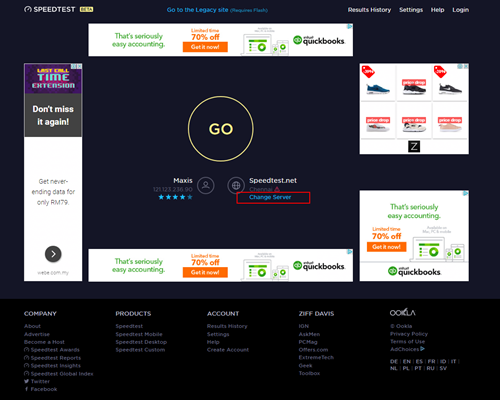
8. Edit the server settings by search and select the required server required by ISP.
For Maxis provider - Select Subang Jaya - Maxis server.
For TIME provider - Select Shah Alam - TIME dotcom Bhd server.
For Allo provider - Select Cyberjaya - Global Forway Sdn Bhd server.

9.Click "GO", and the test will begin.

The test is completed once both download and upload speeds are displayed.
Sample of the Speedtest result is shown below.

**Please ensure the snapshot includes a time stamp and network used either LAN cable or wireless (as per picture above)
10. Kindly screenshot or take a picture of the result, name it as "LAN Speedtest".
11. Repeat the test once again using Wi-Fi connection (Please unplug your LAN cable and connect via wireless connection using your SSID).
12. Screenshot or take a picture of the result, name it as "WiFi Speedtest".
The service tax rate for Astro Pay TV will be increased from 6% to 8%. The service tax for Astro Fibre, which falls under the category of telecommunication service, will remain at 6%.
Successful payment via JomPAY will be posted real time.
By changing from a higher contract duration e.g., 24-months commitment period to lower contract duration e.g., 12-months, a proration of the cancellation fee will be applicable whereby you will be charged per contract's month balance against the maximum cancellation fee agreed upon during sign up for the offer.
A proration of the cancellation fee will be applicable whereby you will be charged per contract's month balance against the maximum cancellation fee agreed upon during sign up for the offer.
You will start a new contract with 12-months commitment and receive the corresponding discount for that duration.
Check out how a cancellation fee is calculated with examples via this link:
Please refer to these FAQs and Terms and Conditions for more information.
For more support and options for your subscription, please WhatsApp us at 03 9543 3838 and type DH Help. Alternatively, you may visit astro.com.my/Disney for more information.
What is beIN SPORTS CONNECT?
beIN SPORTS CONNECT is the ultimate live streaming sports service that provides you with access to global sporting events both LIVE and on-demand such as major European football leagues and over 3,000 hours of live tennis via Astro's Ultra Box, Ulti Box, mobile app or web.
How do I access the beIN SPORTS CONNECT app on the Ultra/Ulti Box?
On the beIN SPORTS CONNECT mobile app:
Step 1: Open the "beIN SPORTS CONNECT" app and go to your Profile
Step 2: Select "Sign in with Astro" and log in with your Astro ID
Step 3: Go to "Settings" and select the TV Login option
Step 4: A QR code scanner will appear.
Follow the steps below to pair the mobile app with your TV screenOn the Astro Ultra/Ulti Box:
Step 1: At Astro Home, go to the app rail and select "beIN SPORTS CONNECT"
Step 2: Go to the Profile icon at the top of your screen and click "OK"
Step 3: A QR code will be presented on your screen. Use the in-app QR code scanner on your mobile device to scan the QR code
Step 4: Your TV screen will refresh automatically and you will be able to enjoy the beIN SPORTS CONNECT app on your TV!
Who is entitled to access the beIN SPORTS CONNECT app on the Ultra/Ulti Box?
Only Astro customers with the Sports subscription as part of their Astro TV Pack (Bundle or add-on) will be able to enjoy the beIN SPORTS CONNECT app on their Ultra/Ulti Box. For further enquiries, please WhatsApp "Get beIN" to our Customer Contact Center at 03-9543 3838.
What are the content available in the beIN SPORTS CONNECT app?
Customers can enjoy major European football leagues, over 3,000 hours of live tennis and other global sporting events LIVE and on-demand on the app. You may check out the complete list of competitions available on the app here: beIN SPORTS CONNECT | Live Leagues and Competitions | LaLiga, Serie A, Ligue
Can I stream on more than one device at the same time?
No, you can only stream the beIN SPORTS CONNECT app on one device at a time.
How many devices can I use to watch beIN SPORTS CONNECT?
You can have up to five (5) devices registered to your account at any given time. However, you can only stream from one (1) device at a time.
Can I download content for offline viewing?
Unfortunately, downloading of content is not a feature that is currently available.
Are subtitles or dubbing available for the content on beIN SPORTS CONNECT?
Unfortunately, subtitles and dubbing options are currently not available.
How can I subscribe to beIN SPORTS CONNECT via Astro?
The beIN SPORTS CONNECT app is not available as an add-to-bill option. Please visit www.product.astro.com.my/tv to sign up to one of our TV Packs with the Sports subscription.
Can I access the beIN SPORTS CONNECT app outside of Malaysia?
No, you will not be able to watch beIN SPORTS CONNECT content outside of Malaysia as the app is geo-blocked for each country.
How do I register for an Astro ID?
Download the beIN SPORTS CONNECT app > Select "Login with Astro"> Click "Do not have an Astro ID? Click here".
Can I update my email address/mobile number for my Astro ID?
Yes, please visit Astro's Self Service Portal via myastro.astro.com.my to update your email address or mobile number.
I have forgotten my password; what should I do?
Step 1: Click "Log in" and click "Forgot my password"
Step 2: Enter your email address and click "Submit"
Step 3: An email will be sent to your registered email address with further instructions on how to reset your password
How do I unlock a locked user account?
You may contact Astro's Customer Service by:
- Submitting a feedback form here: https://support.astro.com.my/feedback-form
- Reaching out to us via WhatsApp by typing "Hi" at 03-95433838 for assistance
The beIN SPORTS CONNECT app won't load after I pressed "cancel" when logging in; what do I do now?
Step 1: Close the "Astro ID Login" tab in your browser, then close your mobile app browser (Safari, Google Chrome, Mozilla Firefox etc).
Step 2: Close the beIN SPORTS CONNECT app on your mobile device.
Step 3 Reopen the beIN SPORTS CONNECT app and try to log in again.
Will my personal information be protected?
Yes, Astro is bounded by the PDPA act. All information received will be used in accordance with our Privacy Notice.
Upon completion of the termination process, customer will receive one last closing bill stating the total amount due to Astro according to their billing option.
For customers who had opted to switch their billing option to e-bill or SMS bill, they will receive their final bill accordingly.
For customers who opted for paper bill, they will receive the final bill via paper bill. (The Paper Bill Charge will be applied).
You may register for auto-debit via: -
1.My Astro website.

2.MyAstro App.

3.Any of our AstroExperience Store.
All Astro customers with Disney+ Hotstar bundle/Add-on will be moved to the Disney+ Hotstar Premium Plan, with no changes to their current subscription pricing starting 24 April 2024. The new Disney+ Hotstar Premium Plan includes 3 concurrent streams, 10 maximum device logins, maximum video quality up to 4K Ultra HD (compatible devices required), and streaming on phone, tablet, laptop and TV.
If you have questions about your Disney+ Hotstar plan, please contact Astro Customer Contact Centre at 03 9543 3838. Alternatively, please WhatsApp Astro at 03 9543 3838 and type DH Help for further assistance.
Astro ID and / or account deletion is permanent. Upon deletion, it will be unlinked from your TV subscription account and you will be logged out from all the associated Astro apps and / or services connected including the partner apps that you have logged in using the same Astro ID. If you have any queries regarding Astro ID or would like to request for Astro ID account deletion, click on submit your request here, fill in the required details and our Astro representative will get back to you within 3 business days for security verification purposes.
