


 Netflix Basic
Nationwide Installation
Applying for
| UniFi Maxis Astro Njoi |
Frequently Asked Questions
Find your answers here.
We provide one stop service to apply Astro and Broadband for you.
You can avoid driving and queuing at the sales counter. We are the dealer that can help you to handle your application from the beginning to the end.
We do not charge you when you apply from us. There is no credit card information required to apply here. Charges are the same as you apply from the sales counter.
First, you can apply online, we will get back to you immediately during business hour. WhatsApp/Email/Fax us your Photocopy of IC (for malaysian) / Passport (for foreigners). When we receive all the information, we will proceed with your application immediately.
Once we receive your application with complete information, we will process your application immediately during business hour. The contractor from the service provider will then contact you for installation appointment once your application is approved.
Enjoy greater savings and hassle-free bill payment in one single bill for both Astro and Broadband. You get to enjoy Astro and Broadband at discounted price every month over the contract period of 24 months.
Astro offers multiple TV packs including Entertainment, Sports, Movies and Kids options. You can choose a pack that matches your viewing preferences and add optional streaming apps where available.
Yes, you may subscribe to Astro TV packs without bundling broadband. However, bundling Astro TV with Fibre Broadband may provide better monthly savings and convenience with a single bill.
For small households with light streaming and browsing, 100Mbps is usually sufficient. Larger families, gamers or heavy streamers may benefit from 500Mbps or 1Gbps plans for smoother performance across multiple devices.
Most Astro TV and Fibre broadband plans come with a 24-month contract. Early termination charges may apply if cancellation is made before the contract ends.
Yes, you may upgrade your TV pack or broadband speed at any time, subject to eligibility and coverage. A new contract period may apply depending on the upgrade.
Your monthly bill will be issued directly by Astro. You may receive it via email or access it through your Astro account. Bundled customers will receive a single combined bill for TV and broadband services.
Payment methods may include online banking, auto debit, credit card or other approved payment channels provided by Astro. Our team can guide you during the registration process.
If you experience any service interruption, you may contact Astro customer support for technical assistance. In many cases, issues can be resolved remotely or a technician will be arranged if necessary.
Yes, relocation is subject to service availability at your new address. Relocation charges and contract adjustments may apply depending on your plan.
No, you do not need a credit card to submit your application. Payment setup will be arranged directly with Astro after your service is approved.
Selected Astro TV packs allow optional add-ons such as streaming services depending on current promotions and availability. Additional monthly charges may apply.
Yes, a WiFi router is typically provided during fibre installation. The router model may vary depending on the selected broadband speed plan.
Yes, we will check the service coverage at your address before proceeding with your application to ensure broadband is available at your location.
For Malaysians, please provide a copy of your MyKad. For foreigners, provide a copy of your passport when submitting your broadband application.
After your application is approved, the service provider typically contacts you within 2 to 7 working days to arrange the broadband installation appointment.
Most Astro Broadband plans come with a 24-month contract starting from your installation date. If you relocate, a new 24-month contract may apply at your new address.
Yes, you can relocate your broadband service, subject to service availability at the new address. Your contract may reset for another 24 months from the new installation date.
Yes, you may request to relocate broadband devices within your home. Non-standard installation charges may apply and are payable to the installer directly after assessment.
Yes, you can switch to Astro Broadband. To avoid service interruption, it is recommended to activate the new service before terminating your current broadband contract.
Standard installations may be free during promotions, but non-standard installations (e.g., device relocation or complex wiring) may incur extra charges payable directly to the installer.
Once your Plug & Play Box has been activated, a courier service will reach out to you within TWO (2) weeks for a time for them to pick up the old Astro box and SIM card/Smartcard.
- Ensure that all cables have been plugged out of the old Astro box. To remove the white satellite cable from your old Astro box, simply hold the cable, twist, and gently pull.
- Set aside these items to be ready for our delivery partner to pick up from you:
- Old Astro Box
- Old Astro Smartcard/SIM Card (leave this in your Astro Box)
- When a courier arrives at your residence, do confirm that they are collecting items on behalf of Astro.
- Allow the courier to check the serial number of the Astro box.
- Hand them all the items for return, and you're done!
Please refer to these FAQs for more information, or click here to learn more and sign up for the Ulti Box. Alternatively, you may call 03-7481 8000 to get in touch with an Astro representative.
Deposit of RM500 (Maxis) and RM300 (Allo) is payable by new subscribers (non-Malaysian). The fee will be reimbursed when service is terminated.
No deposit required for all existing Astro customers and new subscribers (Malaysian).
Please close and re-launc hthe Astro Fibre app, and you will be able to log in.
Yes, eKYC verification is mandatory. In addition, this verification process helps to reduce manual handling of customer's personal information and secure against unauthorised usage.
By default, all Astro Fibre customers will receive a Private IPv4 or IPv6 address. However, customers who would like to subscribe to a fixed IP service can do so by contacting our Customer Service Centre at 03-9543 3838 for Astro Fibre’s Fixed IP service for only RM5/month.
You will not be able to switch between channels, use the app as a remote control, view favorite channels and programmes, use programme showtime reminder, and remote record feature.
The new packs and access to Netflix on the Ultra Box and Ulti Box is available for Astro IPTV customers.
Kindly ensure that your mobile number is the same as the registered phone number of the Astro account holder as the OTP will only be sent to the registered number. For further assistance, please call or WhatsApp us at 03-9543 3838. Alternatively, you may submit a request via our online Feedback Form here: astro.com.my/contactus/form.aspx.
Your monthly bill of the previous and new pack will be prorated. This will be reflected into your bill accordingly.
Yes, all Astro customers with a Disney+ Hotstar subscription can access the app on the Ultra/Ulti Box. To access the app, please refer here.
You will receive an email within 45 minutes of payment made to let you know whether your advance payment is successful or not. If your payment has failed, you may call Astro's Contact Centre at 03-9543 3838 or wait for an Astro representative to be in contact with you within 2 working days to assist you with your order.
For customers with the Ultra or Ulti Box, you will be charged a fee of RM100 (not inclusive of Govt. tax) upon confirmation of lost Astro Box and Smart Card/SIM Card.
For lost Smart Card/SIM card only, you may be charged RM50 to obtain a replacement.
We apologise for the inconvenience caused. If you have not receive the upgraded speed within 48 hours after the service activation, please call Astro’s Contact Centre at 03-9543 1543 and an Astro agent will be available to assist you immediately.
Customers with HD boxes can subscribe to the All-New Astro Pack without a box upgrade except if the customer request to move to OTT bundled pack which is mandatory to upgrade to Ulti or Ultra.
Note: OTT is referring to either Netflix, D+H or both.
Unfortunately, this means that you are using a TV model that does not support 4K UHD resolution (Sony BRAVIA 4K GB, Sony BRAVIA 4K UR or Sony BRAVIA VH). Not to worry, we are working with the Sony team to ensure you will be able to enjoy these 4K UHD channels soon. We will keep you posted once these channels are available to you!
You may utilise your credit balance to offset future billing on your Astro account, or contact us here for further enquiries.
4K UHD offers 4 times the resolution of HDTV (4K UHD has 3840x2160 resolution with 8 million pixels compared to HD which has 1920x1080 with 2 million pixels), sharper detail, smoother lines and a richer colour palette, as well as a vibrant colour TV experience.
Customers on Ultra Box with Sports Pack can tune in to the Astro SuperSport UHD Channel (CH 805 and CH 806) for an exciting selection of Sports content such as the Premier League and the Spanish Primera Liga.
Customers on Ultra Box with Movies Pack and News & Documentaries add-on can stream some of the latest movies and documentaries respectively in UHD by pressing the “Home” button on your remote and exploring your choices at no additional cost.
In addition, customers can rent additional movies on top of their subscription and stream the latest and hottest 4K UHD Blockbuster movies, drama series and local movies, blockbuster movies in Ultra HD via Astro First Channel 480, and Astro Best Channel 481 and VOD titles in “Store”.
Please note that a standard rent rate applies for all these titles, to learn more about the pricing, head over to the FAQ section at www.astro.com.my/ultra
Please upgrade the Ultra/Ulti Box software to enjoy Netflix on your Ultra/Ulti Box. To do this, please click on the Netflix app icon on the homepage or go to CH741 to prompt the software upgrade. Kindly click Install when the software upgrade prompt appears. This will take approximately 20 minutes and you would be able to launch Netflix on the Ultra/Ulti Box after that.
Intermittent internet connection using LAN cable
Looks like there is something wrong with your service connection.
Please run a Ping Test, Traceroute Test and attach the picture or screenshot of both test results in the Feedback Form below, in order for us to provide further assistances.
Please ensure to attach the required screenshot(s) in ONE file (i.e. Microsoft Word document, PDF, Image file) before submitting the form.
Intermittent internet connection using Wi-Fi
1. Router Positioning
Most people underestimate the importance of picking a good spot for a Wi-Fi router. Even a small shift in positioning could end up being the difference between day and night.
i) High vs. Low
Put the router as high up as possible to extend the broadcasting range of the radio waves. This also helps clear the router of possible interferences.
ii) Concrete & Metals
Make sure your router isn't blocked by any other objects, especially devices that are electronic. Also, avoid placing your router in your basement as this area is usually enclosed by a lot of concrete, which can be almost impossible for Wi-Fi signals to penetrate.
iii) Distance to Router
The further away from your router you get, the weaker the Wi-Fi signal. Therefore, the best option is to place your router as close to your devices as possible, but this is only practical if you have one main area where you tend to use your devices.
Otherwise, you should place your router near the center of your home. After all, Wi-Fi broadcasts in 360 degrees, so it doesn't make sense to put it at one end of the house.
2. Wireless Interference & Noise
You've probably never noticed but there are wireless signals all around you wherever you go and they're passing through you all the time. From where? Electronic devices, Wi-Fi routers, satellites, cell towers, and more.
Although Wi-Fi is supposed to be on a different frequency than most of these devices, the amount of radio noise can still cause interference. Some common causes of interference include:
i) Microwaves
ii) Bluetooth Devices
iii) Cordless Phone
3. Surrounding Wi-Fi signals
A truth of the modern world is that every household has their own Wi-Fi network, which can cause issues with channel overlap. This can be somewhat problematic in a townhouse, but is especially problematic in housing complexes and apartments where there can be many routers within close proximity.
Which is why it's important that you pick a good channel in your router settings. Modern routers can choose channels for you automatically, but sometimes it's better to investigate and find the best channel yourself.
4. Usage
More likely, however, is that the people on your network such as friends, roommates, or family members are participating in bandwidth-heavy activities like gaming and streaming Ultrabox/ Netflix.
Fortunately, if this is the case, you can prioritize your own network traffic by enabling Quality of Service in your router settings.
If the problem persists, please run a Ping Test, Traceroute Test and attach the picture or screenshot of both test results in the Feedback Form below, in order for us to provide further assistances.
Please make sure to attach the required screenshot(s) in ONE file (i.e. Microsoft Word document, PDF, Image file) before submitting the form.
Quick Info
A Ping Test shows how long it takes for packets to reach host.
A Traceroute Test traces the route of packets to destination host from our server.
The Kids Friendly Profile is an enhancement to the Kids User Profile feature with the following major improvements:
- Kid-Friendly Channels, On Demand content & TV Guide: Only Kid-friendly channels and On-Demand content can be viewed in the Kids Profile. Other channels and content are not viewable. The same applies to the Kids TV Guide.
- PIN control for the Kids Profile: When switching from a Kids Profile to an adult profile (i.e.: Father or Mother), a PIN entry will be required.
- Limited Kids Profile Content Search: Only Kids age-appropriate content can be searched and displayed within the Kids Profile.
- Kids Profile Based Recordings: Kids Profiles will have their own personalised age-appropriate recordings without any overlap with other user profiles. This feature will be available from 17th August onwards.
These enhancements are available across the Astro GO app, Ultra/Ulti Box, and Multiroom Box/Smart TV app.
Click here to find out more on this new feature and how to use it!
The Ultra Box is Astro's latest generation of 4K UHD enabled box with Cloud recording feature, redesigned new interface, and UHD resolution. Just connect the all-new Ultra Box to the internet and take control of your entertainment and explore over 110,000 videos that are waiting to be streamed, anytime. With the ability to record as many shows as you want simultaneously.
The new interface on Astro Ultra Box offers an enhanced viewing experience with a brand-new look and feel with features such as:
· New Home Screen - Everything you see is yours
· Discover VOD - Discover 110k videos, stream anytime, anywhere including in 4K UHD
· Search - Search faster and easier
· Play from Start - You missed the start? Just restart
· Stop Here, Continue There - Stop on one screen and continue on another device
· Multi-Screen - Stream seamlessly across any device
· Cloud Recording - Record all the programmes you want at the same time
. **Continuous viewing - Enable to continue watching your favorite shows during raining
Note: ** Except 4K UHD, Astro First and all radio channels
- With numerous OTT entrants, consumers are suffering from subscription fatigue. In fact, they are looking for a one stop shop platform where OTT services are integrated in one place.
- Astro offers flexibility and convenience with new packs where customers can get the convenience of accessing a variety of content via Ultra Box as the single remote-control solution.
- In addition, there will be cost savings for Astro customers to purchase both Netflix and Astro together. Even better deals available if customers also subscribe to broadband for a better-connected experience.
Please refer to these FAQs for more information, or click here to learn more and sign up for the Ultra Box. Alternatively, you may call 03-7481 8000 to get in touch with an Astro representative.
Upon submitting your application, you will receive the eKYC link via SMS/email/astro.com.my to complete the eKYC verification within 3 days.
Refund process required 5 working days by Astro and additional 3 - 7 working days required subject to the respective processing banks.
No, Astro GO is a free app for Astro customers. The content available on Astro GO will depend on the subscription pack that you are subscribed to.
If you do not have an Astro subscription, please click here to find out packages available.
Yes, as long as it is compatible with Open Mesh standards and Astro Fibre equipment. However, Astro will not be responsible for managing or configuring the device. For the optimum WiFi experience, please pair your Astro Fibre with Astro's Mesh WiFi.
STEP 1
Check the Audio settings on your box and set to Auto.
Refer guide to change Digital Audio Settings.
STEP 2
If issue persist, check if there is any 3rd party device (sound system/hdmi splitter) connected between box and TV.
STEP 3
If using 3rd party devices, bypass/remove 3rd party device and make sure HDMI cable connected directly from box to TV.
STEP 4
If issue persist, connect to Live Agent via WhatsApp for help.
Although it is possible to pair the second mesh node unit with the first mesh, customers are advised to follow similar steps in setting up the Mesh Network by pairing the mesh unit with the WiFi router instead.
STEP 1
Press "HOME" button on your remote control.

STEP 2
Navigate to Settings and press "OK".

STEP 3
Navigate to Installation Settings and press "OK".

STEP 4
Enter your PIN to access this setting. (Default PIN is 0000).

STEP 5
Navigate to Restore Factory Settings and press "OK".

STEP 6
Navigate to Yes, continue and press "OK" to confirm your selection.
Otherwise, navigate to No, go back to maintain the settings.

STEP 7
Please reboot your box.

STEP 8
New Installation Settings screen will appear.
Click here to follow New Installation Settings guide.

STEP 1
On your remote, press the “HOME” button and the home menu will be displayed at the bottom of your screen.
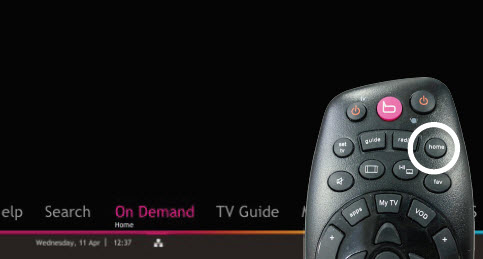
STEP 2
Navigate to SETTINGS and press “OK”.

STEP 3
Navigate to STB DIAGNOSTICS and press “OK”.

STEP 4
Refer to the signal strength % shown on the top left of your screen.

· Bill
· Log into your Astro Self-Service (location)
Astro is no longer updating the software in non-Ultra/Ulti Boxes as they have reached their end-of-life cycle. Therefore, non-Ultra/Ulti Boxes will maintain their current classification systems. Nonetheless, you may refer to content.astro.com.my for all the updated age ratings. Please refer to the table below to see the difference in classification systems between our platforms:

Absolutely not. Astro wants to give our members the convenience of having all their favourite series, exciting originals, vernacular signatures, live sports and local blockbuster movies all in one place.
STEP 1
Switch off the power of your box and make sure that the adapter’s power light is off.
STEP 2
Unplug the HDMI cable from your TV and plug it back in securely to other available HDMI port.
STEP 3
Switch on the power for your box and make sure that the adapter’s power light is on.
Please wait for 5 minutes.
STEP 4
Turn on your box. Do select the correct TV input.
You should no longer be experiencing this problem. 
I am sorry you can't. While we understand the value customers see in choosing their preferred service/pack individually, the packaging of channels/services in the new packs are necessary for us to offer content/services at an affordable price to our customers.
You can subscribe to new packs via
- Online - astro.com.my
- WhatsApp GET ASTRO (for new customers) or SWITCH (for existing customers) to 03-9543 3838
- Astro Customer Service Centres.
Activate your Disney+ Hotstar access with your Astro subscription, using the steps below:
- Step 1 - Create- and verify your Astro ID at astro.com.my/astroID. If you already have an existing Astro ID, go to Step 2.
- Step 2 - Goto astro.com.my/Disney. Login with your Astro ID, activate with your mobile number and verify with a one time passcode (OTP) sent to your mobile number.
- Step 3 - Download the Disney+ Hotstar app or login via web, and sign in with the mobile number provided in Step 2. Start streaming!
You can track your ticket status by contacting us via WhatsApp or call us at 03-9543 3838.
Astro continuously reviews its content proposition to offer the best choices and a variety of compelling content for our customers for the best viewing experience. As such, we will cease the sale of PPV passes on CH200 from 8 October onwards.
Customers can continue to enjoy their favourite content by subscribing to the relevant packs and stay tuned for more exciting offers to be announced soon.
All streaming apps willbe made available on the Ultra Box first, followed by the Ulti Box. If youwould like to upgrade to the Ultra Box, please visit product.astro.com.my/tv or reach us via WhatsApp by typing “Hi” at 03-9543 3838 forassistance.
The matches will be available on the channels Astro Arena Bola (CH803) and Astro Arena Bola 2 (CH804), On Demand and Astro GO.
There is no contract for this subscription.
The promotion period of Astro Fibre’s Speed Upgrade Campaign is from 24 November 2023 until 31 May 2024.
Yes, if a device is faulty due to the customer's negligence, they will be subjected to a penalty fee for each device:
- WiFi router: RM200
- Fibre modem: RM500
- Mesh WiFi: RM200/unit
STEP 1
Press "HOME" button on your remote control.

STEP 2
Navigate to Settings and press "OK".

STEP 3
Navigate to STB Diagnostics and press "OK".

STEP 4
From General Tab, take a look at the Current Entry Point Name for the LNB type of your input source.

Please first ensure Disney+ Hotstar access is included and has been activated as part of your Astro subscription. Once you have completed your activation process, you can enjoy Disney+ Hotstar on the Ultra box with these simple steps:
- Step 1 -Press "Home' on your Astro remote control. On the apps rail, select "Disney+ Hotstar' app > OK > My Account
No, Astro & Broadband only offers a 24-month contract period upon sign up.
We have taken into account customer feedback when introducing these new packs. While we understand the value customers see in purchasing their preferred channels individually, the packaging of media drives the economies of scale necessary to offer content at an affordable price to all our customers.
Other than the New Astro Packs that offer great value, customers may purchase selected channels or packages as content add-on such as Korean Pack, Horror Pack etc.
