

 Netflix Basic
Nationwide Installation
Applying for
| UniFi Maxis Astro Njoi |
Frequently Asked Questions
Find your answers here.
We provide one stop service to apply Astro and Broadband for you.
You can avoid driving and queuing at the sales counter. We are the dealer that can help you to handle your application from the beginning to the end.
We do not charge you when you apply from us. There is no credit card information required to apply here. Charges are the same as you apply from the sales counter.
First, you can apply online, we will get back to you immediately during business hour. WhatsApp/Email/Fax us your Photocopy of IC (for malaysian) / Passport (for foreigners). When we receive all the information, we will proceed with your application immediately.
Once we receive your application with complete information, we will process your application immediately during business hour. The contractor from the service provider will then contact you for installation appointment once your application is approved.
Enjoy greater savings and hassle-free bill payment in one single bill for both Astro and Broadband. You get to enjoy Astro and Broadband at discounted price every month over the contract period of 24 months.
Astro offers multiple TV packs including Entertainment, Sports, Movies and Kids options. You can choose a pack that matches your viewing preferences and add optional streaming apps where available.
Yes, you may subscribe to Astro TV packs without bundling broadband. However, bundling Astro TV with Fibre Broadband may provide better monthly savings and convenience with a single bill.
For small households with light streaming and browsing, 100Mbps is usually sufficient. Larger families, gamers or heavy streamers may benefit from 500Mbps or 1Gbps plans for smoother performance across multiple devices.
Most Astro TV and Fibre broadband plans come with a 24-month contract. Early termination charges may apply if cancellation is made before the contract ends.
Yes, you may upgrade your TV pack or broadband speed at any time, subject to eligibility and coverage. A new contract period may apply depending on the upgrade.
Your monthly bill will be issued directly by Astro. You may receive it via email or access it through your Astro account. Bundled customers will receive a single combined bill for TV and broadband services.
Payment methods may include online banking, auto debit, credit card or other approved payment channels provided by Astro. Our team can guide you during the registration process.
If you experience any service interruption, you may contact Astro customer support for technical assistance. In many cases, issues can be resolved remotely or a technician will be arranged if necessary.
Yes, relocation is subject to service availability at your new address. Relocation charges and contract adjustments may apply depending on your plan.
No, you do not need a credit card to submit your application. Payment setup will be arranged directly with Astro after your service is approved.
Selected Astro TV packs allow optional add-ons such as streaming services depending on current promotions and availability. Additional monthly charges may apply.
Yes, a WiFi router is typically provided during fibre installation. The router model may vary depending on the selected broadband speed plan.
Yes, we will check the service coverage at your address before proceeding with your application to ensure broadband is available at your location.
For Malaysians, please provide a copy of your MyKad. For foreigners, provide a copy of your passport when submitting your broadband application.
After your application is approved, the service provider typically contacts you within 2 to 7 working days to arrange the broadband installation appointment.
Most Astro Broadband plans come with a 24-month contract starting from your installation date. If you relocate, a new 24-month contract may apply at your new address.
Yes, you can relocate your broadband service, subject to service availability at the new address. Your contract may reset for another 24 months from the new installation date.
Yes, you may request to relocate broadband devices within your home. Non-standard installation charges may apply and are payable to the installer directly after assessment.
Yes, you can switch to Astro Broadband. To avoid service interruption, it is recommended to activate the new service before terminating your current broadband contract.
Standard installations may be free during promotions, but non-standard installations (e.g., device relocation or complex wiring) may incur extra charges payable directly to the installer.
Astro is an official distributor of Disney+ Hotstar, the dedicated streaming home for global, and Malaysian hits. Astro customers can now subscribe to Disney+ Hotstar through the new, bigger and more diverse Packs, i.e.: Movies, Premium 1, Premium 3 or Platinum Pack. The streaming service brings together blockbuster movies from Hollywood to Hallyu and award-winning content from Disney, Marvel, Star Wars, Pixar, National Geographic, FX, 20th Centuary Studios and more including exclusive premieres from leading Malaysian studios. Take your family entertainment to the next level with Disney+ Originals like I am Groot, Prey, Baymax, Obi-Wan Kenobi, She-Hulk, IN THE SOOP: Friendcation and more - with the convenience of one monthly bill for all your entertainment needs.
Movies Pack, Premium 1, Premium 3 and Platinum customers as well as customers on the Starter Plus Pack, Value Plus Pack, and Disney+ Hotstar (3-months Pass) can enjoy Disney+ Hotstar on Astro.
Customers can subscribe to Disney+ Hotstar via astro.com.my/Disney, as well as via authorised retailers and dealers.
No, the eKYC verification process must be done by the individual themselves, using their MyKad and selfie in real-time.
Check out our user guide for a quick and easy way to get started!
Download our user guide in English
Download our user guide in Malay
Download our user guide in Chinese
Do you need more information? Watch our Astro Ultra How to videos here.
Astro introduces Liga Malaysia for all Astro customers to watch the Malaysian Football League’s Liga Malaysia competitions LIVE, comprising Perlawanan Sumbangsih (Piala Sultan Haji Ahmad Shah), Liga Super, Piala FA and Piala Malaysia live in HD on Astro Arena (CH801), Arena Bola channels (CH803 and CH804) and stream on Astro GO until further notice.
To allow customers to decide on their WiFi connection arrangement based on their preference upon being advised by the installer on-site.
User to manually connect their devices to different WiFi bands based on their usage and preference.
Kindly note that affected customers will be adequately informed 30 days prior to the implementation via SMS which are sent out in phases (Starting 1 July), with scheduled announcements across WhatsApp, My Astro app, and Astro website.
Real-time payments are posted almost instantaneously. However, daily system maintenance occurs between 12AM to 3AM - any payment made during this period will be delayed until system maintenance is complete.
Unfortunately, this means that you are using a TV model that does not support 4K UHD resolution (Sony BRAVIA 4K GB, Sony BRAVIA 4K UR or Sony BRAVIA VH). Not to worry, we are working with the Sony team to ensure you will be able to enjoy these 4K UHD channels soon. We will keep you posted once these channels are available to you!
STEP 1
On your remote, press the HOME button and the home menu will be displayed on top of your screen.

STEP 2
Navigate to Settings.

STEP 3
Navigate to TV Settings and press “OK”.

STEP 4
Navigate to your preferred selection and press “OK”.

STEP 5
Navigate to Save and press "OK" to confirm your selection.

As our customers deserve the best entertainment experience, Astro is refreshing its content and packages to offer more choice, value, flexibility, and better experience in a streaming world as part of the new Astro experience.
The all-new Astro packs are designed for customers in the streaming and connected world, where they can stream all the shows they love on Ultra Box and Ulti Box. Customers can now enjoy their favourite shows all on Astro, from global streaming services like Netflix, Disney+ Hotstar, HBO GO, iQIYI, TVBAnywhere+ as well as all Astro's flagship shows and the best of live sports in one place, on the big screen. Our new packages offer unbeaten value, a greater variety of content and greater convenience, all made better with our Astro & Broadband for better connectivity.
Although it is possible to pair the second mesh node unit with the first mesh, customers are advised to follow similar steps in setting up the Mesh Network by pairing the mesh unit with the WiFi router instead.
Yes, you will be able to access Disney+ Hotstar even if you remain on your existing Movies/Starter Plus/Value Plus Packs.
All existing or new Astro customers who meet the following criteria may upgrade to the Ultra Box:
- Have an internet connection at home (recommended>10Mbps speed)
- Maintain a minimum subscription with a HD + Recording service
If you live in a high-rise building, please call us at 03- 7481 8000 to check if your building can support the Ultra Box. If your high-rise building allows for the set-up of individual dishes you will be able to upgrade to the Ultra Box, subject to the criteria above.
If you would like to access our 4K UHD content via the Astro UHD channel 805 and UHD content on VOD, Astro Best and Astro First. We also recommend:
- 4K UHD supported TV that is HDCP2.2 compliant
- Internet connection of at least 30Mbps
Note: If you do not have an internet connection at home, you may take up the Ultra Box bundled with Astro™'s broadband package with rebates of up to RM30/month. For more details and to sign up for Astro & Broadband, please click here.
Astro Channel 200 is a self-service portal that helps you upgrade your packages and purchase add-ons instantly.
You should have received an email or SMS with your activation details, please click on the link provided to be redirected to the Netflix website to activate your account.
Alternatively, you can also activate Netflix on your Ultra/Ulti Box. Please surf to CH 741 on your Ultra/Ulti Box (or click the Netflix button on your Astro remote) and follow the instructions on the screen.
STEP 1
On your remote, press the HOME button and the home menu will be displayed on top of your screen.

STEP 2
Navigate to Guide.

STEP 3
Select the channel you would like to add to favourite list and press "OK".

STEP 4
Select "Add to Favourites" and press "OK".

STEP 5
You are successfully added the channel to favourite list when this screen appears.

STEP 6
Your selected channel will have a heart tagging after added as favourite.
No, you are still able to subscribe to iQIYI on your current Astro pack.
Please upgrade the Ultra/Ulti Box software to enjoy Netflix on your Ultra/Ulti Box. To do this, please click on the Netflix app icon on the homepage or go to CH741 to prompt the software upgrade. Kindly click Install when the software upgrade prompt appears. This will take approximately 20 minutes and you would be able to launch Netflix on the Ultra/Ulti Box after that.
Please refer to these FAQs for more information, or click here to learn more and sign up for the Ulti Box. Alternatively, you may call 03-7481 8000 to get in touch with an Astro representative.
You can now choose to log in using your email address, mobile number or a social account (Facebook, Google or Apple).
I am sorry you can't. While we understand the value customers see in choosing their preferred service/pack individually, the packaging of channels/services in the new packs are necessary for us to offer content/services at an affordable price to our customers.
Yes, you will enjoy an Ulti box when subscribing to Primary/Entertainment/ Movie Pack OR an Ultra box when subscribing to Sports/Sports+/Movies+/Premium 1/Premium 2/Premium 3/Platinum Pack.
You will get FREE installation for both Ultra/Ulti box upon signing up with Astro & Broadband.
It will begin on 1st March 2024 and onwards.
Yes, customers whose accounts are suspended but resumed within 24 months from their offer period start date will still be able to enjoy the internet speed upgrade upon service resumption. However, the speed upgrade offer period will not be extended despite the suspension period.
Unfortunately, customers whose accounts are suspended but resumed after 24 months from their offer period start date will not be able to receive the free speed upgrade.
No, you will not be automatically switched to the new pricing. To perform a manual switch, please contact us at 03-9543 3838.
Starting 9 June 2023, Viu Premium will be added as an option as part of our Asian Favourites along side Chinese, Indian and Indonesian Favourites. Astro customers on the Entertainment, EntertainmentPlus, Premium 2, Premium 3 and Platinum Packs will be able to choose Viu Premium as their Asian Favourites selection and stream the app for FREE. While customers on other TV Packs may purchase Viu Premium as an add-on to their subscription for as low as RM8.40/month (RRP: RM17.90). After successfully adding Viu Premium to your subscription, all Ultra and Ulti Box customers can access the app on their Astro Box, www.viu.com and the Viu mobile app to enjoy all the best KDramas, popular local hits, popular Thai and Indonesian shows and so much more! For further information and updates on Viu,
please visit: www.astro.com.my/Viu .
For Ultra/Ulti Plug & Play Box installation, it is recommended that you attempt to self-install by following the installation guide here, but there is an option to request for an installer to install the box at your premise. However, there will be a separate fee for this service request.
The WiFi SSID and password of the Mesh unit will be automatically synchronized to the WiFi router. Hence, there is no need to configure the WiFi parameters.
*WiFi SSID (Service Set Identifier) is the name of your wireless network, also known as Network ID. It is viewable to anyone with a wireless device within reachable distance of your network.
The different light colours on your Astro Ultra Box or Ulti Box informs you on the phase the box is going through.
1. Ultra Box magenta light / Ulti Box purple light - Your box is turned "On".
Press the Home button to launch Video On Demand and stream anytime or press channel number on your remote.

2. Ultra Box / Ulti Box orange light - Your box is on "Standby" mode.
Your box is ready to be turned "On" or leave it in this mode to receive new software updates.

3. Ultra Box / Ulti Box blinking orange light - Your box is booting up.
Please wait a few minutes for the box to start.
4. Ultra Box / Ulti box blinking blue light - Your box is downloading a software update.
Please wait a few minutes for the download to complete.

Having trouble with your phone line ?
You may proceed to contact dedicated service provider directly - 1 800 8211 23
Kindly ensure that your mobile number is the same as the registered phone number of the Astro account holder as the OTP will only be sent to the registered number. For further assistance, please call or WhatsApp us at 03-9543 3838. Alternatively, you may submit a request via our online Feedback Form here: astro.com.my/contactus/form.aspx.
The "coming soon" label on some streamingapps on your TV and the "Apps" page of Astro's website allows our customers tostay on top of new launches as they happen! Stay tuned for these upcomingstreaming apps so you can access even more content that you love from acrossthe world.
We are thrilled to announce that as part of your subscription, you are able to enjoy exclusive coverage of live matches in HD on Astro channels, On Demand and Astro GO! This means that you'll have access to all the latest games, highlights, and analysis, right at your fingertips.
With this new addition, you'll be able to follow your favourite teams and players closer than ever before, keeping you up-to-date with all the action on and off the field. Whether you're a die-hard fan or a casual spectator, this new content is sure to provide you with endless hours of entertainment.
To ensure that we continue offering the best choice in sports content, our Sports Pack will now be priced at RM104.99/month (for 12 months contract) or RM99.99/month (for 24 months contract) and Premium Pack 1 will now be priced at RM139.99/month (for 12 months contract) or RM129.99/month (for 24 months contract) starting 9 February 2023, and this applies to all new customers.
Note that there will no changes for existing Sports Pack & Premium 1 customers in 24 or 12 month contract being renewed before 1st June 2023.
We appreciate your continued support and can't wait for you to experience this exciting new addition to your Sports Pack subscription.
Please refer to the table below for the full revised pricing for the following packs:

We hope you continue to enjoy your Astro experience with us.
Your access to Astro GO will depend on the subscription pack that you are subscribed to. Not all shows/channels will be available on Astro GO as this depends on contractual rights with specific guidelines on the entitlement of these shows/channels. We are continuously working hard to make more content available on Astro GO.
You may navigate around the menu on the side bar on Astro GO app, or top bar on the Astro GO web version to find shows available.


Menu Guide
- Home: Check out all the recommended content or watch your subscribed TV channels via the Channel Guide at the bottom of your home screen.
- Catch Up: Missed an episode of your favourite series? Fret not, Catch Up on the latest episode of your favourite shows on Astro GO.
- Boxsets: Watch complete seasons and series from our On Demand library anytime anywhere.
- Movies: Watch recent and popular movies on your devices! You can access a large catalogue of On Demand movies, according to your subscription.
- Kids: Catch all the cartoons, animations and a variety of shows for kids of all ages.
- Sports: Watch the biggest sporting shows LIVE on your mobile device, anytime anywhere.
- Store: Other than your subscribed packages, you can also purchase and watch your favourite Pay-Per-View movies and other Astro exclusive content (not available on iOS devices).
STEP 1
Switch off the power for your box and make sure that the adapter's power light is off.

STEP 2
Locate the SIM card at the left side and gently pull it out.

STEP 3
Wipe the SIM card's gold chip clean using a dry soft cloth.

STEP 4
Make sure the gold chip is facing down and reinsert it all the way in.

STEP 5
Switch on the power for your box and make sure that the adapter's power light is on.
Please wait for 5 minutes.

STEP 6
Turn on your box. You should no longer be experiencing this problem.

If issue persist, please submit the issue on our Feedback Form with the error details and provide sim card number for assistance.
If you have a random Astro power cable, remote control or old box lying around at home, you are required to discard them only at registered collection centres for proper handling and management of e-waste in an environmentally sound manner. Click here to find a registered collection centre near you.
For all recycling-related questions, please click here.
Yes, the Multiroom (Smart TV) will utilise one (1) of your Astro GO concurrency.
Customers subscribing to Multiroom (Smart TV) can enjoy access up to 4 concurrency (watch 4 screens at the same time) which is shared across one Smart TV device and 3 mobile/laptop/tablet device(s) as Astro GO+ is complimentary with a Multiroom (Smart TV) subscription.
For customers with the Ultra or Ulti Box, please ensure to provide your latest contact details to our Astro agent during the call to terminate your account, this includes your mobile number and house address. If you still need further help, please contact us at 03-9543 3838.
Yes, customers will be charged a fixed Paper Bill Fee of RM10.00 per bill every month for each account.
Your Astro GO email will be delivered to you within an hour upon checkout. Please click the link provided to set up your password and download the Astro GO app on your device by clicking here (Google Play Store) or here (iOS App Store). If you want to stream it directly via your computer or laptop, Astro GO is also available at astrogo.astro.com.my. Log in with your Astro ID and start streaming!
To continue enjoying your PVR decoder and service, you must maintain a minimum monthly subscription fee of RM60 (not inclusive of the recording fee and Govt. Tax).
STEP 1
Switch off the power for your box and make sure that the adapter's power light is off.

STEP 2
Locate the Smartcard at the front or right side and gently pull it out.
Make sure that the adapter's power light is off.

STEP 3
Wipe the Smartcard's gold chip clean using a dry soft cloth.

STEP 4
Make sure the gold chip is facing upwards and reinsert it all the way in.

STEP 5
Switch on the power for your box and make sure that the adapter's power light is on. Please wait for 5 minutes.

STEP 6
Turn on your box. You should no longer be experiencing this problem.

If issue persist, please submit the issue on our Feedback Form and attach a picture of your smart card number for assistance.
No. However, if you cancel your Astro Pay TV services but resubscribe at a later date, your duration (year) with us will reset to zero and restart according to your new activation date. Your Astro Rewards tier will reset to Magenta.
STEP 1
Switch off the power of your box and make sure that the adapter’s power light is off.
STEP 2
Unplug the HDMI cable from your TV and plug it back in securely to other available HDMI port.
STEP 3
Switch on the power for your box and make sure that the adapter’s power light is on.
Please wait for 5 minutes.
STEP 4
Turn on your box. Do select the correct TV input.
You should no longer be experiencing this problem. 
There are a few ways you can access Netflix on the Ultra Box as below:
- Access Netflix on the Ultra/Ulti Box via the Home Screen and select the Netflix app from the Apps row.
- Launch the Netflix app directly from their remote control by clicking on the “Netflix” button if it’s available on your remote control.
- Tune into CH 741
IMPORTANT! If you are accessing Netflix on your Ultra/Ulti Box for the first time, please wait for the Netflix activation email from Astro (this may take up to 10 minutes) for the app to be reflected in your account. If you skip this 10-minute period, you may experience double charging by incorrectly signing up for Netflix using your credit card details.
STEP 1
Please wait while your Astro box initializes.
STEP 2
Select your preferred language.
STEP 3
Navigate to Next and press "OK".
STEP 4
Select Auto as the Video Resolution.
STEP 5
Navigate to Next and press "OK".
STEP 6
Navigate to Confirm and press "OK" to confirm your selection if you are able to read the texts on screen properly.
Otherwise, navigate to Cancel to revert to the previous settings.
STEP 7
Select IPTV Plug & Play (self-install) as the box operating mode.
STEP 8
Navigate to Next and press "OK".
STEP 9
Select your preferred connection.
For connection via Wi-Fi, proceed to STEP 10.
For connection via LAN Cable, proceed to STEP 16 once you are connected.
STEP 10
Please wait while your Astro box searches for available Wi-Fi networks.
STEP 11
Navigate to your preferred Wi-Fi network and press "OK".
STEP 12
Please enter the password to connect to the Wi-Fi network.
STEP 13
Navigate to Done to continue.
STEP 14
Please wait while your Astro box connects to the internet.
STEP 15
Navigate to Yes to allow your Astro box to connect to this network automatically.
Otherwise, navigate to No.
Proceed to STEP 17 for the next step.
STEP 16
Navigate to Next and press "OK".
STEP 17
Your box's connection status will be displayed.
Navigate to Finish to complete the setup.
Astro continuously reviews its content proposition to offer the best choices and a variety of compelling content for our customers for the best viewing experience. As such, we will cease the sale of PPV passes on CH200 from 8 October onwards.
Customers can continue to enjoy their favourite content by subscribing to the relevant packs and stay tuned for more exciting offers to be announced soon.
Connect your PVR to Wi-Fi and enjoy access to our library of Video On Demand. Replay old seasons, catch-up latest episodes of your favourite shows, anytime you want. To connect your PVR, follow the steps below:
STEP 1
On your remote, press the “HOME” button and the home menu will be displayed at the bottom of your screen.
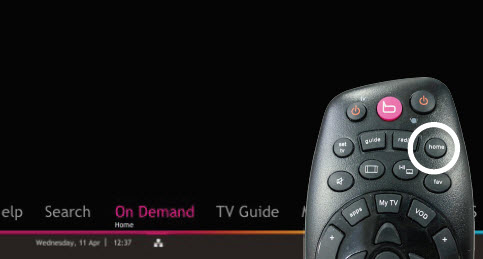
STEP 2
Navigate to SETTINGS and press “OK”.

STEP 3
Navigate to STB DIAGNOSTICS and press “OK”.

STEP 4
Navigate to Network and press "OK".

STEP 5
Navigate to Wi-Fi and press "OK".
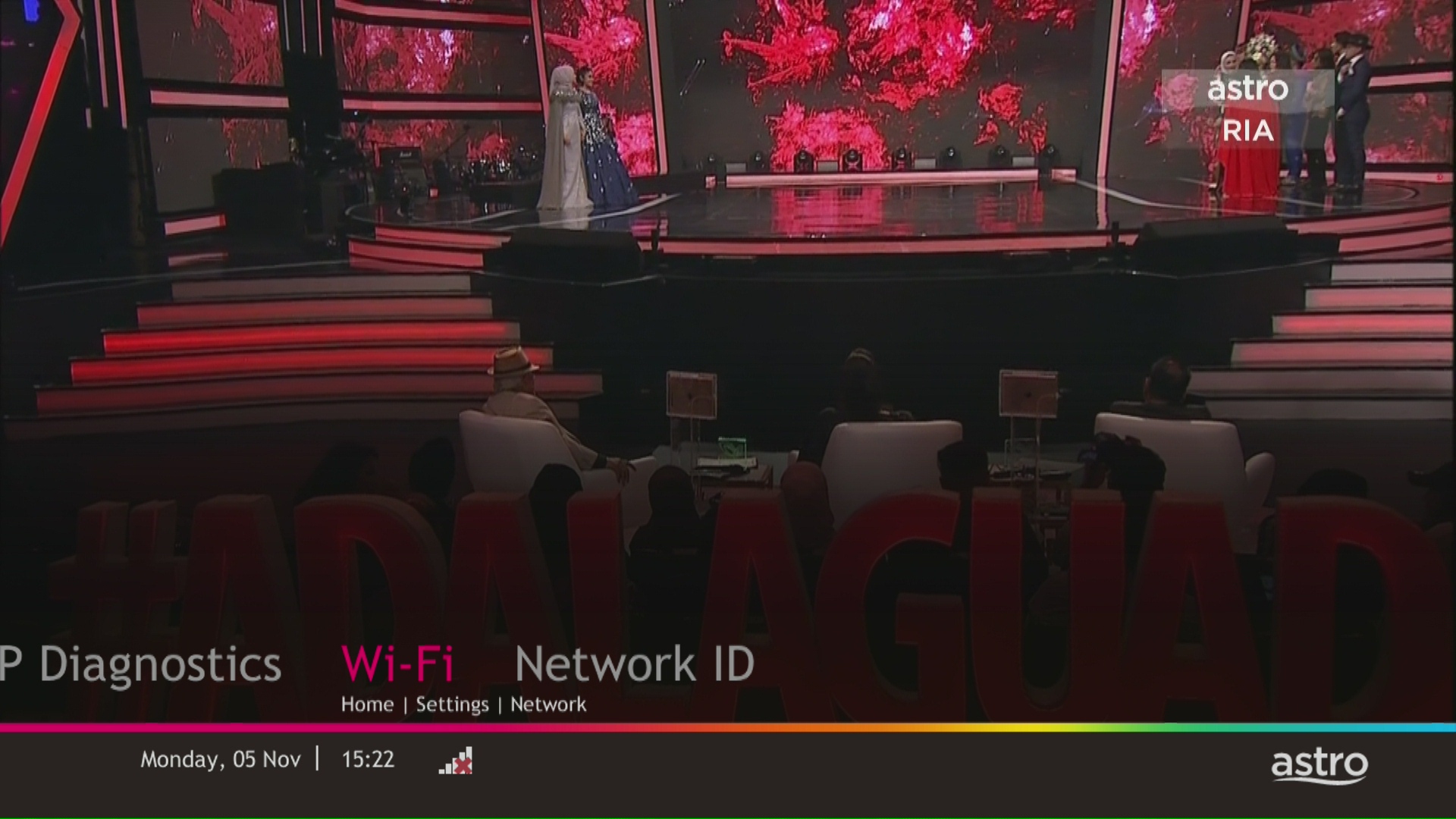
STEP 6
Select New Connection and press "OK".
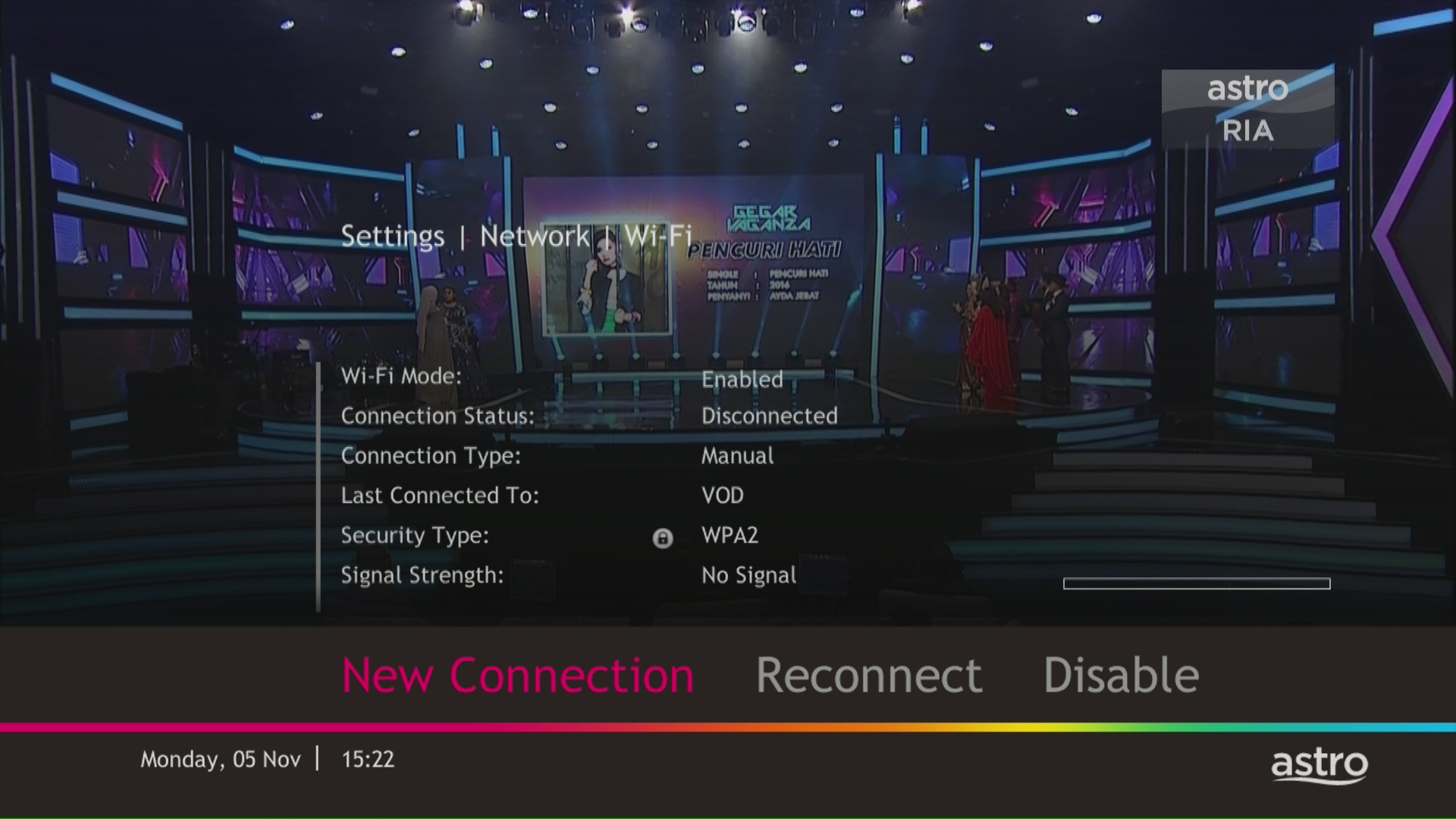
STEP 7
Select your Wi-Fi network and navigate to "Connect".

STEP 8
Please enter the password to connect to your network and press "OK".

STEP 9
You are successfully connected when this screen appears.

You can recover your Netflix login here or at astro.com.my/Netflix
Step 1: Head to astro.com.my/Netflix
Step 2: At the FAQ section look for "How to recover my Netflix login email and password
You may retain your watch history and settings of your existing Netflix account by using the same email of your Netflix account during the linking of your Netflix account with Astro.
