

 Netflix Basic
Nationwide Installation
Applying for
| UniFi Maxis Astro Njoi |
Frequently Asked Questions
Find your answers here.
We provide one stop service to apply Astro and Broadband for you.
You can avoid driving and queuing at the sales counter. We are the dealer that can help you to handle your application from the beginning to the end.
We do not charge you when you apply from us. There is no credit card information required to apply here. Charges are the same as you apply from the sales counter.
First, you can apply online, we will get back to you immediately during business hour. WhatsApp/Email/Fax us your Photocopy of IC (for malaysian) / Passport (for foreigners). When we receive all the information, we will proceed with your application immediately.
Once we receive your application with complete information, we will process your application immediately during business hour. The contractor from the service provider will then contact you for installation appointment once your application is approved.
Enjoy greater savings and hassle-free bill payment in one single bill for both Astro and Broadband. You get to enjoy Astro and Broadband at discounted price every month over the contract period of 24 months.
Astro offers multiple TV packs including Entertainment, Sports, Movies and Kids options. You can choose a pack that matches your viewing preferences and add optional streaming apps where available.
Yes, you may subscribe to Astro TV packs without bundling broadband. However, bundling Astro TV with Fibre Broadband may provide better monthly savings and convenience with a single bill.
For small households with light streaming and browsing, 100Mbps is usually sufficient. Larger families, gamers or heavy streamers may benefit from 500Mbps or 1Gbps plans for smoother performance across multiple devices.
Most Astro TV and Fibre broadband plans come with a 24-month contract. Early termination charges may apply if cancellation is made before the contract ends.
Yes, you may upgrade your TV pack or broadband speed at any time, subject to eligibility and coverage. A new contract period may apply depending on the upgrade.
Your monthly bill will be issued directly by Astro. You may receive it via email or access it through your Astro account. Bundled customers will receive a single combined bill for TV and broadband services.
Payment methods may include online banking, auto debit, credit card or other approved payment channels provided by Astro. Our team can guide you during the registration process.
If you experience any service interruption, you may contact Astro customer support for technical assistance. In many cases, issues can be resolved remotely or a technician will be arranged if necessary.
Yes, relocation is subject to service availability at your new address. Relocation charges and contract adjustments may apply depending on your plan.
No, you do not need a credit card to submit your application. Payment setup will be arranged directly with Astro after your service is approved.
Selected Astro TV packs allow optional add-ons such as streaming services depending on current promotions and availability. Additional monthly charges may apply.
Yes, a WiFi router is typically provided during fibre installation. The router model may vary depending on the selected broadband speed plan.
Yes, we will check the service coverage at your address before proceeding with your application to ensure broadband is available at your location.
For Malaysians, please provide a copy of your MyKad. For foreigners, provide a copy of your passport when submitting your broadband application.
After your application is approved, the service provider typically contacts you within 2 to 7 working days to arrange the broadband installation appointment.
Most Astro Broadband plans come with a 24-month contract starting from your installation date. If you relocate, a new 24-month contract may apply at your new address.
Yes, you can relocate your broadband service, subject to service availability at the new address. Your contract may reset for another 24 months from the new installation date.
Yes, you may request to relocate broadband devices within your home. Non-standard installation charges may apply and are payable to the installer directly after assessment.
Yes, you can switch to Astro Broadband. To avoid service interruption, it is recommended to activate the new service before terminating your current broadband contract.
Standard installations may be free during promotions, but non-standard installations (e.g., device relocation or complex wiring) may incur extra charges payable directly to the installer.
You can add a reminder to pay your bill, on your Google Calendar with one click. Enjoy uninterrupted services, by remembering to pay your bill on time.
You will need to have an Astro subscription before you can subscribe to Disney+ Hotstar as an add-on service via Astro or enjoy any Astro bundle promotions. Please click here to subscribe to our Movies, Premium 1, Premium 3 or Platinum Pack to enjoy all your favourite Global and Malaysian hits for even better value and savings!
Astro GO+ is a service add-on that:
- Enables the simultaneous viewing of Astro GO for up to 4 users/devices.
- Increases the cloud recording storage from 200 hours up to 1500 hours.
Once you have received the eKYC link via SMS/email/astro.com.my, you can proceed to follow the instructions on the screen. You can check out the step-by-step image below for more info.
For MyKad/MyPR/MyTentera :

For Passport :

The payment will take some time to reflect in My Astro app and web account. If you experience any further issues or it is still not reflecting in My Astro, please reach out to us via WhatsApp at 03-9543 3838 for more details.
1. Ensure power cable is connected tightly.
2. Try to use another power socket / power source to eliminate faulty power sockets/power sources which could cause the issue.

3. If the issue persists, submit your feedback form for further assistance.
To set up a Mesh WiFi network around your house, the Mesh unit will need to be paired with the WiFi router. Steps to pair these two devices are as follows:
i. Place the Mesh unit close to the WiFi router (within 2 meters) and power it on
ii. After the Mesh unit starts up, press and hold the WPS buttons of the Mesh unit and the WiFi router for 3 - 5 seconds in turn within 2 minutes
iii. After the WLAN and Internet indicators of the Mesh turns steady blue, the Mesh is connected to the Internet
iv. Move the Mesh to the desired place where you need to expand WiFi and power it on. After the Internet indicator turns steady blue, WiFi is expanded successfully.
Some of our payment partners require payees to scan the barcode on the statement to make payment. Always bring your Astro bill statement when making payment over the counter.
Wider WiFi coverage:
-All areas across the house will enjoy optimal coverage with multiple Mesh WiFi units located in areas with sub-optimal coverage to form a larger WiFi network.
Stable connection;
-Consistent coverage of optimal WiFi signal will ensure a stable connection as the Mesh unit will automatically connect your devices to the strongest WiFi signal around your house.
Currently, you may only add a maximum of five family members to the Astro Fibre App. However, kindly note that we are working on allowing users to add more family members in the future.
Yes, all existing Astro & Broadband customers within contract or out of contract can subscribe to Astro & Broadband offerings. The 24 months contract will be renewed upon signing up for the new packs.
STEP 1
On your remote, press the HOME button and the home menu will be displayed on top of your screen.

STEP 2
Navigate to SETTINGS.

STEP 3
Navigate to Audio Delay and press "OK".

STEP 4
Navigate to your preferred selection and press “OK”.

Please check your internet speed and connection status via internet connection test. If your internet is working fine and the issue persists, proceed to submit report via WhatsApp or Feedback Form.
Step 1:
Type ASTRO<space>BAL<space>10-Digit Astro Account No.
Example: ASTRO BAL 08XXXXXXXX
*Standard telco charges and Terms and Conditions apply
Step 2:
Send SMS to 66688
Yes, the current service tax law does not exempt services provided to customers residing in Labuan, Langkawi, and Tioman.
Yes, Astro is bounded by the PDPA act. All information received will be used in accordance with our Privacy Notice.
STEP 1
Switch off the power for your box and make sure that the adapter's power light is off.

STEP 2
Locate the SIM card at the left side and gently pull it out.

STEP 3
Wipe the SIM card's gold chip clean using a dry soft cloth.

STEP 4
Make sure the gold chip is facing down and reinsert it all the way in.

STEP 5
Switch on the power for your box and make sure that the adapter's power light is on.
Please wait for 5 minutes.

STEP 6
Turn on your Ultra Box. You should no longer be experiencing this problem.

If issue persist, please submit the issue in our Feedback Form with the error details and provide sim card number for assistance.
- If you have signed up for a PVR (New customers), you will have to maintain your Astro subscription for 24 months, or a pro-rated penalty shall apply.
- If you have signed up for a PVR (Existing customers), you will have to maintain your Astro subscription for 24 months, or a pro-rated penalty shall apply.
- If you took up a PVR decoder at a special offer with the package subscription of Super Pack Lite/Super Pack/Super Pack Plus/monthly subscription > RM169.60 (price includes Govt tax), you will have to maintain your package subscription for a minimum of 6 months, or a flat penalty fee of RM106 (price includes Govt tax) shall apply.
You may visit any of Astro's digital platform that you would like to log into. Then, create a new Astro ID using your existing email address or mobile number. After creating your new Astro ID, please use it to log into our digital platforms moving forward.
Please follow the steps below to reset your password:
Step 1: Download the My Astro app from either the App Store, Google Play or HUAWEI AppGallery.
Step 2: Sign in with your Astro ID.
Step 3: Select "Rewards" on the home screen to get started.
Watch this tutorial to learn how to create your Astro ID.
This error indicates that you are streaming on Astro GO while being connected to a VPN. Please close your VPN application and try streaming again.
If you are still having issues, proceed to submit report via WhatsApp or Feedback Form.
Please contact your issuing bank to enable card-not-present (CNP) transactions. This security measure helps us to protect your card information from being misused in fraudulent transactions.
- Credit or Debit Cards
- Visa
- Mastercard
- Maybank2U - Pay using your Maybank2U account
- FPX - Pay using any local bank account via FPX
- E-Wallet - Touch "n Go
The balance will be credited into your account, which will be reflected when you receive your next bill. The balance credit will be used to offset your bill balance.
Step 1: You request for a move.
Step 2: One of our agents will contact you within 24 hours to set an appointment if you’re using Self Service - Astro Self-Service Portal.
Step 3: You will receive a reminder of your appointment an hour before your scheduled time.
Step 4: The technician will dismantle your satellite dish.
If there is no satellite dish, customers should dismantle the modem, router, and decoder by themselves.
Step 5: You will need to transport your device(s) to your new home.
Step 6: The technician will reinstall your satellite dish, (including modems and routers for broadband customers) at your new home based on the schedule appointment.
Note For IPTV Customers:
1. Upon relocation request, all exiting IPTV customers will be converted to our Astro & Broadband service. Customers can choose to have standard Astro service with satellite dish, or unicast Plug & Play without satellite dish.
2. If customers choose to have satellite dish, an additional RM150.00 will be charged for satellite installation. If customers choose to have unicast Plug & Play service, no satellite dish is required, hence no extra charge will be incurred.
You will be able to access Netflix on your Ultra and Ulti Box. However, kindly note that if you have an Ulti Box with a Netflix Premium subscription, you will not be able to watch content in 4K UHD and Netflix Spatial Audio.
Visit https://product.astro.com.my/box or check out our user guide for a quick and easy way to get started!
Yes, you may terminate the service, however an early cancellation fee will be applied for termination/cancellation within 24 months. Please refer to the Astro Fibre's cancellation details.
The new packs and access to Netflix on the Ultra Box and Ulti Box is available for Astro IPTV customers.

STEP 1
Switch on the power for your box and make sure that the adapter's power light is on.

STEP 2
Put the box on standby mode.

STEP 3
Press and hold the Home button on the box.

STEP 4
Wait until "boot" appear on the front panel and released.

STEP 5
New Installation Settings page will appear.
Click here for the guides to complete the setup.


STEP 1
Switch off the power of your box and ensure the adapter�s power light is off.

STEP 2
Switch on the power of your box and ensure the adapter�s power light is on.
STEP 3
Press and hold the Ch+ and Ch- keys on the box simultaneously when the "boot" message appears on the front panel.
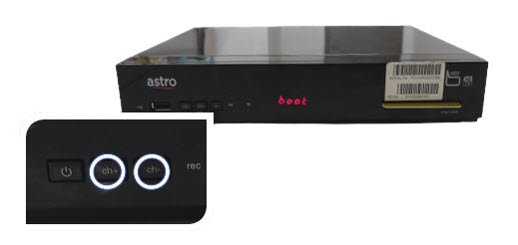
STEP 4
Wait until the "Clr" message appears on the front panel, then release the Ch+ and Ch- keys.

STEP 5
New Installation Settings page will appear.
Click here for the guides to complete the setup.

STEP 1
Ensure your box is on standby mode. (Red light on box's front panel).
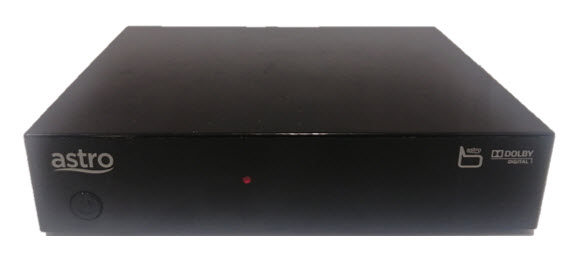
STEP 2
Press and hold the Standby button. Wait until the LED at front panel change from red to green for 3 times, then release the button.
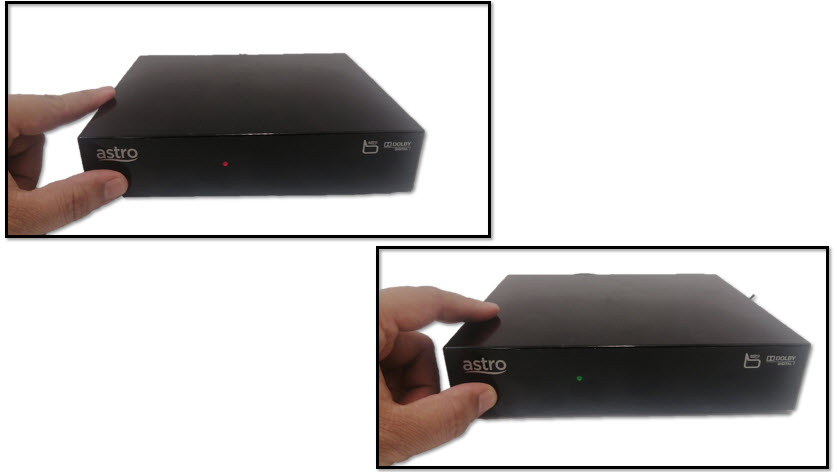
STEP 3
New Installation Settings page will appear.
Click here for the guides to complete the setup.

STEP 1
Switch off the power of your box and ensure that the adapter�s power light is off.
STEP 2
Switch on the power of your box and ensure that the adapter's power light is on.
STEP 3
Keep pressing the 'Power' button until the Startup Option screen appears.
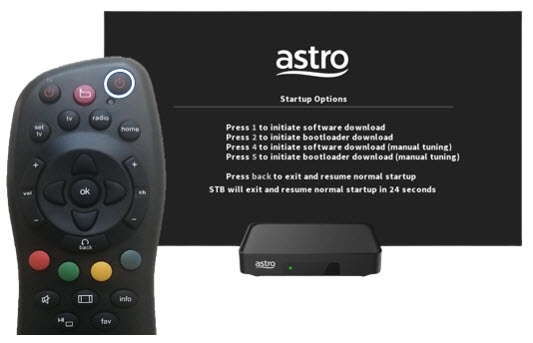
STEP 4
Press "369" on the remote control to trigger refresh box setting menu.
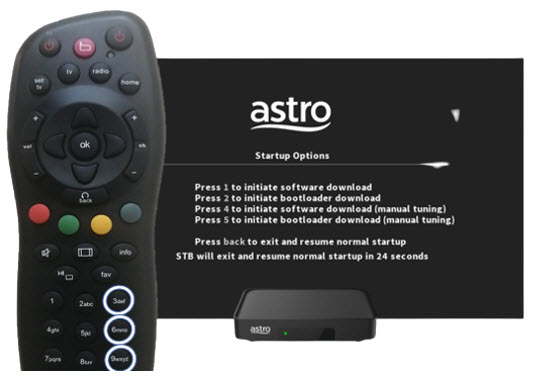
STEP 5
Press "OK" to proceed. The box will be refreshed to the original setting.

STEP 6
New Installation Settings page will appear.
Click here for the guides to complete the setup.
STEP 1
On your remote, press the Home button and the menu will be displayed on top of your screen.
STEP 2
Navigate to Settings.
STEP 3
Navigate to Restore and press "OK".
STEP 4
Navigate to Restore Factory Settings and press "OK".

STEP 5
Enter your PIN to access this setting. (Default PIN is 0000).
STEP 6
Navigate to Restore and press "OK" to confirm your selection.
Otherwise, navigate to Cancel, go back to remain the settings.
STEP 7
Please wait while the box restoring defaults and will reboot once complete.
STEP 8
Your box will automatically restart and display this screen.
Click here to follow New Installation Settings guide for Satellite
Click here to follow New Installation Settings guide for Plug and Play
The Ultra/Ulti Plug & Play Box comes with a one-year box hardware warranty.
For self-installation, there is a warranty seal at the bottom of the Ultra/Ulti Plug & Play Box, which must not be removed or tampered with as this would void the one-year Ultra/Ulti box hardware warranty.
No, this change in due date will not impact your monthly bill subscription.
There will be no changes to your account. However, by paying 5 days earlier, your transactions will be processed in a timely manner and to allow you to enjoy uninterrupted viewing before the next bill is generated for the following month.
The Ultra Box is Astro's latest generation of 4K UHD enabled box with Cloud recording feature, redesigned new interface, and UHD resolution. Just connect the all-new Ultra Box to the internet and take control of your entertainment and explore over 110,000 videos that are waiting to be streamed, anytime. With the ability to record as many shows as you want simultaneously.
The new interface on Astro Ultra Box offers an enhanced viewing experience with a brand-new look and feel with features such as:
· New Home Screen - Everything you see is yours
· Discover VOD - Discover 110k videos, stream anytime, anywhere including in 4K UHD
· Search - Search faster and easier
· Play from Start - You missed the start? Just restart
· Stop Here, Continue There - Stop on one screen and continue on another device
· Multi-Screen - Stream seamlessly across any device
· Cloud Recording - Record all the programmes you want at the same time
. **Continuous viewing - Enable to continue watching your favorite shows during raining
Note: ** Except 4K UHD, Astro First and all radio channels
Please ensure you:
a. Have your original identification card “MyKad” (Front & Back) with you (Malaysian).
b. Have your original Passport & Visa with you (Non-Malaysian).
c. Are in a brightly lit environment
While this technology has its benefits, different devices at home have different reaction and response to changes in signal strength and quality, and it's almost impossible to predict if they will make good band choices due to the interaction between the devices and the Wifi router. Some smart home devices also recommend that band steering is not used due to various reasons such as needing a constant consistent connection, ability to only connect to a particular band, registration of the respective MAC address, etc..
Example:
As single SSID is used, the device may remain on a weak 5GHz network instead of switching over to stronger 2.4GHz network.
Please provide your primary mobile number via My Astro Portal, or send it to one of our platforms found here.
Note:
- Any changes of contact details to be requested by account holder only.
- Only account holder's contact to be updated as primary mobile number in the system.
i.Initiate the app on your new Smart TV device, key in the unique code on the TV to your mobile
ii.You will see the list of devices on your mobile and choose the old device to be removed
iii.Your new Smart TV device will be added
Only the account holder is allowed to manage the auto-debit facility. However, a third-party card holder has the right to withdraw their registered card from the linked-account with proper validation.
Please follow the steps in Q5, then continue with the steps below:
| Step 1: Click the “Email” or “Mobile Number” field to edit. Then, enter your updated detail(s). | Step 2: Complete the verification by entering the code sent to your new email address or mobile number. | Step 3: Congratulations! You have successfully updated your contact detail! |
Kindly ensure that your mobile number is the same as the registered phone number of the Astro account holder as the OTP will only be sent to the registered number. For further assistance, please call or WhatsApp us at 03-9543 3838. Alternatively, you may submit a request via our online Feedback Form here: astro.com.my/contactus/form.aspx.
Service Tax is charged based on the date the service is rendered. For services rendered on or after 1st March 2024, the Service Tax rate would be at 8% whilst for services enjoyed before 1st March 2024, the Service Tax rate would be 6%.
Astro & Broadband comes with 24-month contract commitment.
Yes, as part of our Astro Fibre Movies & Sports Campaign, new Astro Fibre customers can enjoy 50Mbps + the Movies/Movies+/Sports/Sports+ Pack TV bundle for a special price from only RM164.99/month when they sign up within the campaign period, with more than RM800 savings in total.
This error indicates that you have reached the maximum number of simultaneous video streams across devices for one (1) account. To stop seeing this error, please stop streaming on one of your other devices.
• If you have recently purchased your Astro pack or made any changes to your pack on or after 9th November you can stream on two (2) concurrent screens
• If you have not made any changes you can stream on four (4) concurrent screens.
If you are still having issues, proceed to submit report via WhatsApp or Feedback Form.
Firstly, you would have to retrieve your email address/mobile number. Please follow the steps in Q7 in order to do so. Then, follow the steps in Q5 and Q6 to check or update your contact details. Please use your updated email address or mobile number as your Astro ID to log in moving forward.
Note: Only Astro customers whose Astro ID is linked to their subscription can retrieve their Astro ID this way. Otherwise, you would need to create a new Astro ID.
Yes, you will enjoy an Ulti box when subscribing to Primary/Entertainment/ Movie Pack OR an Ultra box when subscribing to Sports/Sports+/Movies+/Premium 1/Premium 2/Premium 3/Platinum Pack.
You will get FREE installation for both Ultra/Ulti box upon signing up with Astro & Broadband.
If you did not receive the recovery email or verification code, please make sure that:
- You are inserting the correct email or mobile number you used to register for your Astro ID.
- Check your junk mailbox or spam folder.
To find out which email or phone number you have used to register your Astro ID, you may submit a feedback form. Kindly select feedback type "I have an enquiry/issue with Apps" choose "Astro GO"

We will get in touch with you within 48 hours to solve your enquirie
