

 Netflix Basic
Nationwide Installation
Applying for
| UniFi Maxis Astro Njoi |
Frequently Asked Questions
Find your answers here.
We provide one stop service to apply Astro and Broadband for you.
You can avoid driving and queuing at the sales counter. We are the dealer that can help you to handle your application from the beginning to the end.
We do not charge you when you apply from us. There is no credit card information required to apply here. Charges are the same as you apply from the sales counter.
First, you can apply online, we will get back to you immediately during business hour. WhatsApp/Email/Fax us your Photocopy of IC (for malaysian) / Passport (for foreigners). When we receive all the information, we will proceed with your application immediately.
Once we receive your application with complete information, we will process your application immediately during business hour. The contractor from the service provider will then contact you for installation appointment once your application is approved.
Enjoy greater savings and hassle-free bill payment in one single bill for both Astro and Broadband. You get to enjoy Astro and Broadband at discounted price every month over the contract period of 24 months.
Astro offers multiple TV packs including Entertainment, Sports, Movies and Kids options. You can choose a pack that matches your viewing preferences and add optional streaming apps where available.
Yes, you may subscribe to Astro TV packs without bundling broadband. However, bundling Astro TV with Fibre Broadband may provide better monthly savings and convenience with a single bill.
For small households with light streaming and browsing, 100Mbps is usually sufficient. Larger families, gamers or heavy streamers may benefit from 500Mbps or 1Gbps plans for smoother performance across multiple devices.
Most Astro TV and Fibre broadband plans come with a 24-month contract. Early termination charges may apply if cancellation is made before the contract ends.
Yes, you may upgrade your TV pack or broadband speed at any time, subject to eligibility and coverage. A new contract period may apply depending on the upgrade.
Your monthly bill will be issued directly by Astro. You may receive it via email or access it through your Astro account. Bundled customers will receive a single combined bill for TV and broadband services.
Payment methods may include online banking, auto debit, credit card or other approved payment channels provided by Astro. Our team can guide you during the registration process.
If you experience any service interruption, you may contact Astro customer support for technical assistance. In many cases, issues can be resolved remotely or a technician will be arranged if necessary.
Yes, relocation is subject to service availability at your new address. Relocation charges and contract adjustments may apply depending on your plan.
No, you do not need a credit card to submit your application. Payment setup will be arranged directly with Astro after your service is approved.
Selected Astro TV packs allow optional add-ons such as streaming services depending on current promotions and availability. Additional monthly charges may apply.
Yes, a WiFi router is typically provided during fibre installation. The router model may vary depending on the selected broadband speed plan.
Yes, we will check the service coverage at your address before proceeding with your application to ensure broadband is available at your location.
For Malaysians, please provide a copy of your MyKad. For foreigners, provide a copy of your passport when submitting your broadband application.
After your application is approved, the service provider typically contacts you within 2 to 7 working days to arrange the broadband installation appointment.
Most Astro Broadband plans come with a 24-month contract starting from your installation date. If you relocate, a new 24-month contract may apply at your new address.
Yes, you can relocate your broadband service, subject to service availability at the new address. Your contract may reset for another 24 months from the new installation date.
Yes, you may request to relocate broadband devices within your home. Non-standard installation charges may apply and are payable to the installer directly after assessment.
Yes, you can switch to Astro Broadband. To avoid service interruption, it is recommended to activate the new service before terminating your current broadband contract.
Standard installations may be free during promotions, but non-standard installations (e.g., device relocation or complex wiring) may incur extra charges payable directly to the installer.
Step 1:
Type ASTRO<space>BARCODE<space>10 digit account number
Example: ASTRO BARCODE 0866603852
Step 2:
Send SMS to 66688
*Standard telco charges and Terms and Conditions apply
1. Ensure power cable is connected tightly.
2. Try to use another power socket / power source to eliminate faulty power sockets/power sources which could cause the issue.

3. If the issue persists, submit your feedback form for further assistance.
My Astro app and web is currently available in English and Bahasa Malaysia only.
You can now choose to log in using your email address, mobile number or a social account (Facebook, Google or Apple).
Astro Multiroom service mirrors all content from your primary subscription, except selected Special Interest and pay-per-view channels such as Astro First/Best movies.
For customers with Multiroom box, the Plug & Play setup with Astro Broadband will not have access to NHK World. The Plug & Play setup without Astro Broadband will not have access to NHK World.
STEP 1
Switch off the power for your box and make sure that the adapter's power light is off.

STEP 2
Locate the Smartcard at the front or right side and gently pull it out make sure that the adapter's power light is off.

STEP 3
Wipe the Smartcard's gold chip clean using a dry soft cloth.

STEP 4
Make sure the gold chip is facing upwards and reinsert it all the way in.

STEP 5
Switch on the power for your box and make sure that the adapter's power light is on. Please wait for 5 minutes.

STEP 6
Turn on your box. You should no longer be experiencing this problem.
If issue persist, please submit the issue in our Feedback Form and attach a picture of your General tab of the STB Diagnostics for assistance.

Please switch your current subscriptions to our new Astro packs to subscribe to Multiroom (Smart TV). To sign up, WhatsApp “SWITCH” to 03-9543 3838 and an agent will assist you.
Find out more of our new packs at https://product.astro.com.my/tv
Unfortunately, your Disney+ Hotstar access with Astro will be terminated as well.
If you are subscribed to Netflix via a bundle, Netflix comes by default as part of your entitlement.
If you are subscribed to Netflix as an a-la carte, the cancellation of Netflix can only be done via Netflix's Website, etc). This change will reflect in your next bill. From mid-December 2021 you may also cancel Netflix add-on through Astro Call Center.
By default, all Astro Fibre customers will receive a Private IPv4 or IPv6 address. However, customers who would like to subscribe to a fixed IP service can do so by contacting our Customer Service Centre at 03-9543 3838 for Astro Fibre’s Fixed IP service for only RM5/month.
1. Tune to Astro channel 200 - select "Add-Ons"

2. Select the option for Monthly Subscription
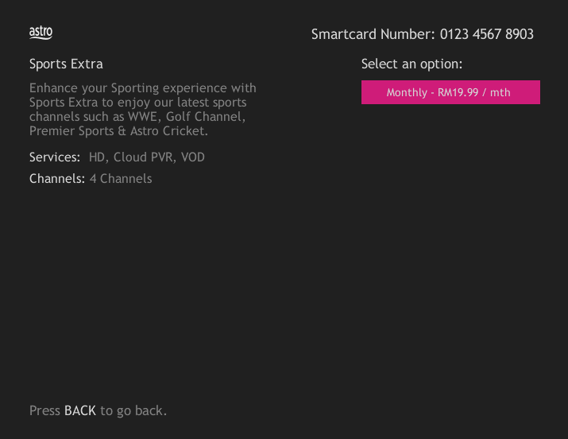
3. Send the WhatsApp code as per displayed on the TV screen

Astro ID is the account you use to sign in and manage all your Astro services online. You can use your Astro ID for the following Astro apps and portals:
- My Astro
- Astro GO
- HBO GO
- Disney+ Hotstar
- iQIYI
- TVBAnywhere+
- beIN Sports Connect
- SYOK App
- AWANI App
- Astro Website
- Ideaktiv portals
You can create an Astro ID using your mobile number or email address here. To secure your Astro ID, please proceed to next step and link the ID to your Astro account number (10 digits) or smart card number (12 digits).
Please ensure that you have subscribed to the mentioned channel.
If you're subscribed to this channel, follow below steps.
STEP 1
You need to refresh the signal on your box.
Refer to Refresh signal of your box guide.
STEP 2
If issue persist after 30 minutes, proceed to submit report via WhatsApp or Feedback Form.
All Astro customers who are actively using their username to log in will be notified via email or SMS two (2) weeks before this change takes place. Please refer to the guide below on how to check for your registered contact details:
| Step 1: Visit https://id.astro.com.my/ and log in using your username. | Step 2: Under your Profile, refer to the “Email” or “Mobile Number” fields to view your contact details. |
Starting 1 April, access to TVBAnywhere+ is no longer available to Astro customers. However, you can continue to enjoy TVB content via On Demand and TVB Jade (CH310) and Astro AOD (CH311). If you would like to subscribe to the TVBAnywhere+ app, you may still do so by purchasing it directly from TVB.
You may register up to four (4) devices.
To remove devices on Astro GO, click on Settings > Registered Devices to view and remove a device(s) from the list of devices registered to your Astro ID.
Please ensure to put your box on standby mode to refresh the signal.
a. Using IVR
1. Dial 03-95433838 and select you preferred language.
2. Select Account Related.
4. Select Refresh Smartcard.
b. Using MyAstro web
STEP 1
Go to https://myastro.astro.com.my/ in your web browser.
STEP 2
Keyin your Email / Mobile number and password. Then, press "LOG IN".

STEP 3
Click on TV pack.

STEP 4
Choose Main Room for the Primary Box; else choose Multiroom (If any).

STEP 5
Click on "Refresh" to refresh signal on your box.
For Main Box 
For Multiroom
STEP 6
After tap the Refresh, below notification will be displayed as below.
For Main Box 
For Multiroom
c. Using My Astro App
STEP 1
Open My Astro App and click "Login".

STEP 2
Keyin your Email / Mobile number and password. Then, press "LOG IN".

STEP 3
Go to "Account".

STEP 4
Scroll down to "TV pack" and click on it.

STEP 5
Choose Main Room for the Main Box; else choose Multiroom (If any).

STEP 6
Tap on "Refresh" to refresh signal on your box.

STEP 7
After tap the Refresh, below notification will be displayed as below.

STEP 1
On your remote, press the HOME button and the home menu will be displayed on top of your screen.

STEP 2
Navigate to SETTINGS.

STEP 3
Navigate to Audio Delay and press "OK".

STEP 4
Navigate to your preferred selection and press “OK”.

For Platinum Pack and Multiroom Smart TV customers, Astro GO+ is included in your subscription at no extra charge. For customers on other packages, you will be able to add-on Astro GO+ to your subscription for RM 5.99/month.
No. However, if you cancel your Astro Pay TV services but resubscribe at a later date, your duration (year) with us will reset to zero and restart according to your new activation date. Your Astro Rewards tier will reset to Magenta.
The Multi-user Profile feature allows customers to create individual profiles within their Astro Box and Astro GO with the following personalisations:
- Personalised Recommendations
- Continue Watching
- Watch List
- Last Viewed Channel
- Favourite & Blocked Channels
The MUP feature is a great way to allow individual users to tailor personal Astro experiences whilst using a shared device (e.g.: Astro Box) in the household, providing them with better personalised recommendations and encouraging better content discovery.
Click here to find out more on this new feature and how to use it!
(i) Head over to My Astro Portal and go to 'Bill & Payment'. Click on 'Payment History'
(ii) Contact us via one of these platforms. Please ensure you include your Astro Account Number.
I am sorry you can't. While we understand the value customers see in choosing their preferred service/pack individually, the packaging of channels/services in the new packs are necessary for us to offer content/services at an affordable price to our customers.
STEP 1
On your remote, press the HOME button and the home menu will be displayed on top of your screen.

STEP 2
Navigate to Guide.

STEP 3
Select the channel you would like to add to favourite list and press "OK".

STEP 4
Select "Add to Favourites" and press "OK".

STEP 5
You are successfully added the channel to favourite list when this screen appears.

STEP 6
Your selected channel will have a heart tagging after added as favourite.
For customers who wish to have their physical tax invoices reprinted, there will be a flat fee of RM10.00 levied as part of the process which has been implemented since year 2015.
STEP 1
Press "HOME" button on your remote control.

STEP 2
Navigate to Settings and press "OK".
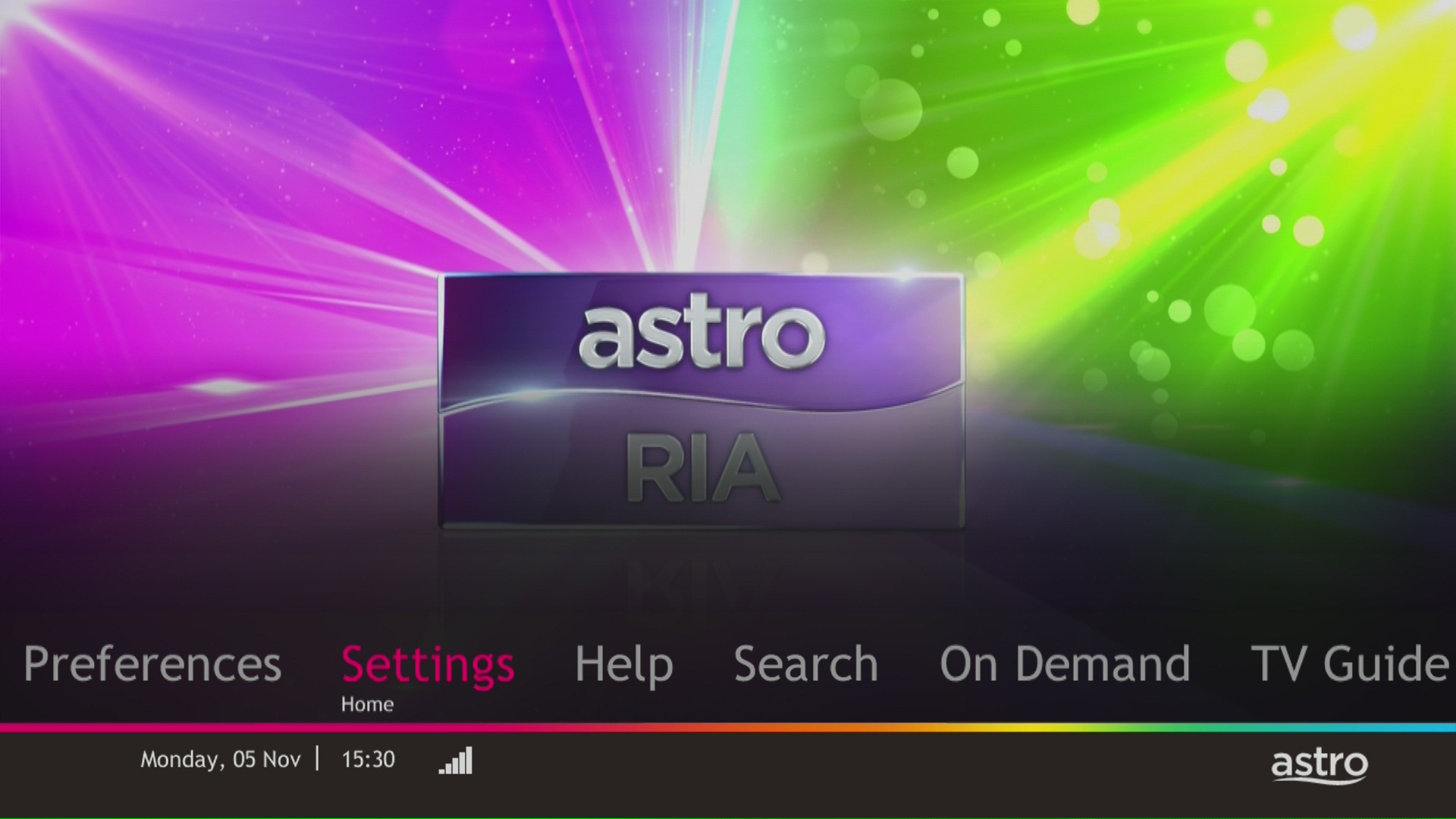
STEP 3
Navigate to STB Diagnostics and press "OK".

STEP 4
Take a look at the HDMI Connection Status.

For information about the Disney+ Hotstar app functions and specifications, please visit help.hotstar.com or email disneyplus.my@hotstar.com.
Your documents will be handled in compliance with standards set by PDPA (Personal Data Protection Act 2010) and will not be used for other means without your specific consent.
At this point in time, the Disney+ Hotstar app on the Ultra or Ulti Box does not support Dolby audio. We are working to enable this in a future update.
STEP 1
Check the internet connectivity by run the Test Connection.
Refer Run Test Connection.
STEP 2
Verify the Test Connection results.
a. All connected successfully - Proceed to STEP 3
b. All connection failed - Proceed to STEP 4
c. Router connection successfully, others failed - Proceed to STEP 7
STEP 3
Please ensure your box with the latest software update from "General Diagnostics".
Refer to Check Software Version Status.
If your box status is other than "Your box has the latest update (a)", please proceed to update the software.
Refer Software Update guide.
STEP 4
Check the connection to the box either using Ethernet (LAN cable) or Wi-Fi.
a. If using Ethernet (LAN cable) - Connect to Live Agent for help.
b. If using Wi-Fi - Proceed to STEP 5
STEP 5
Check location of the decoder and router.
a. If nearby (within 1.5m) - Try connect to box from router using LAN cable.
b. If far (more than 1.5m) / No LAN cable - Proceed STEP 6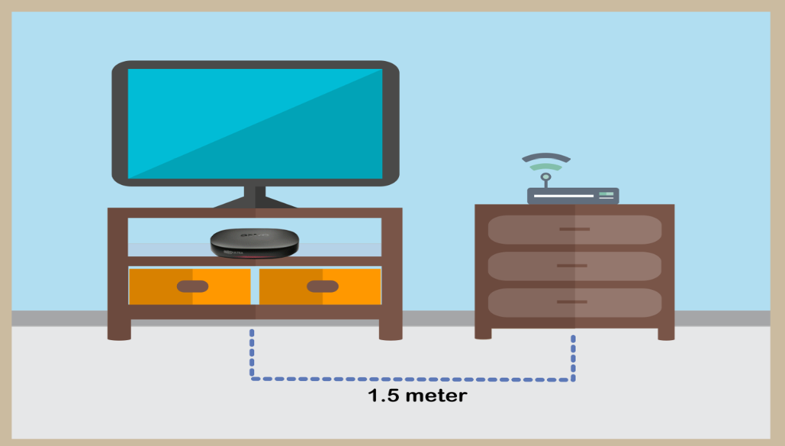
STEP 6
Reboot router, modem and decoder.
If issue persist, please try again after 30mins to 1 hour. Connect to live agent if persist after 30 mins to 1 hour.
STEP 7
Suspect there is an issue with your internet connection.
Please check with your internet service provider or if under Astro Fibre / Astro Broadband, connect to Live Agent for help.

You may proceed with below troubleshooting and it shouldn't take you any longer than 15 minutes.
- Please standby computer/ laptop to access to the internet and connection must be via LAN (cable) [Connect the LAN (cable) to the yellow port at ZTE Router and direct to computer/ laptop].
- You may open any web browser such as Google Chrome, Internet Explorer, Mozilla Firefox and etc.
- On the address bar, please go to http://192.168.0.1 and below page will appear.

4. Type the Username and Password as below. Then click Login. (These are the defaults, if you have done previous configuration on your router the password may be different)
Username: admin
Password: admin (or time123)

5. The router's web-based setup page should now appear. Please follow below steps for the configuration.

i. On the setup page, click the Network tab then click on the WLAN then choose Basic sub-tab.

ii. Please ensure Wireless RF Mode is Enabled.

iii. Click the drop-down arrow for Channel, then select your desired channel.
Choose between 1 until 11 (Suggested 1,6,11).

iv. Click Submit. Router will auto reboot and connection re-establish after few minutes.
Astro ID and / or account deletion is permanent. Upon deletion, it will be unlinked from your TV subscription account and you will be logged out from all the associated Astro apps and / or services connected including the partner apps that you have logged in using the same Astro ID. If you have any queries regarding Astro ID or would like to request for Astro ID account deletion, click on submit your request here, fill in the required details and our Astro representative will get back to you within 3 business days for security verification purposes.
When playing content from the Video On Demand library, a 15-second or 30-second video advertisement(s) will be shown before the On Demand programme starts. All advertisements will display a countdown to indicate the time remaining on the advertisement(s) and will not be skippable.
To find out more information on Astro GO advertising, please click here.
Starting 21 June 2022, all new digital sign-ups for TV packs on astro.com.my will now include access to the Astro GO app within an hour upon checkout of your first month subscription fees (excluding tax). Install the app on your smartphones, tablets or computers and you can start streaming even before your Astro box arrives!
STEP 1
On your remote, press the HOME button and the home menu will be displayed on top of your screen.

STEP 2
Navigate to Settings.

STEP 3
Navigate to TV Settings and press “OK”.

STEP 4
Navigate to your preferred selection and press “OK”.

STEP 5
Navigate to Save and press "OK" to confirm your selection.

Customers with a Movies subscription via Movies, Premium 1, Premium 3 or Platinum Packs will be able to access Disney+ Hotstar on the Ultra Box and Ulti Box. Alternatively, customers can add on the 3-months Disney+ Hotstar pass for only RM54.90. Subscribe to Disney+ Hotstar via astro.com.my/Disney.
This error indicates that you are streaming on Astro GO while being connected to a VPN. Please close your VPN application and try streaming again.
If you are still having issues, proceed to submit report via WhatsApp or Feedback Form.


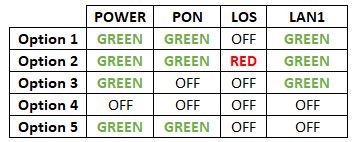

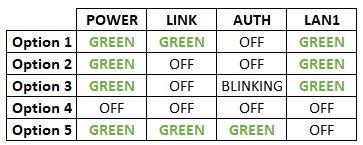
Option 1
- Please turn off all devices (Modem and Router). By restarting your modem, you can isolate the possibility of overloaded processes in the modem, which would impact its performance.
- Ensure both cables on Modem (LAN Port 1) and Router (Internet Port) are properly connected.
Modem connection

Router connection


3. Please make sure the LAN cable is connected properly from router (Port 1-4 - LAN port) to PC/ Laptop.
4. If you have change the password in Selfcare Time portal recently, please change the router configuration follows the new password made in Selfcare, but if you didn't make any changes, please go to Step 5.
5. If the issue persists, submit your feedback form and attach your modem light indicator picture/video for further assistance.
Option 2/ Option 3
- Please turn off all devices (Modem and Router). By restarting your modem, you can isolate the possibility of overloaded processes in the modem, which would impact its performance.
- Gently remove fiber optic cable and blow / wipe the tip of the fiber cable. This is to clean up the cable in order to avoid any interferences.
- Re-insert the fiber cable to the optical port behind the modem.
- Ensure both cables on Modem (LAN Port 1) and Router (Internet Port) are properly connected.
Modem Connection

Router Connection


5. Make Sure both cables on Modem (LAN Port 4/ LAN Port 3 for second decoder) and Astro Decoder (Network Port) are properly inserted.


6. Switch on modem and router and please wait for 2 minutes to stabilise the devices after reboot.
5. If the issue persists, submit your feedback form and attach your modem light indicator picture/video for further assistance.
Option 4
1. Ensure Modem/Router are connected tightly to the power socket.
2. Try to use another power socket / power source to eliminate faulty power sockets/power sources which could cause the issue.
3. If the issue persists, submit your feedback form for further assistance.
Option 5
1. Please ensure LAN cable is directly connected to modem port LAN 1.

2. Please use different LAN port if LAN 1 port is still off / not working.
3. If the issue persists, submit your feedback form for further assistance.
We would need you to run few tests in order for us to understand your issue and to assist you in fixing the problem.
You may proceed with the troubleshooting steps below which should not require any longer than 15 minutes.
- Please run each of the tests according to your your Laptop/PC Software.
- Compile the pictures / screenshots of your test results in one file (i.e Microsof Word document, PDF file) and attach them in the Support Ticket below in order for us to assist you further:
- List of websites effected.
- Run the Speed Test via LAN (cable) and Wi-Fi connection - Please click here for Speed Test guideline.
- Run the Traceroute Test - Please click here for Traceroute Test guideline.
- Run the Ping Test - Please click here for Ping Test guideline.
- Once you/ve gathered all the results, kindly send them all through the Feedback Form below.
Quick Info
A Speedtest is a service that provides free analysis of Internet access parameters, such as connection data rate.
A Ping Test shows how long it takes for packets to reach host.
A Traceroute Test traces the route of packets to destination host from our server.
STEP 1
Check the Audio settings on your box and set to Auto.
Refer guide to change Set HDMI Audio.
STEP 2
If issue persist, check if there is any 3rd party device (sound system/hdmi splitter) connected between box and TV.
STEP 3
If using 3rd party devices, bypass/remove 3rd party device and make sure HDMI cable connected directly from box to TV.
STEP 4
If issue persist, connect to Live Agent via WhatsApp for help.
Successful payment via JomPAY will be posted real time.
If you sign up Astro & Broadband with standard Ultra & Ulti box (DBB), all channels are available.
However, there are channels that will not be available with Ultra/Ulti Plug & Play Box which are NHK World (398).
i.Initiate the app on your new Smart TV device, key in the unique code on the TV to your mobile
ii.You will see the list of devices on your mobile and choose the old device to be removed
iii.Your new Smart TV device will be added
Zee5 is the only app that has a change in price upon the SST increase. Prices of Netflix, Disney+ Hotstar, Viu, iQIYI, WeTV and Qalbox will not be affected.
You may utilise your credit balance to offset future billing on your Astro account, or contact us here for further enquiries.
We wish to advise you to make your payment before the following month's bill is generated in order to avoid interruption in your viewing experience. Please note that to reconnect your subscription, there will be a charge of up to RM20 (excl. gov tax) upon reconnection, except for Commercial & Hotel customers.
Find out more about the reconnection fee here.
Step 1: Download the My Astro app from either the App Store, Google Play or HUAWEI AppGallery.
Step 2: Sign in with your Astro ID.
Step 3: Select "Rewards" on the home screen to get started.
Watch this tutorial to learn how to create your Astro ID.
No, the quality of your video depends on the speed and reliability of your internet.
Yes, Mesh WiFi add-on is available for both Astro Fibre Bundle and Astro Fibre subscription.
Kindly note that affected customers will be adequately informed 30 days prior to the implementation via SMS which are sent out in phases (Starting 1 July), with scheduled announcements across WhatsApp, My Astro app, and Astro website.
