

 Netflix Basic
Nationwide Installation
Applying for
| UniFi Maxis Astro Njoi |
Frequently Asked Questions
Find your answers here.
We provide one stop service to apply Astro and Broadband for you.
You can avoid driving and queuing at the sales counter. We are the dealer that can help you to handle your application from the beginning to the end.
We do not charge you when you apply from us. There is no credit card information required to apply here. Charges are the same as you apply from the sales counter.
First, you can apply online, we will get back to you immediately during business hour. WhatsApp/Email/Fax us your Photocopy of IC (for malaysian) / Passport (for foreigners). When we receive all the information, we will proceed with your application immediately.
Once we receive your application with complete information, we will process your application immediately during business hour. The contractor from the service provider will then contact you for installation appointment once your application is approved.
Enjoy greater savings and hassle-free bill payment in one single bill for both Astro and Broadband. You get to enjoy Astro and Broadband at discounted price every month over the contract period of 24 months.
Astro offers multiple TV packs including Entertainment, Sports, Movies and Kids options. You can choose a pack that matches your viewing preferences and add optional streaming apps where available.
Yes, you may subscribe to Astro TV packs without bundling broadband. However, bundling Astro TV with Fibre Broadband may provide better monthly savings and convenience with a single bill.
For small households with light streaming and browsing, 100Mbps is usually sufficient. Larger families, gamers or heavy streamers may benefit from 500Mbps or 1Gbps plans for smoother performance across multiple devices.
Most Astro TV and Fibre broadband plans come with a 24-month contract. Early termination charges may apply if cancellation is made before the contract ends.
Yes, you may upgrade your TV pack or broadband speed at any time, subject to eligibility and coverage. A new contract period may apply depending on the upgrade.
Your monthly bill will be issued directly by Astro. You may receive it via email or access it through your Astro account. Bundled customers will receive a single combined bill for TV and broadband services.
Payment methods may include online banking, auto debit, credit card or other approved payment channels provided by Astro. Our team can guide you during the registration process.
If you experience any service interruption, you may contact Astro customer support for technical assistance. In many cases, issues can be resolved remotely or a technician will be arranged if necessary.
Yes, relocation is subject to service availability at your new address. Relocation charges and contract adjustments may apply depending on your plan.
No, you do not need a credit card to submit your application. Payment setup will be arranged directly with Astro after your service is approved.
Selected Astro TV packs allow optional add-ons such as streaming services depending on current promotions and availability. Additional monthly charges may apply.
Yes, a WiFi router is typically provided during fibre installation. The router model may vary depending on the selected broadband speed plan.
Yes, we will check the service coverage at your address before proceeding with your application to ensure broadband is available at your location.
For Malaysians, please provide a copy of your MyKad. For foreigners, provide a copy of your passport when submitting your broadband application.
After your application is approved, the service provider typically contacts you within 2 to 7 working days to arrange the broadband installation appointment.
Most Astro Broadband plans come with a 24-month contract starting from your installation date. If you relocate, a new 24-month contract may apply at your new address.
Yes, you can relocate your broadband service, subject to service availability at the new address. Your contract may reset for another 24 months from the new installation date.
Yes, you may request to relocate broadband devices within your home. Non-standard installation charges may apply and are payable to the installer directly after assessment.
Yes, you can switch to Astro Broadband. To avoid service interruption, it is recommended to activate the new service before terminating your current broadband contract.
Standard installations may be free during promotions, but non-standard installations (e.g., device relocation or complex wiring) may incur extra charges payable directly to the installer.
Yes, penalty fee of RM200/Mesh WiFi will be imposed if customer fails to return the device(s). The courier company would make two attempts to retrieve the Mesh WiFi unit within a period of 30 days, failing which the penalty would be imposed.
Discover thousands of movies and series you'll love, and we are continuously expanding. If you would like to enjoy more movies on top of your current subscription, press the Home button and select On Demand. Use the arrow keys to scroll to Store. Pick and choose to rent any movie for up to 48hours.
The Malaysia Communication and Multimedia Commission (MCMC)has issued a directive to all telecommunication companies (telcos) to block the sending and receiving of SMS with URL links. The move is aimed at preventing users from becoming victims of online scams. This exercise is applicable for all person-to-person SMS with URL links sent to or received from local and international mobile numbers, which has already taken effect as of 2 May 2023.
You will be contacted by an Astro representative within two working days to advise you on the next course of action.
Yes, you can restrict programmes based on the age rating by going to "Settings” > “Parental Controls & Profiles” on your Astro Box and Astro GO app. Alternatively, you may also create a Kids Profile that provides security with a 4-digit PIN to exit and accessibility to kids-friendly channels and On Demand content only.
If you would like for more information, kindly visit our Multiroom page via Astro website https://www.astro.com.my/multiroom
To view the terms and conditions, click here.
STEP 1
On your remote, press the HOME button and the home menu will be displayed on top of your screen.

STEP 2
Navigate to Settings.

STEP 3
Navigate to Menu Language and press "OK".

STEP 4
Navigate to your preferred language selection and press “OK”.

STEP 1
On your remote, press the Home button and the Home Page will be displayed on your screen.
STEP 2
Navigate to Profile.
STEP 3
The Profile Selection Screen will be displayed.
STEP 4
Navigate to Edit Profile.
STEP 5
Choose a profile to edit.
STEP 6
Navigate to Delete Profile.
STEP 7
Click Confirm to delete your profile.
STEP 8
The deleted profile will be removed from the Profile Selection Screen.
Users can easily access all their streaming Apps such as Netflix, Disney+ Hotstar, Viu etc by clicking the “APPS” button on their remote control. After clicking this button, they will be brought to the Apps rail under the home page.
You can proceed with below BTS if the weather is good. Otherwise, you may try again later.
STEP 1
On your remote, press the HOME button and the home menu will be displayed on top of your screen.

STEP 2
Navigate to SETTINGS.

STEP 3
Navigate to Satellite Settings and press “OK”.

STEP 4
Navigate to Diagnostics and press “OK”.

STEP 5
Refer to the signal strength on your screen.
If it is 65 or higher, please take the screenshot and submit your feedback form.
If it is below 65, please go to Step 6.

STEP 6
Switch off the power for your box and make sure that the adapter’s power light is off.

STEP 7
Unscrew the satellite cable from the box and pull it out.

STEP 8
Plug the satellite cable back into the box and screw it back securely.

STEP 9
Switch on the power for your box and make sure that the adapter’s power light is on. Please wait for 5 minutes.

STEP 10
Turn on your box. You should no longer be experiencing this issue.
If issue persist, please submit the issue on our Feedback Form with error details and attach a picture of your General tab of the STB Diagnostics for assistance.
Centralized Dish
If issue persist under a centralized satellite dish, please refer to your respective Building Management before contacting our agents.
It will begin on 1st March 2024 and onwards.
When playing content from the Video On Demand library, a 15-second or 30-second video advertisement(s) will be shown before the On Demand programme starts. All advertisements will display a countdown to indicate the time remaining on the advertisement(s) and will not be skippable.
To find out more information on Astro GO advertising, please click here.
Astro wants to give our members the convenience of having all their favourite series, exciting originals, vernacular signatures, live sports and local blockbuster movies in one place. Astro customers will be able to enjoy greater convenience by having Netflix bundled with their Astro subscription, consolidating the subscriptions, and providing easy access for payment in a single bill, at the best value.
Starting 29 August 2022 (for Ulti Box customers) and 2 September 2022 (for Ultra Box customers), you will be able to log in to Disney+ Hotstar using your registered mobile number by following these simple steps:
Step 1 - You will receive a Disney+ Hotstar auto-activation SMS on your registered mobile number.
Step 2 - Press the Home button on your Astro remote. Under the "Apps
Auto-debit payment will be debited from your account 5-7 working days after your billing cycle date.
If your auto-debit payment is unsuccessful, you will receive an SMS alert.
The notification you receive will depend on the payment method you choose:
(i) My Astro Portal: e-receipt will indicate payment confirmation.
(ii) IVR: Payment status will be notified over the IVR and an SMS notification will be sent for successful transactions.
(iii) SMS: Payment status will be notified via SMS.
(iv) Call: Payment status will be notified via SMS.
(v) Customer Service Centre: Physical receipt will indicate payment confirmation.
The payment will take some time to reflect in My Astro app and web account. If you experience any further issues or it is still not reflecting in My Astro, please reach out to us via WhatsApp at 03-9543 3838 for more details.
Payment for Astro services will not increase. However, the Service Tax applicable will be increased from 6% to 8% and this will result in an increase in the total amount payable.
You do not need to request for a reconnection as our system will detect your payment and process it immediately, provided you paid via a real-time payment channel.
Click here for a full list of our payment channels.
Your Astro Rewards tier is based on how long you've continuously been an Active Astro Pay TV customer:
- Magenta: 0 - 2 years
- Silver: >2 - 9 years
- Gold: >9 - 15 years
- Diamond: >15+ years
The rewards you will receive depends on which tier you're in. Rewards are cumulative: If you're in Diamond tier, you will be able to enjoy all the benefits from Magenta, Silver, and Gold tiers.
If you cancel your Astro Pay TV services but resubscribe at a later date, your duration (year) with us will reset to zero and restart according to your new activation date. Your Astro Rewards tier will reset to Magenta.
In the new bill layout, there are three tax indicators for customer to refer: S1 (8%), S2 (6%), and N (non-taxable item). Each item list will be marked in accordance with the tax indicator below:
Upon submitting your application, you will receive the eKYC link via SMS/email/astro.com.my to complete the eKYC verification within 3 days.
Astro GO is a companion app that is complimentary for all Astro subscribers and allows up to 2 users to stream at the same time. 200 hours of cloud recording* come complimentary with your Pay TV subscription.
Astro GO+ is an add-on service that enables up to 4 users to stream Astro GO and/or Multiroom Smart TV** at the same time. The amount of cloud recording storage will also be increased to 1500 hours.

*Cloud recording hours are shared across your Astro Box, Astro GO and Multiroom Smart TV
** Provided that you have a Multiroom Smart TV subscription
Not all shows/channels will be available on Astro GO as this depends on contractual rights with specific guidelines on the entitlement of these shows/channels and what you have as a part of your subscription.
Below are channels that are not available on Astro GO:
- TV3
- TAYANGAN HEBAT HD
- ART
- NTV7
- 8TV
- TV9
- VELLITHIRAI
- AWESOME TV
- STAR CHINESE CHANNEL
- ARABIC RADIO & TV VARIETY
- NJOI TV
- NHK WORLD HD
- FX HD
- ASTRO BEST / FIRSTCHANNELS
Please be assured that Astro is continuously working on getting more content available on Astro GO.
Your purchased PPV daily pass will still be accessible to you for the purchased duration ie. 3, 5, 7 or 30 days respectively. However, you will no longer be able to purchase PPV daily passes from 8 Oct onward.
Please call our Customer Contact Centre or WhatsApp "DH Help" at 03 9543 3838 to cancel your Disney+ Hotstar 3-months add-on pass with Astro.
STEP 1
Press "HOME" button on your remote control.

STEP 2
Navigate to Update Satellite Frequency and press “OK”.

STEP 3
Choose Reprogramming and press “OK”.

STEP 4
Select Yes, continue and press "OK" to proceed with the update.
Otherwise, select No, go back to cancel.

STEP 5
Satellite Frequency Update progress screen will be displayed.

STEP 6
The test result will be displayed once completed.
Press "OK" to go back to channel.

There will be no installation fee for both Astro Box and Ultra Box. The Multiroom (second decoder) must be installed at the same registered address as your primary subscription.
STEP 1
While watching linear channel, press “OK” to launch player banner.

STEP 2
Press “OK” again to Pause. You will see an Icon on the left of TV screen.

STEP 3
Press “OK” again to resume the program.

STEP 4
Navigate to Back To Live TV and press "OK" to go back to the live view.

Your cloud recording space will revert to 200 hours by default. If your current recordings exceed 200 hours, the system will delete the exceeded hours once you have stopped the Astro GO+ subscription starting with the oldest recordings first.
1. Ensure power cable is connected tightly.
2. Try to use another power socket / power source to eliminate faulty power sockets/power sources which could cause the issue.

3. If the issue persists, submit your feedback form for further assistance.
STEP 1
Press "HOME" button on your remote control.

STEP 2
Navigate to My TV and press "OK".

STEP 3
Navigate to Bookings and press "OK".

STEP 4
Your list of your booking programs will be displayed.

The Kids Friendly Profile is an enhancement to the Kids User Profile feature with the following major improvements:
- Kid-Friendly Channels, On Demand content & TV Guide: Only Kid-friendly channels and On-Demand content can be viewed in the Kids Profile. Other channels and content are not viewable. The same applies to the Kids TV Guide.
- PIN control for the Kids Profile: When switching from a Kids Profile to an adult profile (i.e.: Father or Mother), a PIN entry will be required.
- Limited Kids Profile Content Search: Only Kids age-appropriate content can be searched and displayed within the Kids Profile.
- Kids Profile Based Recordings: Kids Profiles will have their own personalised age-appropriate recordings without any overlap with other user profiles. This feature will be available from 17th August onwards.
These enhancements are available across the Astro GO app, Ultra/Ulti Box, and Multiroom Box/Smart TV app.
Click here to find out more on this new feature and how to use it!
STEP 1
On your remote, press the ... button and the Channel Guide page will be displayed on your screen.

STEP 2
Select the channel you would like to unlock and press "OK".

STEP 3
Select "Unlock Channel" and press "OK".

STEP 4
Enter the PIN to unblock the channel.

STEP 5
You are successfully unlocked the channel when this screen appears.

Please check if you are streaming on a supported device. Astro GO is only applicable within the supported platforms; mobile devices (phones and tablets) and web browsers.
If you are still having issues, proceed to submit report via WhatsApp or Feedback Form.
STEP 1
Press "HOME" button on your remote control.

STEP 2
Navigate to Settings and press "OK".

STEP 3
Navigate to Digital Audio and press "OK".

STEP 4
Choose your preferred selection and press “OK”.

STEP 5
Select Yes, continue and press "OK" to confirm on the changes.
Otherwise, select No, go back to cancel.

You can request for a password reset by clicking on "Forgot My Password' at the login page.
Astro TV customers
No, you will not be required to take on a new contract after moving. If you still have an existing contract, the contract will continue.
Broadband / IPTV customers
Yes, your contract will be renewed to a new 24-month contract.
At this point in time, the Disney+ Hotstar app on the Ultra or Ulti Box does not support Dolby audio. We are working to enable this in a future update.
From 1st July 2023 onwards, Astro will ONLY accept cheques deposited at Public Bank Berhad.
To simplify your monthly payments, here are some recommended alternatives you can look into.
- Auto-Debit
- Online Banking
- JomPAY
- Astro Quick Pay
To find out more on how you can make your payments via these channels, kindly visit here.
Should you choose to continue with cheque payment, do ensure that you follow these steps below.
Step 1: Fill in the cheque
Step 2: Ensure that your 10-digit Astro account number is accurately written at the back of the cheque
Step 3: Go to your nearest Public Bank
Step 4: Locate the Cheque Deposit Machine
Step 5: Select “Bill Payment” on the screen
Step 6: Select “Astro”
Step 7: Drop your cheque in
Step 8: Collect your receipt
There are two ways for you to switch your preferred bill delivery method:
A. Customers can manage their account via the My Astro Portal by following these easy steps:
- Visit www.astro.com.my
- Select “My Account”, then select “Manage Account”
- Log in to My Astro Web using your Astro ID
- Select “Account”
- Under “Billing”, click on “Bill Delivery Method”
- Choose your preferred bill delivery method, then click “Proceed”
B. Customers can also manage their account via Astro’s mobile application, the My Astro app by following these easy steps:
- Open the “My Astro” app on your smartphone. If you do not have it installed, you may download it here (Google Play Store) or here (IOS App Store)
- Log in with your Astro ID
- Select “Account” in the navigation bar
- Select “Bill Delivery Method”
- Choose your preferred bill delivery method, then click "Proceed
Mac OS X
1. Click the Go tab in the top menu bar and select Utilities from the drop-down menu.
2. Type "network utility" in the search bar in the top right-hand corner of the Utilities window and then hit the "Enter" key on your keyboard.

3. Click the Network Utility icon to open the Network Utility window.
4. For Ping Test, select the Ping tab and then type the address you'd like to ping in the text box. Click Ping and wait for the ping results.

5. For Traceroute Test, select the Traceroute tab and then type the address you like to traceroute in the text box. Click Trace and wait for the traceroute results.

Windows 10
1. Click the Search icon (magnifying glass) in the bottom left-hand corner and type "cmd" into the search bar.

2. Select the Command Prompt app - it will be at the top of the list of search results as the best match.

3. A black box with a flashing cursor will open; this is the Command Prompt.
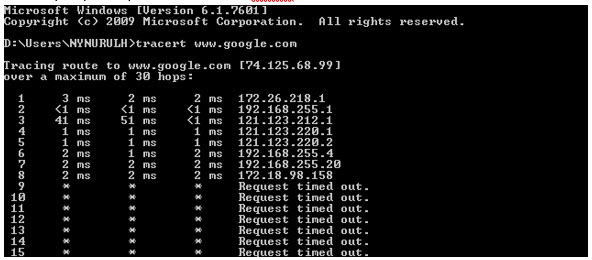
For Ping Test, type "ping" and then hit the Space bar on your keyboard. Type in the address you like to ping and then hit the Enter key on your keyboard. Wait for the ping results.

For Traceroute Test, type "tracert" and then hit the Space bar on your keyboard. Type in the address you like to trace and then hit the Enter key on your keyboard. Wait for the tracert results.

Windows 7 & Vista
1. Open the Start menu by clicking the Windows icon at the bottom left-hand corner of the screen.
2. Type "cmd" in the search bar at the bottom of the menu.
3. Click cmd found in the search results for Programs.

4. A black box with a flashing cursor will open; this is the Command Prompt.
For Ping Test, type "ping" and then hit the Space bar on your keyboard. Type in the address you like to ping and then hit the Enter key on your keyboard. Wait for the ping results.

For Traceroute Test, type "tracert" and then hit the Space bar on your keyboard. Type in the address you like to trace and then hit the Enter key on your keyboard. Wait for the traceroute results.

Windows 8
1. Move the mouse to the right-hand corner of the screen to make the vertical menu bar (charm bar) appear. Click Search.
2. Type "cmd" in the search bar and hit the Enter key on your keyboard.

3. Click cmd that found in the search results for Programs.
4. A black box with a flashing cursor will open; this is the Command Prompt.
For Ping Test, type "ping" and then hit the Space bar on your keyboard. Type in the address you like to ping and then hit the Enter key on your keyboard. Wait for the ping results.

For Traceroute Test, type "tracert" and then hit the Space bar on your keyboard. Type in the address you'd like to trace and then hit the Enter key on your keyboard. Wait for the traceroute results.
Windows XP
1. Click the Start button in the bottom left-hand corner of the screen.
2. Click the Run option in the right-hand column.

3. Type "cmd" in the text box and then hit the Enter key on your keyboard.
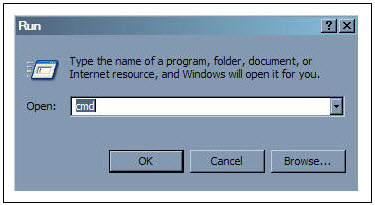
4. A black box with a flashing cursor will open; this is the Command Prompt.
For Ping Test, type "ping" and then hit the Space bar on your keyboard. Type in the address you'd like to ping and then hit the Enter key on your keyboard. Wait for the ping results.

For Traceroute Test, type "tracert" and then hit the Space bar on your keyboard. Type in the address you'd like to trace and then hit the Enter key on your keyboard. Wait for the tracert results.
STEP 1
On your remote, press the HOME button.

STEP 2
Navigate to SETTINGS icon and press "OK".

STEP 3
Navigate to Manage Satellite Frequency and press “OK”.

STEP 4
Choose Test Satellite Frequency and press “OK”.

STEP 5
Choose "Confirm" to continue Test Satellite Frequency and press “OK”.

STEP 6
Satellite Frequency Test progress screen will be displayed.

STEP 7
The test result will be displayed once completed.

Yes, existing Astro customers can subscribe to all Astro & Broadband offerings. 24 months contract will be renewed upon signing up for broadband.
Yes, you may cancel your Astro Fibre order before service activation, however, kindly note that there is a cancellation charge of RM212 (inclusive of SST) for any service cancellation done 48 hrs before scheduled appointment.
-The Mesh unit can only be used indoors. It can be mounted onto a wall or be placed horizontally on a desktop. Do not install it in other mode, such as on the ceiling.
-Keep a clearance of at least 10 cm around the device to ensure proper ventilation.
-Keep the device away from electrical appliances that generate strong magnetic or electric fields, such as microwave ovens.
Mesh WiFi devices are available as an add-on subscription from RM10/month across all Astro Fibre speeds. You may subscribe to a maximum of 5 units of Mesh WiFi per Astro Fibre subscription.
You can contact Astro's Contact Centre (03 - 9543 1543) to subscribe to the Mesh WiFi.
Unfortunately, you will no longer be able to access Disney+ Hotstar via Astro if you cancel your Astro subscription with Disney+ Hotstar entitlement.
We want to ensure that only the authorised account owner can have access to their Astro account. This activity ensures that only you can log in and access all the details tied to your Astro account.
The matches will be available on the channels Astro Arena Bola (CH803) and Astro Arena Bola 2 (CH804), On Demand and Astro GO.
