
A free satellite TV service from Astro. Watch lifetime entertainment, news, learning & information and more.

Pictures for illustration only.
Enjoy free access to 15+ TV channels & 10+ radio channels.
* Subject to Astro terms & conditions.


Step-1 |
Step-2 |
Step-3 |
Choose a plan & sign-up online. |
Sit back & wait for installation. |
Enjoy your new Astro / Broadband! |
A free satellite TV service from Astro. Watch lifetime entertainment, news, learning & information and more.
Pictures for illustration only.
New decoder only without satellite dish & cabling. You must have Astro/Njoi satellite dish and cable installed and working properly.
Including installation.
New decoder complete with satellite dish & cabling.
Including installation.
Applying for
| Njoi Astro UniFi Maxis |
Find your answers here.
We provide one stop service to apply Astro and Broadband for you.
You can avoid driving and queuing at the sales counter. We are the dealer that can help you to handle your application from the beginning to the end.
We do not charge you when you apply from us. There is no credit card information required to apply here. Charges are the same as you apply from the sales counter.
First, you can apply online, we will get back to you immediately during business hour. WhatsApp/Email/Fax us your Photocopy of IC (for malaysian) / Passport (for foreigners). When we receive all the information, we will proceed with your application immediately.
Once we receive your application with complete information, we will process your application immediately during business hour. The contractor from the service provider will then contact you for installation appointment once your application is approved.
Enjoy greater savings and hassle-free bill payment in one single bill for both Astro and Broadband. You get to enjoy Astro and Broadband at discounted price every month over the contract period of 24 months.
Astro offers multiple TV packs including Entertainment, Sports, Movies and Kids options. You can choose a pack that matches your viewing preferences and add optional streaming apps where available.
Yes, you may subscribe to Astro TV packs without bundling broadband. However, bundling Astro TV with Fibre Broadband may provide better monthly savings and convenience with a single bill.
For small households with light streaming and browsing, 100Mbps is usually sufficient. Larger families, gamers or heavy streamers may benefit from 500Mbps or 1Gbps plans for smoother performance across multiple devices.
Most Astro TV and Fibre broadband plans come with a 24-month contract. Early termination charges may apply if cancellation is made before the contract ends.
Yes, you may upgrade your TV pack or broadband speed at any time, subject to eligibility and coverage. A new contract period may apply depending on the upgrade.
Your monthly bill will be issued directly by Astro. You may receive it via email or access it through your Astro account. Bundled customers will receive a single combined bill for TV and broadband services.
Payment methods may include online banking, auto debit, credit card or other approved payment channels provided by Astro. Our team can guide you during the registration process.
If you experience any service interruption, you may contact Astro customer support for technical assistance. In many cases, issues can be resolved remotely or a technician will be arranged if necessary.
Yes, relocation is subject to service availability at your new address. Relocation charges and contract adjustments may apply depending on your plan.
No, you do not need a credit card to submit your application. Payment setup will be arranged directly with Astro after your service is approved.
Selected Astro TV packs allow optional add-ons such as streaming services depending on current promotions and availability. Additional monthly charges may apply.
Yes, a WiFi router is typically provided during fibre installation. The router model may vary depending on the selected broadband speed plan.
Yes, we will check the service coverage at your address before proceeding with your application to ensure broadband is available at your location.
For Malaysians, please provide a copy of your MyKad. For foreigners, provide a copy of your passport when submitting your broadband application.
After your application is approved, the service provider typically contacts you within 2 to 7 working days to arrange the broadband installation appointment.
Most Astro Broadband plans come with a 24-month contract starting from your installation date. If you relocate, a new 24-month contract may apply at your new address.
Yes, you can relocate your broadband service, subject to service availability at the new address. Your contract may reset for another 24 months from the new installation date.
Yes, you may request to relocate broadband devices within your home. Non-standard installation charges may apply and are payable to the installer directly after assessment.
Yes, you can switch to Astro Broadband. To avoid service interruption, it is recommended to activate the new service before terminating your current broadband contract.
Standard installations may be free during promotions, but non-standard installations (e.g., device relocation or complex wiring) may incur extra charges payable directly to the installer.
Mesh WiFi network refers to a unified wireless network that is formed by utilizing inter-connected WiFi nodes (Mesh devices) placed throughout the house.
· Bill
· Log into your Astro Self-Service (location)
Astro continuously reviews its product propositions to ensure we can provide the best customer experience for all our subscribers. We have discontinued the 50% multiroom in order to allow our Astro subscribers with a subscription fee of RM100 or more to only pay a standard RM49.99 (with box setup) to enjoy the Multiroom experience on an Ultra or Ulti Box.
We apologise for any inconvenience.
WiFi router and fibre modem will be replaced upon checking and verification by Astro's Contact Centre /installer. It will be replaced without additional charge regardless contract tenure.
If the bill has been paid, there will not be any additional service tax charge. However, if the bill has been issued by Astro but has not been paid, then the 8% Service Tax will be reflected in the next bill with adjustments on the new tax rate for services rendered from 1st March onwards.
Example:
Bills issued on 15th February will be charged the 6% SST. Customers will see proration for 8% from 1st – 14th March in the next bill issued on 15th March 2024. If you have fully paid your February bill before 1st March, the Service Tax will remains at 6%. You will be able to see the adjustment reflected in your next bill.
To access these streaming apps, you would need to upgrade to the Ultra or Ulti Box by visiting product.astro.com.my/box. Alternatively, you may also reachus via WhatsApp by typing "Hi
STEP 1
Identify your remote control:

a) Remote control with Astro logo at the bottom of the remote, proceed to STEP 2.
b) Remote control with Astro logo at the top of the remote, proceed to STEP 4
STEP 2 (Astro Logo at the bottom of the Remote)
On your remote, press the “set tv” button and set tv instructions will be displayed on top of your screen:

STEP 3
Follow the steps appear on the TV screen to sync your Astro remote and complete the setup.

STEP 4 (Astro Logo atthe top of the Remote)
Press and hold “tv input” key on bottom left of the remote for 3 seconds until the LED blinks twice.

STEP 5
Enter the 2-digit TV Code of your TV Brand and the LED will blink twice:

STEP 6
Try out the TV controls (TV Standby or adjust Volume) to check if they are working correctly.

STEP 7
Press ok and wait for the LED to blink twice to save the settings.
Please close and re-launc hthe Astro Fibre app, and you will be able to log in.
You do not need to request for a reconnection as our system will detect your payment and process it immediately, provided you paid via a real-time payment channel.
Click here for a full list of our payment channels.
All Astro customers with Disney+ Hotstar bundle/Add-on will be moved to the Disney+ Hotstar Premium Plan, with no changes to their current subscription pricing starting 24 April 2024. The new Disney+ Hotstar Premium Plan includes 3 concurrent streams, 10 maximum device logins, maximum video quality up to 4K Ultra HD (compatible devices required), and streaming on phone, tablet, laptop and TV.
If you have questions about your Disney+ Hotstar plan, please contact Astro Customer Contact Centre at 03 9543 3838. Alternatively, please WhatsApp Astro at 03 9543 3838 and type DH Help for further assistance.
Service will resume within 3 hours after payment is made.
Astro Rewards is your free loyalty programme - a way for us to say thank you for being with us.
We're always adding new and exciting gifts, deals, and experiences for you - all ready and waiting in the My Astro app for you, right at your fingertips. Here's the best part, the longer you're with us, the better your rewards!
This exercise currently only affects person-to-person SMS with URL links. However, the blocking of SMS sent by businesses via short codes such as 6XXXX, 3XXXX, 2XXXX and 1XXXX will be implemented at a later phase. In response to this government initiative, Astro customers will no longer receive SMS bills effective 1 August 2023. This change will be carried out in phases.
Please switch your preferred Bill Delivery Method using our self-service portals via My Astro Web or My Astro app. Please click here to download the app on your mobile device or login to My Astro Web.
STEP 1
Check the internet connectivity by run the Test Connection.
Refer Run Test Connection.
STEP 2
Verify the average speedtest based on the Test Connection result.
a. Above 10Mbps - Proceed to STEP 5
b. Less then 10 Mbps - Proceed to STEP 3
Notes: Minimum 10 Mbps internet speed from box requires in order to get a stable connection.
STEP 3
Check the connection to the box either using Ethernet (LAN cable) or Wi-Fi.
a. If using Ethernet (LAN cable) - Connect to Live Agent for help.
b. If using Wi-Fi - Proceed to STEP 4
STEP 4
Check location of the decoder and router.
a. If nearby (within 1.5m) - Try connect to box from router using LAN cable.
b. If far (more than 1.5m) / No LAN cable - Proceed STEP 5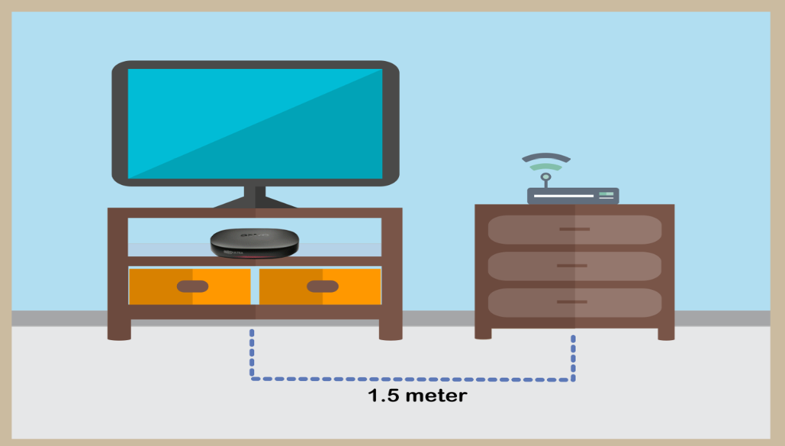
STEP 5
Reboot router, modem and decoder.
If issue persist, please try again after 30mins to 1 hour. Connect to live agent if persist after 30 mins to 1 hour.
Astro customers are entitled to a two (2) years manufacturer warranty and Installation warranty. During this period, after-sales service is free of charge. However, when your warranty period is over, all after-sales service is subject to a minimal service charge starting from RM65 inclusive of 8% Service Tax.
Other Decoders/Ultra Box Without contract:
Astro customers are entitled to a one (1) year manufacturer warranty and (6) months Installation warranty. During this period, after-sales service is free of charge. However, when your Installation warranty period is over, all after-sales service is subject to a minimal service charge starting fromRM65 inclusive of 8% service tax.
There are 2 methods of setting maturity ratings restriction on Netflix:
Method 1 – Create a Kids Profile in Netflix App on Ultra/Ulti Box
Method 2 – Manually set Viewing Restrictions for each profile
For more information kindly visit:
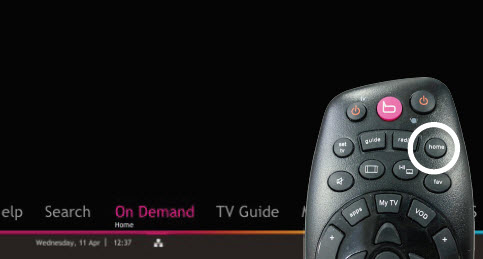
STEP 1
Press "HOME" button on your remote control.
STEP 2
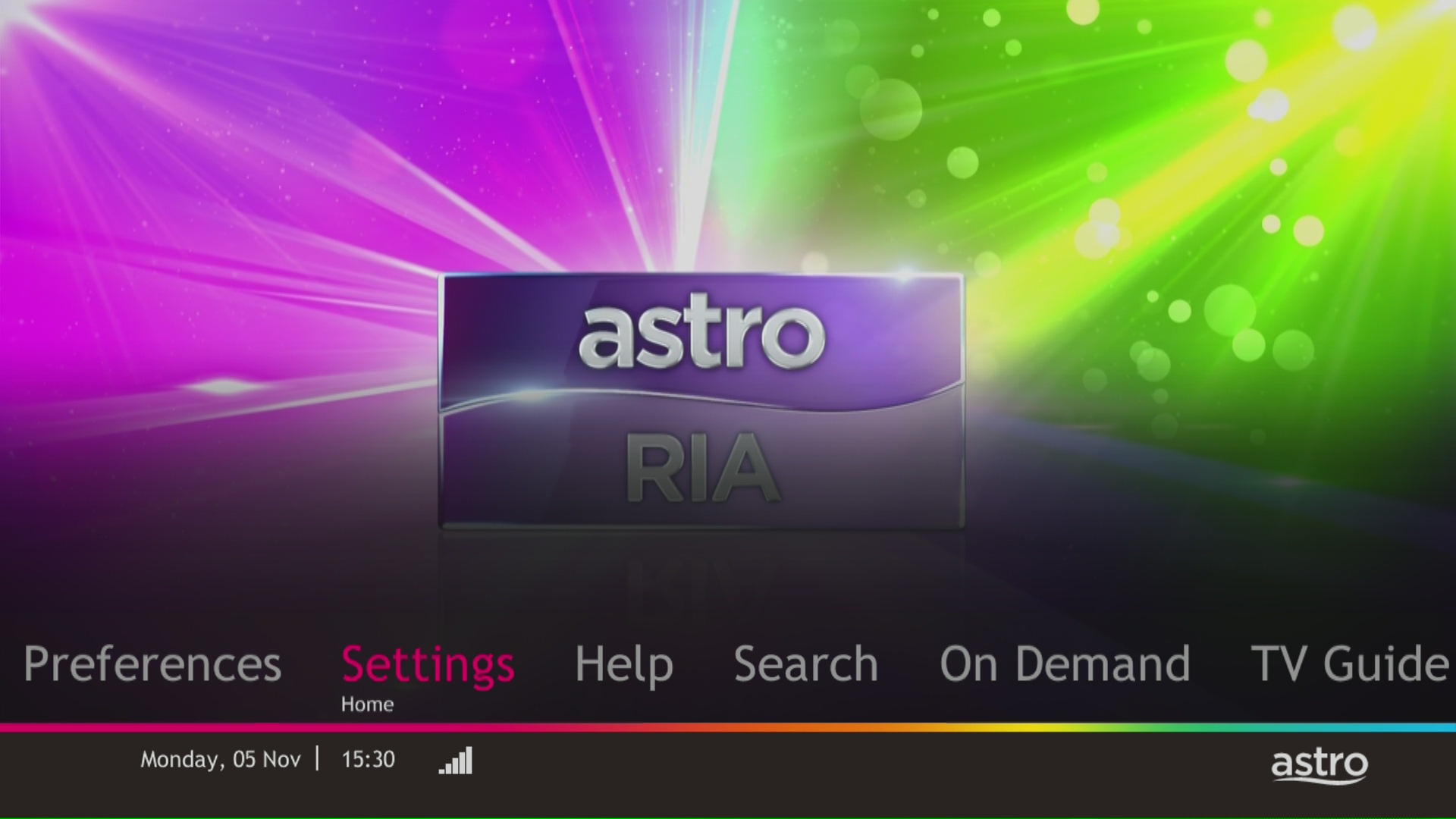
Navigate to Settings and press "OK".
STEP 3
Navigate to Display and press "OK".

STEP 4
Navigate to Resolution and press "OK".

STEP 5
Navigate to your preferred selection and press “OK”.

STEP 6
Select Yes, continue and press "OK" to confirm on the changes.
Otherwise, select No, go back to cancel.

The promotion period of Astro Fibre’s Speed Upgrade Campaign is from 24 November 2023 until 31 May 2024.
Liga Malaysia is available for all customers with a HD enabled box including Zapper, DMT5, Ulti Box and Ultra Box.
STEP 1
Press "HOME" button on your remote control.

STEP 2
Navigate to Settings and press "OK".

STEP 3
Navigate to STB Diagnostics and press "OK".

STEP 4
From General Tab, take a look at the Current Entry Point Name for the LNB type of your input source.

Please note that charges will be on a monthly basis (RM18.30/month) and this subscription is subject to a 3-months contract.
Your cloud recording space will revert to 200 hours by default. If your current recordings exceed 200 hours, the system will delete the exceeded hours once you have stopped the Astro GO+ subscription starting with the oldest recordings first.
Please ensure that your mobile number is up to date in our database to ensure that payment reminders are sent to the right person.
You can do so via:
1. Astro Self-Service Portal
2. Call our Customer Call Centre (CCC)
**Only account holder can update the mobile number
For any access related queries on Disney+ Hotstar, please call or WhatsApp "DH Help
To check your contract, please visit My Astro.
The notification you receive will depend on the payment method you choose:
(i) My Astro Portal: e-receipt will indicate payment confirmation.
(ii) IVR: Payment status will be notified over the IVR and an SMS notification will be sent for successful transactions.
(iii) SMS: Payment status will be notified via SMS.
(iv) Call: Payment status will be notified via SMS.
(v) Customer Service Centre: Physical receipt will indicate payment confirmation.
Currently, you may only add a maximum of five family members to the Astro Fibre App. However, kindly note that we are working on allowing users to add more family members in the future.
Your documents will be handled in compliance with standards set by PDPA (Personal Data Protection Act 2010) and will not be used for other means without your specific consent.
Please make sure that:
To find out which Astro ID is currently linked to your account, you may submit a feedback form. Kindly select feedback type "I have an enquiry/issue with Apps
Astro ID and / or account deletion is permanent. Upon deletion, it will be unlinked from your TV subscription account and you will be logged out from all the associated Astro apps and / or services connected including the partner apps that you have logged in using the same Astro ID. If you have any queries regarding Astro ID or would like to request for Astro ID account deletion, click on submit your request here, fill in the required details and our Astro representative will get back to you within 3 business days for security verification purposes.
Your access to Astro GO will depend on the subscription pack that you are subscribed to. Not all shows/channels will be available on Astro GO as this depends on contractual rights with specific guidelines on the entitlement of these shows/channels. We are continuously working hard to make more content available on Astro GO.
You may navigate around the menu on the side bar on Astro GO app, or top bar on the Astro GO web version to find shows available.


Menu Guide
Please follow the steps in Q5, then continue with the steps below:
| Step 1: Click the “Email” or “Mobile Number” field to edit. Then, enter your updated detail(s). | Step 2: Complete the verification by entering the code sent to your new email address or mobile number. | Step 3: Congratulations! You have successfully updated your contact detail! |
No, please use a Malaysian mobile number registered with a local network service to register and activate access for Disney+ Hotstar with your Astro subscription.
No. However, if you cancel your Astro Pay TV services but resubscribe at a later date, your duration (year) with us will reset to zero and restart according to your new activation date. Your Astro Rewards tier will reset to Magenta.
Yes, however we do advise keeping your subscription while your TV is being fixed to avoid having to download the app again.
We are always updating the Multiroom (Smart TV) app to ensure our customers get to enjoy the best entertainment experience. We will keep you posted if you are able to enjoy more 4K UHD channels in the future!
Your existing contracts and corresponding rewards including but not limited to discounts/rebates will be removed with no penalty applied and replaced with the new contracts associated with the new packs. Exception applies to Disney+ Hotstar (3-Month Pack) and Multiroom campaigns in which remaining contract durations will be brought over if the subscription is continued or penalty will be applied upon discontinuation of said subscriptions.
Users can easily access all their streaming Apps such as Netflix, Disney+ Hotstar, Viu etc by clicking the “APPS” button on their remote control. After clicking this button, they will be brought to the Apps rail under the home page.
No. If you are a non-Astro subscriber, you will still be able to create an Astro ID, but access and use of Astro's digital services will be limited. If you are an Astro subscriber, please link your Astro ID to your Astro account number to enjoy exclusive access to all of Astro's digital services.
You may switch to E-mail Billing or Paper bills to be notified of your bill and make payment. Kindly note that if you select to have Paper Bills, you will be charged a RM10 fee per bill.
For any NJOI-related information, please visit the NJOI Help & Support page at https://purchase.njoi.com.my/en-support
Step 1:
Type ASTRO<space>BARCODE<space>10 digit account number
Example: ASTRO BARCODE 0866603852
Step 2:
Send SMS to 66688
*Standard telco charges and Terms and Conditions apply
By adding a Netflix account to your Astro bill, your Netflix account is already activated. No additional steps for activation are required.
Astro Channel 200 is a self-service portal that helps you upgrade your packages and purchase add-ons instantly.
Step 1: Visit Astro website at https://www.astro.com.my/
Step 2: Click "Login'
Step 3: After login, click the profile icon and select 'Manage Profile'. You may change your account password here.


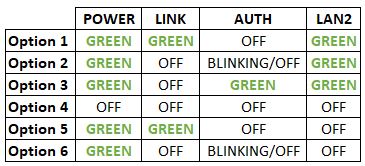

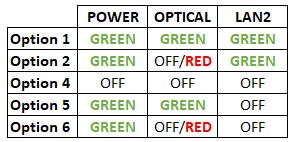


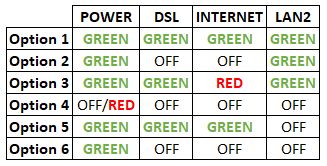
Option 1
1. Please turn off all devices (Modem and Router). By restarting your modem, you can isolate the possibility of overloaded processes in the modem, which would impact its performance.
2. Ensure the fiber cable from your wall socket and modem is securely connected.


Notes: You might be connected to LAN 1 if backbone is Maxis
Router connection

3. Please make sure the LAN cable is connected properly from router (Port 1-4 - Yellow port) to PC/Laptop.
4. If the issue persists, submit your feedback form and attach your modem light indicator picture/video for further assistance.
Option 2/ Option 3/ Option 5/ Option 6
1. Please turn off all devices (Modem and Router). By restarting your modem, you can isolate the possibility of overloaded processes in the modem, which would impact its performance.
2. Ensure the fiber cable from your wall socket and modem is securely connected.

3. Ensure both cables on the Modem (LAN Port 2) and Router (WAN Port - Red port) are properly connected.


Notes: You might be connected to LAN 1 if backbone is Maxis
Router connection

4. Please make sure the LAN cable is connected properly from router (Port 1-4 - Yellow port) to PC/Laptop.
5. Please make sure both cables on Router (Any Yellow port) and Astro Decoder (Network Port behind decoder) are properly inserted.


6. Switch on modem and router and please wait for 2 minutes to stabilise the devices after reboot.
7. If the issue persists, submit your feedback form and attach your modem light indicator picture/video for further assistance.
Option 4
1. Ensure Modem/Router are connected tightly to the power socket.

2. Try to use another power socket / power source to eliminate faulty power sockets/power sources which could cause the issue.
3. If the issue persists, submit your feedback form for further assistance.
Please call our Customer Contact Centre or WhatsApp "DH Help" at 03 9543 3838 to cancel your Disney+ Hotstar 3-months add-on pass with Astro.
STEP 1
Switch OFF the power of your Ultra / Ulti box and make sure that the adapter's power light is off.

STEP 2
Switch ON the power of your Ultra / Ulti box and make sure that the adapter's power light is on.

STEP 3
On your remote control, press the Home or Standby button repeatedly until the Startup Options appear on TV.
STEP 4
Press "987" to proceed.
Advanced Startup Options will be displayed.
STEP 5
Press "1" to initiate a reset setting.
STEP 6
Press "OK" to continue.
STEP 7
After the factory setting is restored, TV will turn blank.
Please wait until the box completes initiate setup.
STEP 8
Once completed, the following screen will appear on your TV.
Refer to Installation Setup guide to complete the setup.
Click here to follow New Installation Settings guide for Satellite
Click here to follow New Installation Settings guide for Plug and Play
You can request for a password reset by clicking on "Forgot My Password' at the login page.
Having trouble with your phone line ?
You may proceed to contact below dedicated service provider directly
1 800 1818 18

