
A free satellite TV service from Astro. Watch lifetime entertainment, news, learning & information and more.

Pictures for illustration only.
Enjoy free access to 15+ TV channels & 10+ radio channels.
* Subject to Astro terms & conditions.


Step-1 |
Step-2 |
Step-3 |
Choose a plan & sign-up online. |
Sit back & wait for installation. |
Enjoy your new Astro / Broadband! |
A free satellite TV service from Astro. Watch lifetime entertainment, news, learning & information and more.
Pictures for illustration only.
New decoder only without satellite dish & cabling. You must have Astro/Njoi satellite dish and cable installed and working properly.
Including installation.
New decoder complete with satellite dish & cabling.
Including installation.
Applying for
| Njoi Astro UniFi Maxis |
Find your answers here.
We provide one stop service to apply Astro and Broadband for you.
You can avoid driving and queuing at the sales counter. We are the dealer that can help you to handle your application from the beginning to the end.
We do not charge you when you apply from us. There is no credit card information required to apply here. Charges are the same as you apply from the sales counter.
First, you can apply online, we will get back to you immediately during business hour. WhatsApp/Email/Fax us your Photocopy of IC (for malaysian) / Passport (for foreigners). When we receive all the information, we will proceed with your application immediately.
Once we receive your application with complete information, we will process your application immediately during business hour. The contractor from the service provider will then contact you for installation appointment once your application is approved.
Enjoy greater savings and hassle-free bill payment in one single bill for both Astro and Broadband. You get to enjoy Astro and Broadband at discounted price every month over the contract period of 24 months.
Astro offers multiple TV packs including Entertainment, Sports, Movies and Kids options. You can choose a pack that matches your viewing preferences and add optional streaming apps where available.
Yes, you may subscribe to Astro TV packs without bundling broadband. However, bundling Astro TV with Fibre Broadband may provide better monthly savings and convenience with a single bill.
For small households with light streaming and browsing, 100Mbps is usually sufficient. Larger families, gamers or heavy streamers may benefit from 500Mbps or 1Gbps plans for smoother performance across multiple devices.
Most Astro TV and Fibre broadband plans come with a 24-month contract. Early termination charges may apply if cancellation is made before the contract ends.
Yes, you may upgrade your TV pack or broadband speed at any time, subject to eligibility and coverage. A new contract period may apply depending on the upgrade.
Your monthly bill will be issued directly by Astro. You may receive it via email or access it through your Astro account. Bundled customers will receive a single combined bill for TV and broadband services.
Payment methods may include online banking, auto debit, credit card or other approved payment channels provided by Astro. Our team can guide you during the registration process.
If you experience any service interruption, you may contact Astro customer support for technical assistance. In many cases, issues can be resolved remotely or a technician will be arranged if necessary.
Yes, relocation is subject to service availability at your new address. Relocation charges and contract adjustments may apply depending on your plan.
No, you do not need a credit card to submit your application. Payment setup will be arranged directly with Astro after your service is approved.
Selected Astro TV packs allow optional add-ons such as streaming services depending on current promotions and availability. Additional monthly charges may apply.
Yes, a WiFi router is typically provided during fibre installation. The router model may vary depending on the selected broadband speed plan.
Yes, we will check the service coverage at your address before proceeding with your application to ensure broadband is available at your location.
For Malaysians, please provide a copy of your MyKad. For foreigners, provide a copy of your passport when submitting your broadband application.
After your application is approved, the service provider typically contacts you within 2 to 7 working days to arrange the broadband installation appointment.
Most Astro Broadband plans come with a 24-month contract starting from your installation date. If you relocate, a new 24-month contract may apply at your new address.
Yes, you can relocate your broadband service, subject to service availability at the new address. Your contract may reset for another 24 months from the new installation date.
Yes, you may request to relocate broadband devices within your home. Non-standard installation charges may apply and are payable to the installer directly after assessment.
Yes, you can switch to Astro Broadband. To avoid service interruption, it is recommended to activate the new service before terminating your current broadband contract.
Standard installations may be free during promotions, but non-standard installations (e.g., device relocation or complex wiring) may incur extra charges payable directly to the installer.
STEP 1
Check on the adapter's power light.
If the adapter's power light is ON, please refer to Blank Screen troubleshooting steps here.
Otherwise, if the adapter's power light is OFF, switch off the power for your box.

STEP 2
Ensure power cable is connected tightly.
Plug in power cable to different power socket and switch on the plug.
You should no longer be experiencing this problem.
If issue remains, proceed to STEP 3.

STEP 3
Try a different power socket to connect the equipment.
Turn on the power socket and check the adapter's power light.

If there is no light on your power adaptor's, please submit the issue on our Feedback Form and attach a picture of your smart card number for assistance.
Please indicate in the form if any lightning strike/thunderstorm/power trip occurred.
Step 1:
Type ASTRO<space>BAL<space>10-Digit Astro Account No.
Example: ASTRO BAL 08XXXXXXXX
*Standard telco charges and Terms and Conditions apply
Step 2:
Send SMS to 66688
Not to worry, our representative will be contacting you within 24 hours.
You can now choose to log in using your email address, mobile number or a social account (Facebook, Google or Apple).
The matches will be available on the channels Astro Arena Bola (CH803) and Astro Arena Bola 2 (CH804), On Demand and Astro GO.
Yes, you can restrict programmes based on the age rating by going to "Settings” > “Parental Controls & Profiles” on your Astro Box and Astro GO app. Alternatively, you may also create a Kids Profile that provides security with a 4-digit PIN to exit and accessibility to kids-friendly channels and On Demand content only.
The new packs come with 200 hours of Cloud recording by default. If your current recordings exceed 200 hours, the system will delete the exceeded hours once your package has been changed, starting with the oldest recordings first.
If you would like to retain the previous recordings which exceed 200 hours, you may opt for a selection of 400 or 1500 Cloud Recording hours at a chargeable rate of RM12 or RM15 per month (excl. govt tax) respectively. Or else, you may subscribe to the Platinum pack which comes with complimentary access to 1500 hours of Cloud Recording.
Please make sure that:
If the above points have been met, you may try some quick solutions below:
1. Ensure power cable is connected tightly.
2. Try to use another power socket / power source to eliminate faulty power sockets/power sources which could cause the issue.

3. If the issue persists, submit your feedback form for further assistance.
For TV packs only, 24-months contract commitment period. However, if in addition to the TV packs, if you would like to also sign-up for Broadband, the contract commitment will be 24 months as well. If you're an existing customer, your existing remaining contract duration (if any) will not be carried over to the new contract except for existing Disney+ Hotstar (3 Months Pack) and Multiroom subscription contract durations which will be carried over upon the migration to new packs.
Note: If you are subscribing to a bundle pack which includes Netflix or Disney+ Hotstar for the first time, you are required to maintain the respective app as part of your bundle selection for a minimum of 12 months, otherwise a cancellation fee will apply.
Yes, starting 9 November 2021, these new packs will be Astro's default offering.
Your Disney+ Hotstar will be paused and will only resume once your Astro service is reinstated.
1. Unifi netis brand
The following shows an Interface based on Unifi router


Note: Connection to Wi-Fi may be temporarily loss while the changes is updated.
Most Astro customers are eligible to use the app, web, Ultra and Ulti boxes. You will only need to login with your Astro ID. Do note that your Astro ID must be linked to your Astro account to use the service. Click "Create now!' on the login page and you will be guided to create an Astro ID if you do not have one.
STEP 1
On your remote, press the HOME button and the menu will be displayed on top of your screen.
STEP 2
Navigate to Settings.
STEP 3
Navigate to Network Settings and press “OK”.
STEP 4
Navigate to Test Connection and press “OK”.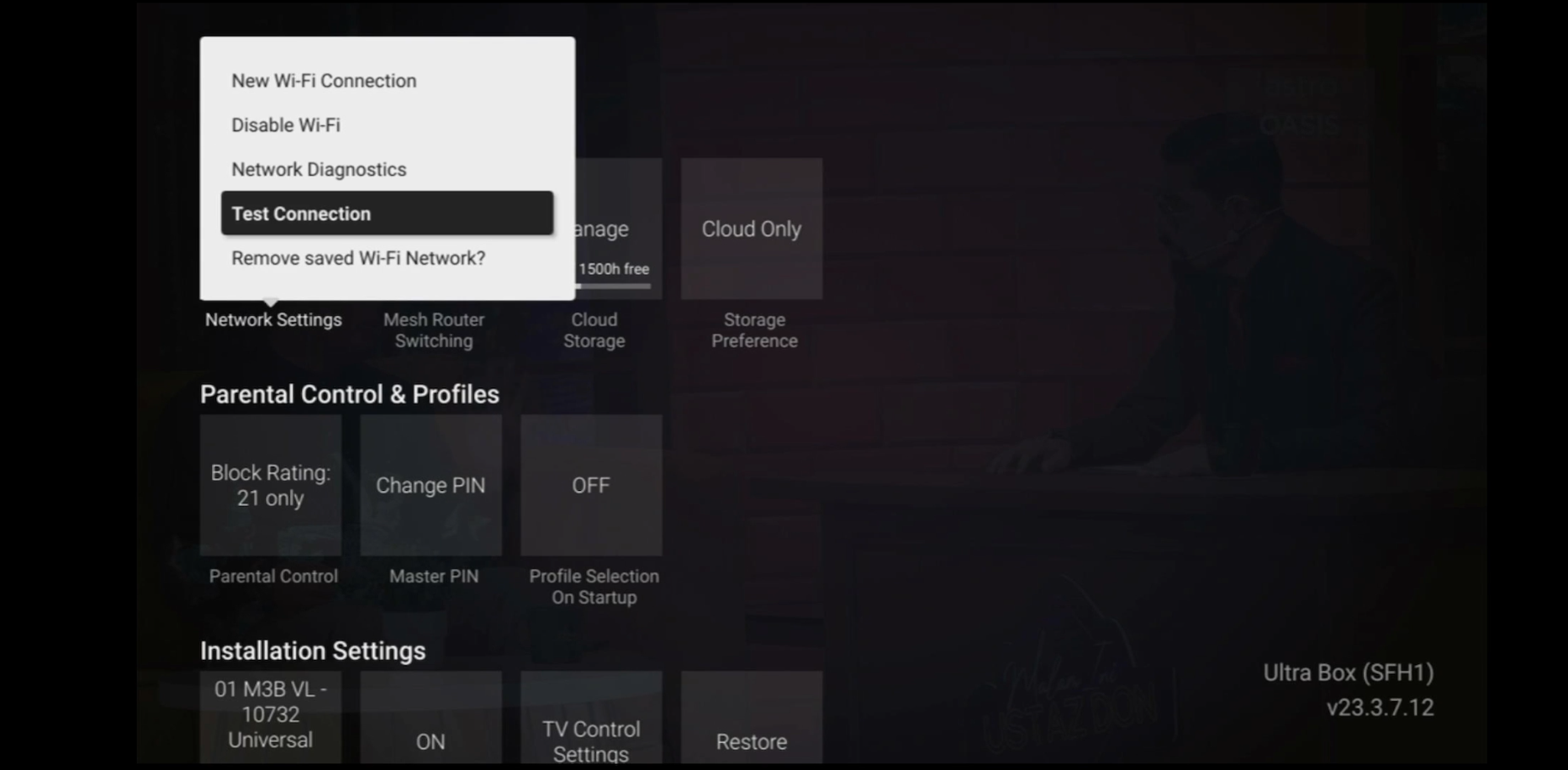
STEP 5
Test Connection results will be displayed on the screen.
STEP 1
Identify your remote control:

a) Remote control with Astro logo at the bottom of the remote, proceed to STEP 2.
b) Remote control with Astro logo at the top of the remote, proceed to STEP 4
STEP 2 (Astro Logo at the bottom of the Remote)
On your remote, press the “set tv” button and set tv instructions will be displayed on top of your screen:

STEP 3
Follow the steps appear on the TV screen to sync your Astro remote and complete the setup.

STEP 4 (Astro Logo atthe top of the Remote)
Press and hold “tv input” key on bottom left of the remote for 3 seconds until the LED blinks twice.

STEP 5
Enter the 2-digit TV Code of your TV Brand and the LED will blink twice:

STEP 6
Try out the TV controls (TV Standby or adjust Volume) to check if they are working correctly.

STEP 7
Press ok and wait for the LED to blink twice to save the settings.
STEP 1
On your remote, press the Home button and the home menu will be displayed on top of your screen.

STEP 2
Navigate to Guide.

STEP 3
Select the channel you would like to lock and press "OK".

STEP 4
Select "Lock Channel" and press "OK".

STEP 5
You channel is successfully locked when this screen appears.

STEP 6
Your selected channel will have a lock tagging after being locked.

Upon successful subscription, you will be able to view your chosen HD channels within 3 hours by keying in the channel numbers into your remote control. Please note that subscription through Channel 200 will take effect within 24 hours.
Your purchased PPV daily pass will still be accessible to you for the purchased duration ie. 3, 5, 7 or 30 days respectively. However, you will no longer be able to purchase PPV daily passes from 8 Oct onward.
You will only be able to watch Astro GO and/or Multiroom Smart TV on up to 2 devices at the same time as opposed to 4 devices with Astro GO+.
Your cloud recording storage will also decrease from 1500 hours down to 200 hours. Your stored recordings/downloaded shows that exceed 200 hours will also be removed.
Please make sure that:
To find out which Astro ID is currently linked to your account, you may submit a feedback form. Kindly select feedback type "I have an enquiry/issue with Apps
You will need to have an Astro subscription before you can subscribe to Disney+ Hotstar as an add-on service via Astro or enjoy any Astro bundle promotions. Please click here to subscribe to our Movies, Premium 1, Premium 3 or Platinum Pack to enjoy all your favourite Global and Malaysian hits for even better value and savings!
The service tax rate for Astro Pay TV will be increased from 6% to 8%. The service tax for Astro Fibre, which falls under the category of telecommunication service, will remain at 6%.
You have the liberty to manage device connection on your own.
Not all shows/channels will be available on the Plug & Play Box as this depends on contractual rights with specific guidelines on the entitlement of these shows/channels and what you have as a part of your subscription.
Please be assured that we are continuously working hard to make more content available on the Plug & Play Box.
If you prefer to have all these channels, we recommend that you choose the Satellite dish option for the Ultra or Ulti Box.
Unavailable channels are as below:

STEP 1
Check the internet connectivity by run the Test Connection.
Refer Run Test Connection.
STEP 2
Verify the average speedtest based on the Test Connection result.
a. Above 10Mbps - Proceed to STEP 5
b. Less then 10 Mbps - Proceed to STEP 3
Notes: Minimum 10 Mbps internet speed from box requires in order to get a stable connection.
STEP 3
Check the connection to the box either using Ethernet (LAN cable) or Wi-Fi.
a. If using Ethernet (LAN cable) - Connect to Live Agent for help.
b. If using Wi-Fi - Proceed to STEP 4
STEP 4
Check location of the decoder and router.
a. If nearby (within 1.5m) - Try connect to box from router using LAN cable.
b. If far (more than 1.5m) / No LAN cable - Proceed STEP 5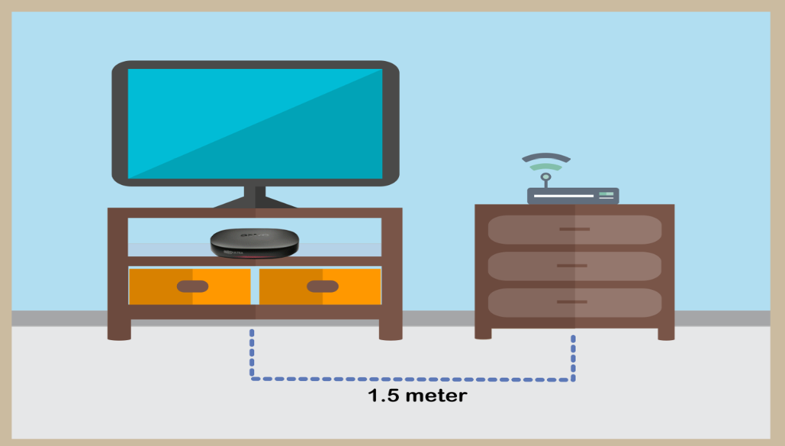
STEP 5
Reboot router, modem and decoder.
If issue persist, please try again after 30mins to 1 hour. Connect to live agent if persist after 30 mins to 1 hour.
You will be able to view your new package(s) within 24 hours of subscribing. Please note that if you are an Astro customer subscribing to HD channels, you will have to connect an HDMI cable to your TV before you will be able to enjoy the channels.
You may click here to Login and proceed to secure your Astro ID by linking it to your Astro account. If you do not have an Astro ID, please follow the steps in below to create one. You may also choose to log in or create Astro ID with your social accounts (eg. Facebook, Google and Apple).


Please follow the steps in Q5, then continue with the steps below:
| Step 1: Click the “Email” or “Mobile Number” field to edit. Then, enter your updated detail(s). | Step 2: Complete the verification by entering the code sent to your new email address or mobile number. | Step 3: Congratulations! You have successfully updated your contact detail! |
There are no switching fees apply when existing Astro customer move to new packs.
All Astro customers who are actively using their username to log in will be notified via email or SMS two (2) weeks before this change takes place. Please refer to the guide below on how to check for your registered contact details:
| Step 1: Visit https://id.astro.com.my/ and log in using your username. | Step 2: Under your Profile, refer to the “Email” or “Mobile Number” fields to view your contact details. |
STEP 1
On your remote, press the Home button and the home menu will be displayed on your screen.
STEP 2
Navigate to Profile.
STEP 3
The Profile Selection Screen will be displayed.
STEP 4
Navigate to Edit Profile.
STEP 5
Choose a profile to edit.
STEP 6
Navigate to Name.
STEP 7
Enter your new Profile Name, navigate to DONE and press "OK".
STEP 8
Your new profile name will be shown in the Profile Selection Screen.
You do not need to request for a reconnection as our system will detect your payment and process it immediately, provided you paid via a real-time payment channel.
Click here for a full list of our payment channels.
Yes, a third party is allowed to make the advance payment on your behalf. In the case of refund, the amount will be returned to the owner of the third-party account (source of payment).
The RM15 monthly rebate (before Govt. Tax) will be applicable to all on-going Multiroom Smart TV subscriptions until further notice. However, in the event of rebate expiry, Astro will notify impacted customers in advance via email or SMS. To update your contact details, please reach out via a feedback form here.
STEP 1
On your remote, press the HOME button and the home menu will be displayed on top of your screen.

STEP 2
Navigate to Settings.

STEP 3
Navigate to STB Diagnostics and press "OK".

STEP 4
Select Household Diagnostics and press "OK".

STEP 5
Details information of Household Diagnostics screen will be displayed.

Tap on the "Account' screen on the navigation bar to view your outstanding balance. Click on "Pay Now' to pay your bill. If your payment is successful, you will receive a record and your payment history will be updated.


Please refer below to set up your Ultra/Ulti Plug & Play Box.
To connect via LAN cable:
Note: If you have a two-in-one modem & router, you can skip Step ii).
To connect via Wi-Fi:
Remove your LAN cable from your old Astro box, and do not plug it into your new Plug & Play Box.
Yes, a penalty fee of RM200/Mesh WiFi unit will be imposed if the customer fails to return the device(s). The courier company will make two attempts to retrieve the Mesh WiFi unit(s) within a period of 30 days, failing which the penalty would be imposed.
STEP 1
On your remote, press the HOME button and the home menu will be displayed on top of your screen.

STEP 2
Navigate to SETTINGS and press "OK".

STEP 3
Navigate to STB Diagnostics and press "OK".

STEP 4
Navigate to Network Diagnostics and press "OK" .

STEP 5
Please ensure the Tunes service multicast status is Multicast Up.
If the status is Multicast is Not Available, please reboot the decoder and router before verifying this status.
If issue persists, please submit the issue on our Feedback Form with error details and attach a picture of your Network Diagnostics.
From 8 October 2021 onwards, Astro will be ceasing the daily passes (e.g. 3, 5, 7 & 30 days passes). Please subscribe to the relevant packs to continue enjoying your favourite content. Stay tuned for more exciting offers. Thank you.
If you have a random Astro power cable, remote control or old box lying around at home, you are required to discard them only at registered collection centres for proper handling and management of e-waste in an environmentally sound manner. Click here to find a registered collection centre near you.
For all recycling-related questions, please click here.
A deposit of RM500 is payable for new subscribers (non-Malaysians). The fee will be refunded when service is terminated.
No deposit is required for all existing Astro customers and new subscribers (Malaysians).
The Download/Upload for each of the speed is as follow:
50Mbps/20Mbps
100Mbps/50Mbps
500Mbps/100Mbps
800Mbps/200Mbps
*Actual download/upload speeds is dependent on external factors, including but not limited to the distance between your devices and the WiFi router, network capacity and the number of connected users, the quality of your internal wiring, any obstructions of WiFi signals, the signal strength of wireless connection from your devices and if you are using a wireless connection.
STEP 1
Choose your language preferences for both Menu Language and Info Language. Then, press "OK".

STEP 2
Select you box operating mode and press "OK".

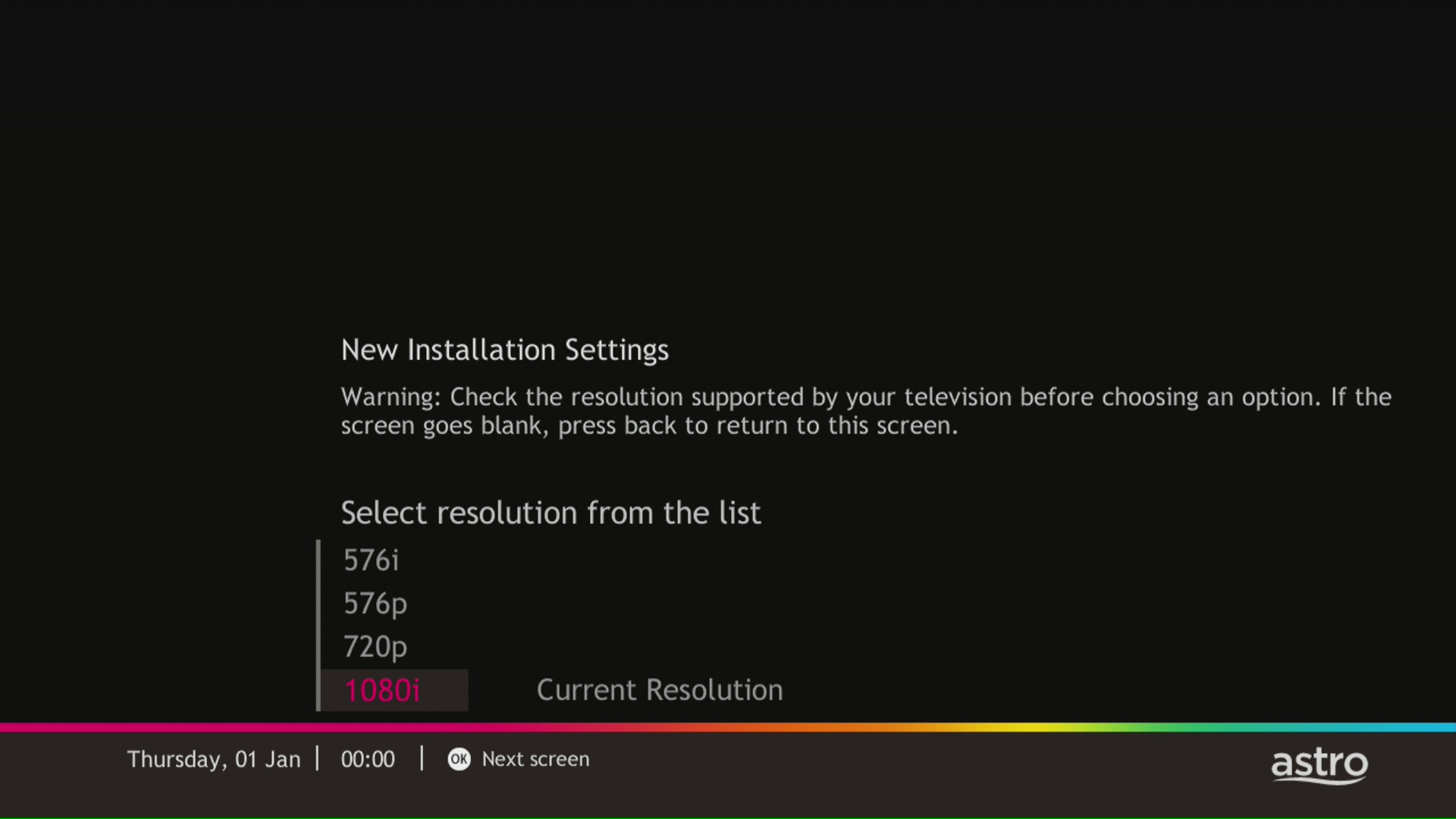
STEP 3
Select the resolution supports by your TV and press "OK".
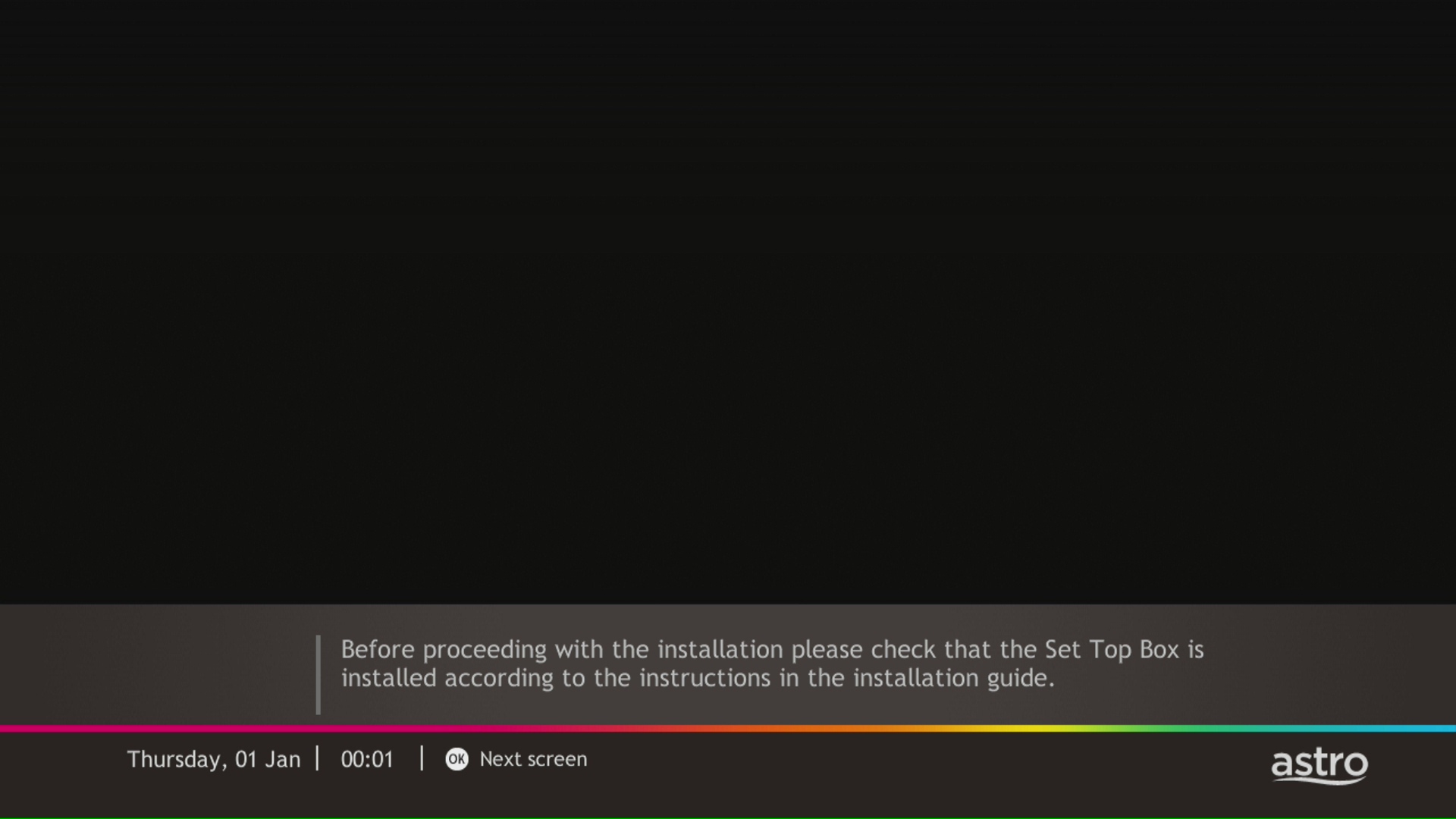
STEP 4
Press "OK" to proceed to the next screen.
STEP 5
Please select the LNB type and press "OK".

STEP 6
Select this as the Entry Point and press "OK" to confirm your selection.

STEP 7
Signal reading results for Tuner 1 and Tuner 2 screen will be displayed. Then, press "OK" to proceed to next screen.

STEP 8
Select Yes, continue and press "OK" to connect to Wi-Fi network.
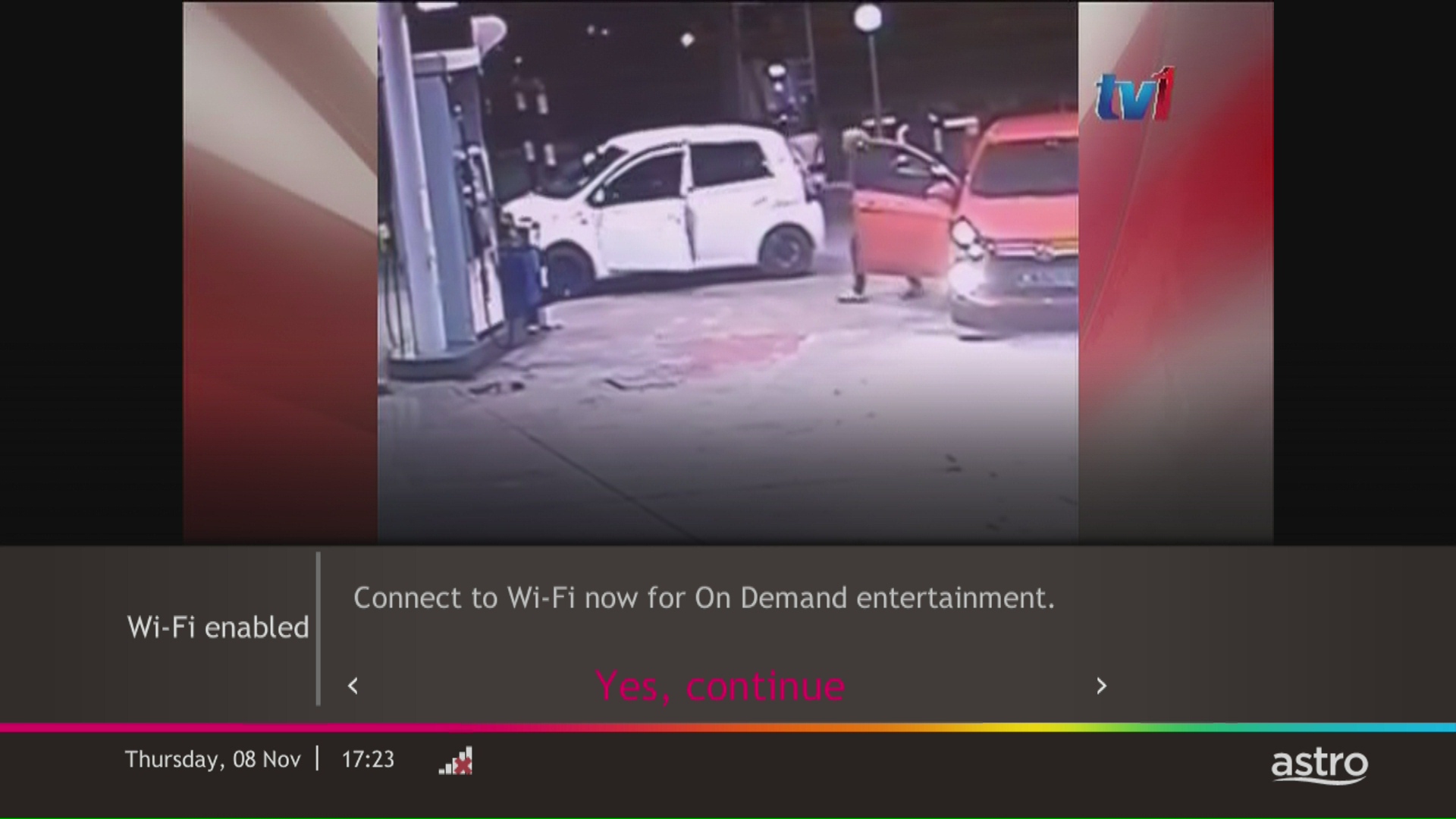
STEP 9
Please wait while the box scanning for the available Wi-Fi network.
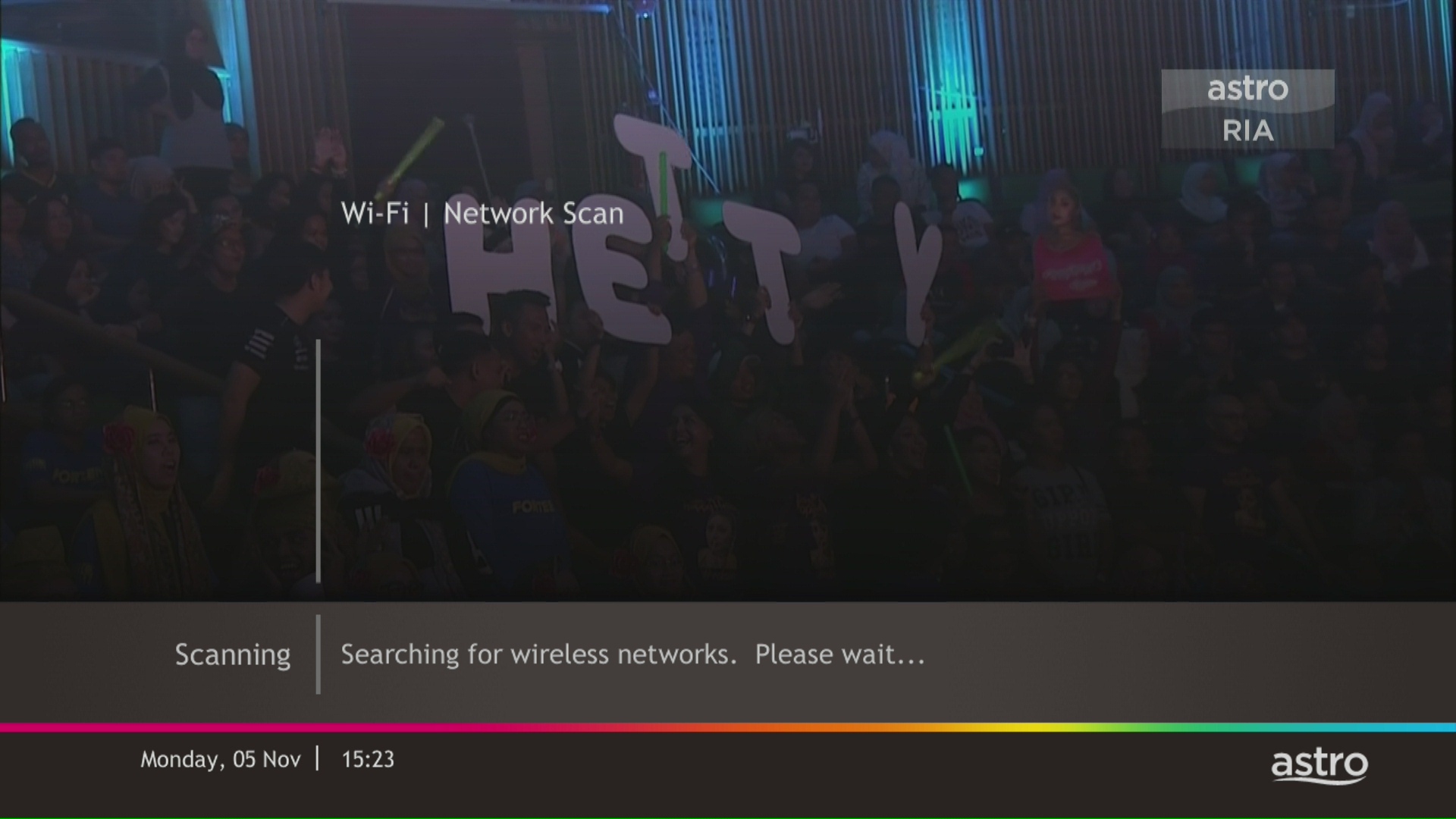
STEP 10
Select your Wi-Fi network and navigate to "Connect".
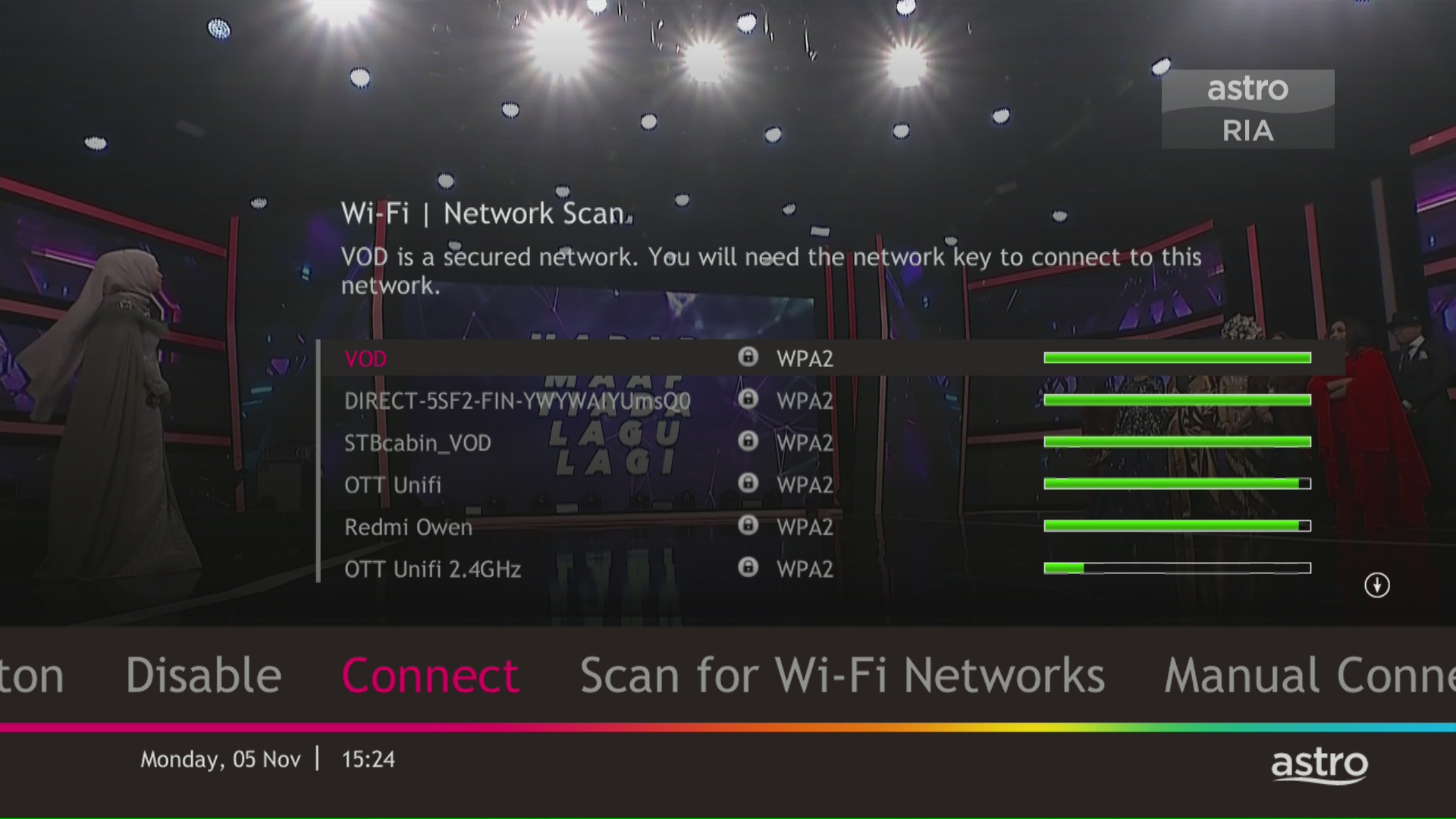
STEP 11
Please enter the password to connect to your network and press "OK".

STEP 12
You are successfully connected when this screen appears.

Astro Fibre subscription also comes with a 24-month contract commitment and will NOT be auto renewed at the end of contact period.
1. Ensure Modem/Router are connected tightly to the power socket.

2. Try to use another power socket / power source to eliminate faulty power sockets/power sources which could cause the issue.

3. If issue persists, submit your Feedback Form for further assistance.
Yes, you can return the Astro Box & Smart Card/SIM Card even after being charged for the box fee. After successfully returning the box, Astro will proceed to refund the box fee within 30 days from the confirmation date of the returned items to our Astro warehouse.
For any NJOI-related information, please visit the NJOI Help & Support page at https://purchase.njoi.com.my/en-support
You can add a reminder to pay your bill, on your Google Calendar with one click. Enjoy uninterrupted services, by remembering to pay your bill on time.

