
A free satellite TV service from Astro. Watch lifetime entertainment, news, learning & information and more.
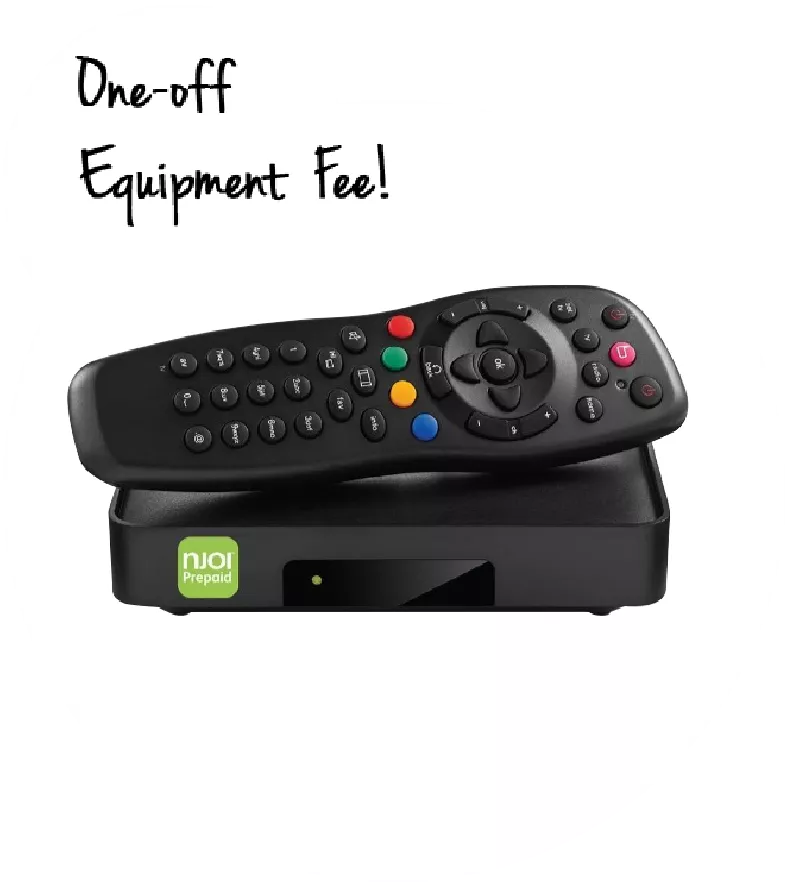
Pictures for illustration only.
Enjoy free access to 15+ TV channels & 10+ radio channels.
* Subject to Astro terms & conditions.


Step-1 |
Step-2 |
Step-3 |
Choose a plan & sign-up online. |
Sit back & wait for installation. |
Enjoy your new Astro / Broadband! |
A free satellite TV service from Astro. Watch lifetime entertainment, news, learning & information and more.
Pictures for illustration only.
New decoder only without satellite dish & cabling. You must have Astro/Njoi satellite dish and cable installed and working properly.
Including installation.
New decoder complete with satellite dish & cabling.
Including installation.
Applying for
| Njoi Astro UniFi Maxis |
Find your answers here.
We provide one stop service to apply Astro and Broadband for you.
You can avoid driving and queuing at the sales counter. We are the dealer that can help you to handle your application from the beginning to the end.
We do not charge you when you apply from us. There is no credit card information required to apply here. Charges are the same as you apply from the sales counter.
First, you can apply online, we will get back to you immediately during business hour. WhatsApp/Email/Fax us your Photocopy of IC (for malaysian) / Passport (for foreigners). When we receive all the information, we will proceed with your application immediately.
Once we receive your application with complete information, we will process your application immediately during business hour. The contractor from the service provider will then contact you for installation appointment once your application is approved.
Enjoy greater savings and hassle-free bill payment in one single bill for both Astro and Broadband. You get to enjoy Astro and Broadband at discounted price every month over the contract period of 24 months.
Astro offers multiple TV packs including Entertainment, Sports, Movies and Kids options. You can choose a pack that matches your viewing preferences and add optional streaming apps where available.
Yes, you may subscribe to Astro TV packs without bundling broadband. However, bundling Astro TV with Fibre Broadband may provide better monthly savings and convenience with a single bill.
For small households with light streaming and browsing, 100Mbps is usually sufficient. Larger families, gamers or heavy streamers may benefit from 500Mbps or 1Gbps plans for smoother performance across multiple devices.
Most Astro TV and Fibre broadband plans come with a 24-month contract. Early termination charges may apply if cancellation is made before the contract ends.
Yes, you may upgrade your TV pack or broadband speed at any time, subject to eligibility and coverage. A new contract period may apply depending on the upgrade.
Your monthly bill will be issued directly by Astro. You may receive it via email or access it through your Astro account. Bundled customers will receive a single combined bill for TV and broadband services.
Payment methods may include online banking, auto debit, credit card or other approved payment channels provided by Astro. Our team can guide you during the registration process.
If you experience any service interruption, you may contact Astro customer support for technical assistance. In many cases, issues can be resolved remotely or a technician will be arranged if necessary.
Yes, relocation is subject to service availability at your new address. Relocation charges and contract adjustments may apply depending on your plan.
No, you do not need a credit card to submit your application. Payment setup will be arranged directly with Astro after your service is approved.
Selected Astro TV packs allow optional add-ons such as streaming services depending on current promotions and availability. Additional monthly charges may apply.
Yes, a WiFi router is typically provided during fibre installation. The router model may vary depending on the selected broadband speed plan.
Yes, we will check the service coverage at your address before proceeding with your application to ensure broadband is available at your location.
For Malaysians, please provide a copy of your MyKad. For foreigners, provide a copy of your passport when submitting your broadband application.
After your application is approved, the service provider typically contacts you within 2 to 7 working days to arrange the broadband installation appointment.
Most Astro Broadband plans come with a 24-month contract starting from your installation date. If you relocate, a new 24-month contract may apply at your new address.
Yes, you can relocate your broadband service, subject to service availability at the new address. Your contract may reset for another 24 months from the new installation date.
Yes, you may request to relocate broadband devices within your home. Non-standard installation charges may apply and are payable to the installer directly after assessment.
Yes, you can switch to Astro Broadband. To avoid service interruption, it is recommended to activate the new service before terminating your current broadband contract.
Standard installations may be free during promotions, but non-standard installations (e.g., device relocation or complex wiring) may incur extra charges payable directly to the installer.
Error “Subscription Required” tapi akaun masih aktif? Brader Astro boleh bantu!
OR
Please ensure to put your box on standby mode to refresh the signal.
The fastest way is via My Astro:
OR
WhatsApp
1. Message 'Hi' to us at 03-9543 3838
2. Click on Tap Here for Options
3. Select Help & Support
4. Type Refresh Astro Box Signal
-
📡 Experiencing technical issues?
📱 Download the My Astro app to:
- Perform self-troubleshoot
- Solve in a few minutes
- No need to call customer service
If you need further help with the Astro Fibre app, you may call our Customer Contact Centre at 03 - 9543 1543 and an Astro agent will be available to assist you immediately.
You may view your latest tax invoice or bill via any of the platform listed below:
A. My Astro app
1. Download the My Astro app
2. Login using your Astro ID
3. Go to Account > Bills
4. You will be able to see your outstanding bill amount, make payment, download bill statements, and view payment history all in one app.
B. My Astro web
Alternatively, you can use the web version
C. IVR
1. Call +603-95433838
2. Press 1 for Account Related Queries
3. Input your 10-digit Astro Account no. or 12-digit MyKad no.
4. Press 2 for Payment and Billing
5. Press 1 to receive an SMS with your bill balance and a link to pay online
Note: You will not be able to download your bills or view payment history via Astro Quick Pay. For a better experience to manage your bills (To download bills or view your payment history), you can download the My Astro app.
💳 Want to manage your Astro bills easily?
📱 Download the My Astro app to:
- View and download bill statements
- Check payment history
- Pay in just a few taps
Please check your internet speed and connection status via an internet connection test (https://www.speedtest.net/). If your internet is working fine and the issue persists, please try uninstalling and reinstalling the app on your device.
For customers with Entertainment Plus, Movies Plus, Sports Plus, Premium 2, Premium 3, and Platinum Pack
For Non-Entertainment Plus, Premium 2, Premium 3, and Platinum Pack Pack customers (New Netflix customers)
Note: The Netflix plan will be defaulted to Premium, you may select ‘Change Plan’ to choose the ‘Standard’ plan.
For Non-Entertainment Plus Pack, Premium 2, Premium 3, and Platinum Pack customers (Existing Netflix customers)
For Astro Ultra Box or Ulti Boxes, you will be able to see an itemised charge called "Box Fee” in your Astro bill.
Refund can only be made by the registered Astro account holders.
However, if you would like to request refunds on behalf of the account holder, you may do so by providing the supporting documents (e.g.: authorization letter, death certificate, 3rd party NRIC copy).
If you subscribe to the same or higher Disney+ plan through Astro and activate it using the same login credentials (i.e. email address or mobile number and password) associated with your existing Disney+-billed subscription, your personalised viewing data (e.g. Watch History, Watchlist etc.) will be retained.
A . Via www.astro.com.my/sunnxt
Sun NXT Lite Flow
Sun NXT Premium Flow
B. Via the My Astro App
C. Via the Ultra/Ulti Box
Sun NXT Lite Flow
Sun NXT Premium Flow
If you see the message "Unable to proceed” error, it means the content you are trying to watch is not available under your current Astro subscription package.
1. Check Your Subscription
Verify whether the Astro Smart TV is included in your Astro package via My Astro app/web (kindly refer here).
2. Ensure You're Logged In to the Correct Astro ID
Make sure you're signed in with the Astro ID linked to your active Astro account.
3. Refresh Your Account Access
If you believe the content is included in your subscription but the error persists, proceed to submit report via WhatsApp or Feedback Form and provide:
This will help our support team investigate and assist you further.
To switch your bill delivery method to e-bill, you can do it through My Astro. Here's how:
1. Download the My Astro app or visit My Astro web
2. Login using your Astro ID
3. Go to Account > Bill delivery method
4. You will be able to switch your bill delivery method from your paper bill to e-bill. The bill will then be sent to your registered email address with Astro
Step 1:
Type ASTRO EBILL <Your 10-Digit Smart Card Number> <Your Email Address>
Example: ASTRO EBILL 0156123412 [email protected]
Step 2:
Send SMS to 66688
Note: This request must be sent from account holder’s mobile/primary number
*Standard telco charges and Terms & Conditions apply
💳 Want to manage your Astro bills easily?
📱 Download the My Astro app to:
- View and download bill statements
- Check payment history
- Pay in just a few taps
If your Astro account is suspended or disconnected, your Sun NXT app access will be immediately affected, and you will no longer be able to use the service. To restore your Sun NXT app access, please ensure your Astro account is active.
The notification you receive will depend on the payment method you choose:
(i) My Astro Portal: e-receipt will indicate payment confirmation.
(ii) IVR: Payment status will be notified over the IVR and an SMS notification will be sent for successful transactions.
(iii) SMS: Payment status will be notified via SMS.
(iv) Call: Payment status will be notified via SMS.
(v) Customer Service Centre: Physical receipt will indicate payment confirmation.
The Kids Friendly Profile is an enhancement to the Kids User Profile feature with the following major improvements:
These enhancements are available across the Astro GO app, Ultra/Ulti Box, and Multiroom Box/Smart TV app.
Click here to find out more on this new feature and how to use it!
Yes, you can choose the other Astro Packs, which do not have Netflix bundled together. However, any changes in your Astro Pack are subject to the terms & conditions.
Netflix is available to IPTV customers on the Ultra Box and Ulti Box. Non-Ultra Box customers will not be able to access Netflix on CH741. Please upgrade to the Ultra Box/Ulti Box to access Netflix on the Ultra Box.
No, you are still able to subscribe to iQIYI on your current Astro pack.
No, price for Astro customers will remain unchanged. Only the RRP price from iQIYI is changed.
Please reach out to the Viu team if you have any enquiries or require assistance with
the app. Their customer support is available from 9:00 am to 6:00 pm, Monday to
Friday (excluding Public Holidays).
You may contact Viu’s customer support team by:
1. Emailing to: e[email protected]; or
2. Call or WhatsApp them at 018 - 9429950 ; or
3. Reaching out to them via Facebook: https://www.facebook.com/ViuMalaysia/
If you would like to contact Astro, you may reach out to our Customer Service Centre by:
1. Submitting a feedback form here: www.astro.com.my/contactus/form; or
2. Reaching out to us via WhatsApp by typing “Hi” at 03-9543 3838 for assistance
All Customers on any Bundle which includes Movies Pack, those with the Movies Add‑On, customers subscribed to the HBO Pack Add‑On, as well as customers on the Astro One Epic Pack, will automatically be entitled to the new channels.
For customers with the Ultra or Ulti Box, please ensure to provide your latest contact details to our Astro agent during the call to terminate your account, this includes your mobile number and house address. If you still need further help, please contact us at 03-9543 3838.
To check your contract, please visit My Astro.
Yes, you may change the interface language of the app. To access the language settings, please click "Profile" > "Settings" > "Language" and select your preferred language
We would highly recommend for you to pre-pack your Astro Box equipment before taking it to our courier partner branch. However, if you unable to pre-pack the Astro Box, you can bring the equipment to the nearest courier partner branch for assistance.
You have the liberty to manage device connection on your own.
You may cancel your ZEE5 Premium subscription here. Kindly note that we will not be able to offer a refund if you do decide to leave the ZEE5 app before your subscription period ends.
After successfully adding ZEE5 Premium to your bill, follow the simple steps below to stream ZEE5 on your Ultra/Ulti Box:
Step 1: Go to your Astro Home Page and click “ZEE5” under the Apps rail
Step 2: Scan the QR code on screen with your mobile device
Step 3: Log in with an existing ZEE5 ID or sign up for a new account. Then, enter the activation code displayed on your TV screen into the ZEE5 mobile app.
Step 4: Now, enjoy streaming ZEE5 on your Ultra/Ulti Box!
Please ensure that the email address used to log in to the app is the same one used to purchase your ZEE5 premium subscription.
You have exceeded the maximum number of registered devices allowed. To manage devices on Astro GO, go to Settings > Registered Devices to view / remove devices from the list of registered devices to your account.
If you are still having issues, proceed to submit report via WhatsApp or Feedback Form.
Yes, watching on the Astro Smart TV app will utilise one (1) of your Astro Go concurrency.
Advance payment is only applicable to Astro TV pack purchases. If you subscribe to an Astro Fibre+TV bundle, only one month of your TV subscription fee (excluding tax) is required to be paid upon sign-up. The full tax amount and the first-month subscription fee for Astro Fibre will be paid on your first month's bill.
Yes, effective 1st March 2025, your Astro subscription packs that are bundled with Netflix will have a price increase:
You may still be using an older version of the Astro GO. To resolve this issue, please go to your respective app store and update your Astro GO app.
If you are still having issues, proceed to submit report via WhatsApp or Feedback Form.
Yes, you can return the Astro Box & Smart Card/SIM Card even after being charged for the box fee. After successfully returning the box, Astro will proceed to refund the box fee within 30 days from the confirmation date of the returned items to our Astro warehouse.
For more information you may visit
https://www.hasil.gov.my/en/e-invoice/
OR call the IRBM help desk line at 03-8682 8000 OR email them at [email protected]
[email protected]
.
Yes, the Favourite channels will follow the latest channel list. Therefore, you will need to reset your Favourite channels.
Download the iQIYI app > Select "Profile" > Click on "Log in with Astro ID" > Click on "Do not have an Astro ID? Click here".
If Netflix is included as part of your Astro pack, you will find it in My Astro app
where you will be able to manage all the streaming apps you are entitled to.
Netflix will also be included in your Astro bill under “Monthly Charges”
If you have added Netflix to your bill (Netflix Add-on), the Netflix subscription charge will appear in your Astro bill under “One-time charges” as Netflix App Subscription or Netflix Premium and will be charged monthly. You should refer to Netflix account Management for any changes to your Netflix subscription or should you wish to change to other billing methods.
No. Disney+ is not available on Astro Smart TV or Astro GO apps.
You can access Disney+ via:
a. Astro Ultra and Ulti Box by clicking on the Disney+ app under the Apps rail on your Home page.
b. Personal devices (e.g. mobile phones, tablets and Smart TVs) by downloading the Disney+ app or visiting the Disney+ website.
4K content is currently not supported on the Ultra/Ulti Box. However, you can still enjoy Prime Video in 4K on compatible smart devices.
The Malaysia Communication and Multimedia Commission (MCMC)has issued a directive to all telecommunication companies (telcos) to block the sending and receiving of SMS with URL links. The move is aimed at preventing users from becoming victims of online scams. This exercise is applicable for all person-to-person SMS with URL links sent to or received from local and international mobile numbers, which has already taken effect as of 2 May 2023.
Please check your internet speed and connection status. If your internet is working without any issues, please logout & login into the app again.
If you are still having issues, proceed to submit report via WhatsApp or Feedback Form.