
A free satellite TV service from Astro. Watch lifetime entertainment, news, learning & information and more.

Pictures for illustration only.
Enjoy free access to 15+ TV channels & 10+ radio channels.
* Subject to Astro terms & conditions.


Step-1 |
Step-2 |
Step-3 |
Choose a plan & sign-up online. |
Sit back & wait for installation. |
Enjoy your new Astro / Broadband! |
A free satellite TV service from Astro. Watch lifetime entertainment, news, learning & information and more.
Pictures for illustration only.
New decoder only without satellite dish & cabling. You must have Astro/Njoi satellite dish and cable installed and working properly.
Including installation.
New decoder complete with satellite dish & cabling.
Including installation.
Applying for
| Njoi Astro UniFi Maxis |
Find your answers here.
We provide one stop service to apply Astro and Broadband for you.
You can avoid driving and queuing at the sales counter. We are the dealer that can help you to handle your application from the beginning to the end.
We do not charge you when you apply from us. There is no credit card information required to apply here. Charges are the same as you apply from the sales counter.
First, you can apply online, we will get back to you immediately during business hour. WhatsApp/Email/Fax us your Photocopy of IC (for malaysian) / Passport (for foreigners). When we receive all the information, we will proceed with your application immediately.
Once we receive your application with complete information, we will process your application immediately during business hour. The contractor from the service provider will then contact you for installation appointment once your application is approved.
Enjoy greater savings and hassle-free bill payment in one single bill for both Astro and Broadband. You get to enjoy Astro and Broadband at discounted price every month over the contract period of 24 months.
Astro offers multiple TV packs including Entertainment, Sports, Movies and Kids options. You can choose a pack that matches your viewing preferences and add optional streaming apps where available.
Yes, you may subscribe to Astro TV packs without bundling broadband. However, bundling Astro TV with Fibre Broadband may provide better monthly savings and convenience with a single bill.
For small households with light streaming and browsing, 100Mbps is usually sufficient. Larger families, gamers or heavy streamers may benefit from 500Mbps or 1Gbps plans for smoother performance across multiple devices.
Most Astro TV and Fibre broadband plans come with a 24-month contract. Early termination charges may apply if cancellation is made before the contract ends.
Yes, you may upgrade your TV pack or broadband speed at any time, subject to eligibility and coverage. A new contract period may apply depending on the upgrade.
Your monthly bill will be issued directly by Astro. You may receive it via email or access it through your Astro account. Bundled customers will receive a single combined bill for TV and broadband services.
Payment methods may include online banking, auto debit, credit card or other approved payment channels provided by Astro. Our team can guide you during the registration process.
If you experience any service interruption, you may contact Astro customer support for technical assistance. In many cases, issues can be resolved remotely or a technician will be arranged if necessary.
Yes, relocation is subject to service availability at your new address. Relocation charges and contract adjustments may apply depending on your plan.
No, you do not need a credit card to submit your application. Payment setup will be arranged directly with Astro after your service is approved.
Selected Astro TV packs allow optional add-ons such as streaming services depending on current promotions and availability. Additional monthly charges may apply.
Yes, a WiFi router is typically provided during fibre installation. The router model may vary depending on the selected broadband speed plan.
Yes, we will check the service coverage at your address before proceeding with your application to ensure broadband is available at your location.
For Malaysians, please provide a copy of your MyKad. For foreigners, provide a copy of your passport when submitting your broadband application.
After your application is approved, the service provider typically contacts you within 2 to 7 working days to arrange the broadband installation appointment.
Most Astro Broadband plans come with a 24-month contract starting from your installation date. If you relocate, a new 24-month contract may apply at your new address.
Yes, you can relocate your broadband service, subject to service availability at the new address. Your contract may reset for another 24 months from the new installation date.
Yes, you may request to relocate broadband devices within your home. Non-standard installation charges may apply and are payable to the installer directly after assessment.
Yes, you can switch to Astro Broadband. To avoid service interruption, it is recommended to activate the new service before terminating your current broadband contract.
Standard installations may be free during promotions, but non-standard installations (e.g., device relocation or complex wiring) may incur extra charges payable directly to the installer.
Each Astro customer can subscribe to a maximum of one (1) Multiroom (Smart TV) subscription. If you need additional Multiroom access, you may subscribe to Multiroom (Astro Box). All subscription has to be used within the same location as per the main subscription.
A deposit of RM500 is payable for new subscribers (non-Malaysians). The fee will be refunded when service is terminated.
No deposit is required for all existing Astro customers and new subscribers (Malaysians).
Successful payment via JomPAY will be posted real time.
4K UHD offers 4 times the resolution of HDTV (4K UHD has 3840x2160 resolution with 8 million pixels compared to HD which has 1920x1080 with 2 million pixels), sharper detail, smoother lines and a richer colour palette, as well as a vibrant colour TV experience.
Customers on Ultra Box with Sports Pack can tune in to the Astro SuperSport UHD Channel (CH 805 and CH 806) for an exciting selection of Sports content such as the Premier League and the Spanish Primera Liga.
Customers on Ultra Box with Movies Pack and News & Documentaries add-on can stream some of the latest movies and documentaries respectively in UHD by pressing the “Home” button on your remote and exploring your choices at no additional cost.
In addition, customers can rent additional movies on top of their subscription and stream the latest and hottest 4K UHD Blockbuster movies, drama series and local movies, blockbuster movies in Ultra HD via Astro First Channel 480, and Astro Best Channel 481 and VOD titles in “Store”.
Please note that a standard rent rate applies for all these titles, to learn more about the pricing, head over to the FAQ section at www.astro.com.my/ultra
STEP 1
Press "HOME" button on your remote control.

STEP 2
Navigate to Settings and press "OK".

STEP 3
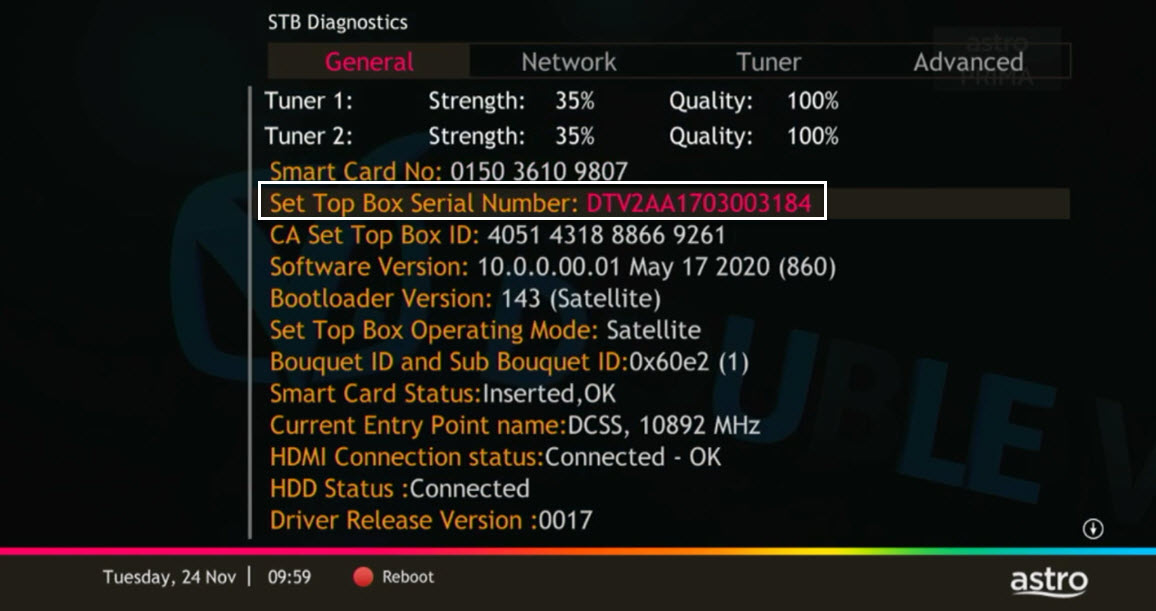
Navigate to STB Diagnostics and press "OK".

STEP 4
From General Tab, look at the Smart Card No for the smartcard number.

STEP 5
Take look at the Set Top Box Serial Number for the box serial number.
You will receive SMS notifications upon successful sign-up with a delivery tracking number for the Plug & Play Box and the Astro SIM card.
Yes, Astro is bounded by the PDPA act. All information received will be used in accordance with our Privacy Notice.
The Liga Malaysia will be available for all Astro customers starting 3 May 2024 as part of your Astro subscription at no additional cost until further notice.
No, Ultra Box is only available for Entertainment Pack and above only.
1. Tune to channel 200 on your Astro box and wait for a few seconds. By default, the selector will be on Packs. Press up/down to select your preferable pack, and press "OK"

2. Select the option for Monthly Subscription

3. Send the WhatsApp code as per displayed on the TV screen

Starting 1 April, access to TVBAnywhere+ is no longer available to Astro customers. However, you can continue to enjoy TVB content via On Demand and TVB Jade (CH310) and Astro AOD (CH311). If you would like to subscribe to the TVBAnywhere+ app, you may still do so by purchasing it directly from TVB.
You can recover your Netflix login here or at astro.com.my/Netflix
Step 1: Head to astro.com.my/Netflix
Step 2: At the FAQ section look for "How to recover my Netflix login email and password
Service will resume within 3 hours after payment is made.
If band steering is enabled, you do not need to worry about which frequency band that your devices are connected to because the WiFi router will make the assessment and direct each device to appropriate frequency band.
However, it is important to note that quality and signal strength are not guaranteed due to unpredictability given that it is completely up to the connected devices and the WiFi router to intelligently decide on which band to connect.
STEP 1
Please wait while your Astro box initializes.
STEP 2
Select your preferred language.
STEP 3
Navigate to Next and press "OK".
STEP 4
Select Auto as the Video Resolution.
STEP 5
Navigate to Next and press "OK".
STEP 6
Navigate to Confirm and press "OK" to confirm your selection if you are able to read the texts on screen properly.
Otherwise, navigate to Cancel to revert to the previous settings.
STEP 7
Select Satellite as the box operating mode.
STEP 8
Navigate to Next and press "OK".
STEP 9
Select your preferred connection.
For connection via Wi-Fi, proceed to STEP 10.
For connection via LAN Cable, proceed to STEP 16 once you are connected.
STEP 10
Please wait while your Astro box searches for available Wi-Fi networks.
STEP 11
Navigate to your preferred Wi-Fi network and press "OK".
STEP 12
Please enter the password to connect to the Wi-Fi network.
STEP 13
Navigate to Done to continue.
STEP 14
Please wait while your Astro box connects to the internet.
STEP 15
Navigate to Yes to allow your Astro box to connect to this network automatically.
Otherwise, navigate to No.
Proceed to STEP 17 for the next step.
STEP 16
Navigate to Next and press "OK".
STEP 17
Navigate to Universal.
STEP 18
Navigate to Next and press "OK".
STEP 19
Select 01 M3B VL - 10732 as the Entry Point.
STEP 20
Navigate to Next and press "OK".
STEP 21
Please wait until the signal reading is updated.
Navigate to Finish and press "OK" to complete the settings.
Customers with HD boxes can subscribe to the All-New Astro Pack without a box upgrade except if the customer request to move to OTT bundled pack which is mandatory to upgrade to Ulti or Ultra.
Note: OTT is referring to either Netflix, D+H or both.
There are a few ways you can access Netflix on the Ultra Box as below:
IMPORTANT! If you are accessing Netflix on your Ultra/Ulti Box for the first time, please wait for the Netflix activation email from Astro (this may take up to 10 minutes) for the app to be reflected in your account. If you skip this 10-minute period, you may experience double charging by incorrectly signing up for Netflix using your credit card details.
1. Ensure power cable is connected tightly.
2. Try to use another power socket / power source to eliminate faulty power sockets/ power sources which could cause the issue.

3. If the issue persists, submit your feedback form for further assistance.
The Kids Friendly Profile is an enhancement to the Kids User Profile feature with the following major improvements:
These enhancements are available across the Astro GO app, Ultra/Ulti Box, and Multiroom Box/Smart TV app.
Click here to find out more on this new feature and how to use it!
This error indicates that you have reached the maximum number of simultaneous video streams across devices for one (1) account. To stop seeing this error, please stop streaming on one of your other devices.
• If you have recently purchased your Astro pack or made any changes to your pack on or after 9th November you can stream on two (2) concurrent screens
• If you have not made any changes you can stream on four (4) concurrent screens.
If you are still having issues, proceed to submit report via WhatsApp or Feedback Form.
STEP 1
Switch off the power of your box and make sure that the adapter’s power light is off.
STEP 2
Unplug the HDMI cable from your TV and plug it back in securely to other available HDMI port.
STEP 3
Switch on the power for your box and make sure that the adapter’s power light is on.
Please wait for 5 minutes.
STEP 4
Turn on your box. Do select the correct TV input.
You should no longer be experiencing this problem.

From 1st July 2023 onwards, Astro will ONLY accept cheques deposited at Public Bank Berhad.
To simplify your monthly payments, here are some recommended alternatives you can look into.
To find out more on how you can make your payments via these channels, kindly visit here.
Should you choose to continue with cheque payment, do ensure that you follow these steps below.
Step 1: Fill in the cheque
Step 2: Ensure that your 10-digit Astro account number is accurately written at the back of the cheque
Step 3: Go to your nearest Public Bank
Step 4: Locate the Cheque Deposit Machine
Step 5: Select “Bill Payment” on the screen
Step 6: Select “Astro”
Step 7: Drop your cheque in
Step 8: Collect your receipt
Please follow the steps below to reset your password:
Currently, My Astro app and web supports TV pack upgrade. You can go to "Account' and scroll to "Subscription' section and select "TV pack'. You may reach out to us via WhatsApp at 03-9543 3838 for more details.
For Ultra and/or Ulti box users, launch the My Astro app on your Home screen and you will land on the My Astro account dashboard. Press ">' remote button to go to your Subscription card and "OK' button to proceed with the TV pack upgrade.
STEP 1
On your remote, press the HOME button and the home menu will be displayed on top of your screen.

STEP 2
Navigate to Settings.

STEP 3
Navigate to Satellite Settings and press “OK”.

STEP 4
Navigate to LNB Setup and press “OK”.

STEP 5
Tuner Settings screen will be displayed accordingly.

STEP 6
Select LNB Type connected to your box.


STEP 7
Navigate to Next and press "OK" to confirm your selection.

STEP 8
Select this as the Entry Point and press "OK" to confirm your selection.

STEP 9
Navigate to Next and press "OK" to confirm your selection.

STEP 10
Signal reading results for Tuner 1 screen will be displayed accordingly.
Press right to navigate to Tuner 2.

STEP 11
Signal reading results screen for Tuner 2 will be displayed.
Then navigate to Finish and press "OK" to complete the setup.

You can proceed with below troubleshooting if the weather is good. Otherwise, you may try again later.
STEP 1
On your remote, press the “HOME” button and the home menu will be displayed at the bottom of your screen.

STEP 2
Navigate to SETTINGS and press “OK”.

STEP 3
Navigate to STB DIAGNOSTICS and press “OK”.

STEP 4
Refer to the signal strength % shown on the top left of your screen.
If it is 65% or higher, please take the screenshot and submit your Feedback Form.
If it is below 65%, please go to Step 5.

STEP 5
Switch off the power for your box and make sure that the adapter’s power light is off.

STEP 6
Unscrew the satellite cable from the box and pull it out.

STEP 7
Plug the satellite cable back into the box and screw it back securely.

STEP 8
Switch on the power for your box and make sure that the adapter’s power light is on.
Please wait for 5 minutes.

STEP 9
Turn on your box. You should no longer be experiencing this issue.
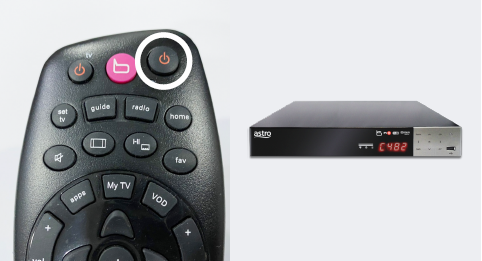
If issue persist, please submit the issue on our Feedback Form and attach a picture of your General tab of the STB Diagnostics for assistance.
Centralized Dish
If issue persist under a centralized satellite dish, please refer to your respective Building Management before contacting our agents.
You may verify if your speed plan has been successfully upgraded during the installation process with your Astro installer before sign-off. If you would like to confirm the status of your speed upgrade after installation, you may contact Astro’s Contact Centre at 03-9543 1543 and an Astro agent will be available to assist you immediately.
You may utilise your credit balance to offset future billing on your Astro account, or contact us here for further enquiries.
For Platinum Pack and Multiroom Smart TV customers, Astro GO+ is included in your subscription at no extra charge. For customers on other packages, you will be able to add-on Astro GO+ to your subscription for RM 5.99/month.
Your cloud recording space will revert to 200 hours by default. If your current recordings exceed 200 hours, the system will delete the exceeded hours once you have stopped the Astro GO+ subscription starting with the oldest recordings first.
In support of the environment, customers are encouraged to opt for bill statements delivered for free via email or SMS for better savings as the Paper Bill Charge will be revised from RM7.00 to RM10.00 per bill/month, starting 1st August 2022. The Paper Bill Charge will be waived for customers who opt for e-Billing as their preferred bill delivery method.
From 8 October 2021 onwards, Astro will be ceasing the daily passes (e.g. 3, 5, 7 & 30 days passes). Please subscribe to the relevant packs to continue enjoying your favourite content. Stay tuned for more exciting offers. Thank you.
Your monthly bill of the previous and new pack will be prorated. This will be reflected into your bill accordingly.
Photograph or scan your payment receipt, and send it to one of our contact platforms found here.
Yes, your advance payment will be fully refunded if you cancel your subscription before the Astro box installation. Please call Astro's Contact Centre at 03-9543 3838 for a refund. The refund process will take approximately 14 days for processing with your issuing bank. However, if you decide to cancel your subscription after the Astro box installation (during your contract period), the prorated early termination fee will apply.
There will be no changes to your account. However, by paying 5 days earlier, your transactions will be processed in a timely manner and to allow you to enjoy uninterrupted viewing before the next bill is generated for the following month.
STEP 1
On your remote, press the Home button and the Home Page will be displayed on your screen.
STEP 2
Navigate to Profile.
STEP 3
The Profile Selection Screen will be displayed.
STEP 4
Navigate to Edit Profile.
STEP 5
Choose a profile to edit.
STEP 6
Navigate to Delete Profile.
STEP 7
Click Confirm to delete your profile.
STEP 8
The deleted profile will be removed from the Profile Selection Screen.
1. Ultra Box magenta light / Ulti Box purple light - Your box is turned "On".
Press the Home button to launch Video On Demand and stream anytime or press channel number on your remote.

2. Ultra Box / Ulti Box orange light - Your box is on "Standby" mode.
Your box is ready to be turned "On" or leave it in this mode to receive new software updates.

3. Ultra Box / Ulti Box blinking orange light - Your box is booting up.
Please wait a few minutes for the box to start.
4. Ultra Box / Ulti box blinking blue light - Your box is downloading a software update.
Please wait a few minutes for the download to complete.

No, you will not be charged 8% Service Tax for reconnection performed before 1st March 2024. Only reconnections executed on or after 1st March 2024 are subject to the 8% Service Tax.
It will begin on 1st March 2024 and onwards.
For Residential Astro Pay TV customers: You may change your contract from e.g., 12-month to 24-month without incurring a switching fee or cancellation fee. However, if you change your contract from e.g., 24-month to 12-month, will be charged a cancellation fee accordingly if still within minimum term (contract) period. No switching fee applicable.
Yes, we will schedule for the equipment collection after you have discontinued Astro & Broadband services. If equipment is damaged or lost, penalty fee of RM 530 (inclusive of Govt. Tax) will be charged.
Go to the "Content' tab and click the search icon on the screen. Type in a show title. The titles are categorized according to the following:

What is beIN SPORTS CONNECT?
beIN SPORTS CONNECT is the ultimate live streaming sports service that provides you with access to global sporting events both LIVE and on-demand such as major European football leagues and over 3,000 hours of live tennis via Astro's Ultra Box, Ulti Box, mobile app or web.
How do I access the beIN SPORTS CONNECT app on the Ultra/Ulti Box?
On the beIN SPORTS CONNECT mobile app:
Step 1: Open the "beIN SPORTS CONNECT" app and go to your Profile
Step 2: Select "Sign in with Astro" and log in with your Astro ID
Step 3: Go to "Settings" and select the TV Login option
Step 4: A QR code scanner will appear.
Follow the steps below to pair the mobile app with your TV screenOn the Astro Ultra/Ulti Box:
Step 1: At Astro Home, go to the app rail and select "beIN SPORTS CONNECT"
Step 2: Go to the Profile icon at the top of your screen and click "OK"
Step 3: A QR code will be presented on your screen. Use the in-app QR code scanner on your mobile device to scan the QR code
Step 4: Your TV screen will refresh automatically and you will be able to enjoy the beIN SPORTS CONNECT app on your TV!
Who is entitled to access the beIN SPORTS CONNECT app on the Ultra/Ulti Box?
Only Astro customers with the Sports subscription as part of their Astro TV Pack (Bundle or add-on) will be able to enjoy the beIN SPORTS CONNECT app on their Ultra/Ulti Box. For further enquiries, please WhatsApp "Get beIN" to our Customer Contact Center at 03-9543 3838.
What are the content available in the beIN SPORTS CONNECT app?
Customers can enjoy major European football leagues, over 3,000 hours of live tennis and other global sporting events LIVE and on-demand on the app. You may check out the complete list of competitions available on the app here: beIN SPORTS CONNECT | Live Leagues and Competitions | LaLiga, Serie A, Ligue
Can I stream on more than one device at the same time?
No, you can only stream the beIN SPORTS CONNECT app on one device at a time.
How many devices can I use to watch beIN SPORTS CONNECT?
You can have up to five (5) devices registered to your account at any given time. However, you can only stream from one (1) device at a time.
Can I download content for offline viewing?
Unfortunately, downloading of content is not a feature that is currently available.
Are subtitles or dubbing available for the content on beIN SPORTS CONNECT?
Unfortunately, subtitles and dubbing options are currently not available.
How can I subscribe to beIN SPORTS CONNECT via Astro?
The beIN SPORTS CONNECT app is not available as an add-to-bill option. Please visit www.product.astro.com.my/tv to sign up to one of our TV Packs with the Sports subscription.
Can I access the beIN SPORTS CONNECT app outside of Malaysia?
No, you will not be able to watch beIN SPORTS CONNECT content outside of Malaysia as the app is geo-blocked for each country.
How do I register for an Astro ID?
Download the beIN SPORTS CONNECT app > Select "Login with Astro"> Click "Do not have an Astro ID? Click here".
Can I update my email address/mobile number for my Astro ID?
Yes, please visit Astro's Self Service Portal via myastro.astro.com.my to update your email address or mobile number.
I have forgotten my password; what should I do?
Step 1: Click "Log in" and click "Forgot my password"
Step 2: Enter your email address and click "Submit"
Step 3: An email will be sent to your registered email address with further instructions on how to reset your password
How do I unlock a locked user account?
You may contact Astro's Customer Service by:
Please contact your issuing bank for further information. Astro does not directly handle standing instructions. Please utilise our auto-debit facility if you would like hassle-free payments.
STEP 1
On your remote, press the HOME button and the home menu will be displayed on top of your screen.

STEP 2
Navigate to Settings.

STEP 3
Navigate to Audio and press "OK".

STEP 4
Navigate to your preferred selection and press “OK”.

Customers with a Movies subscription via Movies, Premium 1, Premium 3 and Platinum packs will be able to access Disney+ Hotstar on the Ultra box.
Alternatively, customers can add on the 3-month Disney+ Hotstar pass for RM54.90. Subscribe to Disney+ Hotstar via astro.com.my/Disney.
For more support and options for your subscription, please WhatsApp us at 03 9543 3838 and type DH Help. Alternatively, you may visit astro.com.my/Disney for more information.
Mesh WiFi network refers to a unified wireless network that is formed by utilizing inter-connected WiFi nodes (Mesh devices) placed throughout the house.
In the new bill layout, there are three tax indicators for customer to refer: S1 (8%), S2 (6%), and N (non-taxable item). Each item list will be marked in accordance with the tax indicator below:
If you would like more information or to provide feedback, kindly log in to our support page via support.astro.com.my. For more questions regarding Astro Pack, you may reach out to us via call at 03-7481 1000 (Monday to Friday, 9AM – 6PM exclude public holidays).

