
A free satellite TV service from Astro. Watch lifetime entertainment, news, learning & information and more.

Pictures for illustration only.
Enjoy free access to 15+ TV channels & 10+ radio channels.
* Subject to Astro terms & conditions.


Step-1 |
Step-2 |
Step-3 |
Choose a plan & sign-up online. |
Sit back & wait for installation. |
Enjoy your new Astro / Broadband! |
A free satellite TV service from Astro. Watch lifetime entertainment, news, learning & information and more.
Pictures for illustration only.
New decoder only without satellite dish & cabling. You must have Astro/Njoi satellite dish and cable installed and working properly.
Including installation.
New decoder complete with satellite dish & cabling.
Including installation.
Applying for
| Njoi Astro UniFi Maxis |
Find your answers here.
We provide one stop service to apply Astro and Broadband for you.
You can avoid driving and queuing at the sales counter. We are the dealer that can help you to handle your application from the beginning to the end.
We do not charge you when you apply from us. There is no credit card information required to apply here. Charges are the same as you apply from the sales counter.
First, you can apply online, we will get back to you immediately during business hour. WhatsApp/Email/Fax us your Photocopy of IC (for malaysian) / Passport (for foreigners). When we receive all the information, we will proceed with your application immediately.
Once we receive your application with complete information, we will process your application immediately during business hour. The contractor from the service provider will then contact you for installation appointment once your application is approved.
Enjoy greater savings and hassle-free bill payment in one single bill for both Astro and Broadband. You get to enjoy Astro and Broadband at discounted price every month over the contract period of 24 months.
Astro offers multiple TV packs including Entertainment, Sports, Movies and Kids options. You can choose a pack that matches your viewing preferences and add optional streaming apps where available.
Yes, you may subscribe to Astro TV packs without bundling broadband. However, bundling Astro TV with Fibre Broadband may provide better monthly savings and convenience with a single bill.
For small households with light streaming and browsing, 100Mbps is usually sufficient. Larger families, gamers or heavy streamers may benefit from 500Mbps or 1Gbps plans for smoother performance across multiple devices.
Most Astro TV and Fibre broadband plans come with a 24-month contract. Early termination charges may apply if cancellation is made before the contract ends.
Yes, you may upgrade your TV pack or broadband speed at any time, subject to eligibility and coverage. A new contract period may apply depending on the upgrade.
Your monthly bill will be issued directly by Astro. You may receive it via email or access it through your Astro account. Bundled customers will receive a single combined bill for TV and broadband services.
Payment methods may include online banking, auto debit, credit card or other approved payment channels provided by Astro. Our team can guide you during the registration process.
If you experience any service interruption, you may contact Astro customer support for technical assistance. In many cases, issues can be resolved remotely or a technician will be arranged if necessary.
Yes, relocation is subject to service availability at your new address. Relocation charges and contract adjustments may apply depending on your plan.
No, you do not need a credit card to submit your application. Payment setup will be arranged directly with Astro after your service is approved.
Selected Astro TV packs allow optional add-ons such as streaming services depending on current promotions and availability. Additional monthly charges may apply.
Yes, a WiFi router is typically provided during fibre installation. The router model may vary depending on the selected broadband speed plan.
Yes, we will check the service coverage at your address before proceeding with your application to ensure broadband is available at your location.
For Malaysians, please provide a copy of your MyKad. For foreigners, provide a copy of your passport when submitting your broadband application.
After your application is approved, the service provider typically contacts you within 2 to 7 working days to arrange the broadband installation appointment.
Most Astro Broadband plans come with a 24-month contract starting from your installation date. If you relocate, a new 24-month contract may apply at your new address.
Yes, you can relocate your broadband service, subject to service availability at the new address. Your contract may reset for another 24 months from the new installation date.
Yes, you may request to relocate broadband devices within your home. Non-standard installation charges may apply and are payable to the installer directly after assessment.
Yes, you can switch to Astro Broadband. To avoid service interruption, it is recommended to activate the new service before terminating your current broadband contract.
Standard installations may be free during promotions, but non-standard installations (e.g., device relocation or complex wiring) may incur extra charges payable directly to the installer.
For Platinum Pack and Multiroom Smart TV customers, Astro GO+ will be automatically added to your subscription.
Please follow the steps below to retrieve your Astro ID:
Note: Only Astro customers whose Astro ID is linked to their subscription can retrieve their Astro ID this way. Otherwise, you would need to create a new account.
You may register for auto-debit via: -
1.My Astro website.

2.MyAstro App.

3.Any of our AstroExperience Store.
If you choose to downgrade your packs or terminate Astro services before the end of your contract term, you will have to pay a cancellation fee. This cancellation fee is calculated based on your subscribed package, contract period and box type. If you cancel your service(s)/change your packages upon completion of your contract term, you won't have to pay any cancellation fee.
Yes, we will schedule for the equipment collection after you have discontinued Astro & Broadband services. If equipment is damaged or lost, penalty fee of RM 530 (inclusive of Govt. Tax) will be charged.
STEP 1
On your remote, press the HOME button and the home menu will be displayed on top of your screen.

STEP 2
Navigate to Settings.

STEP 3
Navigate to STB Diagnostics and press "OK".

STEP 4
Select General Diagnostics and press "OK".

STEP 5
Details information of General Diagnostics screen will be displayed.

STEP 6
Press down arrow on your remote to get more information.

STEP 1
On your remote, press the HOME button and the home menu will be displayed on top of your screen.

STEP 2
Navigate to Settings.

STEP 3
Navigate to Master PIN and press “OK”.

STEP 4
Please enter your PIN (Default PIN is 0000).

STEP 5
Please enter your new PIN.

STEP 6
Please re-enter your new PIN to confirm.

STEP 7
Your PIN successfully changed when this screen appears.

There are a few ways you can access Netflix on the Ultra Box as below:
IMPORTANT! If you are accessing Netflix on your Ultra/Ulti Box for the first time, please wait for the Netflix activation email from Astro (this may take up to 10 minutes) for the app to be reflected in your account. If you skip this 10-minute period, you may experience double charging by incorrectly signing up for Netflix using your credit card details.
Any Astro GO compatible device (mobile/tablet/PC) and Multiroom Smart TV* compatible TVs will benefit from Astro GO+.
Service will resume within 3 hours after payment is made.
1. Ultra Box magenta light / Ulti Box purple light - Your box is turned "On".
Press the Home button to launch Video On Demand and stream anytime or press channel number on your remote.

2. Ultra Box / Ulti Box orange light - Your box is on "Standby" mode.
Your box is ready to be turned "On" or leave it in this mode to receive new software updates.

3. Ultra Box / Ulti Box blinking orange light - Your box is booting up.
Please wait a few minutes for the box to start.
4. Ultra Box / Ulti box blinking blue light - Your box is downloading a software update.
Please wait a few minutes for the download to complete.

Having trouble with your phone line ?
You may proceed to contact below dedicated service provider directly
1 800 1818 18
Yes, customers whose accounts are suspended but resumed within 24 months from their offer period start date will still be able to enjoy the internet speed upgrade upon service resumption. However, the speed upgrade offer period will not be extended despite the suspension period.
Unfortunately, customers whose accounts are suspended but resumed after 24 months from their offer period start date will not be able to receive the free speed upgrade.
Although anyone can create an Astro ID, only the Astro account owner is allowed to link their account to the Astro ID. Otherwise, you will need permission from the account's owner in order to complete the linking.
Yes, an existing IPTV customer is eligible to switch to Astro Fibre. However, your IPTV services will be switched to a Plug & Play service, and your existing Astro PVR / B.yond Box will be upgraded to the Ultra/Ulti box. There is no additional charge for the Astro Ultra/Ulti upgrade. Please note that you will be re-contracted for 24 months upon installation.
Please follow the steps below to verify your Astro ID:

Yes, the subscription will be reflected on all your set-top box provided they are registered under our Multiroom service.
Yes, however we do advise keeping your subscription while your TV is being fixed to avoid having to download the app again.


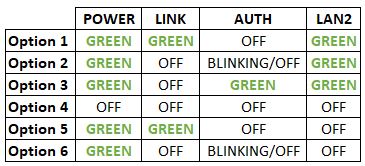

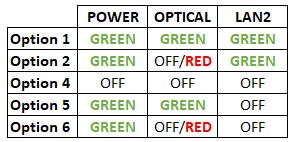


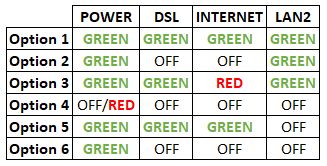
Option 1
1. Please turn off all devices (Modem and Router). By restarting your modem, you can isolate the possibility of overloaded processes in the modem, which would impact its performance.
2. Ensure the fiber cable from your wall socket and modem is securely connected.


Notes: You might be connected to LAN 1 if backbone is Maxis
Router connection

3. Please make sure the LAN cable is connected properly from router (Port 1-4 - Yellow port) to PC/Laptop.
4. If the issue persists, submit your feedback form and attach your modem light indicator picture/video for further assistance.
Option 2/ Option 3/ Option 5/ Option 6
1. Please turn off all devices (Modem and Router). By restarting your modem, you can isolate the possibility of overloaded processes in the modem, which would impact its performance.
2. Ensure the fiber cable from your wall socket and modem is securely connected.

3. Ensure both cables on the Modem (LAN Port 2) and Router (WAN Port - Red port) are properly connected.


Notes: You might be connected to LAN 1 if backbone is Maxis
Router connection

4. Please make sure the LAN cable is connected properly from router (Port 1-4 - Yellow port) to PC/Laptop.
5. Please make sure both cables on Router (Any Yellow port) and Astro Decoder (Network Port behind decoder) are properly inserted.


6. Switch on modem and router and please wait for 2 minutes to stabilise the devices after reboot.
7. If the issue persists, submit your feedback form and attach your modem light indicator picture/video for further assistance.
Option 4
1. Ensure Modem/Router are connected tightly to the power socket.

2. Try to use another power socket / power source to eliminate faulty power sockets/power sources which could cause the issue.
3. If the issue persists, submit your feedback form for further assistance.
Astro Fibre is only available with Fibre infrastructure and does not support copper wire infrastructure.
1. Unifi netis brand
The following shows an Interface based on Unifi router


Note: Connection to Wi-Fi may be temporarily loss while the changes is updated.
The Kids Friendly Profile is an enhancement to the Kids User Profile feature with the following major improvements:
These enhancements are available across the Astro GO app, Ultra/Ulti Box, and Multiroom Box/Smart TV app.
Click here to find out more on this new feature and how to use it!
Please note that only one Disney+ Hotstar access is bundled to each TV Pack subscription which allows two concurrent streams on Disney+ Hotstar.
For payments made using credit cards, refunds will be reversed back to the respective card. Whilst payment made by cash and online banking will be made to the account holders bank account.
You may submit your request via Feedback Form with below information details based on your payment method.
Please choose below option in the Feedback Form:
Category: I would like to request for refund
Sub Category: Request for Refund
1) Refund via Bank transfer:
Bank Name:
Bank Account Number:
*Note: Please confirm your bank account details and ensure it's correct
2) Refund via Foreign bank:
Bank Name:
Bank Account Number:
Bank Swift Code:
IBAN Code:
Currency: Eg: Dollar/Yen etc
*Note: Please confirm your bank account details and ensure it's correct
3) Credit Card:
Credit Card Number:
ONLY last 4 digit credit card updated with Astro account
*Note: Please confirm your credit card details and ensure it's correct
Depending on your service, it is mandatory to return some devices as per our T&Cs, whilst other devices should be disposed of and recycled at collection centres registered under the Department of Environment. To find out what you should do with your devices after service termination, please click here.
No, Ultra Box is only available for Entertainment Pack and above only.
No, you are still able to access HBO Go on your current Movies pack.
STEP 1

Try to change channels on your Astro remote.
INDICATOR: LED blinking 3 times / NO LED blink
SOLUTION: Replace new battery
Proceed to Step 2.
INDICATOR: LED blinking 1 time
Confirm it's not your Astro remote faulty, let's proceed to Step 3.
STEP 2
If issue remain after the battery replacement, this might be due to a faulty Astro remote.
Try changing the channel manually directly from the box front panel (If any).
If it's working, you might need to replace your Astro remote.
You may walk-in to our nearest Customer Service Center for the replacement.

STEP 3
You need to refresh the box setting by initiate manually from box front panel.
Refer to Refresh Box setting Guide steps here.
Not all shows/channels will be available on Astro GO as this depends on contractual rights with specific guidelines on the entitlement of these shows/channels and what you have as a part of your subscription.
Below are channels that are not available on Astro GO:
Please be assured that Astro is continuously working on getting more content available on Astro GO.
To set up a Mesh WiFi network around your house, the Mesh unit will need to be paired with the WiFi router. Steps to pair these two devices are as follows:
i. Place the Mesh unit close to the WiFi router (within 2 meters) and power it on
ii. After the Mesh unit starts up, press and hold the WPS buttons of the Mesh unit and the WiFi router for 3 - 5 seconds in turn within 2 minutes
iii. After the WLAN and Internet indicators of the Mesh turns steady blue, the Mesh is connected to the Internet
iv. Move the Mesh to the desired place where you need to expand WiFi and power it on. After the Internet indicator turns steady blue, WiFi is expanded successfully.

New and existing Astro customers will enjoy rebates up to RM39/month for 24 months when they subscribe to selected Astro Fibre TV bundles and a FREE speed upgrade for all customers who subscribe within the promotion period.
No, your rewards cannot be transferred to another person or exchanged for cash.
Yes, you can switch to Astro Fibre and all the devices provisioned will be maintained (Fibre modem & WiFi router) with the new Astro Fibre subscription. However, your Astro TV package will be removed/terminated.
An early cancellation fee will be applied if you are still within the 24-month contract. Please refer to the Astro Fibre's cancellation details.
Yes, a third party is allowed to make the advance payment on your behalf. In the case of refund, the amount will be returned to the owner of the third-party account (source of payment).
STEP 1
On your remote, press the HOME button and the home menu will be displayed on top of your screen.

STEP 2
Navigate to Guide.

STEP 3
Select the channel you would like to add to favourite list and press "OK".

STEP 4
Select "Add to Favourites" and press "OK".

STEP 5
You are successfully added the channel to favourite list when this screen appears.

STEP 6
Your selected channel will have a heart tagging after added as favourite.
Unfortunately, you cannot link your direct Disney+ Hotstar subscription to your Astro account. Please ensure that the mobile number used for your direct subscription to Disney+ Hotstar is different from the mobile number used to activate Disney+ Hotstar entitlement via your Astro subscription. If you do not have an alternative mobile number to nominate, kindly contact Disney+ Hotstar's customer service directly at disneyplus.my@hotstar.com for details on how to cancel your direct subscription.
Yes. As a Sports Pack customer, you will get access to Liga Malaysia as well as a variety of local and international sporting events as part of your subscription.
If your account is suspended or disconnected, you will retain the existing subscription when you reconnect. However, if you plan to make any changes after the reconnection, you can only select from the new packs.
Multiroom (Astro Box) requires an Astro box to be setup and can be accessed through the regular satellite feed or streaming on home Wi-Fi. Meanwhile, the Multiroom (Smart TV) only requires a Smart TV and no installation needed. Customers can download the Astro app on the Smart TV and connect to home Wi-Fi to stream.
No, Pay-Per-View is no longer available in CH200.
Yes, all Astro customers with a Disney+ Hotstar subscription can access the app on the Ultra/Ulti Box. To access the app, please refer here.
You may access it by pressing "200' on your Astro remote control whilst watching TV.
This change was made to ensure that all customers enjoy a better user experience on our platforms and are kept up to date with which email address and mobile number is linked to their account.
Customers with a Netflix Premium account are allowed to watch on up to 4 supported devices in 4K UHD and Netflix Spatial Audio. In addition, Netflix Premium subscribers are also allowed to download shows to watch offline on 6 devices at a time.
Astro introduces the new Ulti Box with a redesigned new interface, Cloud recording feature, enhanced search capabilities and more. Just connect the all new Ulti Box to the Internet and take control of your entertainment and stream up to 110,000 videos on demand, anytime.
The features of the new Ulti Box include:
· New Home Screen - Everything you see is yours
· Discover Video on Demand (VOD) - Discover 110,000 videos, stream anytime, anywhere
· Search - Search for your favorite show or video faster and easier
· Play from Start - Missed the start of the show? Just restart.
· Stop Here, Continue There -Stop on one screen and continue on another device
· Multi-Screen - Stream seamlessly across any device
· Cloud Recording - Record all the programmers you want at the same time
. **Continuous viewing - Enable to continue watching your favorite shows during raining.
We recommend an Internet speed of 10Mbps and above for optimal access to cloud recording, streaming on demand videos and search functions.
Note: ** Except 4K UHD, Astro First and all radio channels
There will be no changes to your account. However, by paying 5 days earlier, your transactions will be processed in a timely manner and to allow you to enjoy uninterrupted viewing before the next bill is generated for the following month.
Only Visa, MasterCard, and American Express Credit Cards and Debit Cards issued by banks in Malaysia are accepted by Astro-owned payment channels. Official Astro payment partners may have different policies - please check with your preferred payment partner for the latest information.
You can subscribe to new packs via
For app, you may go to "Manage' > "Support' section and provide your feedback either through the feedback form or chat with us via WhatsApp at 03-9543 3838.
For web, you may go to "Support' menu and provide your feedback either through the feedback form or chat with us via WhatsApp at 03-9543 3838.
For Ultra and/or Ulti box, you may chat with us via WhatsApp at 03-9543 3838.

