

 Netflix Basic
Pemasangan Untuk Seluruh Malaysia
Mendaftar untuk
| UniFi Maxis Astro Njoi |
Soalan Yang Kerap Ditanya (FAQ)
Cari jawapan anda di sini.
Kami menyediakan perkhidmatan untuk mendaftar Astro dan Broadband untuk anda.
Anda boleh mengelakkan memandu dan beratur di kaunter jualan. Kami adalah peniaga yang boleh memproseskan pendaftaran anda dalam talian.
Anda tidak akan dicaj untuk mendaftar di sini. Tidak ada maklumat kad kredit yang diperlukan. Caj adalah sama seperti yang anda mendaftar di kaunter jualan.
Yang pertama, anda boleh mendaftar dalam talian di sini, kami akan menghubungi anda dengan segera semasa waktu perniagaan. WhatsApp / E-mel / Fax salinan fotokopi IC (untuk warganegara Malaysia) / Pasport (untuk orang asing) kepada kami. Apabila kami menerima semua maklumat, kami akan memproses pendaftaran anda segera.
Sebaik sahaja kami menerima pendaftaran anda dengan maklumat lengkap, kami akan memproses permohonan anda dengan segera pada waktu perniagaan. Kontraktor dari pembekal perkhidmatan kemudian akan menghubungi anda untuk pelantikan pemasangan setelah permohonan anda diluluskan.
Nikmati penjimatan yang lebih besar dan pembayaran bil tanpa gangguan dalam satu bil untuk Astro dan Broadband. Anda dapat menikmati Astro dan Broadband dengan harga potongan setiap bulan sepanjang tempoh kontrak 24 bulan.
Astro menawarkan pelbagai pakej TV termasuk Hiburan, Sukan, Filem dan Kanak-kanak. Anda boleh memilih pakej yang sesuai dengan pilihan tontonan anda serta menambah aplikasi penstriman pilihan jika tersedia.
Ya, anda boleh melanggan pakej TV Astro tanpa menggabungkan broadband. Namun, menggabungkan TV Astro dengan Fibre Broadband boleh memberikan penjimatan bulanan yang lebih baik serta kemudahan satu bil sahaja.
Untuk isi rumah kecil dengan penggunaan penstriman dan pelayaran ringan, 100Mbps biasanya mencukupi. Keluarga besar, pemain permainan dalam talian atau pengguna penstriman berat mungkin mendapat manfaat daripada pelan 500Mbps atau 1Gbps untuk prestasi lebih lancar pada pelbagai peranti.
Kebanyakan pelan TV dan Fibre broadband Astro disertakan dengan kontrak 24 bulan. Caj penamatan awal mungkin dikenakan sekiranya pembatalan dibuat sebelum tamat tempoh kontrak.
Ya, anda boleh menaik taraf pakej TV atau kelajuan broadband pada bila-bila masa, tertakluk kepada kelayakan dan liputan kawasan. Tempoh kontrak baharu mungkin dikenakan bergantung kepada naik taraf tersebut.
Bil bulanan anda akan dikeluarkan terus oleh Astro. Anda boleh menerimanya melalui emel atau mengaksesnya melalui akaun Astro anda. Pelanggan pakej gabungan akan menerima satu bil gabungan untuk perkhidmatan TV dan broadband.
Kaedah pembayaran termasuk perbankan dalam talian, debit automatik, kad kredit atau saluran pembayaran lain yang diluluskan oleh Astro. Pasukan kami boleh membantu anda semasa proses pendaftaran.
Jika anda mengalami gangguan perkhidmatan, anda boleh menghubungi khidmat pelanggan Astro untuk bantuan teknikal. Dalam kebanyakan kes, masalah boleh diselesaikan dari jauh atau juruteknik akan dijadualkan jika perlu.
Ya, pemindahan tertakluk kepada ketersediaan perkhidmatan di alamat baharu anda. Caj pemindahan dan pelarasan kontrak mungkin dikenakan bergantung kepada pelan anda.
Tidak, anda tidak memerlukan kad kredit untuk menghantar permohonan. Pengaturan pembayaran akan dibuat terus dengan Astro selepas perkhidmatan anda diluluskan.
Pakej TV Astro terpilih membenarkan tambahan pilihan seperti perkhidmatan penstriman bergantung kepada promosi semasa dan ketersediaan. Caj bulanan tambahan mungkin dikenakan.
Ya, router WiFi biasanya disediakan semasa pemasangan fibre. Model router mungkin berbeza bergantung kepada pelan kelajuan broadband yang dipilih.
Ya, kami akan menyemak liputan perkhidmatan di alamat anda sebelum meneruskan permohonan untuk memastikan broadband tersedia di kawasan anda.
Bagi warganegara Malaysia, sila sediakan salinan MyKad anda. Bagi warga asing, sila sediakan salinan pasport semasa menghantar permohonan broadband.
Selepas permohonan anda diluluskan, penyedia perkhidmatan biasanya akan menghubungi anda dalam tempoh 2 hingga 7 hari bekerja untuk menetapkan janji temu pemasangan broadband.
Kebanyakan pelan Astro Broadband disertakan dengan kontrak 24 bulan bermula dari tarikh pemasangan. Jika anda berpindah, kontrak 24 bulan baharu mungkin dikenakan di alamat baharu.
Ya, anda boleh memindahkan perkhidmatan broadband tertakluk kepada ketersediaan perkhidmatan di alamat baharu. Kontrak anda mungkin diperbaharui untuk 24 bulan lagi bermula dari tarikh pemasangan baharu.
Ya, anda boleh memohon untuk memindahkan peranti broadband di dalam rumah. Caj pemasangan bukan standard mungkin dikenakan dan perlu dibayar terus kepada pemasang selepas penilaian dibuat.
Ya, anda boleh bertukar ke Astro Broadband. Untuk mengelakkan gangguan perkhidmatan, disarankan untuk mengaktifkan perkhidmatan baharu sebelum menamatkan kontrak broadband sedia ada.
Pemasangan standard mungkin percuma semasa tempoh promosi, namun pemasangan bukan standard (contohnya pemindahan peranti atau pendawaian kompleks) mungkin dikenakan caj tambahan yang perlu dibayar terus kepada pemasang.
Ya, anda boleh membatalkan langganan Astro Fibre anda sebelum pengaktifan servis. Bagaimanapun, sila ambil perhatian bahawa anda akan tertakluk kepada caj pembatalan sebanyak RM212 (termasuk SST) untuk sebarang pembatalan yang dilakukan 48 jam sebelum temu janji yang telah dijadualkan.
Pelanggan biasa (DTH) boleh menonton Astro tanpa sambungan Internet. Jika anda telah memilih pilihan tetapan Plug & Play, kelajuan minimum 10 Mbps/peranti diperlukan untuk menikmati pengalaman tontonan HD yang bagus pada Ultra/Ulti Box dan 30Mbps/peranti untuk tontonan 4K UHD pada Ultra Box. Bagaimanapun, jika anda memilih pilihan Biasa (DTH), kelajuan Internet di atas disarankan untuk anda menikmati pengalaman tontonan yang bagus untuk perkhidmatan On Demand dan Astro Cloud.
LANGKAH 1
Pada alat kawalan jauh anda, tekan butang HOME dan menu laman utama akan dipaparkan di bahagian atas skrin anda.
LANGKAH 2
Pergi ke Settings.
LANGKAH 3
Pilih Saluran yang anda mahu tambah sebagai kegemaran dan tekan "OK".
LANGkAH 4
Pilih "Add to Favourite" dan tekan "OK"
LANGKAH 5
Anda telah berjaya menambah saluran ke senarai kegemaran bila skrin ini muncul.
LANGKAH 6
Saluran yang anda pilih akan bertanda hati selepas ditambah sebagai kegemaran
Please rest assured that streamingapps labelled with "coming soon"
will be available on Astro in the near future.Please visit product.astro.com.my/appsfor more information on the streaming apps available on Astro or follow oursocial media to get notified on latest launches.
Facebook: @Astro
Instagram: @astromalaysia
Twitter: @astroonline
Kindly take note that streaming appslabelled with “coming soon” will be made available on Astro once they areready. Astro reserves the right to delay or cancel streaming app launches, ifnecessary.
Dokumen anda akan dikendalikan dengan mematuhi piawaian yang ditetapkan oleh PDPA (Akta Perlindungan Data Peribadi 2010) dan tidak akan digunakan untuk tujuan lain tanpa kebenaran khusus anda.
Notifikasi yang anda terima akan bergantung kepada kaedah pembayaran yang anda pilih:
(i) Portal My Astro: e-resit akan menunjukkan pengesahan pembayaran.
(ii) IVR: Status pembayaran akan dimaklumkan melalui IVR dan notifikasi SMS akan dihantar untuk transaksi yang berjaya.
(iii) SMS: Status pembayaran akan dimaklumkan melalui SMS.
(iv) Panggilan: Status pembayaran akan dimaklumkan melalui SMS.
(v) Pusat Khidmat Pelanggan Astro: Resit fizikal akan menunjukkan pengesahan pembayaran.
Anda boleh melaporkan insiden melalui WhatsApp di 03-95433838 dengan menaip PNP dan ejen kami yang berdedikasi akan mengendalikan urusan anda. Sila sediakan nombor pengesanan Airway Bill anda untuk pengesahan.
Jika kotak penggantian/kad SIM Astro dianggap perlu, Plug & Play Box yang baharu dan kad SIM Astro yang baharu akan dihantar melalui kurier ke alamat perkhidmatan anda.
Apabila Band Steering diaktifkan (enabled), hanya satu nama rangkaian SSID dengan satu kata laluan tersedia. Contoh:
i.SSID: SSID, Kata laluan: 12345678
About the WeTV app
1. What is WeTV?
WeTV is a global video on demand and over-the-top streaming service, providing the best premium entertainment including Chinese, Indonesian, Korean, Thai, Japanese and Malaysian series and movies to fans of Asian entertainment.
2. Can I stream WeTV for free on my Ultra/Ulti Box?
All Ultra/Ulti Box customers may watch selected WeTV titles for free on their Astro Box.
Simply follow these steps:
Step 1: Go to your Ultra/Ulti Box Home Page and select “WeTV†under the Apps rail
Step 2: Click play on any non-VIP titles/episodes and start streaming!
Note: No login is required to stream free content on WeTV.
3. How can Astro customers enjoy WeTV?
Astro customers can subscribe to WeTV VIP via Astro as an add-to-bill service for only RM10.50/month (RRP RM11.90) to enjoy the app on their big screen TV via the Ultra/Ulti Box, wetv.vip or on the go with the WeTV mobile app which is available on Android and iOS devices.
For more details on the WeTV VIP Membership, please refer to Q12 - Q17.
4. How do I subscribe to WeTV VIP via Astro?
All new and existing Astro TV customers can subscribe to WeTV VIP for only RM10.50/month by following the steps below:
Step 1: Go to www.astro.com.my/WeTV and select “Get WeTV nowâ€
Step 2: Log in with your Astro ID
Step 3: Key in your mobile number and proceed to add WeTV to your bill
Step 4: Once you have validated your mobile number via the OTP code, you will be able to enjoy VIP-exclusive shows on WeTV!
5. How do I access WeTV VIP on my Ultra/Ulti Box?
After completing the subscription process in Q4, follow the simple steps below to access WeTV VIP on your Ultra/Ulti Box:
Step 1: Go to your Ultra/Ulti Box Home Page and select "WeTV" under the Apps rail
Step 2: Click "Log in" and scan the QR code on your TV with your mobile device to download/launch the WeTV app
Step 3: On your mobile device, create a new account or log in using your registered mobile number and click "Login Authorization" to pair your device to your TV
Step 4: Once pairing is complete, please press the back button on your remote to start enjoying VIP-exclusive shows!
Important note: Please ensure that the mobile number used to log in to the app is the same one used to purchase your WeTV VIP subscription. Email login is not applicable for Astro Billing WeTV VIP customers.
*We highly encourage our customers to only use their device’s built-in camera to scan the QR code if available. Alternatively, only use QR code scanner apps that are from a trusted 3rd party provider. By using an untrusted QR code scanner app, you assume all responsibility for any damages or losses that may occur.
6. I already have a WeTV subscription, what will happen if I use the same mobile number to subscribe to WeTV VIP via Astro?
If you already have a WeTV subscription, you are allowed to subscribe to WeTV VIP with the same mobile number via Astro; however, your existing account will continue to run until you manually cancel it. With two active subscriptions with the same mobile number, your subscriptions will be added on top of your existing account and you will be charged twice on two separate accounts.
7. Can I access the WeTV app outside of Malaysia?
Yes, you will still be able to access the WeTV app and stream your favourite content outside of Malaysia. However, kindly be informed that this will be subject to content availability in the specific regions.
8. Can I download content on the WeTV app for offline viewing?
Yes, you can download WeTV's content on your device for offline viewing if you have subscribed to WeTV VIP. This feature is not available if you are not a VIP member. However, kindly note that some content is subjected to copyright which disables the download function on those selected videos.
9. What is the storage requirement for content downloading?
The storage requirement is dependent on the type of videos users are downloading as the space needed varies between titles.
10. How many devices can I use to stream WeTV at the same time?
You can access your WeTV VIP account on up to 2 devices at a time, including your Ultra/Ulti Box. To ensure a smoother streaming experience, please sign out from any unused devices.
11. Are there any subtitles available for the content on WeTV?
Yes, subtitles are available in various languages including English, Malay, Chinese (Simplified & Traditional) etc.
To enable this feature, click on the subtitles selection option at the bottom right corner of the video player, then click on the language you desire.
WeTV VIP Subscription
12. What is a WeTV VIP subscription?
WeTV offers a wide range of hot and exclusive content in advance for WeTV VIP members, which includes WeTV Originals, series, dramas and many more. With a VIP subscription, you can also enjoy all these exciting content with the ability to skip advertisements to stream without interference and watch your favourite shows on two devices at the same time!
VIP membership privileges:
1. Premium Content on WeTV only
2. Enjoy VIP content on two devices at the same time
3. Watch the content in advance before anyone else!
13. Can I rent movies or series on WeTV via Astro?
Yes, you will be able to rent titles on the WeTV mobile app. Subsequently, you will be able to stream your rented title on the Ultra/Ulti Box, wetv.vip, and the mobile app.
14. How much does a WeTV VIP subscription via Astro cost?
Astro customers can enjoy a special offer of RM10.50/month (RRP RM11.90/month) when they subscribe to WeTV VIP via Astro.
Note to CCC: Employee/Ex Employee/Courtesy Board Members will also enjoy the same pricing at RM10.50/month.
15. When can I start enjoying my WeTV VIP subscription?
You will be able to enjoy all the content on WeTV via your Ultra/Ulti Box, wetv.vip and the WeTV mobile app immediately upon successful purchase from the Astro website. Please ensure that the mobile number used to log in to the app is the same one used to purchase your WeTV VIP subscription.
16. How do I cancel my WeTV VIP subscription?
You can cancel your WeTV VIP subscription via WeTV’s official website or mobile app.
Kindly note that we will not be able to offer a refund if you do decide to leave the WeTV app before your subscription period ends.
17. Will there be any penalty fees if I cancel my WeTV VIP subscription?
No, your subscription will be terminated at the end of your Astro billing date. Until then, you will still be able to access your WeTV VIP account.
App Issues
18. Who may I contact if I encounter any problems with the WeTV app?
If you require any assistance with the app, you may:
1. Visit the WeTV official Facebook Page for more information: WeTV Malaysia - Home | Facebook; or
2. Drop the WeTV team a message via Facebook chat here
If you encounter any issues with your Astro billing and entitlement, you may contact our Customer Service by:
1. Submitting a feedback form here: www.astro.com.my/contactus/form; or
2. Reaching to us via WhatsApp by typing "Hi" at 03-9543 3838
19. Will my personal information be protected?
Yes, Astro is bounded by the PDPA. All information received will be used in accordance with our Privacy Notice
Deposit RM500 perlu dibayar untuk langganan baharu (bukan warganegara Malaysia). Bayaran tersebut akan dikembalikan apabila perkhidmatan ditamatkan.
Tiada deposit diperlukan untuk semua pelanggan sedia ada dan pelanggan baharu Astro (warganegara Malaysia).
Untuk pelanggan Pek Platinum dan Multiroom Smart TV, Astro GO+ sudah termasuk dalam langganan anda tanpa caj tambahan. Untuk pelanggan pakej lain, anda boleh menambah Astro GO+ pada langganan anda pada harga RM5.99/bulan.
Caj pemulangan semula lebihan bayaran adalah tertakluk kepada bank pemprosesan anda. Bagaimanapun, Astro tidak mengenakan sebarang bayaran untuk pemlangan semula lebihan bayaran anda.
The different light colours on your Astro Ultra Box or Ulti Box informs you on the phase the box is going through.
1. Ultra Box magenta light / Ulti Box purple light - Your box is turned "On".
Press the Home button to launch Video On Demand and stream anytime or press channel number on your remote.

2. Ultra Box / Ulti Box orange light - Your box is on "Standby" mode.
Your box is ready to be turned "On" or leave it in this mode to receive new software updates.

3. Ultra Box / Ulti Box blinking orange light - Your box is booting up.
Please wait a few minutes for the box to start.
4. Ultra Box / Ulti box blinking blue light - Your box is downloading a software update.
Please wait a few minutes for the download to complete.

Ya, Astro terikat kepada akta PDPA. Semua maklumat yang diterima akan digunakan selaras dengan Notis Privasi kami.
Astro & Broadband menawarkan rancangan Astro dengan Astro Fibre, Maxis Fibre Broadband dan Allo City Broadband untuk pelanggan menikmati hiburan terbaik melalui Astro sambil kekal bersambung dengan Internet kelajuan tinggi.
Dengan pelan Astro Broadband semasa, pelanggan akan menikmati banyak penjimatan dengan memilih kelajuan jalur lebar yang mereka ingini daripada 30Mbps - 800Mbps untuk disertakan dengan pakej Astro mereka.
Ya, caj langganan bulanan akan diprorata pada bil Astro anda.
Sambungan Internet Perlahan menggunakan kabel LAN
Terdapat masalah dengan sambungan perkhidmatan anda.
Sila jalankan Ujian Kelajuan dan lampirkan gambar atau tangkapan skrin untuk ujian kelajuan dalam Borang Maklum Balas di bawah bagi bantuan lanjut.
Klik di sini untuk garis panduan Ujian Kelajuan.
Maklumat Pantas
Ujian kelajuan ialah perkhidmatan yang memberikan analisis percuma bagi parameter capaian Internet, seperti kadar data sambungan.
Sambungan Internet Perlahan menggunakan Wi-Fi
1. Kedudukan Router
Ramai orang memandang rendah akan kepentingan pemilihan tempat yang sesuai untuk router Wi-Fi. Walaupun dengan ajakan kecil dalam kedudukan boleh menyebabkan perbezaan yang sangat ketara.
i) Tinggi lwn. Rendah
Letakkan router setinggi yang boleh untuk memanjangkan jarak penyiaran gelombang radio. Ini juga membantu mengelakkan router daripada gangguan.
ii) Konkrit & Logam
Pastikan router anda tidak dihalang oleh sebarang objek lain, terutamanya peranti elektronik. Juga, elak dari meletakkan router anda di tingkat bawah tanah kerana kawasan ini selalunya ditutupi banyak konkrit, yang hampir tidak boleh ditembusi oleh isyarat Wi-Fi.
iii) Jarak ke Router
Semakin jauh jarak router anda, semakin lemah isyarat Wi-Fi. Oleh itu, pilihan terbaik ialah meletakkan router anda paling dekat dengan peranti anda, tapi ini hanya praktikal jika anda mempunyai satu kawasan utama tempat anda biasanya menggunakan peranti anda.
Jika tidak, anda boleh meletakkan router anda berdekatan bahagian tengah rumah anda. Wi-Fi dapat memancarkan isyarat dalam 360 darjah, jadi untuk meletakkannya di bucu rumah tidak munasabah.
2. Gangguan Wayarles
Anda mungkin tidak menyedari bahawas di mana sahaja anda pergi akan terdapat isyarat wayarles dan ia melalui anda pada setiap masa. Dari mana? Peranti elektronik, router Wi-Fi, satelit, menara sel dan banyak lagi.
Walaupun Wi-Fi sepatutnya berada pada frekuensi berbeza daripada kebanyakan peranti, jumlah hingar radio ini masih boleh menyebabkan gangguan. Antara beberapa sebab gangguan yang biasa termasuk:
i) Gelombang Mikro
ii) Peranti Bluetooth
iii) Telefon Tanpa Wayar
3. Isyarat Wi-Fi sekeliling
Hakikat dunia moden, setiap isi rumah mempunyai rangkaian Wi-fi tersendiri, yang boleh menyebabkan masalah dengan pertindihan saluran. Ini boleh menyebabkan masalah di sebuah rumah bandar, terutama sekali di kompleks perumahan dan pangsapuri di mana terdapat banyak router yang berdekatan.
Oleh itu, penting untuk memilih saluran yang baik dalam tetapan router anda. Router moden boleh memilih saluran untuk anda secara automatik, tetapi adakala lebih baik jika anda boleh meneliti sendiri untuk mencari saluran terbaik.
4. Penggunaan
Ada berkemungkinan terdapat orang yang menggunakan rangkaian anda — contohnya rakan-rakan, rakan sebilik atau ahli keluarga — menggunkan untuk aktiviti jalur lebar berat seperti bermain permainan dan penstriman Ultra Box/Netflix.
Jika ini terjadi, anda boleh mengutamakan trafik rangkaian anda sendiri dengan mengaktifkan Mutu Perkhidmatan dalam tetapan router anda.
Jika masalah ini berterusan, sila jalankan Ujian Ping, Ujian Traceroute dan lampirkan gambar atau tangkapan skrin kedua-dua keputusan ujian dalam Borang Maklum Balas di bawah untuk bantuan lanjut.
Sila pastikan untuk melampirkan tangkapan skrin yang diperlukan dalam SATU fail (contohnya dokumen Microsoft Word, PDF, fail Imej) sebelum menghantar borang.
Maklumat Pantas
Ujian Kelajuan ialah perkhidmatan yang memberikan analisis percuma bagi parameter capaian Internet, seperti kadar data sambungan.
Ujian Ping menunjukkan tempoh yang diperlukan untuk paket sampai kepada hos.
Ujian Traceroute mengesan laluan paket ke hos destinasi daripada server kami.
LANGKAH 1
Pada alat kawalan jauh anda, tekan butang HOME dan menu laman utama akan dipaparkan di bahagian atas skrin anda.

LANGKAH 2
Pergi ke Settings.

LANGKAH 3
Navigasi ke Satellite Settings dan tekan “OK”.

LANGKAH 4
Pergi ke LNB Setup dan tekan “OK”.

LANGKAH 5
Skrin Tuner Settings akan dipaparkan.

LANGKAH 6
Pilih LNB Type yang disambung ke dekoder anda.


LANGKAH 7
Navigate to Next and press "OK" to confirm your selection.

LANGKAH 8
Pilih ini sebagai Entry Point dan tekan "OK" untuk mengesahkan pilihan anda.

LANGKAH 9
Pergi ke Seterusnya dan tekan "OK" untuk mengesahkan pilihan anda.

LANGKAH 10
Hasil bacaan isyarat untuk skrin Tuner 1 akan dipaparkan sewajarnya.
Tekan kanan untuk pergi ke Tuner 2.

LANGKAH 11
Hasil bacaan isyarat untuk skrin Tuner 2 akan dipaparkan.
Kemudian pergi ke Tamat dan tekan "OK" untuk melengkapkan tetapan.

What is beIN SPORTS CONNECT?
beIN SPORTS CONNECT is the ultimate live streaming sports service that provides you with access to global sporting events both LIVE and on-demand such as major European football leagues and over 3,000 hours of live tennis via Astro's Ultra Box, Ulti Box, mobile app or web.
How do I access the beIN SPORTS CONNECT app on the Ultra/Ulti Box?
On the beIN SPORTS CONNECT mobile app:
Step 1: Open the "beIN SPORTS CONNECT" app and go to your Profile
Step 2: Select "Sign in with Astro" and log in with your Astro ID
Step 3: Go to "Settings" and select the TV Login option
Step 4: A QR code scanner will appear.
Follow the steps below to pair the mobile app with your TV screenOn the Astro Ultra/Ulti Box:
Step 1: At Astro Home, go to the app rail and select "beIN SPORTS CONNECT"
Step 2: Go to the Profile icon at the top of your screen and click "OK"
Step 3: A QR code will be presented on your screen. Use the in-app QR code scanner on your mobile device to scan the QR code
Step 4: Your TV screen will refresh automatically and you will be able to enjoy the beIN SPORTS CONNECT app on your TV!
Who is entitled to access the beIN SPORTS CONNECT app on the Ultra/Ulti Box?
Only Astro customers with the Sports subscription as part of their Astro TV Pack (Bundle or add-on) will be able to enjoy the beIN SPORTS CONNECT app on their Ultra/Ulti Box. For further enquiries, please WhatsApp "Get beIN" to our Customer Contact Center at 03-9543 3838.
What are the content available in the beIN SPORTS CONNECT app?
Customers can enjoy major European football leagues, over 3,000 hours of live tennis and other global sporting events LIVE and on-demand on the app. You may check out the complete list of competitions available on the app here: beIN SPORTS CONNECT | Live Leagues and Competitions | LaLiga, Serie A, Ligue
Can I stream on more than one device at the same time?
No, you can only stream the beIN SPORTS CONNECT app on one device at a time.
How many devices can I use to watch beIN SPORTS CONNECT?
You can have up to five (5) devices registered to your account at any given time. However, you can only stream from one (1) device at a time.
Can I download content for offline viewing?
Unfortunately, downloading of content is not a feature that is currently available.
Are subtitles or dubbing available for the content on beIN SPORTS CONNECT?
Unfortunately, subtitles and dubbing options are currently not available.
How can I subscribe to beIN SPORTS CONNECT via Astro?
The beIN SPORTS CONNECT app is not available as an add-to-bill option. Please visit www.product.astro.com.my/tv to sign up to one of our TV Packs with the Sports subscription.
Can I access the beIN SPORTS CONNECT app outside of Malaysia?
No, you will not be able to watch beIN SPORTS CONNECT content outside of Malaysia as the app is geo-blocked for each country.
How do I register for an Astro ID?
Download the beIN SPORTS CONNECT app > Select "Login with Astro"> Click "Do not have an Astro ID? Click here".
Can I update my email address/mobile number for my Astro ID?
Yes, please visit Astro's Self Service Portal via myastro.astro.com.my to update your email address or mobile number.
I have forgotten my password; what should I do?
Step 1: Click "Log in" and click "Forgot my password"
Step 2: Enter your email address and click "Submit"
Step 3: An email will be sent to your registered email address with further instructions on how to reset your password
How do I unlock a locked user account?
You may contact Astro's Customer Service by:
- Submitting a feedback form here: https://support.astro.com.my/feedback-form
- Reaching out to us via WhatsApp by typing "Hi" at 03-95433838 for assistance
The beIN SPORTS CONNECT app won't load after I pressed "cancel" when logging in; what do I do now?
Step 1: Close the "Astro ID Login" tab in your browser, then close your mobile app browser (Safari, Google Chrome, Mozilla Firefox etc).
Step 2: Close the beIN SPORTS CONNECT app on your mobile device.
Step 3 Reopen the beIN SPORTS CONNECT app and try to log in again.
Will my personal information be protected?
Yes, Astro is bounded by the PDPA act. All information received will be used in accordance with our Privacy Notice.
Semua pelanggan Astro Fibre akan menerima alamat IPv4 atau IPv6 Peribadi secara asal. Walau bagaimanapunn, pelanggan yang ingin melanggan alamat statik IP awam boleh berbuat demikian dengan menghubungi Pusat Perkhidmatan Pelanggan Astro di 03-9543 3838 untuk servis Fixed IP Astro Fibre pada harga RM5/bulan sahaja.
Tiada perubahan pada akaun Netflix anda apabila anda bertukar ke alamat baharu.
Bayaran untuk langganan perkidmatan Astro tidak akan meningkat. Walau bagaimanapun, Cukai Perkhidmatan yang dinaikkan daripada 6% kepada 8% akan menyebabkan peningkatan pada kesuluruhan jumlah bayaran.
Customers who subscribe to the Movies, Premium 1, Premium 3 or Platinum Pack will be able to access Disney+ Hotstar immediately and start streaming all their favourite Global, Regional and Malaysian hits upon activation.
What is the "iQIYI Video - Dramas & Movies" App?
The iQIYI App is an on-demand video streaming service provided by iQIYI that was first launched in June 2019 in more than 191 countries providing the best Asian dramas to viewers across the world. iQIYI allows subscribers to watch all their favourite Asian entertainment including dramas, variety shows, movies and anime, with subtitles in multiple languages and equipped with Dolby Atmos for the most immersive experience at their fingertips.
Where can I access the iQIYI App?
Starting 20 December 2022, Astro customers will be able to enjoy the iQIYI app as an add-to-bill service for an exclusive price via Astro and enjoy the app on their Ultra/Ulti Box, mobile app and website.
How do I access the iQIYI App on the Ultra/Ulti Box?
After completing the subscription process, you will be able to access the iQIYI App on the Ultra/Ulti Box by following the steps below:
On your Ultra/Ulti Box
Step 1: At the Home menu, go to the App Rail and select "iQIYI"
Step 2: Click "OK" on your Astro remote
Step 3: While on the iQIYI App Home Page, navigate to "VIP account" located at the top left pane and click "Login". A page with a QR Code will be presented on your TV screen
Step 4: Scan the QR code using your mobile device and you will be directed to the iQIYI mobile app
Step 5: Follow the steps under "On Mobile App" below to pair your iQIYI account with your Ultra/Ulti Box
On the iQIYI Mobile App
Step 1: Download the iQIYI App on your mobile device
Step 2: At the login page, select "Continue with Astro"
Step 3: Log in with your Astro ID
Step 4: Click on the "Me" icon located at the bottom of the screen, and you will be presented with your iQIYI profile page
Step 5: Click on the in-app QR code scanner located at the top right corner of the screen
Step 6: Scan the QR Code displayed on your TV screen with the in-app QR code scanner. Refer to Step 3 under "On your Ultra/Ulti Box" above
Step 7: The screen on your TV will reload automatically and the iQIYI App home screen will be displayed. Now, you can enjoy the iQIYI App on your Ultra/Ulti Box!
Can I access the "iQIYI Video - Dramas & Movies' App outside of Malaysia?
Yes, the iQIYI app is accessible globally. However, the content of the app might differ depending on the country which will be tailored based on local content rights and market preferences.
Can I download the content on the iQIYI App for offline viewing?
Yes, you can download selected content on the iQIYI app for offline viewing at a later time. To find the titles you have downloaded, you may go to Profile > My Downloads.
What is the storage requirement for content downloading?
The storage requirement is dependent on the type of videos users are downloading as the space needed varies between titles.
Are there any subtitles or dubbing available for the content on the iQIYI app?
The iQIYI app offers subtitles in multiple languages for all their content excluding some variety shows. However, no dubbing option is available yet. You will be able to select or switch off your subtitles when you play your video in full screen.
Can I change the interface language of the iQIYI app?
Yes, you may change the interface language of the app. To access the language settings, please click "Profile" > "Settings" > "Language" and select your preferred language.
If you have any further questions regarding the app, please go to "Profile" > "Help and Feedback". Thank you for your support.
iQIYI VIP Subscriptions
What is a VIP subscription?
As a VIP (Standard VIP or Premium VIP), you will be entitled to enjoy the benefits of the VIP subscription, including:
Access to exclusive content only on iQIYI
Early access to selected content episodes
Where available, access to high definition (up to 1080P viewing quality) and surroundsound (Dolby Audio) versions of the Content
The ability to skip advertisements
Up to 2 concurrent viewing
Additionally, as a Premium VIP, besides the benefits mentioned above, you will also be entitled to the following benefits:
Advance previewing of selected content episodes labelled as "locked"
Where available, access to high definition (up to 4K viewing quality)
Up to 4 concurrent viewing of VIP content, compared to only 2 concurrent viewing enjoyed by Standard VIP members
If you have more questions about these VIP privileges, please let us know by following these steps: "Profiles" > "Feedback". More privileges are in development for VIPs. Please stay tuned and join IQIYI as a VIP to enjoy these benefits.
How can I become an iQIYI VIP?
You may join iQIYI as a VIP by following these simple steps:
Step 1: Head over to www.astro.com.my/iqiyi
Step 2: Select your desired package (Standard VIP or Premium VIP)
Step 3: Click "Get it now"
Step 4: Log in using your Astro ID
Step 5: Click "Get it now" again
Step 6: Please read the prompted message, then click "Proceed"
Step 7: You will see a confirmation message upon successful purchase
How much does it cost to join iQIYI as a VIP?
All new and existing Astro Pay-TV customers are entitled to Astro special price when they signup for iQIYI as a VIP member via Astro at www.astro.com.my/iqiyi.

How do I make payment for my iQIYI VIP subscription?
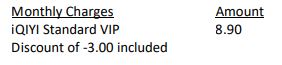
The monthly subscription fee for your iQIYI VIP subscription will be reflected in your Astro bill accordingly. For example, your Astro billing cycle is on the 20th of every month and you just signed up for the iQIYI Standard VIP subscription via Astro on 15October. Your iQIYI monthly charge will be reflected on your upcoming bill on 20th of October, and on the subsequent months' bills, as follows:
When can I start enjoying my VIP subscription?
You will be able to enjoy all the content on the iQIYI app immediately upon successful purchasefrom the Astro website. You may enjoy your VIP privileges from the iQIYI app on your Ultra Box, Ulti Box, mobile devices (Android & iOS), Apple TV, Android TV, as well as on Web (www.iq.com).Please ensure that the account used to log in to the app is the same one used to purchase your iQIYI VIP subscription.
I am an existing iQIYI VIP; will I get to enjoy Astro special price?
If you are an existing iQIYI VIP, you may cancel your existing VIP subscription with iQIYI and signup again via astro.com.my/iqiyi to enjoy the special price by adding your subscription to your Astro bill.
Where can I view my iQIYI entitlement expiry date/next payment details?
You can view your iQIYI entitlement & payment details in the app by follow these steps:
Step 1: Go to the Home Page
Step 2: Click on "VIP subscription"
Step 3: Click on "Manage VIP subscription" (Gear icon)
After following these steps, you will be able to view your entitlement expiry date, next payment date & payment method.
How do I cancel my iQIYI VIP subscription?
You may cancel your iQIYI subscription in the app by following these steps:
Step 1: Go to Home Page
Step 2: Click on "VIP subscription"
Step 3: Click on "Manage VIP subscription" (Gear icon)
Step 4: Click on "Cancel VIP subscription"
Will there be any penalty fees if I cancel my iQIYI VIP subscription?
There will be no penalty fee if you choose to cancel your iQIYI VIP subscription. Your cancellation will take effect upon your current entitlement expiry date. Kindly note that if you cancel your subscription within 24 hours before your entitlement expiry date as reflected in the iQIYI app (not according to Astro billing cycle), your subscription may be auto renewed.
App Issues
Who may I contact if I encounter any problems with the iQIYI app?
There are 4 ways for you to contact us for assistance:
- Submit an in-app feedback form via the iQIYI app by following these simple steps:
- Step 1: Click on your Profile
- Step 2: Click on "Help & Feedback"
- Step 3: Click on "Feedback" at the bottom of the page
- Step 4: Fill in your email address. Please ensure it is accurate as you will be contacted via this email address.
- Step 5: Briefly explain the problem/trouble/feedback
- Step 6: Click "Submit"
- Please contact the iQIYI customer service team via contactus@qiyi.com. You will receive a response within 3-5 working days.
- Kindly include your iQIYI UID information when you submit your feedback via email by following these simple steps:
- Step 1: Open the iQIYI app
- Step 2: Tap on the "Me" button at the bottom right
- Step 3: Tap on your username at the top left
- Step 4: Scroll down to the "Personal Data" page and copy your "UID" number
- If you are an Astro customer, you may also contact our Customer Service by:
- Submitting a feedback form here: https://support.astro.com.my/feedback-form;
- Reaching to us via WhatsApp by typing "Hi" at 03-95433838 for assistance.
Can I choose to opt-in/opt-out of receiving any marketing materials via email from iQIYI?
Yes, please open any marketing emails you have received from iQIYI and click on the unsubscribe link embedded in the email.
Astro Login
How do I register for an Astro ID?
Download the iQIYI app > Select "Profile" > Click on "Log in with Astro ID" > Click on "Do not have an Astro ID? Click here".
Can I update my email address/mobile number for my Astro ID?
Yes, please visit Astro's Self Service Portal via myastro.astro.com.my to update your email address or mobile number.
I have forgotten my password; what should I do now?
Step 1: Click "Log in" and click "Forgot my password"
Step 2: Enter your email address and click "Submit"
Step 3: An email will be sent to your registered email address with further instructions on how to reset your password
How do I unlock a locked user account?
You may contact Astro's Customer Service by:
- Submitting a feedback form here: https://support.astro.com.my/feedback-form
- Reaching out to us via WhatsApp by typing "Hi" at 03-95433838 for assistance.
Will my personal information be protected?
Yes, Astro is bounded by the PDPA act. All information received will be used in accordance with our Privacy Notice
Sila pastikan bahawa:
- Anda telah memasukkan maklumat pemegang akaun yang betul semasa memaut, iaitu: nombor KP, nombor pasport, nombor akaun Astro atau nombor Kad pintar.
- Anda sedang memaut ke akaun Astro (pelanggan NJOI tidak akan dapat log masuk ke Astro GO).
- Akaun Astro anda tidak dipautkan kepada mana-mana Astro ID lain pada masa ini. Jika akaun Astro anda dipautkan ke Astro ID yang lain pada masa ini, anda akan melihat notis merah.
Untuk menyemak Astro ID yang dipautkan ke akaun anda, anda boleh menggunakan borang maklum balas. Sila pilih jenis maklum balas "Saya ada pertanyaan/isu dengan Aplikasi" dan "Astro GO" untuk mengisi borang.
Tidak, anda tidak akan ditukarkan kepada bayaran baharu secara automatik. Untuk membuat pertukaran secara manual, sila hubungi kami di 03-9543 3838.
Lihat panduan pengguna kami untuk cara yang cepat dan mudah untuk bermula!
Muat turun panduan pengguna kami dalam Bahasa Inggeris
Muat turun panduan pengguna kami dalam Bahasa Melayu
Muat turun panduan pengguna kami dalam Bahasa Cina
Anda perlukan lebih banyak informasi? Tonton video Astro Ultra How To kami di sini.
LANGKAH 1
Tekan butang "HOME" pada alat kawalan jauh anda.

LANGKAH 2
Pergi ke Tetapan dan tekan "OK".

LANGKAH 3
Pergi ke STB Diagnostics dan tekan "OK".

LANGKAH 4
Lihat Status Sambungan HDMI.

Jika anda memilih untuk menurunkan taraf pek anda atau menamatkan perkhidmatan Astro sebelum berakhirnya terma kontrak anda, anda perlu membayar yuran pembatalan. Yuran pembatalan ini dikira berdasarkan pakej langganan anda, tempoh kontrak dan jenis dekoder. Jika anda membatalkan perkhidmatan anda/mengubah pakej anda apabila selesai terma kontrak anda, anda tidak perlu membayar apa-apa yuran pembatalan.
Sila rujuk Soalan Lazim untuk maklumat lanjut, atau klik di di sini untuk mengetahui lebih lanjut dan mendaftar untuk Ulti Box. Secara alternatif, anda boleh membuat panggilan di 03-7481 8000 untuk menghubungi wakil Astro.


Pilihan 1
1. Sila matikan semua peranti (Modem dan Router). Dengan menghidupkan semula modem, anda boleh melupuskan proses terlebih beban dalam modem yang boleh menjejaskan prestasinya.
2. Pastikan kedua-dua kabel pada Modem (LAN Port 1) dan Router (Port Internet) disambungkan dengan betul.
Sambungan di modem

Sambungan di Router


3. Pastikan kabel LAN bersambung dengan betul dari router (Port 1-4 - port LAN) ke PC/Komputer Riba.
4. Kalau anda menukar kata laluan dalam portal Selfcare Time, sila tukar konfigurasi router diikuti dengan kata laluan baharu dalam Selfcare, tetapi jika anda tidak membuat sebarang perubahan, sila ke Langkah 5.
5. Jika masalah masih berterusan, hantar borang maklum balas anda dan lampirkan gambar/video status lampu modem anda untuk bantuan lanjut.
Pilihan 2 / Pilihan 3
1. Sila matikan semua peranti (Modem dan Router). Dengan menghidupkan semula modem, anda boleh melupuskan proses terlebih beban dalam modem yang boleh menjejaskan prestasinya.
2. Keluarkan kabel gentian optik secara perlahan-lahan dan tiup / lap hujung kabel gentian. Ini untuk membersihkan kabel bagi mengelakkan sebarang gangguan.
3. Sila masukkan semula kabel gentian ke dalam port gentian di bahagian belakang modem.
4. Pastikan kedua-dua kabel pada Modem (LAN Port 1) dan Router (Port Internet) disambungkan dengan betul.
Sambungan di Modem

Sambungan di Router


5. Pastikan kedua-dua kabel pada Modem (Port 4 LAN / Port 3 LAN untuk dekoder kedua) dan Dekoder Astro (Port Rangkaian) dimasukkan dengan betul.

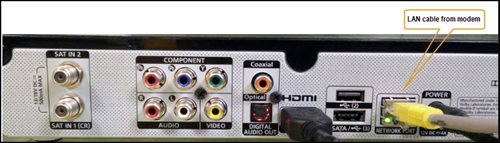
6. Hidupkan semula modem dan router. Sila tunggu selama 2 minit untuk menstabilkan peranti selepas dihidupkan semula.
7. Jika masalah masih berterusan, hantar borang maklum balas anda dan lampirkan gambar/video status lampu modem anda untuk bantuan lanjut.
Pilihan 4
1. Pastikan Modem/Router disambungkan dengan ketat kepada soket.

2. Cuba gunakan soket kuasa / sumber kuasa lain untuk menyingkirkan soket kuasa/sumber kuasa rosak yang mungkin menyebabkan isu ini.
3. Jika masalah berterusan, sila hantar borang maklum balas anda untuk bantuan lanjut.
Pilihan 5
1. Sila pastikan kabel LAN disambungkan kepada port modem LAN 1.
2. Sila gunakan port LAN yang berlainan jika port LAN 1 masih dimatikan / tidak berfungsi.
3. Jika masalah berterusan, sila hantar borang maklum balas anda untuk bantuan lanjut.
Sesetengah rakan kongsi pembayaran kami memerlukan pembayar untuk mengimbas kod bar pada penyata untuk membuat pembayaran. Sentiasa bawa penyata bil Astro anda apabila membuat pembayaran melalui kaunter.
Untuk sebarang maklumat berkaitan NJOI, sila layari halaman NJOI Panduan & Bantuan di https://purchase.njoi.com.my/bm-support
If you are interested to upgrade your box, you can do so via one of Astro's retailers or online as follows:
I. Kunjungi https://hub.astro.com.my/#5
II. Pilih satu pek (boleh memilih pek sedia ada) dan teruskan.
III. Di bawah 'Kaedah Pemasangan' pilih pilihan Plug & Play
Anda telah melebihi had maksima untuk peranti berdaftar yang dibenarkan. Sila ke Tetapan > Peranti Berdaftar untuk mengurus / mengubah peranti yang berdaftar dengan akaun anda.
Sekiranya anda masih menghadapi masalah, sila buat laporan melalui WhatsApp atau Borang Maklum Balas.
1. Buka saluran Astro 200 - pilih "Tambahan"

2. Pilih Langganan Bulanan

3. Hantarkan kod WhatsApp seperti yang dipaparkan pada skrin TV

Starting 23 March 2023, all Astro customers can subscribe to ZEE5 Premium via Astro as an add-to bill service for only RM10.60/month and enjoy the app’s exciting content offerings on the big screen via the Ultra Box, Ulti Box, website or on-the-go via the ZEE5 mobile app, available on Android and iOS devices.
FAQs: ZEE5 on Astro
About the ZEE5 app
1. What is ZEE5?
ZEE5 is an Indian subscription video on demand and over-the-top streaming service run by Zee Entertainment Enterprises. With the app, subscribers can enjoy over 170,000 hours of on demand content from originals, movies, TV shows, music and more across 18 languages including English, Tamil, Hindi and Punjabi – all in a single destination.
2. How can Astro customers enjoy ZEE5?
Starting 23 March 2023, Astro customers will be able to enjoy ZEE5 Premium’s exciting content offerings for only RM10.60/month on the big screen via their Ultra and Ulti Box, website or on the-go via the ZEE5 mobile app, available on Android and IOS devices.
For more details on the ZEE5 Premium Membership, please refer to Q12 – Q16.
3. How can I subscribe to ZEE5 via Astro?
All new and existing Astro Pay TV customers can subscribe to ZEE5 Premium for only RM10.60/month by visiting www.astro.com.my/zee5.
Please follow the steps below to subscribe:
Step 1: Go to www.astro.com.my/zee5
Step 2: Log in with your Astro ID
Step 3: Key in your email address and proceed to add ZEE5 to your bill
Step 4: Now, enjoy all your favourite shows on ZEE5!
4. How do I access ZEE5 on my Ultra/Ulti Box?
After successfully adding ZEE5 Premium to your bill, follow the simple steps below to stream ZEE5 on your Ultra/Ulti Box:
Step 1: Go to your Astro Home Page and click “ZEE5” under the Apps rail
Step 2: Scan the QR code on screen with your mobile device
Step 3: Log in with an existing ZEE5 ID or sign up for a new account. Then, enter the activation code displayed on your TV screen into the ZEE5 mobile app.
Step 4: Now, enjoy streaming ZEE5 on your Ultra/Ulti Box!
Please ensure that the email address used to log in to the app is the same one used to purchase your ZEE5 premium subscription.
5. Is ZEE5 on the Ultra/Ulti Box the same as the ZEE5 mobile app and website?
You will be able to watch the same video on demand content on your Ultra/Ulti Box as the ZEE5 mobile app or website. However, ZEE5 live channels are currently not available on the Ultra/Ulti Box. Please stay tuned for updates!
6. Can I access the ZEE5 app outside of Malaysia?
No, your ZEE5 app is accessible within Malaysia only.
7. Can I download content on the ZEE5 app for offline viewing?
Yes, you can download ZEE5’s content on your device for offline viewing if you have subscribed to ZEE5 Premium. This feature is not available if you are not a Premium member. However, kindly note that some content is subjected to copyright which disables the download function on those selected videos.
8. What is the storage requirement for content downloading?
The storage requirement is dependent on the type of videos users are downloading as the space needed varies between titles.
9. How many devices can I use to stream ZEE5 at the same time?
You can access your ZEE5 Premium account on up to five (5) devices at a time, including your Ultra/Ulti Box. To ensure a smoother streaming experience, please sign out from any unused devices.
10. Are there any subtitles or dubbing available for the content on ZEE5?
Yes, to enable subtitles or dubbing in your desired language, click on the subtitles/dubbing selection option at the bottom right corner of the video player, then click on the language you desire.
11. Can I change the interface language of the ZEE5 app?
Yes, you can. Click on Menu > Language and choose your preferred language. Then, click “SAVE”.
ZEE5 Premium Subscription
12. What is a ZEE5 Premium subscription?
ZEE5 offers a wide range of exclusive content that is available only for ZEE5 premium members, which includes ZEE5 Originals, world-renowned Hollywood flicks, blockbuster Hindi cinemas, superhit regional movies across 18 different languages, American TV shows, documentaries, dubbed movies in regional languages and so much more. With a premium membership, you can enjoy all these exciting content with a seamless ad-free experience.
13. How much does a ZEE5 Premium subscription cost?
Astro customers can enjoy a special offer of RM10.60/month (RRP RM14.90/month) including tax when they subscribe to ZEE5 Premium via Astro.
14. When can I start enjoying my ZEE5 Premium subscription?
You will be able to enjoy all the content on ZEE5 immediately upon successful purchase from the Astro website. You may enjoy your Premium privileges from the ZEE5 app on your Ultra Box, Ulti Box, mobile devices (Android & iOS), Apple TV, Android TV, as well as on Web (www.Zee5.com).Please ensure that the email address used to log in to the app is the same one used to purchase your ZEE5 premium subscription.
15. How do I cancel my ZEE5 Premium subscription?
You may cancel your ZEE5 Premium subscription here. Kindly note that we will not be able to offer a refund if you do decide to leave the ZEE5 app before your subscription period ends.
16. Will there be any penalty fees if I cancel my ZEE5 Premium subscription?
No, your subscription will be terminated at the end of your Astro billing date. Until then, you will still be able to access ZEE5 premium.
App Issues
17. Who may I contact if I encounter any problems with the ZEE5 app?
If you require assistance with the app:
1. Submit an in-app feedback form via the ZEE5 website: https://www.zee5.com/contactUs/
If you have issues on billing and entitlement, you may contact Astro’s Customer Service by:
1. Submitting a feedback form here: www.astro.com.my/contactus/form; or
2. Reaching to us via WhatsApp by typing “Hi” at 03-95433838 for assistance
18. Will my personal information be protected?
Yes, Astro is bounded by the PDPA. All information received will be used in accordance with our Privacy Notice
Tidak, Astro Fibre hanya menawarkan kontrak 24 bulan selepas mendaftar.
1. Pastikan kabel kuasa disambungkan dengan ketat.
2. Cuba gunakan soket kuasa / sumber kuasa lain untuk menyingkirkan soket kuasa/sumber kuasa rosak yang mungkin menyebabkan isu ini.

3. Jika masalah berterusan, sila hantar borang maklum balas anda untuk bantuan lanjut.
Untuk pelanggan yang menggunakan kekerapan berlainan, caj RM10.00 dikenakan untuk setiap bil yang dijana.
Anda perlu menjalankan beberapa ujian bagi membolehkan kami memahami isu anda dan membantu dalam menyelesaikan masalah ini.
Ini akan mengambil masa tidak melebihi 15 minit.
- Sila jalankan setiap ujian menggunakan komputer riba atau komputer peribadi dengan menyambungkan kepada Astro Fibre anda.
- Sila senaraikan laman web yang terjejas (Sediakan URL penuh cth. www.astro.com.my).
- Anda perlu menjalankan ujian di bawah dan menyediakan gambar atau tangkapan skrin keputusan ujian anda ke dalam SATU fail (misalnya dokumen Microsoft Word, fail PDF) dan hantarkan kepada kami agar kami dapat memberi bantuan lanjut:
- Jalankan Ujian Ping & Traceroute - Untuk panduan, sila klik di sini untuk garis panduan Ujian Ping & Traceroute.
- Anda boleh menyambung kepada WiFi atau kabel LAN untuk menjalankan ujian ini. Keputusan ujian anda akan muncul seperti skrin di bawah dan sila ambil tangkapan skrin.


- Jalankan Ujian Kelajuan - Untuk panduan, sila klik di sini untuk garis panduan Ujian Kelajuan.
- Anda perlu menjalankan Ujian Kelajuan menggunakan kedua-dua sambungan Wi-Fi dan kabel LAN.

Setelah mengumpul semua keputusan ujian, lampirkannya dalam Borang Maklum Balas untuk bantuan lanjut.
Maklumat Pantas
Ujian Kelajuan ialah perkhidmatan yang menyediakan analisis percuma bagi parameter capaian Internet, seperti kadar data sambungan.
Ujian Ping menunjukkan tempoh yang diperlukan untuk paket sampai kepada hos.
Ujian Traceroute mengesan laluan paket ke hos destinasi daripada server kami.
Ya. Anda boleh membuat pembayaran menggunakan kad kredit melalui Portal My Astro:
- Untuk pembayaran sekali: Semua kad debit/kredit yang dijamin Master/Visa 3D yang dikeluarkan oleh bank di Malaysia
- Untuk debit automatik: Semua kad debit/kredit yang dijamin Master/Visa/AMEX yang dikeluarkan oleh bank di Malaysia
Astro continuously reviews its content proposition to offer the best choices and a variety of compelling content for our customers for the best viewing experience. As such, we will cease the sale of PPV passes on CH200 from 8 October onwards.
Customers can continue to enjoy their favourite content by subscribing to the relevant packs and stay tuned for more exciting offers to be announced soon.
Tidak, tiada penalti atau yuran pertukaran dikenakan jika anda memutuskan untuk membatalkan langganan Multiroom (Smart TV) anda.
LANGKAH 1
Sila tunggu sementara Astro box anda dimulakan.
LANGKAH 2
Pilih bahasa pilihan anda.
LANGKAH 3
Pergi ke Next dan tekan "OK".
LANGKAH 4
Pilih Auto sebagai Resolusi Video.
LANGKAH 5
Pergi ke Next dan tekan "OK".
LANGKAH 6
Pergi ke Confirm dan tekan "OK" untuk mengesahkan pilihan anda jika dapat membaca teks pada skrin dengan betul.
Jika tidak, pergi ke Cancel untuk kembali ke tetapan sebelumnya.
LANGKAH 7
Pilih Satellite sebagai mod pengendalian dekoder.
LANGKAH 8
Pergi ke Next dan tekan "OK".
LANGKAH 9
Pilih sambungan pilihan anda.
Untuk sambungan melalui Wi-Fi, teruskan ke LANGKAH 10.
Untuk sambungan melalui LAN Cable, teruskan ke LANGKAH 16.
LANGKAH 10
Sila tunggu sementara box Astro anda mencari rangkaian Wi-Fi yang tersedia.
LANGKAH 11
Pergi ke rangkaian Wi-Fi pilihan anda dan tekan "OK".
LANGKAH 12
Sila masukkan kata laluan untuk menyambung ke rangkaian Wi-Fi.
LANGKAH 13
Pergi ke Done untuk meneruskan.
LANGKAH 14
Sila tunggu sementara box Astro anda disambungkan ke rangkaian Internet.
LANGKAH 15
Pergi ke Yes untuk membenarkan sambungan secara automatik ke rangkaian.
Jika tidak, pergi ke No.
Terus ke LANGKAH 17 untuk arahan seterusnya.
LANGKAH 16
Pergi ke Next dan tekan "OK".
LANGKAH 17
Pergi ke Universal.
LANGKAH 18
Pergi ke Next dan tekan "Ok".
LANGKAH 19
Pilih 01 M3B VL - 10732 sebagai Entry Point.
LANGKAH 20
Pergi ke Next dan tekan "OK".
LANGKAH 21
Sila tunggu sehingga bacaan isyarat dikemas kini.
Pergi ke Finish dan tekan "OK" untuk sahkan tetapan.
Tidak, anda tidak akan dikenakan 8% Cukai Perkhidmatan untuk pilihan bil bercetak.
Berikut adalah beberapa cara anda boleh mencari Netflix pada Ultra Box:
- Akses Netflix pada Ultra/Ulti Box melalui Skrin Halaman Utama 'Home" dan pilih aplikasi Netflix daripada barisan Aplikasi.
- Klik butang "Netflix" jika ia terdapat pada alat kawalan jauh anda untuk melancarkan aplikasi Netflix terus daripada alat kawalan jauh tersebut.
- Buka saluran CH 741
PENTING! Jika anda mengakses Netflix pada Ultra/Ulti Box buat kali pertama, sila tunggu e-mel pengaktifan Netflix daripada Astro (ini boleh mengambil masa 10 minit) untuk aplikasi ditunjukkan dalam akaun anda. Jika anda melangkau tempoh 10 minit ini, anda mungkin akan dikenakan caj dua kali kerana mendaftar untuk Netflix secara salah menggunakan butiran kad kredit anda.
Kami sedih kerana anda berfikir untuk meninggalkan kami.
Jika anda ingin membatalkan langganan Astro anda, sila ambil perhatian maklumat di bawah jika akaun anda masih dalam tempoh kontrak,
- Permintaan penamatan mesti dilengkapkan oleh pemegang akaun.
- Anda perlu menjelaskan baki tertunggak dan penalti (jika ada).
- Semua Permintaan Penamatan mesti dalam tempoh notis sekurang-kurangnya 30 hari.
Pastikan box Astro berada di dalam mod "standby" untuk 'refresh' signal.
a. Melalui IVR
1. Dail 03-95433838 dan buat pilihan bahasa.
2. Tekan 1 untuk Akaun.
3. Tekan 1 untuk Bantuan Teknikal.
4. Tekan 1 untuk memuat 'Refresh' Kad Pintar
b. Melalui web My Astro
LANGKAH 1
Log masuk https://myastro.astro.com.my/ melalui pelayar web.
LANGKAH 2
Masukkan emel / nombor telefon bimbit dan kata laluan. Kemudian, tekan "LOG IN".

LANGKAH 3
Klik pada TV pack.

LANGKAH 4
Pilih Main Room bagi Box Utama; atau pilih Multiroom (jika ada).
LANGKAH 5
Klik "Refresh" untuk memuat naik signal box anda.
Untuk Box Utama 
Untuk Multiroom
LANGKAH 6
Setelah klik Refresh, notifikasi akan dipaparkan seperti di bawah.
Untuk Box Utama 
Untuk Multi Room
c. Melalui Aplikasi My Astro
LANGKAH 1
Buka aplikasi MyAstro dan klik "Login".

LANGKAH 2
Masukkan emel / nombor telefon bimbit dan kata laluan. Kemudian, tekan "LOG IN".

LANGKAH 3
Klik "Account".

LANGKAH 4
Skrol ke bawah dan klik "TV pack".

LANGKAH 5
Pilih Main Room bagi Box Utama; atau pilih Multiroom (jika ada).

LANGKAH 6
Klik "Refresh" untuk memuat semula signal box anda.

LANGKAH 7
Setelah klik Refresh, notifikasi akan dipaparkan seperti di bawah.

Hanya Kad Kredit dan Kad Debit Visa, MasterCard, dan American Express yang dikeluarkan oleh bank di Malaysia dapat diterima oleh saluran bayaran milik Astro. Rakan kongsi rasmi pembayaran Astro mungkin mempunyai polisi yang berbeza - sila periksa dengan rakan kongsi pembayaran pilihan anda untuk maklumat terkini.