Perkhidmatan TV satelit percuma dari Astro. Nikmati hiburan, berita, pembelajaran, maklumat dan banyak lagi.

Gambar untuk ilustrasi sahaja.
Nikmati percuma ke 15+ saluran TV & 10+ saluran radio.
* Tertakluk kepada terma dan syarat Astro.


Langkah-1 |
Langkah-2 |
Langkah-3 |
Pilih pakej & mendaftar dalam talian. |
Duduk kembali & tunggu pemasangan. |
Nikmati Astro / Broadband baru anda! |
Perkhidmatan TV satelit percuma dari Astro. Nikmati hiburan, berita, pembelajaran, maklumat dan banyak lagi.
Gambar untuk ilustrasi sahaja.
Dekoder baru sahaja tanpa piring satelit & kabel. Anda mesti ada piring satelit Astro/Njoi dan kabel terpasang dan berfungsi baik.
Termasuk pemasangan.
Dekoder baru lengkap dengan piring satelit & kabel.
Termasuk pemasangan.
Mendaftar untuk
| Njoi Astro UniFi Maxis |
Cari jawapan anda di sini.
Kami menyediakan perkhidmatan untuk mendaftar Astro dan Broadband untuk anda.
Anda boleh mengelakkan memandu dan beratur di kaunter jualan. Kami adalah peniaga yang boleh memproseskan pendaftaran anda dalam talian.
Anda tidak akan dicaj untuk mendaftar di sini. Tidak ada maklumat kad kredit yang diperlukan. Caj adalah sama seperti yang anda mendaftar di kaunter jualan.
Yang pertama, anda boleh mendaftar dalam talian di sini, kami akan menghubungi anda dengan segera semasa waktu perniagaan. WhatsApp / E-mel / Fax salinan fotokopi IC (untuk warganegara Malaysia) / Pasport (untuk orang asing) kepada kami. Apabila kami menerima semua maklumat, kami akan memproses pendaftaran anda segera.
Sebaik sahaja kami menerima pendaftaran anda dengan maklumat lengkap, kami akan memproses permohonan anda dengan segera pada waktu perniagaan. Kontraktor dari pembekal perkhidmatan kemudian akan menghubungi anda untuk pelantikan pemasangan setelah permohonan anda diluluskan.
Nikmati penjimatan yang lebih besar dan pembayaran bil tanpa gangguan dalam satu bil untuk Astro dan Broadband. Anda dapat menikmati Astro dan Broadband dengan harga potongan setiap bulan sepanjang tempoh kontrak 24 bulan.
Astro menawarkan pelbagai pakej TV termasuk Hiburan, Sukan, Filem dan Kanak-kanak. Anda boleh memilih pakej yang sesuai dengan pilihan tontonan anda serta menambah aplikasi penstriman pilihan jika tersedia.
Ya, anda boleh melanggan pakej TV Astro tanpa menggabungkan broadband. Namun, menggabungkan TV Astro dengan Fibre Broadband boleh memberikan penjimatan bulanan yang lebih baik serta kemudahan satu bil sahaja.
Untuk isi rumah kecil dengan penggunaan penstriman dan pelayaran ringan, 100Mbps biasanya mencukupi. Keluarga besar, pemain permainan dalam talian atau pengguna penstriman berat mungkin mendapat manfaat daripada pelan 500Mbps atau 1Gbps untuk prestasi lebih lancar pada pelbagai peranti.
Kebanyakan pelan TV dan Fibre broadband Astro disertakan dengan kontrak 24 bulan. Caj penamatan awal mungkin dikenakan sekiranya pembatalan dibuat sebelum tamat tempoh kontrak.
Ya, anda boleh menaik taraf pakej TV atau kelajuan broadband pada bila-bila masa, tertakluk kepada kelayakan dan liputan kawasan. Tempoh kontrak baharu mungkin dikenakan bergantung kepada naik taraf tersebut.
Bil bulanan anda akan dikeluarkan terus oleh Astro. Anda boleh menerimanya melalui emel atau mengaksesnya melalui akaun Astro anda. Pelanggan pakej gabungan akan menerima satu bil gabungan untuk perkhidmatan TV dan broadband.
Kaedah pembayaran termasuk perbankan dalam talian, debit automatik, kad kredit atau saluran pembayaran lain yang diluluskan oleh Astro. Pasukan kami boleh membantu anda semasa proses pendaftaran.
Jika anda mengalami gangguan perkhidmatan, anda boleh menghubungi khidmat pelanggan Astro untuk bantuan teknikal. Dalam kebanyakan kes, masalah boleh diselesaikan dari jauh atau juruteknik akan dijadualkan jika perlu.
Ya, pemindahan tertakluk kepada ketersediaan perkhidmatan di alamat baharu anda. Caj pemindahan dan pelarasan kontrak mungkin dikenakan bergantung kepada pelan anda.
Tidak, anda tidak memerlukan kad kredit untuk menghantar permohonan. Pengaturan pembayaran akan dibuat terus dengan Astro selepas perkhidmatan anda diluluskan.
Pakej TV Astro terpilih membenarkan tambahan pilihan seperti perkhidmatan penstriman bergantung kepada promosi semasa dan ketersediaan. Caj bulanan tambahan mungkin dikenakan.
Ya, router WiFi biasanya disediakan semasa pemasangan fibre. Model router mungkin berbeza bergantung kepada pelan kelajuan broadband yang dipilih.
Ya, kami akan menyemak liputan perkhidmatan di alamat anda sebelum meneruskan permohonan untuk memastikan broadband tersedia di kawasan anda.
Bagi warganegara Malaysia, sila sediakan salinan MyKad anda. Bagi warga asing, sila sediakan salinan pasport semasa menghantar permohonan broadband.
Selepas permohonan anda diluluskan, penyedia perkhidmatan biasanya akan menghubungi anda dalam tempoh 2 hingga 7 hari bekerja untuk menetapkan janji temu pemasangan broadband.
Kebanyakan pelan Astro Broadband disertakan dengan kontrak 24 bulan bermula dari tarikh pemasangan. Jika anda berpindah, kontrak 24 bulan baharu mungkin dikenakan di alamat baharu.
Ya, anda boleh memindahkan perkhidmatan broadband tertakluk kepada ketersediaan perkhidmatan di alamat baharu. Kontrak anda mungkin diperbaharui untuk 24 bulan lagi bermula dari tarikh pemasangan baharu.
Ya, anda boleh memohon untuk memindahkan peranti broadband di dalam rumah. Caj pemasangan bukan standard mungkin dikenakan dan perlu dibayar terus kepada pemasang selepas penilaian dibuat.
Ya, anda boleh bertukar ke Astro Broadband. Untuk mengelakkan gangguan perkhidmatan, disarankan untuk mengaktifkan perkhidmatan baharu sebelum menamatkan kontrak broadband sedia ada.
Pemasangan standard mungkin percuma semasa tempoh promosi, namun pemasangan bukan standard (contohnya pemindahan peranti atau pendawaian kompleks) mungkin dikenakan caj tambahan yang perlu dibayar terus kepada pemasang.
LANGKAH 1
Periksa lampu adapter.
Jika lampu adapter menyala, sila rujuk pada langkah bantuan asas teknikal bagi masalah Tiada Paparan di sini.
Jika lampu adapter terpadam, sila "OFF" dekoder anda dari soket.

LANGKAH 2
Pastikan kabel elektrik disambungkan dengan ketat.
Pasangkan kabel elektrik kepada soket yang lain dan hidupkan soket .
Anda seharusnya tidak lagi mengalami masalah ini.
Jika isu berterusan, teruskan LANGKAH 3.

LANGKAH 3
Cuba gunakan soket lain untuk sambungkan peralatan.
Hidupkan soket dan periksa lampu adapter.
Jika lampu pada adapter tidak menyala, sila maklumkan kepada kami melalui Borang Maklum Balas bersama butiran kerosakan dan sediakan nombor kad sim anda untuk bantuan.
Sila nyatakan dalam borang jika berlaku panahan kilat/ribut petir/ terputus bekalan kuasa.

Sila hubungi Pusat Panggilan Pelanggan Astro melalui 03-95433838.
Pelanggan pada Aplikasi Multiroom (TV Pintar) boleh menstrim kedua-dua saluran ini (CH549 Love Nature & CH805 Astro SuperSport) sekiranya model TV mereka menyokong resolusi 4K UHD.
Sila ambil perhatian bahawa model TV Sony ini belum tersedia untuk menyokong resolusi 4K UHD:
• Sony BRAVIA 4K GB
• Sony BRAVIA 4K UR
• Sony BRAVIA VH
*CH805 Astro SuperSport hanya tersedia untuk pelanggan pada Pek Sports, Sports Plus, Premium 1, Premium 2, Premium 4, Platinum Lite dan Platinum sahaja.
Tidak, aplikasi Astro Fibre adalah aplikasi peranti percuma untuk semua pelanggan Astro Fibre yang menggunakan router RG21 terbaru.

| Langkah 1: Layari https://id.astro.com.my/ dan klik pada “Lupa Kata Laluan?” | Langkah 2: Masukkan nama pengguna, e-mel atau nombor telefon bimbit anda. Kod pengesahan akan dihantar kepada anda. Masukkan kod pengesahan dan klik "Sahkan" untuk tetapkan semula kata laluan anda. |
My Astro boleh dimuat turun secara percuma dari Google Play Store, Apple App Store atau Huawei App Gallery.
Untuk pengguna Ultra dan/atau Ulti box, aplikasi My Astro Saya ditambahkan pada Menu Atas supaya anda boleh mengaksesnya dengan mudah untuk mengurus atau mengemas kini akaun anda. Anda akan menemuinya dalam Menu Atas sebelah Tetapan. Sila rujuk gambar di bawah:
Buat masa ini, arahan ini hanya terhad kepada perkhidmatan SMS dengan pautan URL antara individu. Walaubagaimanapun, sekatan terhadap SMS yang dihantar oleh perusahaan melalui kod pendek seperti 6XXXX, 3XXxx, 2XXXXdan 1XXXX akan dilaksanakan pada peringkat akan datang. Bagi menyahut seruan inisiatif kerajaan ini, pelanggan Astro tidak lagi akan menerima bil SMS berkuatkuasa pada 1 Ogos 2023. Perubahan ini akan dilaksanakan secara berperingkat.
Sila ubah suai kaedah penghantaran bil pilihan anda menggunakan portal perkhidmatan layan diri kami melalui laman web My Astro atau aplikasi My Astro. Sila klik di sini untuk memuat turun aplikasi pada peranti mudah alih anda atau log masuk ke laman sesawang My Astro.
Sila pastikan anda menstrim dengan peranti yang disokong. Astro GO hanya boleh digunakan bersama platform yang disokong; peranti mudah alih (telefon dan tablet) dan laman web.
Sekiranya anda masih menghadapi masalah, sila buat laporan melalui WhatsApp atau Borang Maklum Balas.
Kami memohon maaf atas kesulitan yang berlaku. Jika anda belum menerima kelajuan dinaik taraf dalam masa 48 jam selepas pengaktifan perkhidmatan, sila hubungi Pusat Hubungan Astro di 03-9543 1543 dan ejen Astro akan sedia membantu anda dengan segera.
Tempoh waranti adalah 24 bulan.
Anda boleh melaporkan kejadian melalui WhatsApp di 03-9543 3838 dengan menaip PNP dan akses panduan pengguna atau meminta bantuan lanjut daripada ejen berdedikasi kami. Sila sediakan nombor pengesanan Airway Bill anda untuk pengesahan. Jika kotak penggantian/kad SIM Astro dianggap perlu, kotak baharu dan kad SIM Astro yang baharu akan dihantar melalui kurier ke alamat perkhidmatan anda.
Harap maklum bahawa pelanggan yang terlibat akan dimaklumkan tentang perubahan ini 30 hari sebelum pelaksanaan melalui SMS yang dihantar secara berperingkat (Mulai 1 Julai) dan pengumuman berjadual di WhatsApp, aplikasi My Astro dan laman web Astro.
If you are interested to upgrade your box, you can do so via one of Astro's retailers or online as follows:
I. Kunjungi https://hub.astro.com.my/#5
II. Pilih satu pek (boleh memilih pek sedia ada) dan teruskan.
III. Di bawah 'Kaedah Pemasangan' pilih pilihan Plug & Play
Buat masa ini, perubahan ini terhad kepada bil melalui SMS sahaja. Perkhidmatan SMS lain seperti (tidak terhad kepada) peringatan bil, pemberitahuan pembayaran, SMS promosi atau peringatan temujanji teknikal masih akan dihantar kepada anda jika berkenaan.
Bermula 12 Disember 2023, semua pengguna perlu menggunakan e-mel, nombor telefon bimbit atau akaun sosial (Facebook, Google atau Apple) untuk log masuk mana-mana platform digital Astro; termasuk My Astro, Astro GO dan laman web rasmi Astro. Penggunaan nama pengguna sebagai Astro ID akan ditamatkan. Perubahan ini adalah untuk memastikan semua informasi yang terpaut dengan Astro ID anda sentiasa dikemas kini dan merupakan suatu penambahbaikan pengalaman pengguna pada semua platform kami secara keseluruhannya.
1. Pastikan kabel kuasa disambungkan dengan ketat.
2. Cuba gunakan soket kuasa / sumber kuasa lain untuk menyingkirkan soket kuasa/sumber kuasa rosak yang mungkin menyebabkan isu ini.

3. Jika masalah berterusan, sila hantar borang maklum balas anda untuk bantuan lanjut
Sila hubungi bank pengeluar untuk maklumat lanjut. Astro tidak mengendalikan arahan tetap secara langsung. Sila gunakan kemudahan auto-debit kami jika anda ingin membuat bayaran dengan lebih mudah.
Kami akan mencadangkan pelayar berikut untuk proses pengesahan yang lancar:
• Google Chrome
• Microsoft Edge
• Mozilla Firefox
• Safari
LANGKAH 1
Cuba tukar saluran pada alat kawalan jauh Astro anda. Semak lampu LED pada alat kawalan jauh.
Sekiranya lampu LED berkelip 3 kali atau tidak berkelip, sila ganti bateri dan teruskan ke LANGKAH 2.
Sekiranya LED berkelip sekali, ianya bermaksud alat kawalan jauh berfungsi dengan baik, teruskan ke LANGKAH 3.
LANGKAH 2
Semak sekiranya anda boleh menukar saluran menggunakan alat kawalan jauh. Anda seharusnya sudah tidak mengalami masalah ini sekiranya ia berpunca daripada kehabisan bateri.
Sekiranya masih bermasalah selepas penggantian bateri, teruskan dengan LANGKAH 3.
LANGKAH 3
Anda perlu mengemaskini tetapan box. Rujuk Muat semula tetapan dekoder (Kosongkan NVRAM) - Ultra / Ulti Box.
Jika isu berterusan, sila serahkan isu ini melalui Borang Maklum Balas
LANGKAH 1
Tekan butang "HOME" pada alat kawalan jauh anda.

LANGKAH 2
Navigasi ke Update Satellite Frequency dan tekan “OK”.

LANGKAH 3
Pilih Reprogramming dan tekan “OK”.

LANGKAH 4
Pilih Ya, teruskan dan tekan "OK" untuk meneruskan kemaskini.
Jika tidak, pilih Tidak, kembali untuk membatalkan.

LANGKAH 5
Skrin status Satellite Frequency Update akan tertera.

LANGKAH 6
Keputusan ujian akan dipaparkan setelah selesai.
Tekan "OK" untuk kembali ke saluran.

1. Pastikan kabel kuasa disambungkan dengan ketat.
2. Cuba gunakan soket kuasa / sumber kuasa lain untuk menyingkirkan soket kuasa/sumber kuasa rosak yang mungkin menyebabkan isu ini.
3. Jika masalah berterusan, sila hantar borang maklum balas anda untuk bantuan lanjut
LANGKAH 1
Semasa menonton saluran linear, tekan "OK" untuk melancarkan player banner.

LANGKAH 2
Tekan "OK" sekali lagi untuk Pause. Anda akan melihat sebuah Ikon di sebelah kiri skrin TV

LANGKAH 3
Tekan "OK" sekali lagi untuk meneruskan semula program.

LANGKAH 4
Navigasi semula ke "Back to Live TV" dan tekan "OK" untuk kembali ke paparan secara langsung.

Sila pastikan anda telah melanggan kepada perkhidmatan rakaman PVR.
Jika anda melanggan kepada perkhidmatan rakaman PVR, sila ikuti langkah-langkah di bawah.
Mari kita periksa sambungan cakera keras anda.
LANGKAH 1
Pada alat kawalan jauh, tekan butang "HOME" dan menu laman utama akan dipaparkan di bahagian bawah skrin anda.

LANGKAH 2
Pergi ke TETAPAN dan tekan "OK".

LANGKAH 3
Pergi ke STB Diagnostic dan tekan "OK".

LANGKAH 4
Dari tab "General", lihat Status HDD.

Jika status ialah "Connected", tekan butang merah untuk memulakan semula dekoder anda.
Tunggu sehingga Kotak dihidupkan, kemudian cuba rakam sebarang program.
Jika isu berterusan, sila laporkan isu ini melalui Borang Maklum Balas kami dan lampirkan gambar tab 'General' daripada STB Diagnostics untuk bantuan.
Jika status ialah "Not Connected", sila laporkan Borang Maklum Balas dan lampirkan gambar tab 'General' daripada STB Diagnostics untuk bantuan.
Ya, orang lain boleh mendaftarkan kad kredit mereka untuk akaun anda menggunakan kemudahan auto-debit. Jika anda membuat demikian melalui panggilan, pemegang kad perlu hadir.
Sila lengkapkan borang ini untuk memproses permintaan anda:
Borang Pemindahan Pemilikian Peralatan
Apabila Band Steering dinyahaktifkan (disabled), anda akan melihat dua Wi-fi SSID yang berasingan berdasarkan jalur frekuensinya. Contoh:
i.SSID: SSID2G, Kata laluan: 1234567
ii.SSID: SSID5G, Kata laluan: 4567890
*Wifi SSID (Pengecam Set Perkhidmatan) ialah nama rangkaian tanpa wayar anda, juga dikenali sebagai ID Rangkaian. Ia boleh dilihat oleh sesiapa sahaja dengan peranti tanpa wayar dalam jarak yang boleh dicapai oleh rangkaian anda.
What is the "iQIYI Video - Dramas & Movies" App?
The iQIYI App is an on-demand video streaming service provided by iQIYI that was first launched in June 2019 in more than 191 countries providing the best Asian dramas to viewers across the world. iQIYI allows subscribers to watch all their favourite Asian entertainment including dramas, variety shows, movies and anime, with subtitles in multiple languages and equipped with Dolby Atmos for the most immersive experience at their fingertips.
Where can I access the iQIYI App?
Starting 20 December 2022, Astro customers will be able to enjoy the iQIYI app as an add-to-bill service for an exclusive price via Astro and enjoy the app on their Ultra/Ulti Box, mobile app and website.
How do I access the iQIYI App on the Ultra/Ulti Box?
After completing the subscription process, you will be able to access the iQIYI App on the Ultra/Ulti Box by following the steps below:
On your Ultra/Ulti Box
Step 1: At the Home menu, go to the App Rail and select "iQIYI"
Step 2: Click "OK" on your Astro remote
Step 3: While on the iQIYI App Home Page, navigate to "VIP account" located at the top left pane and click "Login". A page with a QR Code will be presented on your TV screen
Step 4: Scan the QR code using your mobile device and you will be directed to the iQIYI mobile app
Step 5: Follow the steps under "On Mobile App" below to pair your iQIYI account with your Ultra/Ulti Box
On the iQIYI Mobile App
Step 1: Download the iQIYI App on your mobile device
Step 2: At the login page, select "Continue with Astro"
Step 3: Log in with your Astro ID
Step 4: Click on the "Me" icon located at the bottom of the screen, and you will be presented with your iQIYI profile page
Step 5: Click on the in-app QR code scanner located at the top right corner of the screen
Step 6: Scan the QR Code displayed on your TV screen with the in-app QR code scanner. Refer to Step 3 under "On your Ultra/Ulti Box" above
Step 7: The screen on your TV will reload automatically and the iQIYI App home screen will be displayed. Now, you can enjoy the iQIYI App on your Ultra/Ulti Box!
Can I access the "iQIYI Video - Dramas & Movies' App outside of Malaysia?
Yes, the iQIYI app is accessible globally. However, the content of the app might differ depending on the country which will be tailored based on local content rights and market preferences.
Can I download the content on the iQIYI App for offline viewing?
Yes, you can download selected content on the iQIYI app for offline viewing at a later time. To find the titles you have downloaded, you may go to Profile > My Downloads.
What is the storage requirement for content downloading?
The storage requirement is dependent on the type of videos users are downloading as the space needed varies between titles.
Are there any subtitles or dubbing available for the content on the iQIYI app?
The iQIYI app offers subtitles in multiple languages for all their content excluding some variety shows. However, no dubbing option is available yet. You will be able to select or switch off your subtitles when you play your video in full screen.
Can I change the interface language of the iQIYI app?
Yes, you may change the interface language of the app. To access the language settings, please click "Profile" > "Settings" > "Language" and select your preferred language.
If you have any further questions regarding the app, please go to "Profile" > "Help and Feedback". Thank you for your support.
iQIYI VIP Subscriptions
What is a VIP subscription?
As a VIP (Standard VIP or Premium VIP), you will be entitled to enjoy the benefits of the VIP subscription, including:
Access to exclusive content only on iQIYI
Early access to selected content episodes
Where available, access to high definition (up to 1080P viewing quality) and surroundsound (Dolby Audio) versions of the Content
The ability to skip advertisements
Up to 2 concurrent viewing
Additionally, as a Premium VIP, besides the benefits mentioned above, you will also be entitled to the following benefits:
Advance previewing of selected content episodes labelled as "locked"
Where available, access to high definition (up to 4K viewing quality)
Up to 4 concurrent viewing of VIP content, compared to only 2 concurrent viewing enjoyed by Standard VIP members
If you have more questions about these VIP privileges, please let us know by following these steps: "Profiles" > "Feedback". More privileges are in development for VIPs. Please stay tuned and join IQIYI as a VIP to enjoy these benefits.
How can I become an iQIYI VIP?
You may join iQIYI as a VIP by following these simple steps:
Step 1: Head over to www.astro.com.my/iqiyi
Step 2: Select your desired package (Standard VIP or Premium VIP)
Step 3: Click "Get it now"
Step 4: Log in using your Astro ID
Step 5: Click "Get it now" again
Step 6: Please read the prompted message, then click "Proceed"
Step 7: You will see a confirmation message upon successful purchase
How much does it cost to join iQIYI as a VIP?
All new and existing Astro Pay-TV customers are entitled to Astro special price when they signup for iQIYI as a VIP member via Astro at www.astro.com.my/iqiyi.

How do I make payment for my iQIYI VIP subscription?
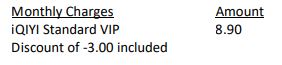
The monthly subscription fee for your iQIYI VIP subscription will be reflected in your Astro bill accordingly. For example, your Astro billing cycle is on the 20th of every month and you just signed up for the iQIYI Standard VIP subscription via Astro on 15October. Your iQIYI monthly charge will be reflected on your upcoming bill on 20th of October, and on the subsequent months' bills, as follows:
When can I start enjoying my VIP subscription?
You will be able to enjoy all the content on the iQIYI app immediately upon successful purchasefrom the Astro website. You may enjoy your VIP privileges from the iQIYI app on your Ultra Box, Ulti Box, mobile devices (Android & iOS), Apple TV, Android TV, as well as on Web (www.iq.com).Please ensure that the account used to log in to the app is the same one used to purchase your iQIYI VIP subscription.
I am an existing iQIYI VIP; will I get to enjoy Astro special price?
If you are an existing iQIYI VIP, you may cancel your existing VIP subscription with iQIYI and signup again via astro.com.my/iqiyi to enjoy the special price by adding your subscription to your Astro bill.
Where can I view my iQIYI entitlement expiry date/next payment details?
You can view your iQIYI entitlement & payment details in the app by follow these steps:
Step 1: Go to the Home Page
Step 2: Click on "VIP subscription"
Step 3: Click on "Manage VIP subscription" (Gear icon)
After following these steps, you will be able to view your entitlement expiry date, next payment date & payment method.
How do I cancel my iQIYI VIP subscription?
You may cancel your iQIYI subscription in the app by following these steps:
Step 1: Go to Home Page
Step 2: Click on "VIP subscription"
Step 3: Click on "Manage VIP subscription" (Gear icon)
Step 4: Click on "Cancel VIP subscription"
Will there be any penalty fees if I cancel my iQIYI VIP subscription?
There will be no penalty fee if you choose to cancel your iQIYI VIP subscription. Your cancellation will take effect upon your current entitlement expiry date. Kindly note that if you cancel your subscription within 24 hours before your entitlement expiry date as reflected in the iQIYI app (not according to Astro billing cycle), your subscription may be auto renewed.
App Issues
Who may I contact if I encounter any problems with the iQIYI app?
There are 4 ways for you to contact us for assistance:
Astro Login
How do I register for an Astro ID?
Download the iQIYI app > Select "Profile" > Click on "Log in with Astro ID" > Click on "Do not have an Astro ID? Click here".
Can I update my email address/mobile number for my Astro ID?
Yes, please visit Astro's Self Service Portal via myastro.astro.com.my to update your email address or mobile number.
I have forgotten my password; what should I do now?
Step 1: Click "Log in" and click "Forgot my password"
Step 2: Enter your email address and click "Submit"
Step 3: An email will be sent to your registered email address with further instructions on how to reset your password
How do I unlock a locked user account?
You may contact Astro's Customer Service by:
Will my personal information be protected?
Yes, Astro is bounded by the PDPA act. All information received will be used in accordance with our Privacy Notice
Ejen kurier kami yang sah akan menghubungi anda secara terus untuk mendapatkan semula Astro box & Kad Pintar/kad SIM selepas permintaan penamatan perkhidmatan.
Astro Fibre ialah perkhidmatan internet Astro sendiri yang membolehkan anda menikmati kandungan Astro sambil kekal berhubung dengan jalur lebar gentian berkelajuan tinggi. Pelanggan boleh menikmati penjimatan yang besar dengan memilih kelajuan jalur lebar yang anda inginkan untuk mengiringi pakej Astro TV anda. Pelanggan boleh memilih daripada dua jenis tawaran Astro Fiber:
LANGKAH 1
Tekan butang "HOME" pada alat kawalan jauh anda.

LANGKAH 2
Pergi ke Tetapan dan tekan "OK".

LANGKAH 3
Pergi ke STB Diagnostics dan tekan "OK".

LANGKAH 4
Lihat Status Sambungan HDMI.

LANGKAH 1
Tekan butang "HOME" pada alat kawalan jauh anda.

LANGKAH 2
Pergi ke Tetapan dan tekan "OK".

LANGKAH 3
Pergi ke STB Diagnostics dan tekan "OK".

LANGKAH 4
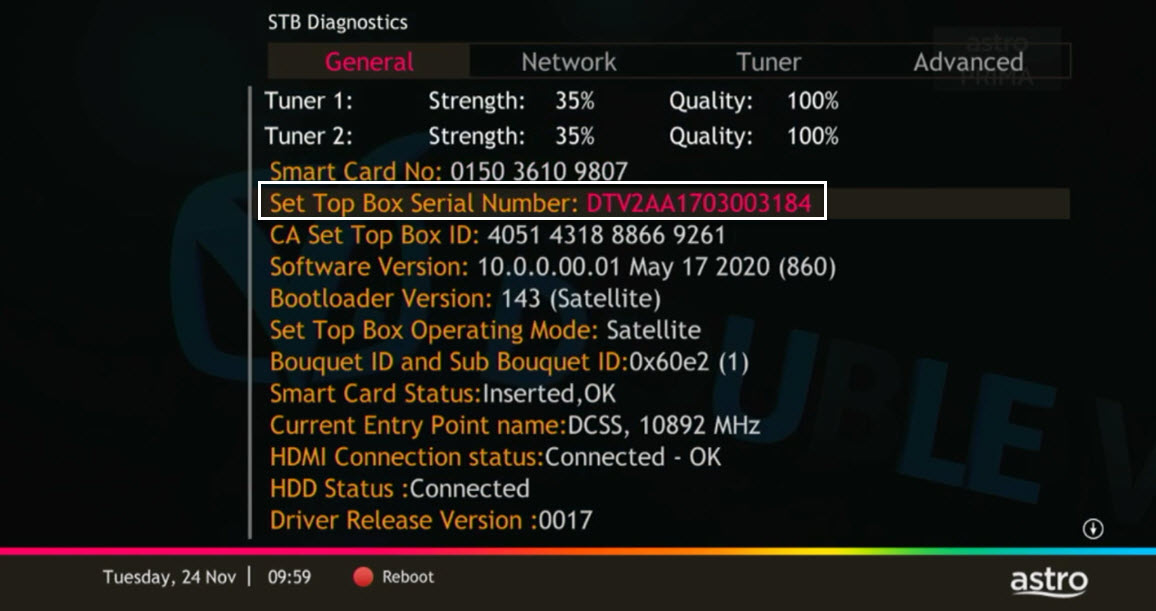
Dari tab 'General', lihat No Kad Pintar untuk nombor kad pintar.

LANGKAH 5
Lihat Nombor Bersiri Set Top Box untuk nombor siri dekoder.
Tidak, anda boleh kekal dalam pek semasa anda, tapi mulai 9 November 2021, anda perlu melanggan pakej baharu untuk membuat sebarang perubahan pada langganan anda. Kami amat menggalakkan pelanggan beralih kepada pek baharu untuk menikmati pengalaman rancangan terbaik daripada Astro.
Pemulangan semula lebihan bayaran hanya boleh dipohon oleh pemilik akaun Astro yang berdaftar.
Walau bagaimanapun, sekiranya anda ingin meminta pemulangan semula lebihan bayaran bagi pihak pemilik akaun, anda boleh mengemukakan dokumen-dokumen sokongan (contoh: surat kebenaran, sijil kematian, salinan kad pengenalan pihak ketiga).
Ya, pelanggan boleh memilih kaedah pengebilan yang berbeza untuk setiap akaun yang berlainan.
Caj bil fizikal hanya akan dikenakan ke atas akaun yang memilih bil bercetak.
Akses Disney+ Hotstar anda dengan Astro akan ditamatkan juga.
Langkah 1: Buka aplikasi My Astro anda.
Langkah 2: Klik "Astro Rewards"
Langkah 3: Skrol laman aplikasi My Astro anda untuk melihat ganjaran yang ditawarkan.
Langkah 4: Pilih ganjaran yang menarik perhatian anda dan ikut arahan yang dinyatakan bagaimana untuk menebusnya (arahan penebusan adalah berbeza berdasarkan setiap ganjaran).
Anda perlu sentiasa semak aplikasi My Astro untuk mengetahui ganjaran baru yang kami tawarkan.
Band Steering ialah fungsi yang dimiliki oleh router Wifi (Huawei K562E) kami yang menyambungkan peranti kepada Wifinya secara pintar kepada jalur frekuensi terbaik sedia ada berdasarkan penggunaan, kelajuan dan liputan dengan menggunakan hanya satu SSID yang sama untuk kedua-dua jalur 2.4GHz dan 5GHz.
1. What is Netflix?
Netflix is a streaming entertainment service that offers a wide variety of award-winning TV programmes, films, anime, documentaries and more - on thousands of internet-connected devices. There's always something new to discover, and more TV shows and movies are added every month. The more you watch, the better Netflix gets at recommending TV shows and movies you’ll love.
Astro customers with an internet-connected Ultra Box or Ulti Box canaccess the Netflix app and watch Netflix content via their Astro Box. For more information about Netflix, visit the Netflix website https://about.netflix.com/en
2. Which new pack comes with Netflix?
Any packages with Entertainment Plus, Movies Plus & Sports Plus will include Netflix. The default Netflix offering is Netflix Standard (2 screens and HD viewing) as part of your Entertainment Plus, Movies Plus and Sports Plus subscription. You can upgrade up to Netflix Premium (4 screens and 4K UHD viewing) at a price of RM 10 (inclusive of govt. tax).
Note: For the above subscriptions, you may use the email address used for your existing subscription with Netflix to activate and the future billing for Netflix will be transferred to your Astro bundle charges. For users that are billed for Netflix through Apple before joining the Astro bundle, remember to cancel your Apple billing arrangement after activating the Astro bundle else you may be double charged for your Netflix account.
If you do not have a bundle which includes Netflix, you may also add anew Netflix subscription to your Astro Bill for billing convenience.
3. How do I know if my new pack includes Netflix?
If Netflix is included as part of your Astro pack, you will find it in My Astro app called “Apps” where you will be able to manage all the streaming apps you are entitled to.
Netflix will also be included in your Astro bill under “MonthlyCharges”
If you have added Netflix to your bill (Netflix Add-on), the Netflix subscription charge will appear in your Astro bill under “One-time charges” as Netflix App Subscription or Netflix Premium and will be charged monthly. You should refer to Netflix account Management for any changes to your Netflix subscription or should you wish to change to other billing methods.
4. I signed up for the EntertainmentPlus / Movies Plus / Sports Plus pack that includes Netflix. How do I activate my Netflix account?
You should have received an email or SMS with your activation details, please click on the link provided to be redirected to the Netflix website to activate your account.
Alternatively, you can also activate Netflix on your Ultra/Ulti Box. Please surf to CH 741 on your Ultra/Ulti Box (or click the Netflix button on your Astro remote) and follow the instructions on the screen.
5. Will I be able to access Netflix on my Ultra/Ulti Box?
You will be able to access Netflix on your Ultra and Ulti Box. However, kindly note that if you have an Ulti Box with a Netflix Premium subscription, you will not be able to watch content in 4K UHD and Netflix Spatial Audio.
6. How do I change my Netflix plan or account information?
You can make changes to your Netflix plans that are included in your Bundle through My Astro app.
You can change your non Astro-bundled a-la carte Netflix plan at any time by signing into Netflix.com and visiting the Account page, then selecting Change Plan to view and select available plans.
7. How many devices can I access Netflix at once?
Customers with a Netflix Premium account are allowed to watch on up to 4 supported devices in 4K UHD and Netflix Spatial Audio. In addition, Netflix Premium subscribers are also allowed to download shows to watch offline on 6 devices at a time.
Netflix Standard account customers are allowed to watch shows in Full HD and download them to watch offline on up to 2 supported devices at a time.
On the other hand,Netflix Basic account customers are allowed to watch shows in HD and download shows for offline viewing on only 1 supported device at a time.
8. You can add a new Netflix account to your bill through CH 741 or clicking the Netflix button on the remote control. Please enter the email address you would like to use for Netflix subscription and ensure the Billing partner is Astro.
If you would like to transfer your existing Netflix Account to be charged under Astro bill, please follow the steps below:
- Cancel your existing subscription with Netflix
- Once the remaining duration of your existing subscription has ended, you may proceed to subscribe for Netflix via Astro bill
- To subscribe, go to CH 741 and enter the email address used for your previous subscription with Netflix
- Once successfully completed, all existing settings and watching history on your Netflix account will be brought over
9. I have added a Netflix account to my Astro bill. Do I need to perform any activation?
By adding a Netflix account to your Astro bill, your Netflix account is already activated. No additional steps for activation are required.
10. When I create a new Netflix account to link to my Astro Bill, will I lose all my current watching history in Netflix?
You may retain your watch history and settings of your existing Netflix account by using the same email of your Netflix account during the linking of your Netflix account with Astro.
11. I forgot my Netflix username or password. How do I find my username or reset my password?
If you have forgotten your username or password, you may follow the steps below:
Step 1. Go to netflix.com
Step 2:Click on Sign In
Step 3:Click on “Need Help” to reset password
12. I forgot which Netflix account is associated with my Astro Account. How do I find that out?
You can recover your Netflix login here or at astro.com.my/Netflix
Step 1:Head to astro.com.my/Netflix
Step 2: At the FAQ section look for “How to recover my Netflix login email and password”
Step 3: Login with Astro ID
Step 4:Proceed to Netflix.com for account recovery
13. What will happen to my Netflix account if I cancel my Astro service or change my Astro package?
If your existing Netflix account is linked with your Astro subscription, your Netflix account will resume on the previous method of payment. If you linked a new Netflix account with your Astro subscription, cancelling Astro service will also cancel your Netflix account.
14. What happens to my Netflix account if I move to a new address?
There will be no changes to your Netflix account when you move to a new address.
15. How do I cancel Netflix?
If you are subscribed to Netflix via a bundle, Netflix comes by default as part of your entitlement.
If you are subscribed to Netflix as an a-la carte, the cancellation of Netflix can only be done via Netflix’s Website, etc. This change will reflect in your next bill.
From mid-December 2021 you may also cancel Netflix add-on through Astro Call Center.
16. I would like to change the Netflix account linked to my Astro pack. What should I do?
Please visit http://help.netflix.com to call or start a live chat with Netflix’s customer support agents. You will be assisted to unlink your Netflix account from your Astro subscription. After the process, you may link another Netflix account to your Astro subscription.
17. Will Netflix be automatically added to my Astro subscription?
Astro subscribers will have the freedom to subscribe to Netflix via Astro, or they may also choose to continue subscribing via Netflix directly on their own.
18. Will Astro censor Netflix content?
Absolutely not. Astro wants to give our members the convenience of having all their favourite series, exciting originals, vernacular signatures, live sports and local blockbuster movies all in one place.
19. I have signed up for two (2) or more main Astro subscriptions bundled with Netflix. Will I be entitled for multiple Netflix subscriptions?
Yes. You are entitled to separate Netflix accounts for each main Astro subscription e.g. If you have subscribed to Entertainment Plus, Platinum Pack, etc separately. Therefore, if you have more than one main Astro subscription with Netflix, you may choose to create multiple email addresses to activate each respective Netflix subscription. Please follow the steps provided to you via email/SMS in order to activate your Netflix subscriptions on the website.
20. Why should I subscribe to a Netflix on Astro vs direct subscription via the Netflix app?
- With numerous OTT entrants, consumers are suffering from subscription fatigue. In fact, they are looking for a one stop shop platform where OTT services are integrated in one place.
- Astro offers flexibility and convenience with new packs where customers can get the convenience of accessing a variety of content via Ultra Box as the single remote-control solution.
- In addition, there will be cost savings for Astro customers to purchase both Netflix and Astro together. Even better deals are available if customers also subscribe to broadband for a better-connected experience.
LANGKAH 1
Tekan butang "HOME" pada alat kawalan jauh anda.
LANGKAH 2
Pergi ke Tetapan dan tekan "OK".
LANGKAH 3
Pergi ke STB Diagnostics dan tekan "OK".
LANGKAH 4
Pergi ke Diagnostik IP dan tekan "OK".

LANGKAH 5
Maklumat Diagnostik IP akan dipaparkan.


1. Please connect your computer or laptop to your Astro Fibre router using WiFi or LAN cable. Your LAN cable must be connected from the yellow port of Astro Fibre router (Any available port).
2. Once connected, open any web browser such as Google Chrome, Internet Explorer, Mozilla Firefox and etc.
3. On the address bar, type http://192.168.100.254 and below page will appear.

Login using your username and password if you have changed the router login setting. Otherwise, your default router login is as per below.
Username: user
Password: user
4. Once you have successfully logged in, the router's web-based setup page will appear.

5. At the top of the page, click WLAN to configure the WiFi parameters.

6. You may change the Primary SSID (WiFI Name) and the WPA Passphrase (WiFi Password) to follow your preferences for 2.4G Wi-Fi Settings, then click "Save & Apply" for the changes to take place.

7. You may make the same changes for 5G Settings by change the Primary SSID (WiFI Name) and the WPA Passphrase (WiFi Password) to follow your preferences, then click "Save & Apply" for the changes to take place.


| Langkah 1: Layari https://id.astro.com.my/ dan klik pada “Lupa Astro ID ?” | Langkah 2: Masukkan Nombor Akaun/Kad Pintar anda. Jika anda tidak tahu di mana untuk mencarinya, klik pada "Di mana untuk mencari Nombor Akaun/ Kad Pintar anda" |
Ya, jika peranti rosak disebabkan kecuaian pelanggan, mereka akan dikenakan caj penalti untuk setiap peranti:

Anda boleh meneruskan langkah penyelesaian masalah berikut dan ia tidak sepatutnya mengambil masa lebih daripada 15 minit.
1. Sila sediakan komputer/komputer riba untuk mengakses internet dan sambungan mestilah melalui kabel LAN (sambungkan kabel LAN ke port Hitam di Router D-Link dan terus ke komputer/komputer riba).
2. Anda boleh membuka mana-mana pelayar sesawang seperti Google Chrome, Internet Explorer, Mozilla Firefox dan lain-lain.
3. Pada bar alamat, taipkan http://dlinkrouter.local./ dan halaman di bawah akan muncul. (Secara umumnya, jika anda telah melakukan konfigurasi pada router anda sebelum ini, Kata laluan (password) mungkin berbeza).
Nama pengguna (username): admin
Kata laluan (password): (Biarkan medan kosong)
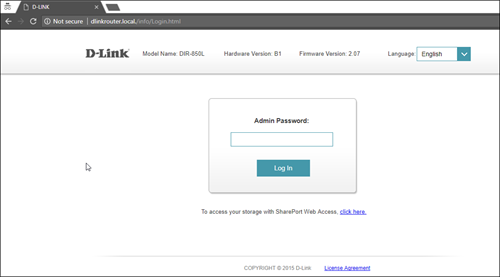
4. Setelah anda berjaya log masuk, halaman persediaan berasaskan web akan muncul. Sila ikuti langkah di bawah untuk konfigurasi.

5. Dari menu atas, klik Tetapan dan kemudian pilih Wayarles.

6. Skrin di bawah akan muncul untuk mengkonfigurasi tetapan wayarles. Memandangkan ini ialah router dwijalur (dual band), anda akan mempunyai 2 nama Wi-Fi (Wi-Fi Name) (SSID) iaitu 2.4GHz dan 5GHz.
Anda boleh menyambung ke mana-mana SSID, sebaik-baiknya dengan isyarat tersedia yang lebih kuat.

7. Anda boleh menukar nama Wi-Fi (Wi-Fi Name) (SSID) dan Kata laluan (password) untuk mengikut pilihan anda, dan kemudian klik "Simpan" untuk perubahan berlaku.
Sila sambung semula ke nama wayarles baharu dengan Kata laluan (password) baharu setelah selesai.
Pek baharu disertakan dengan 200 jam rakaman Cloud secara amnya. Jika rakaman semasa anda melebihi 200 jam, sistem akan memadamkan lebihan jam sebaik sahaja pakej anda diubah, bermula dengan rakaman paling lama dahulu.
Jika anda ingin mengekalkan rakaman sebelumnya yang melebihi 200 jam, anda boleh memilih pilihan 400 atau 1500 jam Rakaman Cloud pada kadar bercaj RM12 atau RM15 setiap bulan (tidak termasuk cukai kerajaan) masing-masing. Jika tidak, anda boleh melanggan pek Platinum yang disertakan dengan akses percuma kepada 1500 jam Rakaman Cloud.
Selepas penghentian perkhidmatan Astro Fibre anda, kami akan menghubungi anda melalui nombor telefon bimbit berdaftar anda (sebanyak 3 kali dalam tempoh 3 hari) untuk menjadualkan janji temu pengambilan oleh ejen Astro kami. Kemudian, ejen kami akan datang ke rumah anda, membongkar peranti dan megambilnya.
Nota: Selepas penghentian perkhidmatan, anda dikehendaki mengembalikan peranti Astro Fibre anda kepada Astro. Kegagalan untuk berbuat demikian akan dikenakan caj sebanyak RM200 (Router WiFi), RM500 (Modem Fibre) dan RM200 (Unit WiFi Mesh - jika berkenaan) untuk setiap unit. Semua harga yang dinyatakan tidak termasuk cukai kerajaan.
Ketik tab 'Kandungan' pada bar navigasi. Pilih 'Saluran' dan saluran diminati dan anda boleh melihat program terjadual untuk hari itu. Untuk beralih antara hari, pilih satu saluran dan ketik pada hari tertentu (Cth. Isnin, Selasa, Rabu). Anda juga boleh melihat waktu rancangan hari itu dan sehingga enam hari berikutnya.

Anda perlu menjalankan beberapa ujian bagi membolehkan kami memahami isu anda dan membantu dalam menyelesaikan masalah ini.
Ini akan mengambil masa tidak melebihi 15 minit.


Maklumat Pantas
Ujian Kelajuan ialah perkhidmatan yang menyediakan analisis percuma bagi parameter capaian Internet, seperti kadar data sambungan.
Ujian Ping menunjukkan tempoh yang diperlukan untuk paket sampai kepada hos.
Ujian Traceroute mengesan laluan paket ke hos destinasi daripada server kami.
LANGKAH 1
Matikan suis dekoder anda dan pastikan lampu pada adaptor terpadam.

LANGKAH 2
Hidupkan kembali suis dekoder anda dan pastikan lampu adaptor menyala.

LANGKAH 3
Tekan butang "Standby" berulang kali pada alat kawalan jauh sehingga Startup Options tertera pada TV.
STEP 4
Tekan "987" pada alat kawalan jauh.
Advanced Startup Options akan dipaparkan.
STEP 5
Tekan "1" untuk mencetuskan tetapan semula.
STEP 6
Tekan "OK" untuk teruskan.
STEP 7
Selepas tetapan asal dipulihkan, skrin TV akan mula bertukar gelap.
Sila tunggu untuk dekoder menyiapkan tetapan.
STEP 8
Setelah selesai, sila ikut arahan pada paparan skrin tv anda.
Sila rujuk arahan seterusnya untuk menyiapkan Tetapan Semula dekoder.
Klik di sini untuk mengikuti panduan Tetapan Pemasangan Baharu bagi Satellite
Klik di sini untuk mengikuti panduan Tetapan Pemasangan Baharu bagi Plug and Play
Starting 27 September 2023, Astro customers may purchase Qalbox by Muslim Pro as an add-on for an exclusive price of only RM9.50/month inc. of SST (RRP: RM12.90/month). After successfully adding Qalbox to your subscription, all Ultra and Ulti Box customers can access the app on their Astro Box, the Muslim Pro mobile app, www.qalbox.com, as well as enjoy premium Muslim Pro features on the app. Please visit https://product.astro.com.my/apps/qalboxmuslimpro for more information.
1. What is Qalbox by Muslim Pro?
Qalbox by Muslim Pro is a Muslim-friendly entertainment streaming service that is accessible via the Muslim Pro app. It hosts an extensive library of content that celebrates Muslim identities and cultures worldwide and aims to create a global platform for Muslim creatives and filmmakers.
2. What is the difference between Muslim Pro and Qalbox?
Muslim Pro is the go-to Muslim lifestyle app, recognised by millions of Muslims globally ashaving the most accurate prayer time and athan/azan application for salah (prayer). Muslim Pro has a full suite of features that help Muslims practise their religion and deen more purposefully with features such as a Qibla finder, reading and listening to the Quran, a digital tasbih and more.Meanwhile, Qalbox is a streaming service by Muslim Pro to enjoy Muslim-friendly movies, TV series, animations and more. After purchasing Qalbox as an add-on, Astro customers can stream the app on their Ultra/Ulti Box, www.qalbox.com or via the Muslim Pro mobile app.
3. Why should I subscribe to Qalbox by Muslim Pro with Astro?
For an Astro-exclusive price of only RM9.50/month inc. SST (RRP: RM12.90/month), you can look forward to a wide range of content genres, including acquired and original scripted programmes, movies, documentaries, children's animations, as well as Quranic recitations and supplications (du'a). From classic movies on history, origins and civilizations of Muslims to titles that showcase modern Muslim life across the globe - viewers can immerse themselves in the experiences of other Muslims' varied journeys, struggles, and triumphs.
Additionally, you can also enjoy Premium Muslim Pro features on the mobile app which allow users to access all in-app features without any advertisements, download audio recitations of the Quran to listen offline, and add the Muslim Pro widget to their smartphone Home Page to view all prayer times, amongst many other features.
4. Where can I access Qalbox by Muslim Pro?
If you are subscribed to Qalbox by Muslim Pro, you can access your favourite Islamic content on your big screen TV via the Ultra/Ulti Box, www.qalbox.com or the Muslim Pro app.
5. What happened to my Qalbox by Muslim Pro Premium free trial?
Your free trial of Qalbox by Muslim Pro Premium subscription with Astro has ended on 26 September 2023. We hope you have enjoyed it! You may continue streaming the app by adding it to your bill for an exclusive price of only RM9.50/month inc. of SST (RRP: RM12.90/month).
6. How do I subscribe to Qalbox by Muslim Pro Premium as an Astro customer?
Astro customers may purchase Qalbox as an add-on via their Ultra or Ulti Box, My Astro app, www.astro.com.my, or by contacting our Customer Contact Centre at 03-9543 3838 (call/WhatsApp). Please follow the detailed steps below if you require guidance on how to purchase:
a) Ultra or Ulti Box
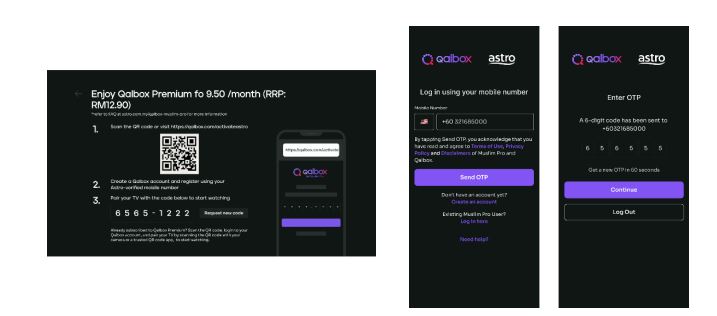
Step 1: Open œQalbox by Muslim Pro under the apps rail at your Home Page. Click on any show posters to proceed with the purchase.

Step 2: Provide your Astro verified mobile number and enter the OTP to proceed
*if you have activated your Qalbox Premium free trial, please ensure the same mobile number is used

Step 3: Scan the QR on screen to log in/create a new Qalbox account and pair it with your TV
b) My Astro app
Step 1: Open the My Astro app and select œAstro Store in the bottom menu. Then, select œApps > œQalbox by Muslim Pro > œGet it Now
Step 2: Log in with your Astro ID. Then, enter your Astro verified mobile number and perform the OTP verification to purchase

Step 3: Log in to the Qalbox mobile app using the same phone number as Step 2

Step 4: Once complete, launch Qalbox on your Ultra or Ulti Box and pair your account to your TV

c) Astro Website (www.astro.com.my)
Step 1: Visit www.astro.com.my and select œProduct & Services. Then, go to œApps > œQalbox by Muslim Pro > œGet it Now
Step 2: Log in with your Astro ID. Then, enter your Astro verified mobile number and perform the OTP verification to purchase
Step 3: Log in to the Qalbox mobile app using the same phone number as Step 2
Step 4: Once complete, launch Qalbox on your Ultra or Ulti Box and pair your account to your TV

7. I already have a Qalbox account from the free trial; how do I purchase the add-on with the same account?
Simply pick up where you left off by following the steps in Q6 and purchase the Qalbox by Muslim Pro add-on. Please ensure that the mobile number used to purchase the add-on is the same mobile number used when registering for the free trial.
8. I have my own Qalbox account outside of Astro; can I stream it on my Ultra/Ulti Box?
Yes, you can! Just follow these simple steps to stream your Qalbox account on your Ultra/Ulti Box:
Step 1: Open œQalbox by Muslim Pro under the Apps rail at your Box home page.
Step 2: Select œGo to Qalbox by Muslim Pro app then scan the QR code on screen to log in to your existing account.

Step 4: Finally, enter the pairing code displayed on your TV screen to pair your account to your Ultra/Ulti Box.
9. How do I enjoy Qalbox by Muslim Pro on the website and mobile app?
a) Qalbox Website: After subscribing through any of the methods under Q6, you will automatically be able to enjoy the app at www.qalbox.com.
b) Muslim Pro mobile app:
Step 1: Download the Muslim Pro app from the Apple App Store or Google Play Store
Step 2: Click œLog In at the bottom right corner. Then, select œContinue with Email/Phone
Step 3: Switch to the œPhone tab and enter your name and mobile number
Step 4: After clicking Continue, enter the OTP code sent to your device for verification purposes
Step 5: Enter your email address and create a password
Step 6: Now, enjoy Muslim-friendly shows on the app! Simply use the same email or phone number provided to log in in the future
10. How many devices can I use to stream Qalbox by Muslim Pro at the same time?
You can access your Qalbox by Muslim Pro account on up to five (5) devices at a time. To ensure a smoother streaming experience, please sign out from any unused devices.
11. Can I download content on Qalbox by Muslim Pro for offline viewing?
At the moment, offline downloading of content is not available.
12. Are there any subtitles or dubbing available for the content on Qalbox by Muslim Pro?
Presently, Qalbox offers subtitles in English, Bahasa Malaysia, Bahasa Indonesia, and French for selected content. Their commitment is to expand subtitle availability to encompass an even broader array of languages for all content. At this time, dubbing services are also available for selected content and they are actively exploring options to enhance accessibility and cater to the preferences of viewers.
13. Can I access Qalbox by Muslim Pro outside of Malaysia?
Yes, simply download the Muslim Pro app and log in using your registered mobile number for Qalbox. You may be required to provide your email address and password for additional security. Once done, you may access Qalbox immediately.
14. What is a Qalbox by Muslim Pro Premium subscription?
With the Qalbox by Muslim Pro Premium subscription, users can enjoy all the Muslim-friendly content on Qalbox and stream them on up to 5 devices at the same time. Additionally, users will also be able to enjoy Muslim Pro premium features on the mobile app which includes accessing all in-app features without any advertisements, download audio recitations of the Quran to listen offline, and add the Muslim Pro widget to their smartphone Home Page to view all prayer times, amongst many other features.
15. I don't have an Ultra/Ulti Box; can I still subscribe to Qalbox by Muslim Pro with Astro?
If you are not an Ultra or Ulti Box customer, you may still subscribe to Qalbox by Muslim Pro and enjoy:
a) Qalbox on the mobile app and website
b) Muslim Pro features via Muslim Pro app
16. Who may I contact if I encounter any problems with Qalbox by Muslim Pro?
Please reach out to the Qalbox team by emailing them at support@muslimpro.com if you have any enquiries or require assistance with the app.If you would like to contact Astro, you may reach out to our Customer Service Centre by:
1. Submitting a feedback form here: www.astro.com.my/contactus/form; or
2. Reaching to us via WhatsApp by typing œHi at 03-9543 3838 for assistance
17. Will my personal information be protected?
Yes, Astro is bounded by the PDPA. All information received will be used in accordance with our Privacy Notice
Sila rujuk di bawah untuk menyediakan Ultra Plug & Play Box anda;
Untuk sambung melalui kabel LAN;
1. Matikan Astro Box lama anda.
2. Untuk sambung Ultra Plug & Play Box anda melalui kabel LAN:
a. Cabut kabel LAN daripada Astro Box lama anda dan sambungkan kabel LAN kepada Ultra Plug & Play Box baharu anda.
i. Untuk pelanggan Maxis IPTV, pastikan hujung kabel LAN satu lagi disambungkan ke router anda.
ii. Untuk pelanggan IPTV TIME, cabut hujung kabel LAN yang sama daripada modem anda, sambungkannya ke mana-mana port LAN pada router anda. Pastikan bahawa anda tidak memasang semula kabel LAN anda ke dalam kotak yang sama.
Nota: Jika anda mempunyai modem dua dalam satu; router, anda boleh melangkau langkah ii).
Untuk menyambung melalui Wi-fi;
Cabut kabel LAN anda daripada Astro Box lama anda, dan jangan pasangkannya di Ultra Plug & Play Box baharu anda.