
Nationwide Installation
Applying for
| Maxis UniFi Astro Njoi |
Frequently Asked Questions
Find your answers here.
We provide one stop service to apply Astro and Broadband for you.
You can avoid driving and queuing at the sales counter. We are the dealer that can help you to handle your application from the beginning to the end.
We do not charge you when you apply from us. There is no credit card information required to apply here. Charges are the same as you apply from the sales counter.
First, you can apply online, we will get back to you immediately during business hour. WhatsApp/Email/Fax us your Photocopy of IC (for malaysian) / Passport (for foreigners). When we receive all the information, we will proceed with your application immediately.
Once we receive your application with complete information, we will process your application immediately during business hour. The contractor from the service provider will then contact you for installation appointment once your application is approved.
Enjoy greater savings and hassle-free bill payment in one single bill for both Astro and Broadband. You get to enjoy Astro and Broadband at discounted price every month over the contract period of 24 months.
Astro offers multiple TV packs including Entertainment, Sports, Movies and Kids options. You can choose a pack that matches your viewing preferences and add optional streaming apps where available.
Yes, you may subscribe to Astro TV packs without bundling broadband. However, bundling Astro TV with Fibre Broadband may provide better monthly savings and convenience with a single bill.
For small households with light streaming and browsing, 100Mbps is usually sufficient. Larger families, gamers or heavy streamers may benefit from 500Mbps or 1Gbps plans for smoother performance across multiple devices.
Most Astro TV and Fibre broadband plans come with a 24-month contract. Early termination charges may apply if cancellation is made before the contract ends.
Yes, you may upgrade your TV pack or broadband speed at any time, subject to eligibility and coverage. A new contract period may apply depending on the upgrade.
Your monthly bill will be issued directly by Astro. You may receive it via email or access it through your Astro account. Bundled customers will receive a single combined bill for TV and broadband services.
Payment methods may include online banking, auto debit, credit card or other approved payment channels provided by Astro. Our team can guide you during the registration process.
If you experience any service interruption, you may contact Astro customer support for technical assistance. In many cases, issues can be resolved remotely or a technician will be arranged if necessary.
Yes, relocation is subject to service availability at your new address. Relocation charges and contract adjustments may apply depending on your plan.
No, you do not need a credit card to submit your application. Payment setup will be arranged directly with Astro after your service is approved.
Selected Astro TV packs allow optional add-ons such as streaming services depending on current promotions and availability. Additional monthly charges may apply.
Yes, a WiFi router is typically provided during fibre installation. The router model may vary depending on the selected broadband speed plan.
Yes, we will check the service coverage at your address before proceeding with your application to ensure broadband is available at your location.
For Malaysians, please provide a copy of your MyKad. For foreigners, provide a copy of your passport when submitting your broadband application.
After your application is approved, the service provider typically contacts you within 2 to 7 working days to arrange the broadband installation appointment.
Most Astro Broadband plans come with a 24-month contract starting from your installation date. If you relocate, a new 24-month contract may apply at your new address.
Yes, you can relocate your broadband service, subject to service availability at the new address. Your contract may reset for another 24 months from the new installation date.
Yes, you may request to relocate broadband devices within your home. Non-standard installation charges may apply and are payable to the installer directly after assessment.
Yes, you can switch to Astro Broadband. To avoid service interruption, it is recommended to activate the new service before terminating your current broadband contract.
Standard installations may be free during promotions, but non-standard installations (e.g., device relocation or complex wiring) may incur extra charges payable directly to the installer.
Yes, all existing Astro & Broadband customers within contract or out of contract can subscribe to Astro & Broadband offerings. The 24 months contract will be renewed upon signing up for the new packs.
Successful payment via JomPAY will be posted real time.
For customers with Entertainment Plus, Movies Plus, Sports Plus, Premium 2, Premium 3, and Platinum Pack
- Launch Netflix from the home screen or via remote control.
- Click on Get Started
- If you are an existing Netflix customer, please fill in the email address and password associated with your Netflix account. Once successfully completed, all existing settings and watching history on your Netflix account will be brought over. If you are a new Netflix customer, create a new account by filling in your email address and a password for your new Netflix account.
- In the next screen, you will be shown your default Netflix package “Standard”, you can choose to upgrade to “Premium” here.
- The final screen provides a summary of your account including your email. Click Start Watching to enjoy Netflix on your Ultra/Ulti Box.
For Non-Entertainment Plus, Premium 2, Premium 3, and Platinum Pack Pack customers (New Netflix customers)
- Launch Netflix from the home screen or via remote control.
- Click on Join Now
- Create a new account by filling in your email address and a password for your new Netflix account.
- The final screen provides a summary of your account including your email. Click Start Watching to enjoy Netflix on your Ultra/Ulti Box.
Note: The Netflix plan will be defaulted to Premium, you may select ‘Change Plan’ to choose the ‘Standard’ plan.
For Non-Entertainment Plus Pack, Premium 2, Premium 3, and Platinum Pack customers (Existing Netflix customers)
- Launch Netflix from the home screen or via remote control
- Click on Sign-in
- If you are an existing Netflix customer, please fill in the email address and password associated with your Netflix account.
- You will be able to start watching Netflix on your Ultra/Ulti Box once you log in.
STEP 1
On your remote, press the HOME button and the home menu will be displayed on top of your screen.

STEP 2
Navigate to Settings.

STEP 3
Navigate to STB Diagnostics and press "OK".

STEP 4
Select Network Diagnostics and press "OK".

STEP 5
Details information of Network Diagnostics screen will be displayed.

1. Power reset (on & off) your Modem and Router.
2. Ensure standard physical connection (No 3rd party devices connected to decoder and modem).
3. Please connect your computer or laptop to your Astro Fibre router using LAN cable. Your LAN cable must be connected from the yellow port of Astro Fibre router (Any available port).
4. Once connected, open any web browser such as Google Chrome, Internet Explorer, Mozilla Firefox and etc.
5. On the address bar, type https://testmyline.astro.com.my/ and below page will appear.

6.Click "GO", and the test will begin.

The test is completed once both download and upload speeds are displayed.
Sample of the Speedtest result is shown below.

**Please ensure the snapshot includes a time stamp and network used either LAN cable or wireless (as per picture above)
7. Kindly screenshot or take a picture of the result, name it as "LAN Speedtest" for test using LAN cable (wired connection).
8. Repeat the test once again using WiFi connection (Please unplug your LAN cable and connect via wireless connection using your SSID).
9. Screenshot or take a picture of the result, name it as "WiFi Speedtest".
STEP 1
On your remote, press the HOME button and the home menu will be displayed on top of your screen.

STEP 2
Navigate to Settings.

STEP 3
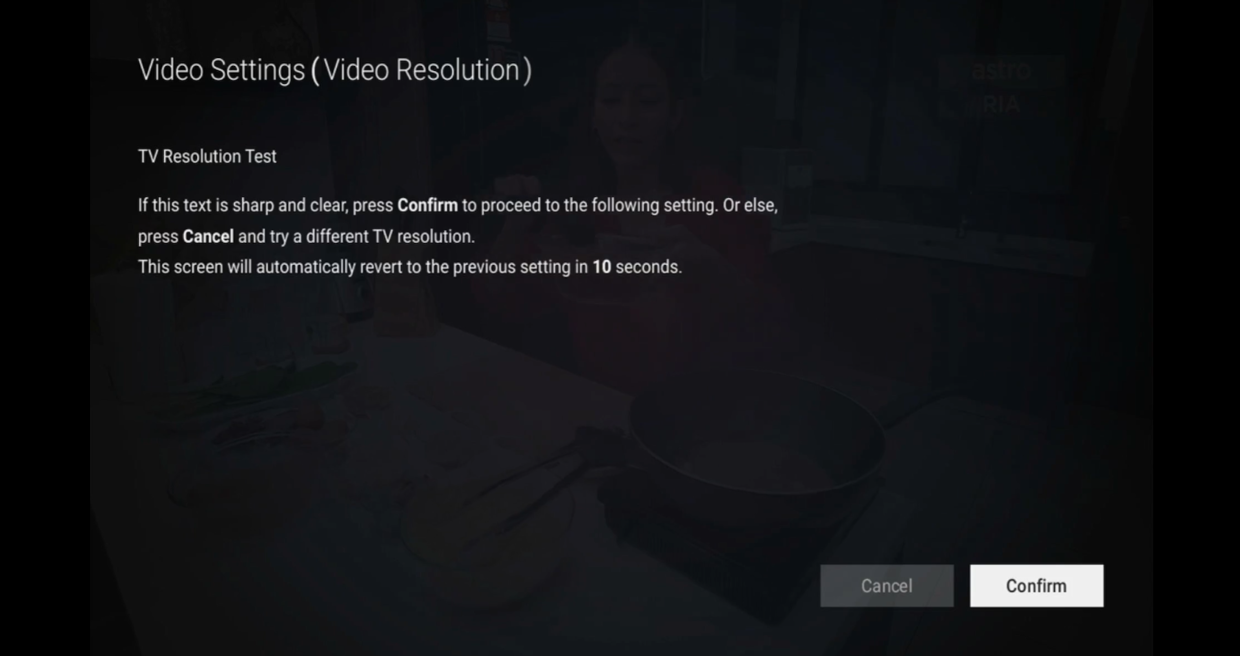
Navigate to Video Resolution and press “OK”.

STEP 4
Navigate to your preferred selection and press “OK”.
Recommended to select Auto.

STEP 5
Navigate to Save and press "OK" to confirm your selection if able to read the text properly.
Otherwise, navigate to Cancel to revert to previous settings.

1. Please use a LAN ethernet cable and connect your computer/laptop to the back of the Maxis Router.
2. You may open any web browser such as Google Chrome, Internet Explorer, Mozilla Firefox, etc.
3. On the address bar, please go to http://192.168.1.254 and the page below will appear.

The default login of the router as below. If you have done a configuration on your router and changed your password previously, please use the password you have previously set.
Username: administrator
Password: Router S/N (Available on the sticker at the back of the router)
4. Once you have successfully login, the router's web-based setup page will appear.

5. From the left menu, select WIRELESS to access the screen below.

6. You may change the Network Name (SSID) and the Password to follow your preferences, then scroll to bottom and click "Apply" for the changes to take place.

7. A warning box will popup, click "OK" for the changes to take place and reconnect to the new wireless name with the new password once completed.

8. Please wait until the connection reestablish.

Not to worry, you will only need to verify your Astro ID once. After that, you may log in to your account as usual.
STEP 1
Check your current software version on your box.
If the software version updated (Refer to Table 1) , proceed to STEP 2.
If software version different from Table 1, click here for Software Update guide.

Once software is updated, tune to the impacted channel.
If issue persist, proceed to STEP 2.
STEP 2
Run Test Satellite Frequency.
Click here for the guide.
If dCSS Scan Entrypoint Success, proceed to submit report here.
Guide to submit report:
At Feedback Type select "I have Astro service related question/request" and Sub Category as "Technical Interruption".
Fill up all the required information and submit.
Please indicate if you agreed to recontract for 12 months (technical visit is FOC) or paid visitation (RM65).
You will receive appointment details via SMS within 48 hours.
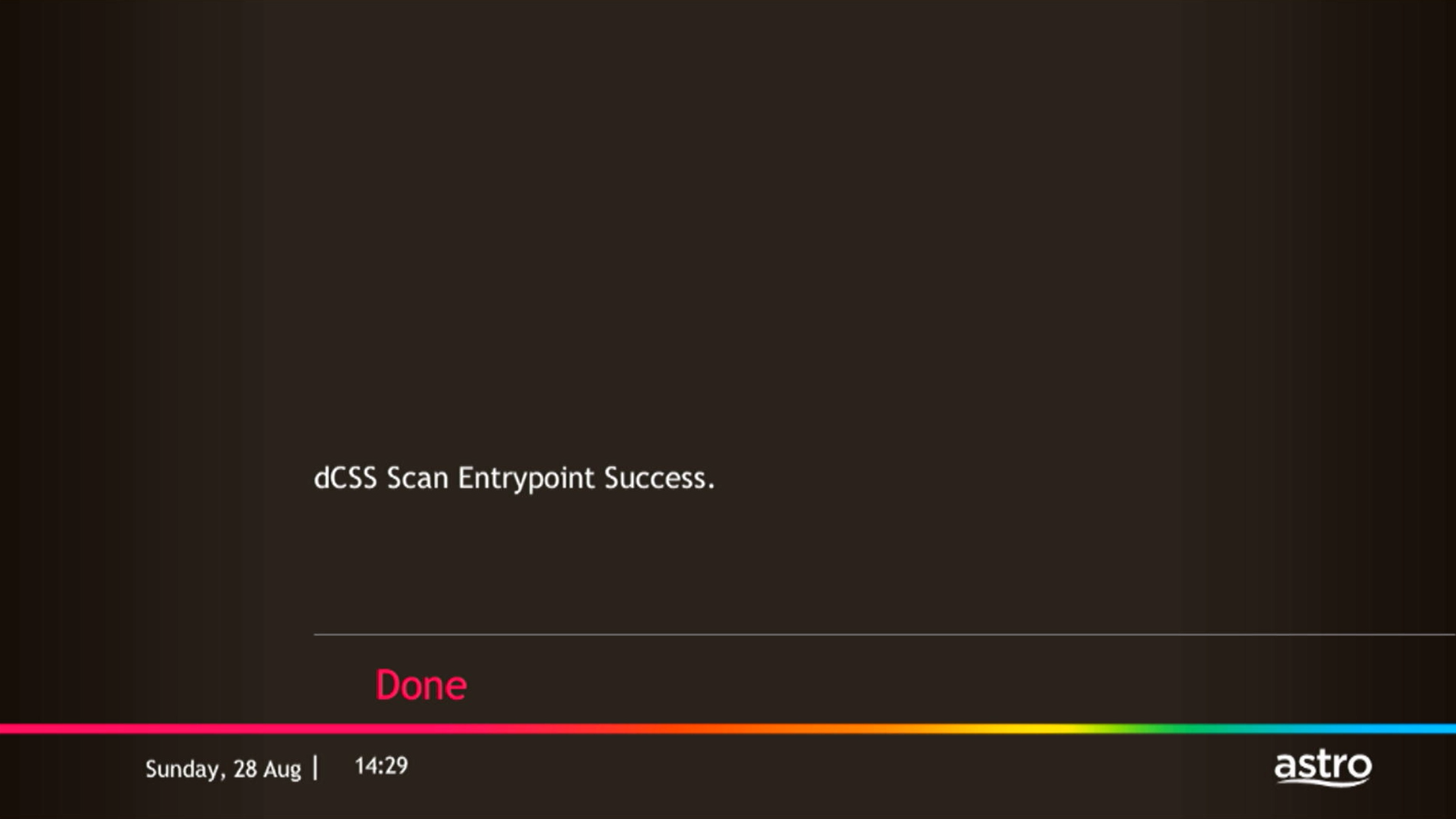
If dCSS Scan Entrypoint Fail, proceed to STEP 3.

STEP 3
Proceed to Update Satellite Frequency.
Click here for the guide.
Once completed, tune to the impacted channel.
If issue persist, proceed to submit report here.
Guide to submit report:
At Feedback Type select "I have Astro service related question/request" and Sub Category as "Technical Interruption".
Fill up all the required information and submit.
Please indicate if you agreed to recontract for 12 months (technical visit is FOC) or paid visitation (RM65).
You will receive appointment details via SMS within 48 hours.
The notification you receive will depend on the payment method you choose:
(i) My Astro Portal: e-receipt will indicate payment confirmation.
(ii) IVR: Payment status will be notified over the IVR and an SMS notification will be sent for successful transactions.
(iii) SMS: Payment status will be notified via SMS.
(iv) Call: Payment status will be notified via SMS.
(v) Customer Service Centre: Physical receipt will indicate payment confirmation.
It will begin on 1st March 2024 and onwards.
By adding a Netflix account to your Astro bill, your Netflix account is already activated. No additional steps for activation are required.
What is the BBC Player app?
BBC Player is an authenticated multi-genre SVOD (Subscription Video on Demand) service that allows viewers to watch the very best British programmes anytime and anywhere.
BBC brands available on the app include:
- BBC Earth inspires audiences by sharing the incredible wonders of our universe. BBC Earth showcases the work of the world's foremost factual filmmakers as it seeks to take audiences on a thrilling journey of discovery across natural history and science. From the smallest creature under the microscope to the limitless expanses of space, BBC Earth brings viewers face to face with heart pounding action, mind-blowing ideas and the wonders of being human.
- BBC First is the home of premium, original British dramas. Showcasing world-renowned, award-winning talent in front of and behind the camera, it delivers audiences the first chance to see stories that challenge, immerse and entertain, all with a unique British perspective.
- BBC Brit offers premium factual entertainment that is intelligent but irreverent. Male-skewing but with broader appeal, it blends expertise with entertainment and fact with fun. This brand is the exclusive home of Top Gear and covers a rich variety of subjects: cars, science, adventure, business, life-changing moments, extreme characters, quirky eccentrics and comedy. BBC Brit is available exclusively on BBC Player.
- BBC Lifestyle is the unique entertainment destination brimming with vibrant, fresh and exciting programmes which set trends and guide you into transforming your world; from revamping your home to invigorating your culinary skills and helping you become happier and get the best out of life.
- CBeebies is a pre-school channel for children aged six years and under. CBeebies provides a range of pre-school programming designed to encourage learning through play in a consistently safe environment. Acclaimed children's titles such as Bluey, Hey Duggee, Go Jetters, JoJo & Gran Gran, Thomas & Friends and Teletubbies encourage children to learn about and enjoy the world around them.
Who can access the BBC Player app?
Starting 20 December 2022, Astro customers on eligible packs will receive access to the BBC Player app to enjoy world class documentaries, premium British dramas, aspirational lifestyle programmes, engaging preschool programmes and more on the big screen via the Ultra Box, Ulti or stream via the mobile app or website for no additional charge.
What content is available on BBC Player?
Access to content within the BBC Player app is based on the pack that Astro customers have subscribed to:

How much does it cost to subscribe to BBC Player via Astro?
BBC Player is bundled to the selected pack listed above (Q3) for both existing and new eligible customers.
Subscribe to our TV Packs for better savings now by visiting www.astro.com.my or WhatsApp "Get BBC" at 03-9543 3838.
How do I access the BBC Player app on the Ultra Box or Ulti Box?
Eligible customers may follow the simple steps below to access the BBC Player app on their Ultra Box or Ulti Box:

How do I access the BBC Player mobile app?
Download the BBC Player app from the iOS App Store or Google Play Store.
After you have successfully downloaded the app to your mobile device, simply click "Astro" as your service provider and log in with your Astro ID. Once complete, you will get instant access to all your favourite BBC content right at your fingertips!
How can I access BBC Player via website?
Please visit www.bbcplayer.com on your browser, log in with your Astro ID and start streaming.
When can I start enjoying my BBC Player subscription?
Starting 20 December 2022, Astro customers on eligible packs will receive complimentary access to the BBC Player app to enjoy world class documentaries, premium British dramas, aspirational lifestyle programmes, engaging preschool programmes and more on the big screen via the Ultra Box, Ulti Box, or stream via the mobile app or website. Thank you for your support.
How many devices can I use to access the BBC Player app at one time?
Customers can access a maximum of 5 devices concurrently on the BBC Player app, including the Astro Ultra Box or Ulti Box.
Can I download content from the BBC Player app for offline viewing?
Yes, selected downloaded programmes will be available for viewing offline for up to 30 days. Just click on a programme you would like to watch offline to check if it is downloadable. Kindly note that this download feature is only available on the BBC Player app. If you are accessing the BBC Player website, you can only stream content online.
What is the storage requirement for content downloading?
The storage requirement is dependent on the type of videos users download as the space needed may vary.
Are there any subtitles available for content on the BBC Player app?
English closed captions are available for all BBC Player programmes, while Chinese and Bahasa Malaysia subtitles are available for selected programmes only.
What audio options are available for content on the BBC Player app?
Currently, only English audio is available for all BBC Player content.
Can I access content on the BBC Player app outside of Malaysia?
Unfortunately, you will not be able to stream or watch programmes online when you are outside of Malaysia. However, you will still be able to watch available downloaded programmes offline on the BBC Player mobile app.
Astro Login
How do I register for an Astro ID?
Download the BBC Player app > Select "Profile" > Click on "Log in with Astro ID" > Click on "Do not have an Astro ID? Click here".
Can I update my email address/mobile number for my Astro ID?
Yes, please visit Astro's Self Service Portal via myastro.astro.com.my to update your email address or mobile number.
I have forgotten my password; what should I do now?
Step 1: Click "Log in" and click "Forgot my password"
Step 2: Enter your email address and click "Submit"
Step 3: An email will be sent to your registered email address with further instructions on how to reset your password
How do I unlock a locked user account?
You may contact Astro's Customer Service by:
- Submitting a feedback form here: https://support.astro.com.my/feedback-form or
- Send a message on WhatsApp by typing "Hi" at 03-95433838.
Will my personal information be protected?
Yes, Astro is bound by the PDPA act. All information received will be used in accordance with our Privacy Notice.
Other App Enquiries
I am unable to log in to BBC Player with my Astro ID via Google; what should I do now?
Please follow the simple steps below if you are facing issues logging in to BBC Player:
- Go to id.astro.com.my and log in via your Google account
- Under "Profile", create a new password for your Astro ID
- Return to BBC Player and sign in via Astro using your Gmail account and the new password
Who may I contact if I encounter any problems with the BBC Player app?
There are 4 ways for you to contact us for assistance:
Issues related to BBC Player in-app or content:
- Submit an in-app feedback form to BBC Player, or
- Reach out to BBC Player via email at bbcplayerops@bbc.com Issues related to Astro entitlement/packages:
- Submit this feedback form here: https://support.astro.com.my/feedback-form, or
- Send a message on WhatsApp by typing "Hi" at 03-95433838
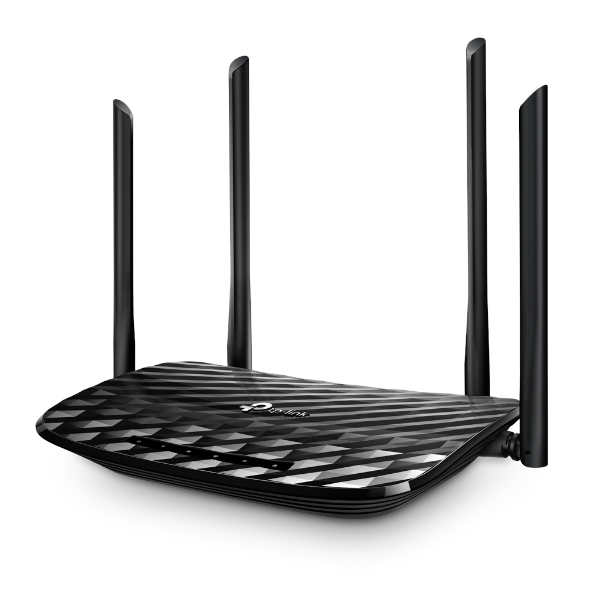
- Please standby computer/laptop to access to the internet and connection must be via (cable) [Connect the LAN (cable) to the yellow port in Maxis Router and direct to computer/laptop].
- You may open any web browser such as Google Chrome, Internet Explorer, Mozilla Firefox and etc.
- On the address bar, please go to http://192.168.0.1 or www.tplinkwifi.net and below page will appear.

The default login of the router is available on the sticker at the back of the router. If you have done a configuration on your router previously, the password may be different
4. Once you have successfully login, the router's web-based setup page will appear. Please follow below steps for the configuration.

5. From the top menu, choose Basic and then click Wireless tab on the left menu to access to below screen.

6. Since this is a dual band router, you will have 2 Wireless Network Names (SSID) i.e. 2.4GHz and 5GHz. You may connect to any of the SSID, preferably with a stronger signal available.
7. You may change the Wireless Network Name (SSID) and the Password to follow your preferences, then click "Save" for the changes to take place.
Please reconnect to the new wireless name with the new password once completed.
For Residential Astro Pay TV customers: You may change your contract from e.g., 12-month to 24-month without incurring a switching fee or cancellation fee. However, if you change your contract from e.g., 24-month to 12-month, will be charged a cancellation fee accordingly if still within minimum term (contract) period. No switching fee applicable.
STEP 1
On your remote, press the HOME button and the home menu will be displayed on top of your screen.
STEP 2
Navigate to Settings.
STEP 3
Navigate to STB Diagnostics and press "OK".
STEP 4
Select General Diagnostics and press "OK".

STEP 5
Details information of General Diagnostics screen will be displayed.

STEP 6
Press down arrow on your remote to get more information.

Please ensure that your Astro subscription comes with access to Disney+ Hotstar. You may visit astro.com.my/disney to learn more about the Packs that come with Disney+ Hotstar or to check if your Disney+ Hotstar access is activated.
Upon confirmation that your subscription comes with access to Disney+ Hotstar, if you still see an error screen on your TV with your Ultra or Ulti Box when logging in to Disney+ Hotstar, please call our Customer Contact Centre at 03 9543 3838 and an Astro agent will be available to assist you immediately.
STEP 1

Try to change channels on your Astro remote.
INDICATOR: LED blinking 3 times / NO LED blink
SOLUTION: Replace new battery
Proceed to Step 2.
INDICATOR: LED blinking 1 time
Confirm it's not your Astro remote faulty, let's proceed to Step 3.
STEP 2
If issue remain after the battery replacement, this might be due to a faulty Astro remote.
Try changing the channel manually directly from the box front panel (If any).
If it's working, you might need to replace your Astro remote.
You may walk-in to our nearest Customer Service Center for the replacement.

STEP 3
You need to refresh the box setting by initiate manually from box front panel.
Refer to Refresh Box setting Guide steps here.
Please ensure you:
a. Have your original identification card “MyKad” (Front & Back) with you (Malaysian).
b. Have your original Passport & Visa with you (Non-Malaysian).
c. Are in a brightly lit environment
No, you are still able to subscribe to iQIYI on your current Astro pack.
Please refer to the table below:

Note:
- The table above is an approximation of the cancellation fee. The final fees will be calculated at the end of your subscription/upon downgrade.
- Downgrade of Pack for Residential customers will be on basis of package ranking, whereas downgrade of pack for Astro & Broadband customer will be on basis of total monthly payment.
- Package ranking in descending order:
- Platinum Pack (highest rank)
- Premium Pack 1/2/3 (same rank across 3 options)
- Entertainment / Sports / Movies Plus Pack
- Entertainment / Sports / Movies Pack (same rank across 3 options)
- Primary Pack (lowest rank)
Please find some examples (for Residential customers) as below:
Termination
Customer signed up for Entertainment Plus Pack (24-month contract) with Ultra Box. Customer decided to terminate the subscription 8 months into the contract. As the customer still has 16 months remaining, the maximum applicable fee will be RM41.67 x 16months = RM666.67
Pack downgrade
Customer signed up for Movies Pack (24-month contract) with Ultra Box. 18 months in, customer decides to downgrade to Primary Pack (24-month contract). As the customer still has 6 months remaining, the maximum applicable fee will be RM20.83 x 6months = RM125
Dropping off Netflix or Disney+ Hotstar within first 12 months
Customer signed up for Entertainment Plus (24-month contract) with Ultra Box and 12-month commitment on Netflix App. 6 months in, customer decides to upgrade to Premium Pack 1 (24-month contract) which does not include Netflix App. As the customer still has 6 months remaining in the first 12 months of commitment for Netflix App, the maximum applicable fee will be RM41.67 x 6 months = RM250. Upon upgrading to Premium Pack 1, a new 12-month commitment for Disney+ Hotstar App begins alongside the 24-month contract on the package.
The New Astro First serves as the one-stop, ultimate home cinema offering the biggest and latest local and international blockbuster films where you can:-
- Enjoy value for money viewing for local and international movies from only RM15* per movie or RM17* for UHD movies (*excluding tax).
- Stream each rented movie for as many times as you like within 48 hours* (*unless stated otherwise) anytime, anywhere via On Demand on your Astro Box or Astro GO.
- Watch local/regional movies or international movies from Hollywood studios as recent as 2 weeks or 3 months respectively from Malaysia's cinematic release, in addition to exclusive titles only available on Astro First.
Yes. You are entitled to separate Netflix accounts for each main Astro subscription e.g. If you have subscribed to Entertainment Plus, Platinum Pack, etc separately. Therefore, if you have more than one main Astro subscription with Netflix, you may choose to create multiple email addresses to activate each respective Netflix subscription. Please follow the steps provided to you via email/SMS in order to activate your Netflix subscriptions on the website.
Please follow the steps below to verify your Astro ID:

Mesh WiFi devices are available as an add-on subscription from RM10/month across all Astro Fibre speeds. You may subscribe to a maximum of 5 units of Mesh WiFi per Astro Fibre subscription.
You can contact Astro's Contact Centre (03 - 9543 1543) to subscribe to the Mesh WiFi.
We try to make as many movies and TV shows available for download. However, for some titles, while we may have the rights to offer them via streaming, we may not be able to offer them for download.
Disney+ Hotstar is available to Astro customers on the Disney+ Hotstar app on Android and iOS devices and website (DisneyPlusHotstar.my) which is accessible on tablets and connected TVs. Unfortunately, Disney+ Hotstar is not available on Astro GO. However, customers can enjoy it on the big screen via the Ultra or Ulti Box.
Not all shows/channels will be available on the Plug & Play Box as this depends on contractual rights with specific guidelines on the entitlement of these shows/channels and what you have as a part of your subscription.
- Customers subscribing to Plug & Play Box with or without Astro Broadband will not have access to 1 (one) Channel - NHK World
Please be assured that we are continuously working hard to make more content available on the Plug & Play Box.
If you prefer to have all these channels, we recommend that you choose the Satellite dish option for the Ultra or Ulti Box.
Unavailable channels are as below:

Yes, existing non-Primary Pack customers who add on 50Mbps to their subscription will get to enjoy high speed broadband for only RM60/month and a free speed upgrade to 100Mbps for 24 months. Please note that a new 24-month contract will start upon successful installation.
You will be notified 30 days before the expiry on the renewal of subscription and can opt-out from auto renewal at least (2) days before the auto-renewal date.
If you want to opt-out of your auto-renewal for Disney+ Hotstar, please contact our Customer Contact Centre at 03 9543 3838 and speak to one of our customer service executives to change your package according to what suits you best at least two (2) days before the next auto-renewal date. Alternatively, please WhatsApp us at 03 9543 3838 and type DH Help for further assistance.
The fee is a one-time activation fee that will be charged when you subscribe to the Plug & Play Box.
Should you choose to discontinue/terminate the Astro Fibre Bundle service before the expiry of the contract (24 months), you will be subjected to an early cancelation fee of RM100 x Remaining months of the contract period for your Broadband services and early cancellation fee of New Packs accordingly RM600 (prorated) for Ulti Box or RM1000 (prorated) for Ultra Box.
Any bundle package promotion will be removed, and you will no longer get to enjoy similar promotions upon reconnection.
All Astro Fibre devices provisioned (Fibre modem, WiFi router and Mesh) will need to be returned upon termination. Our team will schedule the collection of equipment after your Broadband services have been terminated.
If equipment is damaged, lost or cannot be retrieved, penalty fees will be applied (excluding Service Tax) accordingly.
- RM500 for Fibre modem (Broadband Termination Unit)
- RM200 for WiFi router (Residential Gateway)
- RM200/unit for Mesh WiFi
In general, these two bands can be differentiated with these parameters: Coverage, Channel Interference and Speed.
2.4GHz gives better coverage but lower speeds, while 5GHz provides faster internet but covers a smaller area.

STEP 1
Press "HOME" button on your remote control.

STEP 2
Navigate to My TV and press "OK".

STEP 3
Navigate to Bookings and press "OK".

STEP 4
Your list of your booking programs will be displayed.

All Astro customers and non-customers who have an Astro ID will no longer be able to log in to our digital platforms using their usernames. Users will experience this change if they currently do not use an email address or mobile number to login, for example: johndoe2023.
Yes, you may terminate the service. However, an early cancellation fee will be applied for terminations/cancellations within 24 months. Please refer to the Astro Fibre's cancellation details.
Please upgrade the Ultra/Ulti Box software to enjoy Netflix on your Ultra/Ulti Box. To do this, please click on the Netflix app icon on the homepage or go to CH741 to prompt the software upgrade. Kindly click Install when the software upgrade prompt appears. This will take approximately 20 minutes and you would be able to launch Netflix on the Ultra/Ulti Box after that.
STEP 1
Press "HOME" button on your remote control.

STEP 2
Navigate to Settings and press "OK".
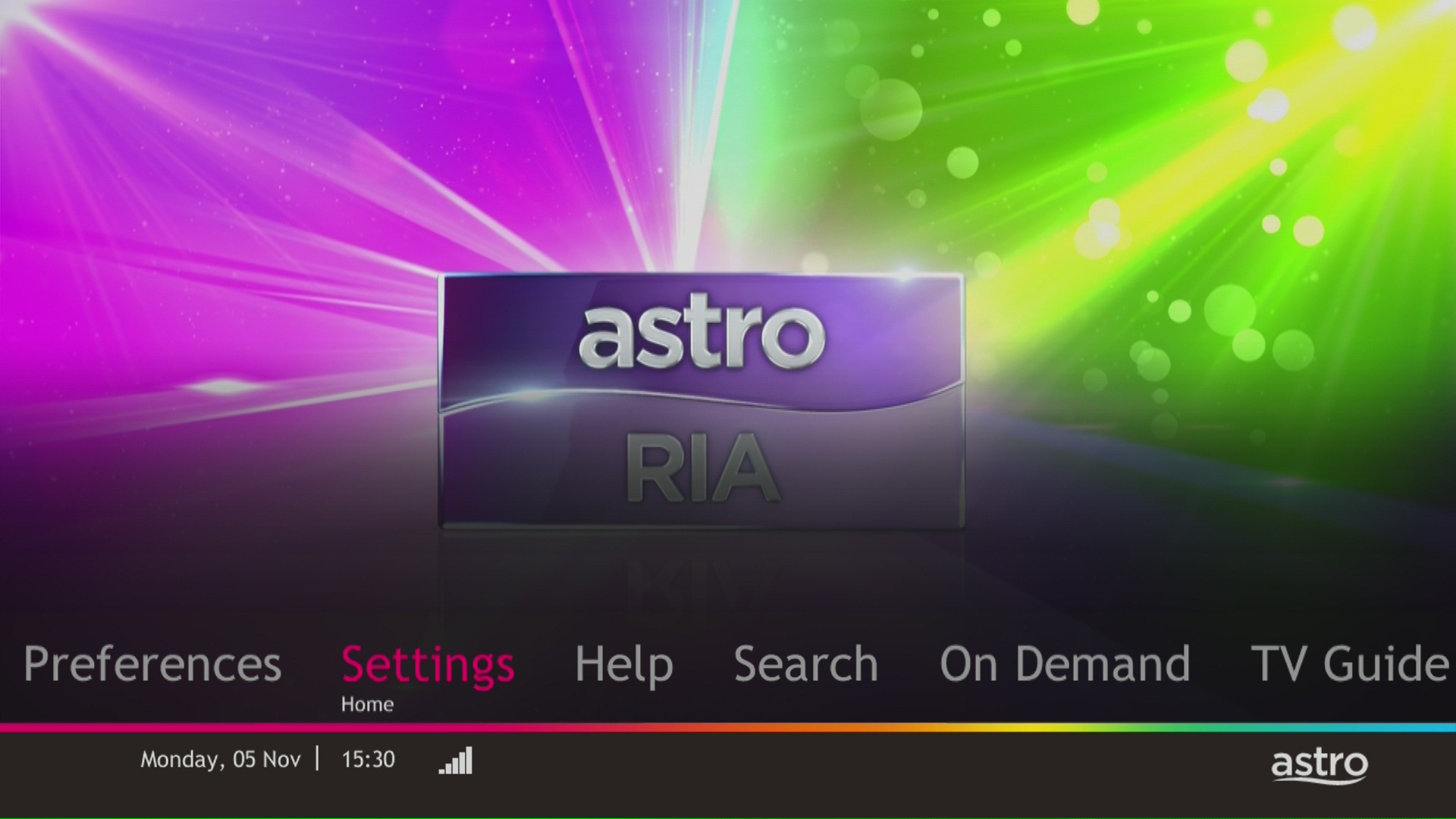
STEP 3
Navigate to STB Diagnostics and press "OK".

STEP 4
Take a look at the HDMI Connection Status.

While this technology has its benefits, different devices at home have different reaction and response to changes in signal strength and quality, and it's almost impossible to predict if they will make good band choices due to the interaction between the devices and the Wifi router. Some smart home devices also recommend that band steering is not used due to various reasons such as needing a constant consistent connection, ability to only connect to a particular band, registration of the respective MAC address, etc..
Example:
As single SSID is used, the device may remain on a weak 5GHz network instead of switching over to stronger 2.4GHz network.
You will be contacted by an Astro representative within two working days to advise you on the next course of action.
Astro Rewards is open to all *Active Astro PayTV customers and their immediate family members
* "Active Astro customer" refers to subscriber of the Astro Service and whose account is current and active with no outstanding payments due and owing to Astro and who has not breached the Astro subscription agreement nor given any instructions to terminate and /or suspend his/her subscription to the Astro Service as at the date of winner notification. Winners must remain active Astro customers until the date of collection of prizes.
Please first ensure Disney+ Hotstar access is included and has been activated as part of your Astro subscription. Once you have completed your activation process, you can enjoy Disney+ Hotstar on the Ultra box with these simple steps:
- Step 1 -Press "Home' on your Astro remote control. On the apps rail, select "Disney+ Hotstar' app > OK > My Account
You will receive an email within 45 minutes of payment made to let you know whether your advance payment is successful or not. If your payment has failed, you may call Astro's Contact Centre at 03-9543 3838 or wait for an Astro representative to be in contact with you within 2 working days to assist you with your order.

1. Please connect your computer or laptop to your Astro Fibre router using LAN cable. Your LAN cable must be connected from the yellow port of Astro Fibre router (Any available port).
2. Once connected, open any web browser such as Google Chrome, Internet Explorer, Mozilla Firefox and etc.
3. On the address bar, type http://192.168.100.254 and below page will appear.

Login using your username and password if you have changed the router login setting. Otherwise, your default router login is as per below.
Username: user
Password: user
4. Once you have successfully logged in, the router's web-based setup page will appear.

5. At the top of the page, click More to configure the WiFi parameters.

6. From the left menu, select WLAN and choose Wi-FI Advanced Network to access the screen below.

7. To change the channel on 2.4 GHz and 5 GHz, click the drop-down arrow for Channel, then select your desired channel.

8. Then, click "Apply" for the changes to take place.

Intermittent internet connection using LAN cable
Looks like there is something wrong with your service connection.
Please run a Ping Test, Traceroute Test and attach the picture or screenshot of both test results in the Feedback Form below, in order for us to provide further assistances.
Please make sure to attach the required screenshot(s) in ONE file (i.e. Microsoft Word document, PDF, Image file) before submitting the form.
Quick Info
A Ping Test shows how long it takes for packets to reach host.
A Traceroute Test traces the route of packets to destination host from our server.
Intermittent internet connection using Wi-Fi
1. Router Positioning
Most people underestimate the importance of picking a good spot for a Wi-Fi router. Even a small shift in positioning could end up being the difference between day and night.
i) High vs. Low
Put the router as high up as possible to extend the broadcasting range of the radio waves. This also helps clear the router of possible interferences.
ii) Concrete & Metals
Make sure your router isn't blocked by any other objects, especially devices that are electronic. Also, avoid placing your router in your basement as this area is usually enclosed by a lot of concrete, which can be almost impossible for Wi-Fi signals to penetrate.
iii) Distance to Router
The further away from your router you get, the weaker the Wi-Fi signal. Therefore, the best option is to place your router as close to your devices as possible, but this is only practical if you have one main area where you tend to use your devices.
Otherwise, you should place your router near the center of your home. After all, Wi-Fi broadcasts in 360 degrees, so it doesn't make sense to put it at one end of the house.
2. Wireless Interference & Noise
You've probably never noticed but there are wireless signals all around you wherever you go and they're passing through you all the time. From where? Electronic devices, Wi-Fi routers, satellites, cell towers, and more.
Although Wi-Fi is supposed to be on a different frequency than most of these devices, the amount of radio noise can still cause interference. Some common causes of interference include:
i) Microwaves
ii) Bluetooth Devices
iii) Cordless Phone
3. Surrounding Wi-Fi signals
A truth of the modern world is that every household has their own Wi-Fi network, which can cause issues with channel overlap. This can be somewhat problematic in a townhouse, but is especially problematic in housing complexes and apartments where there can be many routers within close proximity.
Which is why it's important that you pick a good channel in your router settings. Modern routers can choose channels for you automatically, but sometimes it's better to investigate and find the best channel yourself.
4. Usage
More likely, however, is that the people on your network such as friends, roommates, or family members are participating in bandwidth-heavy activities like gaming and streaming Ultrabox/Netflix.
Fortunately, if this is the case, you can prioritize your own network traffic by enabling Quality of Service in your router settings.
If the problem persists, please run a Ping Test, Traceroute Test and attach the picture or screenshot of both test results in the Feedback Form below, in order for us to provide further assistances.
Please make sure to attach the required screenshot(s) in ONE file (i.e. Microsoft Word document, PDF, Image file) before submitting the form.
Quick Info
A Speedtest is a service that provides free analysis of Internet access parameters, such as connection data rate.
A Ping Test shows how long it takes for packets to reach host.
A Traceroute Test traces the route of packets to destination host from our server.
The Multiroom (Smart TV) will mirror the subscription entitlement as per your primary subscription. However, NHK World, Radio, Sky News channels and 3rd party apps such as Netflix, Disney+ Hotstar are not available via the Multiroom (Smart TV).
Yes, you can switch to Astro Fibre and all the devices provisioned will be maintained (Fibre modem & WiFi router) with the new Astro Fibre subscription. However, your Astro TV package will be removed/terminated.
An early cancellation fee will be applied if you are still within the 24-month contract. Please refer to the Astro Fibre's cancellation details.
Yes, your advance payment will be fully refunded if you cancel your subscription before the Astro box installation. Please call Astro's Contact Centre at 03-9543 3838 for a refund. The refund process will take approximately 14 days for processing with your issuing bank. However, if you decide to cancel your subscription after the Astro box installation (during your contract period), the prorated early termination fee will apply.
Starting 9 June 2023, Viu Premium will be added as an option as part of our Asian Favourites along side Chinese, Indian and Indonesian Favourites. Astro customers on the Entertainment, EntertainmentPlus, Premium 2, Premium 3 and Platinum Packs will be able to choose Viu Premium as their Asian Favourites selection and stream the app for FREE. While customers on other TV Packs may purchase Viu Premium as an add-on to their subscription for as low as RM8.40/month (RRP: RM17.90). After successfully adding Viu Premium to your subscription, all Ultra and Ulti Box customers can access the app on their Astro Box, www.viu.com and the Viu mobile app to enjoy all the best KDramas, popular local hits, popular Thai and Indonesian shows and so much more! For further information and updates on Viu,
please visit: www.astro.com.my/Viu .
Please call our Customer Contact Centre or WhatsApp "DH Help" at 03 9543 3838 to cancel your Disney+ Hotstar 3-months add-on pass with Astro.
