
A free satellite TV service from Astro. Watch lifetime entertainment, news, learning & information and more.

Pictures for illustration only.
Enjoy free access to 15+ TV channels & 10+ radio channels.
* Subject to Astro terms & conditions.


Step-1 |
Step-2 |
Step-3 |
Choose a plan & sign-up online. |
Sit back & wait for installation. |
Enjoy your new Astro / Broadband! |
A free satellite TV service from Astro. Watch lifetime entertainment, news, learning & information and more.
Pictures for illustration only.
New decoder only without satellite dish & cabling. You must have Astro/Njoi satellite dish and cable installed and working properly.
Including installation.
New decoder complete with satellite dish & cabling.
Including installation.
Applying for
| Njoi Astro UniFi Maxis |
Find your answers here.
We provide one stop service to apply Astro and Broadband for you.
You can avoid driving and queuing at the sales counter. We are the dealer that can help you to handle your application from the beginning to the end.
We do not charge you when you apply from us. There is no credit card information required to apply here. Charges are the same as you apply from the sales counter.
First, you can apply online, we will get back to you immediately during business hour. WhatsApp/Email/Fax us your Photocopy of IC (for malaysian) / Passport (for foreigners). When we receive all the information, we will proceed with your application immediately.
Once we receive your application with complete information, we will process your application immediately during business hour. The contractor from the service provider will then contact you for installation appointment once your application is approved.
Enjoy greater savings and hassle-free bill payment in one single bill for both Astro and Broadband. You get to enjoy Astro and Broadband at discounted price every month over the contract period of 24 months.
Astro offers multiple TV packs including Entertainment, Sports, Movies and Kids options. You can choose a pack that matches your viewing preferences and add optional streaming apps where available.
Yes, you may subscribe to Astro TV packs without bundling broadband. However, bundling Astro TV with Fibre Broadband may provide better monthly savings and convenience with a single bill.
For small households with light streaming and browsing, 100Mbps is usually sufficient. Larger families, gamers or heavy streamers may benefit from 500Mbps or 1Gbps plans for smoother performance across multiple devices.
Most Astro TV and Fibre broadband plans come with a 24-month contract. Early termination charges may apply if cancellation is made before the contract ends.
Yes, you may upgrade your TV pack or broadband speed at any time, subject to eligibility and coverage. A new contract period may apply depending on the upgrade.
Your monthly bill will be issued directly by Astro. You may receive it via email or access it through your Astro account. Bundled customers will receive a single combined bill for TV and broadband services.
Payment methods may include online banking, auto debit, credit card or other approved payment channels provided by Astro. Our team can guide you during the registration process.
If you experience any service interruption, you may contact Astro customer support for technical assistance. In many cases, issues can be resolved remotely or a technician will be arranged if necessary.
Yes, relocation is subject to service availability at your new address. Relocation charges and contract adjustments may apply depending on your plan.
No, you do not need a credit card to submit your application. Payment setup will be arranged directly with Astro after your service is approved.
Selected Astro TV packs allow optional add-ons such as streaming services depending on current promotions and availability. Additional monthly charges may apply.
Yes, a WiFi router is typically provided during fibre installation. The router model may vary depending on the selected broadband speed plan.
Yes, we will check the service coverage at your address before proceeding with your application to ensure broadband is available at your location.
For Malaysians, please provide a copy of your MyKad. For foreigners, provide a copy of your passport when submitting your broadband application.
After your application is approved, the service provider typically contacts you within 2 to 7 working days to arrange the broadband installation appointment.
Most Astro Broadband plans come with a 24-month contract starting from your installation date. If you relocate, a new 24-month contract may apply at your new address.
Yes, you can relocate your broadband service, subject to service availability at the new address. Your contract may reset for another 24 months from the new installation date.
Yes, you may request to relocate broadband devices within your home. Non-standard installation charges may apply and are payable to the installer directly after assessment.
Yes, you can switch to Astro Broadband. To avoid service interruption, it is recommended to activate the new service before terminating your current broadband contract.
Standard installations may be free during promotions, but non-standard installations (e.g., device relocation or complex wiring) may incur extra charges payable directly to the installer.
STEP 1
Press "HOME" button on your remote control.

STEP 2
Navigate to My TV and press "OK".

STEP 3
Navigate to Bookings and press "OK".

STEP 4
Your list of your booking programs will be displayed.

For more information about the Astro Fibre App, you may click here for a detailed user guide.
You can proceed with below troubleshooting if the weather is good. Ortherwise, you may try again later.
STEP 1
On your remote, press the “HOME” button and the home menu will be displayed at the bottom of your screen.
STEP 2
Navigate to SETTINGS and press “OK”.
STEP 3
Navigate to STB DIAGNOSTICS and press “OK”.
STEP 4
Refer to the signal strength % shown on the top left of your screen.
If it is 65% or higher, please go to WhatsApp to receive further help.
If it is below 65%, please go to STEP 5.
STEP 5
Switch off the power for your box and make sure that the adapter’s power light is off.
STEP 6
Unscrew the satellite cable from the box and pull it out.
STEP 7
Plug the satellite cable back into the box and screw it back securely.
STEP 8
Switch on the power for your box and make sure that the adapter’s power light is on.
Please wait for 5 minutes.
STEP 9
Turn on your box. You should no longer be experiencing this issue.
If issue persist, please attach a picture of your General tab of the STB Diagnostics for assistance.
Centralized Dish
If issue persist under a centralised satellite dish, please refer to your respective Building Management before contacting our agents.
Currently, you may only add a maximum of five family members to the Astro Fibre App. However, kindly note that we are working on allowing users to add more family members in the future.
Mesh WiFi network refers to a unified wireless network that is formed by utilizing inter-connected WiFi nodes (Mesh devices) placed throughout the house.
Some of our payment partners require payees to scan the barcode on the statement to make payment. Always bring your Astro bill statement when making payment over the counter.
STEP 1
On your remote, press the Home button and the Home Page will be displayed on your screen.
STEP 2
Navigate to Profile.
STEP 3
The Profile Selection Screen will be displayed. 
STEP 4
Navigate to Edit Profile.
STEP 5
Choose a profile to edit.
STEP 6
Choose a new Profile Picture and press “OK”.
Broadband Deal bundle are recommended packages offered to customers with higher rebate as compared to Broadband Non-Deal bundle.
STEP 1
On your remote, press the HOME button and the home menu will be displayed on top of your screen.

STEP 2
Navigate to Settings.

STEP 3
Navigate to STB Diagnostics and press "OK".

STEP 4
Select Network Diagnostics and press "OK".

STEP 5
Details information of Network Diagnostics screen will be displayed.

1. Please ensure your modem and router power plugs are securely connected to the power socket.

2. Alternatively, try to connect the power plug to a different power socket or power source. This step is to eliminate the possibility of faulty power socket which could cause the issue.

3. If issue persists, submit your Feedback Form for further assistance.
Video On Demand is FREE* for all Astro customers with connected Astro boxes (Ultra Box, Ulti Box, HD-PVR &PVR boxes). Aside from our extensive library of more than 110,000 video, you can also enjoy blockbuster movies on a pay-per-view basis.
Please note that your default pin is 0000 to make any purchases.
*Entitlement is based on subscription package.
Users can easily access all their streaming Apps such as Netflix, Disney+ Hotstar, Viu etc by clicking the “APPS” button on their remote control. After clicking this button, they will be brought to the Apps rail under the home page.
The new packs come with 200 hours of Cloud recording by default. If your current recordings exceed 200 hours, the system will delete the exceeded hours once your package has been changed, starting with the oldest recordings first.
If you would like to retain the previous recordings which exceed 200 hours, you may opt for a selection of 400 or 1500 Cloud Recording hours at a chargeable rate of RM12 or RM15 per month (excl. govt tax) respectively. Or else, you may subscribe to the Platinum pack which comes with complimentary access to 1500 hours of Cloud Recording.
Your purchased PPV daily pass will still be accessible to you for the purchased duration ie. 3, 5, 7 or 30 days respectively. However, you will no longer be able to purchase PPV daily passes from 8 Oct onward.
STEP 1
On your remote, press the HOME button and the home menu will be displayed on top of your screen.

STEP 2
Navigate to Settings.

STEP 3
Navigate to S/PDIF Audio and press "OK".

STEP 4
Navigate to your preferred selection and press “OK”.

For customers who wish to have their physical tax invoices reprinted, there will be a flat fee of RM10.00 levied as part of the process which has been implemented since year 2015.
Yes, the monthly subscription fee will be prorated into your Astro bill.
Unfortunately, your Disney+ Hotstar access with Astro will be terminated as well.
STEP 1
Press "HOME" button on your remote control.

STEP 2
Navigate to Update Satellite Frequency and press “OK”.

STEP 3
Choose Reprogramming and press “OK”.

STEP 4
Select Yes, continue and press "OK" to proceed with the update.
Otherwise, select No, go back to cancel.

STEP 5
Satellite Frequency Update progress screen will be displayed.

STEP 6
The test result will be displayed once completed.
Press "OK" to go back to channel.

Yes, please WhatsApp "DH Help
Once your Plug & Play Box has been activated, a courier service will reach out to you within TWO (2) weeks for a time for them to pick up the old Astro box and SIM card/Smartcard.
The charge for your Disney+ Hotstar subscription is reflected in your Astro subscription, and not on the Disney+ Hotstar app/website. For details on your subscription, please call our Customer Contact Centre or WhatsApp us "DH Help
Yes, Astro is bounded by the PDPA act. All information received will be used in accordance with our Privacy Notice.
You may still be using an older version of the Astro GO. To resolve this issue, please go to your respective app store and update your Astro GO app.
If you are still having issues, proceed to submit report via WhatsApp or Feedback Form.
Once you have received the eKYC link, you need to complete the verification within 3 days.
STEP 1
Press any button on your Astro remote.
INDICATOR: LED blinking 3 times / NO LED blink
SOLUTION: Replace new battery

STEP 2
Check if you can change channel using your Astro remote control.
If issue remain after the battery replacement, try changing the channel manually directly from box front panel (If any).
If it's working, you might need to replace your Astro remote.
This might be due to a faulty Astro remote.
You may purchase it directly from Astro Exclusive Partners.

If confirm no issue with remote control, please refer to Decoder Hang at Channel troubleshooting steps here.
You can subscribe to new packs via
The RM15 monthly rebate (before Govt. Tax) will be applicable to all on-going Multiroom Smart TV subscriptions until further notice. However, in the event of rebate expiry, Astro will notify impacted customers in advance via email or SMS. To update your contact details, please reach out via a feedback form here.
WiFi router and fibre modem will be replaced upon checking and verification by Astro's Contact Centre /installer. It will be replaced without additional charge regardless contract tenure.
The Astro Fibre app is a newly introduced mobile application exclusively for Astro Fibre customers to allow them to schedule when each user can access the internet, share network access to guests in a secure manner, easy device management, amongst many other features for a better WiFi experience. For more information about this app, please visit here.
Yes, customers who have upgraded their packages or reconnected their Astro service in February 2024 will be charged with 8% Service Tax from 1st March 2024, for services period on or after 1st March 2024.
No, the PVR service fee is included in all Starter Pack, Value Pack, Super Pack Lite, Super Pack and Super Pack Plus subscriptions only.
Astro does not provide installment plan facilities. You are advised to pay your charges before the due date, as per your monthly bill statement.
Please refer to these FAQs for more information.
Astro is continuously improving our user interface and introducing new features to our platforms to ensure that your Astro experience is more seamless, efficient and user-friendly.
For details on our latest interface, Picture-in-Picture mode and auto-start interactive mode on Astro GO, please click here. For enhancements to the Title Information Page, the ability to disable the Profile Selection Screen and adjustable auto-standby timing, please click here.
In addition, we have also recently introduced an infinite scrolling feature at the title information page and the ability to select the video quality directly from the video player. For more information, please click here.
Kindly note that not all Astro & Broadband Devices are required to be returned. After service termination of your Astro & Broadband service, we will call you via your registered mobile number within 3 days to schedule a pickup appointment with our Astro agent if your device needs to be returned.
If you were not contacted within 3 working days to return your devices, you are required to discard your old Astro & Broadband devices only at registered collection centres for proper handling and management of e-waste in an environmentally sound manner. Click here to find a registered collection centre near you.
Frequently Asked Questions
1) I missed the pickup appointment; what do I do now?
You can reschedule the pick-up appointment by calling our agent directly.
2) Can I reschedule my pickup date?
Yes! You can call our agent back directly to reschedule the pickup date and time.
3) Do I have to pack my device(s) before handing it over to the Astro agent?
Our Astro agent will dismantle the devices for you. However, if your devices are already dismantled, please pack them in their original box/packaging if possible. If this option is not available to you, just hand the device(s) over to the Astro agent without any packaging. You will not be charged any fees if the original packaging has been damaged/lost.
4) Do I have to print anything or fill in any forms before handing my device(s) over to the Astro agent?
No, you do not have to prepare any documents before handing your device(s) over to the Astro agent! All you have to do is get your device(s)ready before the Astro agent arrives to ensure a smooth handover process.
5) I have the Astro & Broadband router and modem to return, however, the cable(s) that come with them are damaged/lost; will there be any penalty fees?
No, please return your old Astro & Broadband modem and its power supply unit (PSU). There will be no penalty fees if the cable is damaged or lost.
Recycle via Registered Collection Centres
For all recycling-related questions, please click here.
You can be assured that your data are safe with us. Astro implemented sufficient security measures to protect customer data and fully comply to Personal Data Protection Act

You may proceed with below troubleshooting and it shouldn't take you any longer than 15 minutes.

4. Type the Username and Password as below. Then click Login. (These are the defaults, if you have done previous configuration on your router the password may be different)
Username: admin
Password: admin (or time123)

5. The router's web-based setup page should now appear. Please follow below steps for the configuration.

i. On the setup page, click the Network tab then click on the WLAN then choose Basic sub-tab.

ii. Please ensure Wireless RF Mode is Enabled.

iii. Click the drop-down arrow for Channel, then select your desired channel.
Choose between 1 until 11 (Suggested 1,6,11).

iv. Click Submit. Router will auto reboot and connection re-establish after few minutes.
For Residential Astro Pay TV customers: You may change your contract from e.g., 12-month to 24-month without incurring a switching fee or cancellation fee. However, if you change your contract from e.g., 24-month to 12-month, will be charged a cancellation fee accordingly if still within minimum term (contract) period. No switching fee applicable.
We are sorry you are thinking of leaving us.
If you wish to cancel your Astro subscription, kindly do take note of the information below if your account is still within contract period,
-The Mesh unit can only be used indoors. It can be mounted onto a wall or be placed horizontally on a desktop. Do not install it in other mode, such as on the ceiling.
-Keep a clearance of at least 10 cm around the device to ensure proper ventilation.
-Keep the device away from electrical appliances that generate strong magnetic or electric fields, such as microwave ovens.
When Band Steering is enabled, only one SSID network name with one password is available. Example:
i.SSID: SSID, Password: 12345678
You would need your 10-digit account number and your email address.
Please use your Astro ID that was registered with your Astro Fibre subscription to log in to the Astro Fibre App.
This change was made to ensure that all customers enjoy a better user experience on our platforms and are kept up to date with which email address and mobile number is linked to their account.
STEP 1
Press "HOME" button on your remote control.

STEP 2
Navigate to Settings and press "OK".

STEP 3
Navigate to STB Diagnostics and press "OK".

STEP 4
Take a look at the Smart Card Status.

Yes, you are entitled to a free Ultra/Ulti box with free standard installation upon signing up Astro Fibre with a new 24-month contract.
STEP 1
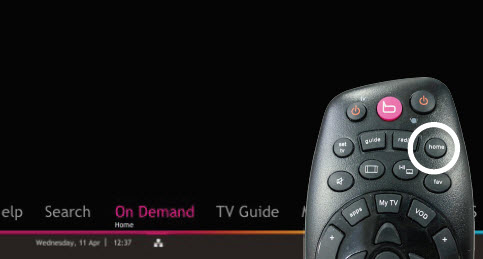
On your remote, press the “HOME” button and the home menu will be displayed at the bottom of your screen.
STEP 2
Navigate to SETTINGS and press “OK”.

STEP 3
Navigate to STB DIAGNOSTICS and press “OK”.

STEP 4
Refer to the signal strength % shown on the top left of your screen.


