
A free satellite TV service from Astro. Watch lifetime entertainment, news, learning & information and more.

Pictures for illustration only.
Enjoy free access to 15+ TV channels & 10+ radio channels.
* Subject to Astro terms & conditions.


Step-1 |
Step-2 |
Step-3 |
Choose a plan & sign-up online. |
Sit back & wait for installation. |
Enjoy your new Astro / Broadband! |
A free satellite TV service from Astro. Watch lifetime entertainment, news, learning & information and more.
Pictures for illustration only.
New decoder only without satellite dish & cabling. You must have Astro/Njoi satellite dish and cable installed and working properly.
Including installation.
New decoder complete with satellite dish & cabling.
Including installation.
Applying for
| Njoi Astro UniFi Maxis |
Find your answers here.
We provide one stop service to apply Astro and Broadband for you.
You can avoid driving and queuing at the sales counter. We are the dealer that can help you to handle your application from the beginning to the end.
We do not charge you when you apply from us. There is no credit card information required to apply here. Charges are the same as you apply from the sales counter.
First, you can apply online, we will get back to you immediately during business hour. WhatsApp/Email/Fax us your Photocopy of IC (for malaysian) / Passport (for foreigners). When we receive all the information, we will proceed with your application immediately.
Once we receive your application with complete information, we will process your application immediately during business hour. The contractor from the service provider will then contact you for installation appointment once your application is approved.
Enjoy greater savings and hassle-free bill payment in one single bill for both Astro and Broadband. You get to enjoy Astro and Broadband at discounted price every month over the contract period of 24 months.
Astro offers multiple TV packs including Entertainment, Sports, Movies and Kids options. You can choose a pack that matches your viewing preferences and add optional streaming apps where available.
Yes, you may subscribe to Astro TV packs without bundling broadband. However, bundling Astro TV with Fibre Broadband may provide better monthly savings and convenience with a single bill.
For small households with light streaming and browsing, 100Mbps is usually sufficient. Larger families, gamers or heavy streamers may benefit from 500Mbps or 1Gbps plans for smoother performance across multiple devices.
Most Astro TV and Fibre broadband plans come with a 24-month contract. Early termination charges may apply if cancellation is made before the contract ends.
Yes, you may upgrade your TV pack or broadband speed at any time, subject to eligibility and coverage. A new contract period may apply depending on the upgrade.
Your monthly bill will be issued directly by Astro. You may receive it via email or access it through your Astro account. Bundled customers will receive a single combined bill for TV and broadband services.
Payment methods may include online banking, auto debit, credit card or other approved payment channels provided by Astro. Our team can guide you during the registration process.
If you experience any service interruption, you may contact Astro customer support for technical assistance. In many cases, issues can be resolved remotely or a technician will be arranged if necessary.
Yes, relocation is subject to service availability at your new address. Relocation charges and contract adjustments may apply depending on your plan.
No, you do not need a credit card to submit your application. Payment setup will be arranged directly with Astro after your service is approved.
Selected Astro TV packs allow optional add-ons such as streaming services depending on current promotions and availability. Additional monthly charges may apply.
Yes, a WiFi router is typically provided during fibre installation. The router model may vary depending on the selected broadband speed plan.
Yes, we will check the service coverage at your address before proceeding with your application to ensure broadband is available at your location.
For Malaysians, please provide a copy of your MyKad. For foreigners, provide a copy of your passport when submitting your broadband application.
After your application is approved, the service provider typically contacts you within 2 to 7 working days to arrange the broadband installation appointment.
Most Astro Broadband plans come with a 24-month contract starting from your installation date. If you relocate, a new 24-month contract may apply at your new address.
Yes, you can relocate your broadband service, subject to service availability at the new address. Your contract may reset for another 24 months from the new installation date.
Yes, you may request to relocate broadband devices within your home. Non-standard installation charges may apply and are payable to the installer directly after assessment.
Yes, you can switch to Astro Broadband. To avoid service interruption, it is recommended to activate the new service before terminating your current broadband contract.
Standard installations may be free during promotions, but non-standard installations (e.g., device relocation or complex wiring) may incur extra charges payable directly to the installer.
There are a few ways you can access Netflix on the Ultra Box as below:
IMPORTANT! If you are accessing Netflix on your Ultra/Ulti Box for the first time, please wait for the Netflix activation email from Astro (this may take up to 10 minutes) for the app to be reflected in your account. If you skip this 10-minute period, you may experience double charging by incorrectly signing up for Netflix using your credit card details.
Go to the "Content' tab and click the search icon on the screen. Type in a show title. The titles are categorized according to the following:

Customers with a Movies subscription via Movies, Premium 1, Premium 3 or Platinum Packs will be able to access Disney+ Hotstar on the Ultra Box and Ulti Box. Alternatively, customers can add on the 3-months Disney+ Hotstar pass for only RM54.90. Subscribe to Disney+ Hotstar via astro.com.my/Disney.
No, Astro GO is a free app for Astro customers. The content available on Astro GO will depend on the subscription pack that you are subscribed to.
If you do not have an Astro subscription, please click here to find out packages available.
Service will resume within 3 hours after payment is made.
Yes, you may cancel your Astro Fibre order before service activation, however, kindly note that there is a cancellation charge of RM212 (inclusive of SST) for any service cancellation done 48 hrs before scheduled appointment.
You may click here to Login and proceed to secure your Astro ID by linking it to your Astro account. If you do not have an Astro ID, please follow the steps in below to create one. You may also choose to log in or create Astro ID with your social accounts (eg. Facebook, Google and Apple).


No, the quality of your video depends on the speed and reliability of your internet.
No, there are no penalty fees for the Mesh WiFi devices should you wish to terminate Astro Fibre within/after 24 months.
For customers who wish to have their physical tax invoices reprinted, there will be a flat fee of RM10.00 levied as part of the process which has been implemented since year 2015.
By changing from a 12-months commitment period to 24-months, there will not be any cancellation fee applicable. You will start a new contract with 24-months commitment and receive the corresponding discount for that duration.
You can be assured that your data are safe with us. Astro implemented sufficient security measures to protect customer data and fully comply to Personal Data Protection Act
Most Astro customers are eligible to use the app, web, Ultra and Ulti boxes. You will only need to login with your Astro ID. Do note that your Astro ID must be linked to your Astro account to use the service. Click "Create now!' on the login page and you will be guided to create an Astro ID if you do not have one.
Yes, you can upgrade your internet speed. However, speed downgrade is not allowed.
Please submit your issue here or you can WhatsApp us at 03-9543 3838.
BYOND / PVR / Ultra Box
To dismantle ONLY - FOC
To reinstall ONLY – RM65
To dismantle and reinstall - RM65
Broadband / IPTV
Relocation within 6 months of contract start will be charged a RM500.00 relocation fee, and the contract will be renewed to a new 24-month contract.
Relocation after 6 months of contract start will have their contract renewed to a new 24-month contract.
Note For IPTV Customers:
1. Upon relocation request, all exiting IPTV customers will be converted to our Astro & Broadband service. Customers can choose to have standard Astro service with satellite dish, or unicast Plug & Play without satellite dish.
2. If customers choose to have satellite dish, an additional RM150.00 will be charged for satellite installation. If customers choose to have unicast Plug & Play service, no satellite dish is required, hence no extra charge will be incurred.
*Please note that additional charges may apply if the reinstallation process requires extra cables/fixings.
For information about the Disney+ Hotstar app functions and specifications, please visit help.hotstar.com or email disneyplus.my@hotstar.com.
You can add on Astro Fibre, our own internet service to your existing TV Pack for even more value and savings. Please click here to learn more about Astro Fibre.
Please follow the steps below:
Step1: Fill in Merge/Split Equipment Form (Part A & Part B)
Step2: A full payment to be made on any outstanding balance for all related accounts (if any).
Step3: Submit all documents via feedback form or walk in to nearest Astro Customer Service Centre (CSC).
Step4: Customer will expect a call from our validation team (Note: Turnaround time for merge/ split of account is 3-5 working days upon receiving all complete documentation).
Note:
1. There might be a loss of transmission during the processing of transfer equipment ownership, split or merge of equipment.
This exercise currently only affects person-to-person SMS with URL links. However, the blocking of SMS sent by businesses via short codes such as 6XXXX, 3XXXX, 2XXXX and 1XXXX will be implemented at a later phase. In response to this government initiative, Astro customers will no longer receive SMS bills effective 1 August 2023. This change will be carried out in phases.
Please switch your preferred Bill Delivery Method using our self-service portals via My Astro Web or My Astro app. Please click here to download the app on your mobile device or login to My Astro Web.
Yes, existing non-Primary Pack customers who add on 50Mbps to their subscription will get to enjoy high speed broadband for only RM60/month and a free speed upgrade to 100Mbps for 24 months. Please note that a new 24-month contract will start upon successful installation.
Astro ID is the account you use to sign in and manage all your Astro services online. You can use your Astro ID for the following Astro apps and portals:
You can create an Astro ID using your mobile number or email address here. To secure your Astro ID, please proceed to next step and link the ID to your Astro account number (10 digits) or smart card number (12 digits).
Rescheduling must be done at least 1 hour prior to the original appointment time.
Yes, existing Astro customers can subscribe to all Astro & Broadband offerings. 24 months contract will be renewed upon signing up for broadband.
1. Power reset (on & off) your TV, Astro Decoder, Modem and Router.
2. Ensure standard physical connection (No 3rd party devices connected to decoder and modem).
3. Please ensure at all-time your router is 0.5 meter away from your Astro Decoder to avoid signal interferences.
4. Please standby computer/laptop to access to the internet and connection must be via LAN (cable) [connect the LAN (cable) at any LAN port at router and direct to computer/laptop].
5. You may open any web browser such as Google Chrome, Internet Explorer, Mozilla Firefox and etc.
6. On the address bar, please go to http://www.speedtest.net/ and below page will appear.

7. Click "Change Server" to edit the settings preferred by Internet Service Provider (ISP).
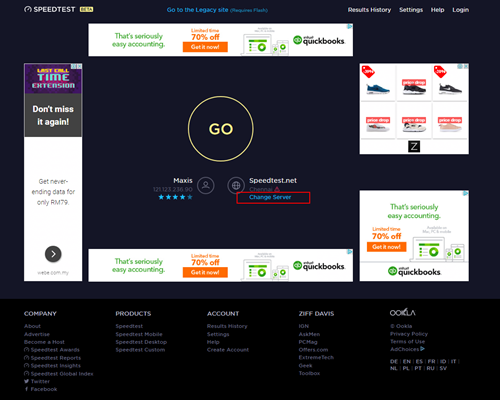
8. Edit the server settings by search and select the required server required by ISP.
For Maxis provider - Select Subang Jaya - Maxis server.
For TIME provider - Select Shah Alam - TIME dotcom Bhd server.
For Allo provider - Select Cyberjaya - Global Forway Sdn Bhd server.

9.Click "GO", and the test will begin.

The test is completed once both download and upload speeds are displayed.
Sample of the Speedtest result is shown below.

**Please ensure the snapshot includes a time stamp and network used either LAN cable or wireless (as per picture above)
10. Kindly screenshot or take a picture of the result, name it as "LAN Speedtest".
11. Repeat the test once again using Wi-Fi connection (Please unplug your LAN cable and connect via wireless connection using your SSID).
12. Screenshot or take a picture of the result, name it as "WiFi Speedtest".
Yes, your charges during the deferment days will be pro-rated and reflected in your next bill. Please note that due to the recent requested change in your Astro account, the expiry date for your Disney+ Hotstar (3-months pass) subscription has been deferred to xxx (date) to consolidate the final monthly subscription pricing.
Customers with a Movies subscription via Movies, Premium 1, Premium 3 and Platinum packs will be able to access Disney+ Hotstar on the Ultra box.
Alternatively, customers can add on the 3-month Disney+ Hotstar pass for RM54.90. Subscribe to Disney+ Hotstar via astro.com.my/Disney.
For more support and options for your subscription, please WhatsApp us at 03 9543 3838 and type DH Help. Alternatively, you may visit astro.com.my/Disney for more information.
STEP 1
On your remote, press the HOME button and the home menu will be displayed on top of your screen.

STEP 2
Navigate to Settings.

STEP 3
Navigate to HDMI Audio and press "OK".

STEP 4
Navigate to your preferred selection and press “OK”.


3. Click the Network Utility icon to open the Network Utility window.
4. For Ping Test, select the Ping tab and then type the address you'd like to ping in the text box. Click Ping and wait for the ping results.

5. For Traceroute Test, select the Traceroute tab and then type the address you like to traceroute in the text box. Click Trace and wait for the traceroute results.

1. Click the Search icon (magnifying glass) in the bottom left-hand corner and type "cmd" into the search bar.

2. Select the Command Prompt app - it will be at the top of the list of search results as the best match.

3. A black box with a flashing cursor will open; this is the Command Prompt.
For Ping Test, type "ping" and then hit the Space bar on your keyboard. Type in the address you like to ping and then hit the Enter key on your keyboard. Wait for the ping results.

For Traceroute Test, type "tracert" and then hit the Space bar on your keyboard. Type in the address you like to trace and then hit the Enter key on your keyboard. Wait for the tracert results.

1. Open the Start menu by clicking the Windows icon at the bottom left-hand corner of the screen.
2. Type "cmd" in the search bar at the bottom of the menu.
3. Click cmd found in the search results for Programs.

4. A black box with a flashing cursor will open; this is the Command Prompt.
For Ping Test, type "ping" and then hit the Space bar on your keyboard. Type in the address you like to ping and then hit the Enter key on your keyboard. Wait for the ping results.

For Traceroute Test, type "tracert" and then hit the Space bar on your keyboard. Type in the address you like to trace and then hit the Enter key on your keyboard. Wait for the traceroute results.

1. Move the mouse to the right-hand corner of the screen to make the vertical menu bar (charm bar) appear. Click Search.
2. Type "cmd" in the search bar and hit the Enter key on your keyboard.

3. Click cmd that found in the search results for Programs.
4. A black box with a flashing cursor will open; this is the Command Prompt.
For Ping Test, type "ping" and then hit the Space bar on your keyboard. Type in the address you like to ping and then hit the Enter key on your keyboard. Wait for the ping results.

For Traceroute Test, type "tracert" and then hit the Space bar on your keyboard. Type in the address you'd like to trace and then hit the Enter key on your keyboard. Wait for the traceroute results.
1. Click the Start button in the bottom left-hand corner of the screen.
2. Click the Run option in the right-hand column.

3. Type "cmd" in the text box and then hit the Enter key on your keyboard.
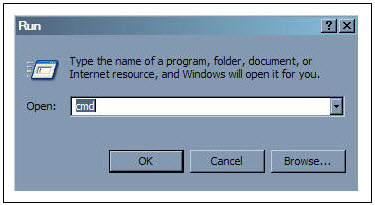
4. A black box with a flashing cursor will open; this is the Command Prompt.
For Ping Test, type "ping" and then hit the Space bar on your keyboard. Type in the address you'd like to ping and then hit the Enter key on your keyboard. Wait for the ping results.

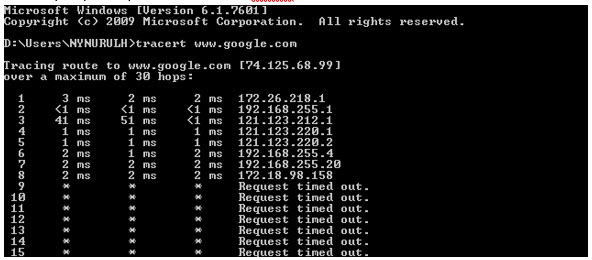
For Traceroute Test, type "tracert" and then hit the Space bar on your keyboard. Type in the address you'd like to trace and then hit the Enter key on your keyboard. Wait for the tracert results.
STEP 1
On your remote, press the HOME button.

STEP 2
Navigate to Update Satellite Frequency and press “OK”.

STEP 3
Choose Test Satellite Frequency and press “OK”.

STEP 4
Select Yes, continue and press "OK" to start the test.
Otherwise, select No, go back to cancel.

STEP 5
Satellite Frequency Test progress screen will be displayed.

STEP 6
The test result will be displayed once completed.
Press "OK" to go back to channel.
Unfortunately, this means that you are using a TV model that does not support 4K UHD resolution (Sony BRAVIA 4K GB, Sony BRAVIA 4K UR or Sony BRAVIA VH). Not to worry, we are working with the Sony team to ensure you will be able to enjoy these 4K UHD channels soon. We will keep you posted once these channels are available to you!
Please follow the steps in Q5, then continue with the steps below:
| Step 1: Click the “Email” or “Mobile Number” field to edit. Then, enter your updated detail(s). | Step 2: Complete the verification by entering the code sent to your new email address or mobile number. | Step 3: Congratulations! You have successfully updated your contact detail! |
For all new Astro Fibre customers with the RG21 router, the Astro Fibre App will be installed on your mobile device for you during installation. Alternatively,you may refer to the user guide here for self-installation.
The notification you receive will depend on the payment method you choose:
(i) My Astro Portal: e-receipt will indicate payment confirmation.
(ii) IVR: Payment status will be notified over the IVR and an SMS notification will be sent for successful transactions.
(iii) SMS: Payment status will be notified via SMS.
(iv) Call: Payment status will be notified via SMS.
(v) Customer Service Centre: Physical receipt will indicate payment confirmation.
If you choose to self-install the Plug& Play Box, then no installation fee will be charged. However, there will be an activation fee (please refer to the table below)

If you choose to have an installer to install the Plug & Play Box, then an installation fee will also apply.
You may register up to four (4) devices.
To remove devices on Astro GO, click on Settings > Registered Devices to view and remove a device(s) from the list of devices registered to your Astro ID.
After order submission, the Plug & Play Box and Astro SIM card will be couriered separately to your service address. The delivery dates with the tracking numbers will be communicated via SMS.
The Plug & Play Box and Astro SIM card should arrive within 3-working days after your order submission. You may self-install your box by following the guide here.
STEP 1
On your remote, press the Home button and the Home Page will be displayed on your screen.
STEP 2
Navigate to Profile.
STEP 3
The Profile Selection Screen will be displayed. 
STEP 4
Navigate to Edit Profile.
STEP 5
Choose a profile to edit.
STEP 6
Choose a new Profile Picture and press “OK”.
Yes, you can switch to Astro Fibre and all the devices provisioned will be maintained (Fibre modem & WiFi router) with the new Astro Fibre subscription. However, your Astro TV package will be removed/terminated.
An early cancellation fee will be applied if you are still within the 24-month contract. Please refer to the Astro Fibre's cancellation details.
We encourage you to upgrade your Astro experience by switching to our new packs to enjoy more choices, value and flexibility. Starting 9 November 2021, you would need to be subscribed to the new packages to make any changes to your subscription.
Currently, there are no rebates provided when you sign-up for the Ultra/Ulti Plug & Play Box.
For customers with the Ultra or Ulti Box, please ensure to provide your latest contact details to our Astro agent during the call to terminate your account, this includes your mobile number and house address. If you still need further help, please contact us at 03-9543 3838.
When Band Steering is disabled, you will see two separate WiFi SSID based on its frequency bands. Example:
i.SSID: SSID2G, Password: 1234567
ii.SSID: SSID5G, Password: 4567890
*WiFi SSID (Service Set Identifier) is the name of your wireless network, also known as Network ID. It is viewable to anyone with a wireless device within reachable distance of your network.
Yes, you may terminate the service. However, an early cancellation fee will be applied for terminations/cancellations within 24 months. Please refer to the Astro Fibre's cancellation details.
In general, these two bands can be differentiated with these parameters: Coverage, Channel Interference and Speed.
2.4GHz gives better coverage but lower speeds, while 5GHz provides faster internet but covers a smaller area.

Please ensure that your mobile number is up to date in our database to ensure that payment reminders are sent to the right person.
You can do so via:
1. Astro Self-Service Portal
2. Call our Customer Call Centre (CCC)
**Only account holder can update the mobile number
Some of our payment partners require payees to scan the barcode on the statement to make payment. Always bring your Astro bill statement when making payment over the counter.
Information of the PPV CH200 cessation has been announced on CH200 from 1 - 7 October prior to the PPV cessation. Once again, we regret any inconvenience caused.
Having trouble with your phone line ?
You may proceed to contact below dedicated service provider directly
1 800 1818 18
Any Astro GO compatible device (mobile/tablet/PC) and Multiroom Smart TV* compatible TVs will benefit from Astro GO+.

