
A free satellite TV service from Astro. Watch lifetime entertainment, news, learning & information and more.

Pictures for illustration only.
Enjoy free access to 15+ TV channels & 10+ radio channels.
* Subject to Astro terms & conditions.


Step-1 |
Step-2 |
Step-3 |
Choose a plan & sign-up online. |
Sit back & wait for installation. |
Enjoy your new Astro / Broadband! |
A free satellite TV service from Astro. Watch lifetime entertainment, news, learning & information and more.
Pictures for illustration only.
New decoder only without satellite dish & cabling. You must have Astro/Njoi satellite dish and cable installed and working properly.
Including installation.
New decoder complete with satellite dish & cabling.
Including installation.
Applying for
| Njoi Astro UniFi Maxis |
Find your answers here.
We provide one stop service to apply Astro and Broadband for you.
You can avoid driving and queuing at the sales counter. We are the dealer that can help you to handle your application from the beginning to the end.
We do not charge you when you apply from us. There is no credit card information required to apply here. Charges are the same as you apply from the sales counter.
First, you can apply online, we will get back to you immediately during business hour. WhatsApp/Email/Fax us your Photocopy of IC (for malaysian) / Passport (for foreigners). When we receive all the information, we will proceed with your application immediately.
Once we receive your application with complete information, we will process your application immediately during business hour. The contractor from the service provider will then contact you for installation appointment once your application is approved.
Enjoy greater savings and hassle-free bill payment in one single bill for both Astro and Broadband. You get to enjoy Astro and Broadband at discounted price every month over the contract period of 24 months.
Astro offers multiple TV packs including Entertainment, Sports, Movies and Kids options. You can choose a pack that matches your viewing preferences and add optional streaming apps where available.
Yes, you may subscribe to Astro TV packs without bundling broadband. However, bundling Astro TV with Fibre Broadband may provide better monthly savings and convenience with a single bill.
For small households with light streaming and browsing, 100Mbps is usually sufficient. Larger families, gamers or heavy streamers may benefit from 500Mbps or 1Gbps plans for smoother performance across multiple devices.
Most Astro TV and Fibre broadband plans come with a 24-month contract. Early termination charges may apply if cancellation is made before the contract ends.
Yes, you may upgrade your TV pack or broadband speed at any time, subject to eligibility and coverage. A new contract period may apply depending on the upgrade.
Your monthly bill will be issued directly by Astro. You may receive it via email or access it through your Astro account. Bundled customers will receive a single combined bill for TV and broadband services.
Payment methods may include online banking, auto debit, credit card or other approved payment channels provided by Astro. Our team can guide you during the registration process.
If you experience any service interruption, you may contact Astro customer support for technical assistance. In many cases, issues can be resolved remotely or a technician will be arranged if necessary.
Yes, relocation is subject to service availability at your new address. Relocation charges and contract adjustments may apply depending on your plan.
No, you do not need a credit card to submit your application. Payment setup will be arranged directly with Astro after your service is approved.
Selected Astro TV packs allow optional add-ons such as streaming services depending on current promotions and availability. Additional monthly charges may apply.
Yes, a WiFi router is typically provided during fibre installation. The router model may vary depending on the selected broadband speed plan.
Yes, we will check the service coverage at your address before proceeding with your application to ensure broadband is available at your location.
For Malaysians, please provide a copy of your MyKad. For foreigners, provide a copy of your passport when submitting your broadband application.
After your application is approved, the service provider typically contacts you within 2 to 7 working days to arrange the broadband installation appointment.
Most Astro Broadband plans come with a 24-month contract starting from your installation date. If you relocate, a new 24-month contract may apply at your new address.
Yes, you can relocate your broadband service, subject to service availability at the new address. Your contract may reset for another 24 months from the new installation date.
Yes, you may request to relocate broadband devices within your home. Non-standard installation charges may apply and are payable to the installer directly after assessment.
Yes, you can switch to Astro Broadband. To avoid service interruption, it is recommended to activate the new service before terminating your current broadband contract.
Standard installations may be free during promotions, but non-standard installations (e.g., device relocation or complex wiring) may incur extra charges payable directly to the installer.
There is no contract for this subscription.
Yes, another person may register their credit card to your account's auto-debit facility. If you are performing this action via our call centre, the respective card holder is required to be present.
Astro Fibre installation will come with 1 unit of TM fibre modem and 1 WiFi router with 24 months warranty period.
While warranty period for Mesh WiFi will be treated as one-to-one swap for faulty Mesh units at any point of time during your service tenure with active Mesh subscription.
Each Astro customer is entitled up to 4 smart devices to be registered including mobile, laptops, tablets and Smart TV per household.
If you have maximised the registered device, you will be able to see the list of all your current registered devices on your mobile screen. Please remove any one device to allow the current Smart TV device to be included.

Do note that only 1 Smart TV device is allowed at any point in time.
You can add a new Netflix account to your bill through CH 741 or clicking the Netflix button on the remote control. Please enter the email address you would like to use for Netflix subscription and ensure the Billing partner is Astro.
If you would like to transfer your existing Netflix Account to be charged under Astro bill, please follow the steps below:
For customers subscribed to our New Astro Packs (for example: Primary, Entertainment or Sports Packs), you will be charged a one-off switching fee of RM10 (excl. govt tax) if you decide to switch to another ala-carte add-on with a lower fee. For example, removing Korean add-on (RM9.99/month) and purchasing Horror add-on (RM5.99/month) will incur a RM10 (excl. govt tax) switching fee to your account.
For customers subscribed to our Old Astro Packs (for example: Super or Dynasty Packs), there will be a one-off switching fee of RM10 (excl. govt tax) if you decide to switch to another ala-carte add-on with a lower or same fee. For example, removing Korean add-on (RM9.99/month) and purchasing Horror add-on (RM5.99/month) OR Kids add-on (RM9.99/month) will incur a RM10 (excl. govt tax) switching fee to your account.
Please ensure that your Astro subscription comes with access to Disney+ Hotstar. You may visit astro.com.my/disney to learn more about the Packs that come with Disney+ Hotstar or to check if your Disney+ Hotstar access is activated.
Upon confirmation that your subscription comes with access to Disney+ Hotstar, if you still see an error screen on your TV with your Ultra or Ulti Box when logging in to Disney+ Hotstar, please call our Customer Contact Centre at 03 9543 3838 and an Astro agent will be available to assist you immediately.
You may switch to E-mail Billing or Paper bills to be notified of your bill and make payment. Kindly note that if you select to have Paper Bills, you will be charged a RM10 fee per bill.
Service will be resumed after you make payment within 45 days. The monthly subscription fee to be prorated accordingly and a reconnection fee of up to RM20 (exclusive of SST) will be applied upon service resumption.
If payment is made within 45 days from your bill cycle date, Astro & Broadband services will be resumed within 3 hours of payment received. Your following month's bill will be prorated accordingly.
Find out more about the reconnection fee here.
STEP 1
Press "HOME" button on your remote control.

STEP 2
Navigate to Settings and press "OK".

STEP 3
Navigate to STB Diagnostics and press "OK".

STEP 4
Take a look at the Smart Card Status.

1. Ensure Modem/Router are connected tightly to the power socket.

2. Try to use another power socket / power source to eliminate faulty power sockets/power sources which could cause the issue.

3. If issue persists, submit your Feedback Form for further assistance.

STEP 1
Switch off the power for your box and make sure that the adapter's power light is off.

STEP 2
Locate the Smartcard at the front or right side and gently pull it out.
Make sure that the adapter's power light is off.

STEP 3
Wipe the Smartcard's gold chip clean using a dry soft cloth.

STEP 4
Make sure the gold chip is facing upwards and reinsert it all the way in.

STEP 5
Switch on the power for your box and make sure that the adapter's power light is on. Please wait for 5 minutes.

STEP 6
Turn on your box. You should no longer be experiencing this problem.

If issue persist, please submit the issue on our Feedback Form and attach a picture of your smart card number for assistance.
STEP 1
Switch off the power for your box and make sure that the adapter's power light is off.
STEP 2
Locate the Smartcard at the front or right side and gently pull it out make sure that the adapter's power light is off.
STEP 3
Wipe the Smartcard's gold chip clean using a dry soft cloth.
STEP 4
Make sure the gold chip is facing upwards and reinsert it all the way in.
STEP 5
Switch on the power for your box and make sure that the adapter's power light is on. Please wait for 5 minutes.
STEP 6
Turn on your box. You should no longer be experiencing this problem.
If issue persist, please submit the issue in our Feedback Form and attach a picture of your General tab of the STB Diagnostics for assistance.
You should have received an email or SMS with your activation details, please click on the link provided to be redirected to the Netflix website to activate your account.
Alternatively, you can also activate Netflix on your Ultra/Ulti Box. Please surf to CH 741 on your Ultra/Ulti Box (or click the Netflix button on your Astro remote) and follow the instructions on the screen.
1. Power reset (on & off) your Modem and Router.
2. Ensure standard physical connection (No 3rd party devices connected to decoder and modem).
3. Please connect your computer or laptop to your Astro Fibre router using LAN cable. Your LAN cable must be connected from the yellow port of Astro Fibre router (Any available port).
4. Once connected, open any web browser such as Google Chrome, Internet Explorer, Mozilla Firefox and etc.
5. On the address bar, type https://testmyline.astro.com.my/ and below page will appear.

6.Click "GO", and the test will begin.

The test is completed once both download and upload speeds are displayed.
Sample of the Speedtest result is shown below.

**Please ensure the snapshot includes a time stamp and network used either LAN cable or wireless (as per picture above)
7. Kindly screenshot or take a picture of the result, name it as "LAN Speedtest" for test using LAN cable (wired connection).
8. Repeat the test once again using WiFi connection (Please unplug your LAN cable and connect via wireless connection using your SSID).
9. Screenshot or take a picture of the result, name it as "WiFi Speedtest".
Should you choose to discontinue/terminate the Astro Fibre Bundle service before the expiry of the contract (24 months), you will be subjected to an early cancelation fee of RM100 x Remaining months of the contract period for your Broadband services and early cancellation fee of New Packs accordingly RM600 (prorated) for Ulti Box or RM1000 (prorated) for Ultra Box.
Any bundle package promotion will be removed, and you will no longer get to enjoy similar promotions upon reconnection.
All Astro Fibre devices provisioned (Fibre modem, WiFi router and Mesh) will need to be returned upon termination. Our team will schedule the collection of equipment after your Broadband services have been terminated.
If equipment is damaged, lost or cannot be retrieved, penalty fees will be applied (excluding Service Tax) accordingly.
Astro is continuously improving our user interface and introducing new features to our platforms to ensure that your Astro experience is more seamless, efficient and user-friendly.
For details on our latest interface, Picture-in-Picture mode and auto-start interactive mode on Astro GO, please click here.
In addition, we have also recently introduced a new look to the Title Information Page, the ability to disable the Profile Selection Screen and adjustable auto-standby timing. For more information, please click here.
Your Astro Rewards tier is based on how long you've continuously been an Active Astro Pay TV customer:
The rewards you will receive depends on which tier you're in. Rewards are cumulative: If you're in Diamond tier, you will be able to enjoy all the benefits from Magenta, Silver, and Gold tiers.
If you cancel your Astro Pay TV services but resubscribe at a later date, your duration (year) with us will reset to zero and restart according to your new activation date. Your Astro Rewards tier will reset to Magenta.
Yes, existing Astro customers can subscribe to all Astro Fibre offerings. You also have the option to subscribe to Astro Fibre as a standalone, which comes without any TV packages.
The 24-month contract will be renewed upon signing up for the new packs.
STEP 1
On your remote, press the HOME button.

STEP 2
Navigate to SETTINGS icon and press "OK".

STEP 3
Navigate to Manage Satellite Frequency and press “OK”.

STEP 4
Choose Test Satellite Frequency and press “OK”.

STEP 5
Choose "Confirm" to continue Test Satellite Frequency and press “OK”.

STEP 6
Satellite Frequency Test progress screen will be displayed.

STEP 7
The test result will be displayed once completed.

You can access the self-help service 24 hours a day for the following:
1. Check account balance.
2. Refresh your Smartcard if your account is active but TV screen displays "This channel is not included in your subscription" or "We apologise for the service interruption".
3. Check application status.
4. Guide on Self Service troubleshooting guide via SMS Link.
5. Check trouble ticket appointment announcement.
6. Apps Related Self Service login & Activation guide via SMS Link.
7. Apps Related FAQ Details via SMS Link.
What is the "iQIYI Video - Dramas & Movies" App?
The iQIYI App is an on-demand video streaming service provided by iQIYI that was first launched in June 2019 in more than 191 countries providing the best Asian dramas to viewers across the world. iQIYI allows subscribers to watch all their favourite Asian entertainment including dramas, variety shows, movies and anime, with subtitles in multiple languages and equipped with Dolby Atmos for the most immersive experience at their fingertips.
Where can I access the iQIYI App?
Starting 20 December 2022, Astro customers will be able to enjoy the iQIYI app as an add-to-bill service for an exclusive price via Astro and enjoy the app on their Ultra/Ulti Box, mobile app and website.
How do I access the iQIYI App on the Ultra/Ulti Box?
After completing the subscription process, you will be able to access the iQIYI App on the Ultra/Ulti Box by following the steps below:
On your Ultra/Ulti Box
Step 1: At the Home menu, go to the App Rail and select "iQIYI"
Step 2: Click "OK" on your Astro remote
Step 3: While on the iQIYI App Home Page, navigate to "VIP account" located at the top left pane and click "Login". A page with a QR Code will be presented on your TV screen
Step 4: Scan the QR code using your mobile device and you will be directed to the iQIYI mobile app
Step 5: Follow the steps under "On Mobile App" below to pair your iQIYI account with your Ultra/Ulti Box
On the iQIYI Mobile App
Step 1: Download the iQIYI App on your mobile device
Step 2: At the login page, select "Continue with Astro"
Step 3: Log in with your Astro ID
Step 4: Click on the "Me" icon located at the bottom of the screen, and you will be presented with your iQIYI profile page
Step 5: Click on the in-app QR code scanner located at the top right corner of the screen
Step 6: Scan the QR Code displayed on your TV screen with the in-app QR code scanner. Refer to Step 3 under "On your Ultra/Ulti Box" above
Step 7: The screen on your TV will reload automatically and the iQIYI App home screen will be displayed. Now, you can enjoy the iQIYI App on your Ultra/Ulti Box!
Can I access the "iQIYI Video - Dramas & Movies' App outside of Malaysia?
Yes, the iQIYI app is accessible globally. However, the content of the app might differ depending on the country which will be tailored based on local content rights and market preferences.
Can I download the content on the iQIYI App for offline viewing?
Yes, you can download selected content on the iQIYI app for offline viewing at a later time. To find the titles you have downloaded, you may go to Profile > My Downloads.
What is the storage requirement for content downloading?
The storage requirement is dependent on the type of videos users are downloading as the space needed varies between titles.
Are there any subtitles or dubbing available for the content on the iQIYI app?
The iQIYI app offers subtitles in multiple languages for all their content excluding some variety shows. However, no dubbing option is available yet. You will be able to select or switch off your subtitles when you play your video in full screen.
Can I change the interface language of the iQIYI app?
Yes, you may change the interface language of the app. To access the language settings, please click "Profile" > "Settings" > "Language" and select your preferred language.
If you have any further questions regarding the app, please go to "Profile" > "Help and Feedback". Thank you for your support.
iQIYI VIP Subscriptions
What is a VIP subscription?
As a VIP (Standard VIP or Premium VIP), you will be entitled to enjoy the benefits of the VIP subscription, including:
Access to exclusive content only on iQIYI
Early access to selected content episodes
Where available, access to high definition (up to 1080P viewing quality) and surroundsound (Dolby Audio) versions of the Content
The ability to skip advertisements
Up to 2 concurrent viewing
Additionally, as a Premium VIP, besides the benefits mentioned above, you will also be entitled to the following benefits:
Advance previewing of selected content episodes labelled as "locked"
Where available, access to high definition (up to 4K viewing quality)
Up to 4 concurrent viewing of VIP content, compared to only 2 concurrent viewing enjoyed by Standard VIP members
If you have more questions about these VIP privileges, please let us know by following these steps: "Profiles" > "Feedback". More privileges are in development for VIPs. Please stay tuned and join IQIYI as a VIP to enjoy these benefits.
How can I become an iQIYI VIP?
You may join iQIYI as a VIP by following these simple steps:
Step 1: Head over to www.astro.com.my/iqiyi
Step 2: Select your desired package (Standard VIP or Premium VIP)
Step 3: Click "Get it now"
Step 4: Log in using your Astro ID
Step 5: Click "Get it now" again
Step 6: Please read the prompted message, then click "Proceed"
Step 7: You will see a confirmation message upon successful purchase
How much does it cost to join iQIYI as a VIP?
All new and existing Astro Pay-TV customers are entitled to Astro special price when they signup for iQIYI as a VIP member via Astro at www.astro.com.my/iqiyi.

How do I make payment for my iQIYI VIP subscription?
The monthly subscription fee for your iQIYI VIP subscription will be reflected in your Astro bill accordingly. For example, your Astro billing cycle is on the 20th of every month and you just signed up for the iQIYI Standard VIP subscription via Astro on 15October. Your iQIYI monthly charge will be reflected on your upcoming bill on 20th of October, and on the subsequent months' bills, as follows:
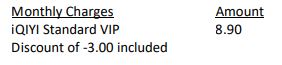
When can I start enjoying my VIP subscription?
You will be able to enjoy all the content on the iQIYI app immediately upon successful purchasefrom the Astro website. You may enjoy your VIP privileges from the iQIYI app on your Ultra Box, Ulti Box, mobile devices (Android & iOS), Apple TV, Android TV, as well as on Web (www.iq.com).Please ensure that the account used to log in to the app is the same one used to purchase your iQIYI VIP subscription.
I am an existing iQIYI VIP; will I get to enjoy Astro special price?
If you are an existing iQIYI VIP, you may cancel your existing VIP subscription with iQIYI and signup again via astro.com.my/iqiyi to enjoy the special price by adding your subscription to your Astro bill.
Where can I view my iQIYI entitlement expiry date/next payment details?
You can view your iQIYI entitlement & payment details in the app by follow these steps:
Step 1: Go to the Home Page
Step 2: Click on "VIP subscription"
Step 3: Click on "Manage VIP subscription" (Gear icon)
After following these steps, you will be able to view your entitlement expiry date, next payment date & payment method.
How do I cancel my iQIYI VIP subscription?
You may cancel your iQIYI subscription in the app by following these steps:
Step 1: Go to Home Page
Step 2: Click on "VIP subscription"
Step 3: Click on "Manage VIP subscription" (Gear icon)
Step 4: Click on "Cancel VIP subscription"
Will there be any penalty fees if I cancel my iQIYI VIP subscription?
There will be no penalty fee if you choose to cancel your iQIYI VIP subscription. Your cancellation will take effect upon your current entitlement expiry date. Kindly note that if you cancel your subscription within 24 hours before your entitlement expiry date as reflected in the iQIYI app (not according to Astro billing cycle), your subscription may be auto renewed.
App Issues
Who may I contact if I encounter any problems with the iQIYI app?
There are 4 ways for you to contact us for assistance:
Astro Login
How do I register for an Astro ID?
Download the iQIYI app > Select "Profile" > Click on "Log in with Astro ID" > Click on "Do not have an Astro ID? Click here".
Can I update my email address/mobile number for my Astro ID?
Yes, please visit Astro's Self Service Portal via myastro.astro.com.my to update your email address or mobile number.
I have forgotten my password; what should I do now?
Step 1: Click "Log in" and click "Forgot my password"
Step 2: Enter your email address and click "Submit"
Step 3: An email will be sent to your registered email address with further instructions on how to reset your password
How do I unlock a locked user account?
You may contact Astro's Customer Service by:
1. What is Netflix?
Netflix is a streaming entertainment service that offers a wide variety of award-winning TV programmes, films, anime, documentaries and more - on thousands of internet-connected devices. There's always something new to discover, and more TV shows and movies are added every month. The more you watch, the better Netflix gets at recommending TV shows and movies you’ll love.
Astro customers with an internet-connected Ultra Box or Ulti Box canaccess the Netflix app and watch Netflix content via their Astro Box. For more information about Netflix, visit the Netflix website https://about.netflix.com/en
2. Which new pack comes with Netflix?
Any packages with Entertainment Plus, Movies Plus & Sports Plus will include Netflix. The default Netflix offering is Netflix Standard (2 screens and HD viewing) as part of your Entertainment Plus, Movies Plus and Sports Plus subscription. You can upgrade up to Netflix Premium (4 screens and 4K UHD viewing) at a price of RM 10 (inclusive of govt. tax).
Note: For the above subscriptions, you may use the email address used for your existing subscription with Netflix to activate and the future billing for Netflix will be transferred to your Astro bundle charges. For users that are billed for Netflix through Apple before joining the Astro bundle, remember to cancel your Apple billing arrangement after activating the Astro bundle else you may be double charged for your Netflix account.
If you do not have a bundle which includes Netflix, you may also add anew Netflix subscription to your Astro Bill for billing convenience.
3. How do I know if my new pack includes Netflix?
If Netflix is included as part of your Astro pack, you will find it in My Astro app called “Apps” where you will be able to manage all the streaming apps you are entitled to.
Netflix will also be included in your Astro bill under “MonthlyCharges”
If you have added Netflix to your bill (Netflix Add-on), the Netflix subscription charge will appear in your Astro bill under “One-time charges” as Netflix App Subscription or Netflix Premium and will be charged monthly. You should refer to Netflix account Management for any changes to your Netflix subscription or should you wish to change to other billing methods.
4. I signed up for the EntertainmentPlus / Movies Plus / Sports Plus pack that includes Netflix. How do I activate my Netflix account?
You should have received an email or SMS with your activation details, please click on the link provided to be redirected to the Netflix website to activate your account.
Alternatively, you can also activate Netflix on your Ultra/Ulti Box. Please surf to CH 741 on your Ultra/Ulti Box (or click the Netflix button on your Astro remote) and follow the instructions on the screen.
5. Will I be able to access Netflix on my Ultra/Ulti Box?
You will be able to access Netflix on your Ultra and Ulti Box. However, kindly note that if you have an Ulti Box with a Netflix Premium subscription, you will not be able to watch content in 4K UHD and Netflix Spatial Audio.
6. How do I change my Netflix plan or account information?
You can make changes to your Netflix plans that are included in your Bundle through My Astro app.
You can change your non Astro-bundled a-la carte Netflix plan at any time by signing into Netflix.com and visiting the Account page, then selecting Change Plan to view and select available plans.
7. How many devices can I access Netflix at once?
Customers with a Netflix Premium account are allowed to watch on up to 4 supported devices in 4K UHD and Netflix Spatial Audio. In addition, Netflix Premium subscribers are also allowed to download shows to watch offline on 6 devices at a time.
Netflix Standard account customers are allowed to watch shows in Full HD and download them to watch offline on up to 2 supported devices at a time.
On the other hand,Netflix Basic account customers are allowed to watch shows in HD and download shows for offline viewing on only 1 supported device at a time.
8. You can add a new Netflix account to your bill through CH 741 or clicking the Netflix button on the remote control. Please enter the email address you would like to use for Netflix subscription and ensure the Billing partner is Astro.
If you would like to transfer your existing Netflix Account to be charged under Astro bill, please follow the steps below:
- Cancel your existing subscription with Netflix
- Once the remaining duration of your existing subscription has ended, you may proceed to subscribe for Netflix via Astro bill
- To subscribe, go to CH 741 and enter the email address used for your previous subscription with Netflix
- Once successfully completed, all existing settings and watching history on your Netflix account will be brought over
9. I have added a Netflix account to my Astro bill. Do I need to perform any activation?
By adding a Netflix account to your Astro bill, your Netflix account is already activated. No additional steps for activation are required.
10. When I create a new Netflix account to link to my Astro Bill, will I lose all my current watching history in Netflix?
You may retain your watch history and settings of your existing Netflix account by using the same email of your Netflix account during the linking of your Netflix account with Astro.
11. I forgot my Netflix username or password. How do I find my username or reset my password?
If you have forgotten your username or password, you may follow the steps below:
Step 1. Go to netflix.com
Step 2:Click on Sign In
Step 3:Click on “Need Help” to reset password
12. I forgot which Netflix account is associated with my Astro Account. How do I find that out?
You can recover your Netflix login here or at astro.com.my/Netflix
Step 1:Head to astro.com.my/Netflix
Step 2: At the FAQ section look for “How to recover my Netflix login email and password”
Step 3: Login with Astro ID
Step 4:Proceed to Netflix.com for account recovery
13. What will happen to my Netflix account if I cancel my Astro service or change my Astro package?
If your existing Netflix account is linked with your Astro subscription, your Netflix account will resume on the previous method of payment. If you linked a new Netflix account with your Astro subscription, cancelling Astro service will also cancel your Netflix account.
14. What happens to my Netflix account if I move to a new address?
There will be no changes to your Netflix account when you move to a new address.
15. How do I cancel Netflix?
If you are subscribed to Netflix via a bundle, Netflix comes by default as part of your entitlement.
If you are subscribed to Netflix as an a-la carte, the cancellation of Netflix can only be done via Netflix’s Website, etc. This change will reflect in your next bill.
From mid-December 2021 you may also cancel Netflix add-on through Astro Call Center.
16. I would like to change the Netflix account linked to my Astro pack. What should I do?
Please visit http://help.netflix.com to call or start a live chat with Netflix’s customer support agents. You will be assisted to unlink your Netflix account from your Astro subscription. After the process, you may link another Netflix account to your Astro subscription.
17. Will Netflix be automatically added to my Astro subscription?
Astro subscribers will have the freedom to subscribe to Netflix via Astro, or they may also choose to continue subscribing via Netflix directly on their own.
18. Will Astro censor Netflix content?
Absolutely not. Astro wants to give our members the convenience of having all their favourite series, exciting originals, vernacular signatures, live sports and local blockbuster movies all in one place.
19. I have signed up for two (2) or more main Astro subscriptions bundled with Netflix. Will I be entitled for multiple Netflix subscriptions?
Yes. You are entitled to separate Netflix accounts for each main Astro subscription e.g. If you have subscribed to Entertainment Plus, Platinum Pack, etc separately. Therefore, if you have more than one main Astro subscription with Netflix, you may choose to create multiple email addresses to activate each respective Netflix subscription. Please follow the steps provided to you via email/SMS in order to activate your Netflix subscriptions on the website.
20. Why should I subscribe to a Netflix on Astro vs direct subscription via the Netflix app?
- With numerous OTT entrants, consumers are suffering from subscription fatigue. In fact, they are looking for a one stop shop platform where OTT services are integrated in one place.
- Astro offers flexibility and convenience with new packs where customers can get the convenience of accessing a variety of content via Ultra Box as the single remote-control solution.
- In addition, there will be cost savings for Astro customers to purchase both Netflix and Astro together. Even better deals are available if customers also subscribe to broadband for a better-connected experience.
To reconnect your Astro account, please check your Account status, Bill Summary and pay on Astro Quick Pay. Your disconnected services will resume within 1 hour after you have paid your "Total Overdue Charges"
For all new Astro Fibre customers with the RG21 router, the Astro Fibre App will be installed on your mobile device for you during installation. Alternatively,you may refer to the user guide here for self-installation.
Your purchased PPV daily pass will still be accessible to you for the purchased duration ie. 3, 5, 7 or 30 days respectively. However, you will no longer be able to purchase PPV daily passes from 8 Oct onward.
We encourage customers to ensure their TV compatibility with the Astro Multiroom (Smart TV) app first before making any purchase here.
If you are still experiencing any issues, please contact us at wecare@astro.com.my or call or WhatsApp us at 03-9543 3838 and our agents will be happy to assist you.
Yes. Astro customers will soon be able to enjoy seamless access to Netflix on their connected Ultra and Ulti Boxes. Look out for more details then! Register your interest via https://astro.com.my/Netflix
1. Unifi netis brand
The following shows an Interface based on Unifi router


Note: Connection to Wi-Fi may be temporarily loss while the changes is updated.
Regular (DTH) customers can watch Astro without an Internet connection. If you have selected Plug & Play setup option, a minimum speed of 10Mbps/device is required to enjoy a good HD viewing experience on Ultra/Ulti¯Box and 30Mbps/device for 4K UHD viewing on Ultra Box. However, if you have selected the Regular (DTH) option, the internet speeds above are recommended to enjoy a good viewing experience for On Demand and Astro Cloud services.
Further details on pricing, billing and availability will be confirmed in coming months. Look out for more details and register your interest via https://astro.com.my/Netflix
Astro continuously reviews its product propositions to ensure we can provide the best customer experience for all our subscribers. We have discontinued the 50% multiroom in order to allow our Astro subscribers with a subscription fee of RM100 or more to only pay a standard RM49.99 (with box setup) to enjoy the Multiroom experience on an Ultra or Ulti Box.
We apologise for any inconvenience.
No, the courier charges are borne by Astro for the retrieval of the box and Smart Card/SIM Card.
There will be two attempts made to retrieve the box and you are required to be available at the agreed upon time.
Astro customers can make payments via Auto-debit, WhatsApp,Astro Quick Pay and other authorised payment channels withoutsurcharge for the easiest and fastest way to pay their Astro bills.
Bill payments at selected petrolstations, convenience stores, retail/mobile shops, kiosks, and e-Wallets, may incur a surcharge of up to RM0.50 per transaction by the appointed collection agencies of RMS (Razer), ATX, MobilityOne and e-Pay.
The surcharge is imposed by third-party payment collection partners for services rendered.
You can refer to all our payment options below. Those marked with ‘*’ will be subject to a surcharge by appointed collection agencies.
A. HASSLE-FREE METHODS
Auto-Debit:
Click here for step-by-stepinstructions on how to activate auto-debit payment via My Astro Portal.
WhatsApp:
JomPAY:
Look for the JomPAY logo on your latest bill, log into your preferred online banking platform, and submit your payment details.
• Biller Code: 9639 (unique to Astro only)
• Ref-1: <10-digit Astro account number> (E.g. 08XXXXXXXX)
B. ASTRO SELF-SERVICE METHODS
Astro Quick Pay:
My Astro Portal:
Channel 200:
My Astro App:
C.BANKS
Maybank:
Visit maybank2u.com.my for more information.
Public Bank:
Visit pbebank.com for moreinformation.
Bank Simpanan Nasional:
Visit mybsn.com.my for more information.
Agrobank:
Visit agrobank.com.my for more information.
D. e-WALLETS
ATX*
Boost, GoPayz, KelantanPay, Zcity (GEM REWARD), SabahPay, Tapay, GoPay,MerchantTradeMoney, ToneGroup, Elinking, Mpay, Mcash, and other various smaller wallets.
e-Pay*
Touch n Go (TnG), Grab Pay, Shopee, BigPay, True Money
E. OTHER METHODS
Associated Retailers:
RMS (Razer/ MOL)*
7-Eleven, 99 Speedmart, Caring Pharmacy
ATX*
RedONE Shop, Mobile Money, Runcit Hero (telecommunication shops), Parcel Hub (courier shops), Kiosk, DHL
Mobility One*
Kedai D’mart, Happy Mart, Pasaraya Sakan, PusatKomuniti Desa (PKD), Aeon Big and various sundry shops
e-Pay*
Petrol stations (Petronas, Shell, BHP, Caltex, Petron), KK Mart, Mydin, MyNews, SenHeng, Hai-O, Giant, TF ValueMart, Billion, Big Pharmacy
No, if you already have an Ulti box you will not be required to swap the box to enjoy the new packs. However, if you would like to access 4K UHD content, you may upgrade to Ultra Box. Installation and activation fees will be chargeable depending on your package selection.
Redemption should be done by the account holder. However, if the account holder is unavailable, immediate family members can make the redemption provided that the account holder has given them the permission to redeem using his account credentials.
You may check your bills and outstanding via:
No, the Astro Fibre App is available for Astro Fibre customers with the RG21 router only.
If you are subscribed to Netflix via a bundle, Netflix comes by default as part of your entitlement.
If you are subscribed to Netflix as an a-la carte, the cancellation of Netflix can only be done via Netflix's Website, etc). This change will reflect in your next bill. From mid-December 2021 you may also cancel Netflix add-on through Astro Call Center.
You can proceed with below troubleshooting if the weather is good. Otherwise, you may try again later.
STEP 1
On your remote, press the “HOME” button and the home menu will be displayed at the bottom of your screen.

STEP 2
Navigate to SETTINGS and press “OK”.

STEP 3
Navigate to STB DIAGNOSTICS and press “OK”.

STEP 4
Refer to the signal strength % shown on the top left of your screen.
If it is 65% or higher, please take the screenshot and submit your Feedback Form.
If it is below 65%, please go to Step 5.

STEP 5
Switch off the power for your box and make sure that the adapter’s power light is off.

STEP 6
Unscrew the satellite cable from the box and pull it out.

STEP 7
Plug the satellite cable back into the box and screw it back securely.

STEP 8
Switch on the power for your box and make sure that the adapter’s power light is on.
Please wait for 5 minutes.

STEP 9
Turn on your box. You should no longer be experiencing this issue.
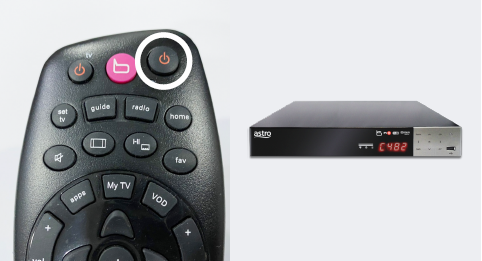
If issue persist, please submit the issue on our Feedback Form and attach a picture of your General tab of the STB Diagnostics for assistance.
Centralized Dish
If issue persist under a centralized satellite dish, please refer to your respective Building Management before contacting our agents.
The fee is a one-time activation fee that will be charged when you subscribe to the Plug & Play Box.
Please rest assured that streamingapps labelled with "coming soon"
will be available on Astro in the near future.Please visit product.astro.com.my/appsfor more information on the streaming apps available on Astro or follow oursocial media to get notified on latest launches.
Facebook: @Astro
Instagram: @astromalaysia
Twitter: @astroonline
Kindly take note that streaming appslabelled with “coming soon” will be made available on Astro once they areready. Astro reserves the right to delay or cancel streaming app launches, ifnecessary.
Tap on the "Content' tab on the navigation bar. Select "Channels' and the channel of interest and you may view the scheduled programmes of the day. To switch between days, choose a channel and tap on a particular day (E.g. Mon, Tues, Wed). You may also view the showtimes of the day and up to the next six days.

Astro introduces Liga Malaysia for all Astro customers to watch the Malaysian Football League’s Liga Malaysia competitions LIVE, comprising Perlawanan Sumbangsih (Piala Sultan Haji Ahmad Shah), Liga Super, Piala FA and Piala Malaysia live in HD on Astro Arena (CH801), Arena Bola channels (CH803 and CH804) and stream on Astro GO until further notice.
Astro Fibre is Astro’s own internet service that enables you to enjoy Astro content while staying connected with high-speed fibre broadband. Customers can enjoy substantial savings by choosing your desired broadband speed to accompany your Astro TV packages. Customers can choose from two types of Astro Fibre offering:
1. Ultra Box magenta light / Ulti Box purple light - Your box is turned "On".
Press the Home button to launch Video On Demand and stream anytime or press channel number on your remote.

2. Ultra Box / Ulti Box orange light - Your box is on "Standby" mode.
Your box is ready to be turned "On" or leave it in this mode to receive new software updates.

3. Ultra Box / Ulti Box blinking orange light - Your box is booting up.
Please wait a few minutes for the box to start.
4. Ultra Box / Ulti box blinking blue light - Your box is downloading a software update.
Please wait a few minutes for the download to complete.

Please use your Astro ID to log in to the Astro Fibre App. If you do not have an Astro ID, kindly follow the simple steps here to create one.
From Channels 480 (Astro First):
Purchase via Whatsapp
Purchase via SMS
*SMS service is available for Maxis, Celcom, Digi and U Mobile only.
From Beyond PVR On Demand interface:
From Ultra/Ulti On Demand interface:
From Astro Go app (purchases only applicable for Android devices):
*The default pin code is 0000 if you have not pre-set it.
You will receive SMS notifications upon successful sign-up with a delivery tracking number for the Plug & Play Box and the Astro SIM card.

