
A free satellite TV service from Astro. Watch lifetime entertainment, news, learning & information and more.

Pictures for illustration only.
Enjoy free access to 15+ TV channels & 10+ radio channels.
* Subject to Astro terms & conditions.


Step-1 |
Step-2 |
Step-3 |
Choose a plan & sign-up online. |
Sit back & wait for installation. |
Enjoy your new Astro / Broadband! |
A free satellite TV service from Astro. Watch lifetime entertainment, news, learning & information and more.
Pictures for illustration only.
New decoder only without satellite dish & cabling. You must have Astro/Njoi satellite dish and cable installed and working properly.
Including installation.
New decoder complete with satellite dish & cabling.
Including installation.
Applying for
| Njoi Astro UniFi Maxis |
Find your answers here.
We provide one stop service to apply Astro and Broadband for you.
You can avoid driving and queuing at the sales counter. We are the dealer that can help you to handle your application from the beginning to the end.
We do not charge you when you apply from us. There is no credit card information required to apply here. Charges are the same as you apply from the sales counter.
First, you can apply online, we will get back to you immediately during business hour. WhatsApp/Email/Fax us your Photocopy of IC (for malaysian) / Passport (for foreigners). When we receive all the information, we will proceed with your application immediately.
Once we receive your application with complete information, we will process your application immediately during business hour. The contractor from the service provider will then contact you for installation appointment once your application is approved.
Enjoy greater savings and hassle-free bill payment in one single bill for both Astro and Broadband. You get to enjoy Astro and Broadband at discounted price every month over the contract period of 24 months.
Astro offers multiple TV packs including Entertainment, Sports, Movies and Kids options. You can choose a pack that matches your viewing preferences and add optional streaming apps where available.
Yes, you may subscribe to Astro TV packs without bundling broadband. However, bundling Astro TV with Fibre Broadband may provide better monthly savings and convenience with a single bill.
For small households with light streaming and browsing, 100Mbps is usually sufficient. Larger families, gamers or heavy streamers may benefit from 500Mbps or 1Gbps plans for smoother performance across multiple devices.
Most Astro TV and Fibre broadband plans come with a 24-month contract. Early termination charges may apply if cancellation is made before the contract ends.
Yes, you may upgrade your TV pack or broadband speed at any time, subject to eligibility and coverage. A new contract period may apply depending on the upgrade.
Your monthly bill will be issued directly by Astro. You may receive it via email or access it through your Astro account. Bundled customers will receive a single combined bill for TV and broadband services.
Payment methods may include online banking, auto debit, credit card or other approved payment channels provided by Astro. Our team can guide you during the registration process.
If you experience any service interruption, you may contact Astro customer support for technical assistance. In many cases, issues can be resolved remotely or a technician will be arranged if necessary.
Yes, relocation is subject to service availability at your new address. Relocation charges and contract adjustments may apply depending on your plan.
No, you do not need a credit card to submit your application. Payment setup will be arranged directly with Astro after your service is approved.
Selected Astro TV packs allow optional add-ons such as streaming services depending on current promotions and availability. Additional monthly charges may apply.
Yes, a WiFi router is typically provided during fibre installation. The router model may vary depending on the selected broadband speed plan.
Yes, we will check the service coverage at your address before proceeding with your application to ensure broadband is available at your location.
For Malaysians, please provide a copy of your MyKad. For foreigners, provide a copy of your passport when submitting your broadband application.
After your application is approved, the service provider typically contacts you within 2 to 7 working days to arrange the broadband installation appointment.
Most Astro Broadband plans come with a 24-month contract starting from your installation date. If you relocate, a new 24-month contract may apply at your new address.
Yes, you can relocate your broadband service, subject to service availability at the new address. Your contract may reset for another 24 months from the new installation date.
Yes, you may request to relocate broadband devices within your home. Non-standard installation charges may apply and are payable to the installer directly after assessment.
Yes, you can switch to Astro Broadband. To avoid service interruption, it is recommended to activate the new service before terminating your current broadband contract.
Standard installations may be free during promotions, but non-standard installations (e.g., device relocation or complex wiring) may incur extra charges payable directly to the installer.
All existing or new Astro customers who meet the following criteria may upgrade to the Ultra Box:
If you live in a high-rise building, please call us at 03- 7481 8000 to check if your building can support the Ultra Box. If your high-rise building allows for the set-up of individual dishes you will be able to upgrade to the Ultra Box, subject to the criteria above.
If you would like to access our 4K UHD content via the Astro UHD channel 805 and UHD content on VOD, Astro Best and Astro First. We also recommend:
Note: If you do not have an internet connection at home, you may take up the Ultra Box bundled with Astro™'s broadband package with rebates of up to RM30/month. For more details and to sign up for Astro & Broadband, please click here.
Visit https://product.astro.com.my/box or check out our user guide for a quick and easy way to get started!
 Skyworth RG21

Login using your username and password if you have changed the router login setting. Otherwise, your default router login is as per below.
Username: user
Password: user
4. Once you have successfully logged in, the router's web-based setup page will appear.

5. At the top of the page, click WLAN to configure the WiFi parameters.

6. To change the channel on 2.4G, click the drop-down arrow for Channel, then select your desired channel.

7. Then, click "Save & Apply" for the changes to take place.

8. You may make the same changes for 5G by click the drop-down arrow for Channel, then select your desired channel.

9. Then, click "Save & Apply" for the changes to take place.

STEP 1
On your remote, press the HOME button.

STEP 2
Navigate to SETTINGS icon and press "OK".

STEP 3
Navigate to Manage Satellite Frequency and press “OK”.

STEP 4
Choose to Update Satellite Frequency and press “OK”.

STEP 5
Choose "Confirm" to continue Satellite Frequency Update and press “OK”.

STEP 6
Satellite Frequency Update progress screen will be displayed.
The updates will take approximately 20 minutes.

STEP 7
The status will be displayed once update is complete.

Yes, customers who have upgraded their packages or reconnected their Astro service in February 2024 will be charged with 8% Service Tax from 1st March 2024, for services period on or after 1st March 2024.
Astro is continuously improving our user interface and introducing new features to our platforms to ensure that your Astro experience is more seamless, efficient and user-friendly.
For details on our latest interface, Picture-in-Picture mode and auto-start interactive mode on Astro GO, please click here.
In addition, we have also recently introduced a new look to the Title Information Page, the ability to disable the Profile Selection Screen and adjustable auto-standby timing. For more information, please click here.
The Malaysia Communication and Multimedia Commission (MCMC)has issued a directive to all telecommunication companies (telcos) to block the sending and receiving of SMS with URL links. The move is aimed at preventing users from becoming victims of online scams. This exercise is applicable for all person-to-person SMS with URL links sent to or received from local and international mobile numbers, which has already taken effect as of 2 May 2023.
STEP 1
Switch OFF the power of your Ultra / Ulti box and make sure that the adapter's power light is off.

STEP 2
Switch ON the power of your Ultra / Ulti box and make sure that the adapter's power light is on.

STEP 3
Put the box on standby mode.

STEP 4
Press and hold the Home button on the box.

STEP 5
Wait until "boot" appear on the front panel and released.

STEP 6
When “boot” appears, press “Standby”, “Left “, “Up” continuously until Auto Update appear on box screen and Software Update progress on TV.


STEP 1
Switch OFF the power of your box and make sure that the adapter's power light is off.
STEP 2
Switch ON the power of your box and make sure that the adapter's power light is on.
STEP 3
Press Standby, Ch+, Standby keys on the box simultaneously when the "boot" message appears on the box front panel.
The Software Update progress screen will appears.
The update will take 10 - 15 minutes to complete. Please be patience.


STEP 1
Switch OFF the power of your box and make sure that the adapter's power light is off.
STEP 2
Switch ON the power of your box and make sure that the adapter's power light is on.
STEP 3
Press the standby button repeatedly after switch on the power.

STEP 4
Press "OK".

STEP 5
The Software Update progress screen will appears.
The update will take 10 - 15 minutes to complete.
Please be patience.


You may proceed with below troubleshooting and it shouldn't take you any longer than 15 minutes.
1. Please standby computer/laptop to access to the internet and connection must be via LAN (cable) [Connect the LAN (cable) to the blue port at Cisco Router and direct to computer/laptop].
2. You may open any web browser such as Google Chrome, Internet Explorer, Mozilla Firefox and etc.
3. On the address bar, please go to http://192.168.1.1 and below page will appear.

4. Type the Username and Password as below. Then click OK. (These are the defaults, if you have done previous configuration on your router the password may be different).
Username: admin
Password: admin (or time123)

5. The router's web-based setup page should now appear. Please follow below steps for the configuration.

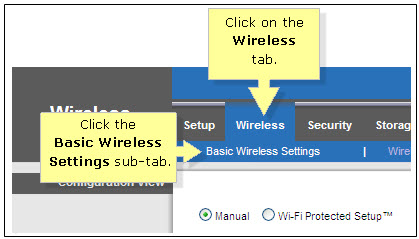
i. On the setup page, click the Wireless tab then click on the Basic Wireless Settings sub-tab.
ii. On the Configuration View section, click the Manual radio button. Choosing the Manual setup will allow you to adjust your wireless channel according to your preference.

iii. Leave the Channel Width set to 20MHz Only.

iv. Click the drop-down arrow for Channel, then select your desired channel.
Choose between 1 until 11 (Suggested 1,6,11).
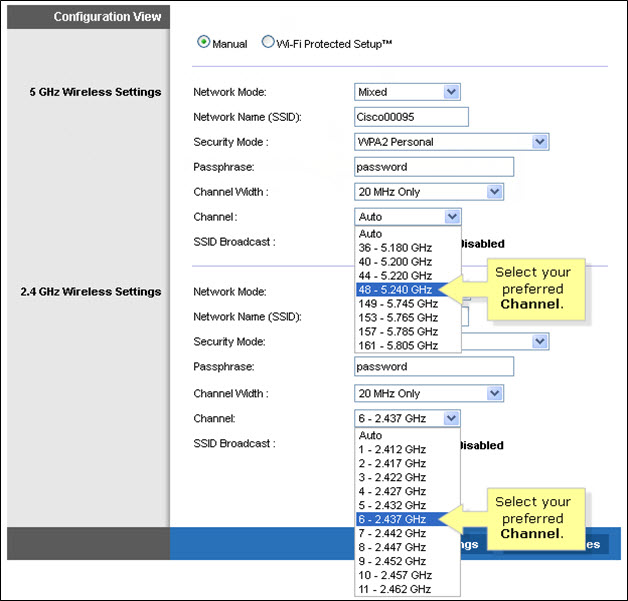
v. Click Save Settings to apply your changes. Router will auto reboot and connection re-establish after few minutes.
Yes, you can upgrade your internet speed. However, speed downgrade is not allowed.
The Multiroom (Smart TV) will mirror the subscription entitlement as per your primary subscription. However, NHK World, Radio, Sky News channels and 3rd party apps such as Netflix, Disney+ Hotstar are not available via the Multiroom (Smart TV).

1. Please connect your computer or laptop to your Astro Fibre router using LAN cable. Your LAN cable must be connected from the yellow port of Astro Fibre router (Any available port).
2.Once connected, open any web browser such as Google Chrome, Internet Explorer, Mozilla Firefox and etc.
3. On the address bar, type http://192.168.100.254 and below page will appear.

Login using your username and password if you have changed the router login setting. Otherwise, your default router login is as per below.
Username: user
Password: user
4. Once you have successfully logged in, the router's web-based setup page will appear.

5. At the top of the page, click Wi-Fi to configure the WiFi parameters.

6. You may change the Wi-Fi Name and the Wi-Fi Password as per your preferences, then click "Apply".

7. Your Wi-Fi Name and password has been changed. Kindly ensure to reconnect your WiFi according your new WiFi name and password.
The fee is a one-time activation fee that will be charged when you subscribe to the Plug & Play Box.
Customers with HD boxes can subscribe to the All-New Astro Pack without a box upgrade except if the customer request to move to OTT bundled pack which is mandatory to upgrade to Ulti or Ultra.
Note: OTT is referring to either Netflix, D+H or both.
(i) Head over to My Astro Portal and go to 'Bill & Payment'. Click on 'Payment History'
(ii) Contact us via one of these platforms. Please ensure you include your Astro Account Number.
For any access related queries on Disney+ Hotstar, please call or WhatsApp "DH Help
If you are already subscribed to the Movies/Premium 1/Premium 3/Platinum Pack, you are automatically entitled to access Disney+ Hotstar. Therefore, you will not be able to add on the Disney+ Hotstar 3-months pass.
Yes, if a device is faulty due to the customer's negligence, they will be subjected to a penalty fee for each device:
For customers that would like to subscribe to Multiroom with a box installation,
(i) customers on the old packages (example Family Pack, Starter Pack, Value Pack, Super Pack or Super Pack Plus) will have to subscribe to our new packages first by sending "Switch" to 03-9543 3838 via WhatsApp;
(ii) customers on the new Astro packages can subscribe by visiting product.astro.com.my/multiroom or WhatsApp "Hi" to 03-9543 3838.
Having trouble with your phone line ?
You may proceed to contact dedicated service provider directly - 1 800 8211 23
Thank you for your interest in returning your Astro Box & Smart card/SIM card. By returning these items, you are playing your part in preserving our environment as we will refurbish the box and return it to circulation or recycle it.
All Astro box and smartcard/SIM cards are also property of Astro and as per our current T&Cs, customers are required to return them upon termination of Astro services.
Connect your PVR to Wi-Fi and enjoy access to our library of Video On Demand. Replay old seasons, catch-up latest episodes of your favourite shows, anytime you want. To connect your PVR, follow the steps below depending on your box type:
(a) Wi-Fi Enabled PVR (DMT5)

· Press the “Home” button and select “Settings” > “Network” > “Wi-Fi”
· Allow the PVR to scan Wi-Fi networks available and subsequently choose your home Wi-Fi network > Enter your Wi-Fi password if required
· Once connected, the icon below will appear on the screen.

Tip: Use the alpha-numeric keyboard on your Astro Remote to key in your password
· Press the “Home” button and select “On Demand” to start watching videos on demand!
(b) Non-Wi-Fi Enabled PVR (HD PVR)

There are two ways to connect your HD PVR decoder to your home Wi-Fi
(i) Using the Ethernet (LAN) cable
· Plug in the LAN cable from your modem into the PVR network port
· Once connected, the icon below will appear on the screen
· Press the “Home” button and select “On Demand” to start watching videos on demand!
(ii) Using an Astro Wi-Fi dongle as per shown below

Step 1 - Plugin the Wi-Fi dongle into the front USB part of your PVR decoder.
Step 2 - A prompt will appear stating "Do you wish to connect to a wireless network?", select "Yes, continue."
Step 3 - Once connected, the Wi-Fi icon will appear on the screen. Now you are ready to download and enjoy Astro's on demand entertainment.
Step 4 - Press the “Home” button and select “On Demand” to start watching videos on demand!
*The Wi-Fi dongle is only applicable for the non-Wi-Fi enabled PVR (as per the picture).
Please fill up the forms below for processing your request:
Transfer of Equiment Ownership Form
Should there be any changes in plans we will keep our customers informed on any new development.
No, you are still able to access HBO Go on your current Movies pack.
No, Ultra Box is only available for Entertainment Pack and above only.
Astro Quick Pay is a convenient method to check your Bill Summary, Account Status and pay Astro bills at your convenience with immediate payment posting, right from home. Visit Astro Quick Pay to pay your bill now.
Information of the PPV CH200 cessation has been announced on CH200 from 1 - 7 October prior to the PPV cessation. Once again, we regret any inconvenience caused.
No, anyone can make payments on your behalf as long as the credit card is used by the owner themselves.
No, there is no penalty or switching fee if you decide to cancel your Multiroom (Smart TV) subscription.
Yes, you can purchase Astro First and Astro Best content by using the app and web. Refer below for the steps to purchase movies via this app and web. Thereafter, you can watch them on Astro Go.

From 1st July 2023 onwards, Astro will ONLY accept cheques deposited at Public Bank Berhad.
To simplify your monthly payments, here are some recommended alternatives you can look into.
To find out more on how you can make your payments via these channels, kindly visit here.
Should you choose to continue with cheque payment, do ensure that you follow these steps below.
Step 1: Fill in the cheque
Step 2: Ensure that your 10-digit Astro account number is accurately written at the back of the cheque
Step 3: Go to your nearest Public Bank
Step 4: Locate the Cheque Deposit Machine
Step 5: Select “Bill Payment” on the screen
Step 6: Select “Astro”
Step 7: Drop your cheque in
Step 8: Collect your receipt
At this point in time, 4K UHD content from Disney+ Hotstar is not available on the Ultra or Ulti Box. We are working to enable this on the Ultra Box in a future update.
Please follow the steps in Q5, then continue with the steps below:
| Step 1: Click the “Email” or “Mobile Number” field to edit. Then, enter your updated detail(s). | Step 2: Complete the verification by entering the code sent to your new email address or mobile number. | Step 3: Congratulations! You have successfully updated your contact detail! |
1. Power reset (on & off) your Modem and Router.
2. Ensure standard physical connection (No 3rd party devices connected to decoder and modem).
3. Please connect your computer or laptop to your Astro Fibre router using LAN cable. Your LAN cable must be connected from the yellow port of Astro Fibre router (Any available port).
4. Once connected, open any web browser such as Google Chrome, Internet Explorer, Mozilla Firefox and etc.
5. On the address bar, type https://testmyline.astro.com.my/ and below page will appear.

6.Click "GO", and the test will begin.

The test is completed once both download and upload speeds are displayed.
Sample of the Speedtest result is shown below.

**Please ensure the snapshot includes a time stamp and network used either LAN cable or wireless (as per picture above)
7. Kindly screenshot or take a picture of the result, name it as "LAN Speedtest" for test using LAN cable (wired connection).
8. Repeat the test once again using WiFi connection (Please unplug your LAN cable and connect via wireless connection using your SSID).
9. Screenshot or take a picture of the result, name it as "WiFi Speedtest".
The Download function offers an alternative to streaming so that you can watch TV shows and movies offline anywhere.
You can start downloading a movie/TV show by clicking on the "Download” button. Kindly note that you can only download one title at the time. Other titles will be in queue and will start downloading automatically as soon as the first download is complete.

Once you have downloaded a title, the progress icon will show “Complete” and you may find your downloaded content by checking “My Library” > “Downloads”.

*To save on data usage, we recommend downloading via Wi-Fi.
Downloaded content retention periods vary according to the type of content.
The number of days left for you to view your content in offline mode is shown for each piece of downloaded content for your reference. Expired content will be automatically deleted from the app, freeing up your device storage.
A deposit of RM500 is payable for new subscribers (non-Malaysians). The fee will be refunded when service is terminated.
No deposit is required for all existing Astro customers and new subscribers (Malaysians).
If your account is suspended or disconnected, you will retain the existing subscription when you reconnect. However, if you plan to make any changes after the reconnection, you can only select from the new packs.
STEP 1
On your remote, press the HOME button and the home menu will be displayed on top of your screen.

STEP 2
Navigate to Settings.

STEP 3
Navigate to Subtitles and press "OK".

STEP 4
Navigate to your preferred selection and press "OK".

Yes, you may still watch CH550 Love Nature and CH811 Astro SuperSport which offers the same content/programmes, but in HD resolution. Kindly note that CH811 Astro SuperSport is only available for customers on the Sports, Sports Plus, Premium 1, Premium 2, Premium 4, Platinum Lite and Platinum Packs.
Users can easily access all their streaming Apps such as Netflix, Disney+ Hotstar, Viu etc by clicking the “APPS” button on their remote control. After clicking this button, they will be brought to the Apps rail under the home page.
Purchase function on Astro GO is only available for Android devices, Huawei devices and on the Astro GO website. For Apple device users, please head to astrogo.astro.com.my to make your purchase.
Purchase instruction:
Head to the Store section

Click on RENT

Enter Your PIN (Default PIN 0000)

Confirm to Purchase

Purchased Success. Enjoy!

You purchased content title will be available under "Rental" in My Library. All purchases on Astro GO will be added to your monthly bill and accessible on both Astro GO and your Astro decoder. Cancellation of purchase is not possible upon confirmation.
*Purchase of content is only available on Android & Huawei devices and on the Astro GO website*
Customers who subscribe to the Movies, Premium 1, Premium 3 or Platinum Pack will be able to access Disney+ Hotstar immediately and start streaming all their favourite Global, Regional and Malaysian hits upon activation.
Upon successful subscription, you will be able to view your chosen HD channels within 3 hours by keying in the channel numbers into your remote control. Please note that subscription through Channel 200 will take effect within 24 hours.
STEP 1
Check the Audio settings on your box and set to Auto.
Refer guide to change Set HDMI Audio.
STEP 2
If issue persist, check if there is any 3rd party device (sound system/hdmi splitter) connected between box and TV.
STEP 3
If using 3rd party devices, bypass/remove 3rd party device and make sure HDMI cable connected directly from box to TV.
STEP 4
If issue persist, connect to Live Agent via WhatsApp for help.
STEP 1
On your remote, press the HOME button and the home menu will be displayed on top of your screen.

STEP 2
Navigate to Settings.

STEP 3
Navigate to STB Diagnostics and press "OK".

STEP 4
Select Household Diagnostics and press "OK".

STEP 5
Details information of Household Diagnostics screen will be displayed.

When using our One Time Payment (OTP) method, you may register more than one credit card per account. However, a single card account can only be used for a maximum of three accounts for OTP transactions.
When using our auto-debit facility, you can only register one card with Astro. Any subsequent card registrations will override the current one.
Mesh WiFi technology greatly improves the WiFi network coverage within your home and virtually eliminates all WiFi “dead spots”. However, like all technologies there are limitations that you should be aware of.
The pairing of Mesh unit to the WiFi router is automatically handled between the WiFi router and the Mesh unit after it calculates its current position in relation to the WiFi router and surrounding Mesh unit (if available) already connected to the WiFi router.
If you are self-installing the mesh at your house, it is advisable for you to always pair the Mesh unit(s) with the WiFi router only regardless of how many Mesh unit available at your house.
Please note that if you have a Mesh connected to another Mesh, the expected performance of the WiFi speed will not perform as optimally as when compared to a Mesh connected directly to the WiFi router. Adding more points (also referred as Number of hops) in between your device to the WiFi router which will cause a reduction in bandwidth and add latency.
Yes, the monthly subscription fee will be prorated into your Astro bill.
1. Tune to Astro channel 200 - select "Add-Ons"

2. Select the option for Monthly Subscription
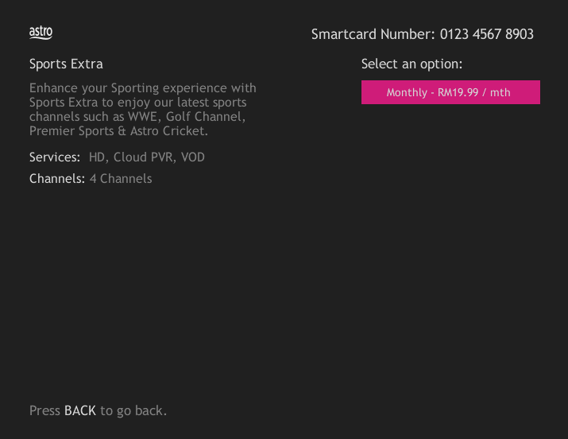
3. Send the WhatsApp code as per displayed on the TV screen


