
A free satellite TV service from Astro. Watch lifetime entertainment, news, learning & information and more.
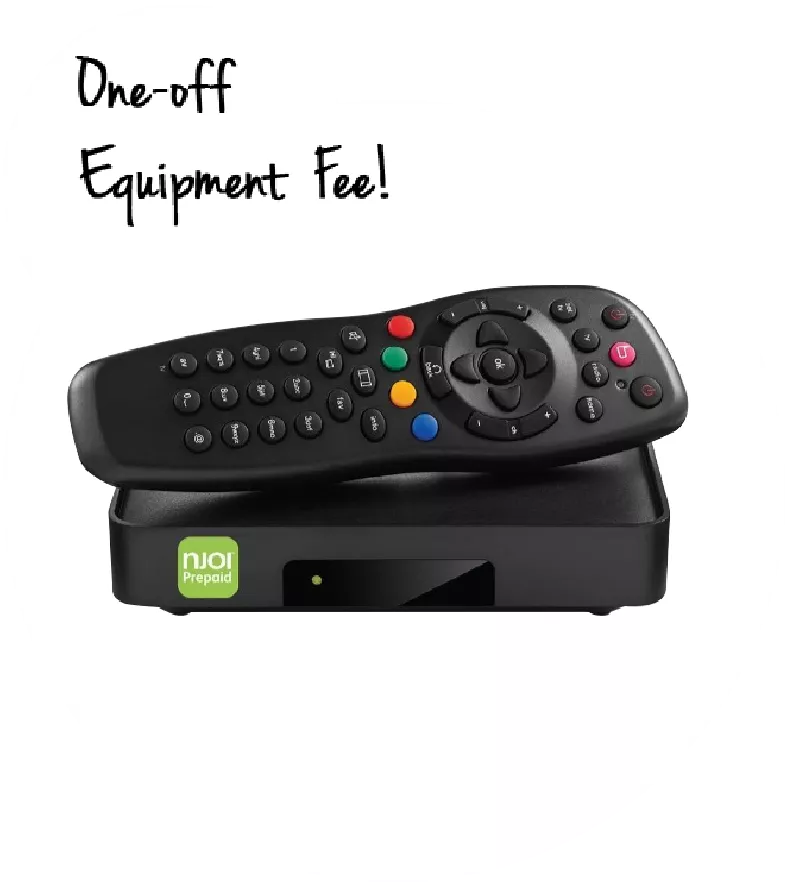
Pictures for illustration only.
Enjoy free access to 15+ TV channels & 10+ radio channels.
* Subject to Astro terms & conditions.


Step-1 |
Step-2 |
Step-3 |
Choose a plan & sign-up online. |
Sit back & wait for installation. |
Enjoy your new Astro / Broadband! |
A free satellite TV service from Astro. Watch lifetime entertainment, news, learning & information and more.
Pictures for illustration only.
New decoder only without satellite dish & cabling. You must have Astro/Njoi satellite dish and cable installed and working properly.
Including installation.
New decoder complete with satellite dish & cabling.
Including installation.
Applying for
| Njoi Astro UniFi Maxis |
Find your answers here.
We provide one stop service to apply Astro and Broadband for you.
You can avoid driving and queuing at the sales counter. We are the dealer that can help you to handle your application from the beginning to the end.
We do not charge you when you apply from us. There is no credit card information required to apply here. Charges are the same as you apply from the sales counter.
First, you can apply online, we will get back to you immediately during business hour. WhatsApp/Email/Fax us your Photocopy of IC (for malaysian) / Passport (for foreigners). When we receive all the information, we will proceed with your application immediately.
Once we receive your application with complete information, we will process your application immediately during business hour. The contractor from the service provider will then contact you for installation appointment once your application is approved.
Enjoy greater savings and hassle-free bill payment in one single bill for both Astro and Broadband. You get to enjoy Astro and Broadband at discounted price every month over the contract period of 24 months.
Astro offers multiple TV packs including Entertainment, Sports, Movies and Kids options. You can choose a pack that matches your viewing preferences and add optional streaming apps where available.
Yes, you may subscribe to Astro TV packs without bundling broadband. However, bundling Astro TV with Fibre Broadband may provide better monthly savings and convenience with a single bill.
For small households with light streaming and browsing, 100Mbps is usually sufficient. Larger families, gamers or heavy streamers may benefit from 500Mbps or 1Gbps plans for smoother performance across multiple devices.
Most Astro TV and Fibre broadband plans come with a 24-month contract. Early termination charges may apply if cancellation is made before the contract ends.
Yes, you may upgrade your TV pack or broadband speed at any time, subject to eligibility and coverage. A new contract period may apply depending on the upgrade.
Your monthly bill will be issued directly by Astro. You may receive it via email or access it through your Astro account. Bundled customers will receive a single combined bill for TV and broadband services.
Payment methods may include online banking, auto debit, credit card or other approved payment channels provided by Astro. Our team can guide you during the registration process.
If you experience any service interruption, you may contact Astro customer support for technical assistance. In many cases, issues can be resolved remotely or a technician will be arranged if necessary.
Yes, relocation is subject to service availability at your new address. Relocation charges and contract adjustments may apply depending on your plan.
No, you do not need a credit card to submit your application. Payment setup will be arranged directly with Astro after your service is approved.
Selected Astro TV packs allow optional add-ons such as streaming services depending on current promotions and availability. Additional monthly charges may apply.
Yes, a WiFi router is typically provided during fibre installation. The router model may vary depending on the selected broadband speed plan.
Yes, we will check the service coverage at your address before proceeding with your application to ensure broadband is available at your location.
For Malaysians, please provide a copy of your MyKad. For foreigners, provide a copy of your passport when submitting your broadband application.
After your application is approved, the service provider typically contacts you within 2 to 7 working days to arrange the broadband installation appointment.
Most Astro Broadband plans come with a 24-month contract starting from your installation date. If you relocate, a new 24-month contract may apply at your new address.
Yes, you can relocate your broadband service, subject to service availability at the new address. Your contract may reset for another 24 months from the new installation date.
Yes, you may request to relocate broadband devices within your home. Non-standard installation charges may apply and are payable to the installer directly after assessment.
Yes, you can switch to Astro Broadband. To avoid service interruption, it is recommended to activate the new service before terminating your current broadband contract.
Standard installations may be free during promotions, but non-standard installations (e.g., device relocation or complex wiring) may incur extra charges payable directly to the installer.
- The Mesh unit can only be used indoors. It can be mounted onto a wall or be placed horizontally on a desktop. Do not install it in other mode, such as on the ceiling.
- Keep a clearance of at least 10 cm around the device to ensure proper ventilation.
- Keep the device away from electrical appliances that generate strong magnetic or electric fields, such as microwave ovens.
Yes, watching on the Astro Smart TV app will utilise one (1) of your Astro Go concurrency.
No, price for Astro customers will remain unchanged. Only the RRP price from iQIYI is changed.
No, you will not be charged 8% Service Tax for paper billing option.
If you encounter this message while using the Astro app on your Smart TV, please follow the steps below:
1. Update Your Smart TV Software
2. Restart Your Devices
3. Clear the Astro App Cache
4. Reinstall the Astro App
If you are still having issues, proceed to submit report via WhatsApp or Feedback Form and provide:
This will help our support team investigate and assist you further.
We are working with the Sony team to ensure you will be able to enjoy these 4K UHD channels soon. We will keep you posted once these channels are available to you!
The new packs and access to Netflix on the Ultra Box and Ulti Box is available for Astro IPTV customers.
You will still need to authorise the transaction from your SecureGo registered device.
Step 1: On another device, perform the transaction via My Astro app
Step 2: Tap on the push notification you receive on your SecureGo registered device
Step 3: Tap Approve or Reject to authorise the transaction, and you're done!
HBO Max is a brand-new streaming service in Southeast Asia, Taiwan and Hong Kong, raising the bar for quality entertainment. Offering a collection of blockbuster movies, groundbreaking series, iconic hits, best-in-class real-life stories from food, home, lifestyle and documentary, as well as family favourites. Dive into beloved brands and franchises like HBO, Harry Potter, the DC Universe, Cartoon Network, Warner Bros., Discovery and beyond. HBO Max delivers exclusive stories and elevates the streaming experience.
For customers with Entertainment Plus, Movies Plus, Sports Plus, Premium 2, Premium 3, and Platinum Pack
For Non-Entertainment Plus, Premium 2, Premium 3, and Platinum Pack Pack customers (New Netflix customers)
Note: The Netflix plan will be defaulted to Premium, you may select ‘Change Plan’ to choose the ‘Standard’ plan.
For Non-Entertainment Plus Pack, Premium 2, Premium 3, and Platinum Pack customers (Existing Netflix customers)
The number of concurrent streams depends on your Disney+ subscription plan:
a. Disney+ Standard: Up to 2 concurrent streams
b. Disney+ Premium: Up to 4 concurrent streams
No. If you are a non-Astro subscriber, you will still be able to create an Astro ID, but access and use of Astro's digital services will be limited. If you are an Astro subscriber, please link your Astro ID to your Astro account number to enjoy exclusive access to all of Astro's digital services.
We want to ensure that only the authorised account owner can have access to their Astro account. This activity ensures that only you can log in and access all the details tied to your Astro account.
For customers with the Ultra or Ulti Box, you are required to return only the Astro box along with the Smart/SIM Card. There is no requirement to return the remote control, power cables or satellite dish/outdoor unit (ODU).
For customers on other Boxes, you are required to discard them (and their accompanying devices such as the Smart/SIM Card) only at registered collection centers for proper handling and management of e-waste in an environmentally sound manner. Click here to find a registered collection center near you.
You can have up to five (5) devices registered to your account at any given time. However, you can only stream from one (1) device at a time.
You may manage your Multiroom (Smart TV) subscription via My Astro app. Download here or on your App Store or Google Play Store.
For customers that would like to subscribe to Multiroom with a box installation,
(i) customers on the old packages (example Family Pack, Starter Pack, Value Pack, Super Pack or Super Pack Plus) will have to subscribe to our new packages first by sending "Switch" to 03-9543 3838 via WhatsApp;
(ii) customers on the new Astro packages can subscribe by visiting product.astro.com.my/multiroom or WhatsApp "Hi" to 03-9543 3838.
If you cancel your Astro X3 subscription mid-month while still under contract, the termination will take effect at the end of your current billing cycle. Your service will remain active until then, and no partial or prorated refund will be provided. And early termination fee charges may still apply.
However, refunds may be applicable if there is an excess credit balance in your account, such as an overpayment or duplicate payment. Any eligible refund will be processed in accordance with Astro's refund policy.
No, there are no installation or activation fees for Astro X3, as these plans do not require a set-top box or installation. Once your sign-up is complete, you can start streaming Astro content immediately via the Astro app on your Smart TV or through Astro GO on supported devices.
Upgrade to Sun NXT Premium via www.astro.com.my/sunnxt or the MyAstro app. For further assistance, contact our customer service at 03-9543 3838.
Please contact us through one of our platforms found here or Self-serve by logging in to Astro Self-Service Portal within 3-7 days before moving out and we will sort everything out for you!
Yes, you will enjoy an Ulti box when subscribing to Primary/Entertainment/ Movie Pack OR an Ultra box when subscribing to Sports/Sports+/Movies+/Premium 1/Premium 2/Premium 3/Platinum Pack.
You will get FREE installation for both Ultra/Ulti box upon signing up with Astro & Broadband.
Please follow the steps below:
Step 1: Fill in Transfer of Equipment Ownership Form (Part A & Part B)
Step 2: Provide an Undertaking Letter if current account holder deceased or un-contactable. (Note: Copy of death certificate is required if account holder deceased).
Step 3: Provide a copy of new applicant NRIC for Malaysian or copy of passport for non-Malaysian or copy of IMM13 Pass with at least 6 months validity for Refugee. (Note: ASTRO name should be displayed on the top left corner on both sides of the identity card copy).
Step 4: A full payment to be made on any outstanding balance for all related accounts (if any).
Step 5: Submit all documents via Feedback Form.
Step 6: Customer will expect a call from our validation team (Note: Turnaround time for transfer of equipment ownership is 3-5 working days upon receiving all complete documentation).
Note:
1. There might be a loss of transmission during the processing of transfer equipment ownership, split or merge of equipment.
2. Recorded program will be removed for PVR user.
3. A full payment to be made on any outstanding balance for all related accounts.
4. New account holder agreed to continue the remaining contract from previous owner account (if any).
5. Auto debit will be voided upon acknowledgment of transfer equipment ownership (if any).
Additional requirement for New Owner
Capping of applicant age is 21
Malaysians aged < 26 years old and Non-Malaysian - requires copy of utility bill (Phone, Internet, Water or Electricity)
Effective from the bill date 9th July 2024 onwards, the Service Tax for the Broadband Bundle/Fibre Bundle will be streamlined at a rate of 6%. The prorated adjustment for your Pay TV subscription will be calculated based on 6% service tax rate on your next bill, following your current subscription's tax rate.
If you accidentally delete your mesh:
To enjoy full premium access, simply add RM10 to upgrade your Sun NXT Lite subscription to
Sun NXT Premium.
Transfer of Equipment Ownership
A request to transfer the equipment’s ownership from the existing account holder to a new account holder.
Note: Transfer of Equipment Ownership is not applicable for Astro Broadband (Maxis, TIME, Allo), standalone Astro Fibre and NJOI account.
Merge of Equipment
A request from the account holder to merge the equipment from two different accounts into one account, provided the equipment must be within the same service address and registered under the same accountholder’s name.
Split of Equipment
A request from the account holder to split the equipment from one account to two different accounts and registered under the same account holder’s name.
There will be no installation fee for both Astro Box and Ultra Box. The Multiroom (second decoder) must be installed at the same registered address as your primary subscription.
Please ensure that you have entered the correct email address or mobile number associated with your Disney+ account.
If you still do not receive the OTP, please WhatsApp or call Astro’s Customer Service at +603 9543 3838.
For payments made using credit cards, refunds will be reversed back to the respective card. Whilst payment made by cash and online banking will be made to the account holders bank account.
You may submit your request via Feedback Form with below information details based on your payment method from below option.
Feedback type : Payment/Billing
Issue : Refund – Termination of Account;
Refund – Excess Payment;
Refund – Wrong payment
Transfer credit balance
Below is the required details to fill up based on method of refund.
Astro Account Number
Account Holder Name
*Note: Please confirm the Astro Account is active and ensure account number is correct
Bank Name
Bank Account Number
Bank Account Holder Name
*Note: Please confirm your bank account details and ensure its correct
Bank Name
Bank Account Number
Bank Swift Code
IBAN Code
Currency: E.g.: Dollar/Yen etc.
*Note: Please confirm your bank account details and ensure its correct
Card Type
Last 4 digits credit card number
*Note: Please provide the last four digits of the most recent credit card used for payment
Astro & Broadband offers Astro content with Astro Fibre, Maxis Fibre Broadband and Allo City Broadband for customers to enjoy the best entertainment through Astro while staying connected with high-speed internet.
With the current Astro & Broadband plans, customers will enjoy substantial savings bychoosing their desired broadband speed from 30Mbps - 800Mbps to accompany their Astro packages.
No. Astro GO is a FREE entitlement exclusively for customers with an Astro subscription. If you do not have an Astro subscription account, please visit astro.com.my to find out more.
The Ultra Box or Ulti Box and the SIM Card are property of Astro, as per our General Terms and Conditions for Astro Services. Therefore, customers are accountable for returning the boxes upon the termination of their Astro subscription. Otherwise, an RM100 (exclusive of Sales and Service Tax) box fee will be charged to the customer's account.
To be eligible, you'll need to be an Active Astro Pay TV customer with a valid Astro ID.
An Active Astro customer refers to a subscriber of the Astro Service, whose account is current and active with no outstanding payments due and who has not breached the Astro subscription agreement nor given any instructions to terminate and/or suspend his/her subscription to the Astro Service.
Each account you hold is entitled to one (1) tier status based on the longest active smartcard.
If you see this message, it means the maximum number of devices currently streaming on your Astro account has been exceeded.
Please perform the following checks and troubleshooting steps:
1. Stop Streaming on Other Devices
2. Wait a Few Minutes
3. Try Again
4. Check Your Device Usage
If you are unable to remove a device or continue to see the error message, proceed to submit report via WhatsApp or Feedback Form and provide:
This will help our support team investigate and assist you further.
Note: Please be aware that only one Smart TV device is allowed per account at any point in time.
Please check your internet speed and connection status via internet connection test. If your internet is working fine and the issue persists, proceed to submit report via WhatsApp or
Feedback Form
.
Yes, you can. Click on Menu > Language and choose your preferred language. Then, click “SAVE”
Astro is continuously improving our user interface and introducing new features to our platforms to ensure that your Astro experience is more seamless, efficient and user-friendly.
For details on our latest interface, Picture-in-Picture mode and auto-start interactive mode on Astro GO, please click here.
In addition, we have also recently introduced a new look to the Title Information Page, the ability to disable the Profile Selection Screen and adjustable auto-standby timing. For more information, please click here.
You must subscribe to an Astro subscription (NJOI customers are not eligible) in order to get the Ulti Box.
The eligibility criteria for the Ulti Box are as follows:
New Customers
All new Astro customers with a monthly subscription fee of below RM100 will be entitled to select the Ulti Box upon signing up for Astro’s packages.
Existing Customers (Box Upgrade for Primary or Multiroom)
Existing customers are required to have an internet connection at home with a recommended internet speed of 10Mbps and above in order to upgrade your existing box to Ulti Box.
Note:
· Existing Ultra Box customers are not eligible for a swap to the Ulti Box.
· If your existing box is a PVR, you will lose access to all the recordings stored in the PVR
Multiroom (New subscription)
Customers subscribing for an additional multiroom subscription are entitled to select the Ulti Box as part of the subscription.
The main features and changes in this update are the revamped look and feel of Astro's user interface on the Astro Ultra/Ulti Boxes and Astro GO, which include redesigns to the Astro interface that consists of title rows at the Home Page to feature popular franchises, new live programmes posters and changes to the menu bar for easier navigation; auto-start Interactive Mode on Astro GO; as well as a Picture-in-Picture mode that shrinks your video player so you can keep watching your favourite shows while using other apps.
The details of each feature are:
For more info, please read our dedicated FAQ on this here.
If the Astro Smart TV app crashes on your Smart TV, please follow the steps below:
1. Clear the App Cache
2. Reinstall the Astro Smart TV App
If the app continues to crash after completing the above steps, proceed to submit report via WhatsApp or Feedback Form and provide:
This will help our support team investigate and assist you further.