
A free satellite TV service from Astro. Watch lifetime entertainment, news, learning & information and more.
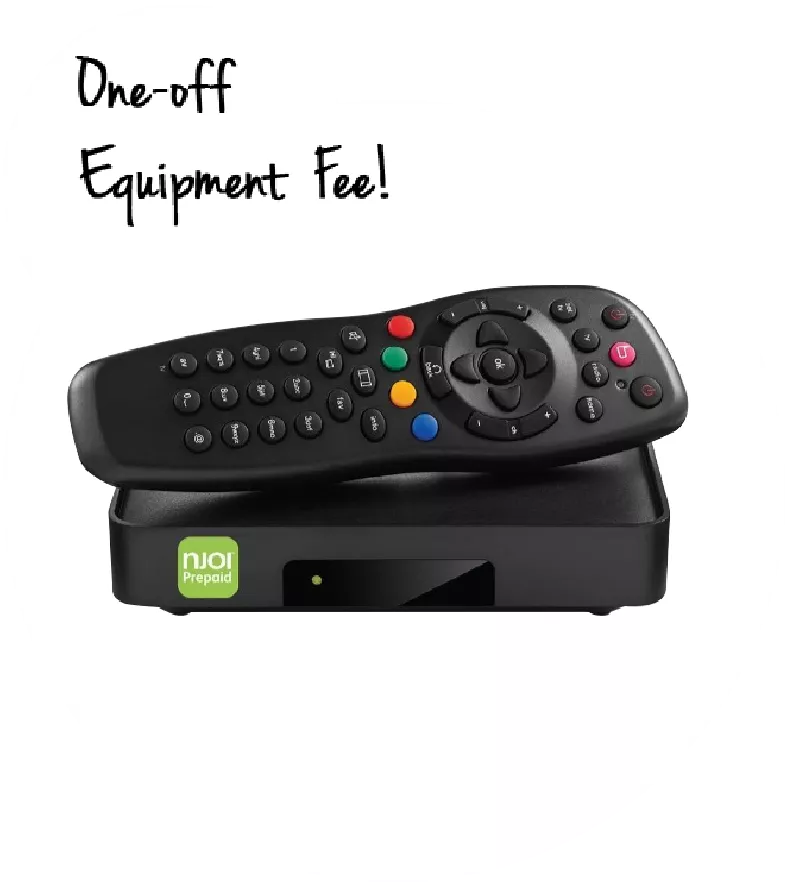
Pictures for illustration only.
Enjoy free access to 15+ TV channels & 10+ radio channels.
* Subject to Astro terms & conditions.


Step-1 |
Step-2 |
Step-3 |
Choose a plan & sign-up online. |
Sit back & wait for installation. |
Enjoy your new Astro / Broadband! |
A free satellite TV service from Astro. Watch lifetime entertainment, news, learning & information and more.
Pictures for illustration only.
New decoder only without satellite dish & cabling. You must have Astro/Njoi satellite dish and cable installed and working properly.
Including installation.
New decoder complete with satellite dish & cabling.
Including installation.
Applying for
| Njoi Astro UniFi Maxis |
Find your answers here.
We provide one stop service to apply Astro and Broadband for you.
You can avoid driving and queuing at the sales counter. We are the dealer that can help you to handle your application from the beginning to the end.
We do not charge you when you apply from us. There is no credit card information required to apply here. Charges are the same as you apply from the sales counter.
First, you can apply online, we will get back to you immediately during business hour. WhatsApp/Email/Fax us your Photocopy of IC (for malaysian) / Passport (for foreigners). When we receive all the information, we will proceed with your application immediately.
Once we receive your application with complete information, we will process your application immediately during business hour. The contractor from the service provider will then contact you for installation appointment once your application is approved.
Enjoy greater savings and hassle-free bill payment in one single bill for both Astro and Broadband. You get to enjoy Astro and Broadband at discounted price every month over the contract period of 24 months.
Astro offers multiple TV packs including Entertainment, Sports, Movies and Kids options. You can choose a pack that matches your viewing preferences and add optional streaming apps where available.
Yes, you may subscribe to Astro TV packs without bundling broadband. However, bundling Astro TV with Fibre Broadband may provide better monthly savings and convenience with a single bill.
For small households with light streaming and browsing, 100Mbps is usually sufficient. Larger families, gamers or heavy streamers may benefit from 500Mbps or 1Gbps plans for smoother performance across multiple devices.
Most Astro TV and Fibre broadband plans come with a 24-month contract. Early termination charges may apply if cancellation is made before the contract ends.
Yes, you may upgrade your TV pack or broadband speed at any time, subject to eligibility and coverage. A new contract period may apply depending on the upgrade.
Your monthly bill will be issued directly by Astro. You may receive it via email or access it through your Astro account. Bundled customers will receive a single combined bill for TV and broadband services.
Payment methods may include online banking, auto debit, credit card or other approved payment channels provided by Astro. Our team can guide you during the registration process.
If you experience any service interruption, you may contact Astro customer support for technical assistance. In many cases, issues can be resolved remotely or a technician will be arranged if necessary.
Yes, relocation is subject to service availability at your new address. Relocation charges and contract adjustments may apply depending on your plan.
No, you do not need a credit card to submit your application. Payment setup will be arranged directly with Astro after your service is approved.
Selected Astro TV packs allow optional add-ons such as streaming services depending on current promotions and availability. Additional monthly charges may apply.
Yes, a WiFi router is typically provided during fibre installation. The router model may vary depending on the selected broadband speed plan.
Yes, we will check the service coverage at your address before proceeding with your application to ensure broadband is available at your location.
For Malaysians, please provide a copy of your MyKad. For foreigners, provide a copy of your passport when submitting your broadband application.
After your application is approved, the service provider typically contacts you within 2 to 7 working days to arrange the broadband installation appointment.
Most Astro Broadband plans come with a 24-month contract starting from your installation date. If you relocate, a new 24-month contract may apply at your new address.
Yes, you can relocate your broadband service, subject to service availability at the new address. Your contract may reset for another 24 months from the new installation date.
Yes, you may request to relocate broadband devices within your home. Non-standard installation charges may apply and are payable to the installer directly after assessment.
Yes, you can switch to Astro Broadband. To avoid service interruption, it is recommended to activate the new service before terminating your current broadband contract.
Standard installations may be free during promotions, but non-standard installations (e.g., device relocation or complex wiring) may incur extra charges payable directly to the installer.
After completing the subscription process, you will be able to access the iQIYI App on the Ultra/Ulti Box by following the steps below:
On your Ultra/Ulti Box
Step 1: At the Home menu, go to the App Rail and select "iQIYI"
Step 2: Click "OK" on your Astro remote
Step 3: While on the iQIYI App Home Page, navigate to "VIP account" located at the top left pane and click "Login". A page with a QR Code will be presented on your TV screen
Step 4: Scan the QR code using your mobile device and you will be directed to the iQIYI mobile app
Step 5: Follow the steps under "On Mobile App" below to pair your iQIYI account with your Ultra/Ulti Box
On the iQIYI Mobile App
Step 1: Download the iQIYI App on your mobile device
Step 2: At the login page, select "Continue with Astro"
Step 3: Log in with your Astro ID
Step 4: Click on the "Me" icon located at the bottom of the screen, and you will be presented with your iQIYI profile page
Step 5: Click on the in-app QR code scanner located at the top right corner of the screen
Step 6: Scan the QR Code displayed on your TV screen with the in-app QR code scanner. Refer to Step 3 under "On your Ultra/Ulti Box" above
Step 7: The screen on your TV will reload automatically and the iQIYI App home screen will be displayed. Now, you can enjoy the iQIYI App on your Ultra/Ulti Box!
Yes. The TVBAnywhere+ app can be downloaded on compatible mobile device via the Apple App Store or Google Play Store. Once installed, customers can log in with their Astro ID to access the app.
You can access up to 3 concurrent screens, including your Ultra Box/Ulti Box. Each subscription allows you to register up to 5 devices. To ensure a smoother streaming experience, please sign out from any unused devices.
The notification you receive will depend on the payment method you choose:
(i) My Astro Portal: e-receipt will indicate payment confirmation.
(ii) IVR: Payment status will be notified over the IVR and an SMS notification will be sent for successful transactions.
(iii) SMS: Payment status will be notified via SMS.
(iv) Call: Payment status will be notified via SMS.
(v) Customer Service Centre: Physical receipt will indicate payment confirmation.
You will be able to enjoy your Viu Premium membership immediately upon purchase/choosing it
under your Asian Favourites bundle option. For further clarification, feel free to reach out to us
via WhatsApp by typing “Hi” at 03-9543 3838.
Yes, you can activate your access anytime between April 24, 2025, and June 23, 2025, to get 2 months of access to Prime Video at no additional charge. Please note that the offer is subject to change. All sign-ups are also subject to the Prime Video app usage terms and conditions.
Please ensure that your Ultra or Ulti Box is set as the primary (main) decoder to enjoy 2 months of access to Prime Video at no additional charge.
If your primary box is an older model, don’t worry as you can still enjoy this offer by upgrading to an Ultra/Ulti Box within the offer period. Just contact us to arrange your upgrade.
You will require HD-PVR service in order to subscribe for a PVR. This service is included in all Starter Pack, Value Pack, Super Pack Lite, Super Pack and Super Pack Plus subscriptions.
You may view your latest tax invoice or bill via any of the platform listed below:
A. My Astro app
1. Download the My Astro app
2. Login using your Astro ID
3. Go to Account > Bills
4. You will be able to see your outstanding bill amount, make payment, download bill statements, and view payment history all in one app.
B. My Astro web
Alternatively, you can use the web version
C. IVR
1. Call +603-95433838
2. Press 1 for Account Related Queries
3. Input your 10-digit Astro Account no. or 12-digit MyKad no.
4. Press 2 for Payment and Billing
5. Press 1 to receive an SMS with your bill balance and a link to pay online
Note: You will not be able to download your bills or view payment history via Astro Quick Pay. For a better experience to manage your bills (To download bills or view your payment history), you can download the My Astro app.
💳 Want to manage your Astro bills easily?
📱 Download the My Astro app to:
- View and download bill statements
- Check payment history
- Pay in just a few taps
Only Visa, MasterCard, and American Express Credit Cards and Debit Cards issued by banks in Malaysia are accepted by Astro-owned payment channels. Official Astro payment partners may have different policies - please check with your preferred payment partner for the latest information.
Please submit your issue
here
or you can WhatsApp us at 03-9543 3838.
Only the account holder is allowed to manage the auto-debit facility. However, a third-party card holder has the right to withdraw their registered card from the linked-account with proper validation.
Yes, starting 9 December 2024, the new packs will be the default offering from Astro.
Astro Cloud is a virtual storage that allows you to record and watch your favourite TV shows on Astro GO anytime, anywhere. Customers can enjoy 200 hours (500 GB) of cloud recording on Astro GO web and mobile app, and on your Astro Box (if applicable) at no additional cost.
To check your remaining Cloud storage space, go to Settings > My Devices, you will find your cloud storage information here.
You can upgrade your storage to a total of 1,500 hours (4000gb) with the Astro GO+ add-on for RM 5.99/month.
Kindly visit https://myastro.astro.com.my/ or call us at 03-7490 8102 to upgrade your storage plan.
You will be able to view your new package(s) within 24 hours of subscribing. Please note that if you are an Astro customer subscribing to HD channels, you will have to connect an HDMI cable to your TV before you will be able to enjoy the channels.
Real-time payments are posted almost instantaneously. However, daily system maintenance occurs between 12AM to 3AM - any payment made during this period will be delayed until system maintenance is complete.
For technical visit, the current fees will remain unchanged i.e.: 8% Service Tax absorbed by Astro. As for installation fees, current fees will remain unchanged i.e.: 6% Service Tax has already been included in installation fees, as 2% will be absorbed by Astro.
Customers who have lost their Ultra Box or Ulti Box will be charged RM 100 (exclusive of Sales and Service Tax).
To switch your bill delivery method to e-bill, you can do it through My Astro. Here's how:
1. Download the My Astro app or visit My Astro web
2. Login using your Astro ID
3. Go to Account > Bill delivery method
4. You will be able to switch your bill delivery method from your paper bill to e-bill. The bill will then be sent to your registered email address with Astro
Step 1:
Type ASTRO EBILL <Your 10-Digit Smart Card Number> <Your Email Address>
Example: ASTRO EBILL 0156123412 [email protected]
Step 2:
Send SMS to 66688
Note: This request must be sent from account holder’s mobile/primary number
*Standard telco charges and Terms & Conditions apply
💳 Want to manage your Astro bills easily?
📱 Download the My Astro app to:
- View and download bill statements
- Check payment history
- Pay in just a few taps
You may cancel your ZEE5 Premium subscription here. Kindly note that we will not be able to offer a refund if you do decide to leave the ZEE5 app before your subscription period ends.
Multiroom discount rates will be removed upon splitting the account.
If you require any assistance with the app, you may:
1. Visit the WeTV official Facebook Page for more information: WeTV Malaysia - Home | Facebook; or
2. Drop the WeTV team a message via Facebook chat here
If you encounter any issues with your Astro billing and entitlement, you may contact our Customer Service by:
1. Submitting a feedback form here: www.astro.com.my/contactus/form; or
2. Reaching to us via WhatsApp by typing "Hi"at 03-9543 3838
You can view your iQIYI entitlement & payment details in the app by follow these steps:
Step 1: Go to the Home Page
Step 2: Click on "VIP subscription"
Step 3: Click on "Manage VIP subscription" (Gear icon)
After following these steps, you will be able to view your entitlement expiry date, next payment date & payment method.
Due to copyright restrictions, certain shows may not be available for live streaming. However, many shows become available for on-demand streaming shortly after their original airing. The availability and timing can vary depending on the specific show, streaming service, and licensing agreements in place.
Yes, eKYC verification is mandatory. In addition, this verification process helps to reduce manual handling of customer's personal information and secure against unauthorised usage.
Astro continuously reviews its product propositions to ensure we can provide the best customer experience for all our subscribers. We have discontinued the 50% multiroom in order to allow our Astro subscribers with a subscription fee of RM100 or more to only pay a standard RM49.99 (with box setup) to enjoy the Multiroom experience on an Ultra or Ulti Box.
We apologise for any inconvenience.
Please refer below to set up your Ultra/Ulti Plug & Play Box.
To connect via LAN cable:
Note: If you have a two-in-one modem & router, you can skip Step ii).
To connect via Wi-Fi:
Remove your LAN cable from your old Astro box, and do not plug it into your new Plug & Play Box.
Yes, there are five digital bill platforms available for all customers to check their Astro bills:
A. My Astro app
1. Download the My Astro app
2. Login using your Astro ID
3. Go to Account > Bills
4. You will be able to see your outstanding bill amount, make payment, download bill statements, and view payment history all in one app.
B. My Astro web
Alternatively, you can use the web version
C. Astro Quick Pay
1. Visit https://pay.astro.com.my
2. Enter your 10-digit Astro Account Number and follow the instructions to view your bill, account status, pay bills or add a billing reminder on your Google calendar.
Note: You will not be able to download your bills or view payment history via Astro Quick Pay. For a better experience to manage your bills (To download bills or view your payment history), you can download the My Astro app.
D. IVR
1. Call +603-95433838
2. Press 1 for Account Related Queries
3. Input your 10-digit Astro Account no. or 12-digit MyKad no.
4. Press 2 for Payment and Billing
5. Press 1 to receive an SMS with your bill balance and a link to pay online
Note: You will not be able to download your bills or view payment history via Astro Quick Pay. For a better experience to manage your bills (To download bills or view your payment history), you can download the My Astro app.
E. Auto-Debit
Alternatively, please register for Auto-Debit by following the steps here for hassle-free payments.
💳 Want to manage your Astro bills easily?
📱 Download the My Astro app to:
- View and download bill statements
- Check payment history
- Pay in just a few taps
Netflix is a streaming entertainment service that offers a wide variety of award-winning TV programmes, films, anime, documentaries and more - on thousands of internet-connected devices. There's always something new to discover, and more TV shows and movies are added every month. The more you watch, the better Netflix gets at recommending TV shows and movies you'll love.
Astro customers with an internet-connected Ultra Box or Ulti Box can access the Netflix app and watch Netflix content via their Astro Box. For more information about Netflix, visit the Netflix website.
Yes, provided that your Plug & Play Box has not been activated and no later than 7 days upon receiving both the Plug & Play Box and Astro SIM card. In the event that you have activated your Plug & Play Box and wish to cancel, a contract penalty fee will apply.
We will reach out to you for a suitable time to pick up the Plug & Play Box and Astro SIM card.
If you have more than one card registered for OTP payments, you will be asked to select the specific card to be used for that specific transaction.
Successful payment via JomPAY will be posted real time.
There are 4 ways for you to contact us for assistance:
You may subscribe to add-ons via any of the platform listed below:
Sales Channel | Add-on Purchase |
My Astro App / Web | 1. Go to “Astro Store” and scroll to “Shows” section 2. Click on “Sports” card to proceed and confirm purchase |
My Astro STB | 1. On your Ulti / Ultra box’s remote, press the Home button and the Home page will be displayed on your screen 2. Access My Astro via the “Apps” section or the shortcut next to the settings icon 3. Upon load, your subscription info and purchasable add-ons will be shown |
1. WhatsApp Hi to 03-95433838 Select Tap to view options Select Content Add-on Purchase 2. Select desired add-on Enter smartcard number (if prompted) 3. Confirm the purchase |
Yes, you can watch content on up to 4 different devices simultaneously using the same account. You can have 4 logged-in devices and 4 profiles, allowing for 4 concurrent streams.
1. Return your device to us via Arranged Pick-up:
Step 1: Please call Astro's Contact Centre at 03-9543 3838 to schedule an arranged pick-up by one of our courier partners.
Step 2: Just sit back and relax! A courier agent will come to your doorstep to retrieve the devices.
STEP 1
Try to change channels on your Astro remote. Check the LED light.
If the LED is blinking 3 times or if it is not blinking, replace the batteries and proceed to STEP 2.
Otherwise, if the LED is blinking 1 time, your remote is working fine, let's proceed to STEP 3.
STEP 2
Check if you can change channels using your Astro remote control. You should no longer be experiencing this problem if is a battery issue.
If issue remain after batteries replacement, proceed to STEP 3.
STEP 3
You need to refresh the box setting manually from the box front panel.
Refer to Refresh Box setting (Clear NVRAM) - Ultra / Ulti Box.
If issue persist, please submit the issue on our Feedback Form.