A free satellite TV service from Astro. Watch lifetime entertainment, news, learning & information and more.

Pictures for illustration only.
Enjoy free access to 15+ TV channels & 10+ radio channels.
* Subject to Astro terms & conditions.


Step-1 |
Step-2 |
Step-3 |
Choose a plan & sign-up online. |
Sit back & wait for installation. |
Enjoy your new Astro / Broadband! |
Explore our TV Pack which includes a variety of entertainment channels.

The must-watch local and international content made for everyone in the family.

The best local & international cartoons & educational entertainment.

Global movies and series packed with action, drama and big thrills.

Latest breaking news & current affairs whilst you discover secrets of the world.

Witness every major league & live sports events, plus family entertainment.

The ultimate all-in-one entertainment with movies, sports & a variety of streaming apps.
Good for working from home and streaming. Get connected at 100Mbps and enjoy uninterrupted streaming, gaming, and browsing.

FREE Modem
FREE WiFi-6 Router
Unlimited data
| What is included? |
Entertainment Pack RM49.99 |
100Mbps Astro Fibre RM99.00 |
| What is included? |
Entertainment Pack + Kids RM59.98 |
100Mbps Astro Fibre RM99.00 |
| What is included? |
Entertainment Pack + Blockbuster RM59.98 |
100Mbps Astro Fibre RM99.00 |
| What is included? |
Entertainment Pack + News & Documentaries RM64.98 |
100Mbps Astro Fibre RM99.00 |
| What is included? |
Sports Pack RM99.99 |
100Mbps Astro Fibre RM99.00 |
| What is included? |
Epic Pack RM199.99 |
100Mbps Astro Fibre RM99.00 |
Ideal for small families for 4K streaming & gaming. Get connected at 500Mbps and enjoy fast and stable internet for all your needs.

FREE Modem
FREE WiFi-6 Router
Unlimited data
| What is included? |
Entertainment Pack RM49.99 |
500Mbps Astro Fibre RM149.00 |
| What is included? |
Entertainment Pack + Kids RM59.98 |
500Mbps Astro Fibre RM149.00 |
| What is included? |
Entertainment Pack + Blockbuster RM59.98 |
500Mbps Astro Fibre RM149.00 |
| What is included? |
Entertainment Pack + News & Documentaries RM64.98 |
500Mbps Astro Fibre RM149.00 |
| What is included? |
Sports Pack RM99.99 |
500Mbps Astro Fibre RM149.00 |
| What is included? |
Epic Pack RM199.99 |
500Mbps Astro Fibre RM149.00 |
Perfect for medium-sized families for work and play. Get connected at 1Gbps and experience ultra-fast internet speeds.

FREE Modem
FREE WiFi-7 Router
Unlimited data
| What is included? |
Entertainment Pack RM49.99 |
1Gbps Astro Fibre RM229.00 |
| What is included? |
Entertainment Pack + Kids RM59.98 |
1Gbps Astro Fibre RM229.00 |
| What is included? |
Entertainment Pack + Blockbuster RM59.98 |
1Gbps Astro Fibre RM229.00 |
| What is included? |
Entertainment Pack + News & Documentaries RM64.98 |
1Gbps Astro Fibre RM229.00 |
| What is included? |
Sports Pack RM99.99 |
1Gbps Astro Fibre RM229.00 |
| What is included? |
Epic Pack RM199.99 |
1Gbps Astro Fibre RM229.00 |
Ultimate high-speed internet for everyone and everything. Get connected at 2Gbps and enjoy lightning-fast internet speeds.

FREE Modem
FREE WiFi-7 Router
Unlimited data
| What is included? |
Entertainment Pack RM49.99 |
2Gbps Astro Fibre RM319.00 |
| What is included? |
Entertainment Pack + Kids RM59.98 |
2Gbps Astro Fibre RM319.00 |
| What is included? |
Entertainment Pack + Blockbuster RM59.98 |
2Gbps Astro Fibre RM319.00 |
| What is included? |
Entertainment Pack + News & Documentaries RM64.98 |
2Gbps Astro Fibre RM319.00 |
| What is included? |
Sports Pack RM99.99 |
2Gbps Astro Fibre RM319.00 |
| What is included? |
Epic Pack RM199.99 |
2Gbps Astro Fibre RM319.00 |



A free satellite TV service from Astro. Watch lifetime entertainment, news, learning & information and more.
Pictures for illustration only.
New decoder only without satellite dish & cabling. You must have Astro/Njoi satellite dish and cable installed and working properly.
Including installation.
New decoder complete with satellite dish & cabling.
Including installation.


Unlimited quota, unifi TV and high performance Wireless Router with unifi fibre broadband.
Reliable broadband plans that enable next-level business growth.
Supports up to 2-3 users on 5 devices.
Supports up to 6 users on 10 devices.
Supports up to 10 heavy users on multiple devices.
Supports up to 10 power users on multiple devices.
Ultimate support for up to 10 power users on multiple devices.
Good for Working From Home and streaming.
100Mbps/50Mbps
Free Standard Router (RG5)
100Mbps/50Mbps
Free Standard Router (RG5)
 Netflix Basic
Suitable for full HD streaming & browsing.
300Mbps/50Mbps
Free WiFi-6 Combo Box
300Mbps/50Mbps
Free WiFi-6 Combo Box
Netflix Basic
Ideal for small families for 4K streaming & gaming.
500Mbps/100Mbps
Free WiFi-6 Combo Box
500Mbps/100Mbps
Free WiFi-6 Combo Box
Netflix Standard
Perfect for medium-sized families for work and play.
1Gbps/500Mbps
Free WiFi-6 Combo Box
1Gbps/500Mbps
Free WiFi-6 Combo Box
Netflix Standard
Ultimate high-speed internet for everyone and everything.
2Gbps/1Gbps
Free WiFi-6 Combo Box
2Gbps/1Gbps
Free WiFi-6 Combo Box
Netflix Standard
Reliable broadband plans that enable next-level business growth.
Supports up to 2-3 users on 5 devices.
Supports up to 2-3 users on 5 devices.
Fixed IP.
Supports up to 6 users on 10 devices.
Supports up to 6 users on 10 devices.
Fixed IP.
Supports up to 10 heavy users on multiple devices.
Supports up to 10 heavy users on multiple devices.
Fixed IP.
Supports up to 10 power users on multiple devices.
Supports up to 10 power users on multiple devices.
Fixed IP.
Good for Working From Home and streaming.
Free WiFi-6 Router
Free WiFi-6 Router
Unlimited voice call
Suitable for full HD streaming & browsing.
Free WiFi-6 Router
Free WiFi-6 Router
Unlimited voice call
Ideal for small families for 4K streaming & gaming.
Free WiFi-6 Router
Free WiFi-6 Router
Unlimited voice call
Perfect for medium-sized families for work and play.
Free WiFi-6 Router
Free WiFi-6 Router
Unlimited voice call
Ultimate high-speed internet for everyone and everything.
Free WiFi-6 Router
Free WiFi-6 Router
Unlimited voice call
Applying for
| Astro Njoi UniFi Maxis |
Find your answers here.
We provide one stop service to apply Astro and Broadband for you.
You can avoid driving and queuing at the sales counter. We are the dealer that can help you to handle your application from the beginning to the end.
We do not charge you when you apply from us. There is no credit card information required to apply here. Charges are the same as you apply from the sales counter.
First, you can apply online, we will get back to you immediately during business hour. WhatsApp/Email/Fax us your Photocopy of IC (for malaysian) / Passport (for foreigners). When we receive all the information, we will proceed with your application immediately.
Once we receive your application with complete information, we will process your application immediately during business hour. The contractor from the service provider will then contact you for installation appointment once your application is approved.
Enjoy greater savings and hassle-free bill payment in one single bill for both Astro and Broadband. You get to enjoy Astro and Broadband at discounted price every month over the contract period of 24 months.
Astro offers multiple TV packs including Entertainment, Sports, Movies and Kids options. You can choose a pack that matches your viewing preferences and add optional streaming apps where available.
Yes, you may subscribe to Astro TV packs without bundling broadband. However, bundling Astro TV with Fibre Broadband may provide better monthly savings and convenience with a single bill.
For small households with light streaming and browsing, 100Mbps is usually sufficient. Larger families, gamers or heavy streamers may benefit from 500Mbps or 1Gbps plans for smoother performance across multiple devices.
Most Astro TV and Fibre broadband plans come with a 24-month contract. Early termination charges may apply if cancellation is made before the contract ends.
Yes, you may upgrade your TV pack or broadband speed at any time, subject to eligibility and coverage. A new contract period may apply depending on the upgrade.
Your monthly bill will be issued directly by Astro. You may receive it via email or access it through your Astro account. Bundled customers will receive a single combined bill for TV and broadband services.
Payment methods may include online banking, auto debit, credit card or other approved payment channels provided by Astro. Our team can guide you during the registration process.
If you experience any service interruption, you may contact Astro customer support for technical assistance. In many cases, issues can be resolved remotely or a technician will be arranged if necessary.
Yes, relocation is subject to service availability at your new address. Relocation charges and contract adjustments may apply depending on your plan.
No, you do not need a credit card to submit your application. Payment setup will be arranged directly with Astro after your service is approved.
Selected Astro TV packs allow optional add-ons such as streaming services depending on current promotions and availability. Additional monthly charges may apply.
Yes, a WiFi router is typically provided during fibre installation. The router model may vary depending on the selected broadband speed plan.
Yes, we will check the service coverage at your address before proceeding with your application to ensure broadband is available at your location.
For Malaysians, please provide a copy of your MyKad. For foreigners, provide a copy of your passport when submitting your broadband application.
After your application is approved, the service provider typically contacts you within 2 to 7 working days to arrange the broadband installation appointment.
Most Astro Broadband plans come with a 24-month contract starting from your installation date. If you relocate, a new 24-month contract may apply at your new address.
Yes, you can relocate your broadband service, subject to service availability at the new address. Your contract may reset for another 24 months from the new installation date.
Yes, you may request to relocate broadband devices within your home. Non-standard installation charges may apply and are payable to the installer directly after assessment.
Yes, you can switch to Astro Broadband. To avoid service interruption, it is recommended to activate the new service before terminating your current broadband contract.
Standard installations may be free during promotions, but non-standard installations (e.g., device relocation or complex wiring) may incur extra charges payable directly to the installer.
You can subscribe to new packs via
Returning your Astro box & Smart card/SIM card is a very simple process.
For existing Ultra Box or Ulti Box user, call 03-9543 3838 to schedule our courier partner to come pick up the box or drop them off at the closest Astro Service Centre or Exclusive Partner near you. Click here to find a Customer Service Centre (CSC) or Astro Exclusive Partner (AEP) near you.
For any unreturned Ultra Box or Ulti Box, a box fee of RM100 may be charged to your account.
For all other boxes, please recycle your box at a registered collection center that will properly manage the boxes in an environmentally friendly way. Click here to find a registered collection center near you.
Please refer to "Upon downloading the app, what do I do next?" question on this FAQ here or call us at 03-9543 3838 for any further queries.
Service will be resumed after you make payment within 45 days. The monthly subscription fee to be prorated accordingly and a reconnection fee of up to RM20 (exclusive of SST) will be applied upon service resumption.
If payment is made within 45 days from your bill cycle date, Astro & Broadband services will be resumed within 3 hours of payment received. Your following month's bill will be prorated accordingly.
Find out more about the reconnection fee here.
Create your Astro ID anytime by following these simple steps:
If you have a random Astro power cable, remote control or old box lying around at home, you are required to discard them only at registered collection centres for proper handling and management of e-waste in an environmentally sound manner. Click here to find a registered collection centre near you.
For all recycling-related questions, please click here.
Astro is continuously improving our user interface and introducing new features to our platforms to ensure that your Astro experience is more seamless, efficient and user-friendly.
For details on our latest interface, Picture-in-Picture mode and auto-start interactive mode on Astro GO, please click here.
In addition, we have also recently introduced a new look to the Title Information Page, the ability to disable the Profile Selection Screen and adjustable auto-standby timing. For more information, please click here.
Yes, customers may need to provide additional documents such as bank-in slips or payment receipts. Any incomplete document, customer will be notified by Astro after validation is made.
Yes, as long as it is compatible with Open Mesh standards and Astro Fibre equipment. However, Astro will not be responsible for managing or configuring the device. For the optimum WiFi experience, please pair your Astro Fibre with Astro's Mesh WiFi.
After order submission, the Plug & Play Box and Astro SIM card will be couriered separately to your service address. The delivery dates with the tracking numbers will be communicated via SMS.
The Plug & Play Box and Astro SIM card should arrive within 3-working days after your order submission. You may self-install your box by following the guide here.
Please follow the steps below:
Step 1: Fill in Transfer of Equipment Ownership Form (Part A & Part B)
Step 2: Provide an Undertaking Letter if current account holder deceased or un-contactable. (Note: Copy of death certificate is required if account holder deceased).
Step 3: Provide a copy of new applicant NRIC for Malaysian or copy of passport for non-Malaysian or copy of IMM13 Pass with at least 6 months validity for Refugee. (Note: ASTRO name should be displayed on the top left corner on both sides of the identity card copy).
Step 4: A full payment to be made on any outstanding balance for all related accounts (if any).
Step 5: Submit all documents via feedback form .
Step 6: Customer will expect a call from our validation team (Note: Turnaround time for transfer of equipment ownership is 3-5 working days upon receiving all complete documentation).
Note:
1. There might be a loss of transmission during the processing of transfer equipment ownership, split or merge of equipment.
2. Recorded program will be removed for PVR user.
3. A full payment to be made on any outstanding balance for all related accounts.
4. New account holder agreed to continue the remaining contract from previous owner account (if any).
5. Auto debit will be voided upon acknowledgment of transfer equipment ownership (if any).
Additional requirement for New Owner
Capping of applicant age is 21
Malaysians aged < 26 years old and Non-Malaysian - requires copy of utility bill (Phone, Internet, Water or Electricity)
Astro continuously reviews its product propositions to ensure we can provide the best customer experience for all our subscribers. We have discontinued the 50% multiroom in order to allow our Astro subscribers with a subscription fee of RM100 or more to only pay a standard RM49.99 (with box setup) to enjoy the Multiroom experience on an Ultra or Ulti Box.
We apologise for any inconvenience.
STEP 1
Switch off the power of your box and make sure that the adapter’s power light is off.
STEP 2
Unplug the HDMI cable from your TV and plug it back in securely to other available HDMI port.
STEP 3
Switch on the power for your box and make sure that the adapter’s power light is on.
Please wait for 5 minutes.
STEP 4
Turn on your box. Do select the correct TV input.
You should no longer be experiencing this problem.

Your Astro GO email will be delivered to you within an hour upon checkout. Please click the link provided to set up your password and download the Astro GO app on your device by clicking here (Google Play Store) or here (iOS App Store). If you want to stream it directly via your computer or laptop, Astro GO is also available at astrogo.astro.com.my. Log in with your Astro ID and start streaming!
You may still be using an older version of the Astro GO. To resolve this issue, please go to your respective app store and update your Astro GO app.
If you are still having issues, proceed to submit report via WhatsApp or Feedback Form.
1. Please ensure your modem and router power plugs are securely connected to the power socket.

2. Alternatively, try to connect the power plug to a different power socket or power source. This step is to eliminate the possibility of faulty power socket which could cause the issue.

3. If issue persists, submit your Feedback Form for further assistance.
Astro customers can make payments via Auto-debit, WhatsApp,Astro Quick Pay and other authorised payment channels withoutsurcharge for the easiest and fastest way to pay their Astro bills.
Bill payments at selected petrolstations, convenience stores, retail/mobile shops, kiosks, and e-Wallets, may incur a surcharge of up to RM0.50 per transaction by the appointed collection agencies of RMS (Razer), ATX, MobilityOne and e-Pay.
The surcharge is imposed by third-party payment collection partners for services rendered.
You can refer to all our payment options below. Those marked with ‘*’ will be subject to a surcharge by appointed collection agencies.
A. HASSLE-FREE METHODS
Auto-Debit:
Click here for step-by-stepinstructions on how to activate auto-debit payment via My Astro Portal.
WhatsApp:
JomPAY:
Look for the JomPAY logo on your latest bill, log into your preferred online banking platform, and submit your payment details.
• Biller Code: 9639 (unique to Astro only)
• Ref-1: <10-digit Astro account number> (E.g. 08XXXXXXXX)
B. ASTRO SELF-SERVICE METHODS
Astro Quick Pay:
My Astro Portal:
Channel 200:
My Astro App:
C.BANKS
Maybank:
Visit maybank2u.com.my for more information.
Public Bank:
Visit pbebank.com for moreinformation.
Bank Simpanan Nasional:
Visit mybsn.com.my for more information.
Agrobank:
Visit agrobank.com.my for more information.
D. e-WALLETS
ATX*
Boost, GoPayz, KelantanPay, Zcity (GEM REWARD), SabahPay, Tapay, GoPay,MerchantTradeMoney, ToneGroup, Elinking, Mpay, Mcash, and other various smaller wallets.
e-Pay*
Touch n Go (TnG), Grab Pay, Shopee, BigPay, True Money
E. OTHER METHODS
Associated Retailers:
RMS (Razer/ MOL)*
7-Eleven, 99 Speedmart, Caring Pharmacy
ATX*
RedONE Shop, Mobile Money, Runcit Hero (telecommunication shops), Parcel Hub (courier shops), Kiosk, DHL
Mobility One*
Kedai D’mart, Happy Mart, Pasaraya Sakan, PusatKomuniti Desa (PKD), Aeon Big and various sundry shops
e-Pay*
Petrol stations (Petronas, Shell, BHP, Caltex, Petron), KK Mart, Mydin, MyNews, SenHeng, Hai-O, Giant, TF ValueMart, Billion, Big Pharmacy
For customers whose sign-up speed is 50Mbps, 100Mbps or 500Mbps, you will get to enjoy your upgraded speed of 100Mbps/500Mbps/800Mbps for 24 months.
We are always updating the Multiroom (Smart TV) app to ensure our customers get to enjoy the best entertainment experience. We will keep you posted if you are able to enjoy more 4K UHD channels in the future!
Astro GO+ is a service add-on that:
For multi-frequency customers, RM10.00 is charged per physical bill generated.
STEP 1
Switch off the power of your box and make sure that the adapter’s power light is off.
STEP 2
Unplug the HDMI cable from your TV and plug it back in securely to other available HDMI port.
STEP 3
Switch on the power for your box and make sure that the adapter’s power light is on.
Please wait for 5 minutes.
STEP 4
Turn on your box. Do select the correct TV input.
You should no longer be experiencing this problem. 
STEP 1
On your remote, press the HOME button and the home menu will be displayed on top of your screen.

STEP 2
Navigate to Settings.

STEP 3
Navigate to STB Diagnostics and press "OK".

STEP 4
Select General Diagnostics and press "OK".

STEP 5
Details information of General Diagnostics screen will be displayed.

STEP 6
Press down arrow on your remote to get more information.

Yes, there are five digital bill platforms available for all customers to check their Astro bills:
A. MyAstro Web
1. Visit www.astro.com.my
2. Goto “My Account”, then select “Manage Account”
3. Login to My Astro Web using your Astro ID
4. Select “Account” to view your bills
B. My Astro app
If you do not have it installed, you may download it here (Google Play Store) or here (IOS App Store)
C. WhatsApp
Just WhatsApp “Hi” to 03-9543 3838 and then follow the instructions to view your bill, account status, pay and download bill.
Note: You are required to provide your MyKad/PassportNo. to view your bill, account status and pay your bills. To download your bills, you will be required to provide your Account/Smartcard No.
D. Astro Quick Pay
1. Visit https://pay.astro.com.my
2. Enter your 10-digit Astro Account Number and follow the instructions to view your bill, account status, pay bills or add a billing reminder on your Google calendar.
E. IVR
1. Call +603-95433838
2. Press 1 for Account Related Queries
3. Input your 10-digit Astro Account no. or 12-digit MyKad no.
4. Press 2 for Payment and Billing
5. Press 1 to receive an SMS with your bill balance and a link to pay online
F. Channel 200
Ensure your Ultra or Ulti Box is connected to the internet. Tune in to CH200 and follow the instructions displayed on your TV screen to view your bill amount.
G. Auto-Debit
Alternatively, please register for Auto-Debit by following the steps here for hassle-free payments.
STEP 1
On your remote, press the HOME button and the home menu will be displayed on top of your screen.
STEP 2
Navigate to Settings.
STEP 3
Navigate to Network Settings and press "OK".

STEP 4
Navigate to Network Diagnostics and press "OK".

STEP 5
Network Diagnostics screen will be displayed accordingly.

It will begin on 1st March 2024 and onwards.
Please be informed that your service will be suspended if there is no payment after 31 days from your bill cycle date. After 62 days of non-payment, your service will be terminated, and an early cancellation fee will be applied if you are still within the 24-month contract.
STEP 1
On your remote, press the HOME button and the home menu will be displayed on top of your screen.

STEP 2
Navigate to Settings.

STEP 3
Navigate to HDMI Audio and press "OK".

STEP 4
Navigate to your preferred selection and press “OK”.

Yes, you may cancel your Astro Fibre order before service activation, however, kindly note that there is a cancellation charge of RM212 (inclusive of SST) for any service cancellation done 48 hrs before scheduled appointment.
STEP 1
Press "HOME" button on your remote control.

STEP 2
Navigate to Settings and press "OK".

STEP 3
Navigate to Installation Settings and press "OK".

STEP 4
Enter your PIN to access this setting. (Default PIN is 0000).

STEP 5
Navigate to Restore Factory Settings and press "OK".

STEP 6
Navigate to Yes, continue and press "OK" to confirm your selection.
Otherwise, navigate to No, go back to maintain the settings.

STEP 7
Please reboot your box.

STEP 8
New Installation Settings screen will appear.
Click here to follow New Installation Settings guide.

Not to worry, you will only need to verify your Astro ID once. After that, you may log in to your account as usual.
The balance will be credited into your account, which will be reflected when you receive your next bill. The balance credit will be used to offset your bill balance.
We are thrilled to announce that as part of your subscription, you are able to enjoy exclusive coverage of live matches in HD on Astro channels, On Demand and Astro GO! This means that you'll have access to all the latest games, highlights, and analysis, right at your fingertips.
With this new addition, you'll be able to follow your favourite teams and players closer than ever before, keeping you up-to-date with all the action on and off the field. Whether you're a die-hard fan or a casual spectator, this new content is sure to provide you with endless hours of entertainment.
To ensure that we continue offering the best choice in sports content, our Sports Pack will now be priced at RM104.99/month (for 12 months contract) or RM99.99/month (for 24 months contract) and Premium Pack 1 will now be priced at RM139.99/month (for 12 months contract) or RM129.99/month (for 24 months contract) starting 9 February 2023, and this applies to all new customers.
Note that there will no changes for existing Sports Pack & Premium 1 customers in 24 or 12 month contract being renewed before 1st June 2023.
We appreciate your continued support and can't wait for you to experience this exciting new addition to your Sports Pack subscription.
Please refer to the table below for the full revised pricing for the following packs:

We hope you continue to enjoy your Astro experience with us.

You may proceed with the following troubleshooting steps and it shouldn't take you much longer than 15 min
1. Please standby a computer/laptop to access to the internet and connection must be via LAN cable (connect the LAN cable to the Yellow port at Tplink Router and direct to the computer/laptop).
2. You may open any web browser such as Google Chrome, Internet Explorer, Mozilla Firefox and etc.
3. On the address bar, please go to tplinkwifi.net and to access to below login page. Type the Username and Password, then click "Login".

The default login of the router is available on the sticker at the back of the router. If you have done a configuration on your router previously, the password may be different.

For example, below is the login details of the above router:
Username: admin
Password: TIMECE24
4. Once you have successfully login, the router's web-based setup page will appear. Please follow below steps for the configuration.
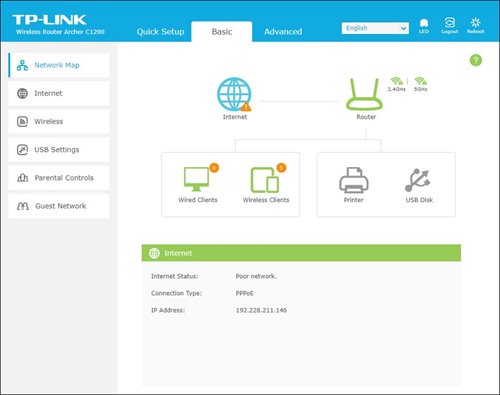
5. From the top menu, choose Advanced and click the Wireless tab on the left menu. Then, select Wireless Settings from the sub menu. Below screen will appear for 2.4GHz selection.

i. Please ensure to tick Enable Wireless Radio function.
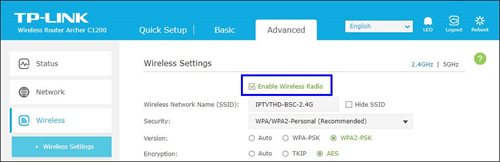
ii. To change the channel, click the drop-down arrow for Channel, then select your desired channel.
Choose between 1 to 13 (Suggested channels : 1,6,11). Then, click "Save" for the changes to take place.

iii. Click Save for the changes to take place. The router will auto reboot and connection will re-establish after few minutes.

iv. Next, select 5GHz to make changes on the wireless channel for 5GHz.
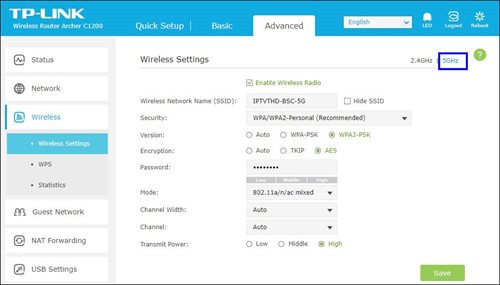
v. Click the drop-down arrow for Channel, then select your desired channel from the selection.

vi. Click Save for the changes to take place. The router will auto reboot and connection will re-establish after few minutes.


You may proceed with the following troubleshooting steps and it shouldn't take you much longer than 15 minutes.
1. Please standby a computer/laptop to access to the internet and connection must be via LAN cable (connect the LAN cable to the Black port at D-Link Router and direct to the computer/laptop).
2. You may open any web browser such as Google Chrome, Internet Explorer, Mozilla Firefox and etc.
3. On the address bar, please go to http://dlinkrouter.local./ and below page will appear. (These are the defaults and if you have done a configuration on your router previously, the password may be different)
Username: admin
Password: (Leave the field blank)

4. Once you have successfully login, the router's web-based setup page will appear. Please follow below steps for the configuration.

5. From the top menu, click Settings and then choose Wireless.

6. Below screen will appear to configure the wireless setting. Since this is a dual band router, you will have 2 Wi-Fi Names (SSID); i.e. 2.4GHz and 5GHz.
i. For 2.4GHz setting, click Advanced Settings to display more available options.

ii. To change the channel, click the drop-down arrow for Wi-Fi Channel, then select your desired channel.
Choose between 1 to 13 (Suggested channels : 1,6,11). Click Save for the changes to take place.
The router will auto reboot and connection will re-establish after few minutes.

iii. Next, for 5GHz setting, click Advanced Settings to display more available options to make changes on the wireless channel for 5GHz.

iv. Click the drop-down arrow for Wi-Fi Channel, then select your desired channel from the selection.

v. Click Save for the changes to take place. The router will auto reboot and connection will re-establish after few minutes.
STEP 1
Press "HOME" button on your remote control.

STEP 2
Navigate to Update Satellite Frequency and press “OK”.

STEP 3
Choose Reprogramming and press “OK”.

STEP 4
Select Yes, continue and press "OK" to proceed with the update.
Otherwise, select No, go back to cancel.

STEP 5
Satellite Frequency Update progress screen will be displayed.

STEP 6
The test result will be displayed once completed.
Press "OK" to go back to channel.

The RM15 monthly rebate (before Govt. Tax) will be applicable to all on-going Multiroom Smart TV subscriptions until further notice. However, in the event of rebate expiry, Astro will notify impacted customers in advance via email or SMS. To update your contact details, please reach out via a feedback form here.
In support of the environment, customers are encouraged to opt for bill statements delivered for free via email or SMS for better savings as the Paper Bill Charge will be revised from RM7.00 to RM10.00 per bill/month, starting 1st August 2022. The Paper Bill Charge will be waived for customers who opt for e-Billing as their preferred bill delivery method.
This Disney+ Hotstar software update will be rolled out progressively to all Ulti Box customers starting 23 August 2022. Please be assured that you will be able to access the Disney+ Hotstar app on your Ulti Box soon.
If you need further assistance, please call our Customer Contact Centre or WhatsApp "DH Help
For Residential Astro Pay TV customers: You may change your contract from e.g., 12-month to 24-month without incurring a switching fee or cancellation fee. However, if you change your contract from e.g., 24-month to 12-month, will be charged a cancellation fee accordingly if still within minimum term (contract) period. No switching fee applicable.
Service Tax will not be imposed on any CSR projects accounts. Any tax payable will be borne by Astro.
Astro Channel 200 is a self-service portal that helps you upgrade your packages and purchase add-ons instantly.

1. Via Television
a) Ultra Box
• Press the “Home” button and scroll to “Settings” > “Wi-Fi/Ethernet” > “New Wi-Fi Connection”
• Allow the Ultra Box to scan the Wi-Fi networks available and subsequently choose your home Wi-Fi network > Enter your Wi-Fi password
• Once you are connected, your Home screen will now show “tabs” where you can now enjoy Video On Demand

o “Catch-up” missed episodes from ongoing programmes
o Binge-watch full seasons from “Boxsets”
o Choose the your favourites from “Movies”, “Kids” and more
2. Mobile/Portable devices
(a) Just head to the Google Play Store, Huawei App Gallery or Apple App Store here, search for “Astro GO” and download Astro GO on iOS and Android devices. Login to watch on demand and other ASTRO channels based on your subscription.
We are sorry you are thinking of leaving us.
If you wish to cancel your Astro subscription, kindly do take note of the information below if your account is still within contract period,
Here's what you can do with your unused satellite TV devices:
If you have an Ultra or Ulti Box, you may:
1. Return your device to us via Arranged Pick-up:
Step 1: Please call Astro's Contact Centre at 03-9543 3838 to schedule an arranged pick-up by one of our Astro agents.
Step 2: Just sit back and relax! Our courier partner, Citylink will come to your doorstep, dismantle the satellite dish for you and retrieve the devices.
2. Return your device to us via Dropoff:
Step 1: Please gather your device(s) and click here to find a Customer Service Centre (CSC) or Astro Authorised Retailer (AAR) near you.
Step 2: Don't worry, it's free! Simply walk in during opening hours and hand over the device(s) to one of our Astro agents.
Note: An installer's visit is required to dismantle your satellite dish. However, if you have a Box or other satellite TV devices at home that do not require dismantling, you may walk into any of our authorised dealers and hand them over to the agent.
If your Satellite TV device is NOT an Ultra or Ulti Box, you may:
1) Recycle your device:
For all Ultra or Ulti Boxes, please return them to Astro via drop-off at a CSC or AAR near you or schedule a pick-up appointment via 03-9543 3838.
For other older Boxes or Satellite TV devices, you are required to discard them only at registered collection centres for proper handling and management of e-waste in an environmentally sound manner. Click here to find a registered collection centre near you.
Note: Upon termination of your Astro service, all Ultra and Ulti Box customers are required to return their devices to Astro. Failure to do so within 14 days of termination may incur a fee of RM100 (not inclusive of Govt. Tax). For customers on all other boxes, please discard your box only at registered collection centres to ensure we all play our part in protecting the environment.
Arranged Pick-Ups
1) I missed the pickup appointment; what do I do now?
Our agent will make two attempts to retrieve the device(s) and dismantle your satellite dish within a period of 14 days, failing which the penalty of RM100 (not inclusive of Govt. tax) would be imposed.
2) Can I reschedule my pickup date?
Yes! Please call Astro's Contact Centre at 03-9543 3838 to reschedule your pickup date.
3) My old devices do not require dismantling; do I have to pack them before handing them over to the delivery agent?
Please pack your device(s) in their original box/packaging if possible. If this option is not available to you, just hand the device(s) over to the delivery agent without any packaging. You will not be charged any fees if the original packaging has been damaged/lost.
4) Do I have to print anything or fill in any forms before handing my device(s) over to the Astro agent?
No, you do not have to prepare any documents before handing your device(s) over to the Astro agent. All you have to do is get your device(s)ready before the Astro agent arrives to ensure a smooth handover process.
5) I have an old/unused satellite dish at my home and I am not an Astro customer; can I still schedule an installer visit to dismantle and return it?
Yes! Not to worry, you can still schedule an installer visit to dismantle the satellite dish from your home.
Drop-offs
1) Do I have to pack my device(s) before handing it over to the Astro agent?
Please pack your device(s) in their original box/packaging if possible. If this option is not available to you, just hand the device(s) over to the Astro agent without any packaging. You will not be charged any fees if the original packaging has been damaged/lost.
2) There are no Customer Service Centre (CSCs) or Astro Authorised Retailers (AARs) near me; what do I do now?
Please opt for courier pick-up if there are no CSCs or AARs near you. Call 03-9543 3838 now to schedule a pick-up appointment by one of our courier partners if you are holding an Ultra or Ulti Box For non-Ultra or Ulti boxes, you may recycle your box at a registered collection center. Click here to find a registered collection center near you.
3) Do I have to print anything or fill in any forms before handing my device(s) over to the Astro agent?
No, you do not have to prepare any documents before handing your device(s) over to the Astro agent. All you have to do is hand the device(s)over to the agent and you're done! You will also receive an acknowledgment slip after successful handover.
4) I found my Box and Smart card, however, the cable(s) that came with it is lost; will there be any penalty fees?
No, please return your old Plug & Play Boxes and Smartcard. There will be no penalty fees if the cable is damaged or lost.
Recycle via Registered Collection Centres
For all recycling-related questions, please click here.
Not to worry, we are only a phone call or a message away! Call or WhatsApp our Customer Contact Centre at 03-9543 3838 and an Astro agent will be available to assist you immediately.
Disney+ Hotstar app is now available to Astro customers on the Ultra and Ulti Box will be able to enjoy the app on the big screen and stream all their favourite blockbuster movies from Hollywood to Hallyu and award-winning shows from Disney, Marvel, Star Wars, Pixar, National Geographic, FX and 20th Century Studios!
Only new and existing Astro Fibre customers with the latest RG21 router can use the Astro Fibre app.

1. Ultra Box magenta light / Ulti Box purple light - Your box is turned "On".
Press the Home button to launch Video On Demand and stream anytime or press channel number on your remote.

2. Ultra Box / Ulti Box orange light - Your box is on "Standby" mode.
Your box is ready to be turned "On" or leave it in this mode to receive new software updates.

3. Ultra Box / Ulti Box blinking orange light - Your box is booting up.
Please wait a few minutes for the box to start.
4. Ultra Box / Ulti box blinking blue light - Your box is downloading a software update.
Please wait a few minutes for the download to complete.

You can proceed with below BTS if the weather is good. Otherwise, you may try again later.
STEP 1
On your remote, press the HOME button and the home menu will be displayed on top of your screen.

STEP 2
Navigate to SETTINGS.

STEP 3
Navigate to Satellite Settings and press “OK”.

STEP 4
Navigate to Diagnostics and press “OK”.

STEP 5
Refer to the signal strength on your screen.
If it is 65 or higher, please take the screenshot and submit your feedback form.
If it is below 65, please go to Step 6.

STEP 6
Switch off the power for your box and make sure that the adapter’s power light is off.

STEP 7
Unscrew the satellite cable from the box and pull it out.

STEP 8
Plug the satellite cable back into the box and screw it back securely.

STEP 9
Switch on the power for your box and make sure that the adapter’s power light is on. Please wait for 5 minutes.

STEP 10
Turn on your box. You should no longer be experiencing this issue.
If issue persist, please submit the issue on our Feedback Form with error details and attach a picture of your General tab of the STB Diagnostics for assistance.
Centralized Dish
If issue persist under a centralized satellite dish, please refer to your respective Building Management before contacting our agents.
No, the Mesh WiFi add-on with Astro Fibre is only available as a subscription service and will not be tied to any device contract.