
A free satellite TV service from Astro. Watch lifetime entertainment, news, learning & information and more.
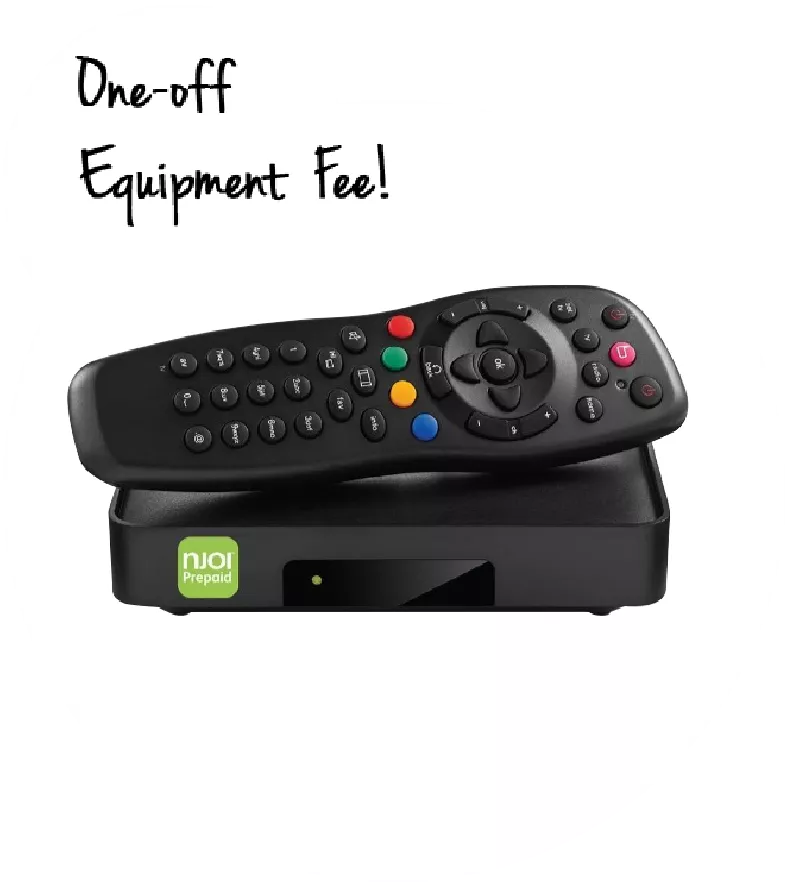
Pictures for illustration only.
Enjoy free access to 15+ TV channels & 10+ radio channels.
* Subject to Astro terms & conditions.


Step-1 |
Step-2 |
Step-3 |
Choose a plan & sign-up online. |
Sit back & wait for installation. |
Enjoy your new Astro / Broadband! |
A free satellite TV service from Astro. Watch lifetime entertainment, news, learning & information and more.
Pictures for illustration only.
New decoder only without satellite dish & cabling. You must have Astro/Njoi satellite dish and cable installed and working properly.
Including installation.
New decoder complete with satellite dish & cabling.
Including installation.
Applying for
| Njoi Astro UniFi Maxis |
Find your answers here.
We provide one stop service to apply Astro and Broadband for you.
You can avoid driving and queuing at the sales counter. We are the dealer that can help you to handle your application from the beginning to the end.
We do not charge you when you apply from us. There is no credit card information required to apply here. Charges are the same as you apply from the sales counter.
First, you can apply online, we will get back to you immediately during business hour. WhatsApp/Email/Fax us your Photocopy of IC (for malaysian) / Passport (for foreigners). When we receive all the information, we will proceed with your application immediately.
Once we receive your application with complete information, we will process your application immediately during business hour. The contractor from the service provider will then contact you for installation appointment once your application is approved.
Enjoy greater savings and hassle-free bill payment in one single bill for both Astro and Broadband. You get to enjoy Astro and Broadband at discounted price every month over the contract period of 24 months.
Astro offers multiple TV packs including Entertainment, Sports, Movies and Kids options. You can choose a pack that matches your viewing preferences and add optional streaming apps where available.
Yes, you may subscribe to Astro TV packs without bundling broadband. However, bundling Astro TV with Fibre Broadband may provide better monthly savings and convenience with a single bill.
For small households with light streaming and browsing, 100Mbps is usually sufficient. Larger families, gamers or heavy streamers may benefit from 500Mbps or 1Gbps plans for smoother performance across multiple devices.
Most Astro TV and Fibre broadband plans come with a 24-month contract. Early termination charges may apply if cancellation is made before the contract ends.
Yes, you may upgrade your TV pack or broadband speed at any time, subject to eligibility and coverage. A new contract period may apply depending on the upgrade.
Your monthly bill will be issued directly by Astro. You may receive it via email or access it through your Astro account. Bundled customers will receive a single combined bill for TV and broadband services.
Payment methods may include online banking, auto debit, credit card or other approved payment channels provided by Astro. Our team can guide you during the registration process.
If you experience any service interruption, you may contact Astro customer support for technical assistance. In many cases, issues can be resolved remotely or a technician will be arranged if necessary.
Yes, relocation is subject to service availability at your new address. Relocation charges and contract adjustments may apply depending on your plan.
No, you do not need a credit card to submit your application. Payment setup will be arranged directly with Astro after your service is approved.
Selected Astro TV packs allow optional add-ons such as streaming services depending on current promotions and availability. Additional monthly charges may apply.
Yes, a WiFi router is typically provided during fibre installation. The router model may vary depending on the selected broadband speed plan.
Yes, we will check the service coverage at your address before proceeding with your application to ensure broadband is available at your location.
For Malaysians, please provide a copy of your MyKad. For foreigners, provide a copy of your passport when submitting your broadband application.
After your application is approved, the service provider typically contacts you within 2 to 7 working days to arrange the broadband installation appointment.
Most Astro Broadband plans come with a 24-month contract starting from your installation date. If you relocate, a new 24-month contract may apply at your new address.
Yes, you can relocate your broadband service, subject to service availability at the new address. Your contract may reset for another 24 months from the new installation date.
Yes, you may request to relocate broadband devices within your home. Non-standard installation charges may apply and are payable to the installer directly after assessment.
Yes, you can switch to Astro Broadband. To avoid service interruption, it is recommended to activate the new service before terminating your current broadband contract.
Standard installations may be free during promotions, but non-standard installations (e.g., device relocation or complex wiring) may incur extra charges payable directly to the installer.
If you are interested to subscribe to Sun NXT via Astro, please click here or reach out to us via WhatsApp by typing “Hi” at 03-9543 3838.
All Customers on any Bundle which includes Movies Pack, those with the Movies Add‑On, customers subscribed to the HBO Pack Add‑On, as well as customers on the Astro One Epic Pack, will automatically be entitled to the new channels.
Yes, eKYC verification is mandatory. In addition, this verification process helps to reduce manual handling of customer's personal information and secure against unauthorised usage.
Yes, you may enhance your existing pack with desired content, app and service add-ons via My Astro App or My Astro Web.
STEP 1: Log in using your Astro ID
STEP 2: Go to Account
STEP 3: Tap on Subscription
STEP 4: Tap on Add-ons
STEP 5: Tap on Manage your add-ons to view other steaming apps you are not subsribed to
STEP 6: Tap on the steaming app you wish to add on
STEP 7: Tap on Confirm Order
No, you will not be charged 8% Service Tax for paper billing option.
The amount you're charged depends on:
All Astro equipment is property of Astro and as per our current Terms and & Conditions, customers are required to return them upon termination of Astro services.
After order submission, the Plug & Play Box and Astro SIM card will be couriered separately to your service address. The delivery dates with the tracking numbers will be communicated via SMS.
The Plug & Play Box and Astro SIM card should arrive within 3-working days after your order submission. You may self-install your box by following the guide here.
No additional fees will be charged upon your relocation. However, you are required to notify Astro of your move. Please refer to Astro's General T&Cs for more information.
Here's how to refresh your smartcard in My Astro:
📡 Experiencing technical issues?
📱 Download the My Astro app to:
- Perform self-troubleshoot
- Solve in a few minutes
- No need to call customer service
Currently Astro GO is only available in Malaysia. You will not be able to access it if you are overseas.
Viu is an on-demand video streaming service with over 4,500 hours of movies, TV shows and
music. With Viu, you can stream premium Asian content from Korea, Japan, Thailand, Hong
Kong, China and Taiwan – with English, Malay & Chinese subtitles (for selected titles) and more,
all on your big screen TV via the Ultra/Ulti Box or on-the-go right at your fingertips with the Viu
mobile app
We wish to advise you to make your payment before the following month's bill is generated in order to avoid interruption in your viewing experience. Please note that to reconnect your subscription, there will be a charge of up to RM20 (excl. gov tax) upon reconnection, except for Commercial & Hotel customers.
Find out more about the reconnection fee here.
If you encounter this message while using the Astro app on your Smart TV, please follow the steps below:
1. Update Your Smart TV Software
2. Restart Your Devices
3. Clear the Astro App Cache
4. Reinstall the Astro App
If you are still having issues, proceed to submit report via WhatsApp or Feedback Form and provide:
This will help our support team investigate and assist you further.
The TVBAnywhere+ app offers over 40,000 hours of Chinese entertainment, including the latest drama series, variety shows, evergreen classics, and unlimited TVB originals that can be enjoyed anytime, anywhere. It also features exclusive dramas, known as TVBAnywhere+ Originals, such as
Ghost Cleansing Ltd
and
OPM
, which are available exclusively on the app. In addition, the app includes selected movie titles for on-demand viewing, providing more flexibility compared to the TVB channels on Astro.
We are working with the Sony team to ensure you will be able to enjoy these 4K UHD channels soon. We will keep you posted once these channels are available to you!
Not to worry, our representative will be contacting you within 24 hours.
Yes, there will be a selection of titles available with Video On Demand (VOD) rights. Please note that VOD availability for movies is subject to content rights.
Prime Video is available as an add-on to all Astro customers at RM25 per month (tax included). However, Prime Video is available to the following Astro customers at no additional cost:
Once you have received the eKYC link, you need to complete the verification within 3 days.
While this technology has its benefits, different devices at home have different reaction and response to changes in signal strength and quality, and it's almost impossible to predict if they will make good band choices due to the interaction between the devices and the Wifi router. Some smart home devices also recommend that band steering is not used due to various reasons such as needing a constant consistent connection, ability to only connect to a particular band, registration of the respective MAC address, etc..
Example:
As single SSID is used, the device may remain on a weak 5GHz network instead of switching over to stronger 2.4GHz network.
SecureGo can only be linked to one (1) device per Astro ID for security reasons. This helps to prevent any fraud that compromises your Astro ID or use other devices to register for SecureGo using your Astro ID.
After successfully adding ZEE5 Premium to your bill, follow the simple steps below to stream ZEE5 on your Ultra/Ulti Box:
Step 1: Go to your Astro Home Page and click “ZEE5” under the Apps rail
Step 2: Scan the QR code on screen with your mobile device
Step 3: Log in with an existing ZEE5 ID or sign up for a new account. Then, enter the activation code displayed on your TV screen into the ZEE5 mobile app.
Step 4: Now, enjoy streaming ZEE5 on your Ultra/Ulti Box!
Please ensure that the email address used to log in to the app is the same one used to purchase your ZEE5 premium subscription.
When you have reached the duration (years) needed for the upgrade, we will upgrade you into your new tier and your shiny new rewards will appear in the My Astro app. You are still eligible for all the rewards from previous tiers too.
Please follow the steps below:
Step 1: Fill in Transfer of Equipment Ownership Form (Part A & Part B)
Step 2: Provide an Undertaking Letter if current account holder deceased or un-contactable. (Note: Copy of death certificate is required if account holder deceased).
Step 3: Provide a copy of new applicant NRIC for Malaysian or copy of passport for non-Malaysian or copy of IMM13 Pass with at least 6 months validity for Refugee. (Note: ASTRO name should be displayed on the top left corner on both sides of the identity card copy).
Step 4: A full payment to be made on any outstanding balance for all related accounts (if any).
Step 5: Submit all documents via Feedback Form.
Step 6: Customer will expect a call from our validation team (Note: Turnaround time for transfer of equipment ownership is 3-5 working days upon receiving all complete documentation).
Note:
1. There might be a loss of transmission during the processing of transfer equipment ownership, split or merge of equipment.
2. Recorded program will be removed for PVR user.
3. A full payment to be made on any outstanding balance for all related accounts.
4. New account holder agreed to continue the remaining contract from previous owner account (if any).
5. Auto debit will be voided upon acknowledgment of transfer equipment ownership (if any).
Additional requirement for New Owner
Capping of applicant age is 21
Malaysians aged < 26 years old and Non-Malaysian - requires copy of utility bill (Phone, Internet, Water or Electricity)
You can access the self-help service 24 hours a day for the following:
1. Check account balance.
2. Refresh your Smartcard if your account is active but TV screen displays "This channel is not included in your subscription" or "We apologise for the service interruption".
3. Check application status.
4. Guide on Self Service troubleshooting guide via SMS Link.
5. Check trouble ticket appointment announcement.
6. Apps Related Self Service login & Activation guide via SMS Link.
7. Apps Related FAQ Details via SMS Link.
If you require assistance with the app:
1. Submit an in-app feedback form via the ZEE5 website: https://www.zee5.com/contactUs/
If you have issues on billing and entitlement, you may contact Astro’s Customer Service by:
1. Submitting a feedback form here: www.astro.com.my/contactus/form; or
2. Reaching to us via WhatsApp by typing “Hi” at 03-95433838 for assistance
The Netflix subscription through Astro is subject to a minimum commitment period of 24 months (“Netflix Minimum Subscription Period”). If you choose to discontinue or terminate the subscription before the commitment period ends, a cancellation fee (“Netflix Early Termination Fee”) will apply. Additionally, downgrading your plan will involve a Switching Fee.
For multi-frequency customers, RM10.00 is charged per physical bill generated.
SecureGo authorisations are required for all transactions via My Astro app v6.2.0 (effective 18 June 2024). Transactions via other platforms or older app version will still use the SMS OTP.
For more information you may visit
https://www.hasil.gov.my/en/e-invoice/
OR call the IRBM help desk line at 03-8682 8000 OR email them at [email protected]
[email protected]
.
Our courier agent/installer will dismantle the devices for you. However, if your equipment is already dismantled, please pack them in their original box/packaging if possible. If this option is not available to you, just hand the equipment over to the courier agent/installer without any packaging. You will not be charged any fees if the original packaging has been damaged/lost.
- The Mesh unit can only be used indoors. It can be mounted onto a wall or be placed horizontally on a desktop. Do not install it in other mode, such as on the ceiling.
- Keep a clearance of at least 10 cm around the device to ensure proper ventilation.
- Keep the device away from electrical appliances that generate strong magnetic or electric fields, such as microwave ovens.
Yes. The TVBAnywhere+ app can be downloaded on compatible mobile device via the Apple App Store or Google Play Store. Once installed, customers can log in with their Astro ID to access the app.
Yes. There is a possibility more courier partners will be added in the future. We will keep you informed of any new information.
Refund can only be made by the registered Astro account holders.
However, if you would like to request refunds on behalf of the account holder, you may do so by providing the supporting documents (e.g.: authorization letter, death certificate, 3rd party NRIC copy).
IRBM is introducing e-invoicing to make tax processes more manageable and efficient for both businesses and the government. This enables a better and smoother customer experience.
If you see the message "Unable to proceed” error, it means the content you are trying to watch is not available under your current Astro subscription package.
1. Check Your Subscription
Verify whether the Astro Smart TV is included in your Astro package via My Astro app/web (kindly refer here).
2. Ensure You're Logged In to the Correct Astro ID
Make sure you're signed in with the Astro ID linked to your active Astro account.
3. Refresh Your Account Access
If you believe the content is included in your subscription but the error persists, proceed to submit report via WhatsApp or Feedback Form and provide:
This will help our support team investigate and assist you further.
Yes, you can request e-invoicing for your last month's bill if you obtain approval before the last date of the allowable period for the month: 5 days after the end date of the invoice period.
Scenario A (Only for Aug ’24):
Bill Date: 07 Aug 2024
Bill Start/End Period: 07 Aug – 06 Sept 2024
Timeframe requesting e-invoice: 07 Aug – 11 Sept 2024 (within 5 days after the end bill period)
Request Outcome: You will get the e-invoice for last month’s bill dated 07 Aug 2024.
Scenario B (For Sept ’24 onwards):
Bill Date: 01 Sept 2024
Bill Start/End Period: 01 Sept – 30 Sept 2024
Timeframe requesting e-invoice: 01 Sept – 5 Oct 2024 (within 5 days after the end bill period)
Request Outcome: You will be getting the e-invoice for last month’s bill dated 01 Sept 2024
Scenario C (For Sept ’24 onwards):
Bill Date: 01 Sept 2024
Bill Start/End Period: 01 Sept – 30 Sept 2024
Timeframe requesting e-invoice: 6 Oct 2024 onwards (more than 5 days after the end bill period)
Request Outcome: You will be getting the e-invoice for the next bill cycle.
Only Visa, MasterCard, and American Express Credit Cards and Debit Cards issued by banks in Malaysia are accepted by Astro-owned payment channels. Official Astro payment partners may have different policies - please check with your preferred payment partner for the latest information.
This error indicates that you are streaming on Astro GO while being connected to Static or Fixed IP. Alternatively, you can try accessing Astro GO via Hotpot.
If you still facing the same issue, proceed to submit report via WhatsApp or Feedback Form.
If you see the error message "There is No Internet Connection" while using the Astro app on your Smart TV, please follow these troubleshooting steps:
1. Check Your Internet Connection
2. Check the LAN Cable Connection (if using Ethernet)
3. Test the LAN Cable
4. Reconnect to Wi-Fi (if using Wi-Fi)
5. Check Other Devices
6. Restart Your Devices
If you are still having issues, proceed to submit report via WhatsApp or Feedback Form and provide:
This will help our support team investigate and assist you further.