
A free satellite TV service from Astro. Watch lifetime entertainment, news, learning & information and more.

Pictures for illustration only.
Enjoy free access to 15+ TV channels & 10+ radio channels.
* Subject to Astro terms & conditions.


Step-1 |
Step-2 |
Step-3 |
Choose a plan & sign-up online. |
Sit back & wait for installation. |
Enjoy your new Astro / Broadband! |
A free satellite TV service from Astro. Watch lifetime entertainment, news, learning & information and more.
Pictures for illustration only.
New decoder only without satellite dish & cabling. You must have Astro/Njoi satellite dish and cable installed and working properly.
Including installation.
New decoder complete with satellite dish & cabling.
Including installation.
Applying for
| Njoi Astro UniFi Maxis |
Find your answers here.
We provide one stop service to apply Astro and Broadband for you.
You can avoid driving and queuing at the sales counter. We are the dealer that can help you to handle your application from the beginning to the end.
We do not charge you when you apply from us. There is no credit card information required to apply here. Charges are the same as you apply from the sales counter.
First, you can apply online, we will get back to you immediately during business hour. WhatsApp/Email/Fax us your Photocopy of IC (for malaysian) / Passport (for foreigners). When we receive all the information, we will proceed with your application immediately.
Once we receive your application with complete information, we will process your application immediately during business hour. The contractor from the service provider will then contact you for installation appointment once your application is approved.
Enjoy greater savings and hassle-free bill payment in one single bill for both Astro and Broadband. You get to enjoy Astro and Broadband at discounted price every month over the contract period of 24 months.
Astro offers multiple TV packs including Entertainment, Sports, Movies and Kids options. You can choose a pack that matches your viewing preferences and add optional streaming apps where available.
Yes, you may subscribe to Astro TV packs without bundling broadband. However, bundling Astro TV with Fibre Broadband may provide better monthly savings and convenience with a single bill.
For small households with light streaming and browsing, 100Mbps is usually sufficient. Larger families, gamers or heavy streamers may benefit from 500Mbps or 1Gbps plans for smoother performance across multiple devices.
Most Astro TV and Fibre broadband plans come with a 24-month contract. Early termination charges may apply if cancellation is made before the contract ends.
Yes, you may upgrade your TV pack or broadband speed at any time, subject to eligibility and coverage. A new contract period may apply depending on the upgrade.
Your monthly bill will be issued directly by Astro. You may receive it via email or access it through your Astro account. Bundled customers will receive a single combined bill for TV and broadband services.
Payment methods may include online banking, auto debit, credit card or other approved payment channels provided by Astro. Our team can guide you during the registration process.
If you experience any service interruption, you may contact Astro customer support for technical assistance. In many cases, issues can be resolved remotely or a technician will be arranged if necessary.
Yes, relocation is subject to service availability at your new address. Relocation charges and contract adjustments may apply depending on your plan.
No, you do not need a credit card to submit your application. Payment setup will be arranged directly with Astro after your service is approved.
Selected Astro TV packs allow optional add-ons such as streaming services depending on current promotions and availability. Additional monthly charges may apply.
Yes, a WiFi router is typically provided during fibre installation. The router model may vary depending on the selected broadband speed plan.
Yes, we will check the service coverage at your address before proceeding with your application to ensure broadband is available at your location.
For Malaysians, please provide a copy of your MyKad. For foreigners, provide a copy of your passport when submitting your broadband application.
After your application is approved, the service provider typically contacts you within 2 to 7 working days to arrange the broadband installation appointment.
Most Astro Broadband plans come with a 24-month contract starting from your installation date. If you relocate, a new 24-month contract may apply at your new address.
Yes, you can relocate your broadband service, subject to service availability at the new address. Your contract may reset for another 24 months from the new installation date.
Yes, you may request to relocate broadband devices within your home. Non-standard installation charges may apply and are payable to the installer directly after assessment.
Yes, you can switch to Astro Broadband. To avoid service interruption, it is recommended to activate the new service before terminating your current broadband contract.
Standard installations may be free during promotions, but non-standard installations (e.g., device relocation or complex wiring) may incur extra charges payable directly to the installer.
Your documents will be handled in compliance with standards set by PDPA (Personal Data Protection Act 2010) and will not be used for other means without your specific consent.
For Astro Fibre subscription, should you choose to discontinue/terminate the Astro Fibre service before the expiry of the contract (24 months), you will be subjected to an early cancellation fee of RM100 x Remaining months of the contract period for your Broadband services.
All Astro Fibre devices provisioned (Fibre modem, WiFi router and Mesh) will need to be returned upon termination. Our team will schedule the collection of equipment after your Broadband services have been terminated.
If equipment is damaged, lost or cannot be retrieved, penalty fees will be applied (excluding Service Tax) accordingly.
Your cloud recording space will revert to 200 hours by default. If your current recordings exceed 200 hours, the system will delete the exceeded hours once you have stopped the Astro GO+ subscription starting with the oldest recordings first.
Please ensure that you are using the correct ID for eKYC submission.
For Malaysians :
1. Please ensure you are using MyKad or MyTentera.
2. Capture the front and back of your ID.
3. Ensure that there is no glare when capturing the photo.
4. Ensure that are capturing it in a bright room to have the highest picture quality.
5. Please do not cover your ID when capturing it, as it may impact the OCR Optical Character Recognition accuracy.
For Malaysian Permanent Resident and Other Nationality :
1. Please use Passport only.
2. Please capture your whole passport, which has your personal information on it and your signature.
3. Ensure that there is no glare when capturing the photo.
4. Please do not cover your ID with your when capturing it, as it may impact the OCR Optical Character Recognition accuracy.
The Download/Upload for each of the speed is as follow:
50Mbps/20Mbps
100Mbps/50Mbps
500Mbps/100Mbps
800Mbps/200Mbps
*Actual download/upload speeds is dependent on external factors, including but not limited to the distance between your devices and the WiFi router, network capacity and the number of connected users, the quality of your internal wiring, any obstructions of WiFi signals, the signal strength of wireless connection from your devices and if you are using a wireless connection.
Only Visa, MasterCard, and American Express Credit Cards and Debit Cards issued by banks in Malaysia are accepted by Astro-owned payment channels. Official Astro payment partners may have different policies - please check with your preferred payment partner for the latest information.
Please refer to the table below:

Note:
Please find some examples (for Residential customers) as below:
Termination
Customer signed up for Entertainment Plus Pack (24-month contract) with Ultra Box. Customer decided to terminate the subscription 8 months into the contract. As the customer still has 16 months remaining, the maximum applicable fee will be RM41.67 x 16months = RM666.67
Pack downgrade
Customer signed up for Movies Pack (24-month contract) with Ultra Box. 18 months in, customer decides to downgrade to Primary Pack (24-month contract). As the customer still has 6 months remaining, the maximum applicable fee will be RM20.83 x 6months = RM125
Dropping off Netflix or Disney+ Hotstar within first 12 months
Customer signed up for Entertainment Plus (24-month contract) with Ultra Box and 12-month commitment on Netflix App. 6 months in, customer decides to upgrade to Premium Pack 1 (24-month contract) which does not include Netflix App. As the customer still has 6 months remaining in the first 12 months of commitment for Netflix App, the maximum applicable fee will be RM41.67 x 6 months = RM250. Upon upgrading to Premium Pack 1, a new 12-month commitment for Disney+ Hotstar App begins alongside the 24-month contract on the package.
Starting 12 December 2023, Multiroom Smart TV app customers can enjoy two 4K Ultra HD (4K UHD) channels, namely CH549 Love Nature and CH805 Astro SuperSport. “Love Nature” is available to all customers regardless of their subscribed TV Pack. It celebrates the complexity of life on earth, presenting nature stories in stunning detail and colours.
Additionally, “Astro SuperSport” is only available to customers on the Sports, Sports Plus, Premium 1, Premium 2, Premium 4, Platinum Lite and Platinum Packs. This channel showcases a variety of sporting events, selected to appeal to the Malaysian viewing audience.
Please contact the courier agent directly to change the retrieval date from the initially agreed date and time.
1. Power reset (on & off) your TV, Astro Decoder, Modem and Router.
2. Ensure standard physical connection (No 3rd party devices connected to decoder and modem).
3. Please ensure at all-time your router is 0.5 meter away from your Astro Decoder to avoid signal interferences.
4. Please standby computer/laptop to access to the internet and connection must be via LAN (cable) [connect the LAN (cable) at any LAN port at router and direct to computer/laptop].
5. You may open any web browser such as Google Chrome, Internet Explorer, Mozilla Firefox and etc.
6. On the address bar, please go to http://www.speedtest.net/ and below page will appear.

7. Click "Change Server" to edit the settings preferred by Internet Service Provider (ISP).
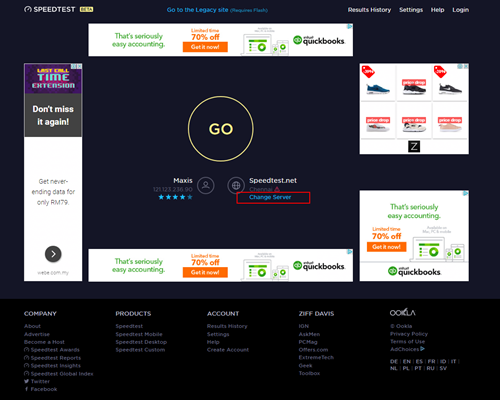
8. Edit the server settings by search and select the required server required by ISP.
For Maxis provider - Select Subang Jaya - Maxis server.
For TIME provider - Select Shah Alam - TIME dotcom Bhd server.
For Allo provider - Select Cyberjaya - Global Forway Sdn Bhd server.

9.Click "GO", and the test will begin.

The test is completed once both download and upload speeds are displayed.
Sample of the Speedtest result is shown below.

**Please ensure the snapshot includes a time stamp and network used either LAN cable or wireless (as per picture above)
10. Kindly screenshot or take a picture of the result, name it as "LAN Speedtest".
11. Repeat the test once again using Wi-Fi connection (Please unplug your LAN cable and connect via wireless connection using your SSID).
12. Screenshot or take a picture of the result, name it as "WiFi Speedtest".
For information about the Disney+ Hotstar app functions and specifications, please visit help.hotstar.com or email disneyplus.my@hotstar.com.
Please disregard the reminder if payment had been made and do check if you have any outstanding balance on Astro Quick Pay.
STEP 1
Switch OFF the power of your Ultra / Ulti box and make sure that the adapter's power light is off.

STEP 2
Switch ON the power of your Ultra / Ulti box and make sure that the adapter's power light is on.

STEP 3
On your remote control, press the standby button repeatedly until the Startup Options appear on TV.

STEP 4
Press "1".

STEP 5
Press "1".

STEP 6
The Software Update progress screen will appears.
The update will take 10 - 15 minutes to complete.
Please be patience.

Astro Channel 200 is a self-service portal that helps you upgrade your packages and purchase add-ons instantly.
- Credit or Debit Cards
- Visa
- Mastercard
- Maybank2U - Pay using your Maybank2U account
- FPX - Pay using any local bank account via FPX
- E-Wallet - Touch "n Go
When playing content from the Video On Demand library, a 15-second or 30-second video advertisement(s) will be shown before the On Demand programme starts. All advertisements will display a countdown to indicate the time remaining on the advertisement(s) and will not be skippable.
To find out more information on Astro GO advertising, please click here.
Astro is continuously improving our user interface and introducing new features to our platforms to ensure that your Astro experience is more seamless, efficient and user-friendly.
For details on our latest interface, Picture-in-Picture mode and auto-start interactive mode on Astro GO, please click here.
In addition, we have also recently introduced a new look to the Title Information Page, the ability to disable the Profile Selection Screen and adjustable auto-standby timing. For more information, please click here.
By changing from a 12-months commitment period to 24-months, there will not be any cancellation fee applicable. You will start a new contract with 24-months commitment and receive the corresponding discount for that duration.
STEP 1
On your remote, press the Home button and the home menu will be displayed on top of your screen.

STEP 2
Navigate to Guide.

STEP 3
Select the channel you would like to lock and press "OK".

STEP 4
Select "Lock Channel" and press "OK".

STEP 5
You channel is successfully locked when this screen appears.

STEP 6
Your selected channel will have a lock tagging after being locked.

If your account is suspended or disconnected, you will retain the existing subscription when you reconnect. However, if you plan to make any changes after the reconnection, you can only select from the new packs.
We have taken into account customer feedback when introducing these new packs. While we understand the value customers see in purchasing their preferred channels individually, the packaging of media drives the economies of scale necessary to offer content at an affordable price to all our customers.
Other than the New Astro Packs that offer great value, customers may purchase selected channels or packages as content add-on such as Korean Pack, Horror Pack etc.
Astro offers 3 different after-sales service that is made available to the customers:
(1) Express (RM75)
(2) Same Day (RM70)
(3) Regular (RM65)
***Price is inclusive of 6% Service Tax.

Should you choose to discontinue/terminate the Astro Fibre Bundle service before the expiry of the contract (24 months), you will be subjected to an early cancelation fee of RM100 x Remaining months of the contract period for your Broadband services and early cancellation fee of New Packs accordingly RM600 (prorated) for Ulti Box or RM1000 (prorated) for Ultra Box.
Any bundle package promotion will be removed, and you will no longer get to enjoy similar promotions upon reconnection.
All Astro Fibre devices provisioned (Fibre modem, WiFi router and Mesh) will need to be returned upon termination. Our team will schedule the collection of equipment after your Broadband services have been terminated.
If equipment is damaged, lost or cannot be retrieved, penalty fees will be applied (excluding Service Tax) accordingly.
If your existing Netflix account is linked with your Astro subscription, your Netflix account will resume on the previous method of payment. If you linked a new Netflix account with your Astro subscription, cancelling Astro service will also cancel your Netflix account.
Astro GO is a companion app that is complimentary for all Astro subscribers and allows up to 2 users to stream at the same time. 200 hours of cloud recording* come complimentary with your Pay TV subscription.
Astro GO+ is an add-on service that enables up to 4 users to stream Astro GO and/or Multiroom Smart TV** at the same time. The amount of cloud recording storage will also be increased to 1500 hours.

*Cloud recording hours are shared across your Astro Box, Astro GO and Multiroom Smart TV
** Provided that you have a Multiroom Smart TV subscription
Yes, customers may need to provide additional documents such as bank-in slips or payment receipts. Any incomplete document, customer will be notified by Astro after validation is made.


The default login of the router as below. If you have done a configuration on your router previously, the password may be different.
Username: user
Password: Router S/N (Available on the sticker at the back of the router)
4. Once you have successfully login, the router's web-based setup page will appear. Please follow below steps for the configuration.

5. From the left menu, choose Wireless 2.4GHz and then click Basic Settings tab on the left menu to access to below screen.

6. You may change the Wireless Network Name (SSID) and the SSID Password to follow your preferences, then click "Save" for the changes to take place.
Please reconnect to the new wireless name with the new password once completed.
7. Since this is a dual band router, you will have 2 Wireless Network Names (SSID) i.e. 2.4GHz and 5GHz. You may connect to any of the SSID, preferably with a stronger signal available.
You may change the Wireless Network Name (SSID) and the SSID Password to follow your preferences for 5GHz by choosing Wireless 5GHz then click Basic Settings.
Click "Save" for the changes to take place and reconnect to the new wireless name with the new password once completed.

STEP 1
Switch OFF the power of your Ultra / Ulti box and make sure that the adapter's power light is off.
STEP 2
Switch ON the power of your Ultra / Ulti box and make sure that the adapter's power light is on.
STEP 3
On your remote control, press the Home or Standby button repeatedly until the Startup Options appear on TV.
STEP 4
Press "987" to proceed.
Advanced Startup Options will be displayed.
STEP 5
Press "1" to initiate a reset setting.
STEP 6
Press "OK" to continue.
STEP 7
After the factory setting is restored, TV will turn blank.
Please wait until the box completes initiate setup.
STEP 8
Once completed, the following screen will appear on your TV.
Refer to Installation Setup guide to complete the setup.
Click here to follow New Installation Settings guide for Satellite
Click here to follow New Installation Settings guide for Plug and Play
No. Astro GO is a FREE entitlement exclusively for customers with an Astro subscription. If you do not have an Astro subscription account, please visit astro.com.my to find out more.
Yes. You are entitled to separate Netflix accounts for each main Astro subscription e.g. If you have subscribed to Entertainment Plus, Platinum Pack, etc separately. Therefore, if you have more than one main Astro subscription with Netflix, you may choose to create multiple email addresses to activate each respective Netflix subscription. Please follow the steps provided to you via email/SMS in order to activate your Netflix subscriptions on the website.
Your existing contracts and corresponding rewards including but not limited to discounts/rebates will be removed with no penalty applied and replaced with the new contracts associated with the new packs. Exception applies to Disney+ Hotstar (3-Month Pack) and Multiroom campaigns in which remaining contract durations will be brought over if the subscription is continued or penalty will be applied upon discontinuation of said subscriptions.
1. Ensure power cable is connected tightly.
2. Try to use another power socket / power source to eliminate faulty power sockets/power sources which could cause the issue.

3. If the issue persists, submit your feedback form for further assistance.
Further details on pricing, billing and availability will be confirmed in coming months. Look out for more details and register your interest via https://astro.com.my/Netflix
Streaming app entitlement is dependent onthe TV Pack you are subscribed to, with some streaming apps available on Astroas an add-to-bill service. Please visit product.astro.com.my/apps to seeif you are entitled to your favourite streaming app once it is launched!
STEP 1
Press "HOME" button on your remote control.

STEP 2
Navigate to Settings and press "OK".

STEP 3
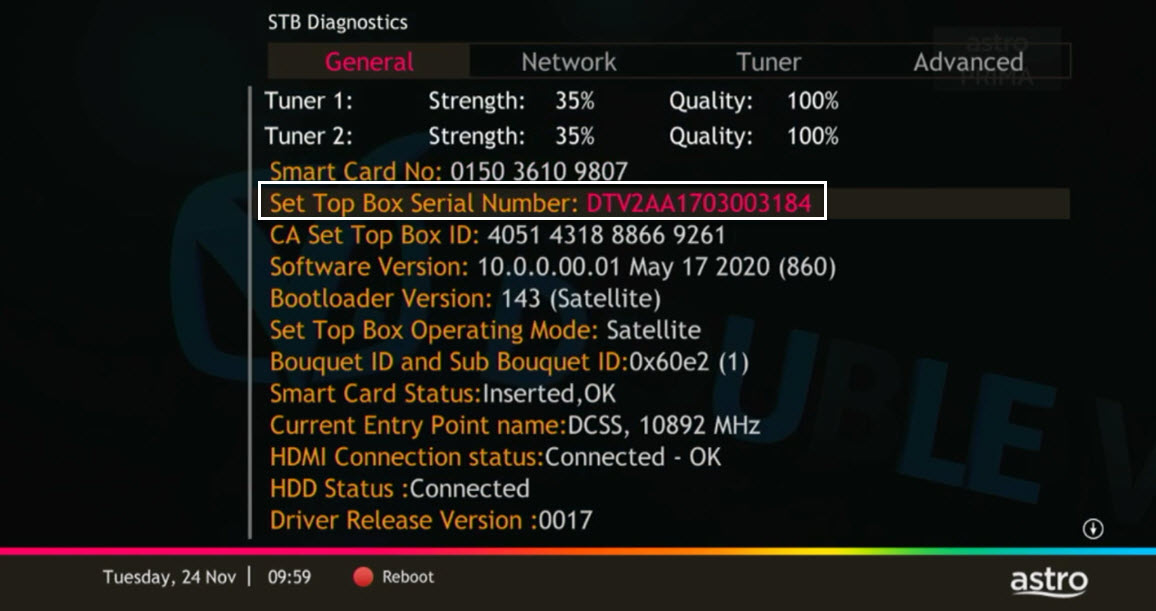
Navigate to STB Diagnostics and press "OK".

STEP 4
From General Tab, look at the Smart Card No for the smartcard number.

STEP 5
Take look at the Set Top Box Serial Number for the box serial number.
Yes, a charge of up to RM20.00 may be imposed upon reconnection.
No, Astro GO is a free app for Astro customers. The content available on Astro GO will depend on the subscription pack that you are subscribed to.
If you do not have an Astro subscription, please click here to find out packages available.
Please contact your issuing bank to enable card-not-present (CNP) transactions. This security measure helps us to protect your card information from being misused in fraudulent transactions.
1. Please ensure your modem and router power plugs are securely connected to the power socket.

2. Alternatively, try to connect the power plug to a different power socket or power source. This step is to eliminate the possibility of faulty power socket which could cause the issue.

3. If issue persists, submit your Feedback Form for further assistance.
For Residential Astro Pay TV customers: You may change your contract from e.g., 12-month to 24-month without incurring a switching fee or cancellation fee. However, if you change your contract from e.g., 24-month to 12-month, will be charged a cancellation fee accordingly if still within minimum term (contract) period. No switching fee applicable.
For self-installation, in your first bill upon activation of your Plug& Play Box, the activation fee will be included as a separate line item in your bill alongside the subscription fee.
If you choose to install the Plug & Play Box via installer, you can pay the installation fee and activation fee directly to the installer upon installation. This will be reflected in your next bill itemised as setup fee.
The main features and changes in this update are the revamped look and feel of Astro's user interface on the Astro Ultra/Ulti Boxes and Astro GO, which include redesigns to the Astro interface that consists of title rows at the Home Page to feature popular franchises, new live programmes posters and changes to the menu bar for easier navigation; auto-start Interactive Mode on Astro GO; as well as a Picture-in-Picture mode that shrinks your video player so you can keep watching your favourite shows while using other apps.
The details of each feature are:
For more info, please read our dedicated FAQ on this here.
No, you can remain in your current pack, however starting 9 November 2021, you would need to subscribe to the new packages to make any changes to your subscription. We strongly encourage customers to switch to the new packs to enjoy the best content experience from Astro.
Your existing offers with us will not be affected and will continue until the agreed upon date.
Yes, if a device is faulty due to customer's negligence, it is subject to a penalty fee for each device:
A security question will be asked when making payments with credit cards over the phone. All other payment channels will not require any form of verification.
For any access related queries on Disney+ Hotstar, please call or WhatsApp "DH Help
The expiry date is when your current Disney+ Hotstar entitlement ends, except if your Astro subscription is out of contract, in which case this expiry date may not apply to you. For details on your subscription expiry date, please call our Customer Contact Centre or WhatsApp us "DH Help
If you did not receive the recovery email or verification code, please make sure that:
To find out which email or phone number you have used to register your Astro ID, you may submit a feedback form. Kindly select feedback type "I have an enquiry/issue with Apps" choose "Astro GO"

We will get in touch with you within 48 hours to solve your enquirie
Step 1: You request for a move.
Step 2: One of our agents will contact you within 24 hours to set an appointment if you’re using Self Service - Astro Self-Service Portal.
Step 3: You will receive a reminder of your appointment an hour before your scheduled time.
Step 4: The technician will dismantle your satellite dish.
If there is no satellite dish, customers should dismantle the modem, router, and decoder by themselves.
Step 5: You will need to transport your device(s) to your new home.
Step 6: The technician will reinstall your satellite dish, (including modems and routers for broadband customers) at your new home based on the schedule appointment.
Note For IPTV Customers:
1. Upon relocation request, all exiting IPTV customers will be converted to our Astro & Broadband service. Customers can choose to have standard Astro service with satellite dish, or unicast Plug & Play without satellite dish.
2. If customers choose to have satellite dish, an additional RM150.00 will be charged for satellite installation. If customers choose to have unicast Plug & Play service, no satellite dish is required, hence no extra charge will be incurred.

