
A free satellite TV service from Astro. Watch lifetime entertainment, news, learning & information and more.

Pictures for illustration only.
Enjoy free access to 15+ TV channels & 10+ radio channels.
* Subject to Astro terms & conditions.


Step-1 |
Step-2 |
Step-3 |
Choose a plan & sign-up online. |
Sit back & wait for installation. |
Enjoy your new Astro / Broadband! |
A free satellite TV service from Astro. Watch lifetime entertainment, news, learning & information and more.
Pictures for illustration only.
New decoder only without satellite dish & cabling. You must have Astro/Njoi satellite dish and cable installed and working properly.
Including installation.
New decoder complete with satellite dish & cabling.
Including installation.
Applying for
| Njoi Astro UniFi Maxis |
Find your answers here.
We provide one stop service to apply Astro and Broadband for you.
You can avoid driving and queuing at the sales counter. We are the dealer that can help you to handle your application from the beginning to the end.
We do not charge you when you apply from us. There is no credit card information required to apply here. Charges are the same as you apply from the sales counter.
First, you can apply online, we will get back to you immediately during business hour. WhatsApp/Email/Fax us your Photocopy of IC (for malaysian) / Passport (for foreigners). When we receive all the information, we will proceed with your application immediately.
Once we receive your application with complete information, we will process your application immediately during business hour. The contractor from the service provider will then contact you for installation appointment once your application is approved.
Enjoy greater savings and hassle-free bill payment in one single bill for both Astro and Broadband. You get to enjoy Astro and Broadband at discounted price every month over the contract period of 24 months.
Astro offers multiple TV packs including Entertainment, Sports, Movies and Kids options. You can choose a pack that matches your viewing preferences and add optional streaming apps where available.
Yes, you may subscribe to Astro TV packs without bundling broadband. However, bundling Astro TV with Fibre Broadband may provide better monthly savings and convenience with a single bill.
For small households with light streaming and browsing, 100Mbps is usually sufficient. Larger families, gamers or heavy streamers may benefit from 500Mbps or 1Gbps plans for smoother performance across multiple devices.
Most Astro TV and Fibre broadband plans come with a 24-month contract. Early termination charges may apply if cancellation is made before the contract ends.
Yes, you may upgrade your TV pack or broadband speed at any time, subject to eligibility and coverage. A new contract period may apply depending on the upgrade.
Your monthly bill will be issued directly by Astro. You may receive it via email or access it through your Astro account. Bundled customers will receive a single combined bill for TV and broadband services.
Payment methods may include online banking, auto debit, credit card or other approved payment channels provided by Astro. Our team can guide you during the registration process.
If you experience any service interruption, you may contact Astro customer support for technical assistance. In many cases, issues can be resolved remotely or a technician will be arranged if necessary.
Yes, relocation is subject to service availability at your new address. Relocation charges and contract adjustments may apply depending on your plan.
No, you do not need a credit card to submit your application. Payment setup will be arranged directly with Astro after your service is approved.
Selected Astro TV packs allow optional add-ons such as streaming services depending on current promotions and availability. Additional monthly charges may apply.
Yes, a WiFi router is typically provided during fibre installation. The router model may vary depending on the selected broadband speed plan.
Yes, we will check the service coverage at your address before proceeding with your application to ensure broadband is available at your location.
For Malaysians, please provide a copy of your MyKad. For foreigners, provide a copy of your passport when submitting your broadband application.
After your application is approved, the service provider typically contacts you within 2 to 7 working days to arrange the broadband installation appointment.
Most Astro Broadband plans come with a 24-month contract starting from your installation date. If you relocate, a new 24-month contract may apply at your new address.
Yes, you can relocate your broadband service, subject to service availability at the new address. Your contract may reset for another 24 months from the new installation date.
Yes, you may request to relocate broadband devices within your home. Non-standard installation charges may apply and are payable to the installer directly after assessment.
Yes, you can switch to Astro Broadband. To avoid service interruption, it is recommended to activate the new service before terminating your current broadband contract.
Standard installations may be free during promotions, but non-standard installations (e.g., device relocation or complex wiring) may incur extra charges payable directly to the installer.
You can access the self-help service 24 hours a day for the following:
1. Check account balance.
2. Refresh your Smartcard if your account is active but TV screen displays "This channel is not included in your subscription" or "We apologise for the service interruption".
3. Check application status.
4. Guide on Self Service troubleshooting guide via SMS Link.
5. Check trouble ticket appointment announcement.
6. Apps Related Self Service login & Activation guide via SMS Link.
7. Apps Related FAQ Details via SMS Link.
Astro Fibre is only available with Fibre infrastructure and does not support copper wire infrastructure.
If Netflix is included as part of your Astro pack, you will find it in My Astro app
where you will be able to manage all the streaming apps you are entitled to.
Netflix will also be included in your Astro bill under “Monthly Charges”
If you have added Netflix to your bill (Netflix Add-on), the Netflix subscription charge will appear in your Astro bill under “One-time charges” as Netflix App Subscription or Netflix Premium and will be charged monthly. You should refer to Netflix account Management for any changes to your Netflix subscription or should you wish to change to other billing methods.
Yes, you may cancel your Astro Fibre order before service activation, however, kindly note that there is a cancellation charge of RM212 (inclusive of SST) for any service cancellation done 48 hrs before scheduled appointment.
STEP 1
On your remote, press the Home button and the home menu will be displayed on your screen.
STEP 2
Navigate to Profile.
STEP 3
The Profile Selection Screen will be displayed.
STEP 4
Navigate to Add Profile.
STEP 5
Choose your Profile.
STEP 6
Input the Profile Name and navigate to DONE.
STEP 7
Choose the Age Group of the new profile and press "OK".
STEP 8
Your new profile will be shown in the Profile Selection Screen.
Starting 1 April, access to TVBAnywhere+ is no longer available to Astro customers. However, you can continue to enjoy TVB content via On Demand and TVB Jade (CH310) and Astro AOD (CH311). If you would like to subscribe to the TVBAnywhere+ app, you may still do so by purchasing it directly from TVB.
If you subscribe to Astro Fibre between 1 October 2023 to 23 November 2023, you may still get the speed boost by calling in to our Customer Contact Centre at 03-9543 3838 and re-contracting with us. Kindly note that your account will restart with a new 24-month contract.
Astro introduces Liga Malaysia for all Astro customers to watch the Malaysian Football League’s Liga Malaysia competitions LIVE, comprising Perlawanan Sumbangsih (Piala Sultan Haji Ahmad Shah), Liga Super, Piala FA and Piala Malaysia live in HD on Astro Arena (CH801), Arena Bola channels (CH803 and CH804) and stream on Astro GO until further notice.
No, the Service Tax is a tax payable entirely to the Government. Astro acts as a collection agent for the Government.
You can subscribe to new packs via
There are 2 methods of setting maturity ratings restriction on Netflix:
Method 1 – Create a Kids Profile in Netflix App on Ultra/Ulti Box
Method 2 – Manually set Viewing Restrictions for each profile
For more information kindly visit:
The "coming soon" label on some streamingapps on your TV and the "Apps" page of Astro's website allows our customers tostay on top of new launches as they happen! Stay tuned for these upcomingstreaming apps so you can access even more content that you love from acrossthe world.
No. However, if you cancel your Astro Pay TV services but resubscribe at a later date, your duration (year) with us will reset to zero and restart according to your new activation date. Your Astro Rewards tier will reset to Magenta.
As our customers deserve the best entertainment experience, Astro is refreshing its content and packages to offer more choice, value, flexibility, and better experience in a streaming world as part of the new Astro experience.
The all-new Astro packs are designed for customers in the streaming and connected world, where they can stream all the shows they love on Ultra Box and Ulti Box. Customers can now enjoy their favourite shows all on Astro, from global streaming services like Netflix, Disney+ Hotstar, HBO GO, iQIYI, TVBAnywhere+ as well as all Astro's flagship shows and the best of live sports in one place, on the big screen. Our new packages offer unbeaten value, a greater variety of content and greater convenience, all made better with our Astro & Broadband for better connectivity.
For payments made using credit cards, refunds will be reversed back to the respective card. Whilst payment made by cash and online banking will be made to the account holders bank account.
You may submit your request via Feedback Form with below information details based on your payment method.
Please choose below option in the Feedback Form:
Category: I would like to request for refund
Sub Category: Request for Refund
1) Refund via Bank transfer:
Bank Name:
Bank Account Number:
*Note: Please confirm your bank account details and ensure it's correct
2) Refund via Foreign bank:
Bank Name:
Bank Account Number:
Bank Swift Code:
IBAN Code:
Currency: Eg: Dollar/Yen etc
*Note: Please confirm your bank account details and ensure it's correct
3) Credit Card:
Credit Card Number:
ONLY last 4 digit credit card updated with Astro account
*Note: Please confirm your credit card details and ensure it's correct
STEP 1
On your remote, press the HOME button and the home menu will be displayed on top of your screen.

STEP 2
Navigate to Settings.

STEP 3
Navigate to HDMI Audio and press "OK".

STEP 4
Navigate to your preferred selection and press “OK”.

For more info on the product including offers and setup, visit product.astro.com.my/multiroom
Unfortunately, you will no longer be able to access Disney+ Hotstar via Astro if you cancel your Astro subscription with Disney+ Hotstar entitlement.
Astro is an official distributor of Disney+ Hotstar, the dedicated streaming home of global, and Malaysian Hits. Astro customers can now subscribe to Disney+ Hotstar through our Movies, Premium 1, Premium 3 or Platinum Pack and enjoy award-winning entertainment with Disney+ Hotstar alongside Astro's much-loved local content for even better value and savings. Now, customers can enjoy Disney+ Hotstar on their Ultra or Ulti Box, mobile app or web! In addition, customers who have multiple primary Astro accounts will be entitled to multiple entitlements to Disney+ Hotstar.
Please be sure to take your decoder, satellite dish, smartcard, remote control and all other fixtures after dismantling is done by the technician.
Please note that charges will be on a monthly basis (RM18.30/month) and this subscription is subject to a 3-months contract.
Only new and existing Astro Fibre customers with the latest RG21 router can use the Astro Fibre app.

STEP 1
Check on the adapter's power light.
If the adapter's power light is ON, please refer to Blank Screen troubleshooting steps here.
Otherwise, if the adapter's power light is OFF, switch off the power for your box.

STEP 2
Ensure power cable is connected tightly.
Plug in power cable to different power socket and switch on the plug.
You should no longer be experiencing this problem.
If issue remains, proceed to STEP 3.

STEP 3
Try a different power socket to connect the equipment.
Turn on the power socket and check the adapter's power light.
If there is no light on your power adaptor's, please submit the issue on our Feedback Form with error details and provide your sim card number for assistance.
Please indicate in the form if any lightning strike/thunderstorm/power trip occurred.

At this point in time, the Disney+ Hotstar app on the Ultra or Ulti Box does not support Dolby audio. We are working to enable this in a future update.
Yes, you can return the Astro Box & Smart Card/SIM Card even after being charged for the box fee. After successfully returning the box, Astro will proceed to refund the box fee within 30 days from the confirmation date of the returned items to our Astro warehouse.
Starting 9 June 2023, Viu Premium will be added as an option as part of our Asian Favourites along side Chinese, Indian and Indonesian Favourites. Astro customers on the Entertainment, EntertainmentPlus, Premium 2, Premium 3 and Platinum Packs will be able to choose Viu Premium as their Asian Favourites selection and stream the app for FREE. While customers on other TV Packs may purchase Viu Premium as an add-on to their subscription for as low as RM8.40/month (RRP: RM17.90). After successfully adding Viu Premium to your subscription, all Ultra and Ulti Box customers can access the app on their Astro Box, www.viu.com and the Viu mobile app to enjoy all the best KDramas, popular local hits, popular Thai and Indonesian shows and so much more! For further information and updates on Viu,
please visit: www.astro.com.my/Viu .
Multiroom (Smart TV) is a secondary subscription that allows you to enjoy your favourite Astro shows instantly in different rooms at the same time on your Smart TV. Subscribe to Multiroom (Smart TV) at RM29.99 per month (excl. any govt. tax), and simply download the Astro app on your second TV-screen and connect to your home Wi-Fi to stream.
STEP 1
Check the Audio settings on your box and set to Auto.
Refer guide to change Digital Audio Settings.
STEP 2
If issue persist, check if there is any 3rd party device (sound system/hdmi splitter) connected between box and TV.
STEP 3
If using 3rd party devices, bypass/remove 3rd party device and make sure HDMI cable connected directly from box to TV.
STEP 4
If issue persist, connect to Live Agent via WhatsApp for help.
Please visit http://help.netflix.com to call or start a live chat with Netflix's customer support agents. You will be assisted to unlink your Netflix account from your Astro subscription. After the process, you may link another Netflix account to your Astro subscription.
(i) Head over to My Astro Portal and go to 'Bill & Payment'. Click on 'Payment History'
(ii) Contact us via one of these platforms. Please ensure you include your Astro Account Number.
Yes, you can manage all of your Astro Fibre subscriptions with the Astro Fibre App. However, you would need to create a different Astro ID for each Astro Fibre account.

1. Please use a LAN ethernet cable and connect your computer/ laptop to the back of the Maxis Router.
2. You may open any web browser such as Google Chrome, Internet Explorer, Mozilla Firefox, etc.
3. On the address bar, please go to http://192.168.1.254 and the page below will appear.
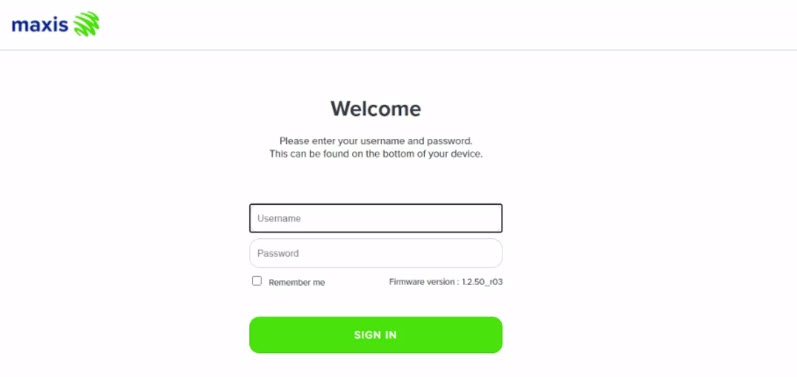
The default login of the router as below. If you have done a configuration on your router and changed your password previously, please use the password you have previously set.
Username: administrator
Password: Router S/N (Available on the sticker at the back of the router)
4. Once you have successfully login, the router's web-based setup page will appear.

5. From the left menu, select WIRELESS to access the screen below.

6. You may change the Channel selection by scrolling down to the Advanced Setup.
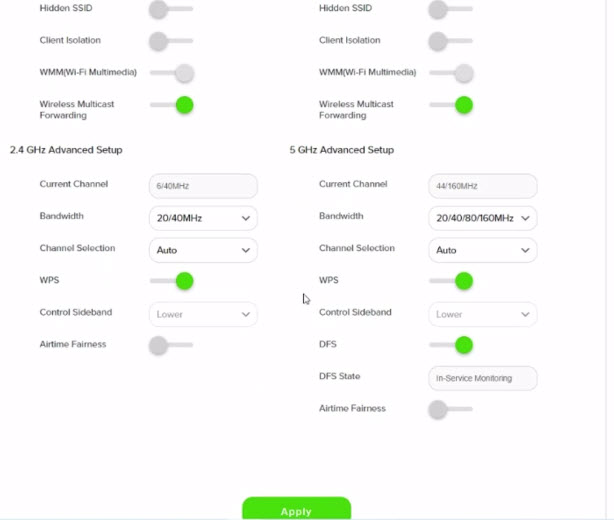
7. To change the channel on 2.4 GHz and 5 GHz, click the drop-down arrow for Channel, then select your desired channel.
Then, click "Apply" for the changes to take place.

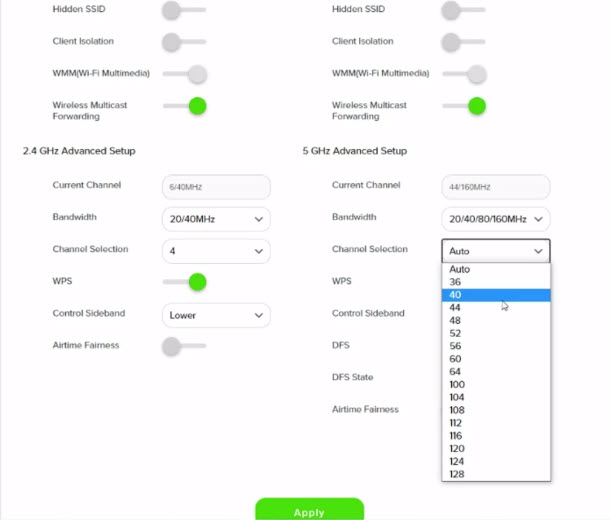
8. A warning box will popup, click "OK" for the changes to take place.

9. Please wait until the connection reestablish.

Unfortunately, this means that you are using a TV model that does not support 4K UHD resolution (Sony BRAVIA 4K GB, Sony BRAVIA 4K UR or Sony BRAVIA VH). Not to worry, we are working with the Sony team to ensure you will be able to enjoy these 4K UHD channels soon. We will keep you posted once these channels are available to you!
No, the Astro Fibre App is available for Astro Fibre customers with the RG21 router only.
Purchase function on Astro GO is only available for Android devices, Huawei devices and on the Astro GO website. For Apple device users, please head to astrogo.astro.com.my to make your purchase.
Purchase instruction:
Head to the Store section

Click on RENT

Enter Your PIN (Default PIN 0000)

Confirm to Purchase

Purchased Success. Enjoy!

You purchased content title will be available under "Rental" in My Library. All purchases on Astro GO will be added to your monthly bill and accessible on both Astro GO and your Astro decoder. Cancellation of purchase is not possible upon confirmation.
*Purchase of content is only available on Android & Huawei devices and on the Astro GO website*
Please ensure that your Astro subscription comes with access to Disney+ Hotstar. You may visit astro.com.my/disney to learn more about the Packs that come with Disney+ Hotstar or to check if your Disney+ Hotstar access is activated.
Upon confirmation that your subscription comes with access to Disney+ Hotstar, if you still see an error screen on your TV with your Ultra or Ulti Box when logging in to Disney+ Hotstar, please call our Customer Contact Centre at 03 9543 3838 and an Astro agent will be available to assist you immediately.
The notification you receive will depend on the payment method you choose:
(i) My Astro Portal: e-receipt will indicate payment confirmation.
(ii) IVR: Payment status will be notified over the IVR and an SMS notification will be sent for successful transactions.
(iii) SMS: Payment status will be notified via SMS.
(iv) Call: Payment status will be notified via SMS.
(v) Customer Service Centre: Physical receipt will indicate payment confirmation.
STEP 1
Press "HOME" button on your remote control.
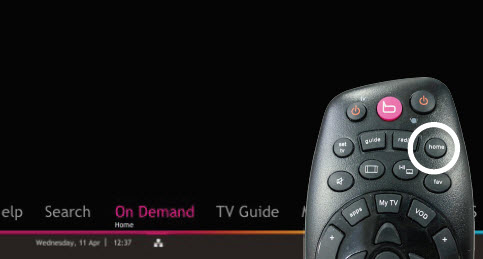
STEP 2
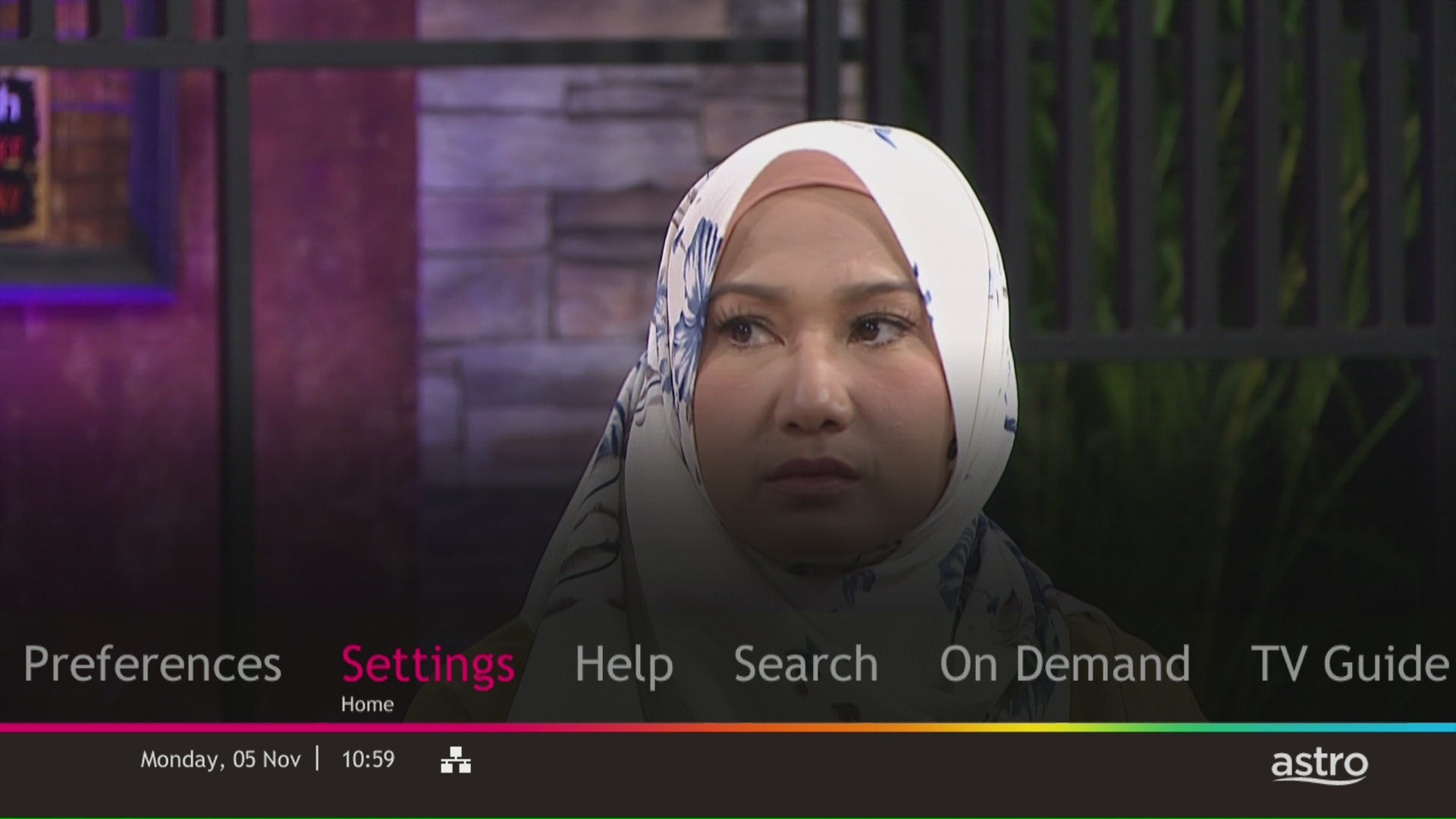
Navigate to Settings and press "OK".
STEP 3
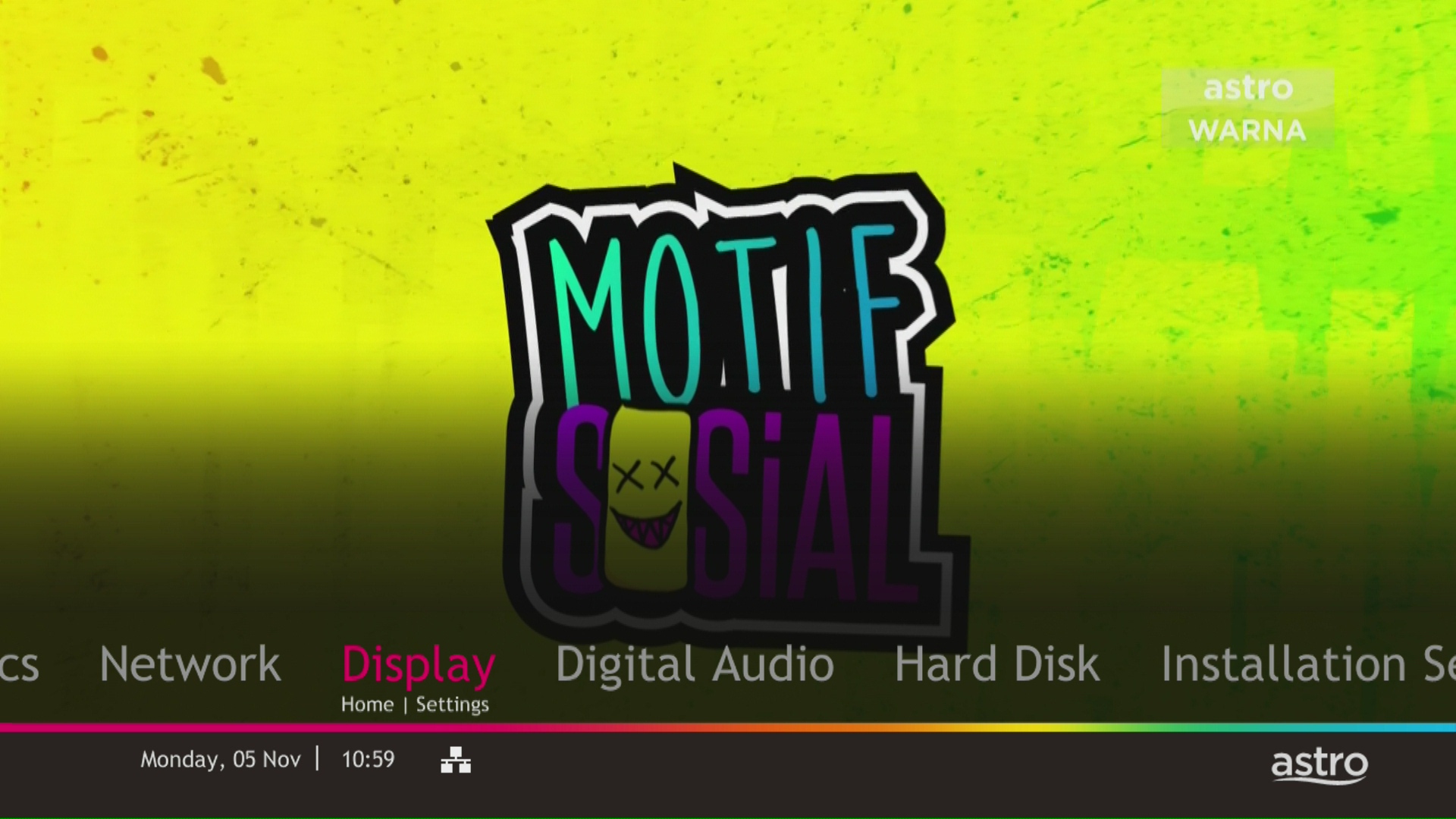
Navigate to Display and press "OK".
STEP 4
Navigate to TV Settings and press "OK".

STEP 5
Navigate to Conversion for 4:3 Input Video, select your preferred selection and press “OK”.

STEP 6
Select Yes, continue and press "OK" to confirm on the changes.
Otherwise, select No, go back to cancel.

1. Ensure power cable is connected tightly.
2. Try to use another power socket / power source to eliminate faulty power sockets/power sources which could cause the issue.

3. If the issue persists, submit your feedback form for further assistance.
To be eligible, you'll need to be an Active Astro Pay TV customer with a valid Astro ID.
An Active Astro customer refers to a subscriber of the Astro Service, whose account is current and active with no outstanding payments due and who has not breached the Astro subscription agreement nor given any instructions to terminate and/or suspend his/her subscription to the Astro Service.
Each account you hold is entitled to one (1) tier status based on the longest active smartcard.
Netflix is a streaming entertainment service that offers a wide variety of award-winning TV programmes, films, anime, documentaries and more - on thousands of internet-connected devices. There's always something new to discover, and more TV shows and movies are added every month. The more you watch, the better Netflix gets at recommending TV shows and movies you'll love.
Astro customers with an internet-connected Ultra Box or Ulti Box can access the Netflix app and watch Netflix content via their Astro Box. For more information about Netflix, visit the Netflix website.
Your existing offers with us will not be affected and will continue until the agreed upon date.
Mesh WiFi technology greatly improves the WiFi network coverage within your home and virtually eliminates all WiFi “dead spots”. However, like all technologies there are limitations that you should be aware of.
The pairing of Mesh unit to the WiFi router is automatically handled between the WiFi router and the Mesh unit after it calculates its current position in relation to the WiFi router and surrounding Mesh unit (if available) already connected to the WiFi router.
If you are self-installing the mesh at your house, it is advisable for you to always pair the Mesh unit(s) with the WiFi router only regardless of how many Mesh unit available at your house.
Please note that if you have a Mesh connected to another Mesh, the expected performance of the WiFi speed will not perform as optimally as when compared to a Mesh connected directly to the WiFi router. Adding more points (also referred as Number of hops) in between your device to the WiFi router which will cause a reduction in bandwidth and add latency.
Non-standard Broadband installation covers the scenario where additional cables and drilling is required to complete your Astro & Broadband installation or by installing the cable in the walls/ceilings. There are additional fees applied for the additional requirements as follows:

My Astro is available on web browser and app. The app can be downloaded for free from the Google Play Store, Apple App Store or Huawei App Gallery.
For Ultra and/or Ulti box users, My Astro app is now added to the Top Menu so you can easily access it to manage or update your account. You may find it in the Top Menu, located next to Settings. Please refer to the image below to see what it looks like:
Yes, another person may register their credit card to your account's auto-debit facility. If you are performing this action via our call centre, the respective card holder is required to be present.
STEP 1
On your remote, press the ... button and the Channel Guide page will be displayed on your screen.

STEP 2
Select the channel you would like to remove as favourite and press "OK".

STEP 3
Select "Remove from Favourite" and press "OK".

STEP 4
You are successfully removed the channel from favourite list when this screen appears.

We are working with the Sony team to ensure you will be able to enjoy these 4K UHD channels soon. We will keep you posted once these channels are available to you!
Thank you for your interest in returning your Astro Box & Smart card/SIM card. By returning these items, you are playing your part in preserving our environment as we will refurbish the box and return it to circulation or recycle it.
All Astro box and smartcard/SIM cards are also property of Astro and as per our current T&Cs, customers are required to return them upon termination of Astro services.
For Astro Fibre, you may choose from a selection of Broadband speeds from 100Mbps to 800Mbps for as low as RM129/month and receive a free WiFi 6 router & Astro Fibre App. On top of this, you will also get to enjoy a complimentary speed upgrade for 24 months. A new 24-month contract will begin upon successful installation and full details of this offer are as follows:
| Astro Fibre Standalone Price per month | ||
| 100Mbps | 500Mbps | 800Mbps |
| RM129 (speed upgrade to 500Mbps for 24 months) | RM189 (speed upgrade to 800Mbps for 24 months) | RM249 |

