
A free satellite TV service from Astro. Watch lifetime entertainment, news, learning & information and more.
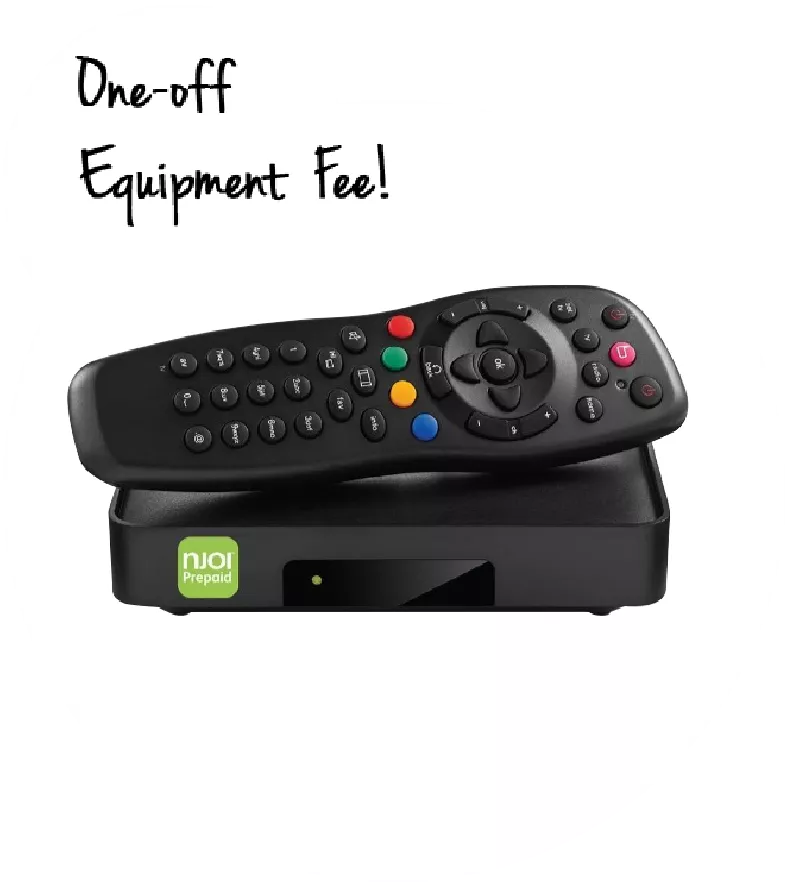
Pictures for illustration only.
Enjoy free access to 15+ TV channels & 10+ radio channels.
* Subject to Astro terms & conditions.


Step-1 |
Step-2 |
Step-3 |
Choose a plan & sign-up online. |
Sit back & wait for installation. |
Enjoy your new Astro / Broadband! |
A free satellite TV service from Astro. Watch lifetime entertainment, news, learning & information and more.
Pictures for illustration only.
New decoder only without satellite dish & cabling. You must have Astro/Njoi satellite dish and cable installed and working properly.
Including installation.
New decoder complete with satellite dish & cabling.
Including installation.
Applying for
| Njoi Astro UniFi Maxis |
Find your answers here.
We provide one stop service to apply Astro and Broadband for you.
You can avoid driving and queuing at the sales counter. We are the dealer that can help you to handle your application from the beginning to the end.
We do not charge you when you apply from us. There is no credit card information required to apply here. Charges are the same as you apply from the sales counter.
First, you can apply online, we will get back to you immediately during business hour. WhatsApp/Email/Fax us your Photocopy of IC (for malaysian) / Passport (for foreigners). When we receive all the information, we will proceed with your application immediately.
Once we receive your application with complete information, we will process your application immediately during business hour. The contractor from the service provider will then contact you for installation appointment once your application is approved.
Enjoy greater savings and hassle-free bill payment in one single bill for both Astro and Broadband. You get to enjoy Astro and Broadband at discounted price every month over the contract period of 24 months.
Astro offers multiple TV packs including Entertainment, Sports, Movies and Kids options. You can choose a pack that matches your viewing preferences and add optional streaming apps where available.
Yes, you may subscribe to Astro TV packs without bundling broadband. However, bundling Astro TV with Fibre Broadband may provide better monthly savings and convenience with a single bill.
For small households with light streaming and browsing, 100Mbps is usually sufficient. Larger families, gamers or heavy streamers may benefit from 500Mbps or 1Gbps plans for smoother performance across multiple devices.
Most Astro TV and Fibre broadband plans come with a 24-month contract. Early termination charges may apply if cancellation is made before the contract ends.
Yes, you may upgrade your TV pack or broadband speed at any time, subject to eligibility and coverage. A new contract period may apply depending on the upgrade.
Your monthly bill will be issued directly by Astro. You may receive it via email or access it through your Astro account. Bundled customers will receive a single combined bill for TV and broadband services.
Payment methods may include online banking, auto debit, credit card or other approved payment channels provided by Astro. Our team can guide you during the registration process.
If you experience any service interruption, you may contact Astro customer support for technical assistance. In many cases, issues can be resolved remotely or a technician will be arranged if necessary.
Yes, relocation is subject to service availability at your new address. Relocation charges and contract adjustments may apply depending on your plan.
No, you do not need a credit card to submit your application. Payment setup will be arranged directly with Astro after your service is approved.
Selected Astro TV packs allow optional add-ons such as streaming services depending on current promotions and availability. Additional monthly charges may apply.
Yes, a WiFi router is typically provided during fibre installation. The router model may vary depending on the selected broadband speed plan.
Yes, we will check the service coverage at your address before proceeding with your application to ensure broadband is available at your location.
For Malaysians, please provide a copy of your MyKad. For foreigners, provide a copy of your passport when submitting your broadband application.
After your application is approved, the service provider typically contacts you within 2 to 7 working days to arrange the broadband installation appointment.
Most Astro Broadband plans come with a 24-month contract starting from your installation date. If you relocate, a new 24-month contract may apply at your new address.
Yes, you can relocate your broadband service, subject to service availability at the new address. Your contract may reset for another 24 months from the new installation date.
Yes, you may request to relocate broadband devices within your home. Non-standard installation charges may apply and are payable to the installer directly after assessment.
Yes, you can switch to Astro Broadband. To avoid service interruption, it is recommended to activate the new service before terminating your current broadband contract.
Standard installations may be free during promotions, but non-standard installations (e.g., device relocation or complex wiring) may incur extra charges payable directly to the installer.
If you encounter this message while using the Astro app on your Smart TV, please follow the steps below:
1. Update Your Smart TV Software
2. Restart Your Devices
3. Clear the Astro App Cache
4. Reinstall the Astro App
If you are still having issues, proceed to submit report via WhatsApp or Feedback Form and provide:
This will help our support team investigate and assist you further.
The new packs and access to Netflix on the Ultra Box and Ulti Box is available for Astro IPTV customers.
Yes, this is a one-time approval, and you do not need to submit your application every month.
When using our One Time Payment (OTP) method, you may register more than one credit card per account. However, a single card account can only be used for a maximum of three accounts for OTP transactions.
When using our auto-debit facility, you can only register one card with Astro. Any subsequent card registrations will override the current one.
No, the Netflix 24-month ala-carte plans do not include an auto-renewal contract. After your contract has expired, you can continue to enjoy the discounted price as long as you maintain your Netflix subscription with Astro.
No, we’re unable to proceed if request from 3
rd
party. We will need account holder to submit the request or an Authorization letter from account holder is required.
Yes, to enable subtitles or dubbing in your desired language, click on the subtitles/dubbing selection option at the bottom right corner of the video player, then click on the language you desire.
If you are interested to subscribe to Sun NXT via Astro, please click here or reach out to us via WhatsApp by typing “Hi” at 03-9543 3838.
You may subscribe to add-ons via any of the platform listed below:
Sales Channel | Add-on Purchase |
My Astro App / Web | 1. Go to “Astro Store” and scroll to “Shows” section 2. Click on “Sports” card to proceed and confirm purchase |
My Astro STB | 1. On your Ulti / Ultra box’s remote, press the Home button and the Home page will be displayed on your screen 2. Access My Astro via the “Apps” section or the shortcut next to the settings icon 3. Upon load, your subscription info and purchasable add-ons will be shown |
1. WhatsApp Hi to 03-95433838 Select Tap to view options Select Content Add-on Purchase 2. Select desired add-on Enter smartcard number (if prompted) 3. Confirm the purchase |
If you are currently receiving a paper bill, your billing delivery method will automatically switch to e-bill once your e-invoice request is accepted. This also means you'll be saving RM10 on paper bill fees. Please ensure that your email address is accurate.
Click here
if you wish to update your contact details.
Payment via cheque will take 3 - 5 working days to be posted. If you require faster payment posting, we recommend you to pay online via Astro Quick Pay.
You may register up to four (5) devices.
To remove devices on Astro GO, click on Settings > Registered Devices to view and remove a device(s) from the list of devices registered to your Astro ID.
The amount you're charged depends on:
STEP 1
Check the Audio settings on your box and set to Auto.
Refer guide to change Digital Audio Settings.
STEP 2
If issue persist, check if there is any 3rd party device (sound system/hdmi splitter) connected between box and TV.
STEP 3
If using 3rd party devices, bypass/remove 3rd party device and make sure HDMI cable connected directly from box to TV.
STEP 4
If issue persist, connect to Live Agent via WhatsApp for help.
The TVBAnywhere+ app offers over 40,000 hours of Chinese entertainment, including the latest drama series, variety shows, evergreen classics, and unlimited TVB originals that can be enjoyed anytime, anywhere. It also features exclusive dramas, known as TVBAnywhere+ Originals, such as
Ghost Cleansing Ltd
and
OPM
, which are available exclusively on the app. In addition, the app includes selected movie titles for on-demand viewing, providing more flexibility compared to the TVB channels on Astro.
SecureGo is an authentication process that allows you to approve your My Astro transactions safely and easily using one-tap verification. This feature is available on the My Astro app.
Once SecureGo is activated, it will be your default transaction approval method on the My Astro app.
Yes. You are entitled to separate Netflix accounts for each main Astro subscription e.g. If you have subscribed to Entertainment Plus, Platinum Pack, etc separately. Therefore, if you have more than one main Astro subscription with Netflix, you may choose to create multiple email addresses to activate each respective Netflix subscription. Please follow the steps provided to you via email/SMS in order to activate your Netflix subscriptions on the website.
Astro X3 is a new way to become an Astro customer, designed for the big screen. It allows customers to sign up instantly and start streaming Astro directly on their Smart TV—without the need for a set-top box, satellite dish or installation.
Astro GO, on the other hand, is a companion app that comes with every Astro subscription. It extends the experience to smaller screens, enabling customers to watch their content on smartphones, tablets and PCs anytime, anywhere.
After completing the subscription process, you will be able to access the iQIYI App on the Ultra/Ulti Box by following the steps below:
On your Ultra/Ulti Box
Step 1: At the Home menu, go to the App Rail and select "iQIYI"
Step 2: Click "OK" on your Astro remote
Step 3: While on the iQIYI App Home Page, navigate to "VIP account" located at the top left pane and click "Login". A page with a QR Code will be presented on your TV screen
Step 4: Scan the QR code using your mobile device and you will be directed to the iQIYI mobile app
Step 5: Follow the steps under "On Mobile App" below to pair your iQIYI account with your Ultra/Ulti Box
On the iQIYI Mobile App
Step 1: Download the iQIYI App on your mobile device
Step 2: At the login page, select "Continue with Astro"
Step 3: Log in with your Astro ID
Step 4: Click on the "Me" icon located at the bottom of the screen, and you will be presented with your iQIYI profile page
Step 5: Click on the in-app QR code scanner located at the top right corner of the screen
Step 6: Scan the QR Code displayed on your TV screen with the in-app QR code scanner. Refer to Step 3 under "On your Ultra/Ulti Box" above
Step 7: The screen on your TV will reload automatically and the iQIYI App home screen will be displayed. Now, you can enjoy the iQIYI App on your Ultra/Ulti Box!
Astro customers with the Ultra or Ulti Box can access Prime Video via their Ultra/Ulti Box or stream directly using the Prime Video app. If you have not yet upgraded to Astro’s Ultra/Ulti Box, please reach out to us on WhatsApp by sending “Hi” to 03-9543 3838.
If you experience constant loading or buffering while watching content on the Astro Smart TV app, please follow the steps below:
1. Update Your Smart TV Software
2. Restart Your Devices
3. Clear the Astro App Cache
4. Reinstall the Astro App
5. Still Experiencing Buffering Issues?
If you are still having issues, proceed to submit report via WhatsApp or Feedback Form and provide:
This will help our support team investigate and assist you further.
Existing Netflix add-on customers will be notified prior to their next bill cycle via email.
No, price for Astro customers will remain unchanged. Only the RRP price from iQIYI is changed.
For customers with the Ultra or Ulti Box, you are required to return only the Astro box along with the Smart/SIM Card. There is no requirement to return the remote control, power cables or satellite dish/outdoor unit (ODU).
For customers on other Boxes, you are required to discard them (and their accompanying devices such as the Smart/SIM Card) only at registered collection centers for proper handling and management of e-waste in an environmentally sound manner. Click here to find a registered collection center near you.
If you receive the "Device Was Not Found" error message, it may be because your device has been automatically removed due to concurrent streaming limits being exceeded.
Please perform the following checks and troubleshooting steps:
If you are unable to remove a device or continue to see the error message, proceed to submit report via WhatsApp or Feedback Form and provide:
This will help our support team investigate and assist you further.
The storage requirement is dependent on the type of videos users are downloading as the space needed varies between titles.
Multiroom (Astro Box) requires an Astro box to be set up and can be accessed through the regular satellite feed or streaming on home Wi-Fi. Meanwhile, the Multiroom (Smart TV) only requires a Smart TV and no installation is needed. Customers can download the Astro Smart TV app on the Smart TV to stream.
After successfully adding ZEE5 Premium to your bill, follow the simple steps below to stream ZEE5 on your Ultra/Ulti Box:
Step 1: Go to your Astro Home Page and click “ZEE5” under the Apps rail
Step 2: Scan the QR code on screen with your mobile device
Step 3: Log in with an existing ZEE5 ID or sign up for a new account. Then, enter the activation code displayed on your TV screen into the ZEE5 mobile app.
Step 4: Now, enjoy streaming ZEE5 on your Ultra/Ulti Box!
Please ensure that the email address used to log in to the app is the same one used to purchase your ZEE5 premium subscription.
If you can’t remember the email address or mobile number linked to your Disney+ account, please WhatsApp or call Astro’s Customer Service at +603 9543 3838.
Yes, another person may register their credit card to your account's auto-debit facility. If you are performing this action via our call centre, the respective card holder is required to be present.
If you would like more information or to provide feedback on Astro Rewards, kindly reach out to us at 03 9543 3838 or visit one of our Astro service centres.
Yes, you can download ZEE5’s content on your device for offline viewing if you have subscribed to ZEE5 Premium. This feature is not available if you are not a Premium member. However, kindly note that some content is subjected to copyright which disables the download function on those selected videos.
ZEE5 is an Indian subscription video on demand and over-the-top streaming service run by Zee Entertainment Enterprises. With the app, subscribers can enjoy over 170,000 hours of on demand content from originals, movies, TV shows, music and more across 18 languages including English, Tamil, Hindi and Punjabi – all in a single destination.
Starting 7 October 2026, Disney+ will transition to a new Disney+ app experience. Astro customers can continue enjoying Disney+ via Astro with no changes to their Disney+ subscription or monthly fee.
Customers who stream via Astro Ultra or Ulti Box will have the new app made available automatically, while customers who stream on personal devices will simply need to download the new Disney+ app to continue watching Disney+.
Existing customers can sign in using the same email address or mobile number associated with their existing Disney+ account.
For further information and support relating to the Disney+ app experience or app-related features, please visit the Disney+ Help Centre.
Yes, you can continue to access Prime Video if you have an active subscription to the Epic or Movie packs, where Prime Video is included.
If you upgraded to a pack that includes Prime, you do not need to reactivate Prime Video. Streaming access will continue seamlessly.
If you downgraded from a pack that includes Prime Video, you will need to reactivate Prime Video to resume streaming and retain your watch history.
Your watch history is linked to the Prime Video account that was initially activated. Therefore, if you reactivate Prime Video using the same email address or mobile number used during the original activation, your previous watch history will be restored.
Note: If you are on any other pack, you will need to purchase Prime Video separately at RM25 month to continue enjoying access.
If you are subscribed to Netflix via a bundle, Netflix comes by default as part of your entitlement.
If you are subscribed to Netflix as an a-la carte, the cancellation of Netflix can only be done via Netflix's Website, etc). This change will reflect in your next bill. From mid-December 2021 you may also cancel Netflix add-on through Astro Call Center.