
A free satellite TV service from Astro. Watch lifetime entertainment, news, learning & information and more.

Pictures for illustration only.
Enjoy free access to 15+ TV channels & 10+ radio channels.
* Subject to Astro terms & conditions.


Step-1 |
Step-2 |
Step-3 |
Choose a plan & sign-up online. |
Sit back & wait for installation. |
Enjoy your new Astro / Broadband! |
A free satellite TV service from Astro. Watch lifetime entertainment, news, learning & information and more.
Pictures for illustration only.
New decoder only without satellite dish & cabling. You must have Astro/Njoi satellite dish and cable installed and working properly.
Including installation.
New decoder complete with satellite dish & cabling.
Including installation.
Applying for
| Njoi Astro UniFi Maxis |
Find your answers here.
We provide one stop service to apply Astro and Broadband for you.
You can avoid driving and queuing at the sales counter. We are the dealer that can help you to handle your application from the beginning to the end.
We do not charge you when you apply from us. There is no credit card information required to apply here. Charges are the same as you apply from the sales counter.
First, you can apply online, we will get back to you immediately during business hour. WhatsApp/Email/Fax us your Photocopy of IC (for malaysian) / Passport (for foreigners). When we receive all the information, we will proceed with your application immediately.
Once we receive your application with complete information, we will process your application immediately during business hour. The contractor from the service provider will then contact you for installation appointment once your application is approved.
Enjoy greater savings and hassle-free bill payment in one single bill for both Astro and Broadband. You get to enjoy Astro and Broadband at discounted price every month over the contract period of 24 months.
Astro offers multiple TV packs including Entertainment, Sports, Movies and Kids options. You can choose a pack that matches your viewing preferences and add optional streaming apps where available.
Yes, you may subscribe to Astro TV packs without bundling broadband. However, bundling Astro TV with Fibre Broadband may provide better monthly savings and convenience with a single bill.
For small households with light streaming and browsing, 100Mbps is usually sufficient. Larger families, gamers or heavy streamers may benefit from 500Mbps or 1Gbps plans for smoother performance across multiple devices.
Most Astro TV and Fibre broadband plans come with a 24-month contract. Early termination charges may apply if cancellation is made before the contract ends.
Yes, you may upgrade your TV pack or broadband speed at any time, subject to eligibility and coverage. A new contract period may apply depending on the upgrade.
Your monthly bill will be issued directly by Astro. You may receive it via email or access it through your Astro account. Bundled customers will receive a single combined bill for TV and broadband services.
Payment methods may include online banking, auto debit, credit card or other approved payment channels provided by Astro. Our team can guide you during the registration process.
If you experience any service interruption, you may contact Astro customer support for technical assistance. In many cases, issues can be resolved remotely or a technician will be arranged if necessary.
Yes, relocation is subject to service availability at your new address. Relocation charges and contract adjustments may apply depending on your plan.
No, you do not need a credit card to submit your application. Payment setup will be arranged directly with Astro after your service is approved.
Selected Astro TV packs allow optional add-ons such as streaming services depending on current promotions and availability. Additional monthly charges may apply.
Yes, a WiFi router is typically provided during fibre installation. The router model may vary depending on the selected broadband speed plan.
Yes, we will check the service coverage at your address before proceeding with your application to ensure broadband is available at your location.
For Malaysians, please provide a copy of your MyKad. For foreigners, provide a copy of your passport when submitting your broadband application.
After your application is approved, the service provider typically contacts you within 2 to 7 working days to arrange the broadband installation appointment.
Most Astro Broadband plans come with a 24-month contract starting from your installation date. If you relocate, a new 24-month contract may apply at your new address.
Yes, you can relocate your broadband service, subject to service availability at the new address. Your contract may reset for another 24 months from the new installation date.
Yes, you may request to relocate broadband devices within your home. Non-standard installation charges may apply and are payable to the installer directly after assessment.
Yes, you can switch to Astro Broadband. To avoid service interruption, it is recommended to activate the new service before terminating your current broadband contract.
Standard installations may be free during promotions, but non-standard installations (e.g., device relocation or complex wiring) may incur extra charges payable directly to the installer.
Currently Astro GO is only available in Malaysia. You will not be able to access it if you are overseas.
STEP 1
On your remote, press the HOME button and the home menu will be displayed on top of your screen.

STEP 2
Navigate to Settings.

STEP 3
Navigate to Menu Language and press "OK".

STEP 4
Navigate to your preferred language selection and press “OK”.

For any NJOI-related information, please visit the NJOI Help & Support page at https://purchase.njoi.com.my/en-support
If you would like for more information, kindly visit our Multiroom page via Astro website https://www.astro.com.my/multiroom
To view the terms and conditions, click here.
The PVR comes with a 12 months warranty from the date of activation.
Astro Quick Pay is a convenient method to check your Bill Summary, Account Status and pay Astro bills at your convenience with immediate payment posting, right from home. Visit Astro Quick Pay to pay your bill now.
Tune to channel 200 - select on "My Account".Your Total amount due will be stated under the "Bill Summary" section.

**Please note that this feature requires your box to be connected to your home Wi-Fi. Alternatively you can perform the SMS steps displayed on the screen to check your bill amount.
Please refer below to set up your Ultra/Ulti Plug & Play Box.
To connect via LAN cable:
Note: If you have a two-in-one modem & router, you can skip Step ii).
To connect via Wi-Fi:
Remove your LAN cable from your old Astro box, and do not plug it into your new Plug & Play Box.
Yes, you can. If you are an existing Astro customer with the Disney+ Hotstar add-on option, your Disney+ Hotstar add-on option will be converted without any early termination charge upon your successful re-contract to eligible bundle packages.
If you're trying to visit a website and it won't load, but others do, there could be a variety of causes. If the site itself is down, there's not much you can do but wait.
If you can load the site on other computers or devices (make sure you try different means of connecting to the internet), there may be an issue with your computer or network.
There are some quick fixes that will solve most problems, but you may have to get your hands a little dirty.
1. Try loading the site on a different device.
Try loading the website on your phone or on another computer. If the website loads on the other device, the problem lies with your computer.
If the website doesn't load on another device, the problem is either with the network or the website itself.
2. Restart your computer.
Oftentimes, a simple reboot will fix the problem you're having. Reboot your computer and test the website again.
3. Try loading the site in a different browser.
There may be some settings configured incorrectly on your browser. Try a different web browser to see if you can load the website.
4. Temporarily disable your antivirus program.
Your antivirus software may be interfering with your ability to load certain websites.
Try disabling the software and then loading the site again. Make sure you enable it again once you have identified the problem.
5. Reset your modem and router.
Traffic to or from a certain website may be getting tripped up by your modem or router. Resetting these devices may allow you to access the website again.
6. Check your computer's date and time settings.
If your date or time is set incorrectly, you may not be able to connect to secure (https://) websites.
Check your computer or mobile device's clock to make sure that it is set to the correct time and date.
7. In the event the problem persists, please provide below details for further escalation:
i. List of websites effected.
ii. Run the Speed Test via LAN (cable) and Wi-Fi connection - Please click here for Speed Test guideline.
iii. Run the Traceroute Test - Please click here for Traceroute Test guideline.
iv. Run the Ping Test - Please click here for Ping Test guideline.
Once you've gathered all the results, kindly send them all through the Feedback Form below.
Quick Info
A Speedtest is a service that provides free analysis of Internet access parameters, such as connection data rate.
A Ping Test shows how long it takes for packets to reach host.
A Traceroute Test traces the route of packets to destination host from our server.
Please see the table below for the offers available for residential customers.

Notes:
· Installation fee includes Government tax.
· Monthly subscription fee does not include Government tax.
· The Ulti Box offers in the table above include a contract Period of 24 months with a pro-rated early termination fee of RM600 (excluding Government tax).
· The installation fees listed in the table above applies for a standard installation of the Ulti Box in your home. Additional charges may apply for non-standard installation.
· * Existing customers with monthly pack >RM100 are recommended to select Ultra Box @ FREE Installation fee with 24 months contract.
· ** New customers with monthly pack >RM100 are recommended to select Ultra box @ RM99 installation fee with 24 months contract.
· You may visit https://product.astro.com.my/box to find out more details about Astro Ultra Box.
· Ulti Box installation is free for Astro & Broadband customers for Starter Pack and above. A separate list of TNC’s will be applicable for this offer.
No, your rewards cannot be transferred to another person or exchanged for cash.
Yes, another person may register their credit card to your account's auto-debit facility. If you are performing this action via our call centre, the respective card holder is required to be present.
There are no extra charges as it is a value-added service introduced provided for your convenience.
Astro ID and / or account deletion is permanent. Upon deletion, it will be unlinked from your TV subscription account and you will be logged out from all the associated Astro apps and / or services connected including the partner apps that you have logged in using the same Astro ID. If you have any queries regarding Astro ID or would like to request for Astro ID account deletion, click on submit your request here, fill in the required details and our Astro representative will get back to you within 3 business days for security verification purposes.
STEP 1
Check the internet connectivity by run the Test Connection.
Refer Run Test Connection.
STEP 2
Verify the Test Connection results.
a. All connected successfully - Proceed to STEP 3
b. All connection failed - Proceed to STEP 4
c. Router connection successfully, others failed - Proceed to STEP 7
STEP 3
Please ensure your box with the latest software update from "General Diagnostics".
Refer to Check Software Version Status.
If your box status is other than "Your box has the latest update (a)", please proceed to update the software.
Refer Software Update guide.
STEP 4
Check the connection to the box either using Ethernet (LAN cable) or Wi-Fi.
a. If using Ethernet (LAN cable) - Connect to Live Agent for help.
b. If using Wi-Fi - Proceed to STEP 5
STEP 5
Check location of the decoder and router.
a. If nearby (within 1.5m) - Try connect to box from router using LAN cable.
b. If far (more than 1.5m) / No LAN cable - Proceed STEP 6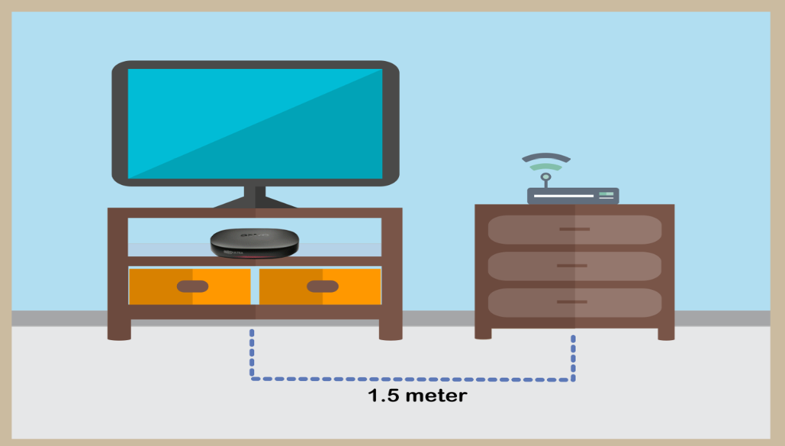
STEP 6
Reboot router, modem and decoder.
If issue persist, please try again after 30mins to 1 hour. Connect to live agent if persist after 30 mins to 1 hour.
STEP 7
Suspect there is an issue with your internet connection.
Please check with your internet service provider or if under Astro Fibre / Astro Broadband, connect to Live Agent for help.
Your bill will be waived upon request.
Please refer to these FAQs and Terms and Conditions for more information.
For more support and options for your subscription, please WhatsApp us at 03 9543 3838 and type DH Help. Alternatively, you may visit astro.com.my/Disney for more information.
Please contact us through one of our platforms found here or Self-serve by logging in to Astro Self-Service Portal within 3-7 days before moving out and we will sort everything out for you!
For Astro Fibre, you may choose from a selection of Broadband speeds from 100Mbps to 800Mbps for as low as RM129/month and receive a free WiFi 6 router & Astro Fibre App. On top of this, you will also get to enjoy a complimentary speed upgrade for 24 months. A new 24-month contract will begin upon successful installation and full details of this offer are as follows:
| Astro Fibre Standalone Price per month | ||
| 100Mbps | 500Mbps | 800Mbps |
| RM129 (speed upgrade to 500Mbps for 24 months) | RM189 (speed upgrade to 800Mbps for 24 months) | RM249 |
We would need you to run few tests in order for us to understand your issue and to assist you in fixing the problem.
You may proceed with the troubleshooting steps below which should not require any longer than 15 minutes.
Quick Info
A Speedtest is a service that provides free analysis of Internet access parameters, such as connection data rate.
A Ping Test shows how long it takes for packets to reach host.
A Traceroute Test traces the route of packets to destination host from our server.
For payments made using credit cards, refunds will be reversed back to the respective card. Whilst payment made by cash and online banking will be made to the account holders bank account.
You may submit your request via Feedback Form with below information details based on your payment method.
Please choose below option in the Feedback Form:
Category: I would like to request for refund
Sub Category: Request for Refund
1) Refund via Bank transfer:
Bank Name:
Bank Account Number:
*Note: Please confirm your bank account details and ensure it's correct
2) Refund via Foreign bank:
Bank Name:
Bank Account Number:
Bank Swift Code:
IBAN Code:
Currency: Eg: Dollar/Yen etc
*Note: Please confirm your bank account details and ensure it's correct
3) Credit Card:
Credit Card Number:
ONLY last 4 digit credit card updated with Astro account
*Note: Please confirm your credit card details and ensure it's correct
For app, you may go to "Manage' > "Support' section and provide your feedback either through the feedback form or chat with us via WhatsApp at 03-9543 3838.
For web, you may go to "Support' menu and provide your feedback either through the feedback form or chat with us via WhatsApp at 03-9543 3838.
For Ultra and/or Ulti box, you may chat with us via WhatsApp at 03-9543 3838.
Please refer to the table below:

Note:
Please find some examples (for Residential customers) as below:
Termination
Customer signed up for Entertainment Plus Pack (24-month contract) with Ultra Box. Customer decided to terminate the subscription 8 months into the contract. As the customer still has 16 months remaining, the maximum applicable fee will be RM41.67 x 16months = RM666.67
Pack downgrade
Customer signed up for Movies Pack (24-month contract) with Ultra Box. 18 months in, customer decides to downgrade to Primary Pack (24-month contract). As the customer still has 6 months remaining, the maximum applicable fee will be RM20.83 x 6months = RM125
Dropping off Netflix or Disney+ Hotstar within first 12 months
Customer signed up for Entertainment Plus (24-month contract) with Ultra Box and 12-month commitment on Netflix App. 6 months in, customer decides to upgrade to Premium Pack 1 (24-month contract) which does not include Netflix App. As the customer still has 6 months remaining in the first 12 months of commitment for Netflix App, the maximum applicable fee will be RM41.67 x 6 months = RM250. Upon upgrading to Premium Pack 1, a new 12-month commitment for Disney+ Hotstar App begins alongside the 24-month contract on the package.
You may access it by pressing "200' on your Astro remote control whilst watching TV.
This convenient option allows you to complete your registration without the need to provide hard copy documents physically to the sales agent. The identity verification process helps to secure your Account and protect it from unauthorised usage.
Please rest assured that streamingapps labelled with "coming soon"
will be available on Astro in the near future.Please visit product.astro.com.my/appsfor more information on the streaming apps available on Astro or follow oursocial media to get notified on latest launches.
Facebook: @Astro
Instagram: @astromalaysia
Twitter: @astroonline
Kindly take note that streaming appslabelled with “coming soon” will be made available on Astro once they areready. Astro reserves the right to delay or cancel streaming app launches, ifnecessary.
Please switch your current subscriptions to our new Astro packs to subscribe to Multiroom (Smart TV). To sign up, WhatsApp “SWITCH” to 03-9543 3838 and an agent will assist you.
Find out more of our new packs at https://product.astro.com.my/tv
This issue occurs because your TV does not support the higher resolution.
STEP 1
Switch off the power for your box and make sure that the adapter's power light is off.

STEP 2
Switch on the power for your box and make sure that the adapter's power light is on.

STEP 3
Press the standby button repeatedly after switch on the power.
The Startup Options screen will appear on your TV.

STEP 4
Press "987" to access the Advanced Startup Options menu.
Then, press "1" to initiate a reset setting.

STEP 5
Press "OK" to confirm restore to factory setting.

STEP 6
After the factory setting is restored, TV will turn blank.
Please wait until the box completes initiate setup.

STEP 7
Press "1" to initiate Linux download on the software.

STEP 8
Once completed, the following screen will appear on your TV.
Refer to Installation Setup guide here to complete the setup.


You may proceed with the following troubleshooting steps and it shouldn't take you much longer than 15 min
1. Please standby a computer/laptop to access to the internet and connection must be via LAN cable (connect the LAN cable to the Yellow port at Tplink Router and direct to the computer/laptop).
2. You may open any web browser such as Google Chrome, Internet Explorer, Mozilla Firefox and etc.
3. On the address bar, please go to tplinkwifi.net and to access to below login page. Type the Username and Password, then click "Login".

The default login of the router is available on the sticker at the back of the router. If you have done a configuration on your router previously, the password may be different.

For example, below is the login details of the above router:
Username: admin
Password: TIMECE24
4. Once you have successfully login, the router's web-based setup page will appear. Please follow below steps for the configuration.
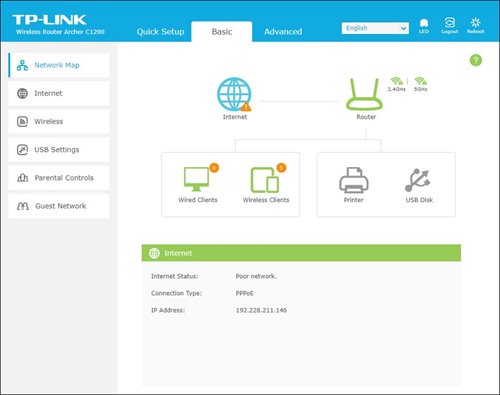
5. From the top menu, choose Advanced and click the Wireless tab on the left menu. Then, select Wireless Settings from the sub menu. Below screen will appear for 2.4GHz selection.

i. Please ensure to tick Enable Wireless Radio function.
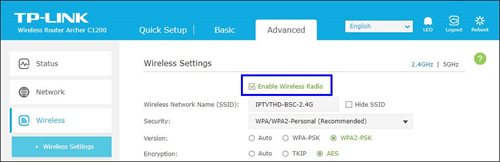
ii. To change the channel, click the drop-down arrow for Channel, then select your desired channel.
Choose between 1 to 13 (Suggested channels : 1,6,11). Then, click "Save" for the changes to take place.

iii. Click Save for the changes to take place. The router will auto reboot and connection will re-establish after few minutes.

iv. Next, select 5GHz to make changes on the wireless channel for 5GHz.
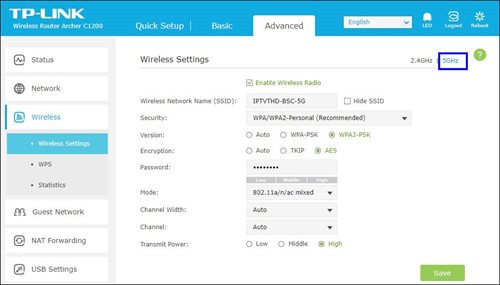
v. Click the drop-down arrow for Channel, then select your desired channel from the selection.

vi. Click Save for the changes to take place. The router will auto reboot and connection will re-establish after few minutes.

We want to ensure that only the authorised account owner can have access to their Astro account. This activity ensures that only you can log in and access all the details tied to your Astro account.
If you're trying to visit a website and it won't load, but others do, there could be a variety of causes. If the site itself is down, there's not much you can do but wait.
If you can load the site on other computers or devices (make sure you try different means of connecting to the internet), there may be an issue with your computer or network.
There are some quick fixes that will solve most problems, but you may have to get your hands a little dirty.
i. List of websites effected.
ii. Run the Speed Test via LAN (cable) and Wi-Fi connection - Please click here for Speed Test guideline.
iii. Run the Traceroute Test - Please click here for Traceroute Test guideline.
iv. Run the Ping Test - Please click here for Ping Test guideline.
Once you've gathered all the results, kindly send them all through the Feedback Form below.
Quick Info
A Speedtest is a service that provides free analysis of Internet access parameters, such as connection data rate.
A Ping Test shows how long it takes for packets to reach host.
A Traceroute Test traces the route of packets to destination host from our server.
You will be able to view your new package(s) within 24 hours of subscribing. Please note that if you are an Astro customer subscribing to HD channels, you will have to connect an HDMI cable to your TV before you will be able to enjoy the channels.
Here's what you can do with your unused satellite TV devices:
If you have an Ultra or Ulti Box, you may:
1. Return your device to us via Arranged Pick-up:
Step 1: Please call Astro's Contact Centre at 03-9543 3838 to schedule an arranged pick-up by one of our Astro agents.
Step 2: Just sit back and relax! Our courier partner, Citylink will come to your doorstep, dismantle the satellite dish for you and retrieve the devices.
2. Return your device to us via Dropoff:
Step 1: Please gather your device(s) and click here to find a Customer Service Centre (CSC) or Astro Authorised Retailer (AAR) near you.
Step 2: Don't worry, it's free! Simply walk in during opening hours and hand over the device(s) to one of our Astro agents.
Note: An installer's visit is required to dismantle your satellite dish. However, if you have a Box or other satellite TV devices at home that do not require dismantling, you may walk into any of our authorised dealers and hand them over to the agent.
If your Satellite TV device is NOT an Ultra or Ulti Box, you may:
1) Recycle your device:
For all Ultra or Ulti Boxes, please return them to Astro via drop-off at a CSC or AAR near you or schedule a pick-up appointment via 03-9543 3838.
For other older Boxes or Satellite TV devices, you are required to discard them only at registered collection centres for proper handling and management of e-waste in an environmentally sound manner. Click here to find a registered collection centre near you.
Note: Upon termination of your Astro service, all Ultra and Ulti Box customers are required to return their devices to Astro. Failure to do so within 14 days of termination may incur a fee of RM100 (not inclusive of Govt. Tax). For customers on all other boxes, please discard your box only at registered collection centres to ensure we all play our part in protecting the environment.
Arranged Pick-Ups
1) I missed the pickup appointment; what do I do now?
Our agent will make two attempts to retrieve the device(s) and dismantle your satellite dish within a period of 14 days, failing which the penalty of RM100 (not inclusive of Govt. tax) would be imposed.
2) Can I reschedule my pickup date?
Yes! Please call Astro's Contact Centre at 03-9543 3838 to reschedule your pickup date.
3) My old devices do not require dismantling; do I have to pack them before handing them over to the delivery agent?
Please pack your device(s) in their original box/packaging if possible. If this option is not available to you, just hand the device(s) over to the delivery agent without any packaging. You will not be charged any fees if the original packaging has been damaged/lost.
4) Do I have to print anything or fill in any forms before handing my device(s) over to the Astro agent?
No, you do not have to prepare any documents before handing your device(s) over to the Astro agent. All you have to do is get your device(s)ready before the Astro agent arrives to ensure a smooth handover process.
5) I have an old/unused satellite dish at my home and I am not an Astro customer; can I still schedule an installer visit to dismantle and return it?
Yes! Not to worry, you can still schedule an installer visit to dismantle the satellite dish from your home.
Drop-offs
1) Do I have to pack my device(s) before handing it over to the Astro agent?
Please pack your device(s) in their original box/packaging if possible. If this option is not available to you, just hand the device(s) over to the Astro agent without any packaging. You will not be charged any fees if the original packaging has been damaged/lost.
2) There are no Customer Service Centre (CSCs) or Astro Authorised Retailers (AARs) near me; what do I do now?
Please opt for courier pick-up if there are no CSCs or AARs near you. Call 03-9543 3838 now to schedule a pick-up appointment by one of our courier partners if you are holding an Ultra or Ulti Box For non-Ultra or Ulti boxes, you may recycle your box at a registered collection center. Click here to find a registered collection center near you.
3) Do I have to print anything or fill in any forms before handing my device(s) over to the Astro agent?
No, you do not have to prepare any documents before handing your device(s) over to the Astro agent. All you have to do is hand the device(s)over to the agent and you're done! You will also receive an acknowledgment slip after successful handover.
4) I found my Box and Smart card, however, the cable(s) that came with it is lost; will there be any penalty fees?
No, please return your old Plug & Play Boxes and Smartcard. There will be no penalty fees if the cable is damaged or lost.
Recycle via Registered Collection Centres
For all recycling-related questions, please click here.
Not to worry, we are only a phone call or a message away! Call or WhatsApp our Customer Contact Centre at 03-9543 3838 and an Astro agent will be available to assist you immediately.
Please disregard the reminder if payment had been made and do check if you have any outstanding balance on Astro Quick Pay.
STEP 1
Switch off the power for your box and make sure that the adapter's power light is off.

STEP 2
Locate the Smartcard at the front or right side and gently pull it out make sure that the adapter's power light is off.

STEP 3
Wipe the Smartcard's gold chip clean using a dry soft cloth.

STEP 4
Make sure the gold chip is facing upwards and reinsert it all the way in.

STEP 5
Switch on the power for your box and make sure that the adapter's power light is on. Please wait for 5 minutes.

STEP 6
Turn on your box. You should no longer be experiencing this problem.
If issue persist, please submit the issue in our Feedback Form and attach a picture of your General tab of the STB Diagnostics for assistance.

STEP 1
On your remote, press the HOME button and the home menu will be displayed on top of your screen.
STEP 2
Navigate to Settings.
STEP 3
Navigate to Master PIN and press “OK”.

STEP 4
Please enter your PIN (Default PIN is 0000).

STEP 5
Please enter your new PIN.

STEP 6
Please re-enter your new PIN to confirm.

STEP 7
Your PIN successfully changed when this screen appears.

The minimum internet speed required to stream via Ultra Plug & Play Box is 30Mbps for 4K UHD viewing, and Ultra/Ulti Plug & Play is 10Mbps for HD viewing. For better streaming experience, we recommend 100Mbps and above.

You may proceed with the following troubleshooting steps and it shouldn't take you much longer than 15 minutes.
1. Please standby a computer/laptop to access to the internet and connection must be via LAN cable (connect the LAN cable to the Black port at D-Link Router and direct to the computer/laptop).
2. You may open any web browser such as Google Chrome, Internet Explorer, Mozilla Firefox and etc.
3. On the address bar, please go to http://dlinkrouter.local./ and below page will appear. (These are the defaults and if you have done a configuration on your router previously, the password may be different)
Username: admin
Password: (Leave the field blank)

4. Once you have successfully login, the router's web-based setup page will appear. Please follow below steps for the configuration.

5. From the top menu, click Settings and then choose Wireless.

6. Below screen will appear to configure the wireless setting. Since this is a dual band router, you will have 2 Wi-Fi Names (SSID); i.e. 2.4GHz and 5GHz.
i. For 2.4GHz setting, click Advanced Settings to display more available options.

ii. To change the channel, click the drop-down arrow for Wi-Fi Channel, then select your desired channel.
Choose between 1 to 13 (Suggested channels : 1,6,11). Click Save for the changes to take place.
The router will auto reboot and connection will re-establish after few minutes.

iii. Next, for 5GHz setting, click Advanced Settings to display more available options to make changes on the wireless channel for 5GHz.

iv. Click the drop-down arrow for Wi-Fi Channel, then select your desired channel from the selection.

v. Click Save for the changes to take place. The router will auto reboot and connection will re-establish after few minutes.
Starting 12 December 2023, users have to use their registered email address, mobile number or a social account (Facebook, Google or Apple) to log into any of Astro's digital platforms, including My Astro, Astro GO and Astro's official website. Usernames as an Astro ID is no longer available. This change was made to ensure details linked to your Astro account are always updated and to improve the overall user experience on our platforms.
If Astro does not receive your payment by the stated due date, your service may be disrupted as our system will automatically suspend your account. If you then wish to reconnect your subscription account, a charge of up to RM42.40 (inclusive of SST) will be imposed upon reconnection.
Find out more about the reconnection fee here.
Yes, existing Astro customers can subscribe to all Astro & Broadband offerings. 24 months contract will be renewed upon signing up for broadband.
No, the Mesh WiFi add-on with Astro Fibre is available as subscription service and will not be tied to any device contract.

Disabling band steering means that there will be two frequency bands available for the users - 2.4GHz and 5GHz.
Note: Band Steering is called Dual-band Combination in the router web interface.

Login using your username and password if you have changed the router login setting. Otherwise, your default router login is as per below.
Username: user
Password: user
4. Once you have successfully logged in, the router's web-based setup page will appear.

5. At the top of the page, click Wi-Fi to configure the WiFi parameters.

6. Click on Dual-band Combination button to disable the Band Steering.

7. Set the Wi-Fi name and Wi-Fi Password for both 2.4GHz and 5GHz bands based on your preference. Then click "Apply" for the changes to take place.

8. Kindly ensure to reconnect your WiFi according your new WiFi name and password.
Yes, please WhatsApp "DH Help
We are thrilled to announce that as part of your subscription, you are able to enjoy exclusive coverage of live matches in HD on Astro channels, On Demand and Astro GO! This means that you'll have access to all the latest games, highlights, and analysis, right at your fingertips.
With this new addition, you'll be able to follow your favourite teams and players closer than ever before, keeping you up-to-date with all the action on and off the field. Whether you're a die-hard fan or a casual spectator, this new content is sure to provide you with endless hours of entertainment.
To ensure that we continue offering the best choice in sports content, our Sports Pack will now be priced at RM104.99/month (for 12 months contract) or RM99.99/month (for 24 months contract) and Premium Pack 1 will now be priced at RM139.99/month (for 12 months contract) or RM129.99/month (for 24 months contract) starting 9 February 2023, and this applies to all new customers.
Note that there will no changes for existing Sports Pack & Premium 1 customers in 24 or 12 month contract being renewed before 1st June 2023.
We appreciate your continued support and can't wait for you to experience this exciting new addition to your Sports Pack subscription.
Please refer to the table below for the full revised pricing for the following packs:

We hope you continue to enjoy your Astro experience with us.
Refund fee is subject to your processing bank. However, Astro did not impose refund processing fee.
Yes, an existing IPTV customer is eligible to switch to Astro Fibre. However, your IPTV services will be switched to a Plug & Play service, and your existing Astro PVR / B.yond Box will be upgraded to the Ultra/Ulti box. There is no additional charge for the Astro Ultra/Ulti upgrade. Please note that you will be re-contracted for 24 months upon installation.
All existing or new Astro customers who meet the following criteria may upgrade to the Ultra Box:
If you live in a high-rise building, please call us at 03- 7481 8000 to check if your building can support the Ultra Box. If your high-rise building allows for the set-up of individual dishes you will be able to upgrade to the Ultra Box, subject to the criteria above.
If you would like to access our 4K UHD content via the Astro UHD channel 805 and UHD content on VOD, Astro Best and Astro First. We also recommend:
Note: If you do not have an internet connection at home, you may take up the Ultra Box bundled with Astro™'s broadband package with rebates of up to RM30/month. For more details and to sign up for Astro & Broadband, please click here.

