A free satellite TV service from Astro. Watch lifetime entertainment, news, learning & information and more.

Pictures for illustration only.
Enjoy free access to 15+ TV channels & 10+ radio channels.
* Subject to Astro terms & conditions.


Step-1 |
Step-2 |
Step-3 |
Choose a plan & sign-up online. |
Sit back & wait for installation. |
Enjoy your new Astro / Broadband! |
Explore our TV Pack which includes a variety of entertainment channels.

The must-watch local and international content made for everyone in the family.

The best local & international cartoons & educational entertainment.

Global movies and series packed with action, drama and big thrills.

Latest breaking news & current affairs whilst you discover secrets of the world.

Witness every major league & live sports events, plus family entertainment.

The ultimate all-in-one entertainment with movies, sports & a variety of streaming apps.
Good for working from home and streaming. Get connected at 100Mbps and enjoy uninterrupted streaming, gaming, and browsing.

FREE Modem
FREE WiFi-6 Router
Unlimited data
| What is included? |
Entertainment Pack RM49.99 |
100Mbps Astro Fibre RM99.00 |
| What is included? |
Entertainment Pack + Kids RM59.98 |
100Mbps Astro Fibre RM99.00 |
| What is included? |
Entertainment Pack + Blockbuster RM59.98 |
100Mbps Astro Fibre RM99.00 |
| What is included? |
Entertainment Pack + News & Documentaries RM64.98 |
100Mbps Astro Fibre RM99.00 |
| What is included? |
Sports Pack RM99.99 |
100Mbps Astro Fibre RM99.00 |
| What is included? |
Epic Pack RM199.99 |
100Mbps Astro Fibre RM99.00 |
Ideal for small families for 4K streaming & gaming. Get connected at 500Mbps and enjoy fast and stable internet for all your needs.

FREE Modem
FREE WiFi-6 Router
Unlimited data
| What is included? |
Entertainment Pack RM49.99 |
500Mbps Astro Fibre RM149.00 |
| What is included? |
Entertainment Pack + Kids RM59.98 |
500Mbps Astro Fibre RM149.00 |
| What is included? |
Entertainment Pack + Blockbuster RM59.98 |
500Mbps Astro Fibre RM149.00 |
| What is included? |
Entertainment Pack + News & Documentaries RM64.98 |
500Mbps Astro Fibre RM149.00 |
| What is included? |
Sports Pack RM99.99 |
500Mbps Astro Fibre RM149.00 |
| What is included? |
Epic Pack RM199.99 |
500Mbps Astro Fibre RM149.00 |
Perfect for medium-sized families for work and play. Get connected at 1Gbps and experience ultra-fast internet speeds.

FREE Modem
FREE WiFi-7 Router
Unlimited data
| What is included? |
Entertainment Pack RM49.99 |
1Gbps Astro Fibre RM229.00 |
| What is included? |
Entertainment Pack + Kids RM59.98 |
1Gbps Astro Fibre RM229.00 |
| What is included? |
Entertainment Pack + Blockbuster RM59.98 |
1Gbps Astro Fibre RM229.00 |
| What is included? |
Entertainment Pack + News & Documentaries RM64.98 |
1Gbps Astro Fibre RM229.00 |
| What is included? |
Sports Pack RM99.99 |
1Gbps Astro Fibre RM229.00 |
| What is included? |
Epic Pack RM199.99 |
1Gbps Astro Fibre RM229.00 |
Ultimate high-speed internet for everyone and everything. Get connected at 2Gbps and enjoy lightning-fast internet speeds.

FREE Modem
FREE WiFi-7 Router
Unlimited data
| What is included? |
Entertainment Pack RM49.99 |
2Gbps Astro Fibre RM319.00 |
| What is included? |
Entertainment Pack + Kids RM59.98 |
2Gbps Astro Fibre RM319.00 |
| What is included? |
Entertainment Pack + Blockbuster RM59.98 |
2Gbps Astro Fibre RM319.00 |
| What is included? |
Entertainment Pack + News & Documentaries RM64.98 |
2Gbps Astro Fibre RM319.00 |
| What is included? |
Sports Pack RM99.99 |
2Gbps Astro Fibre RM319.00 |
| What is included? |
Epic Pack RM199.99 |
2Gbps Astro Fibre RM319.00 |



A free satellite TV service from Astro. Watch lifetime entertainment, news, learning & information and more.
Pictures for illustration only.
New decoder only without satellite dish & cabling. You must have Astro/Njoi satellite dish and cable installed and working properly.
Including installation.
New decoder complete with satellite dish & cabling.
Including installation.


Unlimited quota, unifi TV and high performance Wireless Router with unifi fibre broadband.
Reliable broadband plans that enable next-level business growth.
Supports up to 2-3 users on 5 devices.
Supports up to 6 users on 10 devices.
Supports up to 10 heavy users on multiple devices.
Supports up to 10 power users on multiple devices.
Ultimate support for up to 10 power users on multiple devices.
Good for Working From Home and streaming.
100Mbps/50Mbps
Free Standard Router (RG5)
100Mbps/50Mbps
Free Standard Router (RG5)
 Netflix Basic
Suitable for full HD streaming & browsing.
300Mbps/50Mbps
Free WiFi-6 Combo Box
300Mbps/50Mbps
Free WiFi-6 Combo Box
Netflix Basic
Ideal for small families for 4K streaming & gaming.
500Mbps/100Mbps
Free WiFi-6 Combo Box
500Mbps/100Mbps
Free WiFi-6 Combo Box
Netflix Standard
Perfect for medium-sized families for work and play.
1Gbps/500Mbps
Free WiFi-6 Combo Box
1Gbps/500Mbps
Free WiFi-6 Combo Box
Netflix Standard
Ultimate high-speed internet for everyone and everything.
2Gbps/1Gbps
Free WiFi-6 Combo Box
2Gbps/1Gbps
Free WiFi-6 Combo Box
Netflix Standard
Reliable broadband plans that enable next-level business growth.
Supports up to 2-3 users on 5 devices.
Supports up to 2-3 users on 5 devices.
Fixed IP.
Supports up to 6 users on 10 devices.
Supports up to 6 users on 10 devices.
Fixed IP.
Supports up to 10 heavy users on multiple devices.
Supports up to 10 heavy users on multiple devices.
Fixed IP.
Supports up to 10 power users on multiple devices.
Supports up to 10 power users on multiple devices.
Fixed IP.
Good for Working From Home and streaming.
Free WiFi-6 Router
Free WiFi-6 Router
Unlimited voice call
Suitable for full HD streaming & browsing.
Free WiFi-6 Router
Free WiFi-6 Router
Unlimited voice call
Ideal for small families for 4K streaming & gaming.
Free WiFi-6 Router
Free WiFi-6 Router
Unlimited voice call
Perfect for medium-sized families for work and play.
Free WiFi-6 Router
Free WiFi-6 Router
Unlimited voice call
Ultimate high-speed internet for everyone and everything.
Free WiFi-6 Router
Free WiFi-6 Router
Unlimited voice call
Applying for
| Astro Njoi UniFi Maxis |
Find your answers here.
We provide one stop service to apply Astro and Broadband for you.
You can avoid driving and queuing at the sales counter. We are the dealer that can help you to handle your application from the beginning to the end.
We do not charge you when you apply from us. There is no credit card information required to apply here. Charges are the same as you apply from the sales counter.
First, you can apply online, we will get back to you immediately during business hour. WhatsApp/Email/Fax us your Photocopy of IC (for malaysian) / Passport (for foreigners). When we receive all the information, we will proceed with your application immediately.
Once we receive your application with complete information, we will process your application immediately during business hour. The contractor from the service provider will then contact you for installation appointment once your application is approved.
Enjoy greater savings and hassle-free bill payment in one single bill for both Astro and Broadband. You get to enjoy Astro and Broadband at discounted price every month over the contract period of 24 months.
Astro offers multiple TV packs including Entertainment, Sports, Movies and Kids options. You can choose a pack that matches your viewing preferences and add optional streaming apps where available.
Yes, you may subscribe to Astro TV packs without bundling broadband. However, bundling Astro TV with Fibre Broadband may provide better monthly savings and convenience with a single bill.
For small households with light streaming and browsing, 100Mbps is usually sufficient. Larger families, gamers or heavy streamers may benefit from 500Mbps or 1Gbps plans for smoother performance across multiple devices.
Most Astro TV and Fibre broadband plans come with a 24-month contract. Early termination charges may apply if cancellation is made before the contract ends.
Yes, you may upgrade your TV pack or broadband speed at any time, subject to eligibility and coverage. A new contract period may apply depending on the upgrade.
Your monthly bill will be issued directly by Astro. You may receive it via email or access it through your Astro account. Bundled customers will receive a single combined bill for TV and broadband services.
Payment methods may include online banking, auto debit, credit card or other approved payment channels provided by Astro. Our team can guide you during the registration process.
If you experience any service interruption, you may contact Astro customer support for technical assistance. In many cases, issues can be resolved remotely or a technician will be arranged if necessary.
Yes, relocation is subject to service availability at your new address. Relocation charges and contract adjustments may apply depending on your plan.
No, you do not need a credit card to submit your application. Payment setup will be arranged directly with Astro after your service is approved.
Selected Astro TV packs allow optional add-ons such as streaming services depending on current promotions and availability. Additional monthly charges may apply.
Yes, a WiFi router is typically provided during fibre installation. The router model may vary depending on the selected broadband speed plan.
Yes, we will check the service coverage at your address before proceeding with your application to ensure broadband is available at your location.
For Malaysians, please provide a copy of your MyKad. For foreigners, provide a copy of your passport when submitting your broadband application.
After your application is approved, the service provider typically contacts you within 2 to 7 working days to arrange the broadband installation appointment.
Most Astro Broadband plans come with a 24-month contract starting from your installation date. If you relocate, a new 24-month contract may apply at your new address.
Yes, you can relocate your broadband service, subject to service availability at the new address. Your contract may reset for another 24 months from the new installation date.
Yes, you may request to relocate broadband devices within your home. Non-standard installation charges may apply and are payable to the installer directly after assessment.
Yes, you can switch to Astro Broadband. To avoid service interruption, it is recommended to activate the new service before terminating your current broadband contract.
Standard installations may be free during promotions, but non-standard installations (e.g., device relocation or complex wiring) may incur extra charges payable directly to the installer.
Kindly ensure that your mobile number is the same as the registered phone number of the Astro account holder as the OTP will only be sent to the registered number. For further assistance, please call or WhatsApp us at 03-9543 3838. Alternatively, you may submit a request via our online Feedback Form here: astro.com.my/contactus/form.aspx.
Band Steering is a functionality that our WiFi router (Huawei K562E) has that intelligently connects devices to its WiFi to the best frequency bands available based on usage, speed and coverage by using only one same SSID for both 2.4GHz and 5GHz band.
There will be no penalty imposed upon the removal of Astro GO+ from your subscription.
STEP 1
On your remote, press the “HOME” button and the home menu will be displayed at the bottom of your screen.

STEP 2
Navigate to SETTINGS and press “OK”.

STEP 3
Navigate to STB DIAGNOSTICS and press “OK”.

STEP 4
Select the “Network” tab in the STB Diagnostics page.
Please ensure the Tunes service multicast status is Multicast Up.
If the status is Multicast is Not Available, please reboot your box and router before verifying this status.

If issue persists, please submit the issue in our Feedback Form and attach a picture of your Network tab of the STB Diagnostics for assistance.
Astro Multiroom service mirrors all content from your primary subscription, except selected Special Interest and pay-per-view channels such as Astro First/Best movies.
For customers with Multiroom box, the Plug & Play setup with Astro Broadband will not have access to NHK World. The Plug & Play setup without Astro Broadband will not have access to NHK World.
Astro subscribers will have the freedom to subscribe to Netflix via Astro, or they may also choose to continue subscribing via Netflix directly on their own.
Connect your PVR to Wi-Fi and enjoy access to our library of Video On Demand. Replay old seasons, catch-up latest episodes of your favourite shows, anytime you want. To connect your PVR, follow the steps below:
STEP 1
On your remote, press the “HOME” button and the home menu will be displayed at the bottom of your screen.
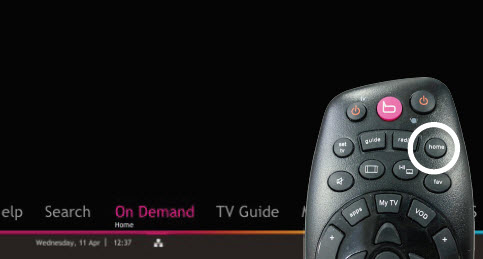
STEP 2
Navigate to SETTINGS and press “OK”.
STEP 3
Navigate to STB DIAGNOSTICS and press “OK”.
STEP 4
Navigate to Network and press "OK".

STEP 5
Navigate to Wi-Fi and press "OK".
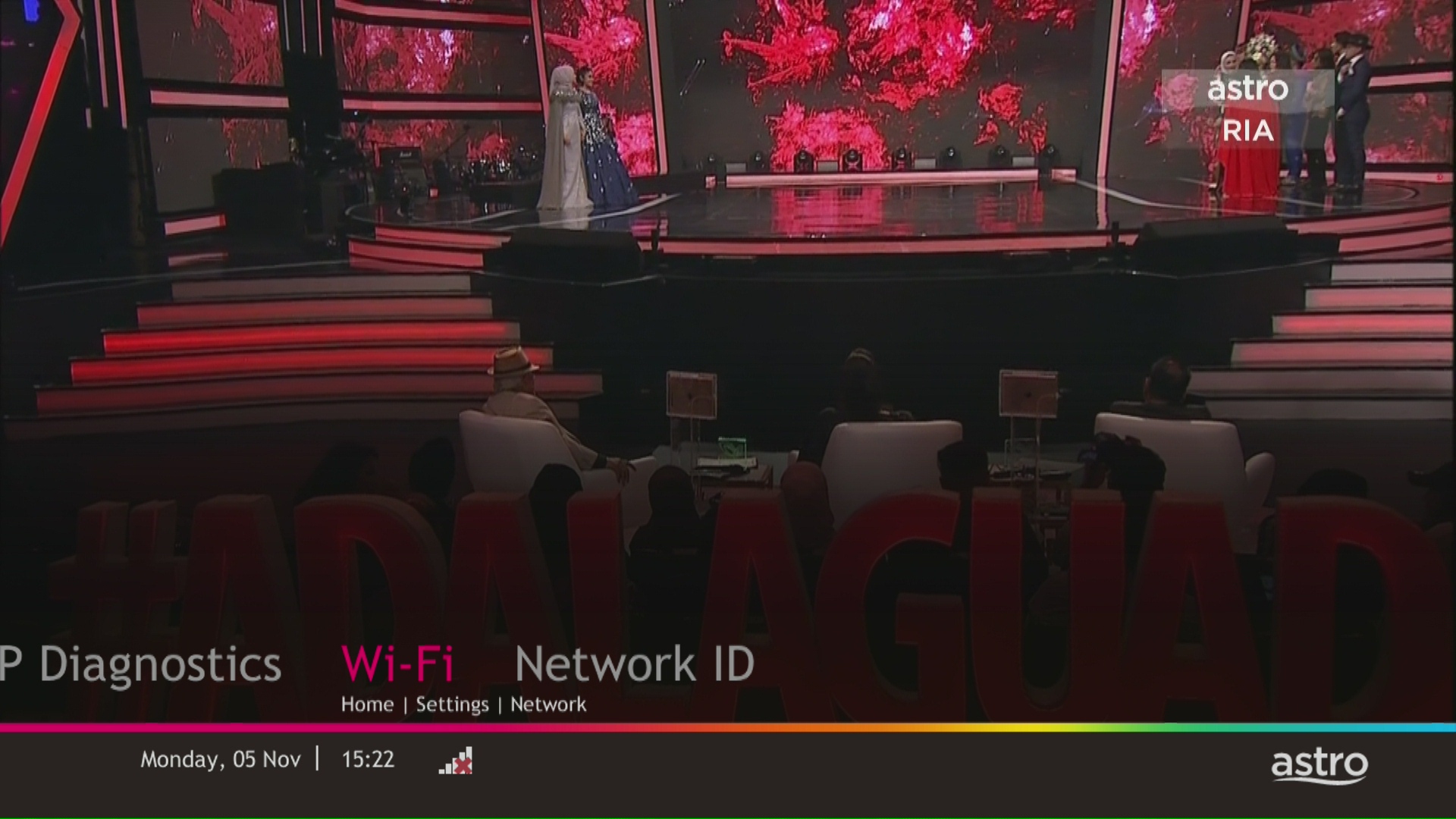
STEP 6
Select New Connection and press "OK".
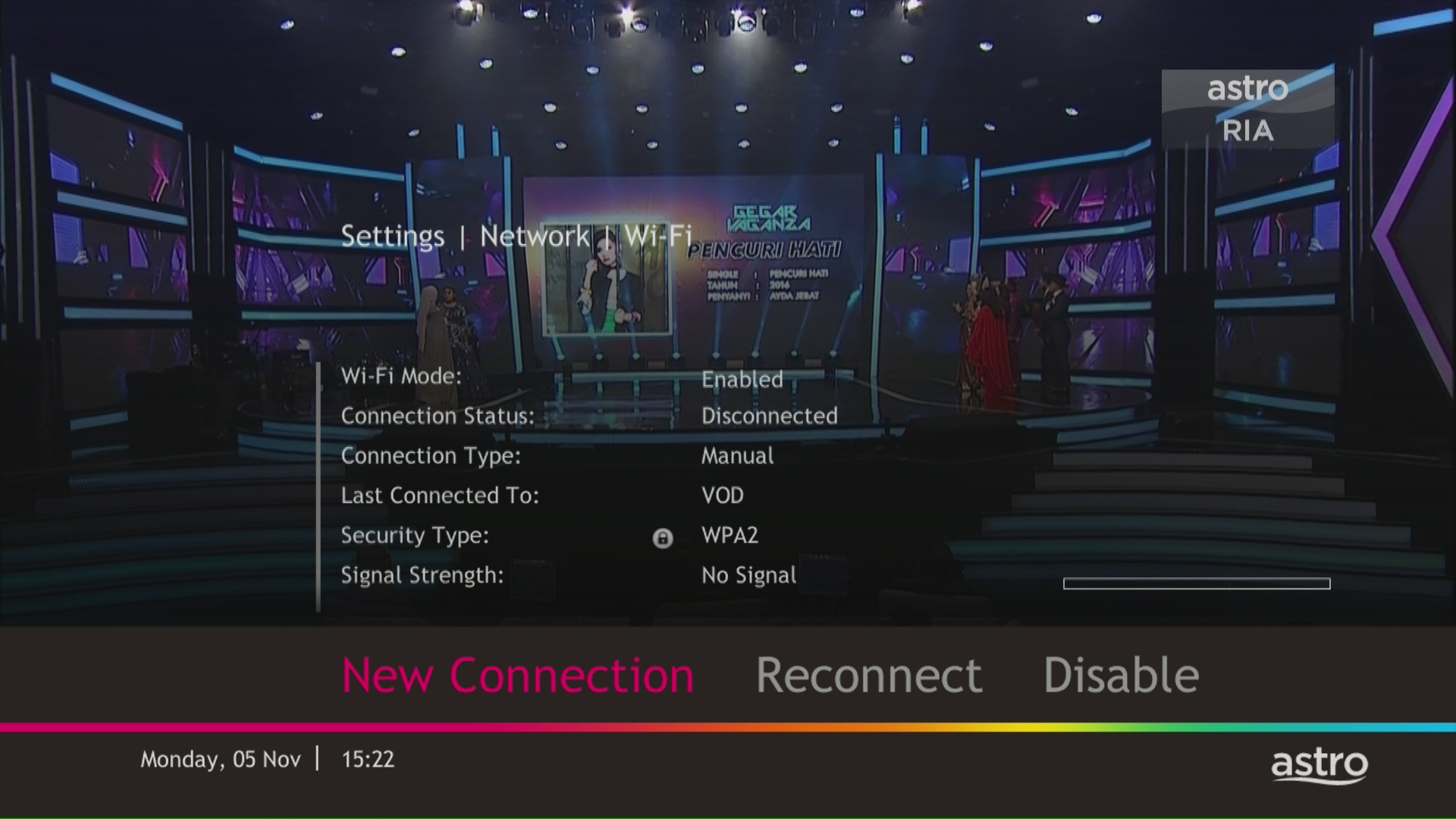
STEP 7
Select your Wi-Fi network and navigate to "Connect".

STEP 8
Please enter the password to connect to your network and press "OK".

STEP 9
You are successfully connected when this screen appears.

For My Astro App Users
Go to the "Account' tab and scroll to "Personal Info' section. Click "Name & contact info' to view and update your personal contact information.

For Ultra and/or Ulti Users


For customers subscribed to our New Astro Packs (for example: Primary, Entertainment or Sports Packs), you will be charged a one-off switching fee of RM10 (excl. govt tax) if you decide to switch to another ala-carte add-on with a lower fee. For example, removing Korean add-on (RM9.99/month) and purchasing Horror add-on (RM5.99/month) will incur a RM10 (excl. govt tax) switching fee to your account.
For customers subscribed to our Old Astro Packs (for example: Super or Dynasty Packs), there will be a one-off switching fee of RM10 (excl. govt tax) if you decide to switch to another ala-carte add-on with a lower or same fee. For example, removing Korean add-on (RM9.99/month) and purchasing Horror add-on (RM5.99/month) OR Kids add-on (RM9.99/month) will incur a RM10 (excl. govt tax) switching fee to your account.
STEP 1
Press "HOME" button on your remote control.

STEP 2
Navigate to Settings and press "OK".

STEP 3
Navigate to STB Diagnostics and press "OK".

STEP 4
From General Tab, take a look at the Current Entry Point Name for the LNB type of your input source.

STEP 1
Switch off the power of your box and make sure that the adapter’s power light is off.
STEP 2
Unplug the HDMI cable from your TV and plug it back in securely to other available HDMI port.
STEP 3
Switch on the power for your box and make sure that the adapter’s power light is on.
Please wait for 5 minutes.
STEP 4
Turn on your box. Do select the correct TV input.
You should no longer be experiencing this problem. 
Create your Astro ID anytime by following these simple steps:
Please follow the steps below to verify your Astro ID:

The fee is a one-time activation fee that will be charged when you subscribe to the Plug & Play Box.
As our customers deserve the best entertainment experience, Astro is refreshing its content and packages to offer more choice, value, flexibility, and better experience in a streaming world as part of the new Astro experience.
The all-new Astro packs are designed for customers in the streaming and connected world, where they can stream all the shows they love on Ultra Box and Ulti Box. Customers can now enjoy their favourite shows all on Astro, from global streaming services like Netflix, Disney+ Hotstar, HBO GO, iQIYI, TVBAnywhere+ as well as all Astro's flagship shows and the best of live sports in one place, on the big screen. Our new packages offer unbeaten value, a greater variety of content and greater convenience, all made better with our Astro & Broadband for better connectivity.
If you would like for more information, kindly visit our Multiroom page via Astro website https://www.astro.com.my/multiroom
To view the terms and conditions, click here.
For self-installation, in your first bill upon activation of your Plug& Play Box, the activation fee will be included as a separate line item in your bill alongside the subscription fee.
If you choose to install the Plug & Play Box via installer, you can pay the installation fee and activation fee directly to the installer upon installation. This will be reflected in your next bill itemised as setup fee.
Yes, you may cancel your Astro Fibre order before service activation, however, kindly note that there is a cancellation charge of RM212 (inclusive of SST) for any service cancellation done 48 hrs before scheduled appointment.
The default PIN is 0000. You may change your PIN to a secure one by doing this at Settings, under your Preferences, select PIN Management, enter your old PIN or default PIN and proceed to create a new PIN.

Here's what you can do with your unused satellite TV devices:
If you have an Ultra or Ulti Box, you may:
1. Return your device to us via Arranged Pick-up:
Step 1: Please call Astro's Contact Centre at 03-9543 3838 to schedule an arranged pick-up by one of our Astro agents.
Step 2: Just sit back and relax! Our courier partner, Citylink will come to your doorstep, dismantle the satellite dish for you and retrieve the devices.
2. Return your device to us via Dropoff:
Step 1: Please gather your device(s) and click here to find a Customer Service Centre (CSC) or Astro Authorised Retailer (AAR) near you.
Step 2: Don't worry, it's free! Simply walk in during opening hours and hand over the device(s) to one of our Astro agents.
Note: An installer's visit is required to dismantle your satellite dish. However, if you have a Box or other satellite TV devices at home that do not require dismantling, you may walk into any of our authorised dealers and hand them over to the agent.
If your Satellite TV device is NOT an Ultra or Ulti Box, you may:
1) Recycle your device:
For all Ultra or Ulti Boxes, please return them to Astro via drop-off at a CSC or AAR near you or schedule a pick-up appointment via 03-9543 3838.
For other older Boxes or Satellite TV devices, you are required to discard them only at registered collection centres for proper handling and management of e-waste in an environmentally sound manner. Click here to find a registered collection centre near you.
Note: Upon termination of your Astro service, all Ultra and Ulti Box customers are required to return their devices to Astro. Failure to do so within 14 days of termination may incur a fee of RM100 (not inclusive of Govt. Tax). For customers on all other boxes, please discard your box only at registered collection centres to ensure we all play our part in protecting the environment.
Arranged Pick-Ups
1) I missed the pickup appointment; what do I do now?
Our agent will make two attempts to retrieve the device(s) and dismantle your satellite dish within a period of 14 days, failing which the penalty of RM100 (not inclusive of Govt. tax) would be imposed.
2) Can I reschedule my pickup date?
Yes! Please call Astro's Contact Centre at 03-9543 3838 to reschedule your pickup date.
3) My old devices do not require dismantling; do I have to pack them before handing them over to the delivery agent?
Please pack your device(s) in their original box/packaging if possible. If this option is not available to you, just hand the device(s) over to the delivery agent without any packaging. You will not be charged any fees if the original packaging has been damaged/lost.
4) Do I have to print anything or fill in any forms before handing my device(s) over to the Astro agent?
No, you do not have to prepare any documents before handing your device(s) over to the Astro agent. All you have to do is get your device(s)ready before the Astro agent arrives to ensure a smooth handover process.
5) I have an old/unused satellite dish at my home and I am not an Astro customer; can I still schedule an installer visit to dismantle and return it?
Yes! Not to worry, you can still schedule an installer visit to dismantle the satellite dish from your home.
Drop-offs
1) Do I have to pack my device(s) before handing it over to the Astro agent?
Please pack your device(s) in their original box/packaging if possible. If this option is not available to you, just hand the device(s) over to the Astro agent without any packaging. You will not be charged any fees if the original packaging has been damaged/lost.
2) There are no Customer Service Centre (CSCs) or Astro Authorised Retailers (AARs) near me; what do I do now?
Please opt for courier pick-up if there are no CSCs or AARs near you. Call 03-9543 3838 now to schedule a pick-up appointment by one of our courier partners if you are holding an Ultra or Ulti Box For non-Ultra or Ulti boxes, you may recycle your box at a registered collection center. Click here to find a registered collection center near you.
3) Do I have to print anything or fill in any forms before handing my device(s) over to the Astro agent?
No, you do not have to prepare any documents before handing your device(s) over to the Astro agent. All you have to do is hand the device(s)over to the agent and you're done! You will also receive an acknowledgment slip after successful handover.
4) I found my Box and Smart card, however, the cable(s) that came with it is lost; will there be any penalty fees?
No, please return your old Plug & Play Boxes and Smartcard. There will be no penalty fees if the cable is damaged or lost.
Recycle via Registered Collection Centres
For all recycling-related questions, please click here.
Not to worry, we are only a phone call or a message away! Call or WhatsApp our Customer Contact Centre at 03-9543 3838 and an Astro agent will be available to assist you immediately.
Yes, you can purchase Astro First and Astro Best content by using the app and web. Refer below for the steps to purchase movies via this app and web. Thereafter, you can watch them on Astro Go.


You may proceed with the following troubleshooting steps and it shouldn't take you much longer than 15 min
1. Please standby a computer/laptop to access to the internet and connection must be via LAN cable (connect the LAN cable to the Yellow port at Tplink Router and direct to the computer/laptop).
2. You may open any web browser such as Google Chrome, Internet Explorer, Mozilla Firefox and etc.
3. On the address bar, please go to tplinkwifi.net and to access to below login page. Type the Username and Password, then click "Login".

The default login of the router is available on the sticker at the back of the router. If you have done a configuration on your router previously, the password may be different.

For example, below is the login details of the above router:
Username: admin
Password: TIMECE24
4. Once you have successfully login, the router's web-based setup page will appear. Please follow below steps for the configuration.
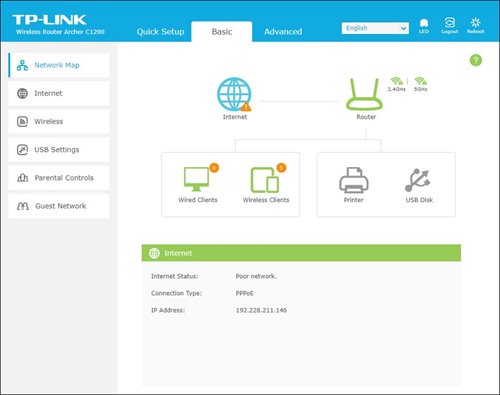
5. From the top menu, choose Advanced and click the Wireless tab on the left menu. Then, select Wireless Settings from the sub menu. Below screen will appear for 2.4GHz selection.

i. Please ensure to tick Enable Wireless Radio function.
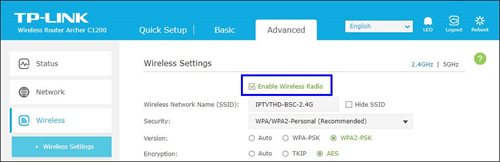
ii. To change the channel, click the drop-down arrow for Channel, then select your desired channel.
Choose between 1 to 13 (Suggested channels : 1,6,11). Then, click "Save" for the changes to take place.

iii. Click Save for the changes to take place. The router will auto reboot and connection will re-establish after few minutes.

iv. Next, select 5GHz to make changes on the wireless channel for 5GHz.
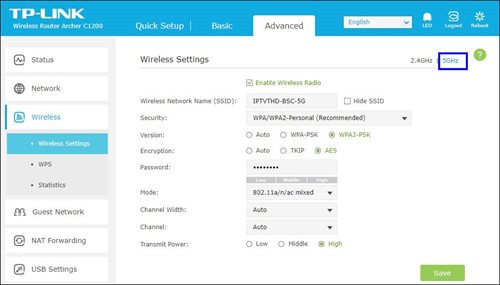
v. Click the drop-down arrow for Channel, then select your desired channel from the selection.

vi. Click Save for the changes to take place. The router will auto reboot and connection will re-establish after few minutes.

No, the Mesh WiFi add-on with Astro Fibre is available as subscription service and will not be tied to any device contract.
Please follow the steps below:
Step 1: Fill in Transfer of Equipment Ownership Form (Part A & Part B)
Step 2: Provide an Undertaking Letter if current account holder deceased or un-contactable. (Note: Copy of death certificate is required if account holder deceased).
Step 3: Provide a copy of new applicant NRIC for Malaysian or copy of passport for non-Malaysian or copy of IMM13 Pass with at least 6 months validity for Refugee. (Note: ASTRO name should be displayed on the top left corner on both sides of the identity card copy).
Step 4: A full payment to be made on any outstanding balance for all related accounts (if any).
Step 5: Submit all documents via feedback form .
Step 6: Customer will expect a call from our validation team (Note: Turnaround time for transfer of equipment ownership is 3-5 working days upon receiving all complete documentation).
Note:
1. There might be a loss of transmission during the processing of transfer equipment ownership, split or merge of equipment.
2. Recorded program will be removed for PVR user.
3. A full payment to be made on any outstanding balance for all related accounts.
4. New account holder agreed to continue the remaining contract from previous owner account (if any).
5. Auto debit will be voided upon acknowledgment of transfer equipment ownership (if any).
Additional requirement for New Owner
Capping of applicant age is 21
Malaysians aged < 26 years old and Non-Malaysian - requires copy of utility bill (Phone, Internet, Water or Electricity)
For information about the Disney+ Hotstar app functions and specifications, please visit help.hotstar.com or email disneyplus.my@hotstar.com.
Your monthly bill of the previous and new pack will be prorated. This will be reflected into your bill accordingly.
The recommended home internet speed for a smooth viewing is 10Mbps.
For Residential Astro Pay TV customers: You may change your contract from e.g., 12-month to 24-month without incurring a switching fee or cancellation fee. However, if you change your contract from e.g., 24-month to 12-month, will be charged a cancellation fee accordingly if still within minimum term (contract) period. No switching fee applicable.
Please ensure to put your box on standby mode to refresh the signal.
a. Using IVR
1. Dial 03-95433838 and select you preferred language.
2. Select Account Related.
4. Select Refresh Smartcard.
b. Using MyAstro web
STEP 1
Go to https://myastro.astro.com.my/ in your web browser.
STEP 2
Keyin your Email / Mobile number and password. Then, press "LOG IN".

STEP 3
Click on TV pack.

STEP 4
Choose Main Room for the Primary Box; else choose Multiroom (If any).

STEP 5
Click on "Refresh" to refresh signal on your box.
For Main Box 
For Multiroom
STEP 6
After tap the Refresh, below notification will be displayed as below.
For Main Box 
For Multiroom
c. Using My Astro App
STEP 1
Open My Astro App and click "Login".

STEP 2
Keyin your Email / Mobile number and password. Then, press "LOG IN".

STEP 3
Go to "Account".

STEP 4
Scroll down to "TV pack" and click on it.

STEP 5
Choose Main Room for the Main Box; else choose Multiroom (If any).

STEP 6
Tap on "Refresh" to refresh signal on your box.

STEP 7
After tap the Refresh, below notification will be displayed as below.

STEP 1
On your remote, press the Home button and the Home Page will be displayed on your screen.
STEP 2
Navigate to Profile.
STEP 3
The Profile Selection Screen will be displayed.
STEP 4
Navigate to Edit Profile.
STEP 5
Choose a profile to edit.
STEP 6
Navigate to Delete Profile.
STEP 7
Click Confirm to delete your profile.
STEP 8
The deleted profile will be removed from the Profile Selection Screen.
The payment will take some time to reflect in My Astro app and web account. If you experience any further issues or it is still not reflecting in My Astro, please reach out to us via WhatsApp at 03-9543 3838 for more details.
Please follow the steps below:
Step1: Fill in Merge/Split Equipment Form (Part A & Part B)
Step2: A full payment to be made on any outstanding balance for all related accounts (if any).
Step3: Submit all documents via feedback form or walk in to nearest Astro Customer Service Centre (CSC).
Step4: Customer will expect a call from our validation team (Note: Turnaround time for merge/ split of account is 3-5 working days upon receiving all complete documentation).
Note:
1. There might be a loss of transmission during the processing of transfer equipment ownership, split or merge of equipment.
Yes, you may terminate the service. However, an early cancellation fee will be applied for terminations/cancellations within 24 months. Please refer to the Astro Fibre's cancellation details.
If you have forgotten your username or password, you may follow the steps below:
Step 1. Go to netflix.com
Step 2: Click on Sign In
Step 3: Click on "Need Help
Step 1: You request for a move.
Step 2: One of our agents will contact you within 24 hours to set an appointment if you’re using Self Service - Astro Self-Service Portal.
Step 3: You will receive a reminder of your appointment an hour before your scheduled time.
Step 4: The technician will dismantle your satellite dish.
If there is no satellite dish, customers should dismantle the modem, router, and decoder by themselves.
Step 5: You will need to transport your device(s) to your new home.
Step 6: The technician will reinstall your satellite dish, (including modems and routers for broadband customers) at your new home based on the schedule appointment.
Note For IPTV Customers:
1. Upon relocation request, all exiting IPTV customers will be converted to our Astro & Broadband service. Customers can choose to have standard Astro service with satellite dish, or unicast Plug & Play without satellite dish.
2. If customers choose to have satellite dish, an additional RM150.00 will be charged for satellite installation. If customers choose to have unicast Plug & Play service, no satellite dish is required, hence no extra charge will be incurred.
BYOND / PVR / Ultra Box
To dismantle ONLY - FOC
To reinstall ONLY – RM65
To dismantle and reinstall - RM65
Broadband / IPTV
Relocation within 6 months of contract start will be charged a RM500.00 relocation fee, and the contract will be renewed to a new 24-month contract.
Relocation after 6 months of contract start will have their contract renewed to a new 24-month contract.
Note For IPTV Customers:
1. Upon relocation request, all exiting IPTV customers will be converted to our Astro & Broadband service. Customers can choose to have standard Astro service with satellite dish, or unicast Plug & Play without satellite dish.
2. If customers choose to have satellite dish, an additional RM150.00 will be charged for satellite installation. If customers choose to have unicast Plug & Play service, no satellite dish is required, hence no extra charge will be incurred.
*Please note that additional charges may apply if the reinstallation process requires extra cables/fixings.
If you have more than one card registered for OTP payments, you will be asked to select the specific card to be used for that specific transaction.
Step 1:
Type ASTRO<space>BAL<space>10-Digit Astro Account No.
Example: ASTRO BAL 08XXXXXXXX
*Standard telco charges and Terms and Conditions apply
Step 2:
Send SMS to 66688
Please contact your issuing bank for further information. Astro does not directly handle standing instructions. Please utilise our auto-debit facility if you would like hassle-free payments.
STEP 1
Switch off the power for your box and make sure that the adapter's power light is off.

STEP 2A
Unplug the HDMI cable from your box and plug it back in securely. Do select the correct TV input.

STEP 2B
If you are connecting using RCA cable, please unplug the RCA cable from your box and plug it back in securely.

STEP 3
Switch on the power for your box and make sure that the adapter's power light is on.
Please wait for 5 minutes.

STEP 4
Turn on your box. You should no longer be experiencing this problem. If issue remain, replace to another HDMI cable.

If no improvement seen, please submit the issue in our Feedback Form and attach a picture of your smart card number for assistance.
Please follow the steps below to retrieve your Astro ID:
Note: Only Astro customers whose Astro ID is linked to their subscription can retrieve their Astro ID this way. Otherwise, you would need to create a new account.
Yes, your advance payment will be fully refunded if you cancel your subscription before the Astro box installation. Please call Astro's Contact Centre at 03-9543 3838 for a refund. The refund process will take approximately 14 days for processing with your issuing bank. However, if you decide to cancel your subscription after the Astro box installation (during your contract period), the prorated early termination fee will apply.
1. Unifi netis brand
The following shows an Interface based on Unifi router


Note: Connection to Wi-Fi may be temporarily loss while the changes is updated.
No, Astro First movies/series are available as Per-per-view basis. Pricing is indicated on each of the programme posters. All prices are subjected to 6% service tax.
Yes, Mesh WiFi add-on is available for both Astro Fibre Bundle and Astro Fibre subscription.
No, the Astro Fibre App is available for Astro Fibre customers with the RG21 router only.
Most Astro customers are eligible to use the app, web, Ultra and Ulti boxes. You will only need to login with your Astro ID. Do note that your Astro ID must be linked to your Astro account to use the service. Click "Create now!' on the login page and you will be guided to create an Astro ID if you do not have one.
There are a few ways you can access Netflix on the Ultra Box as below:
IMPORTANT! If you are accessing Netflix on your Ultra/Ulti Box for the first time, please wait for the Netflix activation email from Astro (this may take up to 10 minutes) for the app to be reflected in your account. If you skip this 10-minute period, you may experience double charging by incorrectly signing up for Netflix using your credit card details.
To check your contract, please visit My Astro.
Any Astro GO compatible device (mobile/tablet/PC) and Multiroom Smart TV* compatible TVs will benefit from Astro GO+.