





Nationwide Installation
Applying for
| Astro Njoi UniFi Maxis |
Frequently Asked Questions
Find your answers here.
We provide one stop service to apply Astro and Broadband for you.
You can avoid driving and queuing at the sales counter. We are the dealer that can help you to handle your application from the beginning to the end.
We do not charge you when you apply from us. There is no credit card information required to apply here. Charges are the same as you apply from the sales counter.
First, you can apply online, we will get back to you immediately during business hour. WhatsApp/Email/Fax us your Photocopy of IC (for malaysian) / Passport (for foreigners). When we receive all the information, we will proceed with your application immediately.
Once we receive your application with complete information, we will process your application immediately during business hour. The contractor from the service provider will then contact you for installation appointment once your application is approved.
Enjoy greater savings and hassle-free bill payment in one single bill for both Astro and Broadband. You get to enjoy Astro and Broadband at discounted price every month over the contract period of 24 months.
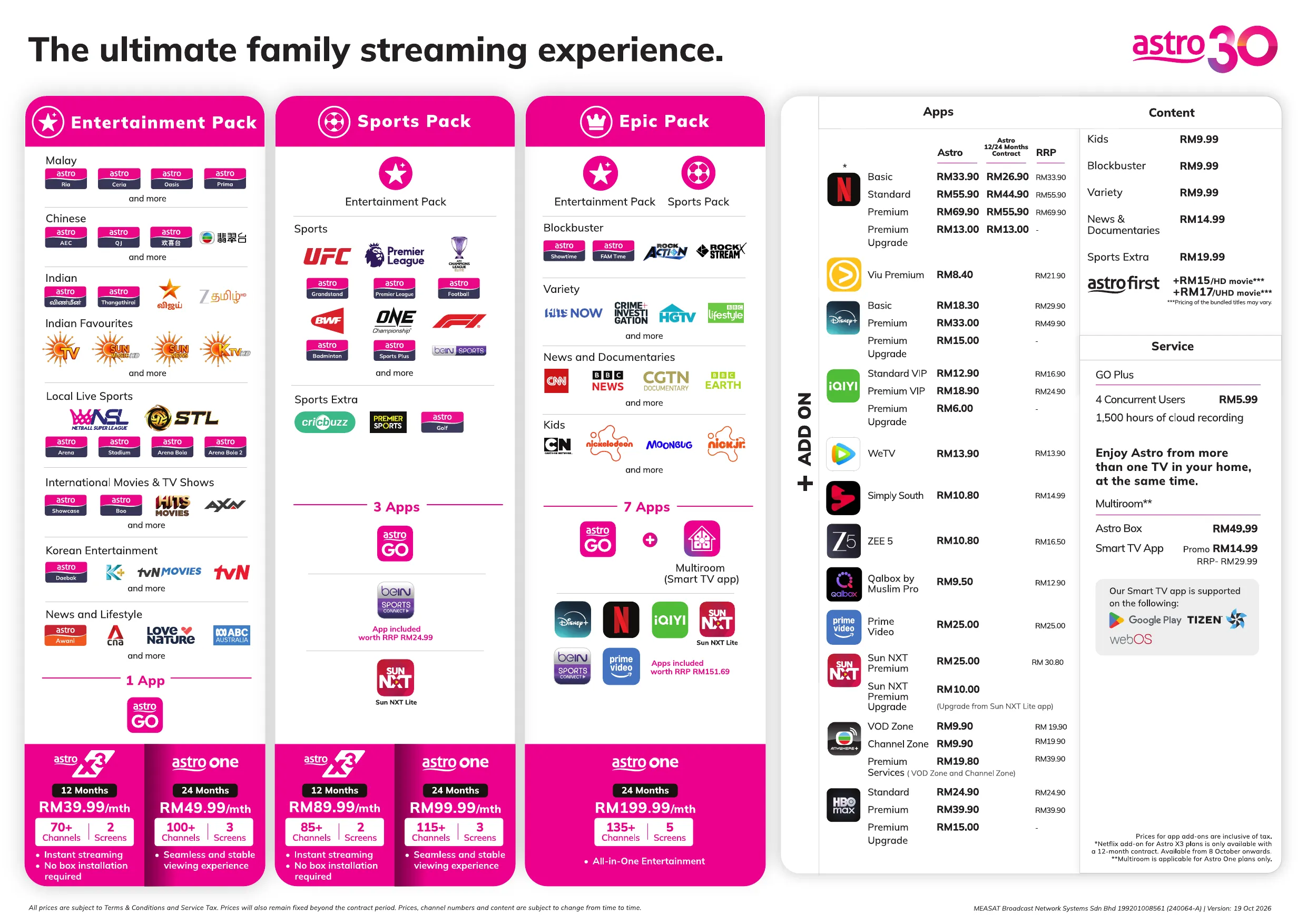
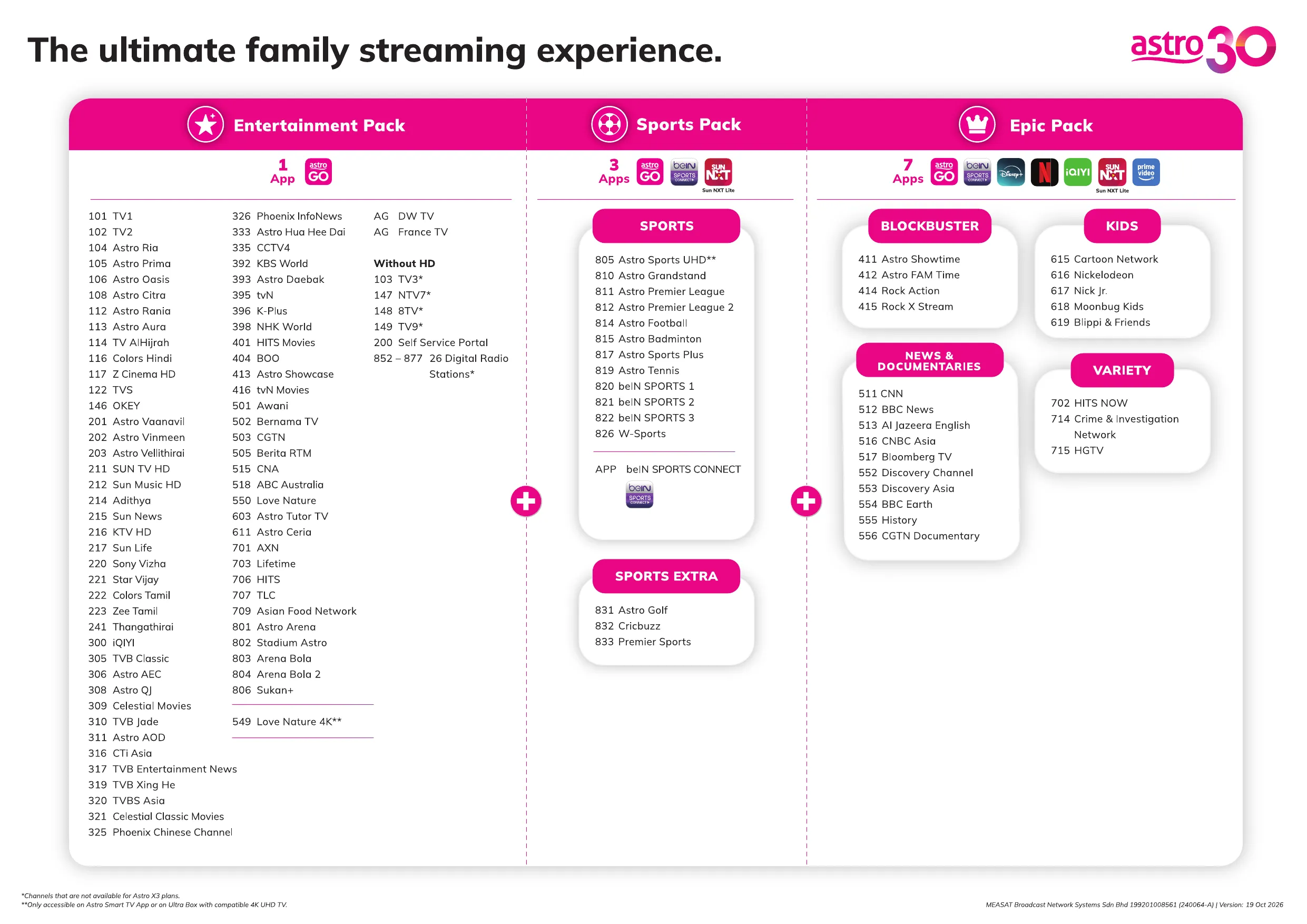
Astro offers multiple TV packs including Entertainment, Sports, Movies and Kids options. You can choose a pack that matches your viewing preferences and add optional streaming apps where available.
Yes, you may subscribe to Astro TV packs without bundling broadband. However, bundling Astro TV with Fibre Broadband may provide better monthly savings and convenience with a single bill.
For small households with light streaming and browsing, 100Mbps is usually sufficient. Larger families, gamers or heavy streamers may benefit from 500Mbps or 1Gbps plans for smoother performance across multiple devices.
Most Astro TV and Fibre broadband plans come with a 24-month contract. Early termination charges may apply if cancellation is made before the contract ends.
Yes, you may upgrade your TV pack or broadband speed at any time, subject to eligibility and coverage. A new contract period may apply depending on the upgrade.
Your monthly bill will be issued directly by Astro. You may receive it via email or access it through your Astro account. Bundled customers will receive a single combined bill for TV and broadband services.
Payment methods may include online banking, auto debit, credit card or other approved payment channels provided by Astro. Our team can guide you during the registration process.
If you experience any service interruption, you may contact Astro customer support for technical assistance. In many cases, issues can be resolved remotely or a technician will be arranged if necessary.
Yes, relocation is subject to service availability at your new address. Relocation charges and contract adjustments may apply depending on your plan.
No, you do not need a credit card to submit your application. Payment setup will be arranged directly with Astro after your service is approved.
Selected Astro TV packs allow optional add-ons such as streaming services depending on current promotions and availability. Additional monthly charges may apply.
Yes, a WiFi router is typically provided during fibre installation. The router model may vary depending on the selected broadband speed plan.
Yes, we will check the service coverage at your address before proceeding with your application to ensure broadband is available at your location.
For Malaysians, please provide a copy of your MyKad. For foreigners, provide a copy of your passport when submitting your broadband application.
After your application is approved, the service provider typically contacts you within 2 to 7 working days to arrange the broadband installation appointment.
Most Astro Broadband plans come with a 24-month contract starting from your installation date. If you relocate, a new 24-month contract may apply at your new address.
Yes, you can relocate your broadband service, subject to service availability at the new address. Your contract may reset for another 24 months from the new installation date.
Yes, you may request to relocate broadband devices within your home. Non-standard installation charges may apply and are payable to the installer directly after assessment.
Yes, you can switch to Astro Broadband. To avoid service interruption, it is recommended to activate the new service before terminating your current broadband contract.
Standard installations may be free during promotions, but non-standard installations (e.g., device relocation or complex wiring) may incur extra charges payable directly to the installer.
Step 1: You request for a move - here's how.
Step 2: One of our agents will contact you within 24 hours to set an appointment if you’re using My Astro app.
Step 3: You will receive a reminder of your appointment an hour before your scheduled time.
Step 4: The technician will dismantle your satellite dish.
If there is no satellite dish, customers should dismantle the modem, router, and decoder by themselves.
Step 5: You will need to transport your device(s) to your new home.
Step 6: The technician will reinstall your satellite dish, (including modems and routers for broadband customers) at your new home based on the schedule appointment.
Note For IPTV Customers:
1. Upon relocation request, all exiting IPTV customers will be converted to our Astro & Broadband service. Customers can choose to have standard Astro service with satellite dish, or unicast Plug & Play without satellite dish.
2. If customers choose to have satellite dish, an additional RM150.00 will be charged for satellite installation. If customers choose to have unicast Plug & Play service, no satellite dish is required, hence no extra charge will be incurred.
There will be no changes to your Netflix account when you move to a new address.
The payment will take some time to reflect in My Astro app and web account. If you experience any further issues or it is still not reflecting in My Astro, please reach out to us via WhatsApp at 03-9543 3838 for more details.
Yes, you may enhance your existing pack with desired content, app and service add-ons via My Astro App or My Astro Web.
STEP 1: Log in using your Astro ID
STEP 2: Go to Account
STEP 3: Tap on Subscription
STEP 4: Tap on Add-ons
STEP 5: Tap on Manage your add-ons to view other steaming apps you are not subsribed to
STEP 6: Tap on the steaming app you wish to add on
STEP 7: Tap on Confirm Order
Only Visa, MasterCard, and American Express Credit Cards and Debit Cards issued by banks in Malaysia are accepted by Astro-owned payment channels. Official Astro payment partners may have different policies - please check with your preferred payment partner for the latest information.
The minimum internet speed required to stream via Ultra Plug & Play Box is 30Mbps for 4K UHD viewing, and Ultra/Ulti Plug & Play is 10Mbps for HD viewing. For better streaming experience, we recommend 100Mbps and above.
You may register up to four (5) devices.
To remove devices on Astro GO, click on Settings > Registered Devices to view and remove a device(s) from the list of devices registered to your Astro ID.
No. If you are a non-Astro subscriber, you will still be able to create an Astro ID, but access and use of Astro's digital services will be limited. If you are an Astro subscriber, please link your Astro ID to your Astro account number to enjoy exclusive access to all of Astro's digital services.
From 1st July 2023 onwards, Astro will ONLY accept cheques deposited at Public Bank Berhad.
To simplify your monthly payments, here are some recommended alternatives you can look into.
- Auto-Debit
- Online Banking
- JomPAY
- Astro Quick Pay
To find out more on how you can make your payments via these channels, kindly visit here.
Should you choose to continue with cheque payment, do ensure that you follow these steps below.
Step 1: Fill in the cheque
Step 2: Ensure that your 10-digit Astro account number is accurately written at the back of the cheque
Step 3: Go to your nearest Public Bank
Step 4: Locate the Cheque Deposit Machine
Step 5: Select “Bill Payment” on the screen
Step 6: Select “Astro”
Step 7: Drop your cheque in
Step 8: Collect your receipt
Refund fee is subject to your processing bank. However, Astro did not impose refund processing fee.
Yes, customers who have upgraded their packages or reconnected their Astro service in February 2024 will be charged with 8% Service Tax from 1st March 2024, for services period on or after 1st March 2024.
Yes, you can request e-invoicing for your last month's bill if you obtain approval before the last date of the allowable period for the month: 5 days after the end date of the invoice period.
Scenario A (Only for Aug ’24):
Bill Date: 07 Aug 2024
Bill Start/End Period: 07 Aug – 06 Sept 2024
Timeframe requesting e-invoice: 07 Aug – 11 Sept 2024 (within 5 days after the end bill period)
Request Outcome: You will get the e-invoice for last month’s bill dated 07 Aug 2024.
Scenario B (For Sept ’24 onwards):
Bill Date: 01 Sept 2024
Bill Start/End Period: 01 Sept – 30 Sept 2024
Timeframe requesting e-invoice: 01 Sept – 5 Oct 2024 (within 5 days after the end bill period)
Request Outcome: You will be getting the e-invoice for last month’s bill dated 01 Sept 2024
Scenario C (For Sept ’24 onwards):
Bill Date: 01 Sept 2024
Bill Start/End Period: 01 Sept – 30 Sept 2024
Timeframe requesting e-invoice: 6 Oct 2024 onwards (more than 5 days after the end bill period)
Request Outcome: You will be getting the e-invoice for the next bill cycle.
Multiroom (Astro Box) requires an Astro box to be set up and can be accessed through the regular satellite feed or streaming on home Wi-Fi. Meanwhile, the Multiroom (Smart TV) only requires a Smart TV and no installation is needed. Customers can download the Astro Smart TV app on the Smart TV to stream.
Yes, the iQIYI app is accessible globally. However, the content of the app might differ depending on the country which will be tailored based on local content rights and market preferences.
Yes, you may submit for the termination of account, but it is subjected to an Early Termination Fee (ETF) based on the remaining contract.
If you have forgotten your username or password, you may follow the steps below:
Step 1. Go to netflix.com
Step 2: Click on Sign In
Step 3: Click on "Need Help
The Multiroom (Smart TV) subscription doesn't come with any contract.
For Astro Ultra Box or Ulti Boxes, there will be an itemised charge of "Box Fee” stated in your Astro bill.
Yes. All TVBAnywhere+ add-on plans; VOD Zone, Channel Zone, and Premium allow streaming on up to 2 devices concurrently. This means you can enjoy your favorite content on two devices at the same time.
The number of concurrent streams depends on your Disney+ subscription plan:
a. Disney+ Standard: Up to 2 concurrent streams
b. Disney+ Premium: Up to 4 concurrent streams
Unfortunately, the the drop off option is only available for non-DBB customer. For DBB customer we will arrange for our appointed agent to collect your equipment. You will receive a phone call from our representative within 3 business days from your termination date to schedule the collection.
Yes. The TVBAnywhere+ app can be downloaded on compatible mobile device via the Apple App Store or Google Play Store. Once installed, customers can log in with their Astro ID to access the app.
If you can’t remember the email address or mobile number linked to your Disney+ account, please WhatsApp or call Astro’s Customer Service at +603 9543 3838.
f you decide to switch your existing Asian Favourites selection to Viu Premium, your current
selection will no longer be valid. This means that you will no longer be able to access any
channels or apps that is part of your current selection.
However, if you wish to remain with your existing Asian Favourites selection and enjoy Viu
Premium, please refer to Q8.
No. An Astro-billed Disney+ subscription cannot be transferred to a Disney+-billed subscription.
If you choose to subscribe directly with Disney+, your subscription and billing will be managed by Disney+. We recommend reviewing your current Disney+ subscription arrangement before signing up to ensure it best meets your needs.
Please note that subscribing directly through Disney+ while maintaining an active Astro-billed Disney+ subscription may result in you having multiple Disney+ subscriptions and being charged separately for each subscription.
To switch your bill delivery method to e-bill, you can do it through My Astro. Here's how:
1. Download the My Astro app or visit My Astro web
2. Login using your Astro ID
3. Go to Account > Bill delivery method
4. You will be able to switch your bill delivery method from your paper bill to e-bill. The bill will then be sent to your registered email address with Astro
Step 1:
Type ASTRO EBILL <Your 10-Digit Smart Card Number> <Your Email Address>
Example: ASTRO EBILL 0156123412 [email protected]
Step 2:
Send SMS to 66688
Note: This request must be sent from account holder’s mobile/primary number
*Standard telco charges and Terms & Conditions apply
💳 Want to manage your Astro bills easily?
📱 Download the My Astro app to:
- View and download bill statements
- Check payment history
- Pay in just a few taps
No, you will not be able to manage your account with the Astro Fibre App. However, you may download the “MyAstro” app on your mobile device now to manage your Astro account in a fast and easy way.
Yes, you will need to activate SecureGo again if you're on a new device.
When you activate SecureGo on a different device, you will receive an email to notify you that the device has been de-registered.
If you suspect that someone else has gained access to your phone, contact our customer service immediately at 03-9543 3838 to unlink your Astro ID.
Payment for Astro services will not increase. However, the Service Tax applicable will be increased from 6% to 8% and this will result in an increase in the total amount payable.
No, Astro GO is a free app for Astro customers. The content available on Astro GO will depend on the subscription pack that you are subscribed to.
If you do not have an Astro subscription, please click here to find out packages available.
Yes. If you’re on any Bundle which includes the Movies Pack, have the Movies Add‑On, are subscribed to the HBO Pack Add‑On or Astro One Epic Pack, you can stream the new channels on Astro GO from 1 March 2026 and 1 April 2026 accordingly.
There will be no penalty fee if you choose to cancel your iQIYI VIP subscription. Your cancellation will take effect upon your current entitlement expiry date. Kindly note that if you cancel your subscription within 24 hours before your entitlement expiry date as reflected in the iQIYI app (not according to Astro billing cycle), your subscription may be auto renewed.
For customers that would like to subscribe to Multiroom with a box installation,
(i) customers on the old packages (example Family Pack, Starter Pack, Value Pack, Super Pack or Super Pack Plus) will have to subscribe to our new packages first by sending "Switch" to 03-9543 3838 via WhatsApp;
(ii) customers on the new Astro packages can subscribe by visiting product.astro.com.my/multiroom or WhatsApp "Hi" to 03-9543 3838.
Yes. You can make payment using your credit card via My Astro Portal:
- For One-time payment: All Master/Visa 3D secured debit/credit cards for one-time payment issued by banks in Malaysia
- For Auto-Debit: All Master/Visa/AMEX debit/credit cards issued by banks in Malaysia
Once you have submitted your e-invoice request, it will be processed and you can receive the application results through My Astro website or app. Some applications may take longer to process due to unforeseen circumstances. We strongly advise you to provide your TIN number to facilitate the e-invoice issuance process.
Yes, there are five digital bill platforms available for all customers to check their Astro bills:
A. My Astro app
1. Download the My Astro app
2. Login using your Astro ID
3. Go to Account > Bills
4. You will be able to see your outstanding bill amount, make payment, download bill statements, and view payment history all in one app.
B. My Astro web
Alternatively, you can use the web version
C. Astro Quick Pay
1. Visit https://pay.astro.com.my
2. Enter your 10-digit Astro Account Number and follow the instructions to view your bill, account status, pay bills or add a billing reminder on your Google calendar.
Note: You will not be able to download your bills or view payment history via Astro Quick Pay. For a better experience to manage your bills (To download bills or view your payment history), you can download the My Astro app.
D. IVR
1. Call +603-95433838
2. Press 1 for Account Related Queries
3. Input your 10-digit Astro Account no. or 12-digit MyKad no.
4. Press 2 for Payment and Billing
5. Press 1 to receive an SMS with your bill balance and a link to pay online
Note: You will not be able to download your bills or view payment history via Astro Quick Pay. For a better experience to manage your bills (To download bills or view your payment history), you can download the My Astro app.
E. Auto-Debit
Alternatively, please register for Auto-Debit by following the steps here for hassle-free payments.
💳 Want to manage your Astro bills easily?
📱 Download the My Astro app to:
- View and download bill statements
- Check payment history
- Pay in just a few taps
You will be contacted by an Astro representative within two working days to advise you on the next course of action.
If you receive the "Device Was Not Found" error message, it may be because your device has been automatically removed due to concurrent streaming limits being exceeded.
Please perform the following checks and troubleshooting steps:
- Stop streaming on one of the other devices currently using your Astro account.
- Close the Astro Go app on any unused devices.
- Return to your Smart TV and try streaming again.
If you are unable to remove a device or continue to see the error message, proceed to submit report via WhatsApp or Feedback Form and provide:
- Astro ID use
- Smart TV model
- OS version
- Error reported on device
This will help our support team investigate and assist you further.
1. Clearly indicate full name of Astro customer, contact number and Astro subscription account number when making each payment (e.g. on bank-in slips)
2. For Direct Debit, please contact your bank for standing instructions. Provide the full name of Astro customer and Astro account number. The Direct Debit service may not be available with all banks. Please check with your bank for confirmation of Direct Debit service.
3. Please inform us of any changes in billing address/information by contacting us via one of these platforms.
IMPORTANT NOTICE: To avoid any problems in payment processing, please pay only at authorised Astro payment channels
We’re sorry to hear that you’ve decided to leave us, and we truly appreciate your time with Astro.
If you wish to proceed with terminating your account, we understand your decision. However, please ensure there is no outstanding balance and that your contract period has ended. You may then contact our Customer Service at 03-9543 3838, from 9:00 AM – 6:00 PM, Monday to Saturday (exl Public Holidays). Our team will assist you with your request.
Kindly follow these simple steps:
- Press 1 for Account
- Enter your 10-digit account number
- Press 5 for Termination
Alternatively, you may submit your request via our Feedback Form.