Nationwide Installation
Applying for
| Astro Njoi UniFi Maxis |
Frequently Asked Questions
Find your answers here.
We provide one stop service to apply Astro and Broadband for you.
You can avoid driving and queuing at the sales counter. We are the dealer that can help you to handle your application from the beginning to the end.
We do not charge you when you apply from us. There is no credit card information required to apply here. Charges are the same as you apply from the sales counter.
First, you can apply online, we will get back to you immediately during business hour. WhatsApp/Email/Fax us your Photocopy of IC (for malaysian) / Passport (for foreigners). When we receive all the information, we will proceed with your application immediately.
Once we receive your application with complete information, we will process your application immediately during business hour. The contractor from the service provider will then contact you for installation appointment once your application is approved.
Enjoy greater savings and hassle-free bill payment in one single bill for both Astro and Broadband. You get to enjoy Astro and Broadband at discounted price every month over the contract period of 24 months.
Astro offers multiple TV packs including Entertainment, Sports, Movies and Kids options. You can choose a pack that matches your viewing preferences and add optional streaming apps where available.
Yes, you may subscribe to Astro TV packs without bundling broadband. However, bundling Astro TV with Fibre Broadband may provide better monthly savings and convenience with a single bill.
For small households with light streaming and browsing, 100Mbps is usually sufficient. Larger families, gamers or heavy streamers may benefit from 500Mbps or 1Gbps plans for smoother performance across multiple devices.
Most Astro TV and Fibre broadband plans come with a 24-month contract. Early termination charges may apply if cancellation is made before the contract ends.
Yes, you may upgrade your TV pack or broadband speed at any time, subject to eligibility and coverage. A new contract period may apply depending on the upgrade.
Your monthly bill will be issued directly by Astro. You may receive it via email or access it through your Astro account. Bundled customers will receive a single combined bill for TV and broadband services.
Payment methods may include online banking, auto debit, credit card or other approved payment channels provided by Astro. Our team can guide you during the registration process.
If you experience any service interruption, you may contact Astro customer support for technical assistance. In many cases, issues can be resolved remotely or a technician will be arranged if necessary.
Yes, relocation is subject to service availability at your new address. Relocation charges and contract adjustments may apply depending on your plan.
No, you do not need a credit card to submit your application. Payment setup will be arranged directly with Astro after your service is approved.
Selected Astro TV packs allow optional add-ons such as streaming services depending on current promotions and availability. Additional monthly charges may apply.
Yes, a WiFi router is typically provided during fibre installation. The router model may vary depending on the selected broadband speed plan.
Yes, we will check the service coverage at your address before proceeding with your application to ensure broadband is available at your location.
For Malaysians, please provide a copy of your MyKad. For foreigners, provide a copy of your passport when submitting your broadband application.
After your application is approved, the service provider typically contacts you within 2 to 7 working days to arrange the broadband installation appointment.
Most Astro Broadband plans come with a 24-month contract starting from your installation date. If you relocate, a new 24-month contract may apply at your new address.
Yes, you can relocate your broadband service, subject to service availability at the new address. Your contract may reset for another 24 months from the new installation date.
Yes, you may request to relocate broadband devices within your home. Non-standard installation charges may apply and are payable to the installer directly after assessment.
Yes, you can switch to Astro Broadband. To avoid service interruption, it is recommended to activate the new service before terminating your current broadband contract.
Standard installations may be free during promotions, but non-standard installations (e.g., device relocation or complex wiring) may incur extra charges payable directly to the installer.
FAQs: Qalbox by Muslim Pro on Astro
Starting 27 September 2023, Astro customers may purchase Qalbox by Muslim Pro as an add-on for an exclusive price of only RM9.50/month inc. of SST (RRP: RM12.90/month). After successfully adding Qalbox to your subscription, all Ultra and Ulti Box customers can access the app on their Astro Box, the Muslim Pro mobile app, www.qalbox.com, as well as enjoy premium Muslim Pro features on the app. Please visit https://product.astro.com.my/apps/qalboxmuslimpro for more information.
Frequently Asked Questions
About Qalbox by Muslim Pro
1. What is Qalbox by Muslim Pro?
Qalbox by Muslim Pro is a Muslim-friendly entertainment streaming service that is accessible via the Muslim Pro app. It hosts an extensive library of content that celebrates Muslim identities and cultures worldwide and aims to create a global platform for Muslim creatives and filmmakers.
2. What is the difference between Muslim Pro and Qalbox?
Muslim Pro is the go-to Muslim lifestyle app, recognised by millions of Muslims globally ashaving the most accurate prayer time and athan/azan application for salah (prayer). Muslim Pro has a full suite of features that help Muslims practise their religion and deen more purposefully with features such as a Qibla finder, reading and listening to the Quran, a digital tasbih and more.Meanwhile, Qalbox is a streaming service by Muslim Pro to enjoy Muslim-friendly movies, TV series, animations and more. After purchasing Qalbox as an add-on, Astro customers can stream the app on their Ultra/Ulti Box, www.qalbox.com or via the Muslim Pro mobile app.
3. Why should I subscribe to Qalbox by Muslim Pro with Astro?
For an Astro-exclusive price of only RM9.50/month inc. SST (RRP: RM12.90/month), you can look forward to a wide range of content genres, including acquired and original scripted programmes, movies, documentaries, children's animations, as well as Quranic recitations and supplications (du'a). From classic movies on history, origins and civilizations of Muslims to titles that showcase modern Muslim life across the globe - viewers can immerse themselves in the experiences of other Muslims' varied journeys, struggles, and triumphs.
Additionally, you can also enjoy Premium Muslim Pro features on the mobile app which allow users to access all in-app features without any advertisements, download audio recitations of the Quran to listen offline, and add the Muslim Pro widget to their smartphone Home Page to view all prayer times, amongst many other features.
4. Where can I access Qalbox by Muslim Pro?
If you are subscribed to Qalbox by Muslim Pro, you can access your favourite Islamic content on your big screen TV via the Ultra/Ulti Box, www.qalbox.com or the Muslim Pro app.
5. What happened to my Qalbox by Muslim Pro Premium free trial?
Your free trial of Qalbox by Muslim Pro Premium subscription with Astro has ended on 26 September 2023. We hope you have enjoyed it! You may continue streaming the app by adding it to your bill for an exclusive price of only RM9.50/month inc. of SST (RRP: RM12.90/month).
6. How do I subscribe to Qalbox by Muslim Pro Premium as an Astro customer?
Astro customers may purchase Qalbox as an add-on via their Ultra or Ulti Box, My Astro app, www.astro.com.my, or by contacting our Customer Contact Centre at 03-9543 3838 (call/WhatsApp). Please follow the detailed steps below if you require guidance on how to purchase:
a) Ultra or Ulti Box
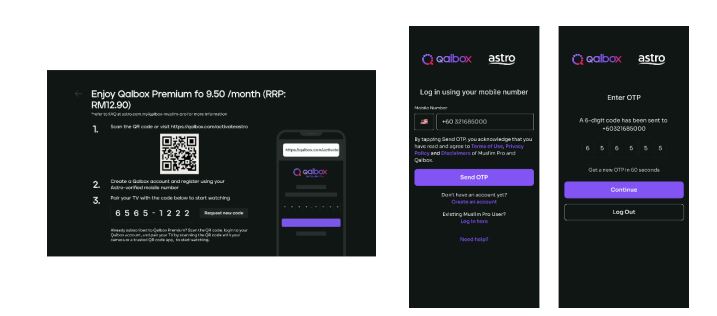
Step 1: Open œQalbox by Muslim Pro under the apps rail at your Home Page. Click on any show posters to proceed with the purchase.

Step 2: Provide your Astro verified mobile number and enter the OTP to proceed
*if you have activated your Qalbox Premium free trial, please ensure the same mobile number is used

Step 3: Scan the QR on screen to log in/create a new Qalbox account and pair it with your TV
b) My Astro app
Step 1: Open the My Astro app and select œAstro Store in the bottom menu. Then, select œApps > œQalbox by Muslim Pro > œGet it Now
Step 2: Log in with your Astro ID. Then, enter your Astro verified mobile number and perform the OTP verification to purchase

Step 3: Log in to the Qalbox mobile app using the same phone number as Step 2

Step 4: Once complete, launch Qalbox on your Ultra or Ulti Box and pair your account to your TV

c) Astro Website (www.astro.com.my)
Step 1: Visit www.astro.com.my and select œProduct & Services. Then, go to œApps > œQalbox by Muslim Pro > œGet it Now
Step 2: Log in with your Astro ID. Then, enter your Astro verified mobile number and perform the OTP verification to purchase
Step 3: Log in to the Qalbox mobile app using the same phone number as Step 2
Step 4: Once complete, launch Qalbox on your Ultra or Ulti Box and pair your account to your TV

7. I already have a Qalbox account from the free trial; how do I purchase the add-on with the same account?
Simply pick up where you left off by following the steps in Q6 and purchase the Qalbox by Muslim Pro add-on. Please ensure that the mobile number used to purchase the add-on is the same mobile number used when registering for the free trial.
8. I have my own Qalbox account outside of Astro; can I stream it on my Ultra/Ulti Box?
Yes, you can! Just follow these simple steps to stream your Qalbox account on your Ultra/Ulti Box:
Step 1: Open œQalbox by Muslim Pro under the Apps rail at your Box home page.
Step 2: Select œGo to Qalbox by Muslim Pro app then scan the QR code on screen to log in to your existing account.

Step 4: Finally, enter the pairing code displayed on your TV screen to pair your account to your Ultra/Ulti Box.
9. How do I enjoy Qalbox by Muslim Pro on the website and mobile app?
a) Qalbox Website: After subscribing through any of the methods under Q6, you will automatically be able to enjoy the app at www.qalbox.com.
b) Muslim Pro mobile app:
Step 1: Download the Muslim Pro app from the Apple App Store or Google Play Store
Step 2: Click œLog In at the bottom right corner. Then, select œContinue with Email/Phone
Step 3: Switch to the œPhone tab and enter your name and mobile number
Step 4: After clicking Continue, enter the OTP code sent to your device for verification purposes
Step 5: Enter your email address and create a password
Step 6: Now, enjoy Muslim-friendly shows on the app! Simply use the same email or phone number provided to log in in the future
10. How many devices can I use to stream Qalbox by Muslim Pro at the same time?
You can access your Qalbox by Muslim Pro account on up to five (5) devices at a time. To ensure a smoother streaming experience, please sign out from any unused devices.
11. Can I download content on Qalbox by Muslim Pro for offline viewing?
At the moment, offline downloading of content is not available.
12. Are there any subtitles or dubbing available for the content on Qalbox by Muslim Pro?
Presently, Qalbox offers subtitles in English, Bahasa Malaysia, Bahasa Indonesia, and French for selected content. Their commitment is to expand subtitle availability to encompass an even broader array of languages for all content. At this time, dubbing services are also available for selected content and they are actively exploring options to enhance accessibility and cater to the preferences of viewers.
13. Can I access Qalbox by Muslim Pro outside of Malaysia?
Yes, simply download the Muslim Pro app and log in using your registered mobile number for Qalbox. You may be required to provide your email address and password for additional security. Once done, you may access Qalbox immediately.
About Qalbox by Muslim Pro Premium Subscription
14. What is a Qalbox by Muslim Pro Premium subscription?
With the Qalbox by Muslim Pro Premium subscription, users can enjoy all the Muslim-friendly content on Qalbox and stream them on up to 5 devices at the same time. Additionally, users will also be able to enjoy Muslim Pro premium features on the mobile app which includes accessing all in-app features without any advertisements, download audio recitations of the Quran to listen offline, and add the Muslim Pro widget to their smartphone Home Page to view all prayer times, amongst many other features.
15. I don't have an Ultra/Ulti Box; can I still subscribe to Qalbox by Muslim Pro with Astro?
If you are not an Ultra or Ulti Box customer, you may still subscribe to Qalbox by Muslim Pro and enjoy:
a) Qalbox on the mobile app and website
b) Muslim Pro features via Muslim Pro app
App Issues
16. Who may I contact if I encounter any problems with Qalbox by Muslim Pro?
Please reach out to the Qalbox team by emailing them at support@muslimpro.com if you have any enquiries or require assistance with the app.If you would like to contact Astro, you may reach out to our Customer Service Centre by:
1. Submitting a feedback form here: www.astro.com.my/contactus/form; or
2. Reaching to us via WhatsApp by typing œHi at 03-9543 3838 for assistance
17. Will my personal information be protected?
Yes, Astro is bounded by the PDPA. All information received will be used in accordance with our Privacy Notice
STEP 1
On your remote, press the HOME button and the home menu will be displayed on top of your screen.

STEP 2
Navigate to Settings.

STEP 3
Navigate to Standby Mode and press "OK".

STEP 4
Navigate to your preferred selection and press "OK".

STEP 5
Navigate to Save and press "OK" to confirm your selection.

1. Ensure power cable is connected tightly.
2. Try to use another power socket / power source to eliminate faulty power sockets/ power sources which could cause the issue.

3. If the issue persists, submit your feedback form for further assistance.
Please follow the steps below to reset your password:
Please check your internet speed and connection status. If your internet is working without any issues, please logout & login into the app again.
If you are still having issues, proceed to submit report via WhatsApp or Feedback Form.
1. Power reset (on & off) your Modem and Router.
2. Ensure standard physical connection (No 3rd party devices connected to decoder and modem).
3. Please connect your computer or laptop to your Astro Fibre router using LAN cable. Your LAN cable must be connected from the yellow port of Astro Fibre router (Any available port).
4. Once connected, open any web browser such as Google Chrome, Internet Explorer, Mozilla Firefox and etc.
5. On the address bar, type https://testmyline.astro.com.my/ and below page will appear.

6.Click "GO", and the test will begin.

The test is completed once both download and upload speeds are displayed.
Sample of the Speedtest result is shown below.

**Please ensure the snapshot includes a time stamp and network used either LAN cable or wireless (as per picture above)
7. Kindly screenshot or take a picture of the result, name it as "LAN Speedtest" for test using LAN cable (wired connection).
8. Repeat the test once again using WiFi connection (Please unplug your LAN cable and connect via wireless connection using your SSID).
9. Screenshot or take a picture of the result, name it as "WiFi Speedtest".
Yes, your advance payment will be fully refunded if you cancel your subscription before the Astro box installation. Please call Astro's Contact Centre at 03-9543 3838 for a refund. The refund process will take approximately 14 days for processing with your issuing bank. However, if you decide to cancel your subscription after the Astro box installation (during your contract period), the prorated early termination fee will apply.
Regular (DTH) customers can watch Astro without an Internet connection. If you have selected Plug & Play setup option, a minimum speed of 10Mbps/device is required to enjoy a good HD viewing experience on Ultra/Ulti¯Box and 30Mbps/device for 4K UHD viewing on Ultra Box. However, if you have selected the Regular (DTH) option, the internet speeds above are recommended to enjoy a good viewing experience for On Demand and Astro Cloud services.
Do ensure that you are logging in with the correct Astro ID and password. If you are still unable to remember your password, please proceed to use the “forgot password” function to reset your password.
If the issue persists, you may submit an enquiry through our feedback form here. Choose feedback type as “Technical issues” and the issue as “I have an enquiry/issue with Apps.” Then, select the app you’re having trouble logging into, and submit the form. We will get in touch with you within 48 hours.
Kindly note that you will need to link yourAstro ID with an active Astro subscription to use Astro GO, My Astro, and other partner apps that is included in your subscription. You may refer to the steps here on how to do this.
You would have to create a new Astro ID with your email address or mobile number and link your Astro subscription. Please follow the steps in the link here
You can proceed with below BTS if the weather is good. Otherwise, you may try again later.
STEP 1
On your remote, press the HOME button and the home menu will be displayed on top of your screen.

STEP 2
Navigate to SETTINGS.

STEP 3
Navigate to Satellite Settings and press “OK”.

STEP 4
Navigate to Diagnostics and press “OK”.

STEP 5
Refer to the signal strength on your screen.
If it is 65 or higher, please take the screenshot and submit your feedback form.
If it is below 65, please go to Step 6.

STEP 6
Switch off the power for your box and make sure that the adapter’s power light is off.

STEP 7
Unscrew the satellite cable from the box and pull it out.

STEP 8
Plug the satellite cable back into the box and screw it back securely.

STEP 9
Switch on the power for your box and make sure that the adapter’s power light is on. Please wait for 5 minutes.

STEP 10
Turn on your box. You should no longer be experiencing this issue.
If issue persist, please submit the issue on our Feedback Form with error details and attach a picture of your General tab of the STB Diagnostics for assistance.
Centralized Dish
If issue persist under a centralized satellite dish, please refer to your respective Building Management before contacting our agents.
Starting 16 February 2024, you may be asked to perform Astro ID verification when you log in to their Astro account on digital platforms such as www.astro.com.my, Astro GO, My Astro etc. This 2-step process encompasses verifying your email address or phone number and re-entering of your existing password.
Of course! Please ensure your account is active when requesting for a move.
No, you need to have an Astro ID to enjoy the features.
STEP 1
Press any button on your Astro remote.
INDICATOR: LED blinking 3 times / NO LED blink
SOLUTION: Replace new battery

STEP 2
Check if you can change channel using your Astro remote control.
If issue remain after the battery replacement, try changing the channel manually directly from box front panel (If any).
If it's working, you might need to replace your Astro remote.
This might be due to a faulty Astro remote.
You may purchase it directly from Astro Exclusive Partners.

If confirm no issue with remote control, please refer to Decoder Hang at Channel troubleshooting steps here.
Your Astro account number is a 10-digit combination
E.g: 08XXXXXXXX
We encourage customers to ensure their TV compatibility with the Astro Multiroom (Smart TV) app first before making any purchase here.
If you are still experiencing any issues, please contact us at wecare@astro.com.my or call or WhatsApp us at 03-9543 3838 and our agents will be happy to assist you.

You may proceed with the following troubleshooting steps and it shouldn’t take you much longer than 15 minutes.
1. Please standby a computer/laptop to access to the internet and connection must be via LAN cable (connect the LAN cable to the Black port at D-Link Router and direct to the computer/laptop).
2. You may open any web browser such as Google Chrome, Internet Explorer, Mozilla Firefox and etc.
3. On the address bar, please go to http://dlinkrouter.local./ and below page will appear. (These are the defaults and if you have done a configuration on your router previously, the password may be different).
Username: admin
Password: (Leave the field blank)
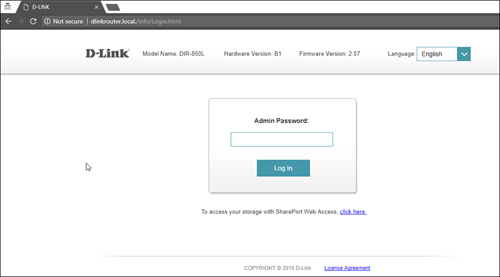
4. Once you have successfully login, the router's web-based setup page will appear. Please follow below steps for the configuration.

5. From the top menu, click Settings and then choose Wireless.

6. Below screen will appear to configure the wireless setting. Since this is a dual band router, you will have 2 Wi-Fi Names (SSID) i.e. 2.4GHz and 5GHz.
You may connect to any of the SSID, preferably with a stronger signal available.
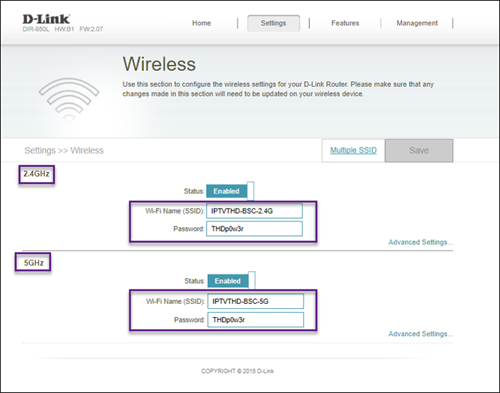
7. You may change the Wi-Fi Name (SSID) and the Password to follow your preferences, and then click "Save" for the changes to take place.
Please reconnect to the new wireless name with the new password once completed.
Astro GO is a free streaming companion app for all Astro customers to enjoy their favourite shows and channels on their smartphones, tablets, and computers - anytime, anywhere in Malaysia. Astro customers with an active Pay-TV subscription can link their accounts to watch corresponding on demand and TV channels available on Astro GO as part of their subscription.
The new packs come with 200 hours of Cloud recording by default. If your current recordings exceed 200 hours, the system will delete the exceeded hours once your package has been changed, starting with the oldest recordings first.
If you would like to retain the previous recordings which exceed 200 hours, you may opt for a selection of 400 or 1500 Cloud Recording hours at a chargeable rate of RM12 or RM15 per month (excl. govt tax) respectively. Or else, you may subscribe to the Platinum pack which comes with complimentary access to 1500 hours of Cloud Recording.
Unfortunately, you cannot link your direct Disney+ Hotstar subscription to your Astro account. Please ensure that the mobile number used for your direct subscription to Disney+ Hotstar is different from the mobile number used to activate Disney+ Hotstar entitlement via your Astro subscription. If you do not have an alternative mobile number to nominate, kindly contact Disney+ Hotstar's customer service directly at disneyplus.my@hotstar.com for details on how to cancel your direct subscription.
Please first ensure Disney+ Hotstar access is included and has been activated as part of your Astro subscription. Once you have completed your activation process, you can enjoy Disney+ Hotstar on the Ultra box with these simple steps:
- Step 1 -Press "Home' on your Astro remote control. On the apps rail, select "Disney+ Hotstar' app > OK > My Account


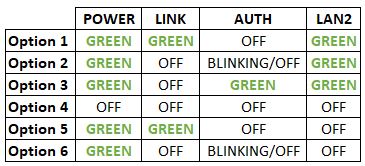

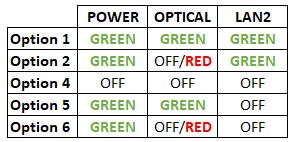


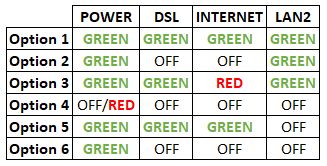
Option 1
1. Please turn off all devices (Modem and Router). By restarting your modem, you can isolate the possibility of overloaded processes in the modem, which would impact its performance.
2. Ensure the fiber cable from your wall socket and modem is securely connected.


Notes: You might be connected to LAN 1 if backbone is Maxis
Router connection

3. Please make sure the LAN cable is connected properly from router (Port 1-4 - Yellow port) to PC/Laptop.
4. If the issue persists, submit your feedback form and attach your modem light indicator picture/video for further assistance.
Option 2/ Option 3/ Option 5/ Option 6
1. Please turn off all devices (Modem and Router). By restarting your modem, you can isolate the possibility of overloaded processes in the modem, which would impact its performance.
2. Ensure the fiber cable from your wall socket and modem is securely connected.

3. Ensure both cables on the Modem (LAN Port 2) and Router (WAN Port - Red port) are properly connected.


Notes: You might be connected to LAN 1 if backbone is Maxis
Router connection

4. Please make sure the LAN cable is connected properly from router (Port 1-4 - Yellow port) to PC/Laptop.
5. Please make sure both cables on Router (Any Yellow port) and Astro Decoder (Network Port behind decoder) are properly inserted.


6. Switch on modem and router and please wait for 2 minutes to stabilise the devices after reboot.
7. If the issue persists, submit your feedback form and attach your modem light indicator picture/video for further assistance.
Option 4
1. Ensure Modem/Router are connected tightly to the power socket.

2. Try to use another power socket / power source to eliminate faulty power sockets/power sources which could cause the issue.
3. If the issue persists, submit your feedback form for further assistance.
You require at least two devices to form a Mesh WiFi network which are Astro Fibre WiFi router and a Mesh WiFi unit.
The Mesh unit will link to the WiFi router to form the Mesh WiFi network. You may connect up to 5 Mesh WiFi units for optimal WiFi coverage in your home.
STEP 1
On your remote, press the “HOME” button and the home menu will be displayed at the bottom of your screen.

STEP 2
Navigate to SETTINGS and press “OK”.

STEP 3
Navigate to STB DIAGNOSTICS and press “OK”.

STEP 4
Select the “Network” tab in the STB Diagnostics page.
Please ensure the Tunes service multicast status is Multicast Up.
If the status is Multicast is Not Available, please reboot your box and router before verifying this status.

If issue persists, please submit the issue in our Feedback Form and attach a picture of your Network tab of the STB Diagnostics for assistance.
Currently Astro GO is only available in Malaysia. You will not be able to access it if you are overseas.
If you are interested to upgrade your box, you can do so via Astro's retailers or online as follows:
I. Visit https://hub.astro.com.my/#5
II. Select `Box Upgrade` and log in with your Astro ID
III. Select the box you would like to upgrade
For Astro Ultra Box or Ulti Boxes, you will be able to see an itemised charge called "Box Fee” in your Astro bill.
Netflix is a streaming entertainment service that offers a wide variety of award-winning TV programmes, films, anime, documentaries and more - on thousands of internet-connected devices. There's always something new to discover, and more TV shows and movies are added every month. The more you watch, the better Netflix gets at recommending TV shows and movies you'll love.
Astro customers with an internet-connected Ultra Box or Ulti Box can access the Netflix app and watch Netflix content via their Astro Box. For more information about Netflix, visit the Netflix website.
Please submit your issue here or you can WhatsApp us at 03-9543 3838.
This Disney+ Hotstar software update will be rolled out progressively to all Ulti Box customers starting 23 August 2022. Please be assured that you will be able to access the Disney+ Hotstar app on your Ulti Box soon.
If you need further assistance, please call our Customer Contact Centre or WhatsApp "DH Help
STEP 1
Switch off the power for your box and make sure that the adapter's power light is off.

STEP 2
Locate the Smartcard at the front or right side and gently pull it out make sure that the adapter's power light is off.

STEP 3
Wipe the Smartcard's gold chip clean using a dry soft cloth.

STEP 4
Make sure the gold chip is facing upwards and reinsert it all the way in.

STEP 5
Switch on the power for your box and make sure that the adapter's power light is on. Please wait for 5 minutes.

STEP 6
Turn on your box. You should no longer be experiencing this problem.
If issue persist, please submit the issue in our Feedback Form and attach a picture of your General tab of the STB Diagnostics for assistance.

For customers subscribed to our New Astro Packs (for example: Primary, Entertainment or Sports Packs), you will be charged a one-off switching fee of RM10 (excl. govt tax) if you decide to switch to another ala-carte add-on with a lower fee. For example, removing Korean add-on (RM9.99/month) and purchasing Horror add-on (RM5.99/month) will incur a RM10 (excl. govt tax) switching fee to your account.
For customers subscribed to our Old Astro Packs (for example: Super or Dynasty Packs), there will be a one-off switching fee of RM10 (excl. govt tax) if you decide to switch to another ala-carte add-on with a lower or same fee. For example, removing Korean add-on (RM9.99/month) and purchasing Horror add-on (RM5.99/month) OR Kids add-on (RM9.99/month) will incur a RM10 (excl. govt tax) switching fee to your account.
You may check your bills and outstanding via:
- Channel 200 from your Astro Box.
- Astro Self Self-Serve Portal or MyAstro App via this link.
- WhatsApp "Payment" to 03 9543 3838 and follow the steps provided.
-The Mesh unit can only be used indoors. It can be mounted onto a wall or be placed horizontally on a desktop. Do not install it in other mode, such as on the ceiling.
-Keep a clearance of at least 10 cm around the device to ensure proper ventilation.
-Keep the device away from electrical appliances that generate strong magnetic or electric fields, such as microwave ovens.
Yes. You are entitled to separate Netflix accounts for each main Astro subscription e.g. If you have subscribed to Entertainment Plus, Platinum Pack, etc separately. Therefore, if you have more than one main Astro subscription with Netflix, you may choose to create multiple email addresses to activate each respective Netflix subscription. Please follow the steps provided to you via email/SMS in order to activate your Netflix subscriptions on the website.
Yes, customers whose accounts are suspended but resumed within 24 months from their offer period start date will still be able to enjoy the internet speed upgrade upon service resumption. However, the speed upgrade offer period will not be extended despite the suspension period.
Unfortunately, customers whose accounts are suspended but resumed after 24 months from their offer period start date will not be able to receive the free speed upgrade.
Upon completion of the termination process, customer will receive one last closing bill stating the total amount due to Astro according to their billing option.
For customers who had opted to switch their billing option to e-bill or SMS bill, they will receive their final bill accordingly.
For customers who opted for paper bill, they will receive the final bill via paper bill. (The Paper Bill Charge will be applied).
If you're trying to visit a website and it won't load, but others do, there could be a variety of causes. If the site itself is down, there's not much you can do but wait.
If you can load the site on other computers or devices (make sure you try different means of connecting to the internet), there may be an issue with your computer or network.
There are some quick fixes that will solve most problems, but you may have to get your hands a little dirty.
- Try loading the site on a different device.
- Try loading the website on your phone or on another computer. If the website loads on the other device, the problem lies with your computer.
- If the website doesn't load on another device, the problem is either with the network
- Restart your computer.
- Oftentimes, a simple reboot will fix the problem you're having. Reboot your computer and test the website again.
- Try loading the site in a different browser.
- There may be some settings configured incorrectly on your browser. Try a different web browser to see if you can load the website.
- Temporarily disable your antivirus program.
- Your antivirus software may be interfering with your ability to load certain websites.
- Try disabling the software and then loading the site again. Make sure you enable it again once you have identified the problem.
- Reset your modem and router.
- Traffic to or from a certain website may be getting tripped up by your modem or router. Resetting these devices may allow you to access the website again.
- Check your computer's date and time settings.
- If your date or time is set incorrectly, you may not be able to connect to secure (https://) websites.
- Check your computer or mobile device's clock to make sure that it is set to the correct time and date.
In the event the problem persists, please provide below details for further escalation:
i. List of websites effected.
ii. Run the Speed Test via LAN (cable) and Wi-Fi connection - Please click here for Speed Test guideline.
iii. Run the Traceroute Test - Please click here for Traceroute Test guideline.
iv. Run the Ping Test - Please click here for Ping Test guideline.
Once you've gathered all the results, kindly send them all through the Feedback Form below.
Quick Info
A Speedtest is a service that provides free analysis of Internet access parameters, such as connection data rate.
A Ping Test shows how long it takes for packets to reach host.
A Traceroute Test traces the route of packets to destination host from our server.
STEP 1

Try to change channels on your Astro remote.
INDICATOR: LED blinking 3 times / NO LED blink
SOLUTION: Replace new battery
Proceed to Step 2.
INDICATOR: LED blinking 1 time
Confirm it's not your Astro remote faulty, let's proceed to Step 3.
STEP 2
If issue remain after the battery replacement, this might be due to a faulty Astro remote.
Try changing the channel manually directly from the box front panel (If any).
If it's working, you might need to replace your Astro remote.
You may walk-in to our nearest Customer Service Center for the replacement.

STEP 3
You need to refresh the box setting by initiate manually from box front panel.
Refer to Refresh Box setting Guide steps here.
You should have received an email or SMS with your activation details, please click on the link provided to be redirected to the Netflix website to activate your account.
Alternatively, you can also activate Netflix on your Ultra/Ulti Box. Please surf to CH 741 on your Ultra/Ulti Box (or click the Netflix button on your Astro remote) and follow the instructions on the screen.
The fee is a one-time activation fee that will be charged when you subscribe to the Plug & Play Box.
Yes, you can upgrade your internet speed. However, speed downgrade is not allowed.
Slow browsing using LAN cable
Looks like there is something wrong with your service connection.
Please run the Speed Test and attach the picture or screenshot of the speed test in the Feedback Form below, in order for us to provide further assistances.
Click here for Speed Test guideline.
Slow browsing using LAN cable
Looks like there is something wrong with your service connection.
Please run the Speed Test and attach the picture or screenshot of the speed test in the Feedback Form below, in order for us to provide further assistances.
Click here for Speed Test guideline.
Quick Info
A Speedtest is a service that provides free analysis of Internet access parameters, such as connection data rate.
Slow browsing using Wi-Fi
1. Router Positioning
Most people underestimate the importance of picking a good spot for a Wi-Fi router. Even a small shift in positioning could end up being the difference between day and night.
i) High vs. Low
Put the router as high up as possible to extend the broadcasting range of the radio waves. This also helps clear the router of possible interferences.
ii) Concrete & Metals
Make sure your router isn't blocked by any other objects, especially devices that are electronic. Also, avoid placing your router in your basement as this area is usually enclosed by a lot of concrete, which can be almost impossible for Wi-Fi signals to penetrate.
iii) Distance to Router
The further away from your router you get, the weaker the Wi-Fi signal. Therefore, the best option is to place your router as close to your devices as possible, but this is only practical if you have one main area where you tend to use your devices.
Otherwise, you should place your router near the center of your home. After all, Wi-Fi broadcasts in 360 degrees, so it doesn't make sense to put it at one end of the house.
2. Wireless Interference & Noise
You've probably never noticed but there are wireless signals all around you wherever you go and they're passing through you all the time. From where? Electronic devices, Wi-Fi routers, satellites, cell towers, and more.
Although Wi-Fi is supposed to be on a different frequency than most of these devices, the amount of radio noise can still cause interference. Some common causes of interference include:
- Microwaves
- Bluetooth Devices
- Cordless Phone
3. Surrounding Wi-Fi signals
A truth of the modern world is that every household has their own Wi-Fi network, which can cause issues with channel overlap. This can be somewhat problematic in a townhouse, but is especially problematic in housing complexes and apartments where there can be many routers within close proximity.
Which is why it's important that you pick a good channel in your router settings. Modern routers can choose channels for you automatically, but sometimes it's better to investigate and find the best channel yourself.
4. Usage
More likely, however, is that the people on your network such as friends, roommates, or family members are participating in bandwidth-heavy activities like gaming and streaming Ultra box/ Netflix.
Fortunately, if this is the case, you can prioritize your own network traffic by enabling Quality of Service in your router settings.
If the problem persists, please run a Ping Test, Traceroute Test and attach the picture or screenshot of both test results in the Feedback Form below, in order for us to provide further assistances.
Please make sure to attach the required screenshot(s) in ONE file (i.e. Microsoft Word document, PDF, Image file) before submitting the form.
Quick Info
A Speedtest is a service that provides free analysis of Internet access parameters, such as connection data rate.
A Ping Test shows how long it takes for packets to reach host.
A Traceroute Test traces the route of packets to destination host from our server.
Yes, existing non-Primary Pack customers who add on 50Mbps to their subscription will get to enjoy high speed broadband for only RM60/month and a free speed upgrade to 100Mbps for 24 months. Please note that a new 24-month contract will start upon successful installation.
This error indicates that you are streaming on Astro GO while being connected to a VPN. Please close your VPN application and try streaming again.
If you are still having issues, proceed to submit report via WhatsApp or Feedback Form.
For Residential Astro Pay TV customers: You may change your contract from e.g., 12-month to 24-month without incurring a switching fee or cancellation fee. However, if you change your contract from e.g., 24-month to 12-month, will be charged a cancellation fee accordingly if still within minimum term (contract) period. No switching fee applicable.
Please refer to these FAQs for more information.
No, there is no penalty or switching fee if you decide to cancel your Multiroom (Smart TV) subscription.
Please ensure to put your box on standby mode to refresh the signal.
a. Using IVR
1. Dial 03-95433838 and select you preferred language.
2. Select Account Related.
4. Select Refresh Smartcard.
b. Using MyAstro web
STEP 1
Go to https://myastro.astro.com.my/ in your web browser.
STEP 2
Keyin your Email / Mobile number and password. Then, press "LOG IN".

STEP 3
Click on TV pack.

STEP 4
Choose Main Room for the Primary Box; else choose Multiroom (If any).

STEP 5
Click on "Refresh" to refresh signal on your box.
For Main Box 
For Multiroom
STEP 6
After tap the Refresh, below notification will be displayed as below.
For Main Box 
For Multiroom
c. Using My Astro App
STEP 1
Open My Astro App and click "Login".

STEP 2
Keyin your Email / Mobile number and password. Then, press "LOG IN".

STEP 3
Go to "Account".

STEP 4
Scroll down to "TV pack" and click on it.

STEP 5
Choose Main Room for the Main Box; else choose Multiroom (If any).

STEP 6
Tap on "Refresh" to refresh signal on your box.

STEP 7
After tap the Refresh, below notification will be displayed as below.