
Nationwide Installation
Applying for
| Astro Njoi UniFi Maxis |
Frequently Asked Questions
Find your answers here.
We provide one stop service to apply Astro and Broadband for you.
You can avoid driving and queuing at the sales counter. We are the dealer that can help you to handle your application from the beginning to the end.
We do not charge you when you apply from us. There is no credit card information required to apply here. Charges are the same as you apply from the sales counter.
First, you can apply online, we will get back to you immediately during business hour. WhatsApp/Email/Fax us your Photocopy of IC (for malaysian) / Passport (for foreigners). When we receive all the information, we will proceed with your application immediately.
Once we receive your application with complete information, we will process your application immediately during business hour. The contractor from the service provider will then contact you for installation appointment once your application is approved.
Enjoy greater savings and hassle-free bill payment in one single bill for both Astro and Broadband. You get to enjoy Astro and Broadband at discounted price every month over the contract period of 24 months.
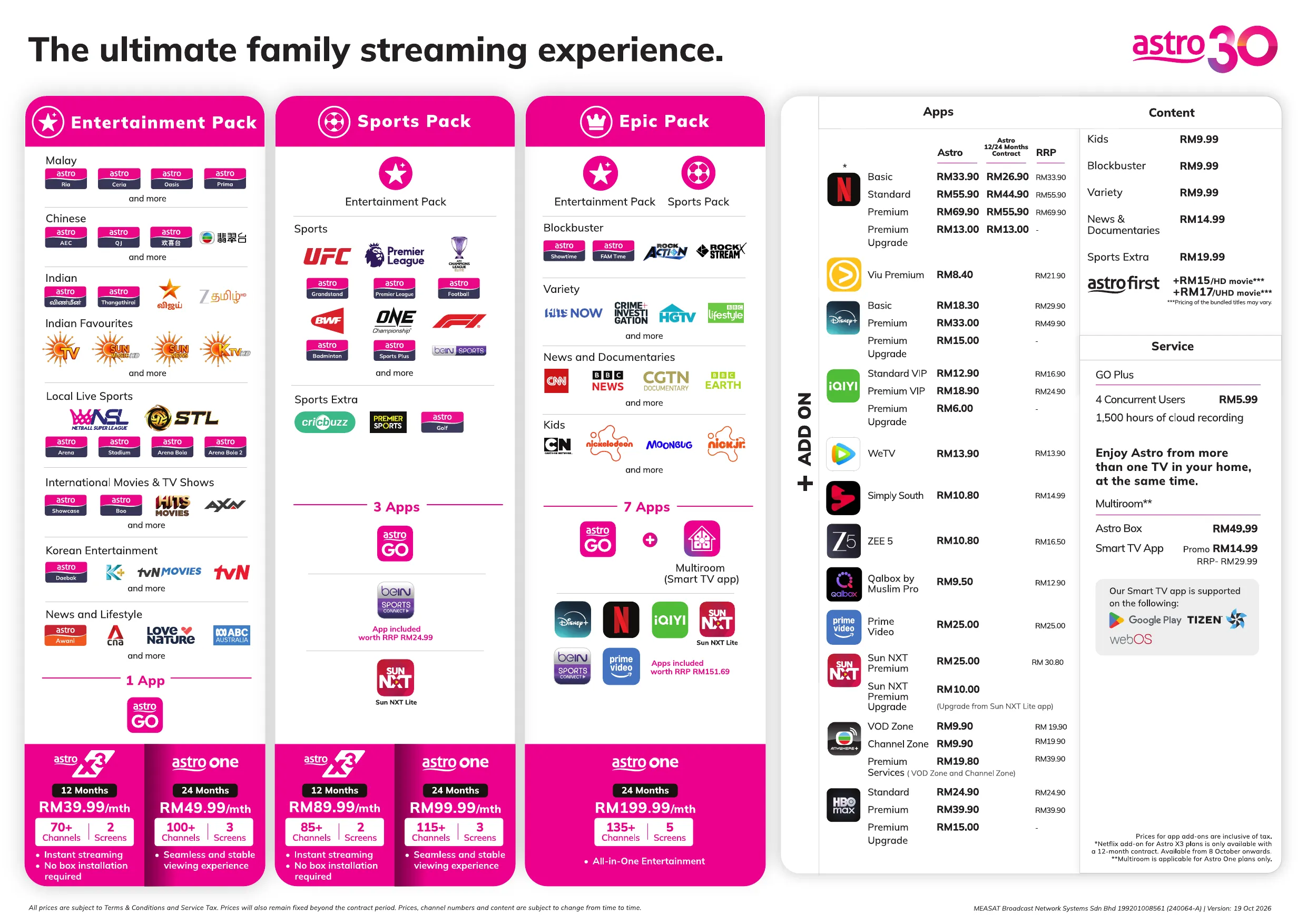
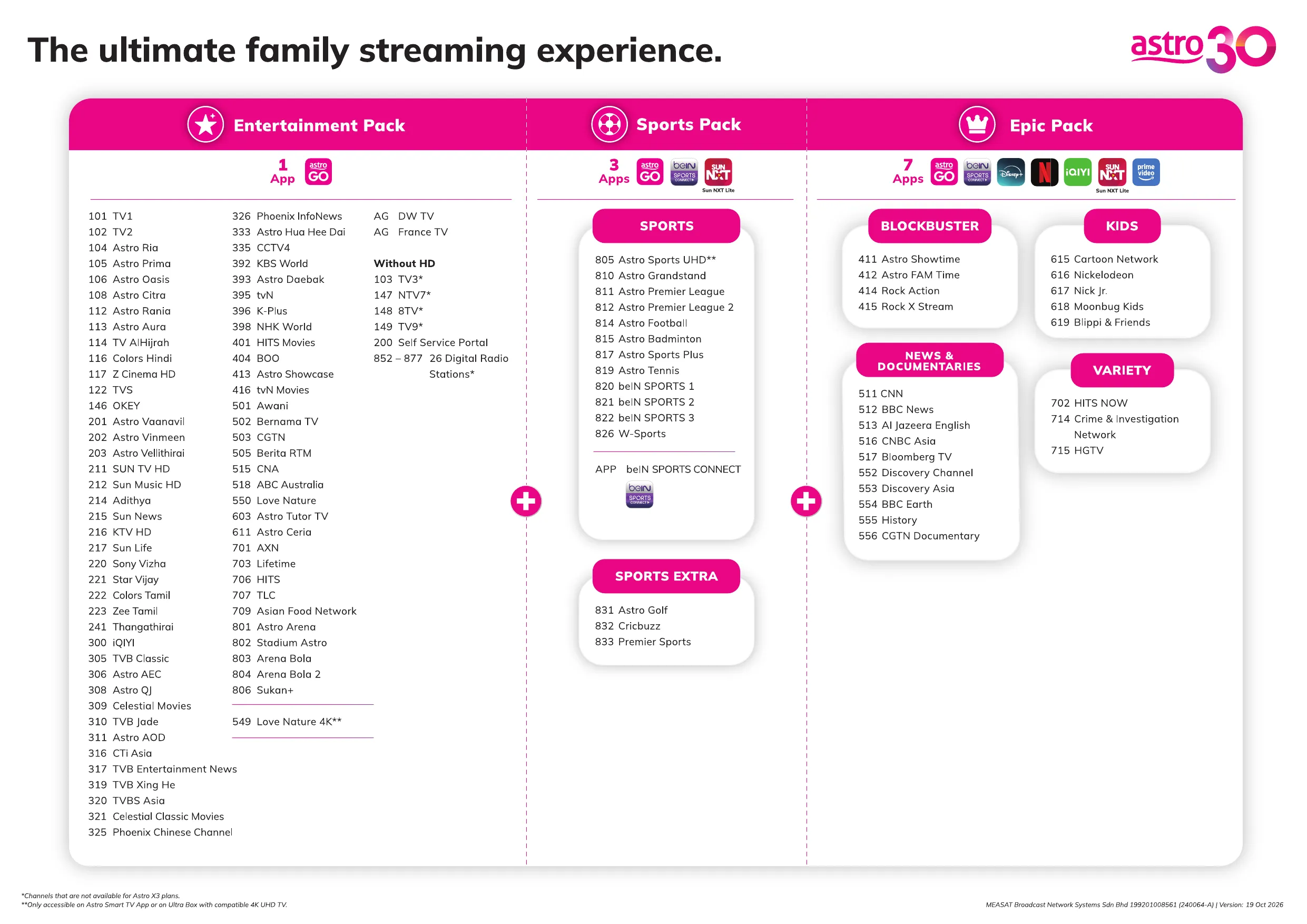
Astro offers multiple TV packs including Entertainment, Sports, Movies and Kids options. You can choose a pack that matches your viewing preferences and add optional streaming apps where available.
Yes, you may subscribe to Astro TV packs without bundling broadband. However, bundling Astro TV with Fibre Broadband may provide better monthly savings and convenience with a single bill.
For small households with light streaming and browsing, 100Mbps is usually sufficient. Larger families, gamers or heavy streamers may benefit from 500Mbps or 1Gbps plans for smoother performance across multiple devices.
Most Astro TV and Fibre broadband plans come with a 24-month contract. Early termination charges may apply if cancellation is made before the contract ends.
Yes, you may upgrade your TV pack or broadband speed at any time, subject to eligibility and coverage. A new contract period may apply depending on the upgrade.
Your monthly bill will be issued directly by Astro. You may receive it via email or access it through your Astro account. Bundled customers will receive a single combined bill for TV and broadband services.
Payment methods may include online banking, auto debit, credit card or other approved payment channels provided by Astro. Our team can guide you during the registration process.
If you experience any service interruption, you may contact Astro customer support for technical assistance. In many cases, issues can be resolved remotely or a technician will be arranged if necessary.
Yes, relocation is subject to service availability at your new address. Relocation charges and contract adjustments may apply depending on your plan.
No, you do not need a credit card to submit your application. Payment setup will be arranged directly with Astro after your service is approved.
Selected Astro TV packs allow optional add-ons such as streaming services depending on current promotions and availability. Additional monthly charges may apply.
Yes, a WiFi router is typically provided during fibre installation. The router model may vary depending on the selected broadband speed plan.
Yes, we will check the service coverage at your address before proceeding with your application to ensure broadband is available at your location.
For Malaysians, please provide a copy of your MyKad. For foreigners, provide a copy of your passport when submitting your broadband application.
After your application is approved, the service provider typically contacts you within 2 to 7 working days to arrange the broadband installation appointment.
Most Astro Broadband plans come with a 24-month contract starting from your installation date. If you relocate, a new 24-month contract may apply at your new address.
Yes, you can relocate your broadband service, subject to service availability at the new address. Your contract may reset for another 24 months from the new installation date.
Yes, you may request to relocate broadband devices within your home. Non-standard installation charges may apply and are payable to the installer directly after assessment.
Yes, you can switch to Astro Broadband. To avoid service interruption, it is recommended to activate the new service before terminating your current broadband contract.
Standard installations may be free during promotions, but non-standard installations (e.g., device relocation or complex wiring) may incur extra charges payable directly to the installer.
If you would like to transfer your existing HBO Max Account to be charged under Astro bill, please follow the steps below:
- Cancel your existing subscription with HBO Max.
- Once the remaining duration of your existing subscription has ended, you may proceed to subscribe for HBO Max via Astro bill.
- To subscribe, navigate to My Astro app page and clicked on “Manage your add-ons" where you will be able to manage all the streaming apps you are entitled.
Service Tax will not be imposed on any CSR projects accounts. Any tax payable will be borne by Astro.
The Multi-user Profile feature allows customers to create individual profiles within their Astro Box and Astro GO with the following personalisation:
- Personalised Recommendations
- Continue Watching
- Watch List
- Last Viewed Channel
- Favourite & Blocked Channels
The MUP feature is a great way to allow individual users to tailor personal Astro experiences whilst using a shared device (e.g.: Astro Box) in the household, providing them with better personalised recommendations and encouraging better content discovery.
You may enquire by submitting a Feedback Form. Please choose the following feedback type and issue:
Feedback type : Payment/Billing
Issue : I want to ask about a refund
OR
Reach out via Astro Official Digital platform i.e. Facebook or Chat. Our agent will assist on your request.
You may report the incident on WhatsApp at 03-95433838 by typing PNP and our dedicated agents will attend to your matter. Please have your Airway Bill tracking numbers ready for validation.
If a replacement box/Astro SIM card is deemed necessary, a new Plug &Play Box and a new Astro SIM card will be couriered to your service address.
Yes, you will need to activate SecureGo again if you're on a new device.
When you activate SecureGo on a different device, you will receive an email to notify you that the device has been de-registered.
If you suspect that someone else has gained access to your phone, contact our customer service immediately at 03-9543 3838 to unlink your Astro ID.
Yes, the monthly subscription fee will be prorated into your Astro bill.
Prime Video is Amazon’s over-the-top (OTT) streaming and rental service that offers access to a wide range of content including, exclusive Amazon originals, blockbuster movies and hit shows.
ZEE5 offers a wide range of exclusive content that is available only for ZEE5 premium members, which includes ZEE5 Originals, world-renowned Hollywood flicks, blockbuster Hindi cinemas, superhit regional movies across 18 different languages, American TV shows, documentaries, dubbed movies in regional languages and so much more. With a premium membership, you can enjoy all these exciting content with a seamless ad-free experience.
No, if your account is suspended or disconnected, you will retain your existing subscription when you reconnect.
There are 2 methods of setting maturity ratings restriction on Netflix:
Method 1 – Create a Kids Profile in Netflix App on Ultra/Ulti Box
- On the Netflix home menu, select “Switch Profile”
- Select Add Profile.
- Name the profile.
- Select Kids. Kids profiles have a logo 'Kids' on the profile icon so they are easy to identify.
- Select Continue. The new profile will show on the list of profiles on your account.
Method 2 – Manually set Viewing Restrictions for each profile
- Go to https://www.netflix.com/profiles/manage
- Select a Profile.
- Under Maturity Settings, select Edit.
- Enter your Netflix password.
- You may select the desired Maturity Rating settings or add a particular title restrictions for the profile.
- Select Save.
For more information kindly visit:
- https://help.netflix.com/en/node/114275
- https://help.netflix.com/en/node/114276
You may subscribe to add-ons via any of the platform listed below:
Sales Channel | Add-on Purchase |
My Astro App / Web | 1. Go to “Astro Store” and scroll to “Shows” section 2. Click on “Sports” card to proceed and confirm purchase |
My Astro STB | 1. On your Ulti / Ultra box’s remote, press the Home button and the Home page will be displayed on your screen 2. Access My Astro via the “Apps” section or the shortcut next to the settings icon 3. Upon load, your subscription info and purchasable add-ons will be shown |
1. WhatsApp Hi to 03-95433838 Select Tap to view options Select Content Add-on Purchase 2. Select desired add-on Enter smartcard number (if prompted) 3. Confirm the purchase |
Yes, you can! Simply South is available for all Astro customers. Kindly reach out us via WhatsApp by typing “Hi” at 03-9543 3838 to know more!
If your My Astro App is still accessible, you may go to Account then scroll down to Support & Settings. Click Submit Your Enquiry to provide your feedback either through the feedback form.
OR
You may submit your feedback here.
To request for a move, you may choose to:
(The fastest way) Self-serve by logging in to My Astro and follow the steps below:
1. Download the My Astro app or use the web version of My Astro
2. Login using your Astro ID
3. Go to Account > Profile > Address
4. Tap on the edit icon on 'Service address'
5. Verify your identity via SecureGo or OTP
6. Fill in your new address and confirm your relocation
7. A support ticket will be created and we will be in touch
OR
Submit your feedback via below link: https://support.astro.com.my/feedback-form
1: Choose Feedback Type
- Type: Technical issues
- Issue: I want to enquire about installation/ relocation
2: Fill in the form and click “Submit” support ticket.
The 2 months of access will expire exactly two months after your account is activated. For example:
- If you activate on 24 April 2025, your access will expire on 23 June 2025.
- If you activate on 10 May 2025, your access will expire on 9 July 2025.
- If you activate on 23 June 2025, your access will expire on 22 August 2025.
Customers can enjoy major European football leagues, over 3,000 hours of live tennis and other global sporting events LIVE and on-demand on the app. You may check out the complete list of competitions available on the app here: beIN SPORTS CONNECT | Live Leagues and Competitions | LaLiga, Serie A, Ligue
Starting 21 June 2022, all new digital sign-ups for TV packs on astro.com.my will now include access to the Astro GO app within an hour upon checkout of your first month subscription fees (excluding tax). Install the app on your smartphones, tablets or computers and you can start streaming even before your Astro box arrives!
Please perform the following checks and troubleshooting steps:
1. Check if your TV supports the Astro app.
The Astro app is generally available on selected:
- Android TV / Google TV
- Samsung Smart TV (selected models)
- LG Smart TV (selected models)
Kindly check that your Smart TV supports the Astro Smart TV app (kindly refer here).
If your TV uses a different operating system (e.g., older proprietary OS), the Astro app may not be available.
2. Update your TV software.
Go to: Settings → Support → Software Update
Install any available updates, then restart the TV and try again.
3. Search the correct app store.
- Samsung: Apps
- LG: LG Content Store
- Android/Google TV: Google Play Store
Search for "Astro" or "Astro GO" (depending on your region and service availability).
4. If your TV's region is set incorrectly, certain apps may not appear.
Look under: Settings → General → Location/Region
Ensure it matches your actual country.
If you are still having issues, proceed to submit report via WhatsApp or Feedback Form and provide:
- Astro ID use
- Smart TV model
- OS version
- Error reported on device
This will help our support team investigate and assist you further.
The Viu app offers subtitles in English for all content and Bahasa Malaysia for selected content.
Additionally, dubbing in Bahasa Malaysia, Bahasa Indonesia and Cantonese is also available for
selected titles. You will be able to select or switch off subtitles and dubbing when you play
videos in full screen.
Astro sends regular payment reminders to customers via SMS until their current charges have been paid. However, we encourage customers to pay their bill as soon as possible to avoid disconnection of Astro service. Please reach out to us here if you require more information about payment reminders or to change your contact details.
Please refer below to set up your Ultra/Ulti Plug & Play Box.
To connect via LAN cable:
- Switch off your old Astro box.
- To connect your Plug& Play Box via LAN cable:
a) Remove the LAN cable from your old Astro box and connect the LAN cable to your new Plug & Play Box.
i) For Maxis IPTV customers, keep the other end of the LAN cable connected to your router.
ii) For TIME IPTV customers, go to the other end of the same LAN cable, plug it out from your modem, and into any LAN port on your router. Ensure that you’re not plugging your LAN cable back into the same box.
Note: If you have a two-in-one modem & router, you can skip Step ii).
To connect via Wi-Fi:
Remove your LAN cable from your old Astro box, and do not plug it into your new Plug & Play Box.
Mesh WiFi technology greatly improves the WiFi network coverage within your home and virtually eliminates all WiFi “dead spots”. However, like all technologies there are limitations that you should be aware of.
The pairing of Mesh unit to the WiFi router is automatically handled between the WiFi router and the Mesh unit after it calculates its current position in relation to the WiFi router and surrounding Mesh unit (if available) already connected to the WiFi router.
If you are self-installing the mesh at your house, it is advisable for you to always pair the Mesh unit(s) with the WiFi router only regardless of how many Mesh unit available at your house.
Please note that if you have a Mesh connected to another Mesh, the expected performance of the WiFi speed will not perform as optimally as when compared to a Mesh connected directly to the WiFi router. Adding more points (also referred as Number of hops) in between your device to the WiFi router which will cause a reduction in bandwidth and add latency.
Step 1: At Astro Home, go to the app rail and select "beIN SPORTS CONNECT"
Step 2: Go to the Profile icon at the top of your screen and click "OK"
Step 3: A QR code will be presented on your screen. Use the in-app QR code scanner on your mobile device to scan the QR code
Step 4: Your TV screen will refresh automatically and you will be able to enjoy the beIN SPORTS CONNECT app on your TV!
If you are interested to subscribe to Sun NXT via Astro, please click here or reach out to us via WhatsApp by typing “Hi” at 03-9543 3838.
No. Your scheduled recordings will remain the same, although the channel numbers have changed.
The fee is a one-time activation fee that will be charged when you subscribe to the Plug & Play Box.
HBO Max is a brand-new streaming service in Southeast Asia, Taiwan and Hong Kong, raising the bar for quality entertainment. Offering a collection of blockbuster movies, groundbreaking series, iconic hits, best-in-class real-life stories from food, home, lifestyle and documentary, as well as family favourites. Dive into beloved brands and franchises like HBO, Harry Potter, the DC Universe, Cartoon Network, Warner Bros., Discovery and beyond. HBO Max delivers exclusive stories and elevates the streaming experience.
Yes, you can watch content on up to 4 different devices simultaneously using the same account. You can have 4 logged-in devices and 4 profiles, allowing for 4 concurrent streams.
As an existing customer, you will notice some changes after migrating to the new Disney+ app as some personalised viewing data, such as profiles, viewing activity, downloads and app preferences, will not be migrated.
Therefore, you will need to set up your profiles and preferences again when you first start using the new Disney+ app.
For further enquiries regarding the Disney+ app migration, new Disney+ app experience and app-related features, please visit the Disney+ Help Centre.
For self-installation, in your first bill upon activation of your Plug& Play Box, the activation fee will be included as a separate line item in your bill alongside the subscription fee.
If you choose to install the Plug & Play Box via installer, you can pay the installation fee and activation fee directly to the installer upon installation. This will be reflected in your next bill itemised as setup fee.
No, the Ulti Box does not support 4K UHD content. If you would like to watch Astro's 4K UHD content, please sign up for an Ultra box at Astro Ultra Box and Ulti Box | Astro.
The service tax rate for Astro Pay TV will be increased from 6% to 8%. The service tax for Astro Fibre, which falls under the category of telecommunication service, will remain at 6%.
No, please return your old Astro Fibre modem and its power supply unit (PSU). There will be no penalty fees if the cable is damaged or lost.
The Ultra/Ulti Plug & Play Box comes with a one-year box hardware warranty.
For self-installation, there is a warranty seal at the bottom of the Ultra/Ulti Plug & Play Box, which must not be removed or tampered with as this would void the one-year Ultra/Ulti box hardware warranty.
Yes, this is a one-time approval, and you do not need to submit your application every month.