
A free satellite TV service from Astro. Watch lifetime entertainment, news, learning & information and more.

Pictures for illustration only.
Enjoy free access to 15+ TV channels & 10+ radio channels.
* Subject to Astro terms & conditions.


Step-1 |
Step-2 |
Step-3 |
Choose a plan & sign-up online. |
Sit back & wait for installation. |
Enjoy your new Astro / Broadband! |
A free satellite TV service from Astro. Watch lifetime entertainment, news, learning & information and more.
Pictures for illustration only.
New decoder only without satellite dish & cabling. You must have Astro/Njoi satellite dish and cable installed and working properly.
Including installation.
New decoder complete with satellite dish & cabling.
Including installation.
Applying for
| Njoi Astro UniFi Maxis |
Find your answers here.
We provide one stop service to apply Astro and Broadband for you.
You can avoid driving and queuing at the sales counter. We are the dealer that can help you to handle your application from the beginning to the end.
We do not charge you when you apply from us. There is no credit card information required to apply here. Charges are the same as you apply from the sales counter.
First, you can apply online, we will get back to you immediately during business hour. WhatsApp/Email/Fax us your Photocopy of IC (for malaysian) / Passport (for foreigners). When we receive all the information, we will proceed with your application immediately.
Once we receive your application with complete information, we will process your application immediately during business hour. The contractor from the service provider will then contact you for installation appointment once your application is approved.
Enjoy greater savings and hassle-free bill payment in one single bill for both Astro and Broadband. You get to enjoy Astro and Broadband at discounted price every month over the contract period of 24 months.
Astro offers multiple TV packs including Entertainment, Sports, Movies and Kids options. You can choose a pack that matches your viewing preferences and add optional streaming apps where available.
Yes, you may subscribe to Astro TV packs without bundling broadband. However, bundling Astro TV with Fibre Broadband may provide better monthly savings and convenience with a single bill.
For small households with light streaming and browsing, 100Mbps is usually sufficient. Larger families, gamers or heavy streamers may benefit from 500Mbps or 1Gbps plans for smoother performance across multiple devices.
Most Astro TV and Fibre broadband plans come with a 24-month contract. Early termination charges may apply if cancellation is made before the contract ends.
Yes, you may upgrade your TV pack or broadband speed at any time, subject to eligibility and coverage. A new contract period may apply depending on the upgrade.
Your monthly bill will be issued directly by Astro. You may receive it via email or access it through your Astro account. Bundled customers will receive a single combined bill for TV and broadband services.
Payment methods may include online banking, auto debit, credit card or other approved payment channels provided by Astro. Our team can guide you during the registration process.
If you experience any service interruption, you may contact Astro customer support for technical assistance. In many cases, issues can be resolved remotely or a technician will be arranged if necessary.
Yes, relocation is subject to service availability at your new address. Relocation charges and contract adjustments may apply depending on your plan.
No, you do not need a credit card to submit your application. Payment setup will be arranged directly with Astro after your service is approved.
Selected Astro TV packs allow optional add-ons such as streaming services depending on current promotions and availability. Additional monthly charges may apply.
Yes, a WiFi router is typically provided during fibre installation. The router model may vary depending on the selected broadband speed plan.
Yes, we will check the service coverage at your address before proceeding with your application to ensure broadband is available at your location.
For Malaysians, please provide a copy of your MyKad. For foreigners, provide a copy of your passport when submitting your broadband application.
After your application is approved, the service provider typically contacts you within 2 to 7 working days to arrange the broadband installation appointment.
Most Astro Broadband plans come with a 24-month contract starting from your installation date. If you relocate, a new 24-month contract may apply at your new address.
Yes, you can relocate your broadband service, subject to service availability at the new address. Your contract may reset for another 24 months from the new installation date.
Yes, you may request to relocate broadband devices within your home. Non-standard installation charges may apply and are payable to the installer directly after assessment.
Yes, you can switch to Astro Broadband. To avoid service interruption, it is recommended to activate the new service before terminating your current broadband contract.
Standard installations may be free during promotions, but non-standard installations (e.g., device relocation or complex wiring) may incur extra charges payable directly to the installer.
STEP 1
Press "HOME" button on your remote control.

STEP 2
Navigate to Update Satellite Frequency and press “OK”.

STEP 3
Choose Reprogramming and press “OK”.

STEP 4
Select Yes, continue and press "OK" to proceed with the update.
Otherwise, select No, go back to cancel.

STEP 5
Satellite Frequency Update progress screen will be displayed.

STEP 6
The test result will be displayed once completed.
Press "OK" to go back to channel.

Please call our Customer Contact Centre or WhatsApp "DH Help" at 03 9543 3838 to cancel your Disney+ Hotstar 3-months add-on pass with Astro.
You may click here to Login and proceed to secure your Astro ID by linking it to your Astro account. If you do not have an Astro ID, please follow the steps in below to create one. You may also choose to log in or create Astro ID with your social accounts (eg. Facebook, Google and Apple).


Having trouble with your phone line ?
You may proceed to contact below dedicated service provider directly
1 800 1818 18
We would need you to run few tests in order for us to understand your issue and to assist you in fixing the problem.
You may proceed with the troubleshooting steps below which should not require any longer than 15 minutes.
1. Please run each of the tests according to your your Laptop/ PC Software.
2. Compile the pictures/ screenshots of your test results in one file (i.e Microsof Word document, PDF file) and attach them in the Support Ticket below in order for us to assist you further:
3. Once you've gathered all the results, kindly send them all through the Feedback Form below,
Quick Info
A Speedtest is a service that provides free analysis of Internet access parameters, such as connection data rate.
A Ping Test shows how long it takes for packets to reach host.
A Traceroute Test traces the route of packets to destination host from our server.
STEP 1
Check on the adapter's power light.
If the adapter's power light is ON, please refer to Blank Screen troubleshooting steps here.
Otherwise, if the adapter's power light is OFF, switch off the power for your box.

STEP 2
Ensure power cable is connected tightly.
Plug in power cable to different power socket and switch on the plug.
You should no longer be experiencing this problem.
If issue remains, proceed to STEP 3.

STEP 3
Try a different power socket to connect the equipment.
Turn on the power socket and check the adapter's power light.
If there is no light on your power adaptor's, please submit the issue on our Feedback Form with error details and provide your sim card number for assistance.
Please indicate in the form if any lightning strike/thunderstorm/power trip occurred.

You will be notified 30 days before the expiry on the renewal of subscription and can opt out from auto renewal at least (2) days before the auto-renewal date.
If you want to opt out of your auto-renewal for Disney+ Hotstar, please contact our Customer Contact Centre at 03 9543 3838 and speak to one of our customer service executives to change your package according to what suits you best at least two (2) days before the next auto-renewal date. Alternatively, please WhatsApp us at 03 9543 3838 and type "DH Help
You may retain your watch history and settings of your existing Netflix account by using the same email of your Netflix account during the linking of your Netflix account with Astro.
For TV packs only, 24-months contract commitment period. However, if in addition to the TV packs, if you would like to also sign-up for Broadband, the contract commitment will be 24 months as well. If you're an existing customer, your existing remaining contract duration (if any) will not be carried over to the new contract except for existing Disney+ Hotstar (3 Months Pack) and Multiroom subscription contract durations which will be carried over upon the migration to new packs.
Note: If you are subscribing to a bundle pack which includes Netflix or Disney+ Hotstar for the first time, you are required to maintain the respective app as part of your bundle selection for a minimum of 12 months, otherwise a cancellation fee will apply.
STEP 1
On your remote, press the HOME button and the home menu will be displayed on top of your screen.

STEP 2
Navigate to Settings.

STEP 3
Navigate to TV Settings and press “OK”.

STEP 4
Navigate to your preferred selection and press “OK”.

STEP 5
Navigate to Save and press "OK" to confirm your selection.

Discover thousands of movies and series you'll love, and we are continuously expanding. If you would like to enjoy more movies on top of your current subscription, press the Home button and select On Demand. Use the arrow keys to scroll to Store. Pick and choose to rent any movie for up to 48hours.
STEP 1
Switch OFF the power of your Ultra / Ulti box and make sure that the adapter's power light is off.

STEP 2
Switch ON the power of your Ultra / Ulti box and make sure that the adapter's power light is on.

STEP 3
On your remote control, press the Home or Standby button repeatedly until the Startup Options appear on TV.
STEP 4
Press "987" to proceed.
Advanced Startup Options will be displayed.
STEP 5
Press "1" to initiate a reset setting.
STEP 6
Press "OK" to continue.
STEP 7
After the factory setting is restored, TV will turn blank.
Please wait until the box completes initiate setup.
STEP 8
Once completed, the following screen will appear on your TV.
Refer to Installation Setup guide to complete the setup.
Click here to follow New Installation Settings guide for Satellite
Click here to follow New Installation Settings guide for Plug and Play
The Multi-user Profile feature allows customers to create individual profiles within their Astro Box and Astro GO with the following personalisations:
The MUP feature is a great way to allow individual users to tailor personal Astro experiences whilst using a shared device (e.g.: Astro Box) in the household, providing them with better personalised recommendations and encouraging better content discovery.
Click here to find out more on this new feature and how to use it!
1. Tune to channel 200 - select on "MyAccount"

2. Select "View Channel Listing" and press "OK".
STEP 1
On your remote, press the HOME button and the home menu will be displayed on top of your screen.

STEP 2
Navigate to Settings.

STEP 3
Navigate to STB Diagnostics and press "OK".

STEP 4
Select Household Diagnostics and press "OK".

STEP 5
Details information of Household Diagnostics screen will be displayed.

STEP 1
Check the Audio settings on your box and set to Auto.
Refer guide to change Digital Audio Settings.
STEP 2
If issue persist, check if there is any 3rd party device (sound system/hdmi splitter) connected between box and TV.
STEP 3
If using 3rd party devices, bypass/remove 3rd party device and make sure HDMI cable connected directly from box to TV.
STEP 4
If issue persist, connect to Live Agent via WhatsApp for help.
Liga Malaysia is available for all customers with a HD enabled box including Zapper, DMT5, Ulti Box and Ultra Box.
Yes, as long as it is compatible with Open Mesh standards and Astro Fibre equipment. However, Astro will not be responsible for managing or configuring the device. For the optimum WiFi experience, please pair your Astro Fibre with Astro's Mesh WiFi.
Regular (DTH) customers can watch Astro without an Internet connection. If you have selected Plug & Play setup option, a minimum speed of 10Mbps/device is required to enjoy a good HD viewing experience on Ultra/Ulti¯Box and 30Mbps/device for 4K UHD viewing on Ultra Box. However, if you have selected the Regular (DTH) option, the internet speeds above are recommended to enjoy a good viewing experience for On Demand and Astro Cloud services.
Some of our payment partners require payees to scan the barcode on the statement to make payment. Always bring your Astro bill statement when making payment over the counter.
1. Ensure power cable is connected tightly.
2. Try to use another power socket / power source to eliminate faulty power sockets/power sources which could cause the issue.

3. If the issue persists, submit your feedback form for further assistance.
Please check if you are streaming on a supported device. Astro GO is only applicable within the supported platforms; mobile devices (phones and tablets) and web browsers.
If you are still having issues, proceed to submit report via WhatsApp or Feedback Form.
electronic Know-Your-Customer (eKYC) is an online process of identifying and verifying individual customers using electronic means. This enables a person to be an Astro customer anytime and anywhere, hassle-free and helps to secure your Astro account by protecting it from unauthorised usage.
Photograph or scan your payment receipt, and send it to one of our contact platforms found here.
The main changes are the revamped look and feel of the user interface on the Smart TV App, which include redesigns to the Astro interface that consists of title rows at the Home Page to feature popular franchises, new live programmes posters and changes to the menu bar for easier navigation.
For more info, please read our dedicated FAQ on this here.
In addition, we have also recently introduced a new look to the Title Information Page and the ability to disable the Profile Selection Screen. For more information, please click here.
Refund fee is subject to your processing bank. However, Astro did not impose refund processing fee.
STEP 1
Switch off the power for your box and make sure that the adapter's power light is off.

STEP 2
Locate the Smartcard at the front or right side and gently pull it out make sure that the adapter's power light is off.

STEP 3
Wipe the Smartcard's gold chip clean using a dry soft cloth.

STEP 4
Make sure the gold chip is facing upwards and reinsert it all the way in.

STEP 5
Switch on the power for your box and make sure that the adapter's power light is on. Please wait for 5 minutes.

STEP 6
Turn on your box. You should no longer be experiencing this problem.
If issue persist, please submit the issue in our Feedback Form and attach a picture of your General tab of the STB Diagnostics for assistance.

If you would like more information or to provide feedback on Astro Rewards, kindly reach out to us at 03 9543 3838 or visit one of our Astro service centres.
You can proceed with below troubleshooting if the weather is good. Otherwise, you may try again later.
STEP 1
On your remote, press the “HOME” button and the home menu will be displayed at the bottom of your screen.

STEP 2
Navigate to SETTINGS and press “OK”.

STEP 3
Navigate to STB DIAGNOSTICS and press “OK”.

STEP 4
Refer to the signal strength % shown on the top left of your screen.
If it is 65% or higher, please take the screenshot and submit your Feedback Form.
If it is below 65%, please go to Step 5.

STEP 5
Switch off the power for your box and make sure that the adapter’s power light is off.

STEP 6
Unscrew the satellite cable from the box and pull it out.

STEP 7
Plug the satellite cable back into the box and screw it back securely.

STEP 8
Switch on the power for your box and make sure that the adapter’s power light is on.
Please wait for 5 minutes.

STEP 9
Turn on your box. You should no longer be experiencing this issue.
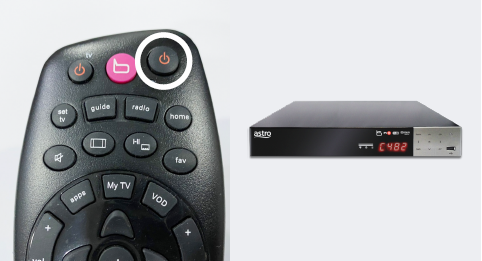
If issue persist, please submit the issue on our Feedback Form and attach a picture of your General tab of the STB Diagnostics for assistance.
Centralized Dish
If issue persist under a centralized satellite dish, please refer to your respective Building Management before contacting our agents.
No, Pay-Per-View is no longer available in CH200.
A deposit of RM500 is payable for new subscribers (non-Malaysians). The fee will be refunded when service is terminated.
No deposit is required for all existing Astro customers and new subscribers (Malaysians).
STEP 1
Press "HOME" button on your remote control.

STEP 2
Navigate to Settings and press "OK".

STEP 3
Navigate to STB Diagnostics and press "OK".

STEP 4
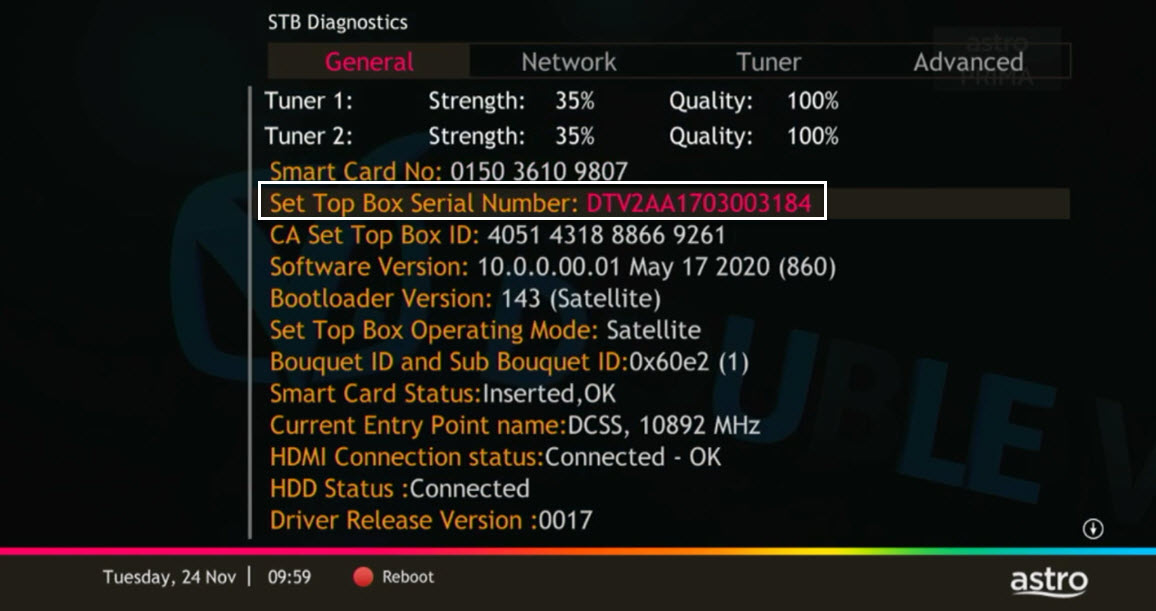
From General Tab, look at the Smart Card No for the smartcard number.

STEP 5
Take look at the Set Top Box Serial Number for the box serial number.
Astro Fibre Bundle is a subscription service of broadband together with your desired Astro TV package, while Astro Fibre is a service that allows you to subscribe to Astro Fibre broadband only.
There will be no penalty imposed upon the removal of Astro GO+ from your subscription.
For any access related queries on Disney+ Hotstar, please call or WhatsApp "DH Help
Starting 27 September 2023, Astro customers may purchase Qalbox by Muslim Pro as an add-on for an exclusive price of only RM9.50/month inc. of SST (RRP: RM12.90/month). After successfully adding Qalbox to your subscription, all Ultra and Ulti Box customers can access the app on their Astro Box, the Muslim Pro mobile app, www.qalbox.com, as well as enjoy premium Muslim Pro features on the app. Please visit https://product.astro.com.my/apps/qalboxmuslimpro for more information.
1. What is Qalbox by Muslim Pro?
Qalbox by Muslim Pro is a Muslim-friendly entertainment streaming service that is accessible via the Muslim Pro app. It hosts an extensive library of content that celebrates Muslim identities and cultures worldwide and aims to create a global platform for Muslim creatives and filmmakers.
2. What is the difference between Muslim Pro and Qalbox?
Muslim Pro is the go-to Muslim lifestyle app, recognised by millions of Muslims globally ashaving the most accurate prayer time and athan/azan application for salah (prayer). Muslim Pro has a full suite of features that help Muslims practise their religion and deen more purposefully with features such as a Qibla finder, reading and listening to the Quran, a digital tasbih and more.Meanwhile, Qalbox is a streaming service by Muslim Pro to enjoy Muslim-friendly movies, TV series, animations and more. After purchasing Qalbox as an add-on, Astro customers can stream the app on their Ultra/Ulti Box, www.qalbox.com or via the Muslim Pro mobile app.
3. Why should I subscribe to Qalbox by Muslim Pro with Astro?
For an Astro-exclusive price of only RM9.50/month inc. SST (RRP: RM12.90/month), you can look forward to a wide range of content genres, including acquired and original scripted programmes, movies, documentaries, children's animations, as well as Quranic recitations and supplications (du'a). From classic movies on history, origins and civilizations of Muslims to titles that showcase modern Muslim life across the globe - viewers can immerse themselves in the experiences of other Muslims' varied journeys, struggles, and triumphs.
Additionally, you can also enjoy Premium Muslim Pro features on the mobile app which allow users to access all in-app features without any advertisements, download audio recitations of the Quran to listen offline, and add the Muslim Pro widget to their smartphone Home Page to view all prayer times, amongst many other features.
4. Where can I access Qalbox by Muslim Pro?
If you are subscribed to Qalbox by Muslim Pro, you can access your favourite Islamic content on your big screen TV via the Ultra/Ulti Box, www.qalbox.com or the Muslim Pro app.
5. What happened to my Qalbox by Muslim Pro Premium free trial?
Your free trial of Qalbox by Muslim Pro Premium subscription with Astro has ended on 26 September 2023. We hope you have enjoyed it! You may continue streaming the app by adding it to your bill for an exclusive price of only RM9.50/month inc. of SST (RRP: RM12.90/month).
6. How do I subscribe to Qalbox by Muslim Pro Premium as an Astro customer?
Astro customers may purchase Qalbox as an add-on via their Ultra or Ulti Box, My Astro app, www.astro.com.my, or by contacting our Customer Contact Centre at 03-9543 3838 (call/WhatsApp). Please follow the detailed steps below if you require guidance on how to purchase:
a) Ultra or Ulti Box
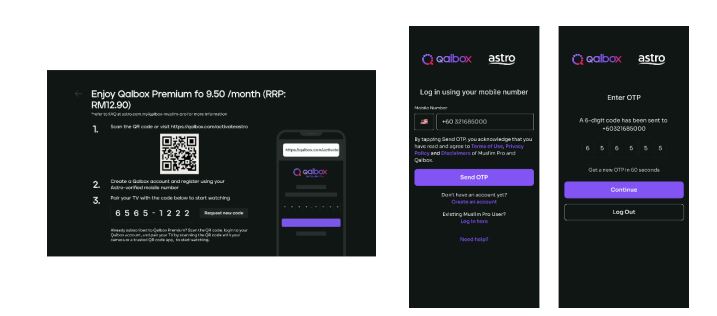
Step 1: Open œQalbox by Muslim Pro under the apps rail at your Home Page. Click on any show posters to proceed with the purchase.

Step 2: Provide your Astro verified mobile number and enter the OTP to proceed
*if you have activated your Qalbox Premium free trial, please ensure the same mobile number is used

Step 3: Scan the QR on screen to log in/create a new Qalbox account and pair it with your TV
b) My Astro app
Step 1: Open the My Astro app and select œAstro Store in the bottom menu. Then, select œApps > œQalbox by Muslim Pro > œGet it Now
Step 2: Log in with your Astro ID. Then, enter your Astro verified mobile number and perform the OTP verification to purchase

Step 3: Log in to the Qalbox mobile app using the same phone number as Step 2

Step 4: Once complete, launch Qalbox on your Ultra or Ulti Box and pair your account to your TV

c) Astro Website (www.astro.com.my)
Step 1: Visit www.astro.com.my and select œProduct & Services. Then, go to œApps > œQalbox by Muslim Pro > œGet it Now
Step 2: Log in with your Astro ID. Then, enter your Astro verified mobile number and perform the OTP verification to purchase
Step 3: Log in to the Qalbox mobile app using the same phone number as Step 2
Step 4: Once complete, launch Qalbox on your Ultra or Ulti Box and pair your account to your TV

7. I already have a Qalbox account from the free trial; how do I purchase the add-on with the same account?
Simply pick up where you left off by following the steps in Q6 and purchase the Qalbox by Muslim Pro add-on. Please ensure that the mobile number used to purchase the add-on is the same mobile number used when registering for the free trial.
8. I have my own Qalbox account outside of Astro; can I stream it on my Ultra/Ulti Box?
Yes, you can! Just follow these simple steps to stream your Qalbox account on your Ultra/Ulti Box:
Step 1: Open œQalbox by Muslim Pro under the Apps rail at your Box home page.
Step 2: Select œGo to Qalbox by Muslim Pro app then scan the QR code on screen to log in to your existing account.

Step 4: Finally, enter the pairing code displayed on your TV screen to pair your account to your Ultra/Ulti Box.
9. How do I enjoy Qalbox by Muslim Pro on the website and mobile app?
a) Qalbox Website: After subscribing through any of the methods under Q6, you will automatically be able to enjoy the app at www.qalbox.com.
b) Muslim Pro mobile app:
Step 1: Download the Muslim Pro app from the Apple App Store or Google Play Store
Step 2: Click œLog In at the bottom right corner. Then, select œContinue with Email/Phone
Step 3: Switch to the œPhone tab and enter your name and mobile number
Step 4: After clicking Continue, enter the OTP code sent to your device for verification purposes
Step 5: Enter your email address and create a password
Step 6: Now, enjoy Muslim-friendly shows on the app! Simply use the same email or phone number provided to log in in the future
10. How many devices can I use to stream Qalbox by Muslim Pro at the same time?
You can access your Qalbox by Muslim Pro account on up to five (5) devices at a time. To ensure a smoother streaming experience, please sign out from any unused devices.
11. Can I download content on Qalbox by Muslim Pro for offline viewing?
At the moment, offline downloading of content is not available.
12. Are there any subtitles or dubbing available for the content on Qalbox by Muslim Pro?
Presently, Qalbox offers subtitles in English, Bahasa Malaysia, Bahasa Indonesia, and French for selected content. Their commitment is to expand subtitle availability to encompass an even broader array of languages for all content. At this time, dubbing services are also available for selected content and they are actively exploring options to enhance accessibility and cater to the preferences of viewers.
13. Can I access Qalbox by Muslim Pro outside of Malaysia?
Yes, simply download the Muslim Pro app and log in using your registered mobile number for Qalbox. You may be required to provide your email address and password for additional security. Once done, you may access Qalbox immediately.
14. What is a Qalbox by Muslim Pro Premium subscription?
With the Qalbox by Muslim Pro Premium subscription, users can enjoy all the Muslim-friendly content on Qalbox and stream them on up to 5 devices at the same time. Additionally, users will also be able to enjoy Muslim Pro premium features on the mobile app which includes accessing all in-app features without any advertisements, download audio recitations of the Quran to listen offline, and add the Muslim Pro widget to their smartphone Home Page to view all prayer times, amongst many other features.
15. I don't have an Ultra/Ulti Box; can I still subscribe to Qalbox by Muslim Pro with Astro?
If you are not an Ultra or Ulti Box customer, you may still subscribe to Qalbox by Muslim Pro and enjoy:
a) Qalbox on the mobile app and website
b) Muslim Pro features via Muslim Pro app
16. Who may I contact if I encounter any problems with Qalbox by Muslim Pro?
Please reach out to the Qalbox team by emailing them at support@muslimpro.com if you have any enquiries or require assistance with the app.If you would like to contact Astro, you may reach out to our Customer Service Centre by:
1. Submitting a feedback form here: www.astro.com.my/contactus/form; or
2. Reaching to us via WhatsApp by typing œHi at 03-9543 3838 for assistance
17. Will my personal information be protected?
Yes, Astro is bounded by the PDPA. All information received will be used in accordance with our Privacy Notice
STEP 1
On your remote, press the ... button and the Channel Guide page will be displayed on your screen.

STEP 2
Select the channel you would like to remove as favourite and press "OK".

STEP 3
Select "Remove from Favourite" and press "OK".

STEP 4
You are successfully removed the channel from favourite list when this screen appears.

Disney+ Hotstar app is now available to Astro customers on the Ultra and Ulti Box will be able to enjoy the app on the big screen and stream all their favourite blockbuster movies from Hollywood to Hallyu and award-winning shows from Disney, Marvel, Star Wars, Pixar, National Geographic, FX and 20th Century Studios!
Broadband Deal bundle are recommended packages offered to customers with higher rebate as compared to Broadband Non-Deal bundle.
Please note that your request to opt out has been processed, and payment for Disney+ Hotstar is not required. Your bill adjustment will be reflected in your next bill.
STEP 1

Try to change channels on your Astro remote.
INDICATOR: LED blinking 3 times / NO LED blink
SOLUTION: Replace new battery
Proceed to Step 2.
INDICATOR: LED blinking 1 time
Confirm it's not your Astro remote faulty, let's proceed to Step 3.
STEP 2
If issue remain after the battery replacement, this might be due to a faulty Astro remote.
Try changing the channel manually directly from the box front panel (If any).
If it's working, you might need to replace your Astro remote.
You may walk-in to our nearest Customer Service Center for the replacement.

STEP 3
You need to refresh the box setting by initiate manually from box front panel.
Refer to Refresh Box setting Guide steps here.
Yes, until 31 August 2022, customers can subscribe to the Movies Pack for only *RM59.99/month or the Platinum Pack for only *RM99.99/month for 6 months as well as the Premium 1 or Premium 3 Pack for only *RM99.99/month for 6 months until 30 October 2022 and be entitled to access Disney+ Hotstar as part of their Astro subscription. To find out more about our latest promotions, please visit promotions.astro.com.my.
Unfortunately, only Astro Fibre customers who subscribe from 24 November 2023 to 31 May 2024 are eligible for this free speed upgrade. However, you may still get the speed boost by calling in to our Customer Contact Centre at 03-9543 3838 and re-contracting with us. Kindly note that your account will restart with a new 24-month contract.

By default, the band steering featured is disabled. Follow these steps to enable it.
Note: Band Steering is called Dual-band Combination in the router web interface.

Login using your username and password if you have changed the router login setting. Otherwise, your default router login is as per below.
Username: user
Password: user
4. Once you have successfully logged in, the router's web-based setup page will appear.

5. At the top of the page, click Wi-Fi to configure the WiFi parameters.

6. Click on Dual-band Combination button to enable the Band Steering.

7. A pop-up message will appear showing "The device network may be disconnected when dual-band combination is enabled". Click "OK" to proceed.

8. Set the Wi-Fi name and Wi-Fi password based on customer's preferences. Then click "Apply" for the changes to take place.
Please reconnect to the new Wi-Fi name with the new password once completed.

You can make changes to your Netflix plans that are included in your Bundle through My Astro app
You can change your non Astro-bundled a-la carte Netflix plan at any time by signing into Netflix.com and visiting the Account page, then selecting Change Plan to view and select available plans.
STEP 1
Check on your TV input to ensure correct input selected.
If issue remains, switch off the power for your box and make sure that the adapter's power light is off.

STEP 2
Unplug the HDMI cable from your box and plug it back in securely.

STEP 3
Switch on the power for your box and make sure that the adapter's power light is on. Please wait for 5 minutes.

STEP 4
Turn on your box. You should no longer be experiencing this problem.

If issue persist, please submit the issue on our Feedback Form with the error details and provide sim card number for assistance.
Please upgrade the Ultra/Ulti Box software to enjoy Netflix on your Ultra/Ulti Box. To do this, please click on the Netflix app icon on the homepage or go to CH741 to prompt the software upgrade. Kindly click Install when the software upgrade prompt appears. This will take approximately 20 minutes and you would be able to launch Netflix on the Ultra/Ulti Box after that.
For more information about the Astro Fibre App, you may click here for a detailed user guide.
From 8 October 2021 onwards, Astro will be ceasing the daily passes (e.g. 3, 5, 7 & 30 days passes). Please subscribe to the relevant packs to continue enjoying your favourite content. Stay tuned for more exciting offers. Thank you.
STEP 1
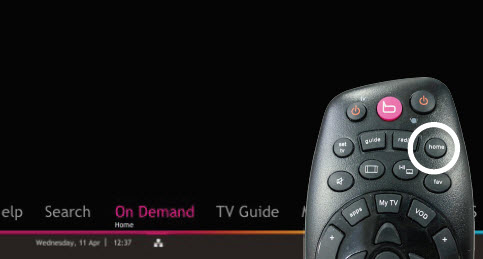
Press "HOME" button on your remote control.
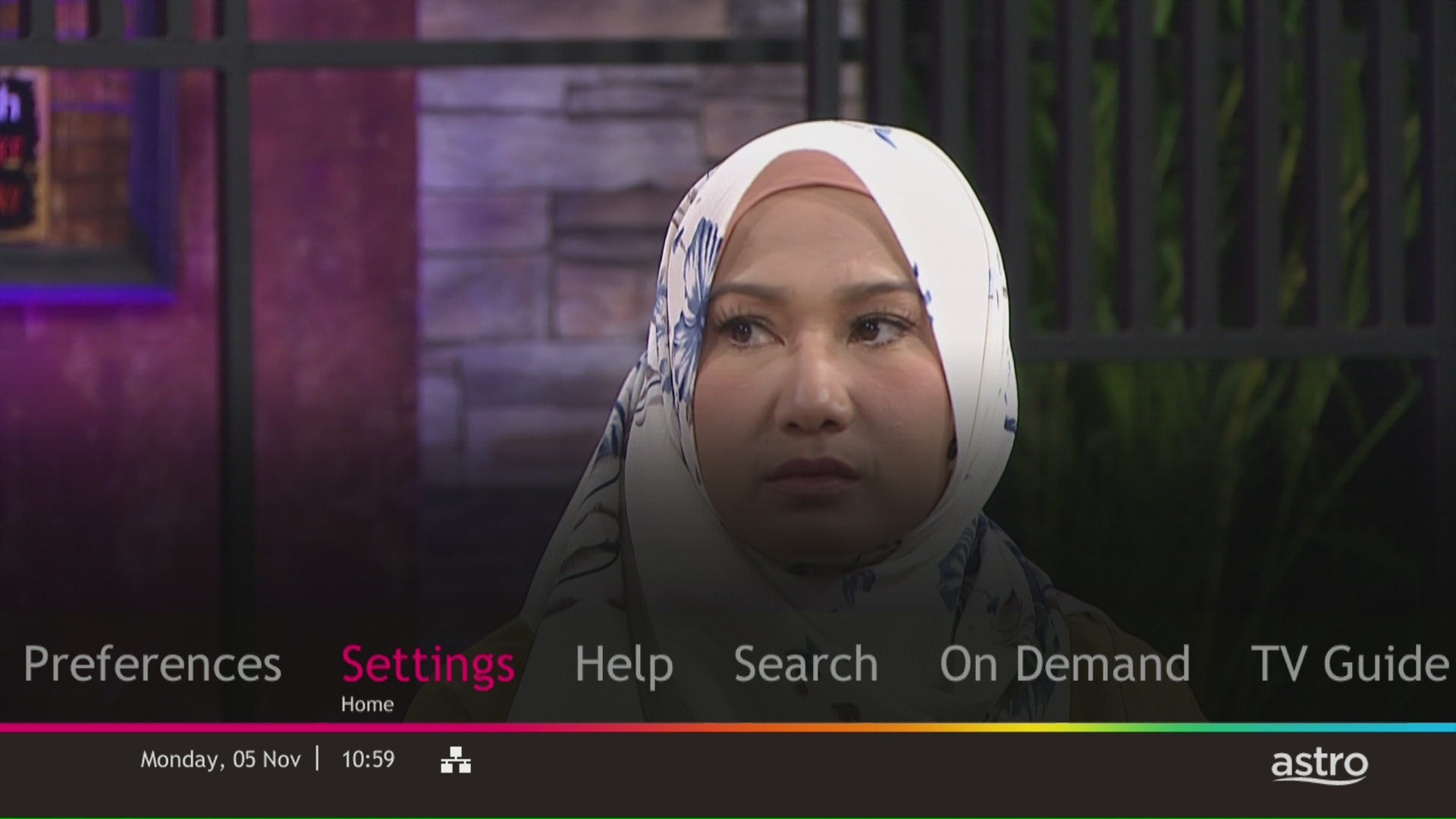
STEP 2
Navigate to Settings and press "OK".
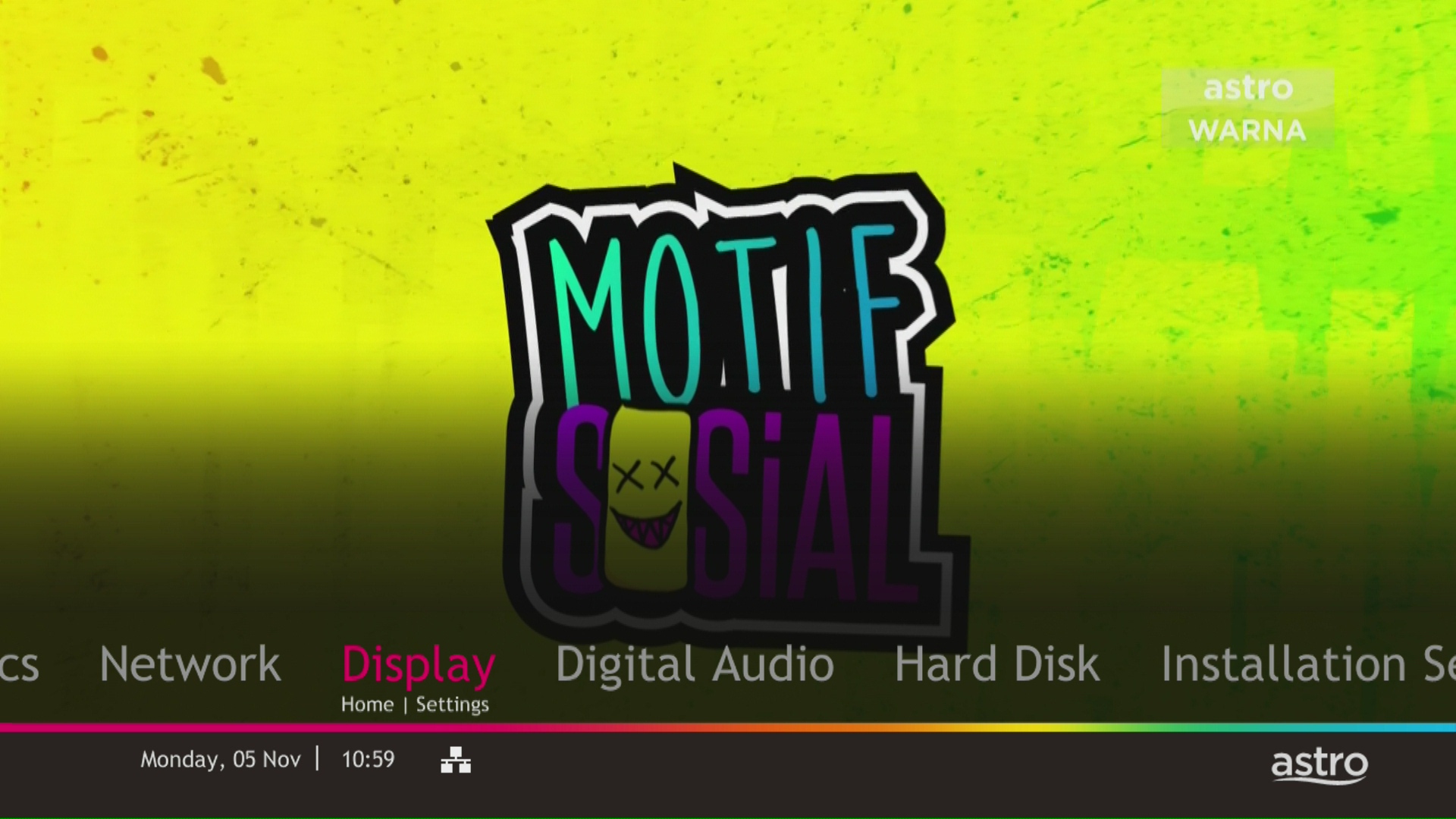
STEP 3
Navigate to Display and press "OK".
STEP 4
Navigate to TV Settings and press "OK".

STEP 5
Navigate to Conversion for 4:3 Input Video, select your preferred selection and press “OK”.

STEP 6
Select Yes, continue and press "OK" to confirm on the changes.
Otherwise, select No, go back to cancel.


