
A free satellite TV service from Astro. Watch lifetime entertainment, news, learning & information and more.

Pictures for illustration only.
Enjoy free access to 15+ TV channels & 10+ radio channels.
* Subject to Astro terms & conditions.


Step-1 |
Step-2 |
Step-3 |
Choose a plan & sign-up online. |
Sit back & wait for installation. |
Enjoy your new Astro / Broadband! |
A free satellite TV service from Astro. Watch lifetime entertainment, news, learning & information and more.
Pictures for illustration only.
New decoder only without satellite dish & cabling. You must have Astro/Njoi satellite dish and cable installed and working properly.
Including installation.
New decoder complete with satellite dish & cabling.
Including installation.
Applying for
| Njoi Astro UniFi Maxis |
Find your answers here.
We provide one stop service to apply Astro and Broadband for you.
You can avoid driving and queuing at the sales counter. We are the dealer that can help you to handle your application from the beginning to the end.
We do not charge you when you apply from us. There is no credit card information required to apply here. Charges are the same as you apply from the sales counter.
First, you can apply online, we will get back to you immediately during business hour. WhatsApp/Email/Fax us your Photocopy of IC (for malaysian) / Passport (for foreigners). When we receive all the information, we will proceed with your application immediately.
Once we receive your application with complete information, we will process your application immediately during business hour. The contractor from the service provider will then contact you for installation appointment once your application is approved.
Enjoy greater savings and hassle-free bill payment in one single bill for both Astro and Broadband. You get to enjoy Astro and Broadband at discounted price every month over the contract period of 24 months.
Astro offers multiple TV packs including Entertainment, Sports, Movies and Kids options. You can choose a pack that matches your viewing preferences and add optional streaming apps where available.
Yes, you may subscribe to Astro TV packs without bundling broadband. However, bundling Astro TV with Fibre Broadband may provide better monthly savings and convenience with a single bill.
For small households with light streaming and browsing, 100Mbps is usually sufficient. Larger families, gamers or heavy streamers may benefit from 500Mbps or 1Gbps plans for smoother performance across multiple devices.
Most Astro TV and Fibre broadband plans come with a 24-month contract. Early termination charges may apply if cancellation is made before the contract ends.
Yes, you may upgrade your TV pack or broadband speed at any time, subject to eligibility and coverage. A new contract period may apply depending on the upgrade.
Your monthly bill will be issued directly by Astro. You may receive it via email or access it through your Astro account. Bundled customers will receive a single combined bill for TV and broadband services.
Payment methods may include online banking, auto debit, credit card or other approved payment channels provided by Astro. Our team can guide you during the registration process.
If you experience any service interruption, you may contact Astro customer support for technical assistance. In many cases, issues can be resolved remotely or a technician will be arranged if necessary.
Yes, relocation is subject to service availability at your new address. Relocation charges and contract adjustments may apply depending on your plan.
No, you do not need a credit card to submit your application. Payment setup will be arranged directly with Astro after your service is approved.
Selected Astro TV packs allow optional add-ons such as streaming services depending on current promotions and availability. Additional monthly charges may apply.
Yes, a WiFi router is typically provided during fibre installation. The router model may vary depending on the selected broadband speed plan.
Yes, we will check the service coverage at your address before proceeding with your application to ensure broadband is available at your location.
For Malaysians, please provide a copy of your MyKad. For foreigners, provide a copy of your passport when submitting your broadband application.
After your application is approved, the service provider typically contacts you within 2 to 7 working days to arrange the broadband installation appointment.
Most Astro Broadband plans come with a 24-month contract starting from your installation date. If you relocate, a new 24-month contract may apply at your new address.
Yes, you can relocate your broadband service, subject to service availability at the new address. Your contract may reset for another 24 months from the new installation date.
Yes, you may request to relocate broadband devices within your home. Non-standard installation charges may apply and are payable to the installer directly after assessment.
Yes, you can switch to Astro Broadband. To avoid service interruption, it is recommended to activate the new service before terminating your current broadband contract.
Standard installations may be free during promotions, but non-standard installations (e.g., device relocation or complex wiring) may incur extra charges payable directly to the installer.
STEP 1
Press "HOME" button on your remote control.

STEP 2
Navigate to My TV and press "OK".

STEP 3
Navigate to Bookings and press "OK".

STEP 4
Your list of your booking programs will be displayed.

Yes, you are eligible for selected bundle packages with rebates up to RM39/month and a free speed upgrade if you subscribe within the promotion period. Kindly note that monthly rebates are only available for Pay TV + Astro Fibre bundles but the speed upgrade is available for all packages including standalone plans.
Some of our payment partners require payees to scan the barcode on the statement to make payment. Always bring your Astro bill statement when making payment over the counter.
What is the "iQIYI Video - Dramas & Movies" App?
The iQIYI App is an on-demand video streaming service provided by iQIYI that was first launched in June 2019 in more than 191 countries providing the best Asian dramas to viewers across the world. iQIYI allows subscribers to watch all their favourite Asian entertainment including dramas, variety shows, movies and anime, with subtitles in multiple languages and equipped with Dolby Atmos for the most immersive experience at their fingertips.
Where can I access the iQIYI App?
Starting 20 December 2022, Astro customers will be able to enjoy the iQIYI app as an add-to-bill service for an exclusive price via Astro and enjoy the app on their Ultra/Ulti Box, mobile app and website.
How do I access the iQIYI App on the Ultra/Ulti Box?
After completing the subscription process, you will be able to access the iQIYI App on the Ultra/Ulti Box by following the steps below:
On your Ultra/Ulti Box
Step 1: At the Home menu, go to the App Rail and select "iQIYI"
Step 2: Click "OK" on your Astro remote
Step 3: While on the iQIYI App Home Page, navigate to "VIP account" located at the top left pane and click "Login". A page with a QR Code will be presented on your TV screen
Step 4: Scan the QR code using your mobile device and you will be directed to the iQIYI mobile app
Step 5: Follow the steps under "On Mobile App" below to pair your iQIYI account with your Ultra/Ulti Box
On the iQIYI Mobile App
Step 1: Download the iQIYI App on your mobile device
Step 2: At the login page, select "Continue with Astro"
Step 3: Log in with your Astro ID
Step 4: Click on the "Me" icon located at the bottom of the screen, and you will be presented with your iQIYI profile page
Step 5: Click on the in-app QR code scanner located at the top right corner of the screen
Step 6: Scan the QR Code displayed on your TV screen with the in-app QR code scanner. Refer to Step 3 under "On your Ultra/Ulti Box" above
Step 7: The screen on your TV will reload automatically and the iQIYI App home screen will be displayed. Now, you can enjoy the iQIYI App on your Ultra/Ulti Box!
Can I access the "iQIYI Video - Dramas & Movies' App outside of Malaysia?
Yes, the iQIYI app is accessible globally. However, the content of the app might differ depending on the country which will be tailored based on local content rights and market preferences.
Can I download the content on the iQIYI App for offline viewing?
Yes, you can download selected content on the iQIYI app for offline viewing at a later time. To find the titles you have downloaded, you may go to Profile > My Downloads.
What is the storage requirement for content downloading?
The storage requirement is dependent on the type of videos users are downloading as the space needed varies between titles.
Are there any subtitles or dubbing available for the content on the iQIYI app?
The iQIYI app offers subtitles in multiple languages for all their content excluding some variety shows. However, no dubbing option is available yet. You will be able to select or switch off your subtitles when you play your video in full screen.
Can I change the interface language of the iQIYI app?
Yes, you may change the interface language of the app. To access the language settings, please click "Profile" > "Settings" > "Language" and select your preferred language.
If you have any further questions regarding the app, please go to "Profile" > "Help and Feedback". Thank you for your support.
iQIYI VIP Subscriptions
What is a VIP subscription?
As a VIP (Standard VIP or Premium VIP), you will be entitled to enjoy the benefits of the VIP subscription, including:
Access to exclusive content only on iQIYI
Early access to selected content episodes
Where available, access to high definition (up to 1080P viewing quality) and surroundsound (Dolby Audio) versions of the Content
The ability to skip advertisements
Up to 2 concurrent viewing
Additionally, as a Premium VIP, besides the benefits mentioned above, you will also be entitled to the following benefits:
Advance previewing of selected content episodes labelled as "locked"
Where available, access to high definition (up to 4K viewing quality)
Up to 4 concurrent viewing of VIP content, compared to only 2 concurrent viewing enjoyed by Standard VIP members
If you have more questions about these VIP privileges, please let us know by following these steps: "Profiles" > "Feedback". More privileges are in development for VIPs. Please stay tuned and join IQIYI as a VIP to enjoy these benefits.
How can I become an iQIYI VIP?
You may join iQIYI as a VIP by following these simple steps:
Step 1: Head over to www.astro.com.my/iqiyi
Step 2: Select your desired package (Standard VIP or Premium VIP)
Step 3: Click "Get it now"
Step 4: Log in using your Astro ID
Step 5: Click "Get it now" again
Step 6: Please read the prompted message, then click "Proceed"
Step 7: You will see a confirmation message upon successful purchase
How much does it cost to join iQIYI as a VIP?
All new and existing Astro Pay-TV customers are entitled to Astro special price when they signup for iQIYI as a VIP member via Astro at www.astro.com.my/iqiyi.

How do I make payment for my iQIYI VIP subscription?
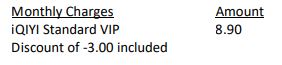
The monthly subscription fee for your iQIYI VIP subscription will be reflected in your Astro bill accordingly. For example, your Astro billing cycle is on the 20th of every month and you just signed up for the iQIYI Standard VIP subscription via Astro on 15October. Your iQIYI monthly charge will be reflected on your upcoming bill on 20th of October, and on the subsequent months' bills, as follows:
When can I start enjoying my VIP subscription?
You will be able to enjoy all the content on the iQIYI app immediately upon successful purchasefrom the Astro website. You may enjoy your VIP privileges from the iQIYI app on your Ultra Box, Ulti Box, mobile devices (Android & iOS), Apple TV, Android TV, as well as on Web (www.iq.com).Please ensure that the account used to log in to the app is the same one used to purchase your iQIYI VIP subscription.
I am an existing iQIYI VIP; will I get to enjoy Astro special price?
If you are an existing iQIYI VIP, you may cancel your existing VIP subscription with iQIYI and signup again via astro.com.my/iqiyi to enjoy the special price by adding your subscription to your Astro bill.
Where can I view my iQIYI entitlement expiry date/next payment details?
You can view your iQIYI entitlement & payment details in the app by follow these steps:
Step 1: Go to the Home Page
Step 2: Click on "VIP subscription"
Step 3: Click on "Manage VIP subscription" (Gear icon)
After following these steps, you will be able to view your entitlement expiry date, next payment date & payment method.
How do I cancel my iQIYI VIP subscription?
You may cancel your iQIYI subscription in the app by following these steps:
Step 1: Go to Home Page
Step 2: Click on "VIP subscription"
Step 3: Click on "Manage VIP subscription" (Gear icon)
Step 4: Click on "Cancel VIP subscription"
Will there be any penalty fees if I cancel my iQIYI VIP subscription?
There will be no penalty fee if you choose to cancel your iQIYI VIP subscription. Your cancellation will take effect upon your current entitlement expiry date. Kindly note that if you cancel your subscription within 24 hours before your entitlement expiry date as reflected in the iQIYI app (not according to Astro billing cycle), your subscription may be auto renewed.
App Issues
Who may I contact if I encounter any problems with the iQIYI app?
There are 4 ways for you to contact us for assistance:
Astro Login
How do I register for an Astro ID?
Download the iQIYI app > Select "Profile" > Click on "Log in with Astro ID" > Click on "Do not have an Astro ID? Click here".
Can I update my email address/mobile number for my Astro ID?
Yes, please visit Astro's Self Service Portal via myastro.astro.com.my to update your email address or mobile number.
I have forgotten my password; what should I do now?
Step 1: Click "Log in" and click "Forgot my password"
Step 2: Enter your email address and click "Submit"
Step 3: An email will be sent to your registered email address with further instructions on how to reset your password
How do I unlock a locked user account?
You may contact Astro's Customer Service by:
Thank you for your interest in returning your Astro Box & Smart card/SIM card. By returning these items, you are playing your part in preserving our environment as we will refurbish the box and return it to circulation or recycle it.
All Astro box and smartcard/SIM cards are also property of Astro and as per our current T&Cs, customers are required to return them upon termination of Astro services.
For technical visit, the current fees will remain unchanged i.e.: 8% Service Tax absorbed by Astro. As for installation fees, current fees will remain unchanged i.e.: 6% Service Tax has already been included in installation fees, as 2% will be absorbed by Astro.

1. Please standby computer/laptop to access to the internet and connection must be via LAN (cable) [Connect the LAN (cable) to the yellow port in Maxis Router and direct to computer/laptop].
2. You may open any web browser such as Google Chrome, Internet Explorer, Mozilla Firefox and etc.
3. On the address bar, please go to http://192.168.1.254 and below page will appear.

If below box appear, please enter required details as below:

USERNAME: Administrator
PASSWORD: (ACCESS KEY AT THE RGW STICKER)
(These are the defaults, if you have done previous configuration on your router the password may be different)
4. Once enter into the page ‘’TECHNICOLOR TG784N V3’’, you may follow below step for the wireless information.
i. Click "Configure”

ii. Once clicked configure button, below screen will appear.
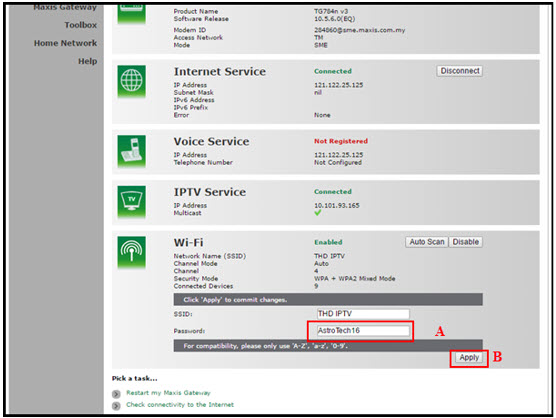
A. This is your current password. Please delete and enter the new password.
B. Once completed the selection; click the "Apply" button. Router will auto reboot and connection re-establish after few minutes.
Please re-connect your wireless using the new password.
No. If you are a non-Astro subscriber, you will still be able to create an Astro ID, but access and use of Astro's digital services will be limited. If you are an Astro subscriber, please link your Astro ID to your Astro account number to enjoy exclusive access to all of Astro's digital services.
Please use your Astro ID that was registered with your Astro Fibre subscription to log in to the Astro Fibre App.
No, you need to have an Astro ID to enjoy the features.
Step 1: Launch the app on your Smart TV.
Step 2: You will be able to see a welcome screen with a QR code and URL.

Step 3: Scan the QR code or go to astro.com.my/tvapp on your mobile and enter your unique code (e.g. FSJV-SMBS) displayed on the TV screen

Step 4: At the login page, you will need to log in with your Astro ID (registered email or mobile number) and password.
(If you do not have an Astro ID, click on "Create now"
to sign up and link to your Astro account – check the following on the steps)

Step 5: Once you have successfully logged in on your mobile, the Astro app will launch on your Smart TV screen. You can continue to browse and watch your favourite shows on the Smart TV.
1. Return your device to us via Arranged Pick-up:
Step 1: Please call Astro's Contact Centre at 03-9543 3838 to schedule an arranged pick-up by one of our courier partners.
Step 2: Just sit back and relax! A courier agent will come to your doorstep to retrieve the devices.
Advance payment can be made via credit/debit card or online banking.
Please ensure that you have subscribed to the mentioned channel.
If you're subscribed to this channel, follow below steps.
STEP 1
You need to refresh the signal on your box.
Refer to Refresh signal of your box guide.
STEP 2
If issue persist after 30 minutes, proceed to submit report via WhatsApp or Feedback Form.
You may click here to Login and proceed to secure your Astro ID by linking it to your Astro account. If you do not have an Astro ID, please follow the steps in below to create one. You may also choose to log in or create Astro ID with your social accounts (eg. Facebook, Google and Apple).


While this technology has its benefits, different devices at home have different reaction and response to changes in signal strength and quality, and it's almost impossible to predict if they will make good band choices due to the interaction between the devices and the Wifi router. Some smart home devices also recommend that band steering is not used due to various reasons such as needing a constant consistent connection, ability to only connect to a particular band, registration of the respective MAC address, etc..
Example:
As single SSID is used, the device may remain on a weak 5GHz network instead of switching over to stronger 2.4GHz network.

You may proceed with below troubleshooting and it shouldn't take you any longer than 15 minutes.

4. Type the Username and Password as below. Then click Login. (These are the defaults, if you have done previous configuration on your router the password may be different)
Username: admin
Password: admin (or time123)

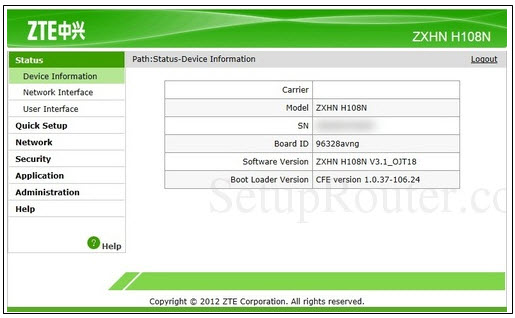
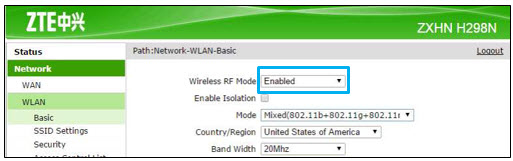
5. The router's web-based setup page should now appear. Please follow below steps for the configuration.


To request for a move, you may choose to:
1. Self-serve by logging in to My Astro app and follow the steps below:
Step 1: From Account tab, choose Installation address under Subscription.
Step 2: Click "Relocate”.
Step 3: Verify your identity via OTP.
Step 3: Fill in the OTP that you receive and proceed by clicking "Verify"
Step 4: Confirm the Address, a support ticket will be created.
2. Submit your feedback via below link: https://support.astro.com.my/feedback-form
Step1: Choose Feedback Type
Step2: Fill in the form and click “Submit” support ticket.
Yes, a penalty fee of RM200/Mesh WiFi unit will be imposed if the customer fails to return the device(s). The courier company will make two attempts to retrieve the Mesh WiFi unit(s) within a period of 30 days, failing which the penalty would be imposed.
STEP 1
On your remote, press the HOME button and the home menu will be displayed on top of your screen.

STEP 2
Navigate to Settings.

STEP 3
Navigate to Satellite Settings and press “OK”.

STEP 4
Navigate to LNB Setup and press “OK”.

STEP 5
Tuner Settings screen will be displayed accordingly.

STEP 6
Select LNB Type connected to your box.


STEP 7
Navigate to Next and press "OK" to confirm your selection.

STEP 8
Select this as the Entry Point and press "OK" to confirm your selection.

STEP 9
Navigate to Next and press "OK" to confirm your selection.

STEP 10
Signal reading results for Tuner 1 screen will be displayed accordingly.
Press right to navigate to Tuner 2.

STEP 11
Signal reading results screen for Tuner 2 will be displayed.
Then navigate to Finish and press "OK" to complete the setup.

Yes, penalty fee of RM200/Mesh WiFi will be imposed if customer fails to return the device(s). The courier company would make two attempts to retrieve the Mesh WiFi unit within a period of 30 days, failing which the penalty would be imposed.
This error indicates that you have reached the maximum number of simultaneous video streams across devices for one (1) account. To stop seeing this error, please stop streaming on one of your other devices.
• If you have recently purchased your Astro pack or made any changes to your pack on or after 9th November you can stream on two (2) concurrent screens
• If you have not made any changes you can stream on four (4) concurrent screens.
If you are still having issues, proceed to submit report via WhatsApp or Feedback Form.
Please check SMS received on the unsuccessful payment status and should you require further clarification contact your issuing bank for clarification or contact us via WhatsApp.
1. Ensure power cable is connected tightly.
2. Try to use another power socket / power source to eliminate faulty power sockets/power sources which could cause the issue.

3. If the issue persists, submit your feedback form for further assistance.
Yes, you may terminate the service. However, an early cancellation fee will be applied for terminations/cancellations within 24 months. Please refer to the Astro Fibre's cancellation details.
Yes, all existing Astro & Broadband customers within contract or out of contract can subscribe to Astro & Broadband offerings. The 24 months contract will be renewed upon signing up for the new packs.
A deposit of RM500 is payable for new subscribers (non-Malaysians). The fee will be refunded when service is terminated.
No deposit is required for all existing Astro customers and new subscribers (Malaysians).
Astro invests billions of ringgits in content annually to keep Malaysians entertained and informed. Hence, we work alongside industry players, content partners and regulators in protecting intellectual property so that Astro can continue to produce and aggregate compelling content for our viewers.
We continue to educate and raise awareness among the public and businesses about the economic and social losses caused by content piracy. You can play your part in combating piracy by reporting potential copyright infringement of Astro content to the Domestic Trade and Consumer Affairs Ministry (KPDNHEP) on the following channels:
Kindly note that not all Astro & Broadband Devices are required to be returned. After service termination of your Astro & Broadband service, we will call you via your registered mobile number within 3 days to schedule a pickup appointment with our Astro agent if your device needs to be returned.
If you were not contacted within 3 working days to return your devices, you are required to discard your old Astro & Broadband devices only at registered collection centres for proper handling and management of e-waste in an environmentally sound manner. Click here to find a registered collection centre near you.
Frequently Asked Questions
1) I missed the pickup appointment; what do I do now?
You can reschedule the pick-up appointment by calling our agent directly.
2) Can I reschedule my pickup date?
Yes! You can call our agent back directly to reschedule the pickup date and time.
3) Do I have to pack my device(s) before handing it over to the Astro agent?
Our Astro agent will dismantle the devices for you. However, if your devices are already dismantled, please pack them in their original box/packaging if possible. If this option is not available to you, just hand the device(s) over to the Astro agent without any packaging. You will not be charged any fees if the original packaging has been damaged/lost.
4) Do I have to print anything or fill in any forms before handing my device(s) over to the Astro agent?
No, you do not have to prepare any documents before handing your device(s) over to the Astro agent! All you have to do is get your device(s)ready before the Astro agent arrives to ensure a smooth handover process.
5) I have the Astro & Broadband router and modem to return, however, the cable(s) that come with them are damaged/lost; will there be any penalty fees?
No, please return your old Astro & Broadband modem and its power supply unit (PSU). There will be no penalty fees if the cable is damaged or lost.
Recycle via Registered Collection Centres
For all recycling-related questions, please click here.
You must subscribe to an Astro subscription (NJOI customers are not eligible) in order to get the Ulti Box.
The eligibility criteria for the Ulti Box are as follows:
New Customers
All new Astro customers with a monthly subscription fee of below RM100 will be entitled to select the Ulti Box upon signing up for Astro’s packages.
Existing Customers (Box Upgrade for Primary or Multiroom)
Existing customers are required to have an internet connection at home with a recommended internet speed of 10Mbps and above in order to upgrade your existing box to Ulti Box.
Note:
· Existing Ultra Box customers are not eligible for a swap to the Ulti Box.
· If your existing box is a PVR, you will lose access to all the recordings stored in the PVR
Multiroom (New subscription)
Customers subscribing for an additional multiroom subscription are entitled to select the Ulti Box as part of the subscription.
Discover thousands of movies and series you'll love, and we are continuously expanding. If you would like to enjoy more movies on top of your current subscription, press the Home button and select On Demand. Use the arrow keys to scroll to Store. Pick and choose to rent any movie for up to 48hours.
There is no contract for this subscription.
Yes, a charge of up to RM20.00 may be imposed upon reconnection.
There are no extra charges as it is a value-added service introduced provided for your convenience.
You can request for a password reset by clicking on "Forgot My Password' at the login page.
Customers who subscribe to the Movies, Premium 1, Premium 3 or Platinum Pack will be able to access Disney+ Hotstar immediately and start streaming all their favourite Global, Regional and Malaysian hits upon activation.
To access these streaming apps, you would need to upgrade to the Ultra or Ulti Box by visiting product.astro.com.my/box. Alternatively, you may also reachus via WhatsApp by typing "Hi
Yes, if a device is faulty due to customer's negligence, it is subject to a penalty fee for each device:

By default, the band steering featured is disabled. Follow these steps to enable it.
Note: Band Steering is called Dual-band Combination in the router web interface.

Login using your username and password if you have changed the router login setting. Otherwise, your default router login is as per below.
Username: user
Password: user
4. Once you have successfully logged in, the router's web-based setup page will appear.

5. At the top of the page, click Wi-Fi to configure the WiFi parameters.

6. Click on Dual-band Combination button to enable the Band Steering.

7. A pop-up message will appear showing "The device network may be disconnected when dual-band combination is enabled". Click "OK" to proceed.

8. Set the Wi-Fi name and Wi-Fi password based on customer's preferences. Then click "Apply" for the changes to take place.
Please reconnect to the new Wi-Fi name with the new password once completed.

No, you are still able to access HBO Go on your current Movies pack.

1. Please connect your computer or laptop to your Astro Fibre router using WiFi or LAN cable. Your LAN cable must be connected from the yellow port of Astro Fibre router (Any available port).
2. Once connected, open any web browser such as Google Chrome, Internet Explorer, Mozilla Firefox and etc.
3. On the address bar, type http://192.168.100.254 and below page will appear.

Login using your username and password if you have changed the router login setting. Otherwise, your default router login is as per below.
Username: user
Password: user
4. Once you have successfully logged in, the router's web-based setup page will appear.

5. At the top of the page, click WLAN to configure the WiFi parameters.

6. You may change the Primary SSID (WiFI Name) and the WPA Passphrase (WiFi Password) to follow your preferences for 2.4G Wi-Fi Settings, then click "Save & Apply" for the changes to take place.

7. You may make the same changes for 5G Settings by change the Primary SSID (WiFI Name) and the WPA Passphrase (WiFi Password) to follow your preferences, then click "Save & Apply" for the changes to take place.

STEP 1
On your remote, press the HOME button and the home menu will be displayed on top of your screen.
STEP 2
Navigate to Settings.
STEP 3
Navigate to Satellite Settings and press "OK".

STEP 4
Select Diagnostics and press "OK".

STEP 5
Signal reading on Tuner 1 will be displayed. Navigate to right arrow for next step.

STEP 6
Signal reading on Tuner 2 will be displayed. Navigate to "Done" and press "OK" to complete the diagnostics.

You can be assured that your data are safe with us. Astro implemented sufficient security measures to protect customer data and fully comply to Personal Data Protection Act
Tap on the "Account' screen on the navigation bar to view your outstanding balance. Click on "Pay Now' to pay your bill. If your payment is successful, you will receive a record and your payment history will be updated.


You may proceed with the following troubleshooting steps and it shouldn't take you much longer than 15 min
1. Please standby a computer/laptop to access to the internet and connection must be via LAN cable (connect the LAN cable to the Yellow port at Tplink Router and direct to the computer/laptop).
2. You may open any web browser such as Google Chrome, Internet Explorer, Mozilla Firefox and etc.
3. On the address bar, please go to tplinkwifi.net and to access to below login page. Type the Username and Password, then click "Login".

The default login of the router is available on the sticker at the back of the router. If you have done a configuration on your router previously, the password may be different.

For example, below is the login details of the above router:
Username: admin
Password: TIMECE24
4. Once you have successfully login, the router's web-based setup page will appear. Please follow below steps for the configuration.
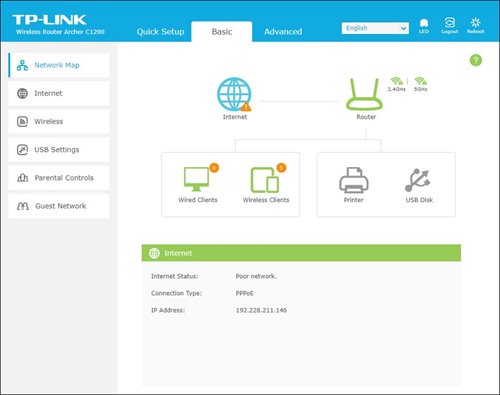
5. From the top menu, choose Advanced and click the Wireless tab on the left menu. Then, select Wireless Settings from the sub menu. Below screen will appear for 2.4GHz selection.

i. Please ensure to tick Enable Wireless Radio function.
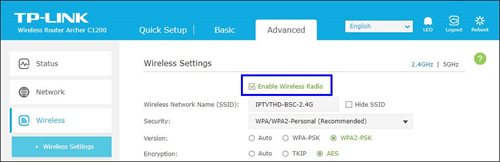
ii. To change the channel, click the drop-down arrow for Channel, then select your desired channel.
Choose between 1 to 13 (Suggested channels : 1,6,11). Then, click "Save" for the changes to take place.

iii. Click Save for the changes to take place. The router will auto reboot and connection will re-establish after few minutes.

iv. Next, select 5GHz to make changes on the wireless channel for 5GHz.
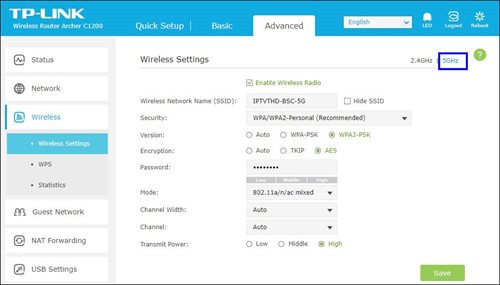
v. Click the drop-down arrow for Channel, then select your desired channel from the selection.

vi. Click Save for the changes to take place. The router will auto reboot and connection will re-establish after few minutes.

Your purchase will be reflected on your next monthly Astro bill. For example, if you rented a movie for RM 15.00 for 2 days and your next bill statement is in 2 weeks. RM 15.00 will be reflected in your Astro subscription bill in two weeks' time.
You do not need to request for a reconnection as our system will detect your payment and process it immediately, provided you paid via a real-time payment channel.
Click here for a full list of our payment channels.
The matches will be available on the channels Astro Arena Bola (CH803) and Astro Arena Bola 2 (CH804), On Demand and Astro GO.
Please ensure to put your box on standby mode to refresh the signal.
a. Using IVR
1. Dial 03-95433838 and select you preferred language.
2. Select Account Related.
4. Select Refresh Smartcard.
b. Using MyAstro web
STEP 1
Go to https://myastro.astro.com.my/ in your web browser.
STEP 2
Keyin your Email / Mobile number and password. Then, press "LOG IN".

STEP 3
Click on TV pack.

STEP 4
Choose Main Room for the Primary Box; else choose Multiroom (If any).

STEP 5
Click on "Refresh" to refresh signal on your box.
For Main Box 
For Multiroom
STEP 6
After tap the Refresh, below notification will be displayed as below.
For Main Box 
For Multiroom
c. Using My Astro App
STEP 1
Open My Astro App and click "Login".

STEP 2
Keyin your Email / Mobile number and password. Then, press "LOG IN".

STEP 3
Go to "Account".

STEP 4
Scroll down to "TV pack" and click on it.

STEP 5
Choose Main Room for the Main Box; else choose Multiroom (If any).

STEP 6
Tap on "Refresh" to refresh signal on your box.

STEP 7
After tap the Refresh, below notification will be displayed as below.

You may call Astro's Contact Centre at 03-9543 3838 or wait for an Astro representative to be in contact with you within 2 working days to assist you with your order.

