
A free satellite TV service from Astro. Watch lifetime entertainment, news, learning & information and more.

Pictures for illustration only.
Enjoy free access to 15+ TV channels & 10+ radio channels.
* Subject to Astro terms & conditions.


Step-1 |
Step-2 |
Step-3 |
Choose a plan & sign-up online. |
Sit back & wait for installation. |
Enjoy your new Astro / Broadband! |
A free satellite TV service from Astro. Watch lifetime entertainment, news, learning & information and more.
Pictures for illustration only.
New decoder only without satellite dish & cabling. You must have Astro/Njoi satellite dish and cable installed and working properly.
Including installation.
New decoder complete with satellite dish & cabling.
Including installation.
Applying for
| Njoi Astro UniFi Maxis |
Find your answers here.
We provide one stop service to apply Astro and Broadband for you.
You can avoid driving and queuing at the sales counter. We are the dealer that can help you to handle your application from the beginning to the end.
We do not charge you when you apply from us. There is no credit card information required to apply here. Charges are the same as you apply from the sales counter.
First, you can apply online, we will get back to you immediately during business hour. WhatsApp/Email/Fax us your Photocopy of IC (for malaysian) / Passport (for foreigners). When we receive all the information, we will proceed with your application immediately.
Once we receive your application with complete information, we will process your application immediately during business hour. The contractor from the service provider will then contact you for installation appointment once your application is approved.
Enjoy greater savings and hassle-free bill payment in one single bill for both Astro and Broadband. You get to enjoy Astro and Broadband at discounted price every month over the contract period of 24 months.
Astro offers multiple TV packs including Entertainment, Sports, Movies and Kids options. You can choose a pack that matches your viewing preferences and add optional streaming apps where available.
Yes, you may subscribe to Astro TV packs without bundling broadband. However, bundling Astro TV with Fibre Broadband may provide better monthly savings and convenience with a single bill.
For small households with light streaming and browsing, 100Mbps is usually sufficient. Larger families, gamers or heavy streamers may benefit from 500Mbps or 1Gbps plans for smoother performance across multiple devices.
Most Astro TV and Fibre broadband plans come with a 24-month contract. Early termination charges may apply if cancellation is made before the contract ends.
Yes, you may upgrade your TV pack or broadband speed at any time, subject to eligibility and coverage. A new contract period may apply depending on the upgrade.
Your monthly bill will be issued directly by Astro. You may receive it via email or access it through your Astro account. Bundled customers will receive a single combined bill for TV and broadband services.
Payment methods may include online banking, auto debit, credit card or other approved payment channels provided by Astro. Our team can guide you during the registration process.
If you experience any service interruption, you may contact Astro customer support for technical assistance. In many cases, issues can be resolved remotely or a technician will be arranged if necessary.
Yes, relocation is subject to service availability at your new address. Relocation charges and contract adjustments may apply depending on your plan.
No, you do not need a credit card to submit your application. Payment setup will be arranged directly with Astro after your service is approved.
Selected Astro TV packs allow optional add-ons such as streaming services depending on current promotions and availability. Additional monthly charges may apply.
Yes, a WiFi router is typically provided during fibre installation. The router model may vary depending on the selected broadband speed plan.
Yes, we will check the service coverage at your address before proceeding with your application to ensure broadband is available at your location.
For Malaysians, please provide a copy of your MyKad. For foreigners, provide a copy of your passport when submitting your broadband application.
After your application is approved, the service provider typically contacts you within 2 to 7 working days to arrange the broadband installation appointment.
Most Astro Broadband plans come with a 24-month contract starting from your installation date. If you relocate, a new 24-month contract may apply at your new address.
Yes, you can relocate your broadband service, subject to service availability at the new address. Your contract may reset for another 24 months from the new installation date.
Yes, you may request to relocate broadband devices within your home. Non-standard installation charges may apply and are payable to the installer directly after assessment.
Yes, you can switch to Astro Broadband. To avoid service interruption, it is recommended to activate the new service before terminating your current broadband contract.
Standard installations may be free during promotions, but non-standard installations (e.g., device relocation or complex wiring) may incur extra charges payable directly to the installer.
Customers subscribing to the following Astro packs will get to automatically enjoy Disney+ Hotstar as part of their newer, bigger and better packs
Customers with any of the above subscriptions with an Ultra or Ulti Box will also be able to enjoy Disney+ Hotstar on their big screen TV via their Astro Box, in addition to disneyplushotstar.my and the mobile app. Please click here on how to access Disney+ Hotstar on the Ultra/Ulti Box.
Astro customers who are not on the above Packs may upgrade to the Movies, Movies Plus, Premium 1, Premium 3 or Platinum Pack to receive access to Disney+ Hotstar at no additional cost. Alternatively, customers may visit www.astro.com.my/disney to subscribe to Disney+ Hotstar Premium through a 3-month plan via Astro at RM54.90 (NP: RM79.90 quarterly, Astro customer may see up to 30% savings in their Disney+ Hotstar Premium subscription)
For more information, please visit www.astro.com.my/disney. If you need further help, please WhatsApp “DH Help” to Astro or call them at 03-9543 3838 for assistance.


You may proceed with below troubleshooting and it shouldn't take you any longer than 15 minutes.
1. Please standby computer/laptop to access to the internet and connection must be via LAN (cable) [Connect the LAN (cable) to the blue port at Cisco Router and direct to computer/laptop].
2. You may open any web browser such as Google Chrome, Internet Explorer, Mozilla Firefox and etc.
3. On the address bar, please go to http://192.168.1.1 and below page will appear.

4. Type the Username and Password as below. Then click OK. (These are the defaults, if you have done previous configuration on your router the password may be different).
Username: admin
Password: admin (or time123)

5. The router's web-based setup page should now appear. Please follow below steps for the configuration.

i. On the setup page, click the Wireless tab then click on the Basic Wireless Settings sub-tab.
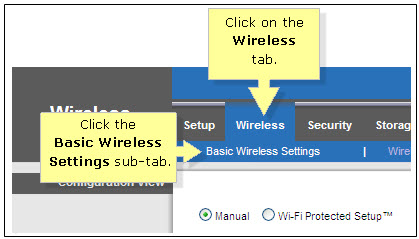
ii. On the Configuration View section, click the Manual radio button. Choosing the Manual setup will allow you to adjust your wireless channel according to your preference.

iii. Leave the Channel Width set to 20MHz Only.

iv. Click the drop-down arrow for Channel, then select your desired channel.
Choose between 1 until 11 (Suggested 1,6,11).
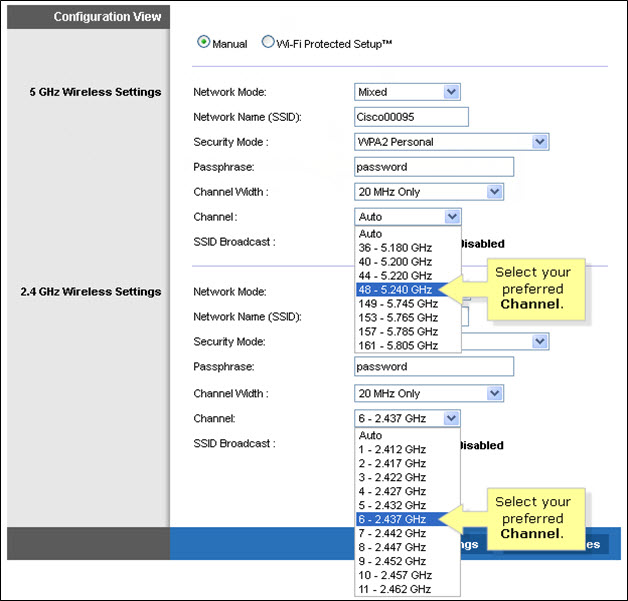
v. Click Save Settings to apply your changes. Router will auto reboot and connection re-establish after few minutes.
For more info on the product including offers and setup, visit product.astro.com.my/multiroom
Regular (DTH) customers can watch Astro without an Internet connection. If you have selected Plug & Play setup option, a minimum speed of 10Mbps/device is required to enjoy a good HD viewing experience on Ultra/Ulti¯Box and 30Mbps/device for 4K UHD viewing on Ultra Box. However, if you have selected the Regular (DTH) option, the internet speeds above are recommended to enjoy a good viewing experience for On Demand and Astro Cloud services.
No, there are no penalty fees for the Mesh WiFi devices should you wish to terminate Astro Fibre within/after 24 months.
Yes, you can sign up for auto-debit after your account has been activated via My Astro.
Alternatively, you may also call our Customer Contact Centre at 03-9543 3838 for assistance or to enquire about any current Auto Debit promotions.
Please check your internet speed and connection status. If your internet is working without any issues, please logout & login into the app again.
If you are still having issues, proceed to submit report via WhatsApp or Feedback Form.
i.Initiate the app on your new Smart TV device, key in the unique code on the TV to your mobile
ii.You will see the list of devices on your mobile and choose the old device to be removed
iii.Your new Smart TV device will be added
Yes, customers will be charged 8% Service Tax for packages purchased after 29th February due to the implementation of the 8% Service Tax starting 1st March 2024.
Of course not! It is a value added service introduced for your convenience. You will only be billed for any package take ups or service upgrades, which will be reflected in your next Astro invoice.
Yes, as long as it is compatible with Open Mesh standards and Astro Fibre equipment. However, Astro will not be responsible for managing or configuring the device. For the optimum WiFi experience, please pair your Astro Fibre with Astro's Mesh WiFi.

1. Please connect your computer or laptop to your Astro Fibre router using LAN cable. Your LAN cable must be connected from the yellow port of Astro Fibre router (Any available port).
2.Once connected, open any web browser such as Google Chrome, Internet Explorer, Mozilla Firefox and etc.
3. On the address bar, type http://192.168.100.254 and below page will appear.

Login using your username and password if you have changed the router login setting. Otherwise, your default router login is as per below.
Username: user
Password: user
4. Once you have successfully logged in, the router's web-based setup page will appear.

5. At the top of the page, click Wi-Fi to configure the WiFi parameters.

6. You may change the Wi-Fi Name and the Wi-Fi Password as per your preferences, then click "Apply".

7. Your Wi-Fi Name and password has been changed. Kindly ensure to reconnect your WiFi according your new WiFi name and password.
Yes, Astro is bounded by the PDPA act. All information received will be used in accordance with our Privacy Notice.
Service will resume within 3 hours after payment is made.
Netflix is a streaming entertainment service that offers a wide variety of award-winning TV programmes, films, anime, documentaries and more - on thousands of internet-connected devices. There's always something new to discover, and more TV shows and movies are added every month. The more you watch, the better Netflix gets at recommending TV shows and movies you'll love.
Astro customers with an internet-connected Ultra Box or Ulti Box can access the Netflix app and watch Netflix content via their Astro Box. For more information about Netflix, visit the Netflix website.
Deposit of RM500 (Maxis) and RM300 (Allo) is payable by new subscribers (non-Malaysian). The fee will be reimbursed when service is terminated.
No deposit required for all existing Astro customers and new subscribers (Malaysian).
The recommended home internet speed for a smooth viewing is 10Mbps.
STEP 1
On your remote, press the ... button and the Channel Guide page will be displayed on your screen.

STEP 2
Select the channel you would like to unlock and press "OK".

STEP 3
Select "Unlock Channel" and press "OK".

STEP 4
Enter the PIN to unblock the channel.

STEP 5
You are successfully unlocked the channel when this screen appears.

STEP 1
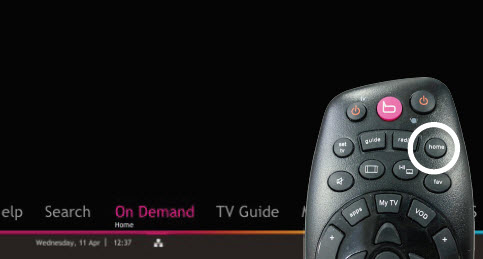
On your remote, press the “HOME” button and the home menu will be displayed at the bottom of your screen.
STEP 2
Navigate to SETTINGS and press “OK”.

STEP 3
Navigate to STB DIAGNOSTICS and press “OK”.

STEP 4
Refer to the signal strength % shown on the top left of your screen.

No, there is no penalty or switching fee if you decide to cancel your Multiroom (Smart TV) subscription.
Yes, until 31 August 2022, customers can subscribe to the Movies Pack for only *RM59.99/month or the Platinum Pack for only *RM99.99/month for 6 months as well as the Premium 1 or Premium 3 Pack for only *RM99.99/month for 6 months until 30 October 2022 and be entitled to access Disney+ Hotstar as part of their Astro subscription. To find out more about our latest promotions, please visit promotions.astro.com.my.
You have exceeded the maximum number of registered devices allowed. To manage devices on Astro GO, go to Settings > Registered Devices to view / remove devices from the list of registered devices to your account.
If you are still having issues, proceed to submit report via WhatsApp or Feedback Form.
To check your contract, please visit My Astro.
STEP 1
On your remote, press the Home button and the home menu will be displayed on top of your screen.

STEP 2
Navigate to Guide.

STEP 3
Select the channel you would like to lock and press "OK".

STEP 4
Select "Lock Channel" and press "OK".

STEP 5
You channel is successfully locked when this screen appears.

STEP 6
Your selected channel will have a lock tagging after being locked.

STEP 1
Press any button on your Astro remote.
INDICATOR: LED blinking 3 times / NO LED blink
SOLUTION: Replace new battery

STEP 2
Check if you can change channel using your Astro remote control.
If issue remain after the battery replacement, try changing the channel manually directly from box front panel (If any).
If it's working, you might need to replace your Astro remote.
This might be due to a faulty Astro remote.
You may purchase it directly from Astro Exclusive Partners.

If confirm no issue with remote control, please refer to Decoder Hang at Channel troubleshooting steps here.
To allow customers to decide on their WiFi connection arrangement based on their preference upon being advised by the installer on-site.
User to manually connect their devices to different WiFi bands based on their usage and preference.
Yes, you can upgrade your internet speed. However, speed downgrade is not allowed.
Please ensure that you have subscribed to the mentioned channel.
If you're subscribed to this channel, follow below steps.
STEP 1
You need to refresh the signal on your box.
Refer to Refresh signal of your box guide.
STEP 2
If issue persist after 30 minutes, proceed to submit report via WhatsApp or Feedback Form.
I am sorry you can't. While we understand the value customers see in choosing their preferred service/pack individually, the packaging of channels/services in the new packs are necessary for us to offer content/services at an affordable price to our customers.
Returning your Astro box & Smart card/SIM card is a very simple process.
For existing Ultra Box or Ulti Box user, call 03-9543 3838 to schedule our courier partner to come pick up the box or drop them off at the closest Astro Service Centre or Exclusive Partner near you. Click here to find a Customer Service Centre (CSC) or Astro Exclusive Partner (AEP) near you.
For any unreturned Ultra Box or Ulti Box, a box fee of RM100 may be charged to your account.
For all other boxes, please recycle your box at a registered collection center that will properly manage the boxes in an environmentally friendly way. Click here to find a registered collection center near you.
When Band Steering is enabled, only one SSID network name with one password is available. Example:
i.SSID: SSID, Password: 12345678
For self-installation, in your first bill upon activation of your Plug& Play Box, the activation fee will be included as a separate line item in your bill alongside the subscription fee.
If you choose to install the Plug & Play Box via installer, you can pay the installation fee and activation fee directly to the installer upon installation. This will be reflected in your next bill itemised as setup fee.
Currently, My Astro app and web supports TV pack upgrade. You can go to "Account' and scroll to "Subscription' section and select "TV pack'. You may reach out to us via WhatsApp at 03-9543 3838 for more details.
For Ultra and/or Ulti box users, launch the My Astro app on your Home screen and you will land on the My Astro account dashboard. Press ">' remote button to go to your Subscription card and "OK' button to proceed with the TV pack upgrade.
Yes, the monthly subscription fee will be prorated into your Astro bill.
No, there will be no additional charges to access Liga Malaysia.
For customers who wish to have their physical tax invoices reprinted, there will be a flat fee of RM10.00 levied as part of the process which has been implemented since year 2015.
No, you are still able to subscribe to iQIYI on your current Astro pack.
Tap on the "Account' tab on the navigation bar and scroll to "Billing' section. Tap on "Bill Statement' to view any bill statement up to six (6) months.

Photograph or scan your payment receipt, and send it to one of our contact platforms found here.
Advance payment can be made via credit/debit card or online banking.
Non-standard Broadband installation covers the scenario where additional cables and drilling is required to complete your Astro & Broadband installation or by installing the cable in the walls/ceilings. There are additional fees applied for the additional requirements as follows:

Your Astro account number is a 10-digit combination
E.g: 08XXXXXXXX
For Platinum Pack and Multiroom Smart TV customers, Astro GO+ is included in your subscription at no extra charge. For customers on other packages, you will be able to add-on Astro GO+ to your subscription for RM 5.99/month.
No. Astro GO is a FREE entitlement exclusively for customers with an Astro subscription. If you do not have an Astro subscription account, please visit astro.com.my to find out more.
STEP 1
On your remote, press the Home button and the home menu will be displayed on your screen.
STEP 2
Navigate to Profile.
STEP 3
The Profile Selection Screen will be displayed.
STEP 4
Navigate to Add Profile.
STEP 5
Choose your Profile.
STEP 6
Input the Profile Name and navigate to DONE.
STEP 7
Choose the Age Group of the new profile and press "OK".
STEP 8
Your new profile will be shown in the Profile Selection Screen.
No, Astro & Broadband with Maxis/Allo comes in bundle packages only.
Standalone broadband subscription is only applicable to our Astro Fibre service.

1. Please use a LAN ethernet cable and connect your computer/laptop to the back of the Maxis Router.
2. You may open any web browser such as Google Chrome, Internet Explorer, Mozilla Firefox, etc.
3. On the address bar, please go to http://192.168.1.254 and the page below will appear.

The default login of the router as below. If you have done a configuration on your router and changed your password previously, please use the password you have previously set.
Username: administrator
Password: Router S/N (Available on the sticker at the back of the router)
4. Once you have successfully login, the router's web-based setup page will appear.

5. At the top of the page, click Wi-Fi Configuration to configure the Wi-Fi parameters.

6. You may change the Wi-Fi Name and the Password to follow your preferences, then click "Save" for the changes to take place.

Please reconnect to the new wireless name with the new password once completed.
We would need you to run few tests in order for us to understand your issue and to assist you in fixing the problem.
You may proceed with the troubleshooting steps below which should not require any longer than 15 minutes.
Quick Info
A Speedtest is a service that provides free analysis of Internet access parameters, such as connection data rate.
A Ping Test shows how long it takes for packets to reach host.
A Traceroute Test traces the route of packets to destination host from our server.
You can proceed with below BTS if the weather is good. Otherwise, you may try again later.
STEP 1
On your remote, press the HOME button and the home menu will be displayed on top of your screen.

STEP 2
Navigate to SETTINGS.

STEP 3
Navigate to Satellite Settings and press “OK”.

STEP 4
Navigate to Diagnostics and press “OK”.

STEP 5
Refer to the signal strength on your screen.
If it is 65 or higher, please take the screenshot and submit your feedback form.
If it is below 65, please go to Step 6.

STEP 6
Switch off the power for your box and make sure that the adapter’s power light is off.

STEP 7
Unscrew the satellite cable from the box and pull it out.

STEP 8
Plug the satellite cable back into the box and screw it back securely.

STEP 9
Switch on the power for your box and make sure that the adapter’s power light is on. Please wait for 5 minutes.

STEP 10
Turn on your box. You should no longer be experiencing this issue.
If issue persist, please submit the issue on our Feedback Form with error details and attach a picture of your General tab of the STB Diagnostics for assistance.
Centralized Dish
If issue persist under a centralized satellite dish, please refer to your respective Building Management before contacting our agents.
STEP 1
Check the internet connectivity by run the Test Connection.
Refer Run Test Connection.
STEP 2
Verify the Test Connection results.
a. All connected successfully - Proceed to STEP 3
b. All connection failed - Proceed to STEP 4
c. Router connection successfully, others failed - Proceed to STEP 7
STEP 3
Please ensure your box with the latest software update from "General Diagnostics".
Refer to Check Software Version Status.
If your box status is other than "Your box has the latest update (a)", please proceed to update the software.
Refer Software Update guide.
STEP 4
Check the connection to the box either using Ethernet (LAN cable) or Wi-Fi.
a. If using Ethernet (LAN cable) - Connect to Live Agent for help.
b. If using Wi-Fi - Proceed to STEP 5
STEP 5
Check location of the decoder and router.
a. If nearby (within 1.5m) - Try connect to box from router using LAN cable.
b. If far (more than 1.5m) / No LAN cable - Proceed STEP 6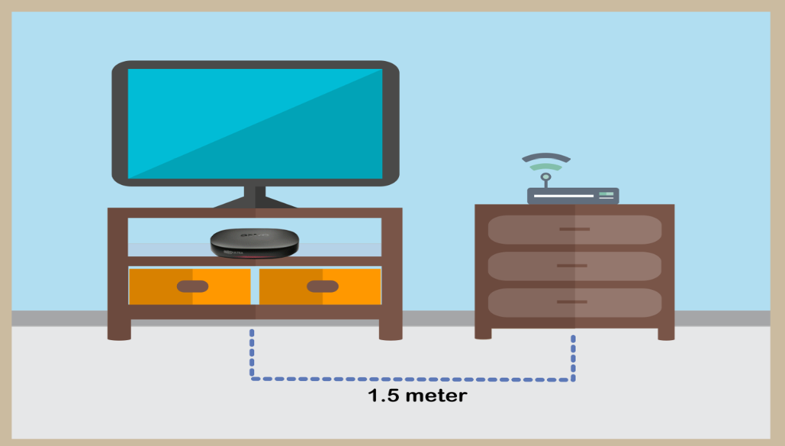
STEP 6
Reboot router, modem and decoder.
If issue persist, please try again after 30mins to 1 hour. Connect to live agent if persist after 30 mins to 1 hour.
STEP 7
Suspect there is an issue with your internet connection.
Please check with your internet service provider or if under Astro Fibre / Astro Broadband, connect to Live Agent for help.

