
A free satellite TV service from Astro. Watch lifetime entertainment, news, learning & information and more.
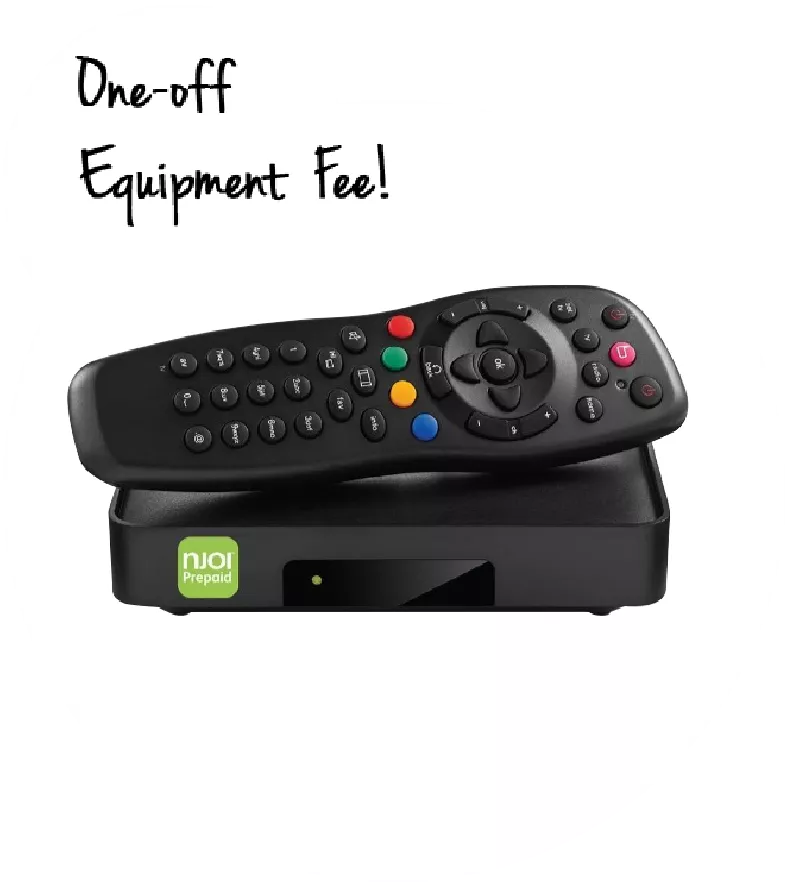
Pictures for illustration only.
Enjoy free access to 15+ TV channels & 10+ radio channels.
* Subject to Astro terms & conditions.


Step-1 |
Step-2 |
Step-3 |
Choose a plan & sign-up online. |
Sit back & wait for installation. |
Enjoy your new Astro / Broadband! |
A free satellite TV service from Astro. Watch lifetime entertainment, news, learning & information and more.
Pictures for illustration only.
New decoder only without satellite dish & cabling. You must have Astro/Njoi satellite dish and cable installed and working properly.
Including installation.
New decoder complete with satellite dish & cabling.
Including installation.
Applying for
| Njoi Astro UniFi Maxis |
Find your answers here.
We provide one stop service to apply Astro and Broadband for you.
You can avoid driving and queuing at the sales counter. We are the dealer that can help you to handle your application from the beginning to the end.
We do not charge you when you apply from us. There is no credit card information required to apply here. Charges are the same as you apply from the sales counter.
First, you can apply online, we will get back to you immediately during business hour. WhatsApp/Email/Fax us your Photocopy of IC (for malaysian) / Passport (for foreigners). When we receive all the information, we will proceed with your application immediately.
Once we receive your application with complete information, we will process your application immediately during business hour. The contractor from the service provider will then contact you for installation appointment once your application is approved.
Enjoy greater savings and hassle-free bill payment in one single bill for both Astro and Broadband. You get to enjoy Astro and Broadband at discounted price every month over the contract period of 24 months.
Astro offers multiple TV packs including Entertainment, Sports, Movies and Kids options. You can choose a pack that matches your viewing preferences and add optional streaming apps where available.
Yes, you may subscribe to Astro TV packs without bundling broadband. However, bundling Astro TV with Fibre Broadband may provide better monthly savings and convenience with a single bill.
For small households with light streaming and browsing, 100Mbps is usually sufficient. Larger families, gamers or heavy streamers may benefit from 500Mbps or 1Gbps plans for smoother performance across multiple devices.
Most Astro TV and Fibre broadband plans come with a 24-month contract. Early termination charges may apply if cancellation is made before the contract ends.
Yes, you may upgrade your TV pack or broadband speed at any time, subject to eligibility and coverage. A new contract period may apply depending on the upgrade.
Your monthly bill will be issued directly by Astro. You may receive it via email or access it through your Astro account. Bundled customers will receive a single combined bill for TV and broadband services.
Payment methods may include online banking, auto debit, credit card or other approved payment channels provided by Astro. Our team can guide you during the registration process.
If you experience any service interruption, you may contact Astro customer support for technical assistance. In many cases, issues can be resolved remotely or a technician will be arranged if necessary.
Yes, relocation is subject to service availability at your new address. Relocation charges and contract adjustments may apply depending on your plan.
No, you do not need a credit card to submit your application. Payment setup will be arranged directly with Astro after your service is approved.
Selected Astro TV packs allow optional add-ons such as streaming services depending on current promotions and availability. Additional monthly charges may apply.
Yes, a WiFi router is typically provided during fibre installation. The router model may vary depending on the selected broadband speed plan.
Yes, we will check the service coverage at your address before proceeding with your application to ensure broadband is available at your location.
For Malaysians, please provide a copy of your MyKad. For foreigners, provide a copy of your passport when submitting your broadband application.
After your application is approved, the service provider typically contacts you within 2 to 7 working days to arrange the broadband installation appointment.
Most Astro Broadband plans come with a 24-month contract starting from your installation date. If you relocate, a new 24-month contract may apply at your new address.
Yes, you can relocate your broadband service, subject to service availability at the new address. Your contract may reset for another 24 months from the new installation date.
Yes, you may request to relocate broadband devices within your home. Non-standard installation charges may apply and are payable to the installer directly after assessment.
Yes, you can switch to Astro Broadband. To avoid service interruption, it is recommended to activate the new service before terminating your current broadband contract.
Standard installations may be free during promotions, but non-standard installations (e.g., device relocation or complex wiring) may incur extra charges payable directly to the installer.
If you’re facing issues updating your mobile number via My Astro, here’s how you can update your mobile number through your Set Top Box (STB).
Method A:
Method B:
If you’re still unable to update your mobile number, kindly reach out to us via our Feedback Form and a representative from our team will get in touch to assist you soon.
Step 1: At Astro Home, go to the app rail and select "beIN SPORTS CONNECT"
Step 2: Go to the Profile icon at the top of your screen and click "OK"
Step 3: A QR code will be presented on your screen. Use the in-app QR code scanner on your mobile device to scan the QR code
Step 4: Your TV screen will refresh automatically and you will be able to enjoy the beIN SPORTS CONNECT app on your TV!
- Credit or Debit Cards
- Visa
- Mastercard
- Maybank2U - Pay using your Maybank2U account
- FPX - Pay using any local bank account via FPX
- E-Wallet - Touch "n Go
To set up a Mesh WiFi network around your house, the Mesh unit will need to be paired with the WiFi router. Steps to pair these two devices are as follows:
i. Place the Mesh unit close to the WiFi router (within 2 meters) and power it on
ii. After the Mesh unit starts up, press and hold the WPS buttons of the Mesh unit and the WiFi router for 3 - 5 seconds in turn within 2 minutes
iii. After the WLAN and Internet indicators of the Mesh turns steady blue, the Mesh is connected to the Internet
iv. Move the Mesh to the desired place where you need to expand WiFi and power it on. After the Internet indicator turns steady blue, WiFi is expanded successfully.
You will be able to check your balance, switch to e-billing, request for payment barcode and request for reconnect at standard telco rate.
If you would like for more information, kindly visit our Multiroom page via Astro website https://www.astro.com.my/multiroom
To view the terms and conditions, click here.
1. Clearly indicate full name of Astro customer, contact number and Astro subscription account number when making each payment (e.g. on bank-in slips)
2. For Direct Debit, please contact your bank for standing instructions. Provide the full name of Astro customer and Astro account number. The Direct Debit service may not be available with all banks. Please check with your bank for confirmation of Direct Debit service.
3. Please inform us of any changes in billing address/information by contacting us via one of these platforms.
IMPORTANT NOTICE: To avoid any problems in payment processing, please pay only at authorised Astro payment channels
Each account can only have one Astro X3 pack subscription at a time, whether it is the Astro X3: Entertainment 12 Pack or the Astro X3: Sports 12 Pack. Multiple subscriptions under the same account are not supported. If you wish to subscribe to another plan, you can do so by creating a separate account using a different email address. Each subscription will be managed independently.
You can access your ZEE5 Premium account on up to five (5) devices at a time, including your Ultra/Ulti Box. To ensure a smoother streaming experience, please sign out from any unused devices.
Yes, your primary box must be on Ultra/Ulti Box to get 2 months of access to Prime Video at no additional charge.
Worry not, if your primary box is the older box, contact us via WhatsApp by typing “Hi” at 03-9543 3838 to upgrade the box to Ultra/Ulti box within 24 April 2025 – 23 June 2025 to get the access.
Download the iQIYI app > Select "Profile" > Click on "Log in with Astro ID" > Click on "Do not have an Astro ID? Click here".
STEP 1
Try to change channels on your Astro remote. Check the LED light.
If the LED is blinking 3 times or if it is not blinking, replace the batteries and proceed to STEP 2.
Otherwise, if the LED is blinking 1 time, your remote is working fine, let's proceed to STEP 3.
STEP 2
Check if you can change channels using your Astro remote control. You should no longer be experiencing this problem if is a battery issue.
If issue remain after batteries replacement, proceed to STEP 3.
STEP 3
You need to refresh the box setting manually from the box front panel.
Refer to Refresh Box setting (Clear NVRAM) - Ultra / Ulti Box.
If issue persist, please submit the issue on our Feedback Form.
Yes, you can log in using the same email address or mobile number associated with your existing Disney+ subscription.
Please use your Astro ID to log in to the Astro Fibre App. If you do not have an Astro ID, kindly follow the simple steps here to create one.
Starting from 24 January 2025, Astro One Pack customers can add on Netflix ala-carte (comes with 24 months contract) plan to their subscription. This plan allows customers to choose from three Netflix subscription plans Basic, Standard, and Premium with a 24-month contract. This plan is offered at a discounted rate compared to the regular monthly Netflix add on, providing a cost-effective way to enjoy Netflix content.
Customers who have activated the trial will be notified before it expires. They can choose to continue by subscribing at a price that will be disclosed later. If they are not interested, the trial will automatically expire after 2 months with no action required from them. Your Prime Video access will auto-expire, and you won’t be charged. However, please visit
https://product.astro.com.my/apps/primevideo
to stay updated on Prime Video.
This error indicates that you are streaming on Astro GO while being connected to Static or Fixed IP. Alternatively, you can try accessing Astro GO via Hotpot.
If you still facing the same issue, proceed to submit report via WhatsApp or Feedback Form.
Yes, you can download ZEE5’s content on your device for offline viewing if you have subscribed to ZEE5 Premium. This feature is not available if you are not a Premium member. However, kindly note that some content is subjected to copyright which disables the download function on those selected videos.
For first‑time access, logging in or signing up for Netflix before the service is fully activated may result in double charging if Netflix is activated separately using your credit card.
If you’re having trouble watching Netflix, please check the following:
Note: If the issue persists, please contact us for further assistance.
You may also access Netflix directly via the Netflix app on your TV, if available.
Yes. All TVBAnywhere+ add-on plans; VOD Zone, Channel Zone, and Premium allow streaming on up to 2 devices concurrently. This means you can enjoy your favorite content on two devices at the same time.
No, the courier charges are borne by Astro for the retrieval of the box and Smart Card/SIM Card.
There will be two attempts made to retrieve the box and you are required to be available at the agreed upon time.
You may cancel your iQIYI subscription in the app by following these steps:
Step 1: Go to Home Page
Step 2: Click on "VIP subscription"
Step 3: Click on "Manage VIP subscription" (Gear icon)
Step 4: Click on "Cancel VIP subscription"
If you are currently on the Disney+ Basic plan, your plan will automatically be renamed to Disney+ Standard. You will also be able to stream on up to 2 devices concurrently instead of 1 previously and enjoy unlimited device registrations with no change to your monthly fee.
If you are currently on the Disney+ Premium plan, you will be able to stream on up to 4 devices concurrently instead of 3 previously and enjoy unlimited device registrations with no change to your monthly fee.
For further information and support relating to the Disney+ app experience or app-related features, please visit the Disney+ Help Centre.
No, Astro will cover all expenses related to returning the box.
Any purchases via the Astro Smart TV app such as Pay-Per View and Astro First are subjected to 8% govt. tax.
A stable internet connection is required to ensure your transactions are smooth using SecureGo.
Please refer below to set up your Ultra/Ulti Plug & Play Box.
To connect via LAN cable:
Note: If you have a two-in-one modem & router, you can skip Step ii).
To connect via Wi-Fi:
Remove your LAN cable from your old Astro box, and do not plug it into your new Plug & Play Box.
Starting 29th April 2025 onwards, the Sun NXT app will be available on the Ultra/Ulti Box for all Astro customers to enjoy on the big screen, web app or/and mobile app.
Upon completion of the termination process, customer will receive one last closing bill stating the total amount due to Astro according to their billing option.
For customers who had opted to switch their billing option to e-bill or SMS bill, they will receive their final bill accordingly.
For customers who opted for paper bill, they will receive the final bill via paper bill. (The Paper Bill Charge will be applied).
Yes, watching on the Astro Smart TV app will utilise one (1) of your Astro Go concurrency.
To reconnect your Astro account, please check your Account status, Bill Summary and pay on Astro Quick Pay. Your disconnected services will resume within 1 hour after you have paid your "Total Overdue Charges"
Advance payment is only applicable to Astro TV pack purchases. If you subscribe to an Astro Fibre+TV bundle, only one month of your TV subscription fee (excluding tax) is required to be paid upon sign-up. The full tax amount and the first-month subscription fee for Astro Fibre will be paid on your first month's bill.
Zee5 is the only app that has a change in price upon the SST increase. Prices of Netflix, Disney+ , Viu, iQIYI, WeTV and Qalbox will not be affected.
Yes, the Favourite channels will follow the latest channel list. Therefore, you will need to reset your Favourite channels.
To redeem rewards as an Astro customer, you can do it through the My Astro app. Here's how:
1. Download the My Astro app
2. Login using your Astro ID
3. Go to Rewards
4. Browse through the rewards and click redeem. Follow the instructions on the screen on how to redeem the reward
🎁 Want to claim rewards exclusive for Astro customers?
📱 Download the My Astro app to:
- Claim free movie or concert tickets
- Meet your favourite celebrity
- Join giveaway contests
For Platinum Pack and Multiroom Smart TV customers, Astro GO+ will be automatically added to your subscription.
If you cancel your Astro X3 subscription mid-month while still under contract, the termination will take effect at the end of your current billing cycle. Your service will remain active until then, and no partial or prorated refund will be provided. And early termination fee charges may still apply.
However, refunds may be applicable if there is an excess credit balance in your account, such as an overpayment or duplicate payment. Any eligible refund will be processed in accordance with Astro's refund policy.
Unfortunately, the the drop off option is only available for non-DBB customer. For DBB customer we will arrange for our appointed agent to collect your equipment. You will receive a phone call from our representative within 3 business days from your termination date to schedule the collection.
If you receive this error message while activating Astro Smart TV, please follow the steps below:
1. Ensure that you have entered the sign-in code exactly as displayed on your TV screen.
2. Check the code carefully before submitting.
3. If the issue persists
If you are still having issues, proceed to submit report via WhatsApp or Feedback Form.
This will help our support team investigate and assist you further.